
In the ecosystem of macOS, security is not merely a feature but a foundational pillar. Central to this security infrastructure is a utility that often operates silently in the background until it requires user intervention: the Keychain. For many users, the prompt asking for a “Keychain password” can be a source of confusion, especially when it appears to reject the standard login password or pops up repeatedly after a system update. Understanding what the keychain password is, how it functions, and how to manage it is essential for maintaining both the security of your data and the fluidity of your digital workflow.

Understanding the Architecture of macOS Keychain Access
At its core, Keychain Access is a password management system integrated into macOS. It acts as a secure container or “vault” where the operating system stores sensitive information such as website passwords, Wi-Fi network credentials, private keys, digital certificates, and even encrypted notes. Instead of forcing the user to remember hundreds of individual credentials, macOS stores them in these encrypted databases.
What Exactly Is a Keychain?
A “keychain” is a physical-metaphor-turned-digital-file that holds your keys (passwords). On a standard Mac, there are several keychains functioning simultaneously. The “System” keychain holds items available to all users on the machine, such as system-wide Wi-Fi settings or VPN configurations. The “Local Items” (or “Cloud”) keychain is used for syncing via iCloud. However, the most important one for the average user is the “Login” keychain.
The login keychain is created automatically the moment you set up your Mac user account. Its primary purpose is to hold the secrets specific to your user profile. When you log into your Mac, the system uses your login password to “unlock” this keychain, making your saved passwords available to Safari, Mail, and other authorized applications without requiring you to type them in again.
The Role of the “Login” Keychain
The login keychain is the default repository for most user-level data. When you save a password in Safari or add a new email account to the Mail app, that data is written into the login keychain. Because this file is encrypted using your account password, your data remains protected even if someone gains physical access to your Mac’s hard drive—provided they do not have your password. The seamlessness of the Mac experience depends heavily on this “auto-unlock” feature, which bridges the gap between system security and user convenience.
Defining the Keychain Password
The question “What is the keychain password?” typically has a simple answer: it is the password you use to log into your Mac user account. By design, macOS synchronizes your login password with your keychain password. This synchronization ensures that when you enter your password at the lock screen, the system simultaneously provides the decryption key to the Keychain Access utility.
Why the Keychain Password Matches Your Login Password
From a user experience perspective, having two different passwords—one to get into the computer and another to access saved data—would be cumbersome. Apple’s security model assumes that if you have successfully authenticated your identity to log into the machine, you are the authorized owner of the secrets stored within that account. Therefore, the “master key” for your keychain is, by default, your user account password.
However, this link can be broken. If you change your user password through a method that does not involve the standard “Users & Groups” preference pane—such as an administrative override or a password reset via Terminal—the keychain password will not automatically update. In these instances, the Mac will prompt you for the “Keychain password” because it is still expecting the old password to unlock the encrypted database, even though your new password got you into the desktop.
Keychain vs. iCloud Keychain
It is important to distinguish between the local Keychain and the iCloud Keychain. While the local keychain password is tied to your Mac user account, the iCloud Keychain is protected by your Apple ID password and, crucially, your device passcode or Mac password as part of end-to-end encryption.
iCloud Keychain allows your credentials to sync across your iPhone, iPad, and other Macs. While they serve the same fundamental purpose—storing passwords—the local keychain handles machine-specific secrets (like local network permissions), whereas iCloud Keychain handles cross-platform data (like website logins and credit card info).
Managing and Troubleshooting Keychain Passwords
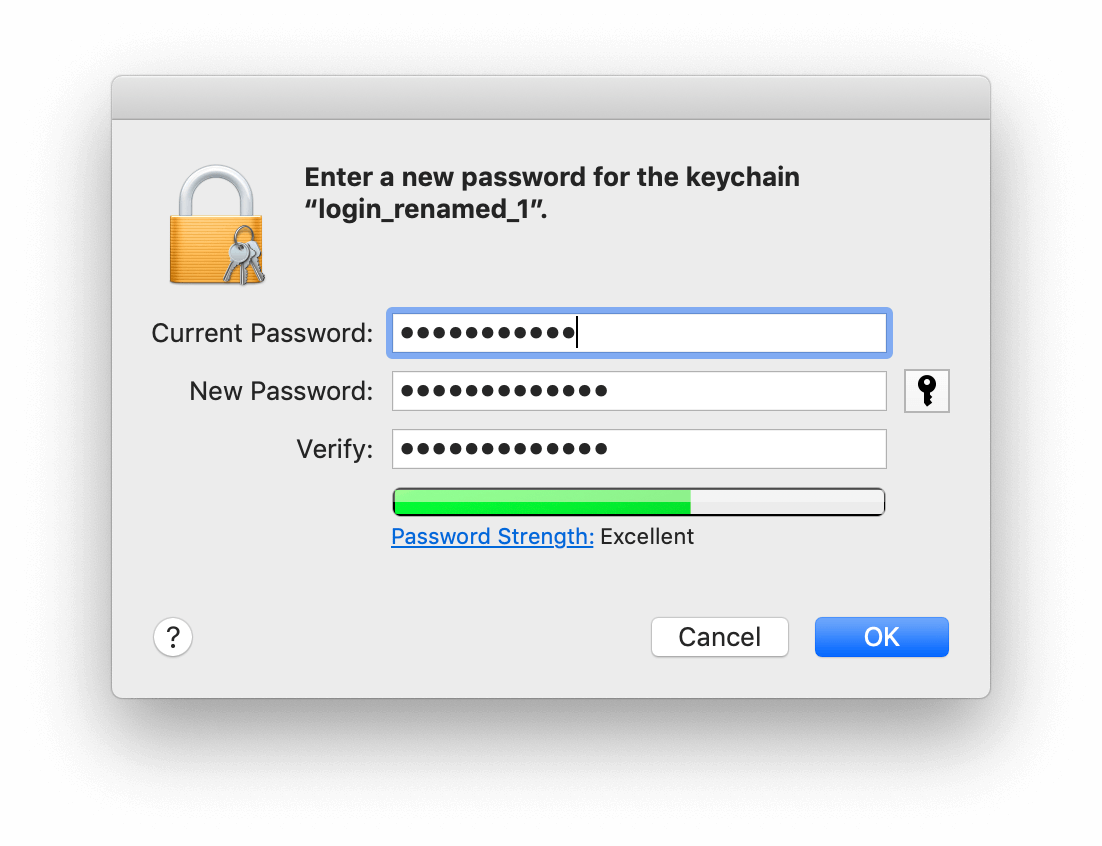
Despite the sophisticated design of macOS, users frequently encounter “Keychain login” prompts. These usually occur when there is a mismatch between the current user password and the password protecting the keychain database.
What Happens When You Change Your Login Password?
Under normal circumstances, when you change your password via System Settings (or System Preferences on older macOS versions), macOS updates both your account and your keychain. However, if an administrator resets your password for you, or if you reset it using a recovery key or Apple ID, the keychain remains locked behind the original password.
In this scenario, you will see a persistent pop-up asking for the “login” keychain password. To fix this, you have two options:
- Sync the Passwords: Enter your old password in the keychain prompt. This allows macOS to unlock the database and re-encrypt it using your new password.
- Create a New Keychain: If you have forgotten your old password entirely, you cannot recover the data in that specific keychain. You must “Create New Keychain,” which effectively wipes your saved local passwords and starts a fresh, empty database that matches your current login password.
Resolving the “Local Items” or “Account” Keychain Prompts
Sometimes, a Mac will repeatedly ask for the password for the “Local Items” or “Account” keychain. This is often a glitch related to the transition of local data to iCloud syncing. A common technical fix involves navigating to the ~/Library/Keychains folder and removing the folder with the long alphanumeric name (the UUID folder). Upon a restart, macOS regenerates this folder and re-establishes the connection with the Secure Enclave, usually resolving the repetitive prompts.
Recovering a Lost Keychain Password
There is no “Forgot Password” link for a local keychain. Because the keychain is encrypted with a specific key derived from your password, there is no backdoor. If you do not know the password that was used to lock a specific keychain, the data inside remains inaccessible. This is a deliberate security feature designed to prevent unauthorized access to your digital life. Your best recourse is to rely on iCloud Keychain (if enabled) to restore website passwords, while local system passwords will need to be re-entered manually as you use the computer.
Advanced Features and Security Best Practices
Keychain Access is not just a background process; it is a powerful tool for power users and IT professionals. By opening the Keychain Access app (located in /Applications/Utilities), you can manage the granular details of your digital security.
Using Keychain Access for Secure Notes and Certificates
Beyond passwords, Keychain Access allows you to create “Secure Notes.” These are encrypted text files that stay within the keychain, perfect for storing software license keys, alarm codes, or sensitive personal information that shouldn’t be in a standard note-taking app. Furthermore, the keychain manages digital certificates used for secure email (S/MIME) and web server authentication. For tech professionals, managing these certificates is essential for verifying identities and encrypting communications.
Transitioning to Passkeys and the Future of Apple Security
In recent years, Apple has begun moving beyond traditional passwords toward “Passkeys.” Based on the FIDO standard, Passkeys use the Keychain to store cryptographic key pairs rather than alphanumeric strings. When you log into a website using a Passkey, the Keychain identifies the site and uses Touch ID or Face ID to sign you in. This technology makes the “Keychain password” even more vital, as it becomes the root of trust for a passwordless future.
Digital Hygiene: Keeping Your Mac’s Credentials Safe
Maintaining a healthy keychain environment is a key part of digital hygiene. Users should periodically audit their Keychain Access to remove old, duplicate, or obsolete credentials. This reduces the “attack surface” and ensures that the system isn’t bogged down by years of legacy data.
Moreover, it is highly recommended to enable two-factor authentication (2FA) on your Apple ID. Since iCloud Keychain syncs your most sensitive data, the security of your Apple ID is the ultimate failsafe. If your local keychain password is ever compromised, having 2FA ensures that a malicious actor cannot easily extend that compromise to your other devices or your cloud-stored data.
Ultimately, the keychain password is the gatekeeper of your Mac’s internal vault. By keeping your macOS updated and ensuring your user password is strong and unique, you leverage one of the most robust consumer-grade security systems in existence today. Whether it is facilitating a quick login to a favorite site or protecting your private encryption keys, the keychain remains the silent guardian of the macOS experience.
aViewFromTheCave is a participant in the Amazon Services LLC Associates Program, an affiliate advertising program designed to provide a means for sites to earn advertising fees by advertising and linking to Amazon.com. Amazon, the Amazon logo, AmazonSupply, and the AmazonSupply logo are trademarks of Amazon.com, Inc. or its affiliates. As an Amazon Associate we earn affiliate commissions from qualifying purchases.