
In the vast and powerful ecosystem of Linux, navigating the file system is a fundamental skill. At the heart of this navigation lies a command that every Linux user, from novice to seasoned administrator, encounters and relies upon daily: ls. Short for “list,” the ls command is the primary utility for displaying the contents of directories. It’s the equivalent of opening a folder in a graphical user interface and seeing all the files and subfolders within it, but with significantly more control, flexibility, and information at your fingertips. Understanding ls is not just about memorizing a command; it’s about gaining insight into how Linux organizes data and how you can interact with it efficiently.

The Foundation of File Navigation: Understanding ls
The ls command is part of the GNU Core Utilities, a collection of essential tools for any Unix-like operating system. Its primary function is elegantly simple: to list the files and subdirectories contained within a specified directory. When executed without any arguments, ls displays the contents of the current working directory. This seemingly basic functionality is the gateway to understanding your system’s layout, locating files, and preparing for subsequent operations like moving, copying, or deleting data.
The sheer ubiquity of ls stems from its necessity. Whether you’re a developer checking source code files, a system administrator verifying log entries, or a casual user organizing documents, ls provides the immediate feedback needed to proceed. Without it, interacting with the Linux command line would be akin to navigating a dark room without a flashlight – you’d know objects are there, but you’d have no way to discern their identity or arrangement. Its simplicity hides a surprising depth, offering numerous options that allow users to tailor output for specific analytical needs, making it an indispensable tool for diagnostics and information gathering.
Basic ls Commands and Their Immediate Impact
Getting started with ls is straightforward, but its immediate impact on your understanding of the file system is profound.
Listing Current Directory Contents
The most basic invocation of the command is simply:
ls
When you type ls and press Enter, the terminal will display a list of all non-hidden files and directories present in your current working directory. The output typically appears in a columnar format, sorted alphabetically, making it easy to quickly scan through the contents.
Listing a Specific Directory
To inspect the contents of a directory other than your current one, you can provide its path as an argument:
ls /home/user/documents
This command would list the contents of the documents directory located within /home/user, regardless of your current location in the file system.
The “Long Listing” Format: ls -l
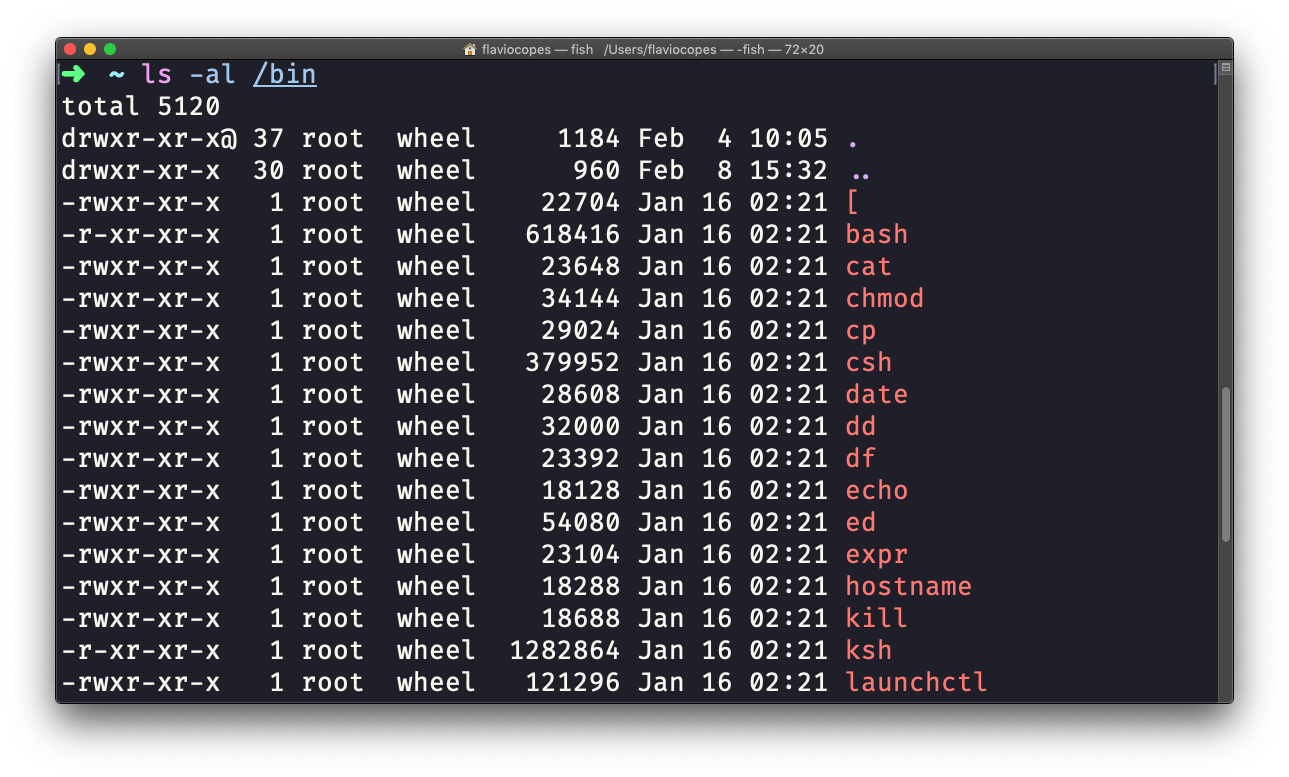
One of the most frequently used and powerful options for ls is -l, which stands for “long listing format.” This option provides a detailed view of each file and directory, offering crucial metadata that is invaluable for system management and troubleshooting.
Executing ls -l will produce output similar to this:
-rw-r--r-- 1 user group 1024 May 15 10:30 myfile.txt
drwxr-xr-x 2 user group 4096 Apr 20 09:00 mydirectory/
Let’s break down the information presented in each column:
- Permissions (e.g.,
-rw-r--r--): The first character indicates the file type (e.g.,-for a regular file,dfor a directory,lfor a symbolic link). The subsequent nine characters represent read, write, and execute permissions for the owner, group, and others, respectively. - Number of Links (e.g.,
1): This number indicates the number of hard links to the file. For directories, it represents the number of subdirectories plus the.(current directory) and..(parent directory) entries. - Owner (e.g.,
user): The username of the file’s owner. - Group (e.g.,
group): The group that owns the file. - Size (e.g.,
1024): The size of the file in bytes. For directories, this often reflects the size of the directory entry itself, not the total size of its contents. - Modification Date and Time (e.g.,
May 15 10:30): The last time the file was modified. - File/Directory Name (e.g.,
myfile.txt,mydirectory/): The name of the file or directory.
The ls -l command transforms a simple list into a powerful diagnostic tool, allowing you to quickly ascertain who owns a file, its permissions, and when it was last changed – vital information for security, debugging, and system maintenance.
Mastering Directory Listings with Advanced ls Options
While ls and ls -l are core, the command’s true versatility emerges when combining it with other options. These flags allow for highly specific filtering, sorting, and display formats.
Revealing Hidden Files: ls -a
In Linux, files and directories that start with a dot (.) are considered “hidden.” These often include configuration files or special directory entries like . (current directory) and .. (parent directory). To view these hidden items, use the -a (all) option:
ls -a
This is particularly useful when troubleshooting application configurations or managing dotfiles in your home directory.
Human-Readable Sizes: ls -h
When used in conjunction with -l, the -h (human-readable) option converts file sizes into more digestible units (KB, MB, GB).
ls -lh
Instead of 1024 bytes, you might see 1.0K, which is much easier to interpret at a glance, especially for large directories.
Sorting Options: ls -t, ls -S, ls -r
ls offers several sorting options to organize output:
ls -t(time sort): Sorts files by modification time, displaying the newest files first. This is incredibly useful for finding recently changed files.ls -S(size sort): Sorts files by size, displaying the largest files first. Excellent for identifying disk space hogs.ls -r(reverse sort): Reverses the order of the current sort. For example,ls -ltlists newest first, sols -ltrwould list oldest first. Similarly,ls -lSrwould list smallest files first.
Classifying File Types: ls -F
To quickly discern file types without needing the full ls -l output, the -F (classify) option appends a symbol to each entry:
/for directories*for executable files@for symbolic links|for FIFO (named pipes)
ls -F
This provides a quick visual cue, enhancing readability and immediate comprehension.
Recursive Listing: ls -R
For exploring an entire directory tree, the -R (recursive) option lists the contents of subdirectories as well:
ls -R
This command will traverse into every subdirectory, listing its contents, then its sub-subdirectories, and so on. Be cautious with this on large file systems, as the output can be extensive.
Listing Directories Themselves: ls -d
By default, when you use ls with a directory name, it lists the contents of that directory. If you want to list the directory entry itself (e.g., to see its permissions or size), use -d:
ls -ld mydirectory/
This will show details about mydirectory/ as an item, rather than showing what’s inside it. This is particularly useful when used with wildcards, e.g., ls -ld */ to list all subdirectories in the current path.
Practical Scenarios: ls in Action
The real power of ls comes from combining these options to address specific needs.
-
Finding the latest modified files in your project:
ls -lht --color=autoThis command combines long listing (
-l), human-readable sizes (-h), sorting by time (-t), and adds color for easier identification. -
Identifying large files in a specific directory (e.g.,
/var/logfor large log files):ls -lSh /var/log | headThis lists files in
/var/logby size, largest first, and pipes the output toheadto show only the top 10 largest entries, preventing an overwhelming flood of information. -
Checking hidden configuration files in your home directory:
ls -lah ~/This provides a detailed, human-readable list of all files (including hidden ones) in your home directory.
-
Mapping out a complex project structure:
bash

ls -RF --color=auto project_root/
This recursively lists all files and directories withinproject_root/, classifies them with symbols, and applies color coding.
These examples illustrate how simple combinations of ls options can transform basic directory listings into powerful analytical tools, providing quick answers to common questions about file system state.

Why ls Remains Indispensable in the Modern Linux Ecosystem
Despite the advent of more sophisticated file management tools and graphical interfaces, ls has remained an unwavering pillar of the Linux experience. Its enduring relevance is multi-faceted:
- Universality:
lsis present on virtually every Unix-like system, from embedded devices to supercomputers. This consistency ensures that the knowledge gained is universally applicable. - Efficiency: For command-line users,
lsis often the fastest way to get information about files without the overhead of launching a GUI application. - Scripting Power:
lsoutput can be easily parsed and integrated into shell scripts, automating tasks like backup verification, file cleanup, or dynamic content generation. Its predictable output format makes it ideal for piping into other commands likegrep,awk, orxargs. - Foundation for Learning: Understanding
lsis a stepping stone to mastering other complex command-line utilities. Its concepts of options, arguments, and standard output are fundamental to the Linux philosophy. - Diagnostic Utility: System administrators rely on
lsfor quick diagnostic checks, verifying file permissions after a security incident, or identifying recently modified configuration files. - Lightweight and Robust: The command is lightweight, consumes minimal resources, and is incredibly robust, handling vast numbers of files and complex directory structures without faltering.
In an era where technology trends shift rapidly, the ls command stands as a testament to the power of simple, well-designed tools. It provides an immediate, detailed, and customizable window into the file system, making it not just a command, but an essential language for interacting with Linux. Mastering ls is a foundational skill that empowers users to navigate, understand, and control their Linux environments with confidence and precision.