
The Windows Registry stands as the unsung hero and, at times, the enigmatic core of Microsoft’s ubiquitous operating system. Far from a mere collection of files, it is a hierarchical database that stores low-level settings for the operating system kernel, device drivers, services, Security Accounts Manager (SAM), and user interfaces. Essentially, every piece of software, hardware, and user preference on a Windows machine relies on the registry for its configuration and operation. Understanding its fundamental role is crucial for anyone seeking a deeper insight into how their Windows PC truly functions.
The Central Command Center: A Deep Dive into its Structure
At its heart, the Windows Registry is a centralized repository, replacing the multitude of INI files, AUTOEXEC.BAT, and CONFIG.SYS files used in older MS-DOS and 16-bit Windows systems. This consolidation offered a more robust and efficient way to manage system configurations, improving performance and simplifying administration.
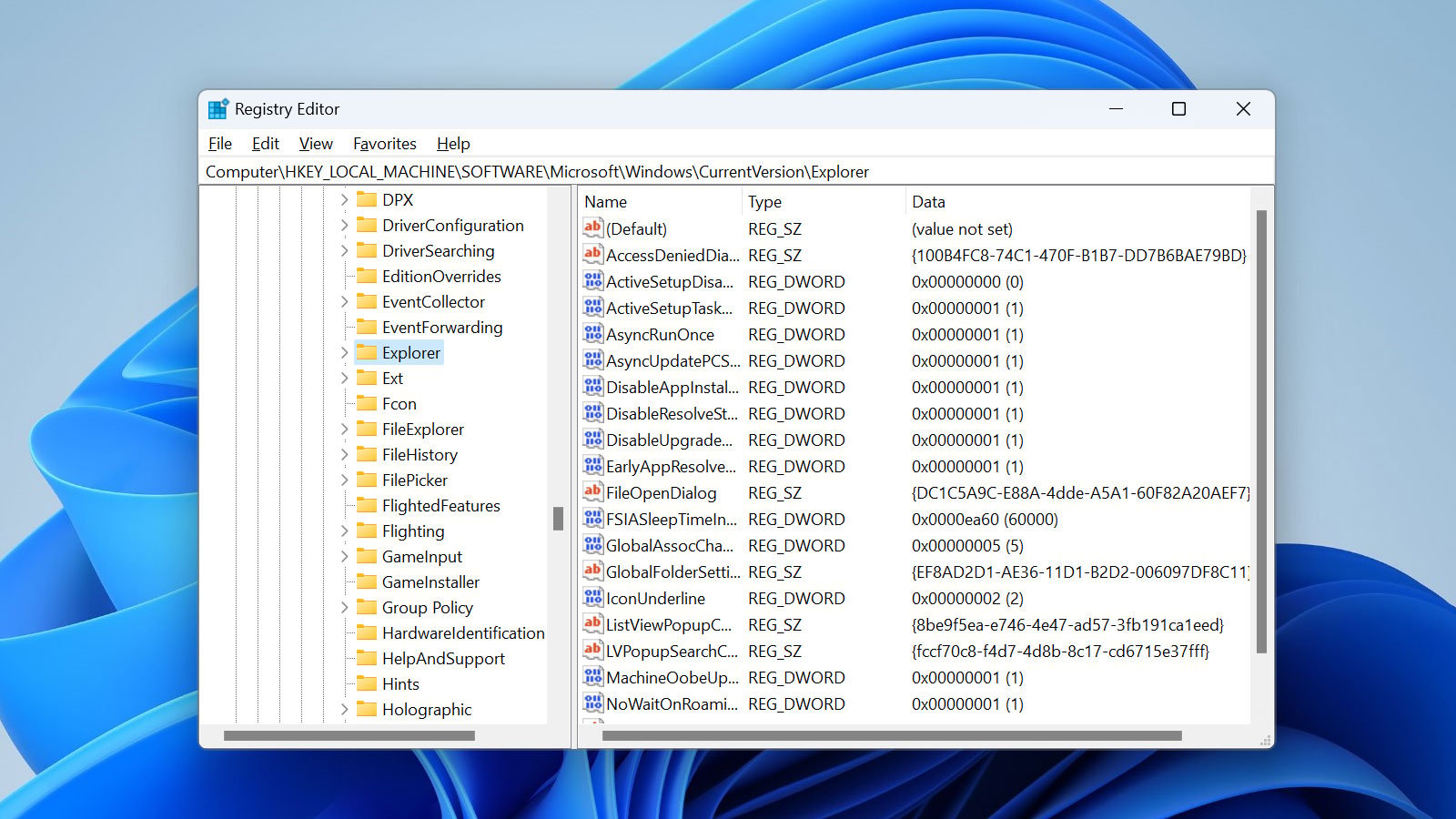
What Information Does It Store?
The sheer volume and variety of data stored within the registry are immense. It contains:
- Operating System Configuration: Settings for Windows itself, including boot options, system paths, and core services.
- Hardware Configuration: Details about installed hardware devices, their drivers, and their current state. This includes everything from your graphics card and network adapter to USB peripherals.
- Software Configuration: Settings for all installed applications, including their installation paths, user-specific preferences, file associations, and licensing information.
- User Profiles: Specific settings and preferences for each user account on the system, ensuring a personalized experience for everyone.
- Security Settings: Permissions for various system components, user access controls, and other security-related configurations.
How is it Structured? Keys, Subkeys, and Values
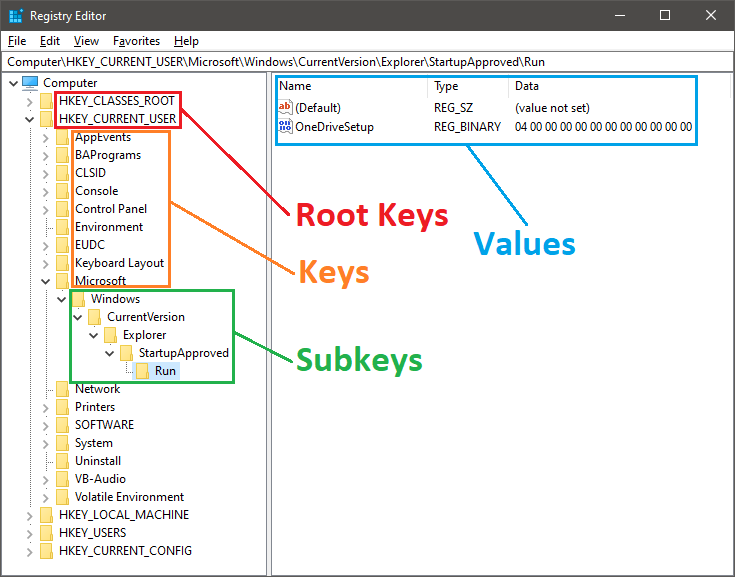
The registry’s structure is reminiscent of a file system, organized into a tree-like hierarchy of keys, subkeys, and values.
- Keys: Analogous to folders in a file system, keys are the primary containers within the registry. They can contain other keys (subkeys) or values.
- Subkeys: These are keys nested within other keys, further organizing the data. The path to a subkey is often written like a file path, e.g.,
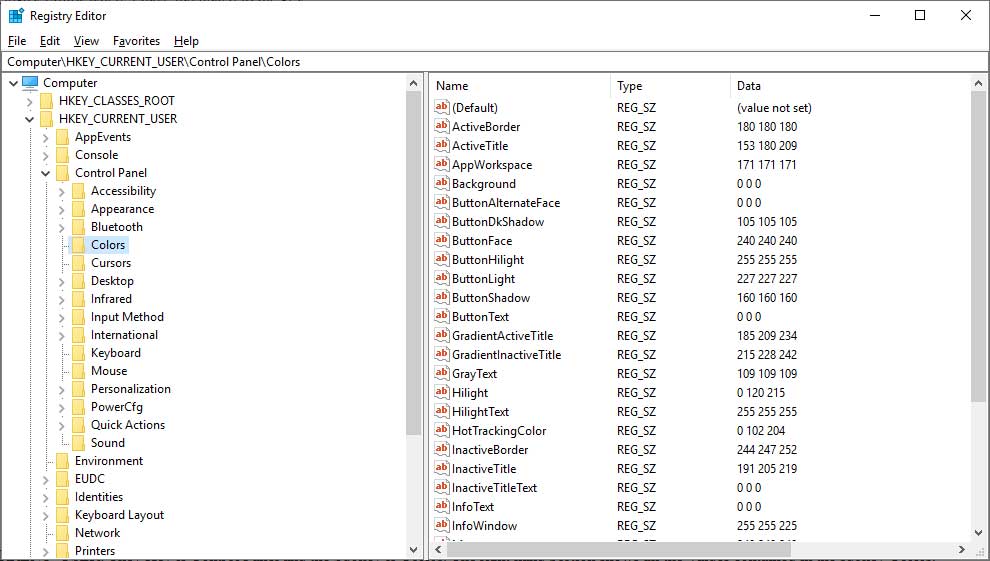
HKEY_LOCAL_MACHINESOFTWAREMicrosoftWindows. - Values: These are the actual data entries stored within keys. Each value has a name, a data type, and the data itself. Common data types include:
- REG_SZ (String Value): Stores human-readable text strings.
- REG_DWORD (Double Word): Stores 32-bit numbers, often used for Boolean flags (0 or 1) or numerical settings.
- REG_QWORD (Quad Word): Stores 64-bit numbers, similar to DWORD but for larger numerical values.
- REG_BINARY (Binary Value): Stores raw binary data, used for hardware configuration or other complex data.
- REGMULTISZ (Multi-String Value): Stores a list of strings.
- REGEXPANDSZ (Expandable String Value): Stores an expandable string that can contain environment variables.
Unpacking the Registry Hives
The top level of the registry is divided into several predefined keys, commonly referred to as “hives.” Each hive is a logical group of keys, subkeys, and values that are mapped to one or more physical files on the hard disk. These hives provide a structured way to manage different aspects of the system’s configuration.
HKEYLOCALMACHINE (HKLM)
This hive contains settings that apply to the entire computer and all users who log on to it. Information stored here includes:
- Hardware Configuration: Details about the physical hardware, drivers, and their settings.
- Operating System Settings: Core Windows configurations, boot parameters, and system services.
- Software Settings: Default settings for installed software applications that apply globally.
This hive is critical for the system’s ability to boot and function, making it one of the most protected areas of the registry.
HKEYCURRENTUSER (HKCU)
HKCU contains settings specific to the currently logged-on user. Whenever a user logs in, the operating system creates this hive by loading data from the HKEY_USERS hive for that particular user. Information stored here includes:
- User Preferences: Desktop background, screen saver settings, folder options, and regional settings.
- Application Settings: User-specific configurations for installed software, like recent documents or custom toolbars.
- Network Connections: Mapped drives and printer connections specific to the user.
This hive ensures that each user’s experience is tailored to their preferences without affecting other users on the same machine.
HKEY_USERS (HKU)
This hive contains all user profiles loaded on the system. Each subkey under HKU corresponds to a user’s Security Identifier (SID). When a user logs in, their profile is loaded from here, and a pointer to it is created under HKEY_CURRENT_USER. It also includes .DEFAULT which holds default settings for new users or for users who log in without a specific profile.
HKEYCLASSESROOT (HKCR)
HKCR primarily stores information about registered applications, file associations, and OLE (Object Linking and Embedding) and COM (Component Object Model) objects. When you double-click a .docx file, it’s HKEY_CLASSES_ROOT that tells Windows to open it with Microsoft Word. This hive is actually a merged view of HKEY_LOCAL_MACHINESOFTWAREClasses and HKEY_CURRENT_USERSOFTWAREClasses, with the user-specific settings taking precedence.
HKEYCURRENTCONFIG (HKCC)
This hive provides a dynamic view of the current hardware configuration. It contains information about the hardware profile that is currently in use. This data is derived from the HKEY_LOCAL_MACHINESYSTEMCurrentControlSetHardware ProfilesCurrent subkey. It’s particularly useful when a computer has multiple hardware profiles, such as a laptop with different docking station configurations.
The Registry’s Indispensable Role in System Operations
Beyond merely storing settings, the registry actively orchestrates countless background processes and user interactions. Its efficiency directly impacts the responsiveness and stability of the entire operating system.
Software Installation and Configuration
When you install new software, the installer writes numerous entries to the registry, detailing file paths, program settings, uninstallation routines, and often license keys. During uninstallation, a well-behaved program will remove these entries. Similarly, every time an application launches, it queries the registry to retrieve its stored settings and user preferences.
Hardware Management
Plug and Play (PnP) devices rely heavily on the registry. When a new device is connected, Windows identifies it, looks up its driver information in the registry, and installs or configures it accordingly. The registry also tracks the status of installed devices, their resource allocation (IRQs, DMAs), and any specific settings required for their operation. Malfunctioning hardware often leaves erroneous entries or conflicts within this section of the registry.
User Preferences and Security Settings
From your desktop wallpaper to your network proxy settings, every personal preference is diligently recorded in the registry, specifically within the user-specific hives. Furthermore, crucial security policies, access control lists (ACLs) for files and folders, and audit policies are all managed and enforced through registry settings, making it a critical component of Windows security.
Common Registry Issues and Their Impact
Despite its robust design, the registry can become a source of system instability or performance degradation under certain circumstances. Understanding these issues is key to maintaining a healthy system.
Registry Bloat and Fragmentation
Over time, as software is installed, updated, and uninstalled, the registry can accumulate leftover entries or become fragmented. While modern Windows versions are more resilient to this than their predecessors, excessive bloat from poorly uninstalled software can theoretically lead to slower boot times or slightly reduced performance as the system takes longer to read necessary data.
Corrupted Entries
Power outages, system crashes, or malicious software can sometimes lead to corruption within the registry. A corrupted entry can prevent an application from launching, a device from working, or, in severe cases, even prevent Windows from booting. These issues manifest as error messages, blue screens of death (BSODs), or general system instability.
Malware and Registry Modifications
Malicious software frequently targets the registry to embed itself deep within the operating system. Viruses, spyware, and ransomware can modify registry keys to launch automatically at startup, alter security settings, or disable legitimate system functions. Antivirus software heavily relies on monitoring and cleaning suspicious registry modifications to protect the system.
Best Practices for Registry Maintenance
Given the registry’s critical role, direct manipulation should generally be avoided unless one possesses expert knowledge. However, there are best practices to ensure its health and your system’s stability.
Backing Up the Registry
Before making any significant system changes, such as installing new software or drivers, it is highly recommended to create a restore point or back up the registry. Windows provides tools within the operating system to perform this, allowing you to revert to a previous, stable state if an issue arises. This is the single most important preventative measure against registry-related catastrophes.
Using Reputable Registry Cleaners (with caveats)
Third-party “registry cleaner” tools claim to optimize the registry by removing old or broken entries. While some reputable tools can safely remove truly obsolete entries, many can be overly aggressive or inaccurate, potentially causing more harm than good by deleting necessary entries. For most users, the performance benefits are negligible on modern systems, and the risks often outweigh the rewards. If you choose to use one, ensure it’s from a trusted vendor and always back up your system first.
Avoiding Manual Edits Without Expertise
The Registry Editor (Regedit.exe) is a powerful tool that allows direct modification of registry entries. However, incorrectly modifying or deleting an entry can render your operating system unbootable or cause irreversible damage. Manual edits should only be performed by experienced IT professionals or advanced users who fully understand the implications of each change. For the average user, it is best left untouched.
System Restore and Recovery
Windows’ System Restore feature is invaluable for recovering from registry-related issues. By rolling back your system files and registry to an earlier restore point, you can often undo problematic changes without losing personal data. Regularly creating restore points, especially before installing new software or system updates, provides a critical safety net.
In conclusion, the Windows Registry is a complex yet indispensable component of the Windows operating system. It quietly manages the myriad settings that allow your computer to function, from hardware drivers to user preferences. While its intricate nature demands respect and caution, a basic understanding of its purpose and structure empowers users with greater insight into their PC’s behavior and the importance of responsible system maintenance.
aViewFromTheCave is a participant in the Amazon Services LLC Associates Program, an affiliate advertising program designed to provide a means for sites to earn advertising fees by advertising and linking to Amazon.com. Amazon, the Amazon logo, AmazonSupply, and the AmazonSupply logo are trademarks of Amazon.com, Inc. or its affiliates. As an Amazon Associate we earn affiliate commissions from qualifying purchases.