
In the modern digital landscape, efficiency is the currency of success. Whether you are an engineer drafting technical specifications, a software developer documenting an API, or a project manager outlining a roadmap, the tools you use dictate the speed and quality of your output. Microsoft Word remains the industry standard for document processing, yet one of its most powerful features—the template—is often misunderstood as a mere decorative shortcut. In reality, a Microsoft Word template is a robust architectural framework designed to streamline workflows, ensure technical consistency, and automate the more tedious aspects of document generation.
Understanding the Technical Architecture of Word Templates
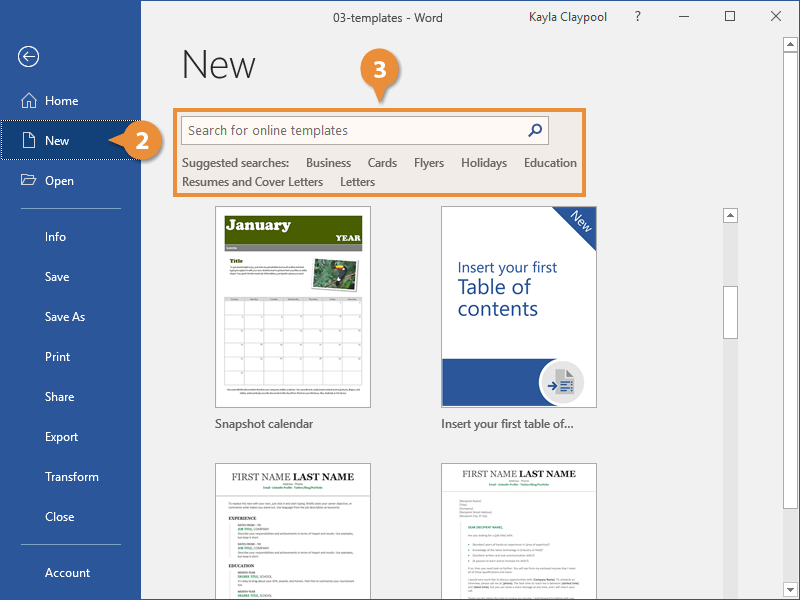
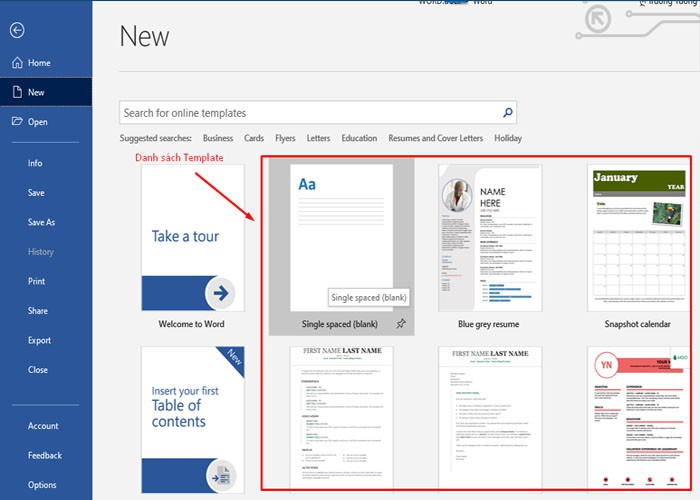
To truly leverage the power of Microsoft Word, one must distinguish between a standard document and a template. At its core, a template is a master file that serves as a blueprint for creating new documents. When you open a template, Word does not open the file itself; instead, it creates a new, untitled copy that inherits all the properties of the original.
The Technical Distinction: DOTX vs. DOCX
From a software perspective, the distinction lies in the file extension and the XML structure of the file. A standard Word document uses the .docx extension, whereas a template uses .dotx. If the template contains macros (automated scripts written in VBA), it uses the .dotm extension.
The .dotx format is essentially a “read-only” blueprint. When a user double-clicks a template file, the Windows shell command triggers a “New” action rather than an “Open” action. This prevents the user from accidentally overwriting the master layout, ensuring that the structural integrity of the organizational standard remains intact across thousands of iterations.
The Role of the “Normal.dotm” Global Template
Every Word installation relies on a hidden foundation known as the Normal.dotm file. This is the global template that dictates the default font (Calibri or Aptos), margins, and paragraph spacing for every “Blank Document” you create. Understanding that even a “blank” page is technically a template is the first step toward mastering document automation. For power users, modifying the global template or creating specialized local templates allows for a personalized software environment that aligns with specific technical requirements.
The Evolution of Document Creation: Why Templates are Essential in Tech
In the context of technology and software development, consistency is not just an aesthetic preference—it is a functional requirement. Templates serve as the “Source of Truth” for documentation, ensuring that every report, manual, or proposal adheres to a specific logic.
Standardizing Technical Documentation
In large-scale tech environments, documentation is often a collaborative effort involving multiple stakeholders. Without a template, a software requirement specification (SRS) could end up with inconsistent heading levels, varying font sizes, and fragmented numbering systems.
A well-constructed template enforces a “Style Pane” hierarchy. By pre-defining Heading 1, Heading 2, and Body Text styles, a template ensures that the document’s metadata is correctly structured. This structure is vital for accessibility tools (like screen readers) and for the automatic generation of Tables of Contents, which are indispensable in long-form technical whitepapers.
Integration with Automated Workflows
Modern software ecosystems frequently involve the automated generation of documents. Through APIs and tools like Power Automate or Python’s python-docx library, developers can programmatically inject data into Word templates. By using “Bookmarking” or “Mail Merge” fields within a .dotx file, a system can automatically generate invoices, personalized reports, or system logs based on external data sources. This synergy between the template’s visual layout and the backend data injection represents the peak of digital productivity.
Engineering Custom Templates: Beyond the Basics
Creating a professional-grade template involves more than just picking a color scheme. It requires an understanding of Word’s hidden developer tools and structural elements.
Utilizing the Developer Tab and Content Controls
To build a truly interactive template, one must enable the “Developer” tab in Microsoft Word. This section provides access to Content Controls—functional UI elements like date pickers, drop-down menus, and checkbox lists.
For example, if you are designing a template for a “Weekly Tech Sprint Report,” you can use Content Controls to limit user input to specific areas. This prevents users from accidentally deleting the company logo or changing the header alignment. By using “Plain Text Content Controls” and “Rich Text Content Controls,” you create a guided user experience that feels more like a software interface than a simple text editor.
Logical Formatting and Section Breaks
A common technical error in document design is the misuse of the “Enter” key to create space. A professional template utilizes Paragraph Spacing (Before/After) and Page Breaks. Furthermore, the use of Section Breaks (Continuous vs. Next Page) allows a single template to switch between portrait and landscape orientations or to have different headers for different chapters. This level of granular control is what separates a amateur document from a high-level technical publication.
Cloud Integration and the Future of AI-Driven Templates
As we move further into the era of cloud computing and Artificial Intelligence, the definition of a “template” is expanding from a static file to a dynamic, cloud-hosted asset.
Centralized Libraries in Microsoft 365
For organizations, the “Workgroup Templates” feature in Microsoft 365 allows IT administrators to host a central repository of templates on SharePoint or OneDrive. This ensures that when a template is updated—perhaps to reflect a rebranding or a change in compliance language—every employee in the organization automatically receives the latest version the next time they click “File > New.” This centralized distribution model eliminates “version sprawl,” where outdated versions of documents circulate within a company.
The Impact of Microsoft 365 Copilot and Generative AI
The most significant shift in the world of Word templates is the integration of Generative AI. With Microsoft 365 Copilot, the “template” is becoming a conversational prompt. Instead of manually filling out a template, users can now ask the AI to “Draft a project proposal based on the notes from my last three meetings using the Standard Corporate Template.”
The AI understands the structural constraints of the template—it knows where the executive summary goes and how the data tables should be formatted—and populates it with relevant content. In this Tech-forward future, the template acts as the “governance layer” that ensures AI-generated content remains within the bounds of professional standards.
Best Practices for Maintaining a Digital Template Library
A template library is only as good as its maintenance. Without proper oversight, templates can become bloated with legacy metadata or become incompatible with new software updates.
Version Control and Metadata Cleaning
Just as software code requires version control, so do corporate templates. It is best practice to include a version number in the file’s metadata or a small footer. Additionally, before deploying a template to an entire department, it is crucial to use the “Inspect Document” tool to remove hidden metadata, personal information, or “tracked changes” that might have been left over during the design phase.
Security and Macro Safety
Templates that utilize macros (.dotm) offer incredible power, allowing for the automation of complex tasks like fetching live data from a SQL database. However, they also represent a potential security vector for malware. Technical teams must ensure that macro-enabled templates are digitally signed with a trusted certificate. Users should be educated on the importance of only enabling content from verified internal sources, maintaining the balance between high-level functionality and digital security.
Conclusion: The Strategic Value of the Template
A Microsoft Word template is far more than a “pre-filled page.” In the world of technology and digital systems, it is a sophisticated tool for standardization, automation, and professional communication. By understanding the underlying file structures, leveraging the Developer tools, and embracing the new frontier of AI integration, individuals and organizations can transform document creation from a chore into a competitive advantage.
The next time you open Word, look beyond the blank white screen. Consider the architecture of the template behind it, and how that structure serves as the foundation for the digital world’s most critical information. From the code-heavy documentation of a new app to the high-stakes reports of a cybersecurity firm, the template is the silent engine of the modern information economy.
aViewFromTheCave is a participant in the Amazon Services LLC Associates Program, an affiliate advertising program designed to provide a means for sites to earn advertising fees by advertising and linking to Amazon.com. Amazon, the Amazon logo, AmazonSupply, and the AmazonSupply logo are trademarks of Amazon.com, Inc. or its affiliates. As an Amazon Associate we earn affiliate commissions from qualifying purchases.