
When your iPhone’s storage capacity dwindles to zero, it’s not merely an inconvenience; it’s a cascade of performance degradations and functional limitations that can significantly impact your daily digital life. From app installations to capturing memories, nearly every facet of your iPhone’s operation is tethered to its available space. Understanding the consequences and, more importantly, how to mitigate them is crucial for maintaining a smooth and productive user experience. This article delves into the multifaceted impact of a full iPhone storage, exploring the technical ramifications, user-facing symptoms, and strategic solutions that empower you to reclaim valuable space.
The Silent Stall: Performance Degradation and App Malfunctions
A full iPhone storage doesn’t just prevent new data from being saved; it actively hinders the existing processes that rely on temporary storage and efficient data management. This leads to a noticeable slowdown in performance and can manifest in various frustrating ways.
Sluggish System Responsiveness
The operating system itself, iOS, utilizes a portion of your storage for temporary files, cache data, and system processes. When this space is exhausted, iOS struggles to manage these essential functions.
- App Launch Times: You’ll find apps taking significantly longer to open. The system needs to load application data, and without sufficient room, this process becomes a bottleneck.
- Multitasking Woes: Switching between apps, a hallmark of the iPhone’s user experience, becomes a choppy affair. Apps may need to be reloaded entirely if the system can’t efficiently swap them in and out of memory due to storage constraints.
- General Lag: Navigating menus, scrolling through web pages, and even typing can feel sluggish. The iPhone’s processor is capable, but it’s starved for the digital breathing room it needs to operate optimally.
App Functionality Crippled
Beyond general system slowdowns, specific app functions can become entirely unusable when storage is full. Many applications, even those not directly involved with media consumption or creation, require temporary space for operations.
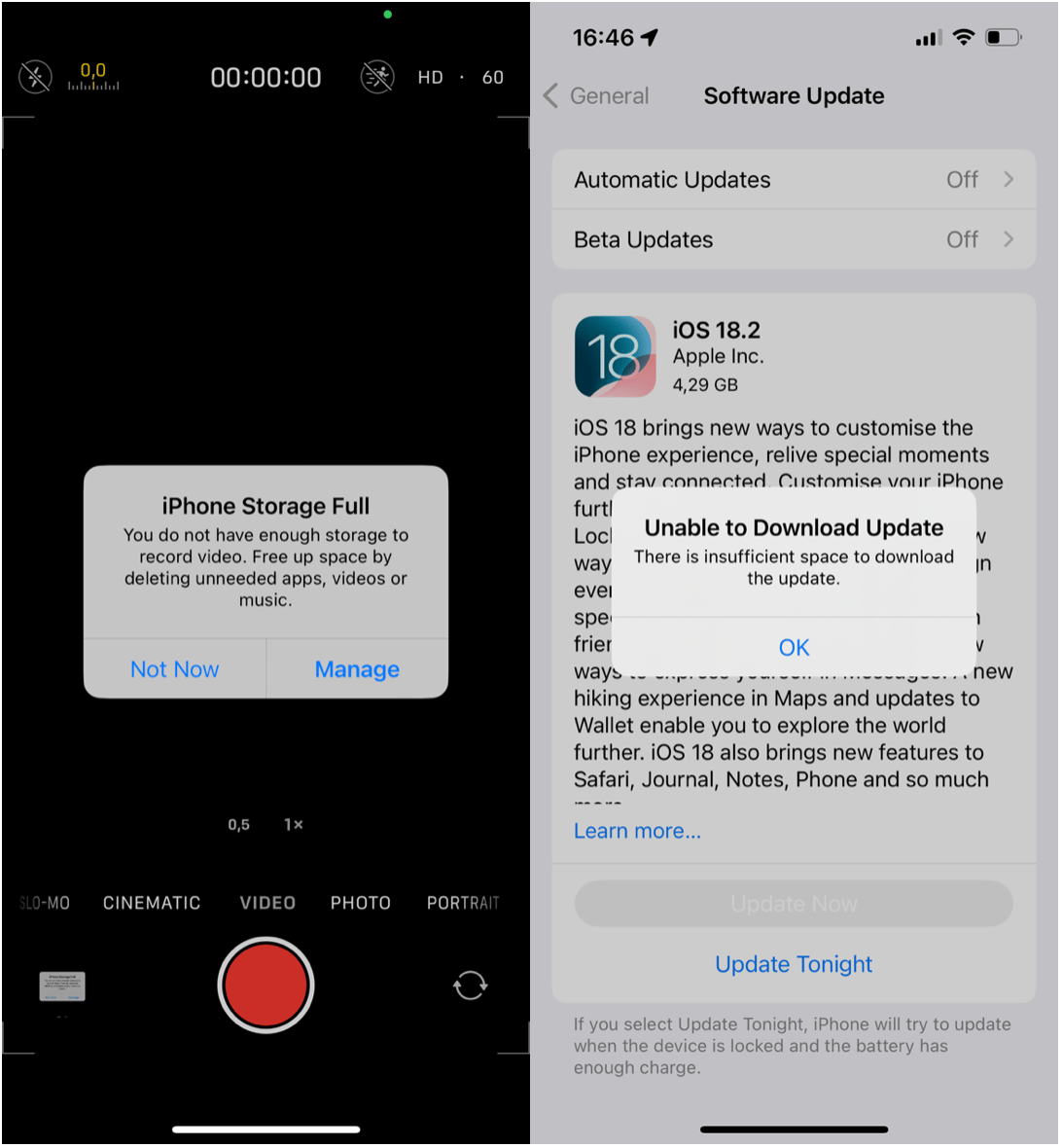
- Inability to Install or Update Apps: This is perhaps the most obvious and frustrating symptom. The App Store will actively prevent new downloads or updates, displaying an error message indicating insufficient storage. This leaves you vulnerable to security risks if you can’t update apps and unable to access new functionalities or bug fixes.
- Failure to Save In-App Data: Apps that allow you to create or save content, such as note-taking apps, editing software, or even simple games, will fail to save your progress or creations. This can lead to lost work and significant user frustration.
- Camera and Media Capture Errors: The most cherished functions of a smartphone – taking photos and recording videos – will grind to a halt. You’ll be met with error messages like “Cannot Take Photo” or “Storage Almost Full.” This is particularly galling, as it directly prevents you from capturing life’s moments.
- Messaging and Communication Glitches: Even messaging apps can be affected. If you’re sharing files, photos, or videos, the process will fail. In some cases, the app itself might become unstable if it’s trying to manage cached data that it can no longer store.
- Download Failures: Downloading documents, music, podcasts, or offline content for streaming services will become impossible. This limits your ability to access information and entertainment when you’re offline.
The Digital Desert: Unforeseen Consequences and System Warnings
Beyond the immediate functional impairments, a full iPhone storage can trigger a series of escalating system warnings and can even lead to more severe, albeit rare, issues with data integrity.
The Barrage of Notifications
As your storage approaches critical levels, iOS will begin to proactively alert you. These notifications are designed to prompt action before the system becomes completely unusable.
- “Storage Almost Full” Alerts: These are the initial, polite warnings. They typically appear as banners at the top of the screen or as full-screen pop-ups, urging you to manage your storage.
- “Low Storage” System Messages: As space becomes critically low, these messages will become more insistent and may appear more frequently, making it difficult to dismiss them without addressing the underlying issue.
- App Store Restrictions: As mentioned, the App Store will begin to refuse downloads and updates, a clear indicator that storage is severely compromised.
System Instability and Potential Data Loss (Rare but Possible)
While iPhones are generally robust, pushing the storage to its absolute limit can, in rare instances, lead to more significant issues.
- System Crashes and Reboots: When the operating system is constantly struggling for space, it can become unstable. This can result in unexpected crashes, where the iPhone abruptly shuts down and restarts. These crashes can sometimes be accompanied by data corruption.
- Application Data Corruption: If an app attempts to write data to a full storage partition and the operation is interrupted or fails, the data file could become corrupted. This could mean that specific files within an app, or even the app’s saved data, become inaccessible or unusable.
- iCloud Syncing Failures: While iCloud is designed to offload data from your device, it still requires a certain amount of local storage for temporary files and to manage the syncing process. If your iPhone storage is full, iCloud backups may fail, and syncing of photos, documents, and other data can be disrupted, leading to a lack of up-to-date information across your devices.
- Potential for Unrecoverable Data: In extreme and very rare scenarios, if the system is continuously trying to write data to a completely full drive, it is theoretically possible for data to become unrecoverable. However, iOS is designed with safeguards to prevent this, making it highly unlikely for the average user. The primary concern is usually the disruption of normal operations and potential corruption of frequently accessed data rather than complete loss of all data.
The Path to Freedom: Strategic Storage Management
Fortunately, a full iPhone storage is not a terminal condition. There are numerous effective strategies to reclaim space and restore your device’s performance. Understanding these methods allows for proactive management and prevents future crises.
Intelligent Deletion and Offloading
The most direct approach is to identify and remove or move data that is consuming the most space.
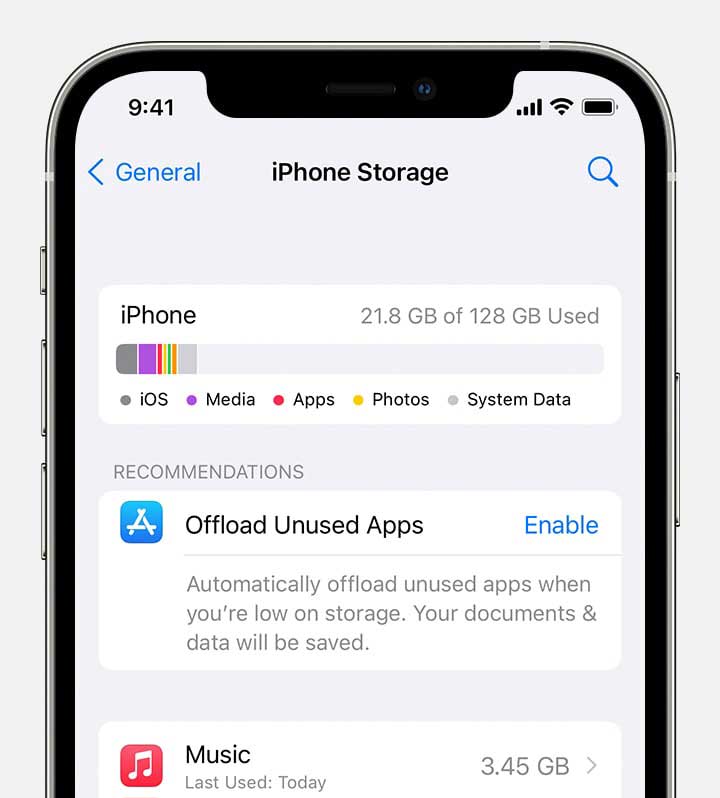
- Review Storage Breakdown: Navigate to
Settings > General > iPhone Storage. Here, you’ll find a detailed breakdown of which apps and data categories are using the most space. This is your roadmap for identifying prime candidates for deletion. - Delete Large, Unused Apps: Apps can be surprisingly large. Once you identify the biggest culprits that you no longer use, uninstalling them is a quick way to free up gigabytes.
- Manage Photos and Videos: This is often the biggest storage hog.
- Delete Duplicates and Unwanted Shots: Go through your photo library and ruthlessly delete blurry photos, accidental screenshots, duplicate images, and videos you don’t need.
- Utilize iCloud Photos: Enable
iCloud PhotosinSettings > [Your Name] > iCloud > Photos. Ensure “Optimize iPhone Storage” is selected. This will keep full-resolution photos and videos in iCloud and smaller, device-optimized versions on your iPhone, saving significant space. You can then delete content from your device knowing it’s safely backed up. - Offload Videos to a Computer or Cloud Storage: For large video files, consider transferring them to a computer, an external hard drive, or a cloud storage service like Google Drive, Dropbox, or OneDrive.
- Clear App Cache and Data: Many apps accumulate cache data over time. While iOS does some automatic cleanup, manually clearing it can be beneficial. For some apps, you can go into their settings and find an option to clear cache or data. For others, uninstalling and reinstalling the app will effectively clear its cache.
- Delete Old Messages and Attachments: Long message threads, especially those with media attachments, can consume a surprising amount of space. Go into your Messages app, tap on a conversation, then tap the “i” (information) icon at the top. You can then review and delete individual photos, videos, or entire attachments. You can also set messages to delete automatically after a certain period.
- Remove Downloaded Music, Podcasts, and Offline Content: Content downloaded for offline use from streaming services like Apple Music, Spotify, Netflix, or Audible can add up quickly. Go into the respective apps and remove downloaded content that you no longer need immediate offline access to.
Leveraging Apple’s Built-in Optimization Tools
Beyond manual deletion, iOS offers several smart features designed to manage storage automatically.
- Optimize Storage (Photos): As mentioned with iCloud Photos, this feature is crucial. It intelligently manages how your photos and videos are stored on your device, keeping full-resolution versions in iCloud and smaller versions on your iPhone.
- Offload Unused Apps: In
Settings > General > iPhone Storage, you’ll find an option to “Offload Unused Apps.” This feature automatically removes apps you haven’t used in a while but keeps their data and documents. If you reinstall the app, your data will be restored. This is a fantastic way to declutter without losing your app settings or progress. - Review Large Attachments: The
iPhone Storagesettings also often highlights “Large Attachments” within your Messages, providing a quick way to delete them. - Auto-Delete Old Conversations: In
Settings > Messages, you can set your message history to be automatically deleted after a specified time (e.g., 30 days, 1 year). This prevents your message database from growing indefinitely.

Advanced and External Solutions
For users who consistently struggle with storage limitations, more advanced strategies and external tools can provide lasting relief.
- Cloud Storage Expansion: While iCloud is Apple’s native solution, consider expanding your cloud storage with services like Google Drive, Dropbox, or OneDrive. These can serve as excellent offsite backups for your photos, videos, and important documents.
- External Storage Solutions (Limited iPhone Integration): While iPhones don’t have physical SD card slots, there are third-party external storage devices that connect via the Lightning port. These can be used for transferring large files off your device, effectively acting as an external hard drive. However, direct integration with apps can be more complex than with a computer.
- Regular Backups to a Computer: Periodically connect your iPhone to a Mac or Windows PC and perform a full backup using Finder or iTunes. This creates a local archive of your device’s data that can be useful for recovery and also allows you to clear content from your phone with the assurance that it’s safely stored elsewhere.
- Consider a Device with Higher Storage: If you consistently find yourself battling storage limits, and none of the management strategies provide sufficient relief, the most straightforward long-term solution might be to upgrade to an iPhone model with a larger storage capacity. This is an investment, but it can prevent ongoing frustration and ensure you have the space for all your needs.
In conclusion, a full iPhone storage is a preventable problem that, when addressed, can significantly enhance your device’s performance and reliability. By understanding the consequences of insufficient space and implementing strategic management techniques, you can ensure your iPhone remains a powerful and efficient tool for communication, creativity, and capturing life’s moments, without the constant dread of a “storage full” notification.
aViewFromTheCave is a participant in the Amazon Services LLC Associates Program, an affiliate advertising program designed to provide a means for sites to earn advertising fees by advertising and linking to Amazon.com. Amazon, the Amazon logo, AmazonSupply, and the AmazonSupply logo are trademarks of Amazon.com, Inc. or its affiliates. As an Amazon Associate we earn affiliate commissions from qualifying purchases.