
The Fundamental Concept of Mounting and Unmounting
In the realm of computing and digital storage, understanding how devices interact with operating systems is crucial for maintaining data integrity and system stability. The terms “mount” and “unmount” are central to this interaction, particularly when dealing with removable storage like SD cards. These operations describe the logical connection and disconnection processes that allow your device to safely read from and write to external media.
Understanding ‘Mounting’
At its core, “mounting” refers to the process by which an operating system (OS) makes a storage device, or a partition of a storage device, available for access. When you insert an SD card into a computer, smartphone, or camera, the OS doesn’t immediately “see” its contents in a usable format. Instead, it goes through a series of steps:
- Detection: The OS detects the physical presence of new hardware.
- Driver Loading: It loads the necessary device drivers to communicate with the SD card reader and the SD card itself.
- File System Recognition: The OS identifies the file system format used on the SD card (e.g., FAT32, exFAT, NTFS, APFS). This file system dictates how data is organized and stored on the card.
- Integration: The OS then “mounts” the file system at a specific point in its directory tree, making the card’s contents accessible to applications and the user. On Windows, this often appears as a new drive letter (e.g., E:, F:); on macOS and Linux, it typically appears as a folder within a
/Volumesor/mediadirectory.
Once mounted, the OS can read files from the SD card, write new files to it, modify existing ones, and execute programs directly from it, treating it essentially as another part of the system’s storage.
The ‘Unmount’ Operation Defined
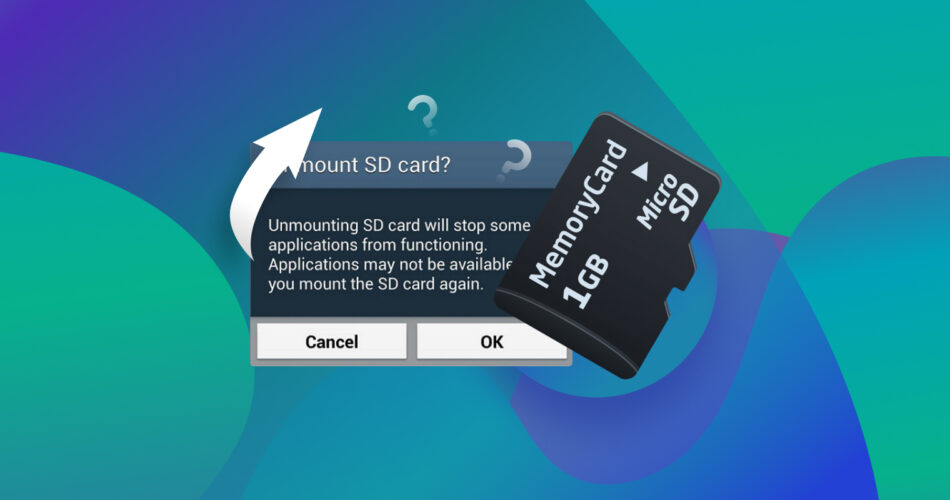
Conversely, “unmounting” is the reverse process: it’s the operation of logically disconnecting a storage device from the operating system’s file system tree. This crucial step prepares the device for safe physical removal. When an SD card is unmounted, the OS performs several vital tasks before severing the logical connection:
- Flushing Data Caches: The OS ensures that all pending write operations to the SD card, which might have been temporarily held in memory (cache), are fully written to the physical flash memory cells of the card.
- Releasing File Handles: It closes all open files and processes that might still be accessing the SD card, preventing incomplete writes or read errors.
- Updating File System Metadata: Any changes made to the file system structure are finalized and committed to the card.
- Logical Disconnection: The OS then formally removes the SD card’s entry from its directory structure, making it inaccessible to applications.
The key distinction here is that unmounting is a controlled shutdown of access to the storage device. It’s not just about pulling the card out. Ignoring this step, often referred to as “hot swapping” without unmounting, carries significant risks, which we will explore further.
Why Unmounting is Crucial for SD Cards
The act of unmounting isn’t merely a formality; it’s a critical procedure designed to protect your data, the SD card itself, and the stability of your device. Neglecting this step can lead to a range of frustrating and potentially costly issues.
Preventing Data Corruption
One of the primary reasons to unmount an SD card is to prevent data corruption. Modern operating systems employ sophisticated caching mechanisms to improve performance. When you copy files to an SD card, the OS doesn’t necessarily write them to the card instantly. Instead, it might store them temporarily in a memory buffer (cache) and report to the user that the transfer is complete, while the actual writing happens in the background. This “deferred write” strategy makes file transfers appear faster but introduces a vulnerability.
If you physically remove an SD card before it has been properly unmounted, any data still residing in the OS’s write cache will not be written to the card. This can result in:
- Incomplete Files: Files that appear to have been transferred may be corrupted or truncated, containing only a portion of their original data.
- Corrupted File Systems: The file system itself (e.g., the directory structure, allocation tables) can become inconsistent, making the entire card unreadable or causing other files to become inaccessible. This often manifests as error messages like “disk needs to be formatted” or “unrecognized file system.”
- Loss of Data: In severe cases, an improperly removed card can lead to the loss of entire directories or all data stored on it.
Protecting the SD Card Itself
Beyond safeguarding your data, unmounting also contributes to the longevity and reliability of the SD card. Flash memory, while robust, has a finite number of write cycles. Unexpected power loss or abrupt disconnection during a write operation can stress the memory cells and the controller chip within the SD card.
While modern SD cards have advanced wear-leveling algorithms to distribute writes evenly, an abrupt removal during active writing can sometimes lead to:
- Logical Errors: The card’s internal firmware might encounter errors trying to reconcile inconsistent data states, potentially requiring a reformat (which erases all data) or even rendering the card permanently unusable.
- Reduced Lifespan: While not an immediate failure, consistent improper removal can subtly degrade the card’s integrity over time, potentially shortening its operational lifespan.
User Experience and System Stability
From a broader perspective, unmounting ensures a smoother user experience and maintains system stability. Unexpected removal of an active storage device can sometimes cause:
- Application Crashes: Any application actively using files on the SD card may freeze or crash if the device suddenly disappears.
- System Freezes or Errors: In rare cases, especially with older or less stable operating systems, an abrupt removal can cause the entire system to hang or display critical error messages.
- Resource Leaks: The OS might continue to allocate system resources to a device that is no longer present, leading to minor performance degradation until a reboot.
By properly unmounting, you allow the OS to gracefully disengage from the device, clean up any associated processes, and release system resources, ensuring a seamless experience.
Practical Steps to Unmount an SD Card Across Devices
The method for unmounting an SD card varies slightly depending on the operating system or device you are using. However, the underlying principle of safely disconnecting the logical link remains consistent.
On Windows Operating Systems
Windows provides a straightforward method for safely removing external storage devices:
- Locate the “Safely Remove Hardware” Icon: In the system tray (the bottom-right corner of your taskbar, near the clock), look for an icon that resembles a USB plug with a green checkmark or an upward-pointing arrow. If you don’t see it, click the small upward arrow to show hidden icons.
- Click and Select: Click on this icon, and a list of removable devices currently connected to your computer will appear.
- Eject the SD Card: Select the entry corresponding to your SD card (it might be listed by its drive letter, e.g., “Eject USB Drive (E:)” or by its manufacturer name).
- Confirmation: Windows will display a notification stating “Safe to Remove Hardware” or “The device can now be safely removed.” Once you see this message, it is safe to physically remove the SD card from its slot.

For situations where the icon isn’t visible or you need more control, you can also use Disk Management:
- Right-click on the Start button and select “Disk Management.”
- Locate your SD card in the list of drives (look for its size and file system).
- Right-click on the SD card’s volume and select “Offline” or “Eject.” Be cautious with this method to ensure you select the correct drive.
On macOS Devices
macOS offers a very intuitive drag-and-drop or click-to-eject interface:
- Finder Sidebar: Open a Finder window. In the sidebar, you’ll see your SD card listed under “Locations” or “Devices.”
- Eject Button: To the right of the SD card’s name, there will be a small “Eject” icon (an upward-pointing triangle with a line below it). Click this icon.
- Drag to Trash: Alternatively, you can click and drag the SD card’s icon from your desktop or the Finder sidebar directly to the Trash can icon in the Dock. The Trash icon will visually transform into an Eject symbol.
- Confirmation: Once ejected, the icon for the SD card will disappear from the desktop and Finder sidebar, indicating it’s safe to remove.
On Android Smartphones and Tablets
Android devices also require a safe unmount procedure for SD cards:
- Access Settings: Go to your device’s “Settings” app.
- Navigate to Storage: Scroll down and tap on “Storage” or “Storage & USB.”
- Find SD Card: Locate the “SD Card” section.
- Unmount/Eject: You should see an option to “Unmount SD card,” “Eject SD card,” or a similar phrasing, often accompanied by an eject icon. Tap this option.
- Confirmation: The device will confirm that the SD card has been unmounted and can be safely removed. Some devices may also indicate if certain apps are still using the card, prompting you to close them first.
On Linux Distributions
Linux users have both graphical and command-line options for unmounting:
- Graphical Desktop Environments (e.g., GNOME, KDE, XFCE): Most modern Linux desktop environments display removable drives on the desktop or in the file manager (e.g., Nautilus for GNOME, Dolphin for KDE). Right-click on the SD card’s icon or entry and select “Eject” or “Unmount.”
- Command Line (for advanced users): For precise control, the
umountcommand is used in the terminal:- First, identify the device name using
lsblkorfdisk -l. Your SD card might be/dev/sdb1or similar. - Then, execute:
sudo umount /dev/sdb1(replace/dev/sdb1with the actual device name). If it’s mounted to a specific directory, you might usesudo umount /media/username/SDCARD. - The command will execute silently if successful.
- First, identify the device name using
Common Misconceptions and Best Practices
Despite the clear benefits, misconceptions about unmounting persist, often leading to risky habits. Understanding these and adhering to best practices is essential for data longevity and device health.
“Just Pulling It Out Is Faster” – The Dangers
The most common misconception is that simply pulling an SD card out without unmounting is harmless, especially if no files appear to be actively transferring. While it might seem faster, this practice is inherently risky. As discussed, the operating system’s write cache and background processes mean that even if you don’t see a file transfer progress bar, data might still be in transit.
Consistently removing an SD card without proper unmounting is akin to abruptly shutting down a computer by pulling the power cord while it’s writing to its hard drive. While not every instance will result in immediate corruption, the cumulative risk is significant, and the consequences (lost photos, corrupted documents) can be severe.
When Unmounting Might Not Be Strictly Necessary (But Still Recommended)
There are limited scenarios where the risk of immediate data corruption from not unmounting is very low:
- Read-only operations: If you are absolutely certain that you have only been reading data from the SD card and no applications have written anything to it, the chances of corruption are minimal. However, even web browsers or media players might create temporary cache files on removable media, making this less certain than it seems.
- Devices designed for quick removal: Some very specialized embedded systems or single-purpose devices might handle sudden removal better by minimizing caching. However, for general-purpose computing devices (PCs, smartphones, tablets, cameras), the safe unmount procedure is the standard.
Even in these low-risk scenarios, adhering to the unmounting protocol is a robust best practice that eliminates guesswork and prevents potential issues. It costs very little time and offers significant protection.
Troubleshooting Unmount Failures
Occasionally, you might encounter a message stating that the device “cannot be unmounted” because it is “in use.” This usually means one or more applications or processes are still actively accessing the SD card.
To troubleshoot this:
- Close All Applications: Ensure all programs that might have accessed files on the SD card (e.g., file explorer windows, photo editors, video players, document software) are closed.
- Check Background Processes: On Windows, you can use Task Manager (Ctrl+Shift+Esc) to look for suspicious processes. On macOS, Activity Monitor can help.
- Wait a Moment: Sometimes, a background process might just be finishing up. Give it a minute or two and try again.
- Force Eject (Last Resort): Some operating systems offer a “force eject” option, but this should be used with extreme caution as it bypasses the safe flush mechanisms.
- Reboot: If all else fails, a system reboot will close all processes and release the SD card, allowing for safe removal upon startup or after the system has fully loaded.
The Broader Implications for Digital Security and Data Management
Understanding “unmounting” extends beyond mere convenience; it’s a foundational element of responsible digital security and effective data management.
Secure Disposal and Reformatting
Before an SD card is disposed of or repurposed for use by another individual, unmounting it is the essential first step. It ensures that no background processes could interfere with subsequent data wiping or reformatting operations. To truly protect sensitive data, simply deleting files is insufficient; the card should be securely wiped or reformatted using specialized tools that overwrite data multiple times. Unmounting ensures a stable platform for these critical security procedures, preventing residual data from being inadvertently exposed.
Understanding Storage Lifecycles
Treating storage devices with care, including proper unmounting, contributes to their overall lifespan and reliability. By minimizing abrupt interruptions during read/write cycles, users help preserve the integrity of the flash memory cells and the intricate controller firmware within the SD card. Integrating safe unmounting into your routine tech habits is a simple yet powerful way to protect your digital assets and ensure your SD cards serve you reliably for as long as possible. It underscores a fundamental principle of computing: careful handling of peripherals is key to a smooth and secure digital experience.
aViewFromTheCave is a participant in the Amazon Services LLC Associates Program, an affiliate advertising program designed to provide a means for sites to earn advertising fees by advertising and linking to Amazon.com. Amazon, the Amazon logo, AmazonSupply, and the AmazonSupply logo are trademarks of Amazon.com, Inc. or its affiliates. As an Amazon Associate we earn affiliate commissions from qualifying purchases.