
In the intricate symphony of modern computing, where processors execute billions of instructions per second and graphics cards render stunning visual worlds, there’s an often-overlooked yet utterly critical component working tirelessly behind the scenes: RAM. Shorthand for Random Access Memory, RAM is the unsung hero that dictates how smoothly your computer handles everything from browsing the web to running demanding professional software. It’s the brain’s short-term memory, holding all the data and program instructions your computer’s Central Processing Unit (CPU) needs to access quickly and frequently.
Without sufficient or efficient RAM, even the most powerful processor would grind to a halt, struggling to fetch data from slower, long-term storage devices. Understanding what RAM means, how it functions, and its various types is fundamental to grasping the true capabilities and limitations of any digital device, from your smartphone to a high-end gaming rig. This deep dive will illuminate RAM’s pivotal role, helping you make informed decisions about your technology.
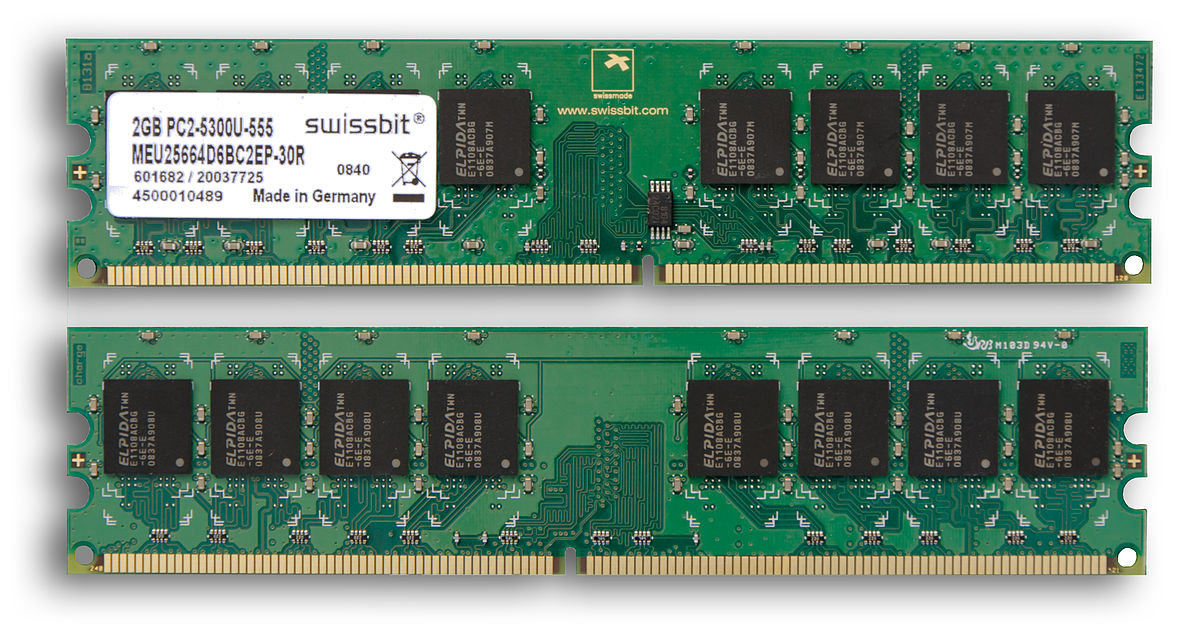
The Core Functionality of RAM: Your Computer’s Short-Term Memory
At its heart, RAM serves as a super-fast, temporary workspace for your computer. When you open an application, load a document, or browse a website, the data and instructions needed for those tasks are loaded from your long-term storage (like an SSD or HDD) into RAM. This allows the CPU to access that information almost instantaneously, far quicker than retrieving it directly from storage every time. Think of it as your desk: you pull the documents and tools you’re actively using onto your desk for quick access, rather than constantly going back and forth to a filing cabinet.
RAM vs. Storage: A Crucial Distinction
One of the most common points of confusion for many users is differentiating RAM from permanent storage devices like Solid State Drives (SSDs) or Hard Disk Drives (HDDs). While both store data, their functions and characteristics are vastly different.
RAM is volatile memory, meaning it requires power to maintain the stored information. The moment your computer shuts down or loses power, everything stored in RAM is erased. This is why you need to save your work before powering off. Its primary advantage is speed; RAM can be written to and read from at incredible speeds, measured in gigabytes per second, making it ideal for active data.
Storage drives (SSDs, HDDs), on the other hand, are non-volatile memory. They retain data even without power, serving as the permanent repository for your operating system, applications, documents, photos, and all other files. While modern SSDs are remarkably fast, they are still significantly slower than RAM, especially in terms of latency (the time it takes to retrieve the first byte of data). The distinction boils down to this: RAM holds data your computer is currently using, while storage holds data your computer might use later.
How RAM Interacts with the CPU
The CPU is the “brain” of the computer, responsible for executing instructions and performing calculations. However, the CPU itself has very limited on-chip memory (cache). To process data efficiently, it constantly needs new instructions and data. This is where RAM comes in. When the CPU needs data, it first checks its internal cache. If the data isn’t there, it then requests it from RAM. If the data isn’t in RAM, the system has to retrieve it from the much slower storage drive, which causes noticeable delays and can make your computer feel sluggish.
RAM acts as a high-speed buffer, ensuring the CPU always has a readily available pool of information. This constant, rapid exchange of data between RAM and the CPU is fundamental to virtually every operation your computer performs.
The Role of RAM in Multitasking
Modern computing is synonymous with multitasking. We open dozens of browser tabs, switch between a word processor and a spreadsheet, stream music, and chat with friends—all simultaneously. RAM is the enabler of this seamless experience. Each application you open, every browser tab, and even parts of your operating system itself, requires a certain amount of RAM to operate.
When you have multiple programs running, their respective data and instructions are loaded into different sections of RAM. The operating system dynamically manages these allocations, ensuring each program has the resources it needs. If you don’t have enough RAM, your computer will resort to “paging” or “swapping,” moving less frequently used data from RAM to a designated space on your slower storage drive (known as a page file or swap file). This constant shuffling significantly slows down your system, as accessing data from storage is far slower than from RAM. This is why a computer with insufficient RAM can feel like it’s perpetually struggling, even if it has a powerful CPU.
Types of RAM: Evolving Technologies for Enhanced Performance
Over the decades, RAM technology has undergone significant evolution, driven by the relentless demand for faster, more efficient memory. While the core function remains the same, the underlying architecture and performance metrics have changed dramatically.
Dynamic RAM (DRAM) and Static RAM (SRAM)
At the most fundamental level, there are two primary categories of RAM:
-
Dynamic RAM (DRAM): This is the most common type of RAM used in computer main memory. Each bit of data in DRAM is stored in a tiny capacitor, which leaks charge over time. To retain data, DRAM chips must be constantly refreshed (recharged) thousands of times per second, hence “dynamic.” DRAM is relatively inexpensive and offers high density, making it suitable for large memory modules.
-
Static RAM (SRAM): Unlike DRAM, SRAM uses transistors (latches) to store data, so it doesn’t need to be constantly refreshed as long as power is supplied. This makes SRAM much faster than DRAM, but also more complex, expensive, and less dense. Consequently, SRAM is typically used for smaller, very fast memory components like CPU cache memory, where speed is paramount and cost/density are secondary concerns.
SDRAM and DDR SDRAM Generations
The vast majority of RAM modules you’ll find in modern PCs are a type of DRAM called Synchronous Dynamic Random Access Memory (SDRAM). “Synchronous” means its operations are synchronized with the system clock, allowing for faster data transfer rates compared to older asynchronous DRAM.
However, the real revolution came with Double Data Rate (DDR) SDRAM. DDR memory doubles the data transfer rate by transferring data on both the rising and falling edges of the clock signal, effectively doubling the bandwidth without increasing the clock frequency. This innovation has led to successive generations:
-
DDR1 (DDR SDRAM): Introduced in the early 2000s, it offered modest improvements over standard SDRAM.
-
DDR2 SDRAM: Faster clock speeds and lower power consumption than DDR1.
-
DDR3 SDRAM: Further increased clock speeds, higher bandwidth, and even lower power consumption than DDR2.
-
DDR4 SDRAM: The standard for many years, DDR4 boasts significantly higher speeds (up to 3200-4800 MHz is common), lower voltage, and improved energy efficiency compared to DDR3. It also features higher density modules.
-
DDR5 SDRAM: The latest generation, DDR5 brings a substantial leap in performance, offering even higher speeds (starting from 4800 MHz and going much higher), greater capacity per module, improved efficiency, and new features like on-die ECC (Error-Correcting Code) for enhanced reliability, even in consumer-grade memory.
Each DDR generation is physically incompatible with previous generations (different pin layouts), meaning you cannot mix and match them on a single motherboard.
Specialized RAM for Graphics (VRAM/GDDR)
While the main system RAM handles general computing tasks, graphics cards (GPUs) often have their own dedicated, high-speed memory called Video RAM (VRAM). This is typically a specialized type of DDR memory known as Graphics Double Data Rate (GDDR), such as GDDR5, GDDR6, and the latest GDDR6X. VRAM is optimized for the parallel processing demands of rendering complex graphics, textures, and video frames. It’s designed for extremely high bandwidth to feed the GPU with the vast amounts of data it needs to display visuals in real-time, making it distinct from the system RAM that primarily serves the CPU.
ECC RAM: For Mission-Critical Stability

Error-Correcting Code (ECC) RAM is a specialized type of memory module designed to detect and correct common internal data corruption. It includes extra memory chips and circuitry that store checksums for the data. If an error occurs (e.g., a cosmic ray flipping a bit), ECC RAM can detect and often correct it on the fly, preventing system crashes or data corruption. ECC RAM is primarily used in mission-critical applications like servers, scientific workstations, and financial systems where data integrity and system stability are paramount. It’s typically not found in consumer-grade PCs due to its higher cost and slightly slower performance.
How Much RAM Do You Really Need? Finding the Sweet Spot
Determining the right amount of RAM is a delicate balance between performance needs, budget, and future-proofing. Too little RAM will bottleneck your entire system, while an excessive amount offers diminishing returns beyond a certain point.
Factors Influencing RAM Requirements
Your RAM requirements are primarily dictated by how you use your computer:
-
Operating System: Modern operating systems like Windows 10/11 or macOS require a baseline amount of RAM just to run efficiently (typically 4GB-8GB for basic functionality).
-
Web Browsing: If you frequently have many browser tabs open, especially with rich media content, Chrome, Firefox, and Edge can consume significant RAM.
-
Office Productivity: Word processing, spreadsheets, and presentations are relatively light, but complex documents or large datasets can benefit from more RAM.
-
Gaming: Modern AAA games are RAM-hungry. While 8GB is often the minimum, 16GB is the recommended baseline for a smooth gaming experience, and 32GB provides ample headroom for future titles and multitasking while gaming.
-
Professional Workloads:
-
Video Editing/Graphic Design: Applications like Adobe Premiere Pro, Photoshop, After Effects, and CAD software thrive on abundant RAM. 32GB is often a good starting point, with 64GB or even 128GB being common for high-resolution projects.
-
3D Modeling/Animation: Similar to video editing, these tasks demand substantial RAM for handling large scene files and complex simulations.
-
Software Development/Virtualization: Running multiple virtual machines or compiling large codebases can quickly consume RAM, making 32GB or more a smart choice.
-
Common RAM Configurations and Their Uses
-
4GB: Bare minimum for very light tasks (basic web browsing, email) on older/budget systems. Often struggles with modern operating systems.
-
8GB: Sufficient for basic productivity, light multitasking, and older/indie games. It’s the minimum for a generally smooth experience with Windows 10/11.
-
16GB: The sweet spot for most users. Handles intensive multitasking, all but the most demanding games, and many professional applications comfortably.
-
32GB: Ideal for high-end gaming, professional content creation (video editing, 3D), software development, and heavy virtualization. Offers significant future-proofing.
-
64GB+: Reserved for extreme professional workloads, very large datasets, multiple simultaneous virtual machines, or specific scientific/engineering applications.
Signs You Might Need More RAM
Your computer will often tell you if it’s struggling with insufficient RAM:
-
Slow performance: The computer feels generally sluggish, even during simple tasks.
-
Frequent freezing/crashing: Applications or the entire system might freeze or crash unexpectedly.
-
Long loading times: Programs take an unusually long time to open, or files are slow to load.
-
“Out of memory” errors: Direct messages from applications indicating they don’t have enough memory.
-
Heavy disk activity when idle: If your hard drive or SSD light is constantly blinking even when you’re not actively doing much, it might indicate the system is constantly using the page file (virtual memory), signaling RAM shortage.
The Diminishing Returns of Excessive RAM
While more RAM is generally better up to a point, there comes a stage where adding more RAM yields no noticeable performance improvement. If your usage rarely consumes more than, say, 12GB of RAM, upgrading from 16GB to 32GB will likely not make your computer any faster. The money would be better spent on other components like a faster CPU, GPU, or NVMe SSD. The key is to analyze your typical workload and ensure you have enough RAM, but not necessarily an overkill amount.
Optimizing RAM Performance and Future Considerations
Beyond the sheer quantity of RAM, other factors influence its real-world performance. Understanding these can help you maximize your system’s efficiency.
Understanding RAM Speed and Latency
RAM performance isn’t just about its capacity; speed and latency are equally vital.
-
Speed (Frequency): Measured in MHz (megahertz) or MT/s (megatransfers per second for DDR RAM), this indicates how many data transfers RAM can perform per second. Higher frequencies generally mean faster data access. For example, DDR4-3200 is faster than DDR4-2400.
-
Latency (Timings): Expressed as a series of numbers (e.g., CL16-18-18-38), these represent the delay between the CPU requesting data and RAM delivering it. The first number, CAS Latency (CL), is often the most important. Lower latency numbers are better, indicating faster responsiveness.
While higher speed is good, it’s often more beneficial to have a balance. For instance, DDR4-3600 with CL16 might outperform DDR4-4000 with CL19, depending on the specific application and CPU architecture. Modern CPUs, especially AMD’s Ryzen series, often benefit significantly from faster RAM.
Dual-Channel and Quad-Channel Memory
Most modern motherboards support dual-channel memory, which means the CPU can access two RAM modules simultaneously. This effectively doubles the memory bandwidth compared to running a single stick of RAM, leading to substantial performance gains, especially in integrated graphics scenarios or CPU-intensive tasks. To utilize dual-channel, you typically install two identical RAM sticks (or two pairs) in specific slots indicated in your motherboard manual.
High-end desktop and server platforms sometimes support quad-channel memory, which allows four modules to be accessed concurrently for even greater bandwidth. This is why you often see memory kits sold in pairs (2x8GB, 2x16GB) or quads (4x8GB, 4x16GB).
Virtual Memory and Paging Files
When your system runs out of physical RAM, it doesn’t immediately crash. Instead, the operating system employs a mechanism called virtual memory. It allocates a portion of your storage drive (SSD or HDD) to act as an extension of RAM, known as a page file (Windows) or swap file (Linux/macOS). Less frequently used data is moved from RAM to this page file to free up physical RAM for actively used programs.
While virtual memory prevents crashes, it comes at a significant performance cost. Accessing data from even the fastest NVMe SSD is still orders of magnitude slower than accessing it from RAM. Excessive reliance on virtual memory (known as “paging”) is a primary cause of system slowdowns, making an adequate amount of physical RAM crucial for a responsive user experience.
RAM in the Age of Cloud Computing and Edge Devices
Even as computing shifts towards the cloud and smaller, specialized edge devices, RAM’s fundamental importance remains. Cloud servers rely on massive quantities of high-speed RAM to serve thousands of users and applications concurrently. Edge devices, from smart sensors to IoT gadgets, require specialized low-power RAM (like LPDDR – Low Power DDR) to perform their functions efficiently within strict power and size constraints. The evolution of RAM continues, with ongoing research into new memory technologies like HBM (High Bandwidth Memory) for specialized applications like AI accelerators, demonstrating its enduring and adaptable role in the technological landscape.
Conclusion
RAM, or Random Access Memory, is far more than just a number on a specification sheet; it’s the dynamic workspace that underpins your computer’s responsiveness, multitasking prowess, and overall fluidity. Understanding what RAM means—its function, types, and how much you need—empowers you to build, upgrade, and troubleshoot your systems more effectively. As software continues to grow more demanding and computing paradigms evolve, RAM will remain a critical bottleneck or enabler, constantly pushing the boundaries of what our digital devices can achieve. Investing in sufficient and appropriate RAM isn’t just about speed; it’s about enabling a seamless, productive, and frustration-free computing experience.
aViewFromTheCave is a participant in the Amazon Services LLC Associates Program, an affiliate advertising program designed to provide a means for sites to earn advertising fees by advertising and linking to Amazon.com. Amazon, the Amazon logo, AmazonSupply, and the AmazonSupply logo are trademarks of Amazon.com, Inc. or its affiliates. As an Amazon Associate we earn affiliate commissions from qualifying purchases.