
In the modern digital landscape, the wireless router has become the central nervous system of the home and office. As the Internet of Things (IoT) continues to expand, the number of devices vying for bandwidth has skyrocketed. From smartphones and laptops to smart refrigerators, light bulbs, and security cameras, our networks are more crowded than ever. However, this convenience brings a significant challenge: visibility. Knowing exactly what devices are connected to your WiFi is no longer just a task for IT professionals; it is a fundamental requirement for maintaining digital security, optimizing performance, and ensuring privacy.
When an unauthorized device joins your network, it isn’t just “stealing” your internet speed; it represents a potential security breach. Whether it is a neighbor piggybacking on your connection or a malicious actor attempting to intercept data, an unmonitored network is a vulnerable one. This guide explores the technical methods to identify every device on your network and the steps you must take to secure your digital perimeter.
Method 1: Navigating the Router’s Administrative Dashboard
The most definitive way to see what is happening on your network is to go straight to the source: the router. Every router maintains a real-time list of every device it has assigned an IP address to through the Dynamic Host Configuration Protocol (DHCP).
Accessing Your Router’s Admin Panel
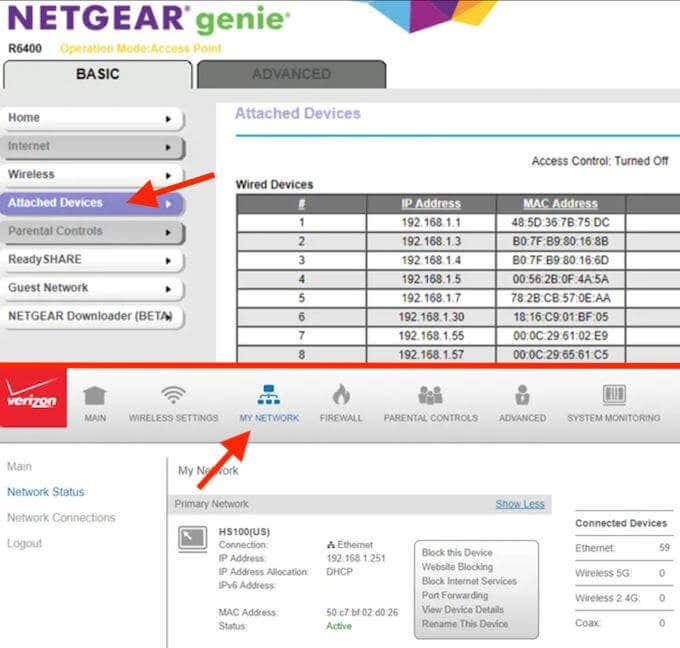
To begin your audit, you must log into your router’s web-based interface. This is typically done by entering the router’s gateway IP address into a web browser. Common addresses include 192.168.1.1 or 192.168.0.1. Once there, you will be prompted for an admin username and password. If you have never changed these, they are often found on a sticker on the physical router itself—though for security reasons, these should be updated immediately after your first login.
Navigating to the Device List or DHCP Client Table
Once inside the dashboard, look for sections labeled “Attached Devices,” “Device List,” “DHCP Client List,” or “Network Map.” This table is the “source of truth” for your network. It will display a list of all currently active and sometimes recently inactive devices. The table usually provides three critical pieces of information: the Device Name (e.g., “John’s iPhone”), the IP Address (the internal location of the device), and the MAC Address (the unique hardware identifier).
Method 2: Leveraging Third-Party Network Scanners and Mobile Apps
While the router dashboard is the most accurate, its user interface can often be clunky or difficult to navigate. For those seeking a more intuitive experience, several software tools can scan your network and provide a detailed inventory of connected hardware.
Using Desktop Utilities for Detailed Analysis
For power users on Windows, macOS, or Linux, tools like Angry IP Scanner or Advanced IP Scanner are invaluable. These programs “ping” every possible IP address on your subnet to see if a device responds. These tools are particularly useful because they can often resolve hostnames and provide “NetBIOS” information, which helps you identify that a device labeled “DESKTOP-7G2H” is actually your office computer. They provide a high-level overview that is easy to export into a spreadsheet for a formal security audit.
The Convenience of Mobile Network Discovery Apps
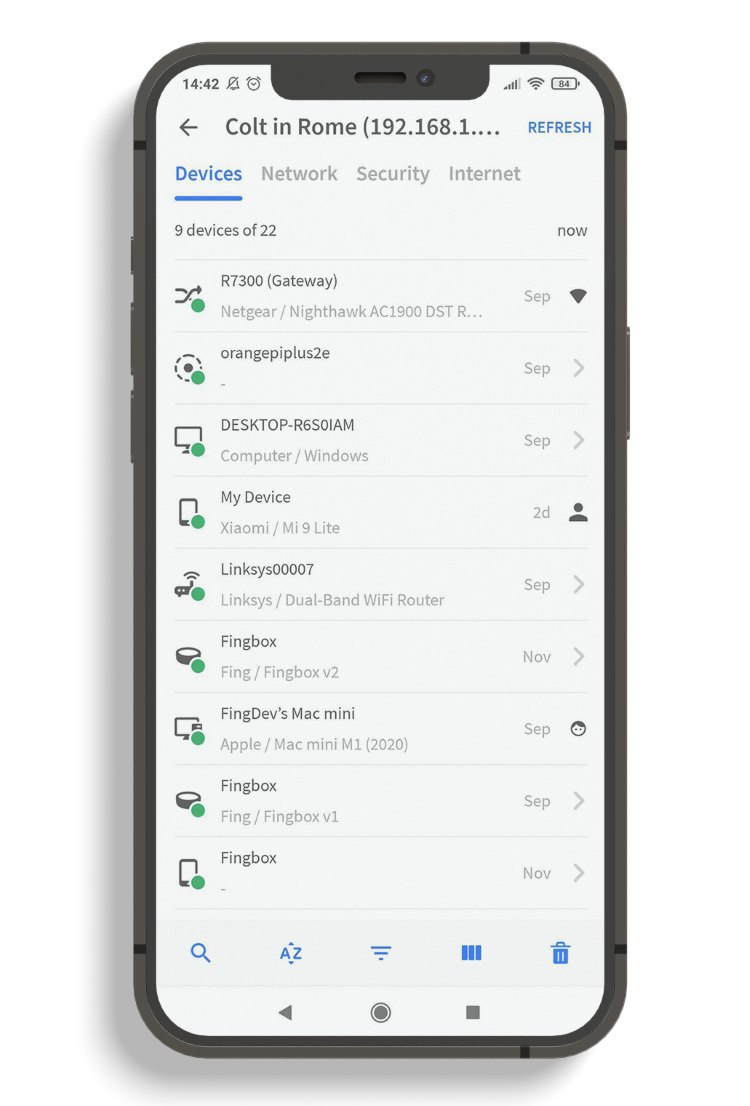
For a quick check, mobile applications such as Fing (available on iOS and Android) are the gold standard. When your phone is connected to your WiFi, Fing scans the network and identifies devices with surprising accuracy. It uses a proprietary database to recognize manufacturers based on the MAC address, meaning it can often tell you not just that a device is connected, but that it is a “Nest Thermostat” or a “Samsung Smart TV.” This level of detail makes it much easier to spot an “Unknown” device that shouldn’t be there.
Identifying and Decoding Your Connected Devices
One of the most frustrating aspects of a network audit is seeing a device listed as “Unknown” or by a cryptic string of characters. Identifying these mystery guests requires a bit of digital detective work.
Understanding MAC Addresses and Vendor Lookups
Every network-enabled hardware component has a Media Access Control (MAC) address—a unique 12-digit hexadecimal number assigned at the factory. The first six digits of a MAC address are known as the Organizationally Unique Identifier (OUI), which identifies the manufacturer. If you find a device you don’t recognize, you can use an online “MAC Lookup” tool. By entering the MAC address, the tool might reveal that the mystery device was manufactured by “Tuya Smart” or “Espressif,” which are common chips used in cheap smart plugs and light bulbs.
The Hurdle of Randomized MAC Addresses
Modern privacy features on iOS, Android, and Windows have made identification slightly more difficult. Features like “Private WiFi Address” or “MAC Randomization” cause a device to present a fake, rotating MAC address to the router to prevent tracking across different networks. If you see a device on your list that you cannot identify despite having all your gadgets accounted for, it is likely a smartphone or tablet using a randomized address. To confirm, you can temporarily disable this feature in your phone’s WiFi settings to see if the device name updates in your router’s list.
Taking Action: Securing Your Network After the Audit
Discovery is only the first half of the battle. If your audit reveals devices that do not belong to you, or if you realize your network is more open than you thought, you must take proactive steps to harden your security.
Immediate Remediation: Changing Your WiFi Password
If you find an unauthorized device, the first and most effective step is to change your WiFi password (SSID Key). This will instantly disconnect every device on the network. While it is a hassle to reconnect your legitimate devices, it is the only way to ensure the intruder is locked out. When choosing a new password, ensure it uses WPA2 or, ideally, WPA3 encryption. Avoid simple passwords or those using WEP/WPA, as these can be cracked by basic hacking tools in a matter of minutes.
Implementing Guest Networks and IoT Segregation
A professional approach to home networking involves more than just a strong password; it involves architectural segregation. Most modern routers offer a “Guest Network” feature. This creates a secondary WiFi point that allows guests to access the internet but prevents them from seeing or interacting with your main devices (like your NAS storage or printer).
Furthermore, security experts recommend placing “dumb” IoT devices—which often have weak security protocols—on a separate 2.4GHz guest network. This ensures that if a cheap smart bulb is compromised, the attacker cannot easily “hop” over to your laptop where your banking information is stored.
The Evolution of Network Monitoring: AI and Mesh Systems
As our homes become smarter, the tools we use to manage them are also evolving. We are moving away from static router lists toward proactive, AI-driven network security.
Proactive Security with AI-Driven Home Networking
Newer mesh WiFi systems, such as those from Eero, Plume, or TP-Link Deco, have integrated security suites that monitor network behavior in real-time. Instead of you having to check a list manually, these systems send a push notification to your phone the moment a new device joins the network. They use machine learning to identify “normal” behavior for a device; for instance, if your smart fridge suddenly starts trying to upload gigabytes of data to an unknown server in a foreign country, the system will automatically quarantine the device and alert you to a potential botnet infection.
The Future of Zero-Trust Home Networks
The future of tech-focused home networking is moving toward a “Zero-Trust” model. This philosophy assumes that any device could be compromised. Future routers will likely implement more granular “Micro-segmentation,” where every device is isolated in its own virtual lane, only allowed to communicate with the specific servers it needs to function. This minimizes the “blast radius” of any single security breach.
In conclusion, managing what devices are connected to your WiFi is a continuous process of digital hygiene. By combining the technical data from your router’s DHCP table with the user-friendly insights of network scanning apps, you can maintain a clear picture of your digital environment. In an age where our personal and professional lives are conducted entirely online, knowing your “network neighbors” is the first and most important step in safeguarding your digital life. Regular audits, strong encryption standards, and the adoption of modern mesh technology will ensure that your WiFi remains a private, high-speed utility rather than a public liability.
aViewFromTheCave is a participant in the Amazon Services LLC Associates Program, an affiliate advertising program designed to provide a means for sites to earn advertising fees by advertising and linking to Amazon.com. Amazon, the Amazon logo, AmazonSupply, and the AmazonSupply logo are trademarks of Amazon.com, Inc. or its affiliates. As an Amazon Associate we earn affiliate commissions from qualifying purchases.