
In the modern digital landscape, the iPhone is more than just a communication device; it is a sophisticated node in a global network. At the heart of its ability to browse the web, stream high-definition content, and maintain secure communications lies a complex array of “Network Settings.” For the average user, these settings often remain invisible until a connection fails. However, for those looking to optimize performance, enhance privacy, and troubleshoot persistent connectivity issues, a deep understanding of iPhone network settings is essential.
This article explores the technical architecture of iOS network configurations, the security protocols governing your data, and the practical steps required to manage these settings for peak efficiency.

The Core Components of iPhone Network Settings
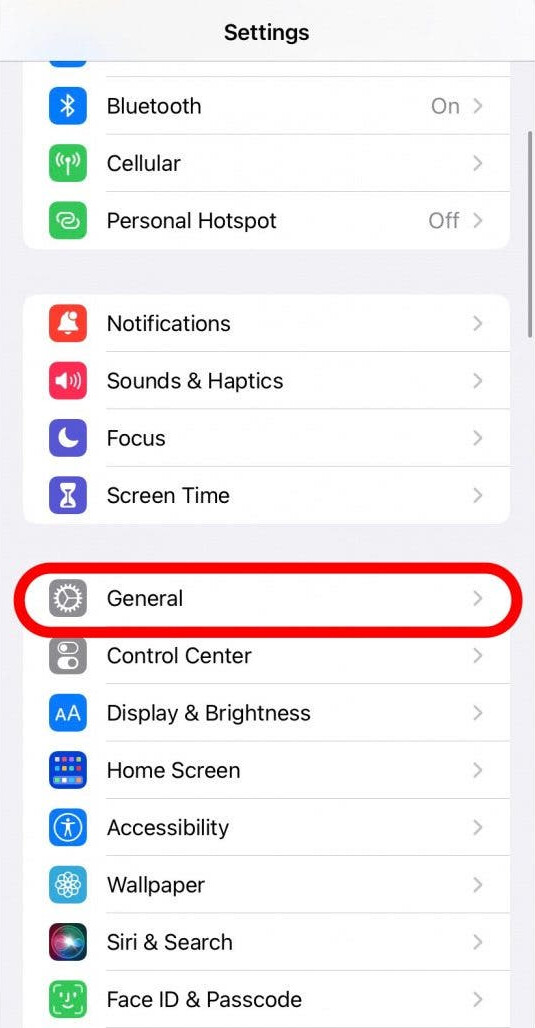
Every iPhone relies on a combination of hardware—the cellular modem and Wi-Fi chip—and software-driven configurations to interact with the outside world. These settings are primarily housed within the “Settings” app, distributed across Cellular, Wi-Fi, and Bluetooth menus.
Cellular Data and Roaming Protocols
The Cellular menu is the command center for your mobile data. Here, users can toggle cellular data on or off, but the deeper settings involve how the device handles different generations of network technology (LTE, 5G Auto, 5G On).
“5G Auto” is a particularly intelligent setting; it uses 5G only when it will not significantly drain battery life, reverting to LTE during periods of low data demand. Data Roaming settings are equally critical, especially for international travelers. By managing roaming, users control whether the device connects to foreign carrier towers, which can prevent unexpected “bill shocks” from high data costs while ensuring emergency connectivity is maintained.
Wi-Fi Architecture and Personal Hotspots
Wi-Fi settings go beyond simply joining a local network. iOS utilizes sophisticated algorithms to prioritize known networks based on signal strength and security. Within these settings, users can also manage the “Personal Hotspot.” This feature transforms the iPhone into a mobile router, sharing its cellular connection with laptops or tablets via 2.4GHz or 5GHz bands. Understanding the “Maximize Compatibility” toggle in Hotspot settings is vital for tech enthusiasts, as it switches the frequency to the older 2.4GHz band to support legacy devices that cannot see 5GHz broadcasts.
Bluetooth and AirDrop Synchronization
While often viewed as a peripheral connection for headphones, Bluetooth is a fundamental part of the iPhone’s “Personal Area Network” (PAN). It facilitates the Handoff feature and AirDrop. Within the network hierarchy, Bluetooth Low Energy (BLE) works in tandem with Wi-Fi to establish the peer-to-peer connections required for Apple’s ecosystem to function seamlessly.
Advanced Configuration: VPNs, DNS, and Privacy
As digital security becomes a primary concern for consumers, iPhone network settings have evolved to include advanced privacy tools that were once the domain of enterprise IT professionals.
Securing Your Connection with VPNs
A Virtual Private Network (VPN) creates an encrypted tunnel for your data, shielding your IP address and browsing habits from ISPs and malicious actors on public Wi-Fi. In the “General > VPN & Device Management” section, iOS allows for the manual configuration of IKEv2, IPsec, and L2TP protocols. Modern users typically utilize third-party apps that automate this process, but the underlying iOS architecture ensures that these tunnels are prioritized over standard unencrypted traffic.
Customizing DNS for Speed and Privacy
The Domain Name System (DNS) is often described as the phonebook of the internet. By default, your iPhone uses the DNS provided by your ISP or the Wi-Fi network owner. However, advanced users often manually configure DNS settings (such as using Cloudflare’s 1.1.1.1 or Google’s 8.8.8.8) within the Wi-Fi settings of a specific network. This can lead to faster resolution times and an additional layer of privacy against ISP tracking.
Understanding Private Wi-Fi Addresses and Low Data Mode
Apple introduced “Private Wi-Fi Address” to combat MAC address tracking. Every network interface has a unique Media Access Control (MAC) address. By enabling a “Private Address,” the iPhone generates a unique, rotating MAC address for each Wi-Fi network it joins. This prevents network operators from tracking your device’s movement across different physical locations.
Additionally, “Low Data Mode” is a network setting that can be applied to both cellular and Wi-Fi connections. When active, it reduces background data usage, pauses automatic updates, and lowers the bitrate of streaming services. This is an essential tool for users on capped data plans or those using expensive roaming data.
Troubleshooting and the “Reset Network Settings” Protocol
Even the most optimized devices encounter connectivity glitches. Whether it is a “No Service” error, failure to join a known Wi-Fi network, or Bluetooth pairing cycles that refuse to complete, understanding how to troubleshoot these settings is a vital skill.
When to Perform a Reset
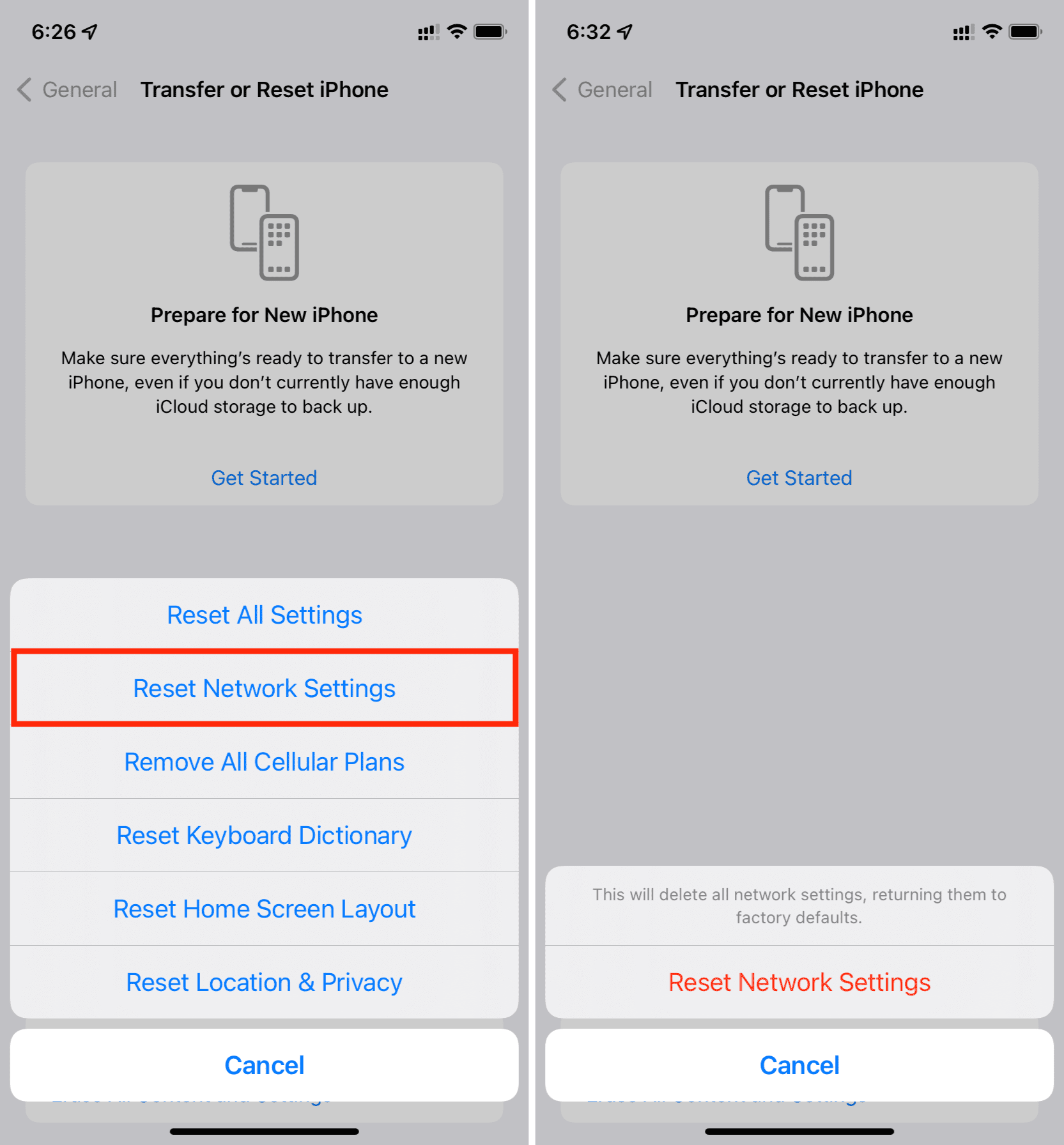
The “Reset Network Settings” option is often viewed as a “nuclear option,” but it is remarkably effective. This command clears all stored network data, including Wi-Fi passwords, preferred networks, VPN configurations, and Bluetooth pairings. It should be utilized when software glitches prevent the cellular modem from handshaking with local towers or when a corrupt Wi-Fi profile prevents internet access despite a strong signal.
The Impact of a Network Reset on Stored Data
One of the most common misconceptions is that resetting network settings will delete personal data like photos or messages. In reality, it only affects the “plist” files governing connectivity. It is important to note, however, that after a reset, you will need to re-enter the passwords for all your Wi-Fi networks and re-pair your Apple Watch and other Bluetooth peripherals.
Carrier Settings Updates
Beyond manual resets, iPhones receive “Carrier Settings Updates” directly from cellular providers. These are small files that update the device’s ability to interact with a specific carrier’s network, adding support for new features like 5G Standalone or Wi-Fi Calling. These updates are typically automatic, but users can check for them manually by navigating to “Settings > General > About.”
The Evolution of 5G and Data Management in iOS
The transition from 4G/LTE to 5G has added a new layer of complexity to iPhone network settings. Managing how your device uses these high-speed lanes is critical for balancing performance with battery longevity.
Managing 5G Auto vs. 5G On
In the “Cellular Data Options” menu, users are presented with choices that dictate how the modem behaves.
- 5G On: This forces the device to stay on a 5G network whenever available, even if the signal is weak. While this provides the fastest speeds, it can lead to significant battery drain and device heating.
- 5G Auto: This is the default Apple recommendation. It uses “Smart Data Mode,” which only activates 5G when the speed advantage is significant compared to LTE.
- LTE: This limits the device to 4G speeds, which is a savvy move for users in areas with spotty 5G coverage, as it prevents the “ping-ponging” effect between network types that kills battery life.
Data Mode Selections
Within the 5G settings, Apple also offers “Allow More Data on 5G.” When enabled, the iPhone will prioritize 5G over Wi-Fi for tasks like iCloud backups, software updates, and high-quality FaceTime calls. This setting highlights the iPhone’s shift toward viewing 5G as a primary, high-capacity connection rather than just a secondary mobile fallback.
Conclusion: Mastering the Invisible Infrastructure
Understanding iPhone network settings is about more than just fixing a broken connection; it is about taking control of your digital footprint and your device’s performance. By mastering the nuances of cellular protocols, Wi-Fi privacy features, and 5G optimization, users can ensure their iPhone remains a fast, secure, and reliable tool.
Whether you are a professional needing constant connectivity for remote work or a casual user looking to save battery life and data, the network settings menu is your primary interface for customization. In an era where “being connected” is the baseline expectation, knowing the technical “how” and “why” behind your iPhone’s connectivity gives you a significant advantage in the digital world. Through strategic adjustments to DNS, VPNs, and data modes, you can transform your iPhone from a standard consumer gadget into a finely tuned instrument of communication.
aViewFromTheCave is a participant in the Amazon Services LLC Associates Program, an affiliate advertising program designed to provide a means for sites to earn advertising fees by advertising and linking to Amazon.com. Amazon, the Amazon logo, AmazonSupply, and the AmazonSupply logo are trademarks of Amazon.com, Inc. or its affiliates. As an Amazon Associate we earn affiliate commissions from qualifying purchases.