
The landscape of home entertainment has undergone a profound transformation over the past decade, with smart televisions emerging as the central hub for digital content consumption. Gone are the days when television was solely a passive medium for broadcast schedules. Today, smart TVs integrate internet connectivity with interactive operating systems, offering a vast array of applications and streaming services directly to your living room. Among these, YouTube stands as a colossus, a global repository of videos ranging from educational tutorials and news to entertainment, music, and vlogs. While accessing YouTube on smartphones, tablets, and computers has long been standard, the experience of viewing this diverse content on a large, high-definition smart TV screen elevates convenience and immersion to a new level. This guide delves into the various technological methods, considerations, and optimizations for seamlessly integrating YouTube into your smart TV ecosystem, ensuring you maximize your viewing pleasure and navigate the digital content sphere with confidence.

The Evolution of YouTube on the Big Screen: A Technological Convergence
The journey of YouTube from a nascent video-sharing platform to an indispensable component of global media consumption is a testament to its technological adaptability and user-centric design. Initially, watching YouTube on a television often involved cumbersome setups, requiring users to connect their computers via HDMI cables or rely on early, less sophisticated media streamers. The advent of smart TVs, however, revolutionized this interaction, embedding powerful processors, Wi-Fi capabilities, and intuitive operating systems directly into the television itself. This technological convergence has democratized access to online video, making the vast YouTube library as accessible as traditional broadcast channels.
From Desktop to Living Room: The Paradigm Shift
The fundamental shift from desktop viewing to the living room experience represents more than just a change in screen size; it signifies a cultural evolution in how we consume digital content. YouTube, originally optimized for individual desktop use, has successfully adapted to a communal viewing environment. This transition was facilitated by advancements in network infrastructure, enabling stable high-definition streaming, and by the development of sophisticated smart TV platforms that could host and run complex applications. The user interface (UI) design for smart TV YouTube apps had to be reimagined to suit remote control navigation, larger text, and a more relaxed, lean-back viewing posture, contrasting sharply with the active engagement typically associated with desktop or mobile interfaces. This paradigm shift underscores the triumph of accessibility and integration in technology, where the line between traditional and digital media continues to blur.
The Rise of Smart TVs and Integrated Entertainment
Smart TVs are no longer niche products; they are the standard. Their rise is intrinsically linked to the demand for integrated entertainment solutions. Modern smart TVs, powered by operating systems like Android TV, Tizen (Samsung), webOS (LG), and Roku TV, come pre-loaded with or offer easy access to an app store where YouTube is almost always a flagship offering. These platforms provide a unified experience, allowing users to switch effortlessly between live TV, streaming services, and connected devices, all managed through a single interface and remote control. The integration extends beyond mere app availability, encompassing features like universal search, voice control, and personalized recommendations, all designed to enhance the overall user experience within a technologically advanced, yet user-friendly, environment. This holistic approach to entertainment has solidified the smart TV’s role as the central hub of the modern digital home.
Primary Methods for Accessing YouTube on Your Smart TV
Accessing YouTube on a smart TV is a streamlined process, but the specific method can vary depending on your TV model, your existing devices, and your personal preferences. Understanding the different avenues available empowers you to choose the most suitable and efficient way to enjoy YouTube’s vast content library on the big screen.
The Native Smart TV App: Seamless Integration
The most straightforward and widely adopted method for watching YouTube on a smart TV is through its dedicated native application. Virtually every smart TV sold today, regardless of brand (Samsung, LG, Sony, Panasonic, Vizio, TCL, Hisense, etc.), comes with a pre-installed YouTube app or offers it prominently within its app store. This method offers the most seamless and integrated experience, leveraging the TV’s processing power and interface for optimal performance.
Locating and Installing the YouTube App
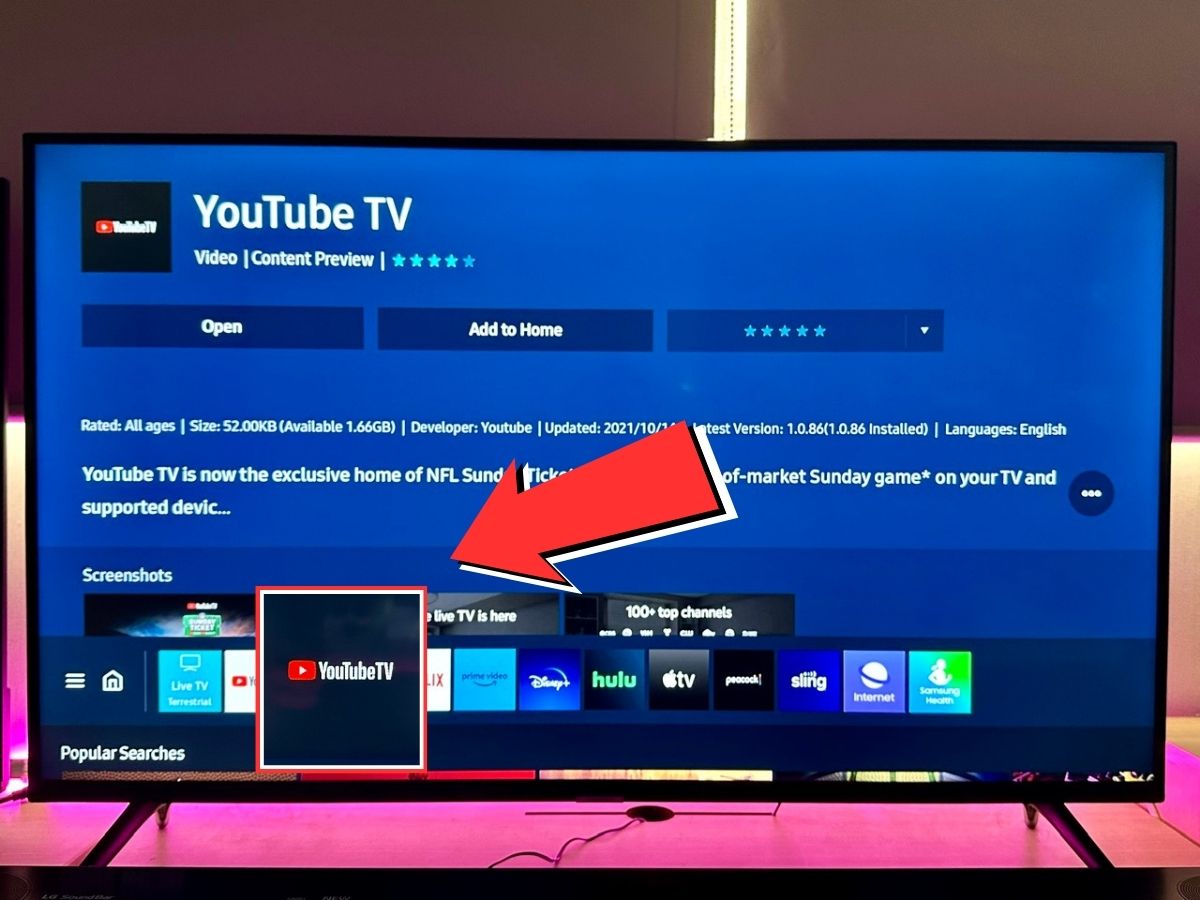
For most modern smart TVs, the YouTube app is either found directly on the home screen or within a dedicated “Apps” or “Smart Hub” menu. If it’s not immediately visible, navigate to your TV’s app store (e.g., Google Play Store for Android TV, Samsung Smart Hub, LG Content Store, Roku Channel Store) and use the search function to find “YouTube.” Installation is typically a one-click process, similar to downloading an app on a smartphone. Once installed, it will appear alongside your other applications for easy access. Logging in with your Google account (the same one you use for YouTube on other devices) allows for personalized recommendations, watch history synchronization, and access to your subscriptions and playlists.
Navigating the User Interface
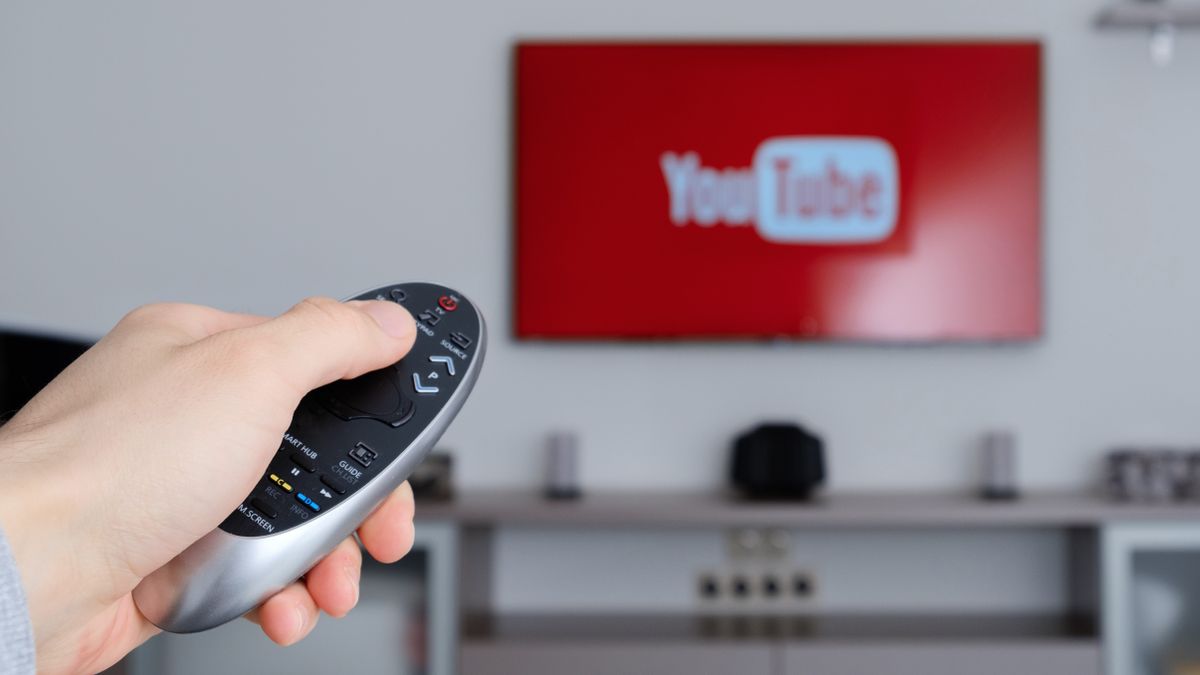
The YouTube app on smart TVs is meticulously designed for a lean-back viewing experience. Navigation is primarily done using your TV’s remote control, often with dedicated arrow keys, an “OK” or “Enter” button, and sometimes a mouse-like pointer function (e.g., LG’s Magic Remote) or voice commands. The interface typically features large thumbnails, clear categories, and easy access to search, subscriptions, library, and settings. Content discovery is intuitive, with trending videos, personalized recommendations, and creator channels readily accessible. The playback controls are usually overlaid on the video, allowing you to pause, play, skip, adjust volume, and change video quality with minimal effort.
Casting and Mirroring: Wireless Connectivity
For users who prefer to initiate content on a mobile device or computer and then transfer it to the TV, casting and mirroring technologies offer excellent wireless solutions. These methods leverage your home Wi-Fi network to send video streams or an exact replica of your device’s screen to the smart TV.
Google Cast (Chromecast built-in)
Many smart TVs, especially those running Android TV or sporting the “Chromecast built-in” label, natively support Google Cast. This technology allows you to “cast” videos directly from the YouTube app on your smartphone, tablet, or computer to your TV. When playing a video on your mobile YouTube app, simply tap the “Cast” icon (a rectangle with a Wi-Fi symbol in the corner) and select your smart TV from the list of available devices. The video will then begin playing on your TV, while your mobile device acts as a remote control, allowing you to queue videos, adjust volume, and perform other functions without draining your phone’s battery by actively streaming. This is an efficient method as the TV pulls the video stream directly from the internet, freeing up your mobile device for other tasks.
Apple AirPlay
For Apple ecosystem users, AirPlay provides a similar casting experience. Smart TVs from brands like Samsung, LG, Sony, and Vizio increasingly feature AirPlay 2 compatibility. To use AirPlay, ensure your iPhone, iPad, or Mac is connected to the same Wi-Fi network as your AirPlay-enabled smart TV. When playing a YouTube video in the Safari browser or certain third-party apps on your Apple device, tap the AirPlay icon (a rectangle with an upward-pointing triangle) and select your TV. AirPlay can mirror your entire device screen or simply stream the video content, providing flexibility for different use cases.
Miracast and Other Screen Mirroring Technologies
Miracast is an industry standard for wireless display connections, allowing you to mirror your device’s screen to a compatible smart TV without needing a Wi-Fi router (though it often works better with one). Many Android smartphones and Windows PCs support Miracast, and numerous smart TVs offer built-in Miracast receivers, often labeled as “Screen Mirroring,” “Smart View,” “Wireless Display,” or “Cast.” While Miracast effectively duplicates your device’s screen, making it suitable for displaying anything from your phone, it can sometimes introduce latency or lower video quality compared to direct casting methods like Google Cast or AirPlay, especially for high-resolution video streams.
External Streaming Devices: Expanding Capabilities
If your smart TV is older, lacks certain apps, or you simply prefer a specific user interface, external streaming devices offer a powerful and often more feature-rich alternative. These compact gadgets plug into your TV’s HDMI port and provide their own operating systems and app ecosystems.
Roku, Amazon Fire TV, Apple TV
Popular streaming devices like Roku sticks and boxes, Amazon Fire TV sticks and cubes, and Apple TV are excellent options. Each comes with its own robust app store, where the YouTube app is a staple. These devices often boast faster processors, more memory, and dedicated remote controls with voice search capabilities, potentially offering a smoother and more responsive YouTube experience than some entry-level smart TV operating systems. They also provide a consistent interface across different televisions, which can be appealing for users with multiple screens. Setting them up is typically straightforward: plug into HDMI, connect to Wi-Fi, and download/log into the YouTube app.
Gaming Consoles (PlayStation, Xbox)
Modern gaming consoles like the PlayStation (PS4, PS5) and Xbox (One, Series X/S) are powerful media centers in their own right. They all offer a YouTube app within their respective digital stores. If you already own one of these consoles, it’s a convenient way to watch YouTube on your TV, often with the added benefit of their robust processing power ensuring smooth playback even of 4K content. The navigation is adapted to game controllers, which might take some getting used to for non-gamers, but it’s an effective solution.
Connecting Via HDMI: Basic Setup
For the most basic, direct connection, you can always connect a laptop or desktop computer to your smart TV using an HDMI cable. Your TV then functions as an external monitor. Simply open YouTube in a web browser on your computer, select the HDMI input on your TV, and enjoy. While perhaps less elegant than dedicated apps or casting, this method is universally compatible and offers full browser functionality, which can be useful for specific YouTube features not always present in TV apps.
Optimizing Your YouTube Smart TV Experience
Beyond simply getting YouTube to play on your smart TV, there are several technical considerations and adjustments you can make to significantly enhance your viewing experience. From ensuring stable network connectivity to fine-tuning display and audio settings, optimization transforms basic viewing into an immersive entertainment session.
Network Connectivity: The Foundation of Streaming
The quality of your YouTube experience on a smart TV is fundamentally dependent on your internet connection. High-definition (HD), 4K, and live streams demand significant bandwidth, and an unstable connection can lead to buffering, reduced quality, or playback interruptions.
Wi-Fi vs. Ethernet: Choosing the Best Option
While Wi-Fi offers convenience, a wired Ethernet connection is almost always superior for streaming stability and speed. An Ethernet cable directly connects your smart TV (or streaming device) to your router, eliminating potential interference from other wireless devices, obstacles, or signal drop-offs. If your smart TV is close to your router and has an Ethernet port, using a wired connection is highly recommended for critical streaming. If Wi-Fi is your only option, ensure your TV is as close as possible to the router, and consider upgrading to a newer Wi-Fi standard (e.g., Wi-Fi 6) if your router and TV support it, for improved performance and less congestion.
Troubleshooting Connection Issues
Common network issues include slow speeds, intermittent disconnections, or an inability to connect. Start by power cycling your router and modem (unplug for 30 seconds, then plug back in). Check other devices on your network to see if the issue is widespread. Ensure your Wi-Fi password is correct and that the TV’s network settings are configured for automatic IP address acquisition. If you suspect bandwidth saturation, try pausing downloads on other devices or consider upgrading your internet service plan. Sometimes, a factory reset of the TV’s network settings or the YouTube app cache can also resolve stubborn connectivity problems.
Display and Audio Settings: Enhancing Immersion
Smart TVs offer a wealth of display and audio settings that can profoundly impact how YouTube content looks and sounds. Tailoring these settings to your content and environment is key to a truly immersive experience.
4K and HDR: Maximizing Visual Fidelity
Many smart TVs support 4K resolution (Ultra HD) and High Dynamic Range (HDR) technologies, which offer vastly improved detail, color accuracy, and contrast. If you have a 4K HDR-compatible TV and are watching 4K HDR content on YouTube (many channels, especially those focused on nature, tech, and travel, offer this), ensure these features are enabled in your TV’s picture settings. Look for modes like “Cinema,” “Movie,” or “HDR” picture presets, which often provide a more color-accurate and less over-processed image. Remember that achieving true 4K HDR requires sufficient internet bandwidth and a YouTube video encoded in those formats.
Sound System Integration
For an elevated audio experience, consider integrating your smart TV with external sound systems such as soundbars, AV receivers, or home theater setups. Most smart TVs feature HDMI ARC/eARC ports, optical digital audio outputs, or even Bluetooth connectivity to seamlessly connect with external audio devices. Ensure that your TV’s audio output settings are correctly configured (e.g., selecting “External Speakers” or “ARC”) to direct YouTube’s audio through your preferred sound system, delivering richer bass, clearer dialogue, and more expansive soundscapes.
Customization and Personalization
The YouTube app on smart TVs offers various customization options that enhance convenience and tailor the experience to individual or family needs.
Account Management and Parental Controls
Logging in with your Google account brings your personalized YouTube experience to the big screen, including your subscriptions, watch history, and custom playlists. For families, YouTube Kids offers a curated, safer environment with age-appropriate content. Additionally, within the main YouTube app, you can often enable restricted mode to filter out potentially mature content. Many smart TV platforms also offer their own system-level parental controls to restrict app access or set viewing time limits, providing multiple layers of content management.
Playback Quality and Data Usage
While most smart TVs and internet connections can handle automatic quality selection for YouTube, you might sometimes want to manually adjust playback quality. This can be useful for saving bandwidth on metered connections, or if you’re experiencing buffering and want to force a lower resolution. Conversely, if you want to ensure the highest possible quality for a specific video, you can manually select 1080p, 4K, or even higher resolutions if available and supported by your setup. These options are typically found within the video’s playback settings menu (often indicated by a gear icon).
Beyond Basic Viewing: Advanced Features and Future Trends
The technological evolution of smart TVs and YouTube isn’t static. Both platforms are continually innovating, introducing advanced features and exploring future trends that promise to further enrich the viewing experience.
Voice Control and Smart Home Integration
Modern smart TVs and streaming devices often integrate sophisticated voice control capabilities. Whether it’s through Google Assistant, Amazon Alexa, or a TV manufacturer’s proprietary voice AI, you can often launch the YouTube app, search for videos, control playback, and even navigate menus using spoken commands. This hands-free interaction adds a layer of convenience, especially when your remote is out of reach or you’re looking for something specific. Furthermore, as smart homes become more prevalent, YouTube on smart TVs is increasingly integrated into broader ecosystems, allowing for cross-device control and automation.
Picture-in-Picture and Multi-Tasking
Some high-end smart TVs and operating systems are beginning to offer picture-in-picture (PiP) or multi-view capabilities. This allows users to watch YouTube content in a smaller window while simultaneously performing another task on the TV, such as browsing the web, checking a security camera feed, or even watching live TV. While not universally available, PiP represents a trend towards more dynamic and flexible multi-tasking experiences on the big screen, allowing users to consume content and interact with other applications concurrently.
The Future of Interactive Content and Live Streaming
YouTube is more than just a library of on-demand videos; it’s a vibrant platform for live streaming, interactive content, and community engagement. As smart TV technology advances, we can expect to see more sophisticated integration of these features, potentially allowing for real-time chat participation, polls, and interactive overlays directly from the TV app. The convergence with virtual reality (VR) and augmented reality (AR) technologies, while still nascent for TV apps, also hints at future possibilities for immersive, 360-degree YouTube experiences, pushing the boundaries of traditional viewing.
Privacy and Security Considerations on Smart TV Platforms
As smart TVs become more interconnected and integral to our digital lives, privacy and security considerations are paramount. It’s crucial to be aware of the data collected by smart TV platforms and app providers like YouTube. Users should regularly review their TV’s privacy settings, understand how data is used for personalized recommendations, and manage ad preferences. Keeping the TV’s firmware and the YouTube app updated is also essential, as updates often include security patches that protect against vulnerabilities. Employing strong passwords for linked accounts and being mindful of permissions granted to apps contribute to a more secure and private smart TV experience.
In conclusion, watching YouTube on a smart TV is a sophisticated yet accessible experience, offering numerous methods to suit every preference. From the seamless integration of native apps and the convenience of wireless casting to the enhanced capabilities of external streaming devices, technology has made it easier than ever to bring the vast world of YouTube into your living room. By understanding these technological pathways, optimizing your network and display settings, and staying abreast of advanced features and future trends, you can unlock the full potential of your smart TV, transforming it into a powerful portal for endless digital entertainment and information. The synergy between YouTube and smart TV technology continues to evolve, promising even richer, more interactive, and immersive viewing experiences for years to come.
aViewFromTheCave is a participant in the Amazon Services LLC Associates Program, an affiliate advertising program designed to provide a means for sites to earn advertising fees by advertising and linking to Amazon.com. Amazon, the Amazon logo, AmazonSupply, and the AmazonSupply logo are trademarks of Amazon.com, Inc. or its affiliates. As an Amazon Associate we earn affiliate commissions from qualifying purchases.