
The landscape of digital entertainment has shifted from centralized cable packages to a fragmented ecosystem of specialized streaming services. Among these, AMC+ has emerged as a premium destination for high-quality scripted content, bundling together the libraries of AMC, IFC Films Unlimited, Shudder, and Sundance Now. However, navigating the technical requirements and the various ways to access this content requires an understanding of modern streaming architecture. This guide explores the technological frameworks, hardware requirements, and software integrations necessary to optimize your AMC+ viewing experience.
The Technical Architecture of AMC Plus
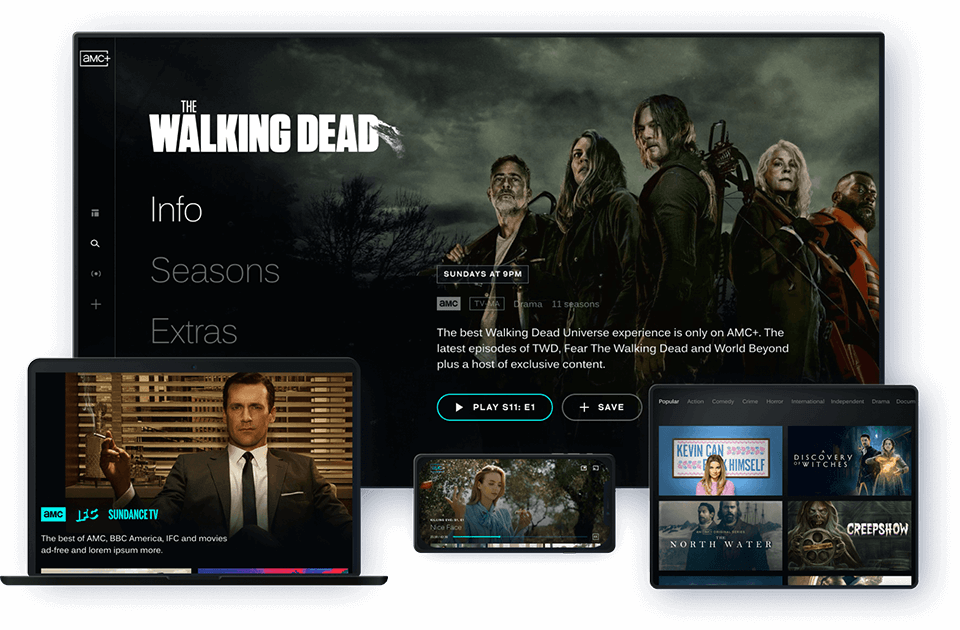
Before diving into specific hardware, it is essential to understand how AMC+ functions as a software-as-a-service (SaaS) platform. Unlike traditional broadcast television, AMC+ relies on a Content Delivery Network (CDN) to stream high-definition video data to end-users. The service is available through two primary digital pathways: as a standalone direct-to-consumer (DTC) application and as an integrated “channel” within third-party digital hubs.
Standalone App vs. Channel Integration
The standalone AMC+ app is a dedicated piece of software developed to run on various operating systems. When you use the standalone app, you are interacting directly with AMC’s proprietary user interface (UI) and backend servers. This often provides the most direct access to features like “Live TV” feeds and curated collections.
Conversely, “Channel” integration involves accessing AMC+ through a parent platform like Amazon Prime Video, Apple TV, or The Roku Channel. In this technical configuration, the parent platform’s player handles the video decoding and metadata management. For users, this often means a more unified search experience and consolidated billing, as the platform’s API (Application Programming Interface) communicates with AMC’s database to verify subscription status.
Software Requirements and Versioning
To ensure a stable stream, the AMC+ application requires modern firmware. On mobile devices, this typically means running at least iOS 14 or Android 9.0. On desktop environments, the service utilizes HTML5 players, eliminating the need for outdated plugins like Silverlight or Flash. However, browser compatibility is crucial; encrypted media extensions (EME) must be enabled in Chrome, Firefox, or Safari to handle the Digital Rights Management (DRM) protocols that protect the content from unauthorized copying.
Supported Hardware and Operating Systems
The versatility of a streaming service is defined by its hardware compatibility. AMC+ has developed clients for the most prominent operating systems in the consumer tech market.
Dedicated Streaming Devices
For the optimal living room experience, dedicated streaming sticks and boxes offer the most robust processing power.
-
Roku: AMC+ supports a wide range of Roku models, from the Express to the Ultra. The technical benefit here is the Roku OS, which is lightweight and optimized for low-latency video playback.
-
Amazon Fire TV: As an Android-based platform (Fire OS), the Fire TV Stick and Fire Cube offer deep integration with AMC+. Users can often use Alexa voice commands to launch the app, which utilizes the system’s intent-filtering capabilities to bridge the voice UI with the application’s deep links.
-
Apple TV (tvOS): The Apple TV 4K provides perhaps the highest fidelity experience due to its superior hardware scaling. The AMC+ app on tvOS supports the Apple TV app’s “Up Next” feature, allowing the system to track your progress across different episodes.
Smart TV Environments
Most modern Smart TVs no longer require external hardware to access AMC+.
-
Android TV / Google TV: Devices from Sony, Hisense, and TCL use the Google Play Store architecture, making the installation of the AMC+ app identical to the smartphone experience.
-
Samsung (Tizen OS) and LG (webOS): These manufacturers use proprietary Linux-based kernels. AMC+ maintains specific versions of its web-app wrapper for these platforms. It is critical to keep the TV’s firmware updated, as the app’s security certificates often expire on older software versions, leading to login failures.
Mobile and Desktop Access
For viewing on the go, the AMC+ mobile app utilizes adaptive bitrate streaming. This technology detects the user’s current bandwidth in real-time and adjusts the video resolution (from 480p to 1080p) to prevent buffering. On desktops, the web portal is optimized for modern GPU acceleration, shifting the heavy lifting of video decoding from the CPU to the graphics card to preserve system resources.
Integration via Third-Party Streaming Hubs
One of the most efficient ways to watch AMC+ is by integrating it into an existing digital ecosystem. This method bypasses the need for the standalone app entirely and relies on the technical infrastructure of a larger provider.
Amazon Prime Video Channels
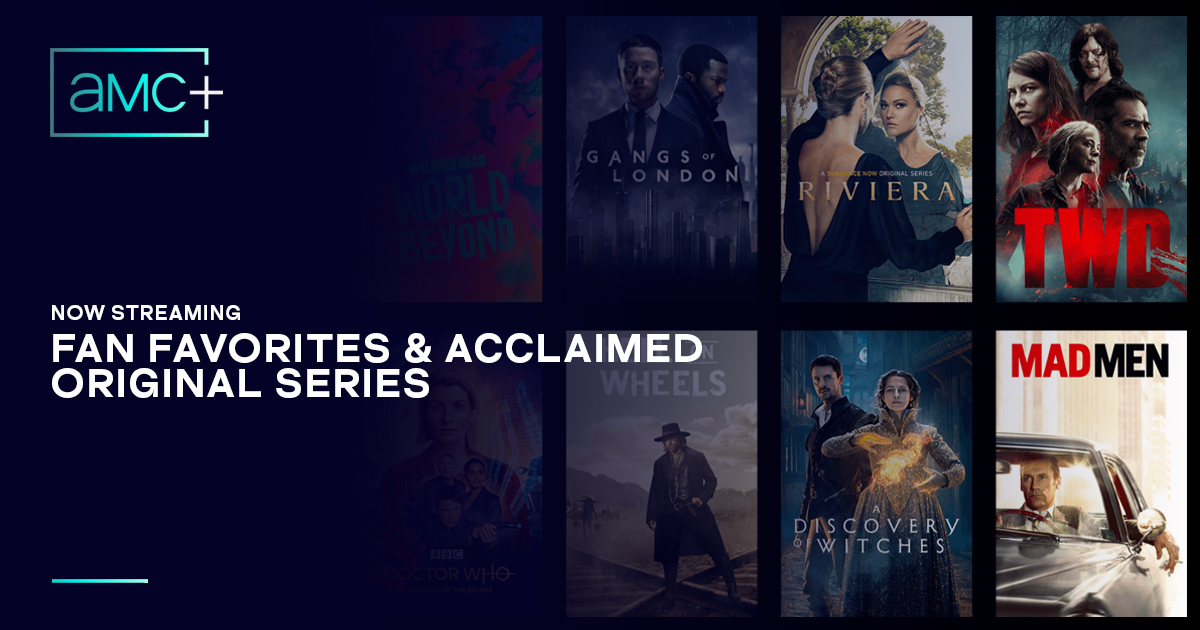
By subscribing through Amazon, the AMC+ library is “injected” into the Prime Video interface. This is technically advantageous for users with older hardware that might struggle to run the dedicated AMC+ app. Amazon’s robust server infrastructure often provides a more consistent bitstream, and the content is indexed within the global Amazon search, making it easier to find specific titles using the Fire TV’s universal search engine.
Apple TV Channels
When added as an Apple TV Channel, AMC+ content is hosted by Apple. This allows for higher bitrate peaks and support for “Family Sharing,” where the subscription is authenticated through iCloud’s internal permissions system. Furthermore, this method allows for offline viewing via the Apple TV app’s native download manager, which is often more stable than the standalone app’s caching system.
YouTube TV and Cable Providers
For those who prefer a traditional grid-style interface, AMC+ can be added to “Skinny Bundles” like YouTube TV or Sling TV. In this setup, the AMC+ content appears as both a VOD (Video On Demand) library and a series of linear “Live” channels. The technical integration here relies on MVPD (Multichannel Video Programming Distributor) authentication, where your login credentials act as a digital token to unlock the content.
Optimizing Playback and Network Performance
To watch AMC+ without technical interruptions, your local network environment must be optimized for high-capacity data transfer.
Bandwidth and Latency
While AMC+ does not currently offer a wide range of 4K content (most is delivered in 1080p HD), it still requires a steady connection. A minimum download speed of 5 Mbps is recommended for a single HD stream. However, for a jitter-free experience, especially on a home network with multiple connected devices, a 25 Mbps plan is the functional baseline.
-
Ethernet vs. Wi-Fi: Whenever possible, use a wired Ethernet connection for your streaming box. Ethernet provides a full-duplex connection that eliminates the interference common in the 2.4GHz and 5GHz Wi-Fi bands.
-
Router Configuration: Enabling Quality of Service (QoS) settings on your router can prioritize traffic to your streaming devices, ensuring that a background software update on a PC doesn’t cause the AMC+ stream to drop in quality.
Audio and Visual Settings
AMC+ supports 5.1 Surround Sound on select titles and devices. To utilize this, your hardware must support pass-through audio. In your device’s “Sound” settings, ensuring that “Bitstream” or “Auto” is selected will allow your A/V receiver or soundbar to decode the Dolby Digital signal directly, providing a much more immersive soundstage than standard PCM stereo.
Technical Troubleshooting and Maintenance
Even with the best hardware, software conflicts can occur. Understanding the basic troubleshooting steps for streaming apps can resolve 90% of playback issues.
Cache Management and Power Cycling
If the AMC+ app becomes sluggish or crashes upon launch, it is often due to a corrupted cache. On Android-based devices, you can navigate to the app settings and “Clear Cache” to refresh the temporary storage. On Roku or Apple TV, the most effective “soft reset” is a power cycle—unplugging the device for 30 seconds to clear the system’s volatile memory (RAM).
Authentication and DRM Errors
If you see an error code related to “Content Protection” or “HDCP,” the issue usually lies in the physical connection. HDCP (High-bandwidth Digital Content Protection) is a digital handshake between your device and your TV. If you are using an older HDMI cable, it may not be able to verify the handshake, causing the app to block the stream to prevent piracy. Switching to a high-speed HDMI 2.0 or 2.1 cable usually resolves this hardware-level security block.

Managing Updates
Streaming apps are not static; they receive frequent “hotfixes” to address security vulnerabilities and UI bugs. Enabling “Automatic Updates” on your Smart TV or streaming stick is the best way to ensure you are running the most stable version of AMC+. If a specific show refuses to load, checking for a pending app update is the first logical step in the technical diagnostic process.
By understanding the interplay between the AMC+ software, the hardware it runs on, and the network that delivers the data, users can create a seamless and high-quality viewing environment. Whether through a dedicated app or a platform integration, the technology behind AMC+ is designed to make premium storytelling more accessible than ever.
aViewFromTheCave is a participant in the Amazon Services LLC Associates Program, an affiliate advertising program designed to provide a means for sites to earn advertising fees by advertising and linking to Amazon.com. Amazon, the Amazon logo, AmazonSupply, and the AmazonSupply logo are trademarks of Amazon.com, Inc. or its affiliates. As an Amazon Associate we earn affiliate commissions from qualifying purchases.