
In the modern digital landscape, the visual output of your computer is the primary interface through which you experience technology. Whether you are a competitive gamer seeking the highest frame rates, a creative professional rendering complex 3D models, or a casual user wanting a smooth interface, the question of “how to update graphics” is fundamental. Updating your graphics involves more than just a single click; it encompasses a range of software updates, driver management, and occasionally, hardware considerations that ensure your Graphics Processing Unit (GPU) functions at its peak potential.

This guide explores the technical intricacies of updating graphics, providing a deep dive into the methods, tools, and troubleshooting steps necessary to maintain a high-performance system.
Understanding Graphics Drivers and Why They Matter
Before diving into the “how,” it is essential to understand the “what” and “why.” At the heart of your computer’s visual performance is the graphics driver. A driver is a specialized piece of software that acts as a translator between your operating system (like Windows or macOS) and your hardware (the GPU). Without a functional driver, your computer cannot communicate instructions to the graphics card, leading to poor resolution, stuttering performance, or a complete lack of display.
The Role of the GPU in Modern Computing
The GPU has evolved from a simple component that puts text on a screen to a massive parallel processor capable of billions of calculations per second. In contemporary tech, the GPU is responsible for rendering high-definition video, processing complex mathematical algorithms in AI development, and powering the immersive worlds of modern gaming. Because software developers are constantly pushing the boundaries of what these chips can do, the software controlling them must be updated frequently to keep pace with new coding standards and APIs (Application Programming Interfaces) like DirectX 12, Vulkan, or Metal.
Why Regular Updates are Crucial for Performance
Manufacturers like NVIDIA, AMD, and Intel release driver updates frequently—often once or twice a month. These updates serve several critical functions:
- Optimization: New drivers often include “Game Ready” or “Studio” optimizations specifically tailored for the latest software releases, offering significant performance boosts.
- Bug Fixes: Graphics software is incredibly complex. Updates frequently patch “leaks” or glitches that cause crashes or visual artifacts.
- Security: Like any software, drivers can have vulnerabilities. Updating ensures that your system remains protected against exploits that could target the GPU’s access to system memory.
- Feature Integration: Updates often unlock new features, such as AI-driven upscaling (DLSS or FSR), which can dramatically improve visual quality without requiring new hardware.
How to Update Graphics Drivers on Windows
Windows remains the most common platform for high-end graphical tasks. Consequently, it offers several pathways for updating graphics, ranging from automated system tools to manufacturer-specific utility suites.
Using Windows Update for Basic Drivers
For the average user who does not engage in heavy gaming or professional rendering, Windows Update is the simplest path. Microsoft collaborates with hardware vendors to distribute certified drivers through the “Settings” menu.
To use this method, navigate to Settings > Windows Update > Check for updates. While this is convenient, it is important to note that Microsoft’s database often lags behind the manufacturers. You may receive a driver that is several months old, which provides stability but lacks the latest performance optimizations.
Manual Updates via Device Manager
If you want to target the graphics card specifically without running a full system update, the Device Manager is your primary tool.
- Right-click the Start button and select Device Manager.
- Expand the Display adapters section to see your graphics card.
- Right-click your GPU (e.g., NVIDIA GeForce RTX 4070 or AMD Radeon RX 7800) and select Update driver.
- Choose Search automatically for drivers.
This method is slightly more direct than Windows Update but still relies on Microsoft’s driver repository. For the most current “cutting-edge” software, you must look toward the manufacturers themselves.
Utilizing Manufacturer-Specific Software (NVIDIA, AMD, Intel)
Power users and enthusiasts should always use the proprietary software provided by the GPU manufacturer. These tools offer the most control and the quickest access to new releases.
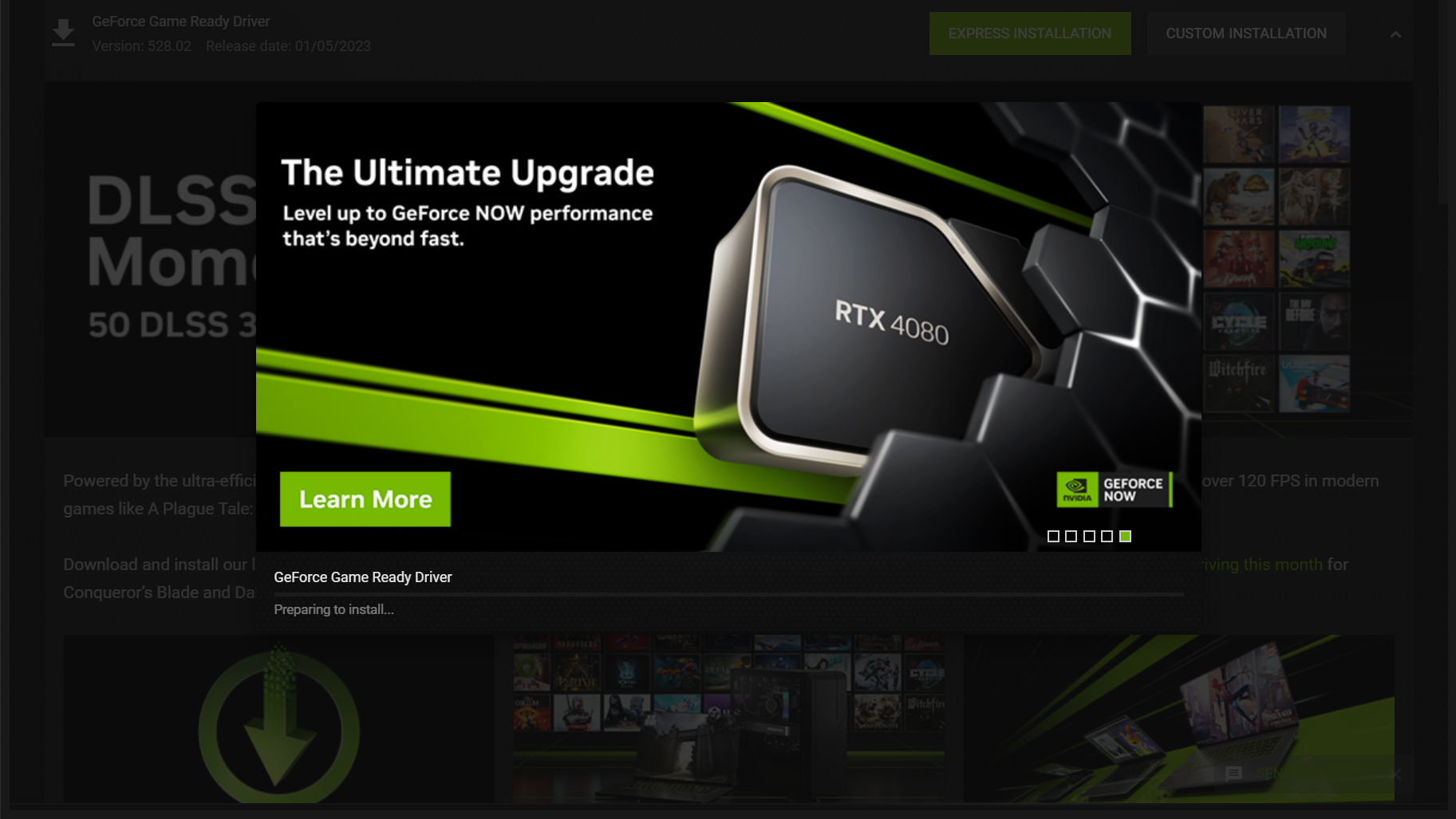
- NVIDIA GeForce Experience / NVIDIA App: This software automatically notifies you when a new driver is available. It allows for “Express Installation,” which handles the entire process. It also offers “Studio Drivers” for stability in creative apps and “Game Ready Drivers” for peak gaming performance.
- AMD Software: Adrenalin Edition: AMD’s suite is highly comprehensive, allowing users to update drivers and tweak performance settings (like overclocking or undervolting) from a single interface.
- Intel Arc Control / Graphics Command Center: As Intel enters the high-performance GPU market, their software has become essential for managing Intel Iris Xe and Arc graphics.

By using these dedicated apps, you ensure that you are receiving the most refined version of the software designed specifically for your hardware architecture.
Troubleshooting Common Graphics Update Issues
Updating graphics is usually a seamless process, but the complexity of modern operating systems means that conflicts can occur. Understanding how to resolve these issues is a vital part of tech maintenance.
How to Handle Driver Crashes and Blue Screens
Occasionally, a new driver might conflict with existing software, leading to system instability or the dreaded “Blue Screen of Death” (BSOD). If your screen flickers excessively or the system freezes after an update, the first step is a “Roll Back.”
In the Device Manager, you can right-click your GPU, select Properties, go to the Driver tab, and click Roll Back Driver. This restores the previous version that was working correctly, giving the manufacturer time to release a hotfix for the newer version.
Using Display Driver Uninstaller (DDU) for a Clean Install
Sometimes, files from old drivers linger in the system registry, causing “driver rot” or conflicts. When a standard update fails, tech experts turn to a tool called Display Driver Uninstaller (DDU).
DDU is a third-party utility that completely wipes all traces of previous graphics drivers in Windows Safe Mode. Once the system is “clean,” you can perform a fresh installation of the latest driver. This “clean install” method is the gold standard for fixing persistent graphical glitches, unexplained frame rate drops, or installation errors.
Updating Graphics Beyond the Software: Hardware and BIOS
“Updating graphics” isn’t always a software-based solution. Sometimes, the bottleneck lies in the firmware or the physical hardware itself. To truly keep a system modern, one must look at the foundation of the GPU.
When to Consider a Physical Hardware Upgrade
There comes a point where software updates can no longer bridge the gap between old hardware and new software requirements. If your GPU lacks support for modern features like hardware-accelerated Ray Tracing or lacks sufficient VRAM (Video RAM) to load high-resolution textures, a hardware update is necessary. In the tech world, the general lifecycle for a GPU is 3 to 5 years for enthusiasts and 5 to 7 years for general users. Upgrading the physical card involves ensuring compatibility with your power supply unit (PSU) and your motherboard’s PCIe slots.
Updating GPU Firmware and VBIOS
Just as a motherboard has a BIOS, a graphics card has a VBIOS (Video BIOS). This is the low-level firmware that manages the card’s power limits, fan curves, and clock speeds. In recent years, updates like Resizable BAR (Re-Size BAR) have required users to update their VBIOS to allow the CPU to access the entire GPU frame buffer at once, significantly increasing performance in certain workloads. Updating a VBIOS is a delicate process that should only be done using official tools from the manufacturer (like EVGA Precision, ASUS GPU Tweak, or MSI Center), as a failed flash can render the card unusable.
Maximizing Your Visual Experience After an Update
Once the software and hardware are fully updated, the final step in “updating graphics” is optimization. Simply having the latest driver is the beginning; configuring it is where the real value lies.
Adjusting In-Game Settings and Resolution
For gamers, updating graphics means recalibrating settings to take advantage of new driver efficiencies. Technologies like DLSS (Deep Learning Super Sampling) from NVIDIA or FSR (FidelityFX Super Resolution) from AMD use AI to upscale lower-resolution images, providing the visual quality of 4K with the performance of 1080p. After a driver update, checking for these toggles in your software’s settings can breathe new life into demanding applications.
Optimizing for Creative Work and AI Rendering
For those in the tech industry using GPUs for non-gaming tasks, updates often bring improved support for OpenCL or CUDA cores. Creative professionals should ensure their software (such as Adobe Premiere Pro, DaVinci Resolve, or Blender) is configured to recognize the updated driver. Frequently, these programs require you to manually select the “Hardware Acceleration” mode after a significant driver update to ensure the GPU—rather than the CPU—is doing the heavy lifting during renders.
In conclusion, knowing how to update graphics is a multi-faceted skill that involves proactive driver management, utilizing the right manufacturer tools, and understanding when hardware has reached its limit. By maintaining a regular update schedule and understanding the troubleshooting steps involved, you ensure that your system remains fast, secure, and visually stunning in an ever-evolving digital world.
aViewFromTheCave is a participant in the Amazon Services LLC Associates Program, an affiliate advertising program designed to provide a means for sites to earn advertising fees by advertising and linking to Amazon.com. Amazon, the Amazon logo, AmazonSupply, and the AmazonSupply logo are trademarks of Amazon.com, Inc. or its affiliates. As an Amazon Associate we earn affiliate commissions from qualifying purchases.