
In an increasingly digital world, managing our technology subscriptions has become as crucial as managing our physical possessions. From productivity suites to entertainment platforms, recurring charges can accumulate rapidly, often unnoticed. YouTube TV, Google’s popular live TV streaming service, offers a compelling alternative to traditional cable, delivering a vast array of channels directly to your devices. However, user needs and preferences evolve, making the ability to easily manage or cancel such services paramount. This guide provides a detailed, step-by-step walkthrough on how to cancel your YouTube TV subscription directly from your iPhone, ensuring you maintain full control over your digital entertainment budget and choices.
Understanding YouTube TV and the iPhone Ecosystem
Before diving into the mechanics of cancellation, it’s beneficial to understand the context of YouTube TV within the broader streaming landscape and how the iPhone integrates into this experience. This foundational knowledge can empower users to make more informed decisions about their digital subscriptions.
The Rise of Live TV Streaming Services
The last decade has witnessed a dramatic shift in how consumers access television content. The “cord-cutting” phenomenon, driven by high cable bills and the desire for more flexible, on-demand viewing, has fueled the growth of live TV streaming services like YouTube TV. These platforms bundle popular cable channels into internet-delivered packages, often with cloud DVR capabilities and multi-device support. YouTube TV, in particular, has garnered a significant user base due to its user-friendly interface, extensive channel lineup, and seamless integration with the Google ecosystem. For many, it represents a primary source of live news, sports, and entertainment, accessed frequently through mobile devices like the iPhone.
iPhone’s Role in Subscription Management
The iPhone, beyond being a communication and entertainment hub, also serves as a central console for managing digital services. Apple has designed iOS to provide users with robust control over apps and subscriptions initiated through the App Store or linked to their Apple ID. This centralization is a double-edged sword: it offers convenience by consolidating management in one place, but it also means users need to be aware of how their subscriptions are billed—whether directly through Apple, or an external provider. Understanding this distinction is key to a smooth cancellation process, as the method you use may depend on how you originally subscribed to YouTube TV.
Preparing for Cancellation: What You Need to Know
Cancelling a subscription isn’t just about clicking a button; it involves understanding the implications and ensuring a smooth transition. Thoughtful preparation can prevent unexpected interruptions or data loss.
Reviewing Your Subscription Details
Before initiating the cancellation, take a moment to review your YouTube TV account details. Log in to the YouTube TV app or the service’s website on your iPhone’s browser. Check your billing cycle start and end dates. This information is crucial because YouTube TV typically allows you to continue accessing the service until the end of your current paid billing period, even after cancellation. Understanding this prevents confusion about immediate loss of access. Also, confirm which specific plan you are on and if you have any add-ons, as this ensures you’re cancelling the correct service and not just a feature.
Understanding the Impact of Cancellation
When you cancel YouTube TV, your access to live channels and your library of recorded content (Cloud DVR) will cease at the end of your current billing cycle. Unlike some services that delete recordings immediately, YouTube TV usually retains your recordings for a period (often 21 days) after your subscription expires, should you decide to resubscribe. However, relying on this retention period is not advisable if you have critical recordings. User profiles associated with your account will also become inactive. It’s important to manage expectations and ensure any family members using the account are aware of the impending change.
Exploring Alternatives Before You Leave
Sometimes, cancellation isn’t about dissatisfaction with the service itself but rather a need for a temporary break or a different set of features. Before committing to cancellation, consider if a “pause” option might be more suitable. YouTube TV, like many streaming services, often allows you to pause your subscription for several weeks or months. This feature temporarily stops billing and access, but retains your library, preferences, and recordings, making it easy to resume later. If you’re looking for a different service entirely, briefly researching competitors like Hulu + Live TV, Sling TV, or FuboTV might reveal an alternative that better suits your evolving needs, allowing for a seamless transition rather than a complete severance.
Step-by-Step Guide to Cancelling YouTube TV via iPhone
The method you use to cancel YouTube TV on your iPhone largely depends on how you originally subscribed. There are generally three primary paths, catering to different subscription origins.
Method 1: Cancelling Through the YouTube TV App (Preferred for iOS-Initiated Subs)
This is often the most direct method if you initiated your YouTube TV subscription through the app itself, which typically funnels billing through your Apple ID.
- Open the YouTube TV App: Locate and tap the YouTube TV icon on your iPhone’s home screen.
- Access Your Profile: Tap your profile picture or initial in the top-right corner of the app. This will open a menu of options.
- Navigate to Settings: From the profile menu, select “Settings.”
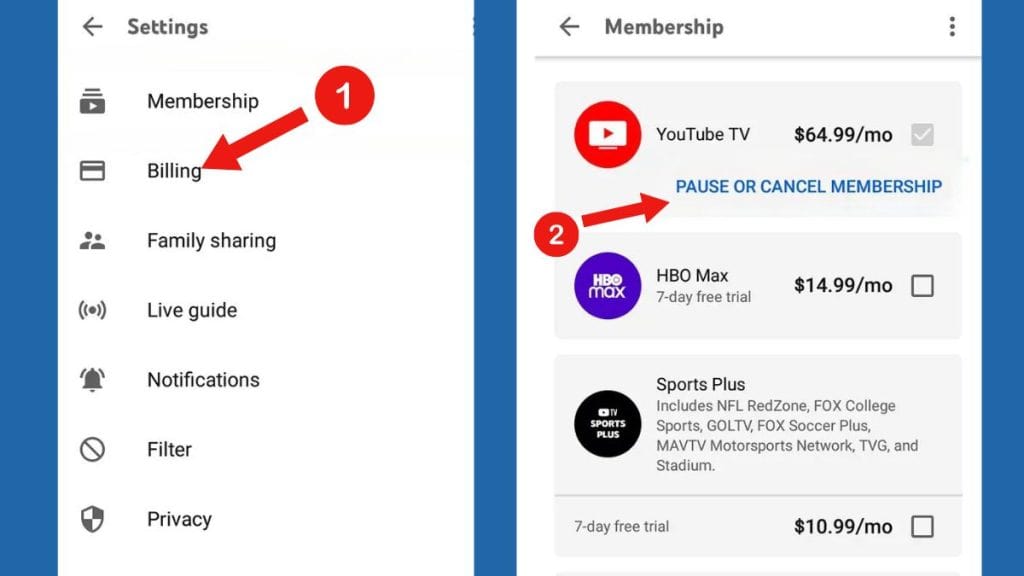
- Go to Membership: Within the settings menu, you should find a section labeled “Membership” or “Billing.” Tap on it.
- Find the Cancellation Option: Here, you’ll see your current plan details. Look for an option like “Cancel Membership,” “Manage Membership,” or “Deactivate Membership.” Tap this option.
- Follow On-Screen Prompts: YouTube TV will typically ask for a reason for cancellation (optional feedback) and then present a final confirmation. Confirm your decision to cancel.
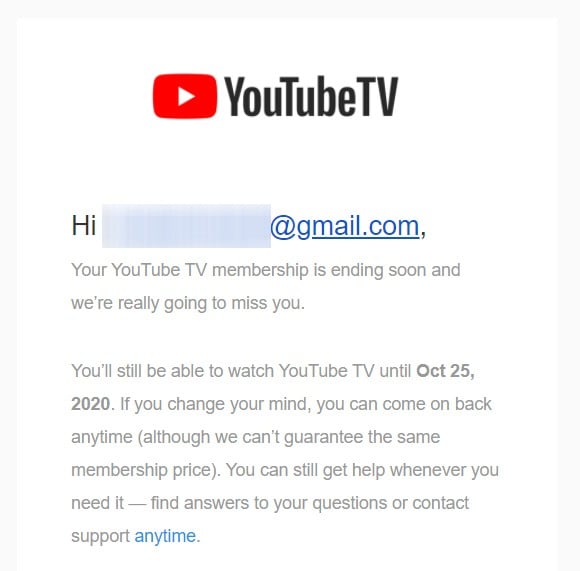
- Confirmation: You should receive an in-app confirmation message and often an email confirming your cancellation. Keep this email for your records.

Method 2: Managing Subscriptions via iPhone Settings (Apple ID/App Store)
If your YouTube TV subscription is billed directly through your Apple ID, it will be listed among your other App Store subscriptions. This method is effective even if you can’t access the YouTube TV app for some reason.
- Open iPhone Settings: Tap the “Settings” app icon on your home screen.
- Tap Your Apple ID: At the very top of the Settings menu, tap on your name/Apple ID banner.
- Go to Subscriptions: From your Apple ID menu, tap on “Subscriptions.” You might need to authenticate with Face ID, Touch ID, or your passcode.
- Locate YouTube TV: Scroll through your active subscriptions until you find “YouTube TV.” Tap on it.
- Cancel Subscription: On the YouTube TV subscription details page, you’ll see options to renew, change your plan, or “Cancel Subscription.” Tap “Cancel Subscription.”
- Confirm Cancellation: A pop-up will ask you to confirm your decision. Tap “Confirm.”
- Verification: The subscription status will change, indicating the expiration date. You should also receive an email from Apple confirming the cancellation.
Method 3: Using a Web Browser on Your iPhone (For subscriptions initiated via web)
If you originally subscribed to YouTube TV directly through the YouTube TV website (not via the app or App Store billing), then your subscription isn’t managed by Apple. In this case, you’ll need to use a web browser on your iPhone.
- Open a Web Browser: Launch Safari, Chrome, or your preferred browser on your iPhone.
- Go to YouTube TV Website: Navigate to tv.youtube.com.
- Sign In: If you’re not already logged in, sign in with the Google account associated with your YouTube TV subscription.
- Access Settings: Tap the three-line menu icon (hamburger icon) or your profile picture in the top-right corner, then select “Settings.”
- Go to Membership: Within the Settings menu, select “Membership.”
- Find Cancellation Option: Under your “YouTube TV Membership” details, look for an option that says “Cancel membership” or “Manage membership.” Click on it.
- Follow Prompts and Confirm: You may be asked to provide feedback and then confirm your cancellation. Complete the necessary steps.
- Confirmation: A confirmation message will appear on the website, and an email will be sent to your registered email address.
Verifying Your Cancellation
Regardless of the method used, always verify your cancellation.
- Check for Confirmation Emails: Look for emails from YouTube TV or Apple confirming your subscription has been cancelled and detailing the last date of access.
- Review App/Settings Status: Re-visit the YouTube TV app’s “Membership” section or your iPhone’s “Subscriptions” in settings to ensure the service is listed as “cancelled” or “will expire on [date].”
- Set a Reminder: If you’re concerned, set a calendar reminder for a day or two after your expected billing cycle ends to ensure no further charges appear.
Post-Cancellation and Re-subscription Considerations
Cancelling a service doesn’t have to be a permanent farewell. Understanding what happens next and how to potentially return can offer greater flexibility.
What Happens After You Cancel?
Once you cancel, your access to YouTube TV will continue until the end of your current paid billing period. For example, if you’re billed on the 15th of each month and cancel on the 5th, you’ll still have access until the 14th. After that, your account will become inactive. As mentioned, YouTube TV typically saves your Cloud DVR recordings and preferences for a short period (e.g., 21 days) after cancellation. This is a grace period designed to make resubscription smoother.
Pausing vs. Cancelling: A More Flexible Option
If your reason for cancellation is temporary—say, you’re going on vacation, or a favorite show is on hiatus—consider pausing your subscription instead. The pause feature allows you to suspend your YouTube TV service for a specified duration (e.g., 4 to 24 weeks). During this period, you won’t be billed, and your access will be suspended, but your library and preferences will be preserved indefinitely. This eliminates the need to set up your account again when you return, offering a hassle-free way to manage short-term needs. You can usually find the “Pause membership” option in the same “Membership” or “Billing” section where you would cancel.
Resubscribing to YouTube TV
Should your circumstances change or you simply miss the service, resubscribing to YouTube TV is generally straightforward. You can typically do this through the YouTube TV app, the website, or via your Apple ID subscriptions page (if billed through Apple). Logging back into your account and selecting a plan will usually reactivate your service, often restoring your saved recordings and preferences if you’re within the retention window. This flexibility underscores the user-centric design of modern streaming services, allowing for easy ebb and flow based on individual needs.
Optimizing Your Digital Subscription Management on iPhone
Beyond YouTube TV, the principles of managing digital subscriptions extend to all services and apps on your iPhone. Proactive management ensures both financial prudence and digital well-being.
Regular Subscription Audits
Make it a habit to periodically review all your active subscriptions. Many users are surprised by how many recurring charges they have, often for services they no longer use or have forgotten about. Your iPhone’s “Subscriptions” section (under your Apple ID in Settings) is an excellent central point for reviewing all services billed through Apple. For direct-billed services, a monthly check of your bank or credit card statements can help identify forgotten subscriptions. This regular audit helps prevent “subscription creep” and ensures you’re only paying for what you genuinely use and value.
Leveraging iOS Features for Financial Oversight
The iPhone offers several built-in features that, while not directly for subscription management, can indirectly aid in financial oversight related to digital services.
- Screen Time: By monitoring app usage, Screen Time can highlight which entertainment apps consume most of your time, potentially informing decisions about which subscriptions are truly essential.
- App Limits: Setting limits on specific app categories (e.g., “Entertainment”) might make you more conscious of your engagement, subtly influencing your perception of a subscription’s value.
- Wallet App: While primarily for payments, regularly reviewing your transaction history for recurring charges can serve as a simple audit tool.
Digital Security Best Practices
Even after cancelling a subscription, maintaining good digital security practices is paramount.
- Strong, Unique Passwords: Ensure the Google account linked to YouTube TV (and all your online accounts) uses a strong, unique password.
- Two-Factor Authentication (2FA): Always enable 2FA on critical accounts like your Google account and Apple ID. This adds an extra layer of security, making it significantly harder for unauthorized individuals to access your information, even if they have your password.
- Phishing Awareness: Be vigilant about phishing attempts related to subscription services. Legitimate cancellation confirmations will come from official channels and won’t ask for sensitive information or prompt you to click suspicious links.
In conclusion, knowing how to efficiently manage and cancel digital subscriptions like YouTube TV on your iPhone is an essential skill in today’s tech-driven landscape. By following these detailed steps and adopting proactive management habits, you can ensure your digital life remains organized, secure, and aligned with your personal preferences and budget. The power to control your digital entertainment lies firmly in your hands, directly from your iPhone.
aViewFromTheCave is a participant in the Amazon Services LLC Associates Program, an affiliate advertising program designed to provide a means for sites to earn advertising fees by advertising and linking to Amazon.com. Amazon, the Amazon logo, AmazonSupply, and the AmazonSupply logo are trademarks of Amazon.com, Inc. or its affiliates. As an Amazon Associate we earn affiliate commissions from qualifying purchases.