
In the modern digital landscape, the Graphics Processing Unit (GPU) has evolved from a niche component for gamers into the powerhouse of the personal computer. Whether you are a creative professional rendering 4K video, a data scientist training machine learning models, or a dedicated gamer seeking the most immersive experience possible, your graphics card is the engine driving those visuals. However, even the most expensive hardware is only as good as the software that instructs it.
Updating your graphics card—both its software drivers and, occasionally, the physical hardware itself—is a fundamental skill in digital literacy. This guide provides a deep dive into the technical nuances of GPU maintenance, ensuring your system remains stable, secure, and optimized for the latest technological demands.
Why Keeping Your Graphics Drivers Updated Is Essential
Before diving into the “how,” it is crucial to understand the “why.” A graphics driver is a specialized piece of software that allows your operating system (Windows, Linux, or macOS) to communicate with the GPU hardware. Without an optimized driver, the OS cannot utilize the card’s full potential.
Performance Optimization and “Day-0” Support
Hardware manufacturers like NVIDIA, AMD, and Intel work closely with software developers long before a major application or game is released. Driver updates often include “Game Ready” or “Studio” optimizations specifically tailored for new releases. These updates can provide double-digit percentage increases in frame rates and significantly reduce latency. For professionals, these optimizations ensure that software like Adobe Premiere Pro or Autodesk Maya runs without stuttering during complex renders.
Stability and Bug Fixes
Software is rarely perfect upon release. Users often encounter “artifacts” (visual glitches), “TDR” (Timeout Detection and Recovery) errors, or straight-to-desktop crashes. Manufacturers use driver updates to patch these stability issues. If your computer is experiencing blue screens or flickering monitors, a corrupted or outdated graphics driver is often the primary suspect.
Security and New Feature Integration
In the era of cybersecurity threats, drivers are not immune to vulnerabilities. Updates frequently include security patches that prevent malicious code from exploiting high-level hardware access. Furthermore, updates often unlock new features that didn’t exist when you bought the card. Examples include NVIDIA’s DLSS (Deep Learning Super Sampling) improvements, AMD’s FSR (FidelityFX Super Resolution) updates, or new noise-cancellation tools powered by the GPU’s AI cores.
Identifying Your Hardware: What GPU Do You Have?
You cannot update what you cannot identify. Knowing the exact model of your graphics card is the first technical step. While many users know their brand (NVIDIA vs. AMD), knowing the specific series and generation is vital for downloading the correct package.
Using the DirectX Diagnostic Tool (dxdiag)
Windows includes a powerful built-in utility for hardware identification. Press the Windows Key + R, type dxdiag, and hit Enter. Navigate to the “Display” tab. Here, you will see the “Name,” “Manufacturer,” and “Chip Type.” This section also lists your current driver version and date, allowing you to see exactly how old your current software is.
Utilizing Windows Device Manager
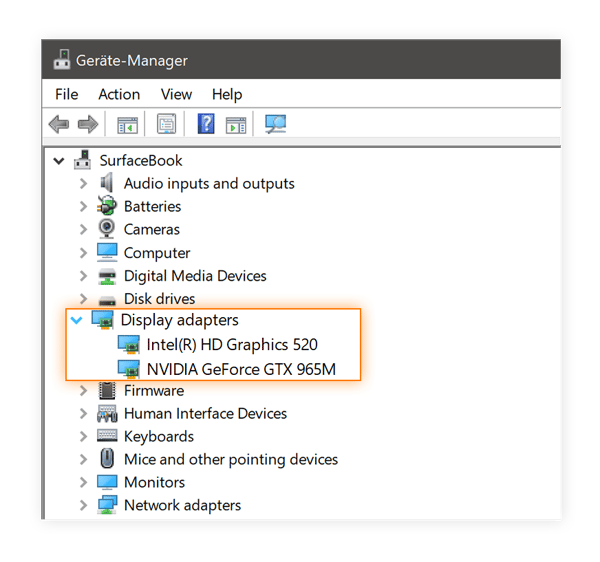
For a more direct look at the hardware stack, right-click the Start button and select “Device Manager.” Expand the “Display adapters” section. This will list every GPU currently active in your system. This is particularly useful for laptop users who may have “switchable graphics”—an integrated Intel or AMD chip for power saving and a dedicated NVIDIA or AMD chip for high-performance tasks.
Third-Party Diagnostic Software
For those who want more granular data—such as clock speeds, VRAM (Video RAM) types, and thermal performance—tools like GPU-Z are industry standards. These applications provide a detailed “birth certificate” for your graphics card, which can be helpful if you are trying to determine if your card is a specific “Overclocked” (OC) edition from a sub-vendor like ASUS, MSI, or EVGA.
Step-by-Step Guide to Updating Drivers
Once you have identified your hardware, the update process can be approached in two ways: through automated software suites or via manual installation.

Method 1: Automated Updates via Manufacturer Software
The most user-friendly way to keep a system current is by using the official software provided by the manufacturer.
- NVIDIA GeForce Experience: This application automatically notifies you when a new driver is available. With a single click, it downloads and installs the “Game Ready Driver.” It also offers a “Clean Install” option, which wipes old settings to prevent conflicts.
- AMD Software: Adrenalin Edition: AMD’s suite is a comprehensive hub for performance tuning and driver updates. Users can check for updates in the “Home” or “System” tab. It offers various profiles (Gaming, eSports, Power Save) that adjust driver settings automatically.
- Intel Arc Control: As Intel enters the high-end GPU market, their Arc Control software handles updates for their new discrete cards and integrated Xe graphics.
Method 2: Manual Installation from Official Websites
Automated tools can sometimes consume system resources or require account logins that some users prefer to avoid. In these cases, manual downloading is the professional choice.
- Navigate to the manufacturer’s official driver page (nvidia.com/drivers, amd.com/en/support, or intel.com).
- Input your GPU series, model, and operating system.
- Choose between “Studio” drivers (for stability in creative apps) or “Game Ready” drivers (for the latest gaming performance).
- Download the executable file (.exe), run it as an administrator, and follow the on-screen prompts.
Method 3: Windows Update
While Windows Update can automatically download graphics drivers, it is generally considered a “fallback” method. Microsoft typically hosts older, “WHQL” (Windows Hardware Quality Labs) certified versions that prioritize stability over the latest features. For high-performance needs, always go to the manufacturer directly.
Advanced Maintenance: Clean Installations and DDU
Sometimes, a standard update isn’t enough. If you are switching from an AMD card to an NVIDIA card, or if your drivers have become corrupted, you may need a “Clean Installation.”
The Role of DDU (Display Driver Uninstaller)
Display Driver Uninstaller (DDU) is a niche but essential utility used by tech enthusiasts. Standard uninstallers often leave behind registry keys and stray files that can cause conflicts with new drivers. DDU is a tool that completely nukes every trace of a graphics driver from the system.
To use it effectively, you should boot your PC into “Safe Mode,” run DDU to “Clean and Restart,” and then install the new driver. This process ensures that the new driver is written onto a “blank slate,” eliminating persistent software glitches.
When to Roll Back a Driver
Newer is not always better. Occasionally, a manufacturer may release a driver that contains a bug specifically affecting a game you play or a tool you use. If you notice a performance drop immediately after an update, Windows allows you to “Roll Back” to the previous version via Device Manager. This is a vital troubleshooting step before assuming your hardware is failing.
Beyond Software: Considering Hardware Upgrades
Updating your graphics card isn’t always about software. Eventually, the hardware itself becomes a bottleneck for modern software. Knowing when to stop updating drivers and start looking at new hardware is key to maintaining a high-performance ecosystem.
Identifying Bottlenecks
If you have the latest drivers but your GPU usage is at 100% while your frame rates remain low, you are likely hardware-limited. Conversely, if your GPU usage is low but your CPU usage is at 100%, your processor is “bottlenecking” your graphics card, and a GPU update won’t help.
Physical Installation Basics
If you decide to upgrade the physical card, the process involves:
- Power Supply (PSU) Check: Modern GPUs (like the RTX 40-series) require significant wattage and specific 12VHPWR connectors.
- Physical Dimensions: Ensure the card fits in your chassis; modern cards can exceed 330mm in length.
- PCIe Slot: Always use the top-most PCIe slot on your motherboard (usually PCIe x16 Gen 4 or Gen 5) for maximum bandwidth.
Future-Proofing with AI and Ray Tracing
When looking at hardware updates, consider the shift toward AI-driven rendering. Modern cards are no longer just about raw rasterization; they are about Tensor cores and Ray Tracing cores. Investing in a card with strong architectural support for these technologies will ensure that your “update” lasts for several years rather than several months.
Conclusion
Updating your graphics card is a multifaceted process that blends software maintenance with hardware awareness. By staying diligent with driver updates, utilizing the right diagnostic tools, and knowing when to perform a clean installation, you ensure that your computer remains a cutting-edge tool for work and play. In the rapidly evolving world of technology, your GPU is your window into the digital realm—keep it updated, and the view will remain crystal clear.
aViewFromTheCave is a participant in the Amazon Services LLC Associates Program, an affiliate advertising program designed to provide a means for sites to earn advertising fees by advertising and linking to Amazon.com. Amazon, the Amazon logo, AmazonSupply, and the AmazonSupply logo are trademarks of Amazon.com, Inc. or its affiliates. As an Amazon Associate we earn affiliate commissions from qualifying purchases.