
In the intricate world of computing, the graphics card stands as a pivotal component, responsible for rendering everything you see on your screen, from high-fidelity games to complex design software and even the everyday user interface. Yet, the raw power of your graphics hardware is only as good as the software that orchestrates it: the graphics driver. Far more than a mere utility, the graphics driver acts as the crucial interpreter, allowing your operating system and applications to communicate effectively with your GPU. Regularly updating these drivers isn’t just a recommended maintenance task; it’s a fundamental practice for anyone seeking to unlock their system’s full potential, ensure stability, and safeguard against emerging vulnerabilities.

This guide will demystify the process of updating graphics card drivers, providing you with a professional, insightful, and engaging roadmap. We’ll delve into why these updates are critical, how to prepare your system, the various methods for acquiring and installing the latest drivers from major manufacturers like NVIDIA, AMD, and Intel, and essential troubleshooting tips to keep your visual experience seamless.
The Indispensable Role of Graphics Drivers
Graphics drivers are the unsung heroes behind every pixel rendered, every frame displayed, and every visual effect experienced. They are specialized software components that enable your operating system and applications to interact with your graphics processing unit (GPU). Without a properly functioning driver, your graphics card would be little more than an expensive paperweight. Understanding their importance clarifies why consistent updates are paramount.
Unlocking Peak Performance and Features
One of the most compelling reasons to update your graphics drivers is the promise of enhanced performance. Graphics card manufacturers – NVIDIA, AMD, and Intel – continuously optimize their drivers to squeeze every ounce of performance from their hardware. These optimizations can translate into higher frame rates in games, smoother playback of high-resolution video, and faster processing times in demanding professional applications like CAD software, video editors, and 3D renderers. For gamers, this often means the difference between a sluggish, frustrating experience and a fluid, immersive one. Beyond raw speed, new driver versions frequently introduce support for the latest graphical technologies and APIs (Application Programming Interfaces) like DirectX and Vulkan, enabling cutting-edge visual effects and features that older drivers simply cannot accommodate.
Ensuring Stability and Compatibility
Outdated or corrupted drivers are a common culprit behind system instability, ranging from minor glitches to frustrating system crashes (often manifested as the dreaded Blue Screen of Death, or BSOD). A common symptom of an unstable graphics driver is graphical artifacting, screen flickering, or applications unexpectedly closing. Manufacturers release driver updates not only to boost performance but also to address bugs, fix compatibility issues with new operating system versions or software, and improve overall system stability. By updating, you ensure that your graphics card operates harmoniously with your other hardware components and the software you run, significantly reducing the likelihood of crashes and unexpected behavior. This is especially true when a new major game title or professional application is released, as driver updates are often issued in tandem to ensure optimal day-one compatibility and performance.
Patching Security Vulnerabilities
While perhaps less frequently highlighted than performance or stability, the security aspect of driver updates is increasingly important. Like any complex piece of software, graphics drivers can contain vulnerabilities that malicious actors might exploit to gain unauthorized access to your system, compromise data, or introduce malware. Graphics card manufacturers are diligent in identifying and patching these security flaws. By keeping your drivers current, you ensure that your system is protected against known exploits, strengthening your overall digital security posture. Neglecting driver updates can leave a gaping hole in your system’s defenses, making it an easier target for cyber threats.
Pre-Update Checklist: Preparing Your System for a Smooth Transition
Before embarking on the driver update process, a little preparation can save you a lot of potential headaches. A systematic approach ensures a smooth transition and minimizes the risk of encountering issues.
Identifying Your Graphics Card (NVIDIA, AMD, Intel)
The first and most crucial step is to accurately identify your graphics card. This dictates where you’ll download your drivers from. There are several ways to do this:
- Task Manager (Windows 10/11): Press
Ctrl + Shift + Escto open Task Manager. Go to the “Performance” tab and click on “GPU.” You’ll see the name of your graphics card at the top. - Device Manager (All Windows Versions): Right-click the Start button, select “Device Manager,” then expand “Display adapters.” Your graphics card’s name will be listed there.
- System Information (All Windows Versions): Type
msinfo32into the Windows search bar and press Enter. Navigate to “Components” > “Display.” Look for the “Name” field. - Physical Inspection: If you built your PC or have easy access, you might be able to read the brand and model directly off the card itself.
Once identified (e.g., NVIDIA GeForce RTX 3070, AMD Radeon RX 6800 XT, Intel Iris Xe Graphics), you’ll know exactly which manufacturer’s website to visit.
Backing Up Your System and Settings (Optional but Recommended)
While driver updates are generally safe, there’s always a slim chance something could go awry, especially if your system has underlying issues. For critical systems or those containing irreplaceable data, creating a system restore point or even a full system backup before a major driver update is a prudent measure. This allows you to revert your system to a previous working state if an update causes unexpected problems. Windows offers built-in tools for creating restore points, and third-party backup solutions provide more comprehensive options. For gaming, consider backing up your game save files, though these are rarely affected by graphics driver updates.
Gathering Essential System Information
Beyond just the graphics card model, it’s beneficial to know your operating system version (e.g., Windows 10 64-bit, Windows 11 64-bit) and its specific build number. This information helps you select the correct driver package, as manufacturers often release different versions for different OS builds. You can find your OS information by typing winver into the Windows search bar or by navigating to Settings > System > About. Knowing your current driver version (visible in Device Manager or the GPU manufacturer’s control panel like NVIDIA Control Panel or AMD Radeon Software) can also be useful for comparison or if you ever need to revert to a known stable version.
Navigating the Update Process: Your Options for Driver Acquisition
With your preparations complete, it’s time to acquire the new drivers. While several methods exist, some are far more reliable and recommended than others.
The Gold Standard: Manufacturer’s Official Websites
For optimal performance, stability, and access to the latest features, always download drivers directly from your graphics card manufacturer’s official website. This ensures you receive authentic, untampered drivers specifically designed for your hardware.
- NVIDIA: GeForce Experience and Manual Downloads
NVIDIA offers two primary methods. For gamers, GeForce Experience is a popular application that not only optimizes game settings but also automatically detects, downloads, and installs the latest game-ready or studio drivers. It provides a user-friendly interface for managing updates. Alternatively, you can visit the NVIDIA Driver Download page (nvidia.com/drivers). Here, you’ll manually select your product type (GeForce, Quadro, NVS, etc.), product series, product, and operating system. NVIDIA offers both “Game Ready Drivers” (optimized for the latest games) and “Studio Drivers” (optimized for creative applications). - AMD: Radeon Software Adrenalin Edition and Web Downloads
AMD users typically rely on Radeon Software Adrenalin Edition, a comprehensive suite that provides tools for gaming, streaming, and display settings, alongside driver management. It can automatically check for, download, and install updates. Similar to NVIDIA, AMD also provides a manual driver download page (amd.com/support). You’ll navigate through categories like “Graphics,” then select your specific GPU series (e.g., Radeon RX 6000 Series) and model, followed by your operating system. AMD often distinguishes between “Recommended (WHQL)” drivers, which are extensively tested and Windows Hardware Quality Labs certified, and “Optional” drivers, which may include the very latest features but might be less thoroughly vetted. - Intel: Driver & Support Assistant and Direct Downloads
Intel integrated graphics (found in many CPUs) also require regular driver updates. The easiest way is through the Intel Driver & Support Assistant (IDSA). This small utility scans your system for outdated Intel drivers (graphics, chipset, Wi-Fi, etc.) and offers direct downloads and installation. For manual downloads, visit the Intel Download Center (intel.com/support/downloads). You can search by product or browse by category. Intel drivers are crucial for ensuring smooth operation of integrated graphics, especially with demanding applications or external displays.

The Built-in Solution: Windows Device Manager
Windows includes a built-in function to update drivers via Device Manager. Right-click the Start button, select “Device Manager,” expand “Display adapters,” right-click your graphics card, and choose “Update driver.” Then select “Search automatically for updated driver software.” While convenient, this method is often not ideal for graphics drivers. Windows Update typically provides only generic, stable, and sometimes older, WHQL-certified drivers. These are generally sufficient for basic functionality but rarely offer the performance optimizations, bug fixes, or new features found in the latest drivers released by NVIDIA, AMD, or Intel directly. Use this as a fallback if other methods fail or if you need a basic driver to get your system working.
Exercise Caution: Third-Party Driver Update Utilities
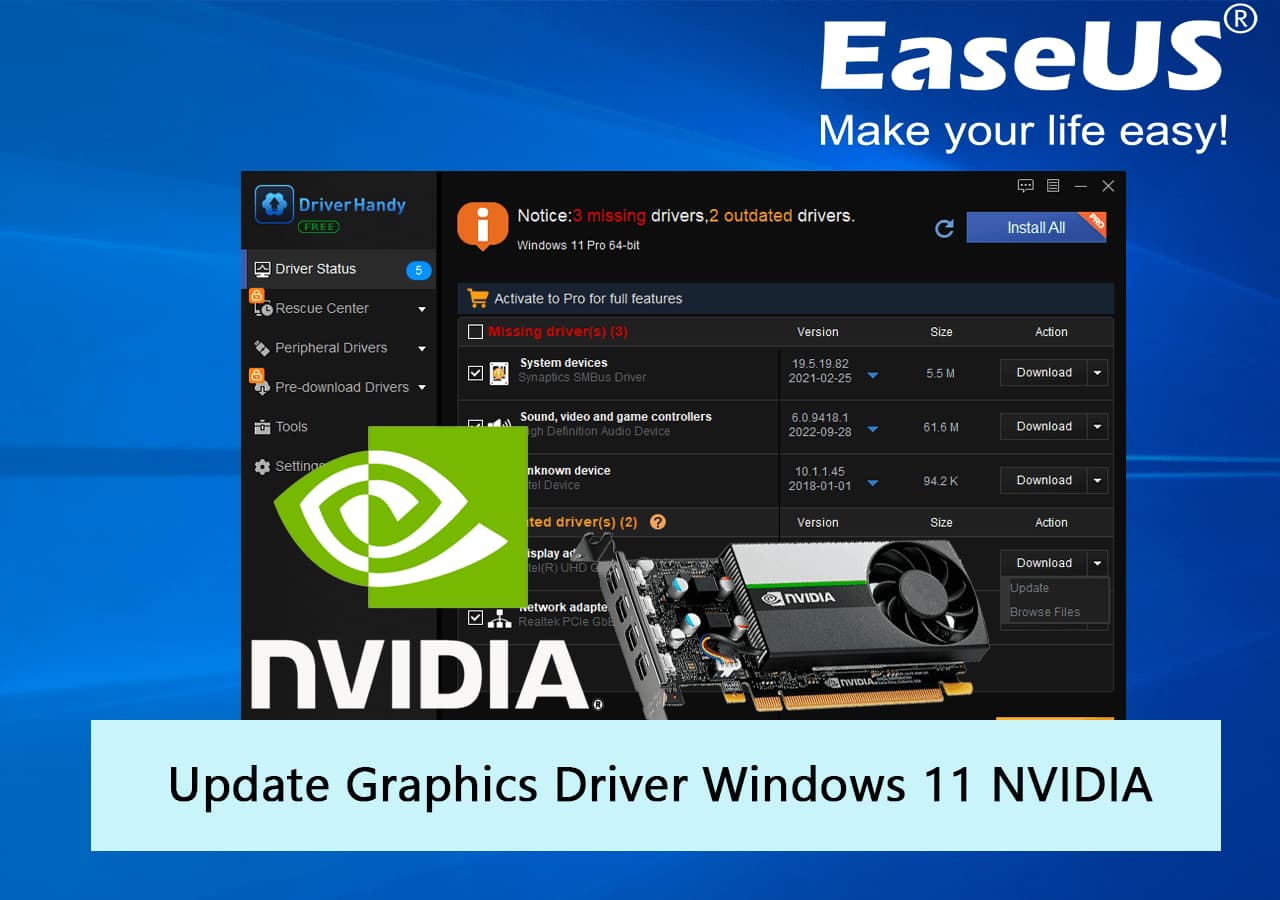
You might encounter various third-party driver update utilities advertised online. These tools promise to scan your system and update all outdated drivers automatically. While some might be legitimate, many are of questionable quality, can install incorrect drivers, introduce malware, or even worsen system stability. It is strongly advised to avoid these tools, especially for graphics card drivers. Stick to the official manufacturer websites or their dedicated software suites for the most reliable and secure updates.
The Installation Journey: Step-by-Step Execution for Each Vendor
Once you’ve downloaded the appropriate driver package from the official source, the installation process is relatively straightforward. However, a “clean installation” is highly recommended to prevent potential conflicts with older driver files.
Performing a Clean Installation: The DDU Advantage
A “clean installation” involves completely removing all remnants of previous graphics drivers before installing the new ones. This prevents residual files from interfering with the new installation, a common cause of instability or performance issues. While NVIDIA and AMD installers offer a “clean installation” or “factory reset” option within their setup wizards, the most thorough method involves using a third-party tool called Display Driver Uninstaller (DDU).
- Download DDU: Obtain DDU from a reputable source like Wagnardsoft.
- Boot into Safe Mode: This is crucial. DDU works best when Windows services that might interfere with driver removal are disabled. Restart your PC and repeatedly press
F8(or useSettings > Update & Security > Recovery > Advanced Startup > Troubleshoot > Advanced Options > Startup Settings > Restartand select Safe Mode). - Run DDU: Launch DDU, select your GPU manufacturer (NVIDIA, AMD, or Intel), and choose “Clean and restart.” DDU will meticulously remove all driver components and reboot your system.
- Install New Driver: Once Windows restarts (it will likely be using a basic Microsoft display driver with low resolution), run the installer for the new driver you downloaded.
Following the On-Screen Prompts: Express vs. Custom
When you run the manufacturer’s driver installer, you’ll typically be presented with options:
- Express/Recommended Installation: This is the default and easiest option. It installs the driver and all associated software (like GeForce Experience or Radeon Software) with minimal user input. For most users, this is perfectly fine, especially if you didn’t use DDU and rely on the installer’s built-in clean installation option.
- Custom/Advanced Installation: This option allows you to select which components to install (e.g., driver, GeForce Experience, PhysX, HDMI Audio Driver). Crucially, this is where you’ll often find a checkbox for “Perform a clean installation” or “Factory Reset.” If you skipped DDU, selecting this option here is highly recommended. It will uninstall the old driver, restart, and then install the new one.
Follow the on-screen instructions, accepting licensing agreements, and letting the installer complete its process. Your screen might flicker or go black momentarily during installation – this is normal as the new display driver takes effect.
Post-Installation Verification
After the installation is complete and your system has restarted, verify that the new driver is active:
- Check Device Manager: Go to Device Manager > Display adapters and check the driver version listed for your graphics card.
- Check Manufacturer’s Software: Open NVIDIA Control Panel, AMD Radeon Software, or Intel Graphics Command Center. These applications typically display the currently installed driver version.
- Run a Quick Test: Launch a game or a graphically intensive application to ensure everything is working correctly and, ideally, see a performance improvement.
Troubleshooting Common Issues and Maintaining Driver Health
Even with careful preparation, issues can sometimes arise. Knowing how to troubleshoot and maintain driver health is essential.
Dealing with Installation Errors and Display Anomalies
- Installation Failure: If the installer fails, try downloading the driver again (the file might have been corrupted). Ensure your antivirus or firewall isn’t blocking the installation. Temporarily disabling them might help, but remember to re-enable them afterward. Running the installer as an administrator (
Right-click > Run as administrator) can also resolve permission issues. - Black Screen/No Display: If your screen goes black and stays that way after an update, first try a hard reboot. If the problem persists, boot into Safe Mode (as described for DDU) and try to uninstall the problematic driver using DDU, then install an older, known-working driver, or use Windows System Restore to revert to a previous state.
- Graphical Artifacts/Flickering: These usually indicate a corrupted installation or an unstable driver. Perform a clean installation using DDU. If the issue continues, consider rolling back to a previous driver version that was stable.
Rolling Back Drivers to a Previous Version
If a new driver causes more problems than it solves (e.g., performance degradation, crashes), Windows allows you to “roll back” to the previous driver version.
- Open Device Manager.
- Expand “Display adapters” and double-click your graphics card.
- Go to the “Driver” tab.
- Click “Roll Back Driver.” If the button is greyed out, it means Windows doesn’t have a previous driver package stored, or it’s a fresh installation. In such cases, you’ll need to manually download and install an older driver version from the manufacturer’s website.
Establishing a Regular Update Schedule
While keeping drivers absolutely cutting-edge isn’t always necessary, establishing a regular update schedule is a good practice. For gamers or content creators, checking for updates monthly or bi-monthly, especially around major game releases or software updates, is advisable. For general users, quarterly updates are often sufficient. Use the manufacturer’s software (GeForce Experience, Radeon Software, IDSA) for automatic notifications or periodically check their websites. Remember, consistency in driver maintenance directly translates to consistent system performance and reliability.
By following this comprehensive guide, you’ll be well-equipped to manage your graphics card drivers effectively, ensuring your system delivers the optimal visual experience it was designed for, free from performance bottlenecks and stability issues. Stay updated, stay secure, and enjoy the full power of your graphics hardware.
aViewFromTheCave is a participant in the Amazon Services LLC Associates Program, an affiliate advertising program designed to provide a means for sites to earn advertising fees by advertising and linking to Amazon.com. Amazon, the Amazon logo, AmazonSupply, and the AmazonSupply logo are trademarks of Amazon.com, Inc. or its affiliates. As an Amazon Associate we earn affiliate commissions from qualifying purchases.