
Amazon Prime Video has revolutionized the way millions consume entertainment, offering a vast library of movies, TV shows, and original content. Among its many features, X-Ray stands out as a unique integration designed to enhance the viewing experience by providing instant access to IMDb information about actors, music, trivia, and scene details. While many viewers find X-Ray to be an invaluable tool for deeper engagement with their content, there are just as many who prefer an uninterrupted, immersive experience. For those who find X-Ray to be a distraction, a spoiler source, or simply an unwanted overlay, the good news is that disabling it is a straightforward process, though it can vary slightly depending on your viewing device. This guide delves into the mechanisms of X-Ray and provides comprehensive instructions on how to turn it off, ensuring your Prime Video experience is tailored to your preferences.

Understanding Amazon Prime Video’s X-Ray Feature
Before diving into the “how-to,” it’s crucial to understand what X-Ray is, how it functions, and why it elicits such varied responses from users. Born from Amazon’s acquisition of IMDb, X-Ray is a seamless integration that overlays real-time, context-sensitive information onto your Prime Video playback.
What is X-Ray and How Does It Work?
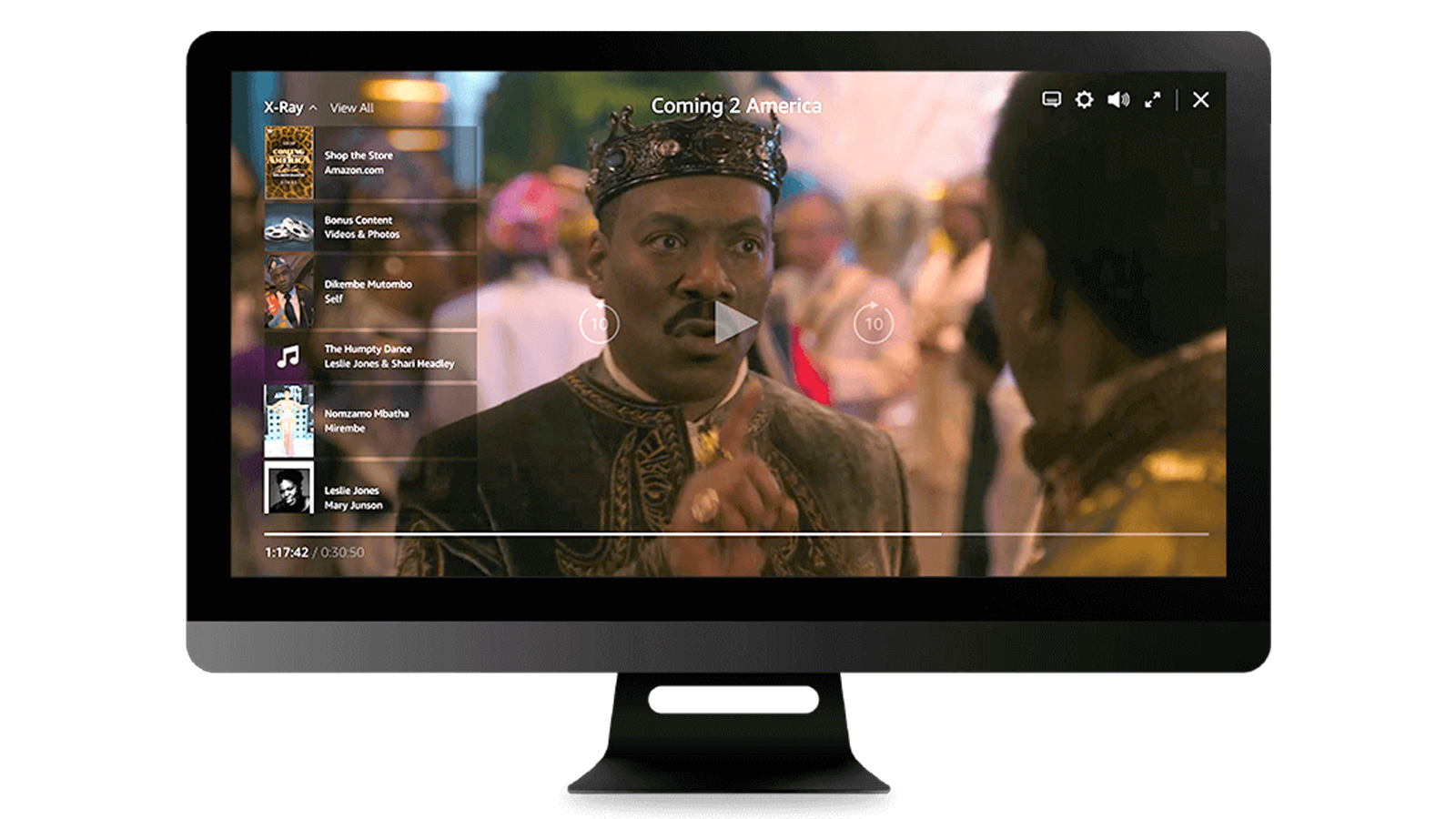
X-Ray is Amazon’s proprietary feature that leverages the extensive database of IMDb (Internet Movie Database) to provide supplementary information about the content you’re watching. When activated, typically by pausing playback, touching the screen on mobile, or hovering the mouse on a desktop, a sidebar or overlay appears, displaying a wealth of details. This can include:
-
Cast and Crew: Identifying the actors currently on screen, their other notable works, and the crew members involved in the production.
-
Music: Listing the song playing in a particular scene and often linking to Amazon Music for purchase or streaming.
-
Trivia: Presenting interesting facts, behind-the-scenes tidbits, and production notes related to the current scene or episode.
-
Scene Information: Providing a quick overview of the plot point or chapter you’re in, sometimes with character descriptions.
-
Bonus Content: Occasionally, links to deleted scenes, interviews, or featurettes are made available directly through X-Ray.
The brilliance of X-Ray lies in its contextuality. It knows exactly which scene you’re watching and provides relevant information, making it feel like a personalized director’s commentary or a living encyclopedia accessible at your fingertips.
The Dual Nature of X-Ray: A User Perspective
The reception to X-Ray is decidedly mixed, highlighting its dual nature as both an innovative feature and a potential annoyance.
Pros of X-Ray:
-
Enriched Viewing: For cinephiles and TV enthusiasts, X-Ray adds layers of depth, allowing for immediate exploration of actors, musical scores, or production details without needing a second device.
-
Discovery: It’s an excellent tool for discovering new actors, directors, or even genres based on elements within the current content.
-
Educational Value: For students of film or casual viewers curious about the industry, the trivia and behind-the-scenes information can be genuinely insightful.
-
Accessibility: For some, having contextual information readily available can enhance understanding, especially in complex narratives or when watching foreign films.
Cons of X-Ray:
-
Interruption to Immersion: The primary complaint is that X-Ray breaks the flow of the narrative. Constantly pausing or glancing at the overlay pulls viewers out of the fictional world.
-
Spoilers: X-Ray often displays character names and roles that might reveal future plot points or deaths, particularly if you tap on an actor’s profile too quickly. This is a significant concern for many.
-
Distraction: In a group viewing setting, X-Ray can be a source of distraction if one person is constantly activating it, or if its persistent presence on screen draws attention away from the main action.
-
Screen Clutter: For those who prefer a minimalist interface, the X-Ray panel can feel intrusive and visually busy, especially on smaller screens.
-
Unwanted Information: Sometimes, the information provided is simply not what the viewer is interested in, making the feature feel redundant.
Why the Desire to Disable It?
The core reason users seek to disable X-Ray stems from a desire for control over their viewing environment. While some enjoy the supplementary data, others prioritize an uninterrupted, cinematic experience. Avoiding spoilers, maintaining focus on the narrative, and simply preferring a clean, uncluttered screen are common motivations. For a truly immersive experience, many feel that any overlay, no matter how informative, detracts from the creative vision of the filmmakers. The ability to switch it off provides the personalization expected from modern streaming services.
Step-by-Step Guide: Disabling X-Ray Across Devices
Disabling X-Ray isn’t a global account setting that you can toggle once and forget. Instead, it’s typically managed within the playback settings of the Prime Video application on each specific device you use. This means you might need to turn it off separately on your smart TV, phone, and web browser.
On Smart TVs and Streaming Devices (Fire TV, Roku, Apple TV, Smart TVs)
Most smart TVs and dedicated streaming devices offer a similar method for disabling X-Ray, usually accessible during playback.
-
Start Playback: Begin watching any movie or TV show on Prime Video.
-
Access Playback Options:
-
On Fire TV: During playback, press the “Menu” button (three horizontal lines) on your Fire TV remote. A menu will appear with various options, including “X-Ray.”
-
On Roku/Apple TV/Other Smart TVs: You might need to pause the video or press the “Options” or “Menu” button on your remote. Often, a gear icon (⚙️) or a similar settings icon will appear on the screen during playback. Navigate to this icon.
-
-
Locate X-Ray Setting: Within the playback options or settings menu, look for an option explicitly labeled “X-Ray” or “IMDb X-Ray.”
-
Toggle Off: Select the “X-Ray” option. You should see a toggle switch or a checkbox. Switch it to the “Off” or “Disabled” position.
-
Resume Playback: Exit the settings menu and resume your video. X-Ray should now be inactive for that session on that device.
Important Note: Some devices or older app versions might require you to navigate to the main Prime Video app settings (not during playback) to find a general X-Ray setting. However, the in-playback menu is the most common location.
On Web Browsers (Desktop/Laptop)
Disabling X-Ray on a desktop or laptop browser is usually tied to the web player interface.
-
Open Prime Video: Go to the Prime Video website (primevideo.com) in your preferred web browser.
-
Start Playback: Select a title and begin watching it.
-
Access X-Ray Settings:
-
As the video plays, move your mouse cursor over the video player. This typically reveals the playback controls (play/pause, volume, full screen).
-
Look for an “X-Ray” icon, which often resembles a rectangle with a small arrow or a distinct IMDb logo. It’s usually located near the bottom right or top right of the player controls.
-
Click on this icon. A small menu or a toggle will appear.
-
-
Disable X-Ray: In the pop-up or menu, you should find an option to “Turn off X-Ray” or a toggle switch. Click it to disable the feature.
-
Continue Watching: X-Ray should now be off for your current viewing session in that browser.
Note: For some browser setups, browser extensions might interfere, or a quick refresh of the page might be needed if the change doesn’t take effect immediately.
On Mobile Devices (iOS and Android Apps)
Mobile apps for Prime Video offer an intuitive touch-based method to manage X-Ray.
-
Launch Prime Video App: Open the Prime Video app on your smartphone or tablet.
-
Start Playback: Choose a movie or show and begin playing it.
-
Tap to Access Controls: Tap anywhere on the screen during playback. This will bring up the on-screen playback controls (play/pause, timeline, volume).
-
Find Settings/X-Ray Icon: Look for a gear icon (⚙️) or an “X-Ray” icon (often an “i” for information or the IMDb logo) that usually appears near the top or bottom of the screen.
-
Toggle Off X-Ray:
-
If you see the X-Ray icon, tap it, and it will usually reveal a simple “On/Off” toggle for the feature.
-
If you see a gear icon, tap it to open the playback settings. Within these settings, you should find an option for “X-Ray” that you can toggle off.
-
-
Resume Playback: Close the settings menu or dismiss the overlay. X-Ray will be disabled.
Important Considerations for Disabling X-Ray
-
Per-Device/Per-Session: Remember that disabling X-Ray is usually a per-device or per-session setting. It doesn’t typically sync across all your devices via your Amazon account. You’ll need to disable it on each device you use to watch Prime Video if you want it off everywhere.
-
App Updates: Future updates to the Prime Video app might occasionally reset your preferences or subtly change the location of the X-Ray toggle. If it reappears, simply follow these steps again.
-
Specific Content: Very rarely, certain Prime Video content might have X-Ray permanently embedded in a way that makes it harder to disable, though this is an exception rather than the rule.
Enhancing Your Prime Video Experience Beyond X-Ray
Beyond simply disabling X-Ray, there are several other tech-centric optimizations you can implement to refine your Prime Video experience, ensuring high-quality, secure, and personalized entertainment.
Optimizing Playback Settings
-
Video Quality: Access video quality settings to manage data usage. If you’re on a limited data plan or have slow internet, lower the quality. If you have a robust connection and a 4K display, ensure you’re streaming in the highest available resolution. This is often found in the main app settings or during playback under a “Quality” or “Data Usage” option.
-
Audio Tracks and Subtitles/Closed Captions: Customize your audio experience by selecting different language tracks or enabling subtitles/closed captions. These are typically accessed during playback via an icon that looks like a speech bubble or a square with lines.
-
Autoplay Settings: Many find the automatic playback of the next episode convenient, but others prefer to manually select. You can usually toggle autoplay on or off in the main Prime Video settings, often under “Playback” or “Preferences.”
Managing Your Watchlist and Recommendations
-
Curate Your Watchlist: Regularly review and remove titles from your watchlist that you’re no longer interested in. A clean watchlist makes it easier to track content you genuinely want to watch.
-
Improve Recommendation Accuracy: Prime Video, like all streaming services, relies on your viewing habits and ratings to suggest new content. Take the time to rate movies and shows you’ve watched. This helps the algorithm understand your preferences, leading to more relevant recommendations and a more personalized homepage.
Digital Security and Privacy on Prime Video
-
Parental Controls: If children use your Prime Video account, set up parental controls with a PIN. This allows you to restrict content based on rating, preventing access to inappropriate material. These settings are usually found in the “Settings” or “Account & Settings” section of the Prime Video website or app.
-
Account Security: Ensure your overarching Amazon account (which Prime Video is part of) is secure. Use a strong, unique password and enable Two-Factor Authentication (2FA) for an extra layer of protection against unauthorized access.
-
Who Can Access Your Watch History: Be aware that your watch history is tied to your Amazon account. While you can’t typically hide individual titles from your own history, understanding its existence is key for shared accounts.
Troubleshooting Common Prime Video Issues
-
Buffering Issues: If you’re experiencing buffering, first check your internet connection speed. Try restarting your router and modem. If streaming on Wi-Fi, try moving closer to the router or switching to an Ethernet connection if possible. Lowering video quality settings can also help.
-
App Crashes: If the Prime Video app is crashing, try force-closing and restarting it. If the problem persists, clear the app’s cache (in your device’s app settings) or reinstall the app entirely.
-
Connectivity Checks: Ensure your device is updated to the latest software version and that the Prime Video app itself is up to date. Outdated software can often lead to performance issues.
The Future of Interactive Viewing and Personalization
X-Ray represents a significant step in the evolution of interactive viewing, merging traditional passive consumption with active data exploration. Its very existence, and the user demand to control it, points to larger trends in technology and entertainment.
The Evolution of Second-Screen Experiences
X-Ray can be seen as an integrated “second screen” experience, bringing the kind of supplementary content often found on smartphones or tablets directly into the viewing interface. The future of interactive viewing might further integrate augmented reality (AR) overlays for deeper dives into set pieces or historical contexts, or even voice commands to query details about a scene without interrupting playback with a visible overlay. The goal remains the same: to provide richer context without breaking immersion for those who desire it.
User Control and Customization in Streaming
The ability to turn off X-Ray underscores a broader industry trend: the increasing demand for user control and customization in digital services. Modern consumers expect to tailor their experiences, whether it’s adjusting privacy settings, curating content feeds, or disabling features they find intrusive. Streaming platforms are realizing that balancing innovative features with granular user preferences is crucial for retention and satisfaction. This also extends to accessibility features, ensuring that technology serves all users effectively.
Privacy Concerns and Data Usage
As features like X-Ray become more sophisticated, questions around data usage and privacy inevitably arise. While X-Ray primarily pulls data from IMDb, the potential for tracking user engagement with these interactive elements exists. Understanding which actors or trivia a user frequently checks could provide valuable insights into viewer preferences. As technology advances, ensuring transparency about how this data is collected and used, and providing users with clear control over their privacy, will become even more paramount for tech companies in the streaming space.

Conclusion
The X-Ray feature on Amazon Prime Video is a testament to the ongoing innovation in digital entertainment, offering a unique blend of content and contextual information. However, the true power of modern technology lies in its adaptability to individual preferences. Whether you’re a film buff eager for every piece of trivia or a purist who prefers an unadulterated cinematic experience, knowing how to manage features like X-Ray empowers you to tailor Prime Video to your exact liking. By following the simple steps outlined for various devices, you can ensure your viewing is as engaging or as uninterrupted as you desire, reinforcing the ultimate control you have over your personal tech experience.
aViewFromTheCave is a participant in the Amazon Services LLC Associates Program, an affiliate advertising program designed to provide a means for sites to earn advertising fees by advertising and linking to Amazon.com. Amazon, the Amazon logo, AmazonSupply, and the AmazonSupply logo are trademarks of Amazon.com, Inc. or its affiliates. As an Amazon Associate we earn affiliate commissions from qualifying purchases.