
In the rapidly evolving landscape of personal computing, the iPad has carved out a unique niche, sitting comfortably between the portability of a smartphone and the productivity of a laptop. However, as Apple’s tablet lineup has expanded over the last decade, identifying exactly which device you are holding has become increasingly complex. With four distinct product lines—the standard iPad, the iPad mini, the iPad Air, and the iPad Pro—and dozens of hardware iterations, simply knowing you own an “iPad” is rarely enough.
Whether you are looking to sell your device, purchase a compatible accessory like an Apple Pencil or Magic Keyboard, or check if your hardware supports the latest iPadOS features, pinpointing your specific model is the first essential step. This guide provides a deep dive into the software and hardware methods used to identify your iPad, while explaining the technical nuances that differentiate these powerful machines.
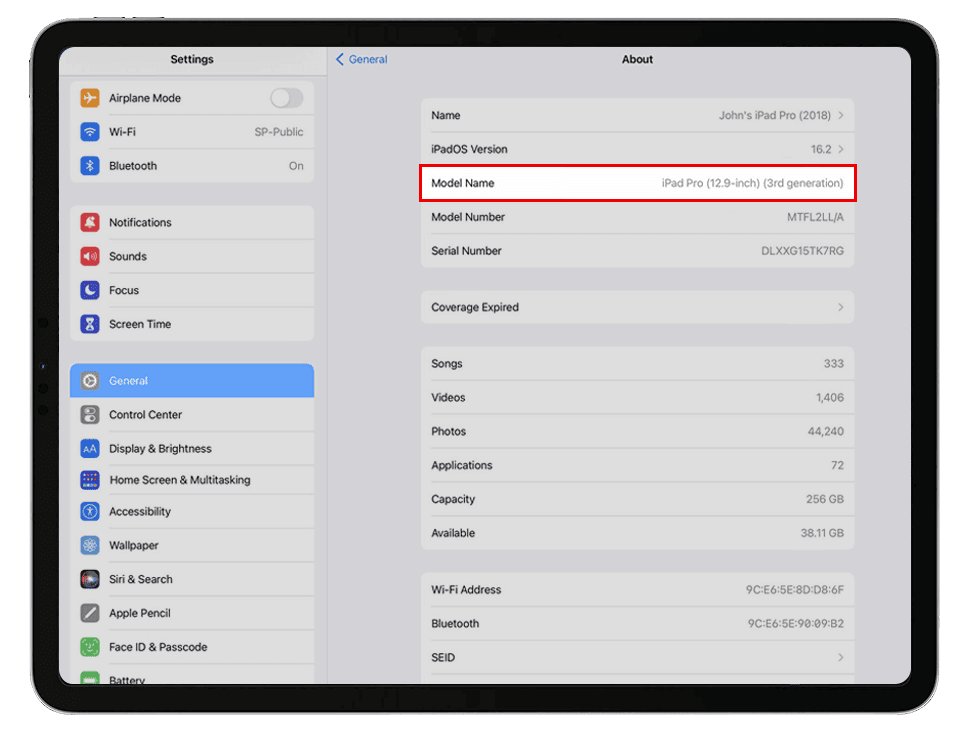
Method 1: Identifying Your iPad via Software Settings
The most reliable and descriptive way to identify your iPad is through the iPadOS software interface. Since the release of iPadOS 12.2, Apple has made it significantly easier for users to see the “Marketing Name” of their device directly in the settings menu.
Navigating the Settings Menu
To find your model information, follow these steps:
- Unlock your iPad and open the Settings app.
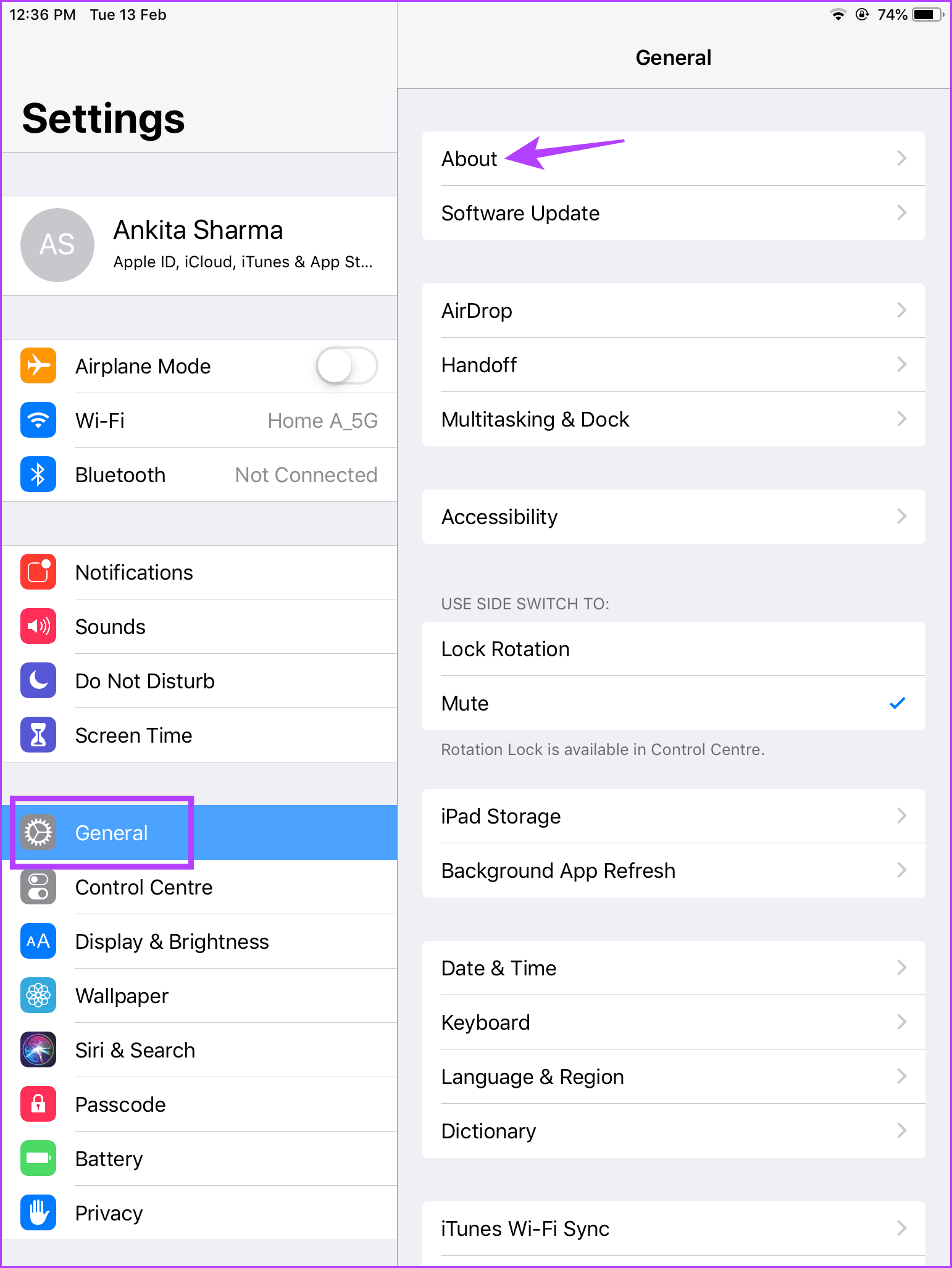
- Tap on General in the left-hand sidebar.
- Tap on About at the top of the menu.
In this section, you will see a field labeled Model Name. This will display the consumer-facing name of your device, such as “iPad Air (5th generation)” or “iPad Pro 12.9-inch (6th generation).” This is the most efficient way to identify your device for general purposes.
Understanding Model Numbers and Part Numbers
Directly below the Model Name, you will see a field labeled Model Number. Initially, this field usually displays a “Part Number” (e.g., MTFL2LL/A). This alphanumeric string identifies the specific configuration of the device, including its storage capacity, color, and whether it is a Wi-Fi only or Wi-Fi + Cellular model.
However, if you tap on this Part Number, the field will toggle to reveal the true Model Number, which always begins with the letter “A” followed by four digits (e.g., A2270). This “A” number is the definitive hardware identifier used by Apple technicians and accessory manufacturers to categorize the internal specifications of the tablet. Knowing this number is particularly useful when the software is inaccessible or if you are looking for specific replacement parts.
Method 2: Physical Inspection and Hardware Markers
There are many scenarios where you might not be able to access the Settings menu—perhaps the battery is dead, the screen is damaged, or you are looking at a device that has been factory reset and is sitting on the “Hello” screen. In these cases, physical markers are your best resource.
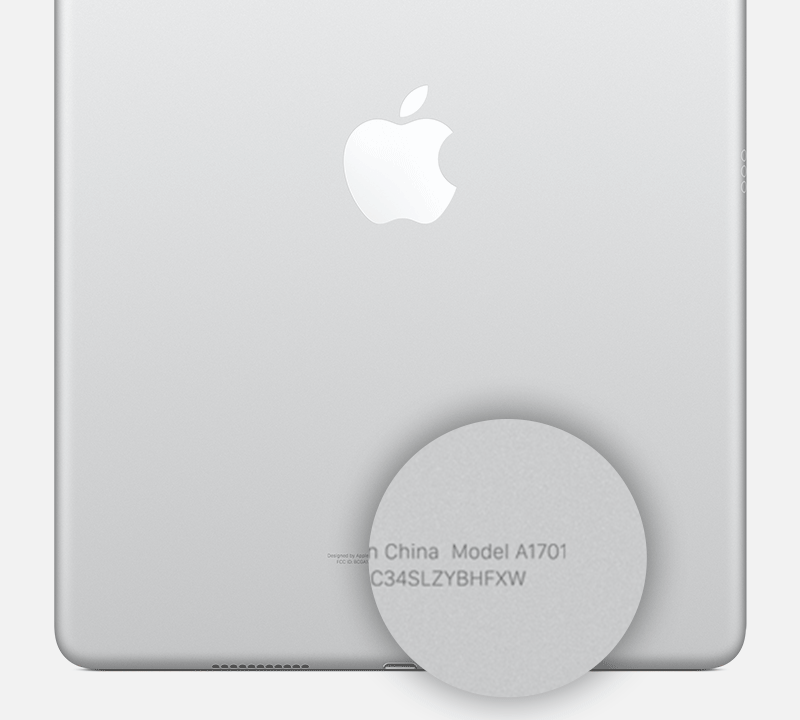
The Back Cover “A” Number
On almost every iPad manufactured prior to 2023, the model number is printed directly on the back of the device. If you flip your iPad over, you will see several lines of small text near the bottom. Look for the word “Model” followed by the “A” number.
For the newest models, Apple has moved away from printing this information on the chassis to maintain a cleaner aesthetic. If you own a modern iPad Pro or Air and cannot find the text on the back, you will need to rely on the software method or check the original packaging.
Port Types and Physical Features
If the text on the back is worn away or illegible, you can use deductive reasoning based on physical features:
- The Connector: If your iPad uses a USB-C port instead of a Lightning port, you have a modern device. USB-C is found on iPad Pro models (2018 and later), iPad Air (4th generation and later), iPad mini (6th generation), and the standard iPad (10th generation).
- The Home Button: If your iPad has a physical Home Button on the front, it is likely a standard iPad (9th generation or earlier), an older iPad Air, or an older iPad mini. The removal of the Home Button in favor of thin bezels and Face ID (or Touch ID in the power button) marks the transition to modern iPad design.
- Speakers and Cameras: iPad Pro models are distinguished by their four-speaker audio systems (two on top, two on bottom) and, in recent years, the dual-lens camera system with a LiDAR scanner.
Method 3: Using External Documentation and Apple Support Tools
If you have the original box or a purchase receipt, identifying your model becomes an effortless task. These external resources often provide the most granular detail about your specific hardware configuration.
Checking the Original Packaging
The retail box of an iPad is a goldmine of technical data. On the back of the box, you will find a white sticker containing the model name, storage capacity (e.g., 256GB), and the serial number. The box will also clearly state which generation the device belongs to, which is vital because Apple often sells multiple “generations” of the same product line simultaneously.
The Apple Support App
If you have another Apple device, such as an iPhone, you can use the Apple Support app to identify your iPad. Log in with your Apple ID, and the app will display a list of all devices linked to your account. Tapping on the iPad icon will reveal its model name, serial number, and warranty status. This is an excellent method for identifying a device remotely or checking the specs of an iPad you have misplaced.
Serial Number Lookup
If you only have the serial number (which is also found in Settings > General > About or on the back of the device), you can visit Apple’s “Check Device Coverage” website. By entering the serial number, Apple’s database will return the exact model name and the date of purchase, providing a foolproof identification method.
Why Knowing Your iPad Model is Essential for the Tech Enthusiast
Identifying your iPad model is not just a clerical task; it is a prerequisite for navigating the modern tech ecosystem. As Apple pushes the boundaries of what its tablets can do, hardware limitations become a defining factor in user experience.
Software Longevity and iPadOS Compatibility
Apple is known for providing long-term software support, but eventually, older hardware lacks the processing power to run new versions of iPadOS. For instance, advanced features like Stage Manager—which allows for overlapping windows and enhanced multitasking—require the M1 chip or later. If you don’t know if your iPad Pro is a 3rd generation or 4th generation model, you may not know if you can utilize these professional-grade software features.
Accessory Synergy
The iPad ecosystem is famous for its accessories, but compatibility is highly specific.
- Apple Pencil: The 1st generation Apple Pencil uses a Lightning connector, while the 2nd generation attaches magnetically to the side of the iPad. The newest Apple Pencil Pro only works with the latest M4 iPad Pro and M2 iPad Air. Using the wrong model identification can lead to purchasing an expensive stylus that is physically impossible to pair with your tablet.
- Keyboards: The Magic Keyboard, Smart Keyboard Folio, and various third-party cases are designed down to the millimeter for specific iPad dimensions. A 12.9-inch iPad Pro from 2017 has a completely different footprint and connector placement than a 12.9-inch iPad Pro from 2022.
Maximizing Trade-in and Resale Value
If you are planning to upgrade to a newer device, knowing your exact model is the difference between getting a fair price and being undervalued. When using trade-in services or listing a device on a secondary market, the “generation” and “chipset” (such as the A14 Bionic vs. the M2) significantly impact the market value. Providing a specific “A” model number builds trust with buyers and ensures you receive the correct quote from trade-in providers.
Troubleshooting: What to Do if You Still Can’t Identify Your iPad
In rare cases, identification can be difficult—particularly with refurbished units or devices with replaced back housings. If the software is locked and the “A” number on the back doesn’t match the internal hardware, you may be dealing with a “Frankenstein” device.
In such scenarios, the most effective solution is to connect the iPad to a computer (Mac or PC).
- On a Mac (macOS Catalina or later), open Finder and select the iPad in the sidebar.
- On a PC or older Mac, open iTunes.
The computer will communicate with the device’s logic board to pull the official hardware identity. This will display the model name and serial number on the screen, bypassing any physical discrepancies or software locks that might be obscuring the device’s true identity.
By mastering these identification techniques, you ensure that you are getting the most out of your technology. Whether you are troubleshooting a technical issue or simply curious about the silicon powering your digital life, knowing your iPad model is the key to a better, more informed tech experience.
aViewFromTheCave is a participant in the Amazon Services LLC Associates Program, an affiliate advertising program designed to provide a means for sites to earn advertising fees by advertising and linking to Amazon.com. Amazon, the Amazon logo, AmazonSupply, and the AmazonSupply logo are trademarks of Amazon.com, Inc. or its affiliates. As an Amazon Associate we earn affiliate commissions from qualifying purchases.