
In the rapidly evolving landscape of the “Subscription Economy,” Amazon Prime stands as a behemoth of digital integration. With over 200 million members globally, the service has expanded far beyond simple two-day shipping, morphing into a complex ecosystem of streaming, cloud storage, and automated commerce. However, the very ubiquity of the service often leads to a common technical oversight: users frequently lose track of their membership status. Whether due to multiple household accounts, expired credit cards, or trial periods that transitioned into paid tiers, verifying your Prime status requires a nuanced understanding of Amazon’s user interface (UI) and account architecture.
This guide provides a comprehensive technical walkthrough on how to navigate the Amazon ecosystem to verify your membership status, manage your digital footprint, and troubleshoot common synchronization issues across various platforms and devices.
1. Navigating the Web Architecture: Desktop Membership Verification
The primary method for auditing any digital subscription is through a desktop browser, which offers the most granular view of account metadata. Amazon’s web interface is designed for high-volume traffic, and as such, the path to subscription management is nested within several layers of the user dashboard.
Accessing the “Account & Lists” Navigation Layer
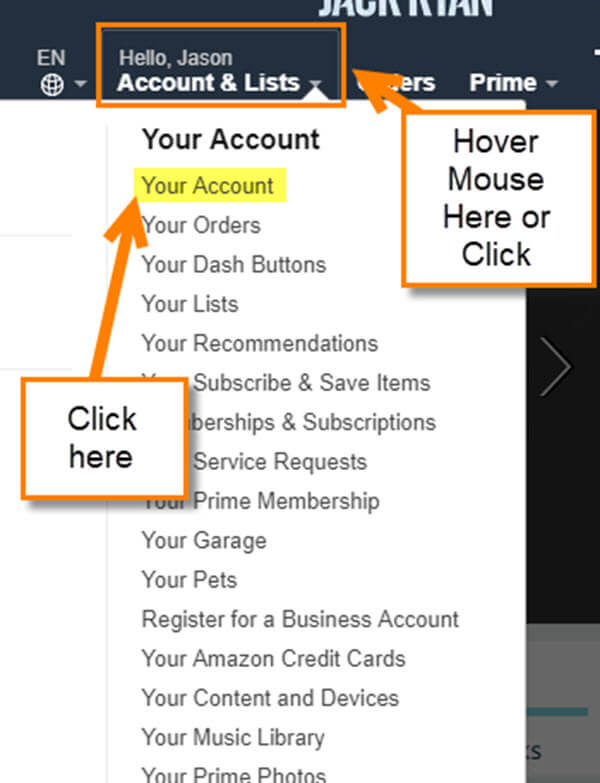
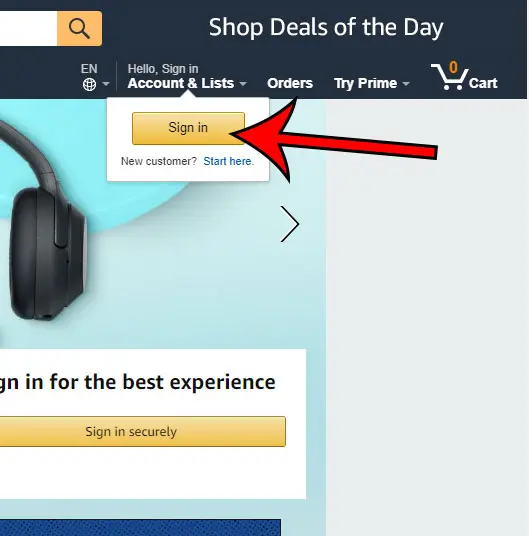
To begin the verification process, navigate to the Amazon homepage. On the top-right corner, you will find the “Account & Lists” dropdown menu. From a technical standpoint, this section serves as the primary portal to the user’s relational database on Amazon’s servers. By hovering over this menu and selecting “Your Account,” you are redirected to a central hub that aggregates various service modules, from order history to security settings.
The “Prime” Dashboard and Subscription Metadata
Within the “Your Account” hub, locate the “Prime” tile. Clicking this link initiates a request to the Prime Central database. Once the page loads, the UI will display your current status at the top of the screen. If you have an active membership, the system will provide specific data points:
- Membership Type: (e.g., Prime Monthly, Prime Annual, or Prime Student).
- Next Renewal Date: The timestamp for when the next automated clearing house (ACH) or credit card transaction will occur.
- Payment Method: The specific encrypted card token assigned to the Prime billing cycle.
If the page displays an invitation to “Try Prime” or “Join Prime,” the system has flagged your account as a non-subscriber or an expired user.
2. Mobile App Interface and UX Optimization
For many users, the Amazon Shopping app is the primary touchpoint for the service. The mobile UI is optimized for smaller screens and relies heavily on a different navigation logic compared to the desktop version. Verifying Prime status on iOS or Android requires navigating through the app’s proprietary menu structure.
Utilizing the App Navigation Bar
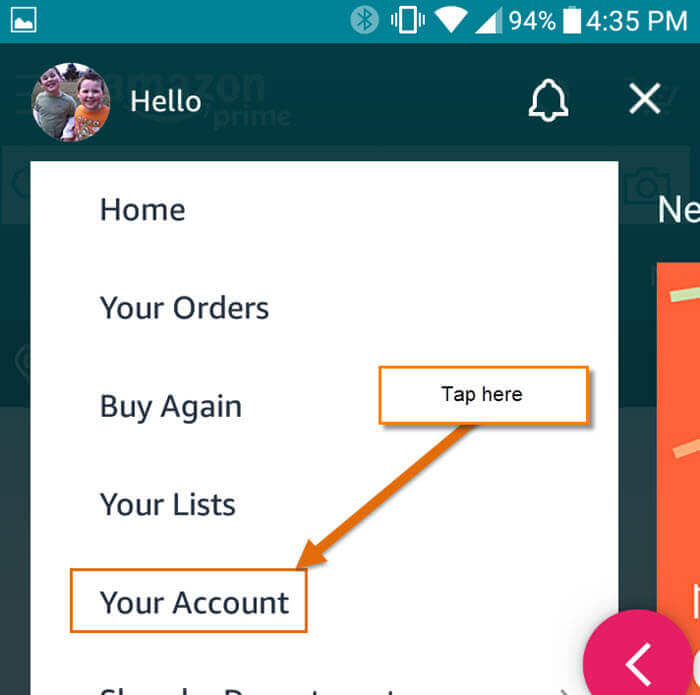
In the mobile application, the navigation is anchored at the bottom of the screen. Tap the user icon (the silhouette figure), which directs you to your personalized profile dashboard. This screen acts as a shortcut to the most frequently accessed account features. From here, look for the “Your Account” button, which is typically situated near the top of the interface.
Managing Membership via the Mobile Sub-Menu
Scroll down to the “Account Settings” section and select “Manage Prime Membership.” This action triggers a mobile-optimized view of the Prime Central dashboard. The technical advantage of checking via the app is the integration with mobile OS features. For instance, if your Prime membership is billed through an app store (like Apple’s App Store or Google Play), the app will provide a direct link to the respective OS subscription management page, ensuring that the backend billing matches the service access.
3. Cross-Platform Indicators and Digital Ecosystem Cues
One of the most efficient technical “shortcuts” to determine if you have an active Prime subscription is to observe the behavior of peripheral apps within the Amazon ecosystem. Because Amazon uses a Single Sign-On (SSO) protocol, your Prime status is propagated across all associated platforms including Prime Video, Amazon Music, and Photos.
Prime Video as a Diagnostic Tool
Prime Video serves as an excellent litmus test for subscription status. Open the Prime Video app on a smartphone, smart TV, or tablet. If you are logged in, navigate to any content marked with the “Prime” ribbon. If the interface presents a “Watch Now” button without requiring a rental or purchase fee, your account is recognized as an active Prime member. Conversely, if the UI prompts you to “Start your 30-day free trial,” the account is either logged out or the subscription has lapsed.
Analyzing the Search Result UI
Even without entering your account settings, the standard Amazon search results page provides a visual cue regarding your status. When searching for a product, an active Prime member will see the “Prime” logo next to prices on eligible items, often accompanied by a “Get it by [Date]” delivery promise. If these indicators are missing, or if the system suggests a “free delivery on your first order” (a common hook for new or lapsed users), it is a strong signal that the Prime flag is not active on your current session.
4. Investigating Transaction Logs and Digital Communication
When the UI is ambiguous—perhaps due to a cache error or a pending payment—the most definitive way to verify your status is through the digital “paper trail.” This involves auditing your transaction logs and the metadata found in system-generated emails.
Decoding Automated Billing Emails
Amazon’s automated billing system sends a confirmation email for every renewal. To find these via a technical search in your email client, use specific search queries such as from:amazon.com "Prime" or subject: "Your Prime Membership". Reviewing the headers and the content of the most recent email will reveal if a transaction was successful. Pay close attention to the “Order #”, as this corresponds directly to the internal database entry for your subscription.
Bank Statement Descriptors and Financial Metadata
If you cannot access the Amazon account itself (perhaps due to a forgotten password), your financial institution’s digital portal can provide the answer. Check your recent transactions for the descriptor AMZN MKTP US*PRIME or Amazon Prime. The presence of a recurring charge—usually $14.99 or $139.00 depending on the cycle—confirms that a Prime subscription is linked to that specific payment method. This is particularly useful for identifying “ghost” subscriptions on secondary cards or shared bank accounts.
5. Troubleshooting Technical Discrepancies and Account Synchronization
Occasionally, a user may believe they have Prime, but the system indicates otherwise. This discrepancy often stems from technical issues related to account “ghosting,” multiple login credentials, or synchronization delays between the billing server and the content delivery network (CDN).
Resolving Multi-Account and SSO Conflicts
A frequent technical hurdle is the existence of multiple Amazon accounts associated with different email addresses (e.g., a .com vs. a .net address). If you are certain you are paying for Prime but the UI doesn’t reflect it, verify the “Login & Security” settings to ensure the email address matches the one receiving the billing confirmations. If you are part of an “Amazon Household,” ensure that the primary account holder has successfully linked your profile. The technical link in a Household setup allows for shared benefits without shared login credentials, but it requires a manual “Invite” and “Accept” handshake between the two accounts.
Cache, Cookies, and Session Persistence
In some cases, the browser’s local cache may store an outdated version of your account status. If you have recently renewed or changed your membership, the “Prime” logo might not appear immediately. To resolve this, perform a “hard refresh” (Ctrl + F5 on Windows or Cmd + Shift + R on Mac) to clear the local cache and force the browser to fetch the most recent data from Amazon’s servers. Alternatively, logging out and back in re-authenticates your session and updates the Prime status flag across the site’s UI.
Managing Expired Payment Methods
The “Prime” backend is designed to automatically attempt to charge “Backup Payment Methods” if your primary card fails. However, if all associated cards are expired or declined, the subscription will enter a “Grace Period” before being suspended. During this technical window, you may see the Prime logo, but certain benefits like Prime Video may be restricted. Checking the “Payment Options” section under “Your Account” is essential to ensure that the billing pipeline is intact, preventing an unintended termination of services.
By understanding the technical architecture of the Amazon platform—from its web-based dashboards and mobile UI to its cross-platform SSO integrations and transaction metadata—users can effectively audit and manage their Prime membership. In an era where digital subscriptions are pervasive, the ability to navigate these systems with technical proficiency is key to maintaining both your digital services and your financial oversight.
aViewFromTheCave is a participant in the Amazon Services LLC Associates Program, an affiliate advertising program designed to provide a means for sites to earn advertising fees by advertising and linking to Amazon.com. Amazon, the Amazon logo, AmazonSupply, and the AmazonSupply logo are trademarks of Amazon.com, Inc. or its affiliates. As an Amazon Associate we earn affiliate commissions from qualifying purchases.