
In the ever-expanding universe of digital entertainment, streaming services have become integral to how we consume media. Paramount Plus, with its extensive library of movies, series, and live sports, stands as a prominent player in this landscape. While subscribing and logging in are intuitive processes, the equally crucial action of signing out often receives less attention. Yet, understanding how to properly sign out of Paramount Plus, and indeed any digital service, is a fundamental aspect of effective tech management, safeguarding your digital security, and optimizing your viewing experience.
This article delves into the technical nuances and best practices surrounding account management for Paramount Plus. We’ll explore why signing out is more than a simple click, provide detailed, device-specific instructions, and place this seemingly minor action within the broader context of digital hygiene and cybersecurity in our hyper-connected world. Whether you’re troubleshooting, upgrading devices, or simply aiming to secure your private data, mastering the sign-out process is a critical skill for any modern tech user.
The Imperative of Digital Account Management
Managing your digital accounts, including streaming services like Paramount Plus, extends far beyond mere convenience. It’s a foundational element of cybersecurity, personal data privacy, and efficient resource allocation in a world saturated with interconnected devices and services. Neglecting proper sign-out procedures can open doors to various vulnerabilities and inefficiencies that are often overlooked until a problem arises.
Why Signing Out Matters
The act of signing out serves several vital functions in the digital ecosystem:
-
Security Vulnerabilities: Leaving accounts logged in on shared or public devices, or even on personal devices that might be lost or stolen, poses a significant security risk. An open Paramount Plus session could grant unauthorized users access not just to your viewing history but potentially to linked accounts or personal information if your profile has been compromised. In an era where data breaches are increasingly common, proactive measures like signing out minimize the attack surface for bad actors. It’s a simple yet effective barrier against unauthorized access, protecting your account from being exploited for fraudulent activities or content consumption you didn’t authorize.
-
Device Management & Subscription Overlap: Many streaming services, including Paramount Plus, impose limits on the number of simultaneous streams or active devices. Forgetting to sign out on an old phone, a friend’s smart TV, or a hotel room’s Roku can quickly lead to hitting these limits, preventing you from accessing the service on your preferred device. Properly signing out ensures that your active device slots are freed up, maintaining seamless access to your subscription wherever you legitimately wish to use it. It’s a proactive way to manage your digital footprint and ensure your subscription benefits you optimally.
-
Troubleshooting & Fresh Starts: Sometimes, glitches occur. An app might misbehave, streams might buffer unnecessarily, or specific features might fail to load. In many cases, a simple “sign out, then sign back in” routine can resolve these transient technical issues. It refreshes the application’s session, clears cached data related to your login, and often resolves authentication conflicts, providing a clean slate for the application to operate correctly. This troubleshooting technique is a common first step for IT professionals and tech support alike.
Understanding Paramount Plus Account Structure
Paramount Plus, like many modern streaming platforms, operates on an account-based system where your email address typically serves as your primary identifier, coupled with a password for authentication. This account is universally tied to your subscription and viewing preferences across all devices. The platform supports individual profiles within a single account, allowing multiple family members to maintain separate watch histories and recommendations. However, signing out typically logs out the entire account from that specific device, meaning all profiles become inaccessible until a new login occurs. Understanding this hierarchical structure is key to managing your access points effectively. The actions you take on one device directly impact the status of your account’s session on that specific hardware, though not necessarily across all others unless a specific “sign out everywhere” feature is utilized.
Step-by-Step Guide: Signing Out Across Devices
The process of signing out of Paramount Plus can vary slightly depending on the device you are using. While the core action remains the same, navigating the user interface to find the ‘sign out’ option requires device-specific knowledge. Here, we provide detailed instructions for the most common platforms.
On Web Browsers (Desktop/Laptop)
Signing out from a web browser is often the most straightforward method, as the full user interface is readily accessible.
-
Navigate to the Paramount Plus Website: Open your preferred web browser (Chrome, Firefox, Safari, Edge, etc.) and go to
www.paramountplus.com. -
Log In (if not already): If you’re not already logged in, enter your credentials.
-
Locate Your Profile Icon: Once logged in, look for your profile icon. This is usually located in the top-right corner of the browser window. It might be a generic silhouette, an initial, or a custom avatar if you’ve set one.
-
Click to Open the Dropdown Menu: Click on your profile icon. A dropdown menu will appear, revealing various options related to your account and profile.
-
Select “Sign Out”: Within this dropdown menu, you should see an option clearly labeled “Sign Out.” Click on it.
-
Confirmation (Optional): Depending on recent updates, the system might ask for confirmation (“Are you sure you want to sign out?”). Confirm your choice, and you will be redirected to the Paramount Plus login page or home page, indicating a successful sign-out.
On Mobile Devices (iOS & Android)
The Paramount Plus app on smartphones and tablets follows a similar logic to the web interface but with mobile-optimized navigation.
-
Open the Paramount Plus App: Tap the Paramount Plus app icon on your device’s home screen or app drawer.
-
Ensure You Are Logged In: The app should open to your home screen if you’re already logged in.
-
Access Account Settings: Look for an icon representing your profile or account settings. This is typically located in one of two places:
-
Top-right corner: Similar to the web, it might be a profile icon.
-
Bottom navigation bar: Some app designs place a “More,” “Settings,” or “Profile” icon on a persistent bar at the bottom of the screen. Tap on this.
-
-
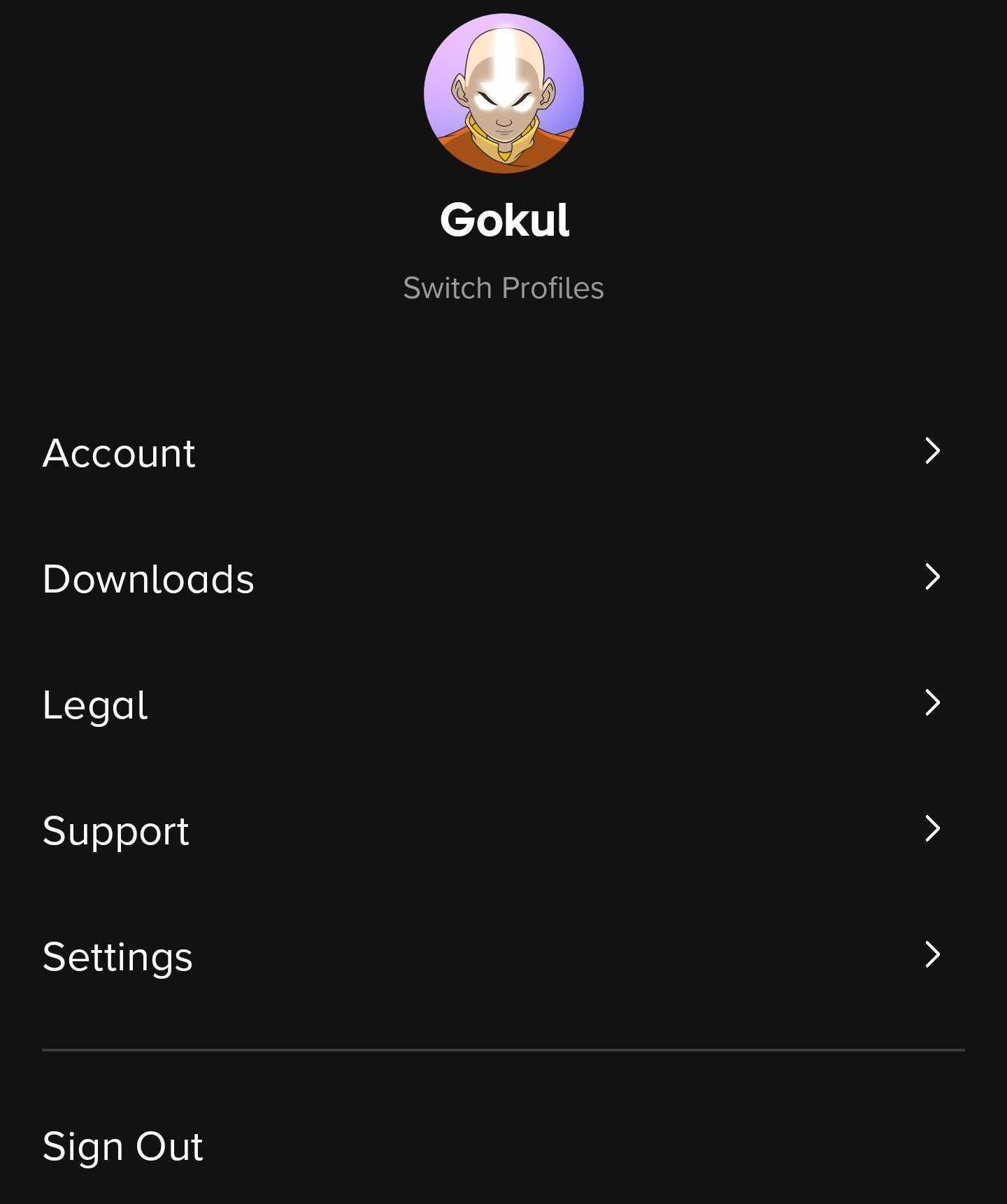
Navigate to Settings or Account: Once you tap the profile/settings icon, you might be taken directly to an account screen, or you might need to select an option like “Account,” “My Account,” or “Settings” from a menu.
-
Find the “Sign Out” Option: Scroll through the settings or account options until you locate “Sign Out.” It is usually towards the bottom of the list.
-
Confirm: Tap “Sign Out,” and confirm your decision if prompted. The app will then return to the login screen.
On Smart TVs & Streaming Devices (Roku, Fire TV, Apple TV, etc.)
Streaming devices and Smart TVs often have slightly different user interfaces due to remote control navigation and screen real estate constraints.
-
Launch the Paramount Plus App: Use your remote control to open the Paramount Plus app from your device’s home screen or app launcher.
-
Navigate to Account or Settings: Once the app loads, you’ll typically need to navigate to a menu on the left side of the screen or a settings/profile icon at the top.
-
Look for a gear icon (⚙️) for settings, a profile icon, or a menu option labeled “Account” or “Settings.”
-
Use your remote’s directional pad to highlight and select this option.
-
-
Find the “Sign Out” Option: Within the Account or Settings menu, scroll down until you find the “Sign Out” or “Log Out” option. This is almost always prominently displayed in this section.
-
Select and Confirm: Use your remote to select “Sign Out” and confirm your choice when prompted. The app will close or return to the main login screen.
- Device-Specific Nuances: While the general steps are consistent, minor differences exist. For example, some devices like Roku or Fire TV might have a ‘Manage Subscriptions’ area in their own settings (separate from the Paramount Plus app) where you can manage app subscriptions, but logging out of the app itself is always done from within the Paramount Plus application. Ensure you are navigating within the Paramount Plus app, not the overall device settings.
Signing Out of All Devices Remotely
In situations where you suspect unauthorized access or simply want to ensure your account is logged out everywhere (e.g., after changing your password or for a digital reset), Paramount Plus offers a remote sign-out feature.
-
Access Paramount Plus on a Web Browser: This feature is typically only accessible via the website. Go to
www.paramountplus.comand log in. -
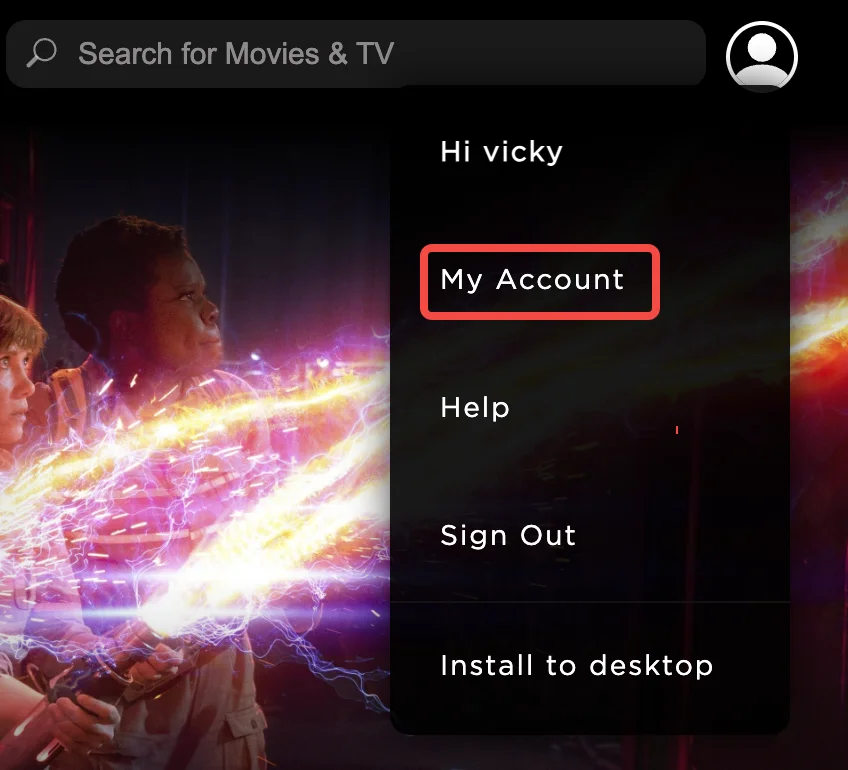
Go to Account Settings: Click on your profile icon in the top-right corner, and then select “Account.”
-
Find Connected Devices/Sign Out Everywhere: Within your account settings, look for an option that mentions “Devices,” “Connected Devices,” “Sign Out of All Devices,” or “Manage Devices.” The exact wording can change with updates, but it will be in this vicinity.
-
Execute Remote Sign Out: Click the relevant option. You may be asked to confirm this action. Once confirmed, Paramount Plus will terminate all active sessions on other devices where your account is currently logged in. It’s a powerful feature for regaining control and enhancing security.
Beyond the Basics: Advanced Account Security and Troubleshooting
Effectively managing your Paramount Plus account goes beyond simply knowing how to sign out. It encompasses broader digital security practices and an understanding of common troubleshooting steps. In the modern tech landscape, proactive measures are paramount to protecting your digital identity and ensuring a smooth user experience.
Best Practices for Digital Security
Signing out is one piece of the puzzle; a holistic approach to digital security involves several other critical habits:
-
Strong, Unique Passwords: This is the cornerstone of online security. Use a complex password for Paramount Plus that combines uppercase and lowercase letters, numbers, and symbols. Crucially, do not reuse this password across multiple services. A password manager can help you create, store, and manage unique, strong passwords for all your accounts.
-
Two-Factor Authentication (2FA): While Paramount Plus itself might not universally offer 2FA for account login (some platforms offer it, others rely on email verification for suspicious logins), enabling it wherever possible for services linked to your Paramount Plus account (like your email) adds an invaluable layer of security. If 2FA becomes available for Paramount Plus directly, activate it immediately.
-
Regular Account Audits: Periodically review your Paramount Plus account settings and linked payment methods. Ensure that only authorized profiles exist and that billing information is correct. This helps catch any unauthorized changes or suspicious activity early. Also, check the “Manage Devices” section (if available) to see if any unfamiliar devices are logged in and remotely sign them out.
-
Beware of Phishing Scams: Be vigilant against emails or messages claiming to be from Paramount Plus asking for your login credentials or personal information. Always verify the sender and, if in doubt, navigate directly to the official Paramount Plus website to manage your account rather than clicking on links in suspicious emails.
Common Sign-Out Issues and Solutions
Even with the correct steps, you might encounter issues. Knowing how to troubleshoot these can save time and frustration.
-
Forgotten Passwords: If you can’t sign in to sign out, you’ll need to reset your password. On the Paramount Plus login screen (web or app), look for a “Forgot Password?” or “Reset Password” link. Follow the prompts, which typically involve entering your email address to receive a password reset link. This often serves as an automatic remote sign-out as well, as new logins require the updated credentials.
-
Persistent Logins: Occasionally, even after attempting to sign out, a device might appear to remain logged in.
-
Clear Cache/Data: For apps on mobile devices and streaming players, try clearing the app’s cache and data through your device’s operating system settings. This effectively wipes local login information.
-
Reinstall App: If clearing cache doesn’t work, uninstalling and then reinstalling the Paramount Plus app can provide a completely fresh installation.
-
Remote Sign Out: Utilize the “Sign Out of All Devices” feature via the Paramount Plus website as described above. This is often the most effective solution for stubborn persistent logins across various devices.
-
-
App Glitches: If the “Sign Out” button isn’t responding or the app is otherwise buggy:
-
Restart the App: Close the app completely and reopen it.
-
Restart Device: Power cycle your streaming device, smart TV, or mobile phone.
-
Check for App Updates: Ensure your Paramount Plus app is updated to the latest version. Developers frequently release updates to fix bugs and improve stability.
-
The Broader Context: Managing Your Digital Subscription Ecosystem
The simple act of signing out of Paramount Plus is a microcosm of a larger challenge facing digital consumers today: managing a proliferating ecosystem of online subscriptions and accounts. As our lives become increasingly digital, understanding and controlling our access points to these services becomes paramount for privacy, security, and digital wellness.
The Rise of Streaming Services and Account Proliferation
The shift from traditional cable to on-demand streaming has led to an explosion of services, each vying for our attention and subscription dollars. From Netflix and Disney+ to Hulu, Max, and Prime Video, alongside niche platforms and live TV replacements, the average household now juggles multiple streaming accounts. This proliferation means more login credentials to remember, more devices to manage, and a greater potential for security oversights. Each new service adds another entry point for potential data compromise and another point of potential confusion in account management. The technical burden on the end-user has grown significantly, necessitating a more organized and deliberate approach to digital interaction.
Strategies for Digital Decluttering
Just as we declutter our physical spaces, regularly decluttering our digital lives is essential. This includes:
-
Subscription Audits: Periodically review all your active streaming subscriptions. Are you still using them? Are you getting value from them? Canceling unused subscriptions not only saves money but also reduces your digital footprint and the number of accounts you need to manage and secure.
-
Device Management Hygiene: Make it a habit to sign out of services on devices you no longer own, are sharing, or rarely use. This includes old phones, shared computers, or even guest profiles on your smart TV. This ensures that your digital “keys” aren’t left lying around in forgotten corners of the internet.
-
Centralized Password Management: Implementing a reliable password manager is a critical strategy for managing the numerous unique passwords required for various streaming services. This reduces the cognitive load of remembering multiple credentials and significantly enhances security by allowing for truly random, complex passwords.
Protecting Your Privacy in the Connected World
Every service you sign up for collects data, from your viewing habits to your device information. While signing out doesn’t erase your data from the service’s servers, it severs the active connection between your current device and your account. This is a crucial step in preventing unauthorized third parties from passively observing your activities or actively interacting with your account. A proactive approach to signing out, combined with strong passwords and privacy awareness, helps to reinforce the boundaries of your personal digital space. It’s an ongoing process of asserting control over your online presence and safeguarding the integrity of your personal information.
Conclusion: Mastering Your Digital Footprint
The humble act of signing out of Paramount Plus, while seemingly minor, encapsulates broader principles of digital literacy and cybersecurity essential in today’s tech-driven world. It is not merely an exit strategy from an entertainment platform but a proactive security measure, a tool for efficient device management, and a fundamental troubleshooting step. By understanding the ‘how’ and, more importantly, the ‘why’ behind signing out on various devices, users gain greater control over their digital accounts and contribute to a more secure online experience.
As our reliance on digital services continues to grow, so too must our sophistication in managing them. Implementing robust password practices, embracing remote sign-out features, and regularly auditing our digital subscriptions are all part of a comprehensive strategy to maintain digital hygiene. Mastering these foundational tech skills empowers us to navigate the vast digital landscape confidently, ensuring our entertainment remains private, secure, and always accessible on our terms. Your digital footprint is yours to command, and knowing how to step away cleanly is a critical part of that command.
aViewFromTheCave is a participant in the Amazon Services LLC Associates Program, an affiliate advertising program designed to provide a means for sites to earn advertising fees by advertising and linking to Amazon.com. Amazon, the Amazon logo, AmazonSupply, and the AmazonSupply logo are trademarks of Amazon.com, Inc. or its affiliates. As an Amazon Associate we earn affiliate commissions from qualifying purchases.