
In the landscape of Linux distribution management, few tools are as foundational or as enduring as the Red Hat Package Manager, commonly known as RPM. For system administrators, developers, and power users working within ecosystems like Red Hat Enterprise Linux (RHEL), CentOS, Fedora, or OpenSUSE, understanding how to install and manage RPM packages is a critical skill. While modern wrappers like DNF and YUM have simplified the process by automating dependency resolution, the underlying RPM system remains the bedrock of software deployment.
This guide provides an in-depth exploration of how to use the RPM command-line tool, ranging from basic installations to complex system queries and troubleshooting. By mastering these commands, you gain granular control over your digital environment, ensuring your software stack remains stable, secure, and efficient.
1. Understanding the Architecture of RPM Packages
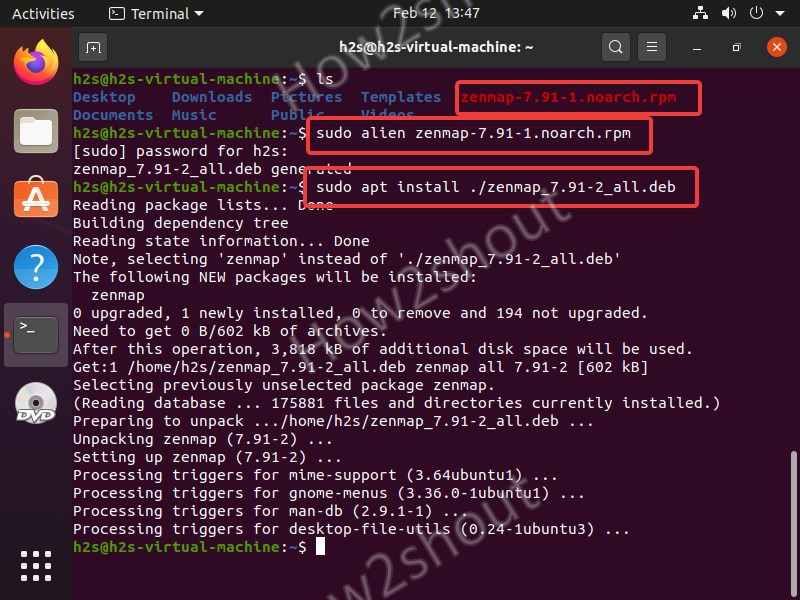
Before diving into the “how-to” of installation, it is essential to understand what an RPM package actually is. An RPM file (ending in .rpm) is more than just a compressed archive of binaries; it is a sophisticated package format that includes metadata, installation scripts, and security signatures.
The Components of an RPM File
An RPM package typically contains four key elements:
- The Payload: This consists of the actual files to be installed on the system, such as binaries, configuration files, and documentation.
- Metadata: This includes the package name, version, release number, and a description of the software.
- Dependencies: A list of other software packages or libraries that must be present on the system for the application to function correctly.
- Scripts: These are instructions that run before or after installation/uninstallation (pre-install, post-install, pre-uninstall, and post-uninstall scripts) to configure the environment or restart services.
Why Use RPM Directly?
In a world where dnf install handles everything automatically, why bother with the rpm command? Using rpm directly is often necessary when you are dealing with local packages not found in official repositories, when you need to query the database for specific file ownership, or when you are working in an environment with restricted internet access where manual package handling is mandatory.
2. Core Commands for Installing and Upgrading RPM Packages
The primary function of the RPM tool is to manage the lifecycle of software. This begins with the installation of a local .rpm file. The command follows a standard syntax, but the “flags” or options you choose will determine how much information you see during the process.
Basic Installation with rpm -i
The simplest way to install a package is using the -i (install) flag. However, most administrators prefer the combination -ivh.
- -i: Install the package.
- -v: Verbose mode, providing more detail about what the tool is doing.
- -h: Print hash marks (
#) to show the progress of the installation.
Example:
sudo rpm -ivh package_name.rpm
This command tells the system to install the software while providing a visual progress bar and detailed output, which is helpful for verifying that the installation is proceeding without errors.
Upgrading Packages with rpm -U
When a newer version of a piece of software is released, you use the -U (upgrade) flag. This command is intelligent: if the package is already installed, it upgrades it to the new version and removes the old one. If the package does not exist on the system, it performs a fresh installation.
Example:
sudo rpm -Uvh package_name.rpm
Using -Uvh is generally considered a best practice over -ivh because it prevents the accidental accumulation of multiple versions of the same software, which can lead to library conflicts and system instability.
Refreshing Packages with rpm -F
The “Freshen” command (-F) is slightly different from the Upgrade command. It will only upgrade a package if an earlier version is already installed. If the package does not exist on the system, the -F command does nothing. This is particularly useful for bulk-updating a directory of packages where you only want to update what is already relevant to your system.
3. Navigating Dependencies and the Role of YUM/DNF
One of the most common hurdles when manually installing RPM packages is “Dependency Hell.” This occurs when a package requires three other libraries to function, and those libraries in turn require five other packages.
Manual Dependency Resolution
When you run rpm -ivh, the system checks its internal database to see if all requirements are met. If they are not, the installation will fail with an error message listing the missing dependencies. In a strictly manual environment, the administrator must then find, download, and install those specific dependencies in the correct order before the primary software can be installed.
The Evolution to DNF and YUM
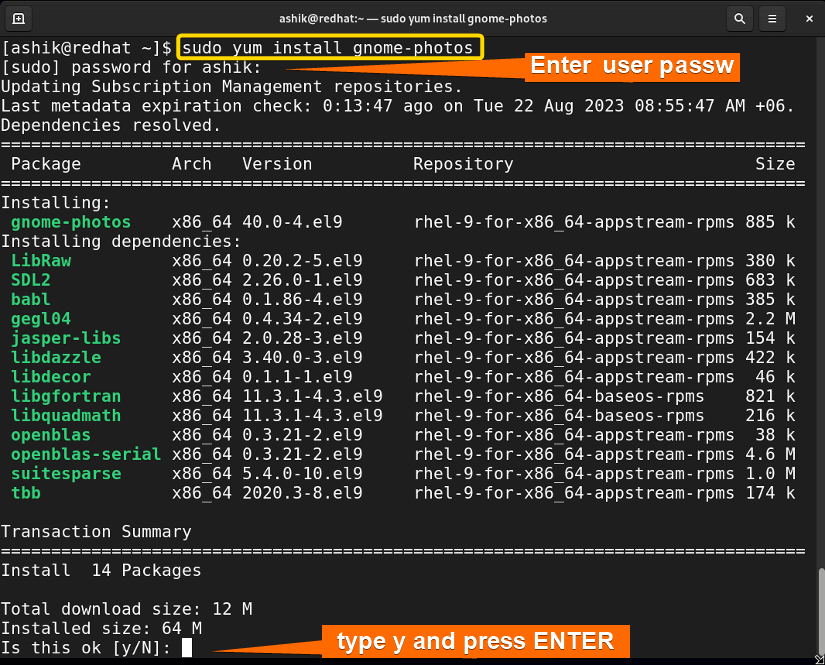
To solve the dependency problem, developers created high-level package managers like YUM (Yellowdog Updater, Modified) and its successor, DNF (Dandified YUM). These tools use the RPM system under the hood but add the ability to reach out to online repositories, download the necessary dependencies automatically, and install them in the correct sequence.
While this article focuses on the rpm command, it is important to know that you can use DNF to install a local RPM file while still benefiting from automatic dependency resolution:
sudo dnf localinstall package_name.rpm
This hybrid approach combines the specificity of a local file with the intelligence of a repository-based manager, representing the modern standard for Linux software administration.
4. Querying and Verifying the RPM Database
A significant advantage of the RPM system is the centralized database it maintains. Every file installed via an RPM is logged, allowing you to ask the system complex questions about its current state.
Querying Installed Packages
The -q (query) flag is the gateway to your system’s software inventory. You can use it in several ways:
- Check if a specific package is installed:
rpm -q package_name - List every package on the system:
rpm -qa(useful for auditing or creating system backups). - Find out which package a specific file belongs to:
rpm -qf /usr/bin/python3. This is invaluable for troubleshooting “command not found” errors or identifying the source of a mysterious binary. - List all files installed by a package:
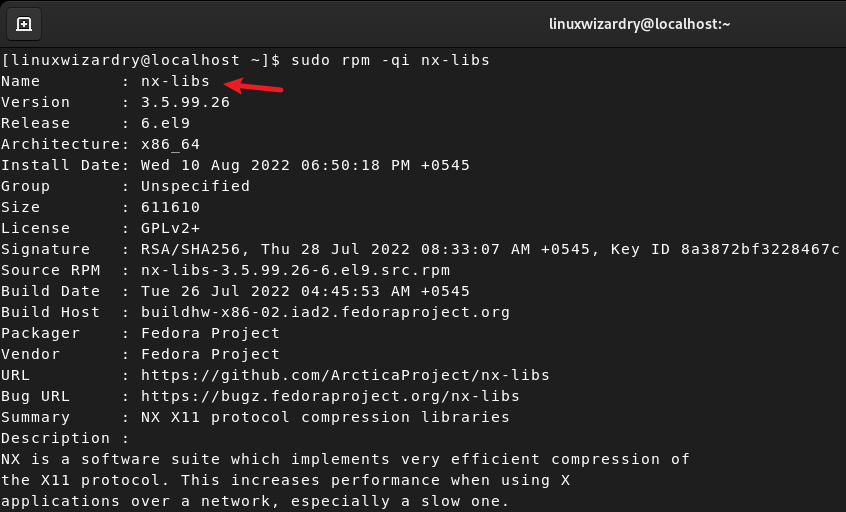
rpm -ql package_name. This helps you locate configuration files and documentation associated with a tool.
Verifying System Integrity
Security and stability depend on files not being altered unexpectedly. The -V (verify) flag compares the current state of files on your disk with the original metadata stored in the RPM database when the package was first installed.
Example:
rpm -V package_name
If a configuration file has been modified, or if a binary has been tampered with (changing its size or MD5 checksum), the verify command will alert you. This is a vital tool for digital security audits and post-compromise forensic analysis.
5. Advanced Operations: Removal and Troubleshooting
Maintenance involves more than just adding software; it requires the clean removal of old tools and the ability to fix a broken package database.
Removing Software with rpm -e
To uninstall a package, use the -e (erase) flag. Unlike installation, you do not need the full filename of the .rpm file, only the package name as it appears in the database.
Example:
sudo rpm -e package_name
If other installed software depends on the package you are trying to remove, the RPM system will block the uninstallation to prevent breaking your system. You would then need to either remove the dependent software first or use the --nodeps flag (though the latter is highly discouraged as it can lead to broken system functionality).
Troubleshooting a Corrupt RPM Database
On rare occasions—often due to a power failure during installation or a disk error—the RPM database (located in /var/lib/rpm) can become corrupted. When this happens, commands may hang or return strange errors.
To fix this, you can rebuild the database:
- Backup the current database:
cp -r /var/lib/rpm /var/lib/rpm_backup - Remove the old locks:
rm -f /var/lib/rpm/__db* - Rebuild:
rpm --rebuilddb
This process scans the headers of all installed packages and recreates the index, usually restoring the system to full health.
Best Practices for Long-Term Management
To maintain a high-performance Linux environment, follow these professional standards:
- Check Signatures: Always verify the GPG signature of an RPM file before installation (
rpm -K package.rpm) to ensure it hasn’t been altered by a third party. - Documentation: Keep a log of manually installed RPMs, as they won’t always receive automatic updates from your system’s standard repositories.
- Minimalism: Avoid using
--forceor--nodepswhenever possible. These flags bypass the safety checks that keep a Linux distribution cohesive.
By integrating these RPM techniques into your workflow, you transition from a basic user to a proficient system administrator, capable of managing complex software environments with precision and confidence. Whether you are deploying an enterprise-grade AI tool or a simple utility, the power of RPM ensures your Linux system remains a robust platform for innovation.
aViewFromTheCave is a participant in the Amazon Services LLC Associates Program, an affiliate advertising program designed to provide a means for sites to earn advertising fees by advertising and linking to Amazon.com. Amazon, the Amazon logo, AmazonSupply, and the AmazonSupply logo are trademarks of Amazon.com, Inc. or its affiliates. As an Amazon Associate we earn affiliate commissions from qualifying purchases.