
In an increasingly digital landscape, streaming services have revolutionized the way we consume entertainment, news, and live sports. Among the myriad of options available, YouTube TV stands out as a robust, internet-based television service that offers live TV from over 100 channels, unlimited cloud DVR storage, and a user-friendly interface. Designed to replace traditional cable subscriptions, YouTube TV provides unparalleled flexibility, allowing subscribers to watch their favorite content across a wide range of devices, from smart TVs and streaming sticks to mobile phones and web browsers.
However, the gateway to this expansive world of entertainment is a successful login. For new users, or those transitioning between devices, the process can sometimes present minor hurdles. This comprehensive guide aims to demystify the login procedure for YouTube TV, providing clear, step-by-step instructions for various platforms, alongside crucial troubleshooting tips and best practices for securing your account. By understanding the underlying technology and embracing digital security, you can ensure seamless access to your YouTube TV subscription, maximizing your viewing pleasure and maintaining control over your personal data. Whether you’re setting up for the first time or encountering an unexpected login challenge, this article will equip you with the knowledge to navigate the YouTube TV ecosystem confidently and efficiently.

Understanding the YouTube TV Ecosystem and Account Integration
Before diving into the mechanics of logging in, it’s essential to grasp the fundamental architecture that underpins YouTube TV. At its core, YouTube TV is a Google product, meaning its account management and authentication processes are inextricably linked to your Google Account. This integration is a critical factor in understanding both the ease of access and potential points of friction.
What is YouTube TV? A Brief Technical Overview
YouTube TV is a live TV streaming service that provides subscribers with access to a broad selection of cable, broadcast, and premium channels without the need for a traditional cable box or long-term contracts. It operates entirely over the internet, delivering high-definition video streams directly to your compatible devices. Technologically, it leverages Google’s vast server infrastructure and content delivery networks (CDNs) to ensure reliable streaming quality. Features like unlimited cloud DVR storage are also facilitated by Google’s cloud computing capabilities, allowing users to record shows and movies and access them from any logged-in device. The service also supports multiple user profiles within a single household account, each maintaining its own DVR, viewing history, and recommendations, which further necessitates robust account management.
The Indispensable Google Account Connection
The cornerstone of your YouTube TV experience is your Google Account. Every YouTube TV subscription is tied to a specific Google Account, which serves as your primary identifier and authentication method. This means that to log into YouTube TV, you will always be authenticating through your Google credentials – your Google email address (or associated phone number) and password. This integration streamlines the login process for users already deeply embedded in the Google ecosystem (Gmail, Google Drive, YouTube, etc.) but also means that any issues with your Google Account can directly impact your access to YouTube TV. This centralized authentication mechanism is a standard practice in the tech industry, simplifying user management and enhancing security through Google’s robust account protection measures, such as two-factor authentication (2FA).
Devices Supported by YouTube TV
YouTube TV boasts broad compatibility, making it accessible across a multitude of platforms. Understanding where you can log in is the first step towards enjoying the service. Compatible devices typically fall into these categories:
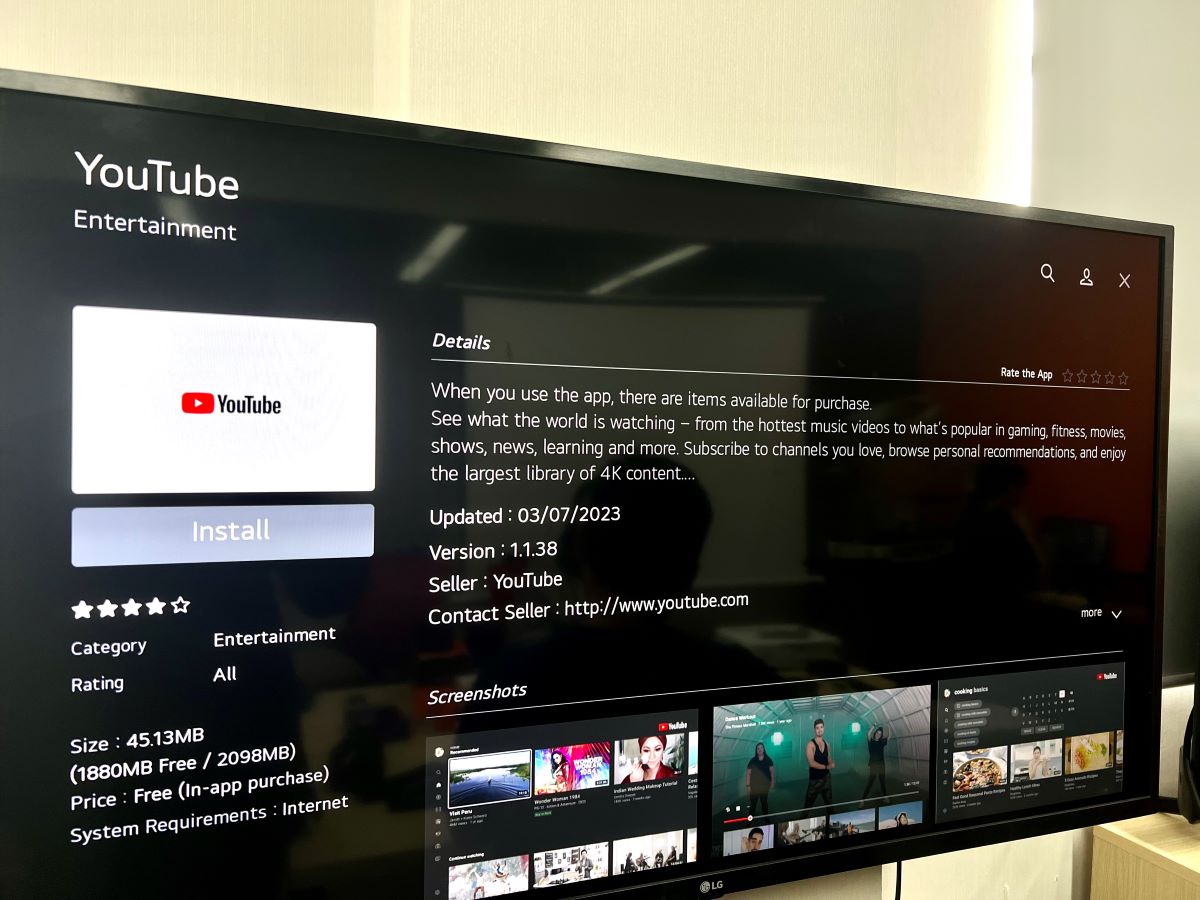
- Smart TVs: Many modern smart TVs from manufacturers like Samsung, LG, Sony, Vizio, and Hisense have the YouTube TV app pre-installed or available for download from their respective app stores.
- Streaming Devices: Popular options include Google Chromecast (including Chromecast with Google TV), Roku devices, Amazon Fire TV sticks and cubes, Apple TV, and NVIDIA Shield TV.
- Mobile Devices: Dedicated YouTube TV apps are available for both iOS (iPhones, iPads) and Android smartphones and tablets, downloadable from the Apple App Store and Google Play Store, respectively.
- Web Browsers: You can access YouTube TV directly through a web browser on your desktop or laptop computer by visiting tv.youtube.com. Supported browsers typically include Chrome, Firefox, Safari, and Edge.
- Gaming Consoles: Select gaming consoles, such as Xbox (One, Series X|S) and PlayStation (PS4, PS5), also offer the YouTube TV app for download.
Each device type may have a slightly different login flow, though all ultimately rely on your Google Account for authentication.
Step-by-Step Guide to Logging Into YouTube TV
Logging into YouTube TV is generally a straightforward process, but the exact steps can vary slightly depending on the device you’re using. Here, we’ll cover the most common scenarios to ensure a smooth setup.
Logging In on Smart TVs and Streaming Devices
For living room devices, YouTube TV often provides two primary methods for logging in, catering to user convenience and security.
Using the Activation Code Method (Recommended for TVs)
This is often the easiest and most secure method, as it minimizes typing sensitive information directly on a TV screen, which can be cumbersome and less secure.
- Open the YouTube TV App: Navigate to your smart TV’s or streaming device’s app store (e.g., Roku Channel Store, Fire TV Appstore) and download the YouTube TV app if you haven’t already. Open the app.
- Locate the Activation Screen: Upon launching the app for the first time, or if you’re not logged in, you will typically see a screen displaying a unique 8-character activation code (e.g., “ABCD-EFGH”) and instructions to visit a specific URL, usually
tv.youtube.com/startoryoutube.com/activateon another device. - Use a Computer or Mobile Device: On your computer, tablet, or smartphone, open a web browser and go to the URL provided on your TV screen.
- Enter the Code: You will be prompted to enter the 8-character code displayed on your TV. Input the code accurately.
- Select/Log Into Google Account: After entering the code, you will be directed to sign in with your Google Account. Choose the Google Account associated with your YouTube TV subscription. If you’re not already logged into Google on that device, you’ll need to enter your Google email/phone and password.
- Confirm Activation: Once you’ve successfully logged into your Google Account and granted permission, your TV screen should automatically refresh, and you’ll be logged into YouTube TV, ready to watch.
Direct Sign-In on Your TV
Some devices or specific app versions might offer a direct sign-in option, though it’s less common for initial setup due to the difficulty of typing passwords with a remote.
- Select “Sign In” Directly: If prompted, choose an option like “Sign In” or “Log In with Google” directly on your TV screen.
- Enter Google Credentials: You’ll be presented with an on-screen keyboard to enter your Google Account email address or phone number and then your password. This method is generally less secure and more prone to errors than the activation code method.
- Complete 2FA (if enabled): If you have two-factor authentication enabled on your Google Account, you will need to complete the second verification step (e.g., approve a prompt on your phone, enter a code from an authenticator app, or receive an SMS code).
Logging In on Mobile Devices (iOS/Android)
Logging in on smartphones and tablets is usually the most seamless experience due to the tight integration with your device’s existing Google Account logins.
- Download the App: From the Apple App Store (iOS) or Google Play Store (Android), search for “YouTube TV” and download the official app.
- Open the App: Launch the YouTube TV app.
- Sign In with Google: The app will typically prompt you to “Sign In” or “Get Started.” It will then present a list of Google Accounts already logged into your device.
- Select Your Account: Tap on the Google Account associated with your YouTube TV subscription.
- Confirm Authentication: If necessary, you may need to re-enter your Google password or complete a 2FA step to confirm your identity. The app will then load your YouTube TV interface.
Logging In on Web Browsers (Desktop/Laptop)
Accessing YouTube TV on a computer is straightforward through any modern web browser.
- Go to the Website: Open your preferred web browser (Chrome, Firefox, Safari, Edge) and navigate to
tv.youtube.com. - Click “Sign In”: In the top right corner of the page, click the “Sign In” button.
- Enter Google Credentials: You’ll be redirected to Google’s sign-in page. Enter your Google Account email or phone number and password.
- Complete 2FA (if enabled): If two-factor authentication is active, follow the prompts to complete the second verification step.
- Access YouTube TV: Once authenticated, you will be logged into your YouTube TV account, and your personalized home screen will appear.
Logging In on Gaming Consoles (Xbox, PlayStation)
The process for gaming consoles largely mirrors that of smart TVs and streaming devices, often utilizing the activation code method for convenience and security.
- Download and Open App: Search for and download the YouTube TV app from your console’s respective store (Xbox Store, PlayStation Store). Launch the app.
- Generate Code: The app will display an activation code and a URL (e.g.,
tv.youtube.com/start). - Use External Device: On a computer or mobile device, go to the specified URL and enter the activation code.
- Sign Into Google Account: Log in with your Google Account credentials.
- Confirm: Once confirmed, your console’s YouTube TV app will refresh and grant you access.
Troubleshooting Common YouTube TV Login Issues
Despite the streamlined processes, technical glitches or forgotten credentials can occasionally hinder your access to YouTube TV. Being prepared for these common issues can save you time and frustration.
Forgotten Google Account Passwords
The most frequent login problem is a forgotten password. Since YouTube TV uses your Google Account, password recovery is managed through Google directly.
- Google Account Recovery: On any Google sign-in page (including
tv.youtube.com/startoraccounts.google.com), enter your email or phone number and then click “Forgot password.” Follow the on-screen prompts, which may involve verifying your identity through a recovery phone number, email, or security questions. Having recovery options set up beforehand is crucial for a quick resolution.
Two-Factor Authentication (2FA) Challenges
If you have 2FA enabled (highly recommended for security), problems can arise if you don’t have access to your second factor.
- Lost Phone/Authenticator: If you lose your phone or the device linked to your authenticator app, you’ll need to use Google’s backup codes (which you should save when setting up 2FA) or go through Google’s account recovery process to regain access.
- No Prompt/Code: Ensure your phone has good signal for SMS codes, or that your authenticator app is synced correctly. Sometimes restarting your device can resolve temporary communication issues.
App or Browser-Related Glitches
Software can sometimes act up, leading to unexpected login failures.
- Clear Cache and Data: For mobile apps or streaming devices, try clearing the app’s cache and data through your device settings. This often resolves corrupted data issues. For web browsers, clear your browser’s cache and cookies or try logging in using an incognito/private browsing window to rule out conflicting browser extensions.
- Update App/Browser: Ensure your YouTube TV app is updated to the latest version. Similarly, keep your web browser updated to benefit from the latest security patches and compatibility improvements.
- Reinstall App: As a last resort, uninstalling and reinstalling the YouTube TV app can fix deeply embedded software issues.
Internet Connectivity Problems
Since YouTube TV is an internet-based service, a stable connection is paramount.
- Check Your Connection: Ensure your device is connected to the internet. Test your connection by trying to access other websites or apps.
- Restart Router/Modem: A simple restart of your home router and modem can often resolve intermittent connectivity issues.
- Network Speed: Verify your internet speed meets YouTube TV’s recommendations (at least 3 Mbps for standard definition, 7 Mbps for a single HD stream, and 13 Mbps for reliable 1080p).
Account Subscription Status Checks
Occasionally, a login issue might stem from the subscription itself.
- Verify Subscription: Log into your Google Account via a web browser and navigate to
tv.youtube.com/settings/membership. Confirm that your YouTube TV subscription is active and in good standing, and that payment information is up-to-date. Expired or paused subscriptions will prevent login.
Enhancing Your YouTube TV Experience Post-Login
Successfully logging into YouTube TV is just the first step. To truly optimize your streaming experience, take advantage of the platform’s robust features and customization options.
Setting Up User Profiles
YouTube TV allows for up to six individual accounts (family members aged 13+) under a single household subscription, each with its own personal library, recommendations, and DVR recordings. This is a crucial feature for families or shared households.
- Adding Profiles: Once logged in as the primary account holder, navigate to your profile icon (usually in the top right corner), select “Switch account,” and then “Add account.” You’ll be prompted to invite other Google Accounts to join your family group. This compartmentalizes viewing habits and preferences, providing a truly personalized experience for everyone.
Customizing Your Live Guide
The live guide is your gateway to real-time programming. Personalizing it makes finding your favorite channels much easier.
- Reordering Channels: In the YouTube TV settings, you can reorder the channels in your live guide, placing your most-watched channels at the top for quick access.
- Hiding Unwanted Channels: If there are channels you never watch, you can hide them from your guide to declutter the interface, streamlining your browsing experience.
Exploring DVR and On-Demand Content
YouTube TV’s unlimited cloud DVR is a significant advantage, allowing you to record as many shows as you want and keep them for nine months.
- Managing Recordings: Use the “Library” tab to browse your recorded content. You can easily add new shows to record, manage existing recordings, and delete watched episodes to keep your library organized.
- On-Demand Access: Beyond live and recorded content, YouTube TV also offers a vast library of on-demand movies and shows, often available immediately after broadcast. Explore these options through the “Home” and “Library” sections to discover new content.
Managing Your Subscription and Add-ons
Staying on top of your subscription details and any premium add-ons ensures you’re getting the most value and avoiding unexpected charges.
- Subscription Details: Via
tv.youtube.com/settings/membership, you can view your next billing date, review your plan details, and see a breakdown of your monthly costs. - Add/Remove Add-ons: YouTube TV offers various optional add-on packages, such as premium channels (e.g., HBO Max, Showtime, STARZ) or sports packages. You can easily subscribe to or cancel these add-ons through your membership settings, providing flexibility to tailor your content to your evolving interests.
Digital Security Best Practices for Your YouTube TV Account
In today’s interconnected world, safeguarding your digital accounts is paramount. Since your YouTube TV subscription is tied to your Google Account, employing robust security practices for your Google Account directly protects your streaming service.
The Importance of Strong, Unique Passwords
Your password is the first line of defense. A strong password is:
- Long: Aim for at least 12-16 characters.
- Complex: Include a mix of uppercase and lowercase letters, numbers, and symbols.
- Unique: Never reuse passwords across different services. If one service is compromised, all your accounts using that password become vulnerable.
- Use a Password Manager: Consider using a reputable password manager (e.g., LastPass, 1Password, Bitwarden) to generate and securely store unique, complex passwords for all your accounts.
Enabling and Managing Two-Factor Authentication (2FA)
Two-factor authentication adds a critical layer of security beyond just a password. Even if a malicious actor gains access to your password, they would still need your second factor (e.g., a code from your phone, a physical security key) to log in.
- Activate 2FA: Google provides excellent 2FA options. Enable it for your Google Account through
myaccount.google.com/security. - Choose a Method: Options include Google Prompts (most convenient), Authenticator apps (e.g., Google Authenticator, Authy), SMS codes, or physical security keys (most secure).
- Generate Backup Codes: Always generate and securely store backup codes provided by Google when setting up 2FA. These are crucial if you lose access to your primary 2FA method.
Recognizing Phishing Attempts
Phishing is a common tactic used by cybercriminals to trick you into revealing your login credentials.
- Be Skeptical of Emails/Messages: Be wary of emails or messages claiming to be from Google or YouTube TV that ask you to click on links and enter your login information, especially if they threaten account closure or offer enticing deals.
- Check Sender and Links: Always verify the sender’s email address and hover over (don’t click!) any links to see the actual URL before proceeding. Legitimate Google and YouTube TV links will always lead to google.com or youtube.com domains.
- Direct Navigation: When in doubt, always navigate directly to
tv.youtube.comoraccounts.google.comin your browser rather than clicking links in suspicious emails.

Regularly Reviewing Connected Devices
Periodically checking which devices have access to your Google Account and, consequently, your YouTube TV, is a good security practice.
- Google Security Checkup: Use Google’s Security Checkup tool (
myaccount.google.com/security-checkup) to review recently used devices, third-party app access, and signed-in devices. - Remove Unrecognized Devices: If you see any unrecognized devices or locations, immediately remove them and change your Google password. This ensures only your authorized devices can access your YouTube TV content.
By integrating these security measures into your digital routine, you not only protect your YouTube TV subscription but also your broader digital identity within the Google ecosystem, ensuring peace of mind while you enjoy your favorite shows and movies.
aViewFromTheCave is a participant in the Amazon Services LLC Associates Program, an affiliate advertising program designed to provide a means for sites to earn advertising fees by advertising and linking to Amazon.com. Amazon, the Amazon logo, AmazonSupply, and the AmazonSupply logo are trademarks of Amazon.com, Inc. or its affiliates. As an Amazon Associate we earn affiliate commissions from qualifying purchases.