
In the ever-evolving landscape of technology, virtualization has emerged as a cornerstone for developers, IT professionals, and curious enthusiasts alike. Tools like Oracle VirtualBox empower users to run multiple operating systems on a single physical machine, creating isolated environments for testing new software, exploring different Linux distributions, or even securely handling sensitive tasks. However, merely installing a guest operating system within VirtualBox is often just the first step. To unlock the full potential of your virtual machine (VM) and transform it into a seamlessly integrated and highly performant workspace, you need to install a crucial component: VirtualBox Guest Additions.
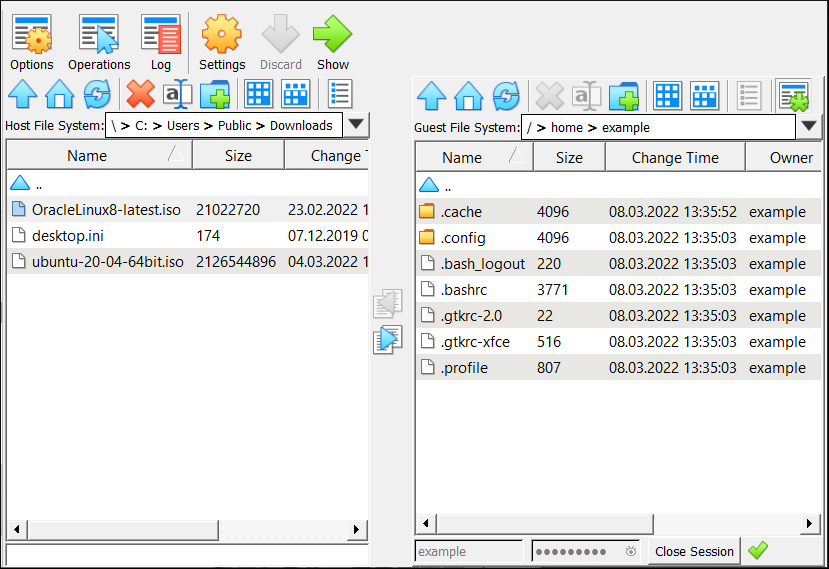
This comprehensive guide will walk you through the essential process of installing VirtualBox Guest Additions, commonly referred to as “VirtualBox Tools,” on your virtual machines. We’ll delve into why these additions are indispensable, provide detailed, step-by-step instructions for popular guest operating systems like Windows and various Linux distributions, and equip you with troubleshooting tips to overcome common hurdles. By the end of this tutorial, your VMs will run smoother, display better, and integrate more effectively with your host system, significantly boosting your productivity and enhancing your overall tech experience.
Understanding VirtualBox Guest Additions: What They Are and Why You Need Them
Before diving into the “how-to,” it’s vital to understand the “why.” VirtualBox Guest Additions are a special software package designed to be installed inside a virtual machine. They act as a bridge, enhancing communication and integration between the guest operating system (the OS running inside the VM) and the host operating system (the OS running VirtualBox itself). Without them, your VM might feel sluggish, lack essential features, and operate much like a computer from a bygone era.
The Core Benefits: Enhanced Performance and Integration
The impact of installing Guest Additions is immediate and profound, affecting several key areas:
- Improved Video Performance and Resolution: One of the most noticeable benefits is the ability to achieve higher screen resolutions and better graphics performance within your VM. Without Guest Additions, your virtual machine might be stuck at a low resolution, making it difficult to work efficiently. They enable dynamic screen resizing, allowing the guest OS display to automatically adjust when you resize the VirtualBox window, providing a fluid and modern user experience. This is crucial for productivity, especially when working with multiple applications or complex interfaces.
- Seamless Mouse Pointer Integration: Imagine constantly having to press the Host key (usually Right Ctrl) to release your mouse cursor from the VM window. That’s the reality without Guest Additions. With them installed, your mouse pointer moves seamlessly between the guest and host environments, behaving just like a native application on your desktop. This small but significant improvement vastly enhances usability and reduces friction during work.
- Shared Clipboard Functionality: Copying text or files from your host system and pasting them directly into your guest VM (and vice-versa) is a feature many take for granted in a modern computing environment. Guest Additions enable this shared clipboard, facilitating effortless transfer of information and making development, testing, and general usage much more efficient. This feature is a massive time-saver for anyone dealing with code snippets, configuration files, or research data across environments.
- Drag-and-Drop Support: Similar to the shared clipboard, drag-and-drop functionality allows you to easily move files and folders between your host and guest systems. This eliminates the need for network shares or cumbersome USB transfers for quick data exchanges, streamlining workflows and accelerating tasks. For developers testing applications or users managing digital assets, this is an invaluable feature.
- Shared Folders: This feature provides a robust mechanism for sharing directories between your host and guest machines. You can designate specific folders on your host system to be accessible from within the VM, creating a persistent, high-performance way to share project files, data, or media. This is particularly useful for development environments, allowing developers to keep their code on the host and access it directly from the guest OS for compilation and testing, ensuring data integrity and ease of backup.
- Better Time Synchronization: Guest Additions help keep the guest OS’s clock synchronized with the host’s clock, preventing time drift which can be problematic for logging, security protocols, and certain applications.
- Automatic Logons (Windows Guests): For Windows guest machines, Guest Additions can enable automatic logons, saving you a few seconds each time you start your VM.
In essence, VirtualBox Guest Additions transform a basic, somewhat clunky virtual machine experience into one that feels almost native, significantly boosting productivity and making your virtual environments a joy to work with. For any tech professional or enthusiast focused on efficiency and streamlined workflows, installing these additions is a non-negotiable step.
Prerequisites and Preparation: Setting Up for Success
Before you initiate the installation process, a few preparatory steps and checks can help ensure a smooth experience. Adhering to these guidelines will prevent common installation issues and save you valuable troubleshooting time.
Essential System Requirements
While VirtualBox Guest Additions are lightweight, the guest OS itself needs to be in a healthy state:
- Sufficient Disk Space: Ensure your guest operating system has enough free disk space (at least a few hundred MBs) for the Guest Additions package and any necessary kernel modules or dependencies.
- Updated Guest OS: It’s always a good practice to update your guest operating system to its latest patches and kernel versions before installing Guest Additions. This minimizes compatibility issues and ensures you’re working with a stable foundation.
- For Windows: Run Windows Update.
- For Linux: Use
sudo apt update && sudo apt upgrade(Debian/Ubuntu) orsudo yum update/sudo dnf update(RHEL/CentOS/Fedora).
- Guest Additions ISO: The Guest Additions ISO file is usually located within your VirtualBox installation directory on the host machine. VirtualBox automatically provides a mechanism to “insert” this virtual CD into your guest VM.
Pre-Installation Checks and Tips
- Take a Snapshot: This is perhaps the most critical preparatory step, especially for important VMs. Before making any significant changes like installing software that integrates deeply with the operating system, always take a snapshot of your VM. If anything goes wrong during or after the Guest Additions installation, you can simply revert to the snapshot, saving you from potential headaches and data loss. This acts as a vital digital security measure for your virtual environments.
- Close Running Applications: While not strictly necessary, closing unnecessary applications within your guest OS can prevent conflicts and free up resources during the installation process.
- Internet Connection (for Linux Guests): For Linux VMs, an active internet connection is often required to download essential build tools and kernel headers if they aren’t already installed.
- Administrator/Root Privileges: You will need administrative privileges (for Windows) or root access (for Linux) within the guest OS to install the Guest Additions.
By taking these preliminary steps, you’re setting the stage for a successful and trouble-free installation, allowing you to quickly move towards a more optimized virtual machine experience.
Step-by-Step Installation Guides
The installation process varies slightly depending on the guest operating system. We’ll cover the most common scenarios: Windows and Linux.
For Windows Guest OS
Installing VirtualBox Guest Additions on a Windows VM is typically a straightforward process, similar to installing any other software.
- Start Your Windows VM: Power on your Windows virtual machine and log in.
- Insert the Guest Additions CD Image: From the VirtualBox VM window menu bar, go to
Devices->Insert Guest Additions CD image....- This action virtually inserts the
VBoxGuestAdditions.isofile into your VM’s virtual CD/DVD drive. - If you don’t see this option or it fails, it might be that the VirtualBox installation on your host machine is incomplete or corrupted. Ensure VirtualBox itself is properly installed.
- This action virtually inserts the
- Run the Installer:
- In most modern Windows versions, an AutoPlay dialog box will pop up, asking what you want to do with the “CD drive.” Click on the option to
Run VBoxWindowsAdditions.exeorRun VBoxWindowsAdditions-amd64.exe(for 64-bit systems). - If AutoPlay doesn’t appear, open
File Explorer(Windows key + E), navigate to “This PC,” and double-click on the VirtualBox Guest Additions CD drive. Then, double-click onVBoxWindowsAdditions.exeorVBoxWindowsAdditions-amd64.exe.
- In most modern Windows versions, an AutoPlay dialog box will pop up, asking what you want to do with the “CD drive.” Click on the option to
- Follow the Installation Wizard:
- The VirtualBox Guest Additions Setup Wizard will launch. Click
Nextto proceed. - Accept the default installation location unless you have a specific reason not to. Click
Next. - Choose which components to install. The default selection is usually sufficient. Click
Install. - During the installation, you may see one or more prompts about installing device software or drivers from Oracle Corporation. It is crucial to click
Installon these prompts. These are the necessary drivers that enhance display, network, and input device performance.
- The VirtualBox Guest Additions Setup Wizard will launch. Click
- Reboot the VM: Once the installation completes, the wizard will prompt you to reboot your system. Select
Reboot nowand clickFinish. A reboot is essential for all the changes and drivers to take effect.
After the reboot, your Windows VM should exhibit all the benefits: seamless mouse integration, dynamic screen resizing, shared clipboard, and potentially better performance.
For Linux Guest OS (Debian/Ubuntu/RHEL/CentOS/Fedora)
Installing VirtualBox Guest Additions on a Linux VM involves a few more steps, primarily due to the nature of kernel modules and dependencies. The commands below are generally applicable but might vary slightly between distributions.
- Start Your Linux VM: Power on your Linux virtual machine and log in.
- Open a Terminal: Access the command line, usually by pressing
Ctrl + Alt + Tor searching for “Terminal” in your applications menu. - Update Your System and Install Dependencies: It’s critical to have your system updated and the necessary build tools and kernel headers installed. These packages allow the Guest Additions to compile kernel modules specific to your Linux version.
- For Debian/Ubuntu-based systems (e.g., Linux Mint, Pop!_OS):
bash

sudo apt update

sudo apt upgrade -y

sudo apt install build-essential dkms linux-headers-$(uname -r) -y
build-essentialprovides necessary compilation tools,dkmsensures that Guest Additions kernel modules are rebuilt automatically when your kernel updates, andlinux-headers-$(uname -r)installs headers matching your currently running kernel. - For RHEL/CentOS/Fedora-based systems (e.g., AlmaLinux, Rocky Linux):
bash

sudo yum update -y # For CentOS/RHEL 7, Fedora (older)

# OR

sudo dnf update -y # For CentOS/RHEL 8+, Fedora (current)

sudo yum install kernel-devel kernel-headers dkms make gcc bzip2 perl -y

# OR

sudo dnf install kernel-devel kernel-headers dkms make gcc bzip2 perl -y
kernel-develandkernel-headersprovide the necessary kernel development files.
- For Debian/Ubuntu-based systems (e.g., Linux Mint, Pop!_OS):
- Insert the Guest Additions CD Image: From the VirtualBox VM window menu bar, go to
Devices->Insert Guest Additions CD image....- This mounts the
VBoxGuestAdditions.isointo your VM.
- This mounts the
- Mount the Virtual CD-ROM (if not auto-mounted): Sometimes, Linux distributions automatically mount the CD. If not, you’ll need to do it manually.
- First, create a mount point:
sudo mkdir -p /mnt/cdrom - Then, mount the CD:
sudo mount /dev/cdrom /mnt/cdrom(or/dev/sr0if/dev/cdromdoesn’t exist). - Verify it’s mounted:
ls /mnt/cdrom
- First, create a mount point:
- Run the Installer Script:
- Navigate to the mounted directory:
cd /mnt/cdrom - Execute the installer script with root privileges:
sudo ./VBoxLinuxAdditions.run - The script will compile and install the necessary kernel modules. You’ll see a lot of output in the terminal.
- Navigate to the mounted directory:
- Reboot the VM: Once the script finishes, it’s crucial to reboot your Linux VM for the changes to take effect.
bash

sudo reboot
After rebooting, log back in. Your Linux VM should now have dynamic resolution, seamless mouse, shared clipboard, and other enhancements. You can unmount the virtual CD-ROM withsudo umount /mnt/cdrom(or simply eject it from the VirtualBoxDevicesmenu) if desired.
For Other Guest Operating Systems (General Approach)
While Windows and Linux are the most common, the general principle for other operating systems remains similar:
- Prepare the Guest OS: Ensure the OS is updated and has any necessary development tools or header packages installed (if applicable).
- Insert Guest Additions CD: Use
Devices->Insert Guest Additions CD image...from the VirtualBox menu. - Locate and Run Installer: Browse the virtual CD-ROM within the guest OS to find the appropriate installer executable or script. For example, for macOS guests, there might be a
.pkgfile. For Solaris, specific scripts. - Follow Prompts: Execute the installer and follow any on-screen prompts.
- Reboot: Always reboot the guest OS after installation.
Troubleshooting Common Installation Issues
Even with careful preparation, you might encounter issues. Here are solutions to some common problems.
“Could not insert the VirtualBox Guest Additions CD image” Error
This error typically means VirtualBox on your host system couldn’t find or access the VBoxGuestAdditions.iso file.
- Solution 1: Manual Download and Mount:
- Go to the official VirtualBox downloads page (https://www.virtualbox.org/wiki/Downloads).
- Look for “VirtualBox X.X.X Oracle VM VirtualBox Extension Pack” (the version should match your VirtualBox installation). No, this is wrong. It’s usually listed as “VirtualBox X.X.X Oracle VM VirtualBox Guest Additions CD image” under the main downloads. Download the
VBoxGuestAdditions_X.X.X.isofile directly. - In your VirtualBox Manager (on the host), select your VM, go to
Settings->Storage. - Under “Controller: IDE,” click on the empty CD icon.
- In the “Attributes” section, click the CD icon next to “Optical Drive” and choose
Choose Virtual Optical Disk File.... - Navigate to where you downloaded the
VBoxGuestAdditions_X.X.X.isoand select it. ClickOK. - Now, inside the running VM, try to run the installer from the mounted ISO.
- Solution 2: Reinstall VirtualBox: If the ISO is still missing, consider reinstalling VirtualBox on your host machine to ensure all components are properly in place.
Resolving Display and Performance Problems
If, after installing Guest Additions and rebooting, you’re still experiencing low resolution, sluggish performance, or lack of shared clipboard:
- Verify Installation:
- Windows: Check
Control Panel->Programs and Featuresto see if “Oracle VM VirtualBox Guest Additions” is listed. - Linux: Open a terminal and type
lsmod | grep vboxguest. You should seevboxguestand potentiallyvboxsf(for shared folders). If not, they might not have loaded.
- Windows: Check
- Check Display Settings:
- Windows: Right-click on the desktop ->
Display settings. Ensure the resolution is set correctly. - Linux (GUI): Go to
Settings->Displaysand adjust the resolution. For dynamic resizing, ensure “View” -> “Auto-resize Guest Display” is checked in the VirtualBox menu.
- Windows: Right-click on the desktop ->
- Install Correct Kernel Headers (Linux): This is a common culprit. If
dkmsorkernel-headerswere missing or incorrect during installation, the Guest Additions modules might not have built. Re-run the dependency installation commands (as shown in the Linux section), then re-runsudo ./VBoxLinuxAdditions.run. - Graphics Controller in VirtualBox Settings: In your VirtualBox Manager (on the host), select your VM, go to
Settings->Display. Ensure “Enable 3D Acceleration” is checked (if needed for your guest OS/applications) and that “Graphics Controller” is set toVBoxSVGA(recommended for Windows 7 and later, Linux, and Solaris), orVMSVGA(recommended for Windows 7 and later, Linux, and Solaris) orVBoxVGAfor older Windows versions. Increase the Video Memory slider as needed, especially for high resolutions.
Post-Installation Verification
After installation and reboot, how do you know it worked?
- Dynamic Resolution: Resize your VirtualBox window. If the guest OS resolution automatically adjusts, Guest Additions are working.
- Mouse Pointer Integration: Move your mouse cursor in and out of the VM window without pressing the Host key.
- Shared Clipboard/Drag-and-Drop: Try copying text from your host and pasting it into the VM, and vice-versa. Test dragging a small file.
- Shared Folders: If you configured a shared folder (VM
Settings->Shared Folders), try accessing it from within the guest OS. For Windows, it appears as a network drive. For Linux, it’s typically mounted in/media/sf_<share_name>.
If these functionalities are working, congratulations! Your VirtualBox Guest Additions are successfully installed and active.
Beyond Installation: Optimizing Your Virtual Environment
Installing VirtualBox Guest Additions is a critical step, but it’s part of a broader strategy for effective virtualization. Understanding the bigger picture helps you leverage VMs for maximum benefit, aligning with themes like technology trends, digital security, and productivity.
Virtualization in the Modern Tech Landscape
Virtual machines are more than just a convenience; they are fundamental tools in modern technology:
- Development and Testing: VMs provide isolated sandboxes for developers to test code, experiment with different environments, and build applications without impacting their host system. This is crucial for maintaining a stable development environment, ensuring that a new library or OS update doesn’t break existing projects.
- Security and Isolation: Running suspicious software, visiting potentially malicious websites, or experimenting with digital security tools can be done safely within a VM. If the VM is compromised, it won’t affect the host system, allowing for quick recovery via snapshots. This is a powerful feature for maintaining digital security.
- Training and Education: VMs are excellent for learning new operating systems, networking concepts, or software installations without requiring dedicated hardware.
- Productivity and Multi-OS Workflows: For professionals who need to work across different operating systems or require specific software that only runs on one OS, VMs offer a flexible and cost-effective solution. With Guest Additions, switching between environments is smooth and efficient.
Security Best Practices for VMs
While VMs offer isolation, it’s important to follow security best practices:
- Keep Host and Guest Updated: Regularly update both your host OS and all guest operating systems, including VirtualBox itself and Guest Additions. Patches often address security vulnerabilities.
- Use Strong Passwords: Apply strong, unique passwords for all user accounts within your VMs.
- Network Configuration: Be mindful of how your VM’s network adapter is configured (NAT, Bridged, Host-Only). Bridged networking can expose your VM directly to your local network, while NAT provides a layer of isolation. Understand the implications for your use case.
- Firewalls: Ensure firewalls are enabled and properly configured on both your host and guest operating systems.
- Limit Shared Folders: Only share folders that are absolutely necessary and restrict permissions where possible. Shared folders can be a potential attack vector if a VM is compromised.
Boosting Productivity with Virtual Machines
Optimizing your VM setup directly translates into increased productivity, a core focus of the “Tech” category on many websites.
- Resource Allocation: Allocate sufficient RAM, CPU cores, and video memory to your VMs based on their intended use. An under-resourced VM will always be slow, regardless of Guest Additions.
- Snapshots for Workflow Management: Beyond backups, use snapshots strategically. Before a major configuration change, installing new software, or starting a risky task, take a snapshot. If things go wrong, revert and continue. This minimizes downtime and streamlines experimental workflows.
- Cloning VMs: Once you have a perfectly configured VM (with Guest Additions installed!), clone it to create new environments for different projects or users. This saves immense setup time.
- Keyboard Shortcuts: Learn VirtualBox’s hotkeys for actions like capturing/releasing the mouse, switching between full-screen and windowed modes, and taking snapshots.
By combining the power of virtualization with the enhancements provided by VirtualBox Guest Additions and adopting sound practices, you transform your computer into a versatile and highly efficient workstation. Whether you’re a developer pushing the boundaries of software, an IT professional securing digital assets, or an entrepreneur exploring online income strategies through dedicated environments, a well-configured VM with Guest Additions is an indispensable asset for navigating the complexities of the modern digital world. This fundamental skill is not just about installing software; it’s about mastering a tool that underpins modern computing, productivity, and digital security.
aViewFromTheCave is a participant in the Amazon Services LLC Associates Program, an affiliate advertising program designed to provide a means for sites to earn advertising fees by advertising and linking to Amazon.com. Amazon, the Amazon logo, AmazonSupply, and the AmazonSupply logo are trademarks of Amazon.com, Inc. or its affiliates. As an Amazon Associate we earn affiliate commissions from qualifying purchases.