
The power supply unit (PSU) is often considered the unsung hero of any computer system. While flashy graphics cards and powerful processors grab most of the attention, it’s the PSU that diligently delivers the crucial electrical current necessary for every single component to function. A properly installed power supply isn’t just about getting your computer to turn on; it’s fundamental to system stability, component longevity, and overall operational safety. Whether you’re building a new PC from scratch, upgrading an aging system, or replacing a faulty unit, understanding the correct procedures for PSU installation is a cornerstone skill for any DIY tech enthusiast.
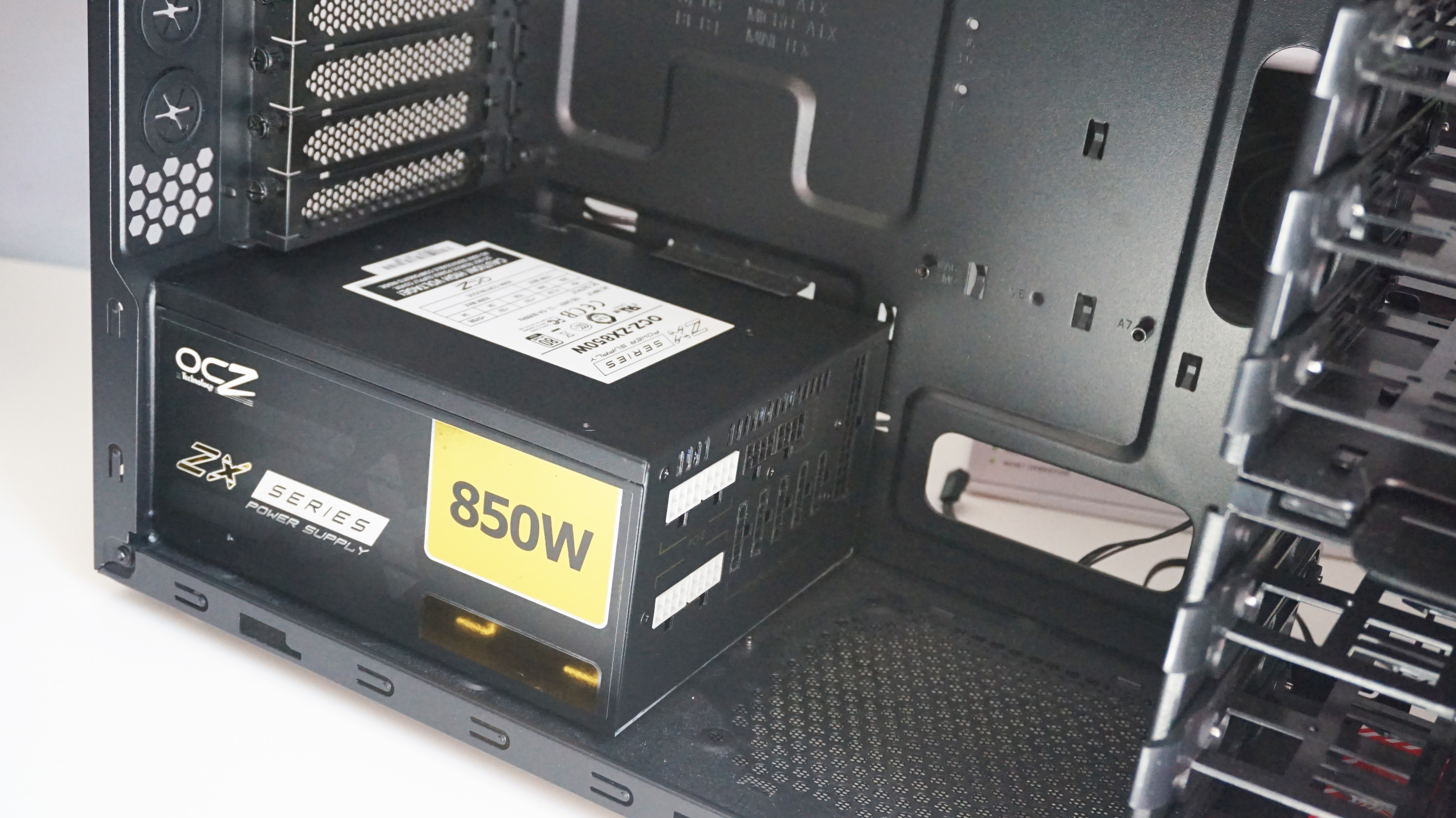
This comprehensive guide will walk you through the entire process, from selecting the right power supply for your needs to the final cable management, ensuring your build is powered reliably and efficiently. We will demystify the various types of PSUs, emphasize crucial safety protocols, and provide a step-by-step walkthrough to empower you with the confidence to tackle this essential component installation with precision.
Understanding Your Power Supply Unit (PSU)
Before diving into the installation process, it’s vital to have a clear understanding of what a power supply does and the different types available. This knowledge ensures you select a compatible and efficient unit for your specific system requirements.
Types of PSUs: Non-Modular, Semi-Modular, and Fully Modular
Power supplies come in three primary cable configurations, each offering distinct advantages, particularly concerning cable management and ease of installation.
-
Non-Modular PSUs: These units have all their cables permanently attached. While often the most affordable option, they present the biggest challenge for cable management. You’ll likely have many unused cables cluttering your case, potentially obstructing airflow and making a tidy build difficult. They are generally recommended for budget builds where aesthetics and advanced cable routing are secondary concerns.
-
Semi-Modular PSUs: A popular middle-ground, semi-modular power supplies feature essential cables (like the 24-pin motherboard and 4+4/8-pin CPU power) permanently attached, while less frequently used cables (PCIe, SATA, Molex) are detachable. This offers a good balance between cost and flexibility, allowing users to connect only the necessary peripheral cables, thus improving airflow and reducing clutter compared to non-modular units.
-
Fully Modular PSUs: These are the most flexible and typically the most expensive. Every single cable can be detached from the PSU, including the main motherboard and CPU power cables. This makes installation and cable management significantly easier, as you only connect the exact cables you need. It also allows for custom sleeved cable kits, enabling a truly professional and aesthetically pleasing build. For complex builds, custom loops, or anyone prioritizing a clean look, fully modular is the preferred choice.
Wattage and Efficiency Ratings (80 PLUS Certification)
Choosing the correct wattage for your PSU is paramount. Too little power, and your system will be unstable, potentially crashing under load or failing to boot. Too much, and you’re overspending without real benefit, though a bit of headroom is always advisable for future upgrades.
-
Wattage: To determine the ideal wattage, you need to calculate the power draw of all your components: CPU, GPU, motherboard, RAM, storage drives, fans, and any other peripherals. Online PSU calculators (provided by manufacturers like OuterVision or PCPartPicker) are excellent tools for this. A general rule of thumb is to aim for a PSU that provides 20-30% more wattage than your estimated peak system draw to allow for efficiency losses, transient spikes, and future upgrades.
-
Efficiency Ratings (80 PLUS): This certification indicates how efficiently a PSU converts AC power from the wall into DC power for your components, primarily at 20%, 50%, and 100% load. The “80 PLUS” means the PSU is at least 80% efficient at these loads, meaning only 20% or less of the power is wasted as heat. Higher ratings (Bronze, Silver, Gold, Platinum, Titanium) denote greater efficiency:
-
80 PLUS Bronze: Good entry-level efficiency.
-
80 PLUS Gold: A popular choice for its balance of efficiency and cost, significantly reducing heat and operating costs over time.
-
80 PLUS Platinum/Titanium: Top-tier efficiency, ideal for professional systems, servers, or users who prioritize minimal energy waste and heat generation.
-
Higher efficiency translates to less wasted energy, lower electricity bills, and reduced heat output, which can contribute to a quieter system.
Form Factors
Power supplies also come in various physical sizes, known as form factors, to fit different PC cases. The most common form factor for desktop PCs is ATX, which is compatible with most mid-tower and full-tower cases. For smaller builds like Mini-ITX systems, you might encounter SFX or SFX-L PSUs, which are much more compact. Always verify that your chosen PSU’s form factor is compatible with your PC case before purchase.
Essential Preparations Before Installation
Proper preparation is not just a recommendation; it’s a critical step that ensures safety, efficiency, and a smooth installation process. Skipping these initial steps can lead to frustration, damage to components, or even personal injury.
Safety First: Unplug and Ground Yourself
Electricity is dangerous. Before touching any internal components of your computer, always unplug the PC from the wall socket. Even if the computer is off, some residual charge can remain. Additionally, many components, especially sensitive electronics like the CPU, GPU, and RAM, are susceptible to damage from electrostatic discharge (ESD).
-
Unplug: Disconnect the main power cable from the wall outlet and the back of the PC. If you’re replacing an old PSU, ensure it’s fully disconnected.
-
Ground Yourself: This is crucial to prevent ESD. You can do this by:
-
Wearing an anti-static wrist strap, connected to a grounded metal object (like your PC case’s bare metal frame).
-
Periodically touching an unpainted metal surface of your PC case before handling components.
-
Working on an anti-static mat.
-
Avoid working on carpeted surfaces or wearing wool clothing, as these can generate static electricity.
-
Gathering Your Tools
Having the right tools readily available will streamline the installation process.
-
Phillips Head Screwdriver: This is the most essential tool for securing the PSU and other components within the case. A magnetic tip can be particularly helpful for catching dropped screws.
-
Zip Ties or Velcro Straps: Indispensable for cable management. These help to bundle and route cables neatly, improving airflow and aesthetics. Velcro straps are reusable and offer more flexibility for future modifications.
-
Flashlight (Optional but Recommended): Useful for illuminating dark corners inside the case, especially when connecting cables in cramped spaces.
-
Small Container/Tray: For holding screws so they don’t get lost.
Clearing the Workspace
A tidy and well-lit workspace is key to a stress-free build.
-
Clear Surface: Work on a clean, flat, non-static surface (like a wooden table). Ensure there’s enough space to comfortably place your PC case and components.
-
Good Lighting: Ample lighting allows you to clearly see connections, especially in the often-dark interior of a PC case.
Removing the Old PSU (if applicable)
If you’re upgrading or replacing an existing power supply, you’ll need to carefully remove the old one first.
-
Disconnect all cables: Systematically disconnect every cable from all components (motherboard, CPU, GPU, storage drives, fans). Make a note or take pictures if you’re unsure where cables go, especially if your new PSU isn’t fully modular.
-
Unscrew: Locate and remove the four screws on the rear of the PC case that secure the PSU.
-
Slide out: Carefully slide the old PSU out of the case. In some cases, you might need to maneuver it around other components or remove a drive cage.
Step-by-Step Power Supply Installation
With preparations complete, you’re ready to install the new power supply. Follow these steps meticulously to ensure a successful and secure installation.
Mounting the PSU in the Case
The power supply typically mounts at the bottom or top rear of the PC case.
-
Orientation: Most modern cases feature a bottom-mounted PSU bay with a vent. In such cases, the PSU fan should generally face downwards, drawing cool air from outside the case and exhausting it out the back. If your case doesn’t have a bottom vent or has a solid bottom, the fan should face upwards into the case, acting as an additional exhaust. Consult your case and PSU manuals for specific recommendations.
-
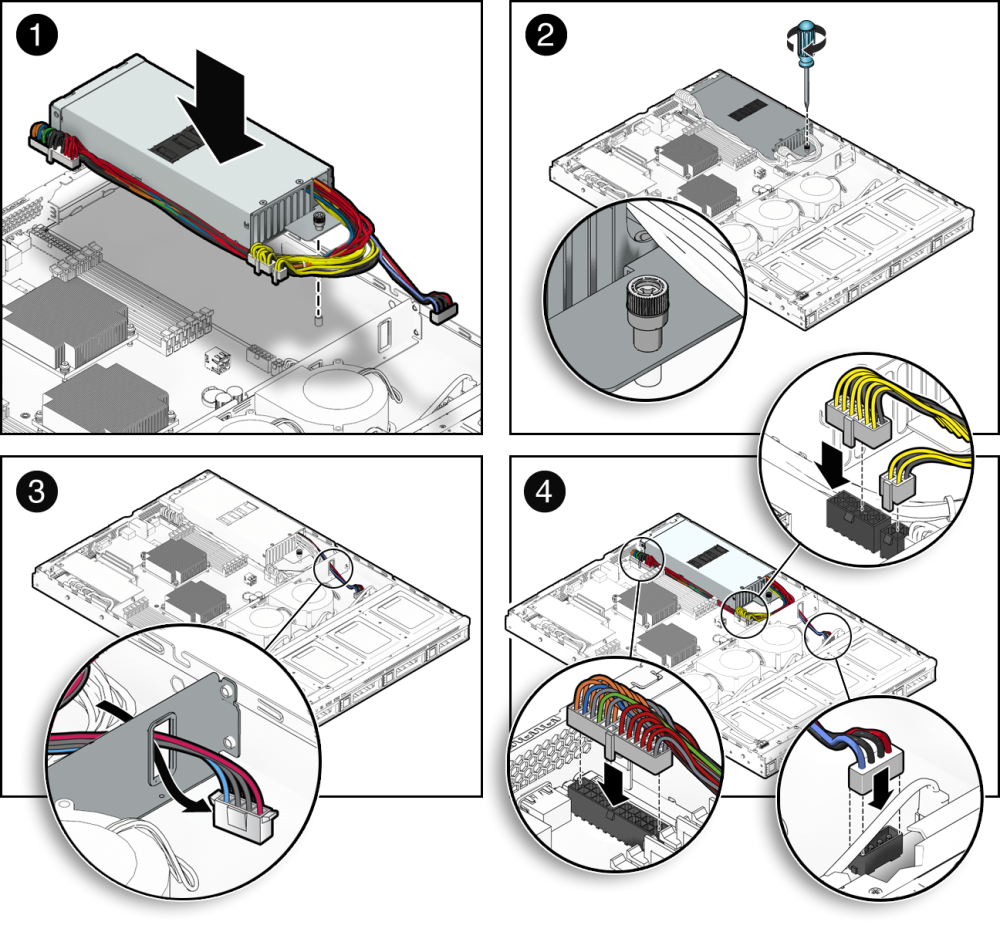
Insert the PSU: Carefully slide the PSU into its designated bay from the outside rear of the case.
-
Secure with Screws: Align the screw holes on the PSU with those on the case. Use the four screws provided with your PSU or case (usually black, coarse-threaded screws) to firmly secure the PSU to the chassis. Do not overtighten.
Connecting Essential Motherboard Cables
These are the most critical connections, providing power to the motherboard and CPU.
-
24-pin ATX Motherboard Connector: This is the largest cable, usually a single block of 20+4 pins or a full 24-pin connector. Locate the corresponding slot on your motherboard (often on the right edge) and firmly push the connector in until the latch clicks. Ensure it’s fully seated.
-
4+4-pin CPU (EPS) Connector: This cable powers your CPU. It often comes as an 8-pin connector that can split into two 4-pin segments (hence “4+4”). Your motherboard will have either an 8-pin, a 4-pin, or an 8+4-pin CPU power socket, usually located at the top-left edge near the CPU. Connect the appropriate configuration, ensuring the latch clicks. For an 8+4 pin motherboard, connect both.
Powering Your Graphics Card (GPU)
Dedicated graphics cards often require supplemental power directly from the PSU.
- PCIe Power Cables: Modern GPUs typically use 6-pin, 8-pin, or 6+2-pin PCIe power connectors. Most mid-range to high-end GPUs will require one or two such connectors. Locate the PCIe power sockets on your graphics card (usually on the side or top edge). Connect the appropriate cable(s) from your PSU, ensuring the latches click. A 6+2-pin connector can be used as either a 6-pin or an 8-pin by simply leaving the +2 pins detached or combining them, respectively. Never force a connector.

Connecting Storage Drives and Peripherals
Finally, connect power to your storage devices and any other accessories.
-
SATA Power Connectors: These flat, wide connectors power SSDs, HDDs, and optical drives. Connect one end to the PSU (if modular) and the other to the back of each drive.
-
Molex Connectors: While less common in modern systems, Molex connectors are still used for some older fans, fan controllers, or lighting strips. Connect these as needed.
-
Fan Headers: Most case fans connect directly to the motherboard’s fan headers, but some high-power fans or fan hubs might require direct power from a Molex or SATA connector from the PSU.
Cable Management (Initial Routing)
Even during the initial connection phase, think about cable management.
-
Utilize Case Cutouts: Most modern cases have cutouts and channels behind the motherboard tray for routing cables. Pass cables through these to keep the front of the case clear.
-
Leave Slack: Ensure there’s enough slack on cables, especially the main motherboard and CPU cables, so they aren’t under tension. This makes future adjustments easier and prevents accidental disconnections.
-
Avoid Obstruction: Route cables away from fan blades and areas where they might impede airflow.
Post-Installation Checks and First Boot
After all cables are connected, a thorough check is essential before powering on your system. This final verification can prevent potential issues and ensure a smooth first boot.
Double-Checking All Connections
Take a moment to visually inspect every single connection you’ve made.
-
Secure Seating: Confirm that all cables (24-pin, CPU, PCIe, SATA, Molex) are firmly seated in their respective sockets on both the PSU (if modular) and the components. Wiggle them gently to ensure they don’t come loose.
-
Correct Orientation: Verify that no connectors are plugged in backward or at an angle. While most connectors are keyed to prevent this, a quick check is always prudent.
-
Unused Cables: For semi-modular and fully modular PSUs, ensure any unused cables are neatly stored away or removed from the case to minimize clutter and maximize airflow.
Verifying Proper Seating and Clearance
Beyond electrical connections, the physical arrangement within the case matters.
-
PSU Fan Obstruction: Confirm that the PSU’s intake fan (usually at the bottom) is not obstructed by case feet, carpet, or other objects if it’s facing downwards. If it’s facing upwards, ensure no loose cables are in its path.
-
Component Clearance: Ensure no cables are pressed against hot components like the GPU backplate or CPU heatsink. Also, verify that cables aren’t interfering with case fans or other moving parts.
The Moment of Truth: First Power On
With all checks complete, it’s time to power up your system for the first time with the new PSU.
-
Flip the PSU Switch: Ensure the power switch on the back of the PSU (often a rocker switch marked “I” for on, “O” for off) is in the “I” position.
-
Plug in the PC: Connect the main power cable to the PSU and then to a grounded wall outlet or surge protector.
-
Press the Power Button: Hit the power button on your PC case.
What to look for:
-
Fans Spinning: The CPU cooler fan, GPU fans (they might not spin at idle on some cards), and case fans should all start spinning.
-
Lights On: LEDs on your motherboard, GPU, or case should illuminate.
-
Display Output: If connected to a monitor, you should ideally see the BIOS/UEFI POST screen or your operating system starting to load.
Troubleshooting common first-boot issues:
-
No Power At All: Double-check the PSU switch, wall socket, main power cable, and the 24-pin and CPU power connectors.
-
Fans Spin, No Display: This could indicate an issue with the GPU, RAM, or CPU. Re-seat these components and ensure the monitor is connected correctly.
-
Unusual Noises: Listen for any grinding, buzzing, or clicking. This could indicate a faulty component or an obstruction.
-
Burning Smell: Immediately power down the system if you detect any burning smell. This indicates a serious short or component failure.
Final Cable Management
Once you’ve confirmed your system boots successfully, you can finalize your cable management.
-
Bundle and Secure: Use your zip ties or Velcro straps to bundle cables together neatly.
-
Route Strategically: Route bundles along the back of the motherboard tray, behind drive cages, or in other less visible areas.
-
Improve Airflow: A tidy cable setup not only looks professional but also significantly improves airflow within the case, leading to better cooling and potentially quieter operation.
-
Aesthetics: A clean build is satisfying. Take your time to achieve a polished look.
Troubleshooting Common PSU Installation Issues
Even with careful planning, issues can arise. Here are some common problems encountered during or after PSU installation and how to address them.
PC Won’t Turn On At All
This is perhaps the most frustrating issue.
-
PSU Switch: Is the “I/O” switch on the back of the PSU in the “I” (on) position? It’s a surprisingly common oversight.
-
Wall Socket/Power Strip: Ensure the power cable is firmly plugged into both the PSU and a working wall socket or power strip. Test the socket with another device.
-
Main Motherboard Cables: Re-check the 24-pin ATX and the 4+4/8-pin CPU power connectors. Ensure they are fully seated and latched.
-
Case Power Button Connections: Double-check the small front panel connectors to the motherboard (especially the “Power SW” pins). If these are incorrect, the case power button won’t work.
Components Not Receiving Power
If some parts of your PC turn on (e.g., case fans spin) but others don’t (e.g., GPU fans, SSD), it points to specific cable issues.
-
Individual Cable Checks: Systematically check the power cables for the affected components. For example, if your GPU fans aren’t spinning, re-seat the PCIe power cable(s) on both the GPU and the PSU.
-
Modular PSU Cables: For fully modular PSUs, ensure the correct cable types are plugged into the correct ports on the PSU itself. Some PSU ports may look identical but are designed for specific cable types (e.g., PCIe vs. CPU).
-
SATA Power: If a drive isn’t detected or powered, check its SATA power connection.
Unstable System or Random Shutdowns
This issue can be more complex and might not always be directly related to the PSU, but a new PSU installation can reveal underlying problems or indicate a faulty unit.
-
Insufficient Wattage: If your PSU is barely meeting your system’s power requirements, it might struggle under load, leading to crashes or reboots. Check your component wattage and consider if you need a higher-wattage PSU.
-
Faulty PSU: Though rare for new units, a defective PSU can cause instability. If you’ve tried everything else, testing with a known good PSU (if available) can help diagnose.
-
Overheating: Ensure your case has adequate airflow and that all component fans (CPU, GPU) are working correctly. While not a direct PSU issue, an unstable system can also be caused by overheating, and poor cable management (which the PSU installation directly impacts) can contribute to this.
Fan Noise or Overheating
A new PSU should ideally run quietly, especially if it’s an efficient model.
-
PSU Fan Orientation: As discussed earlier, ensure the PSU fan is oriented correctly to facilitate proper airflow (usually pulling air from outside the case).
-
Cable Obstruction: Check that no loose cables are interfering with the PSU fan or any other case fans.
-
Dust Accumulation: If it’s an old PSU, dust can accumulate on the fan and heatsinks, impeding cooling and increasing noise. Clean it thoroughly. For a new PSU, this is less likely, but ensure the intake vent is clear.
By systematically working through these troubleshooting steps, you can often identify and resolve common PSU installation issues, leading to a stable and reliable computer system.
Conclusion
Installing a power supply might seem daunting at first glance, given the multitude of cables and connectors, but by following a structured approach, prioritizing safety, and understanding the role of each component, it becomes a manageable and rewarding task. A correctly installed PSU is more than just a power source; it’s the foundation of a stable, efficient, and long-lasting computer system.
Whether you’re a seasoned builder or a first-time enthusiast, mastering PSU installation is a valuable skill that enhances your understanding of PC hardware and empowers you to maintain and upgrade your rig with confidence. Remember to always double-check your connections, manage your cables effectively, and consult your component manuals for specific details. With these insights and a methodical approach, you’re well-equipped to power up your system successfully and reliably.
aViewFromTheCave is a participant in the Amazon Services LLC Associates Program, an affiliate advertising program designed to provide a means for sites to earn advertising fees by advertising and linking to Amazon.com. Amazon, the Amazon logo, AmazonSupply, and the AmazonSupply logo are trademarks of Amazon.com, Inc. or its affiliates. As an Amazon Associate we earn affiliate commissions from qualifying purchases.