
Fractions, those fundamental building blocks of mathematics, often represent a stumbling block for many, especially when it comes to performing calculations quickly and accurately. While mental arithmetic or manual calculations are excellent for understanding the underlying principles, modern technology offers a powerful ally: the calculator. Far from being a mere tool for basic addition or subtraction, today’s calculators—from the humble scientific model to advanced graphing devices and ubiquitous smartphone apps—are adept at handling complex fractional operations with ease. However, harnessing this capability requires a clear understanding of how to properly input, manipulate, and interpret fractions on these devices.
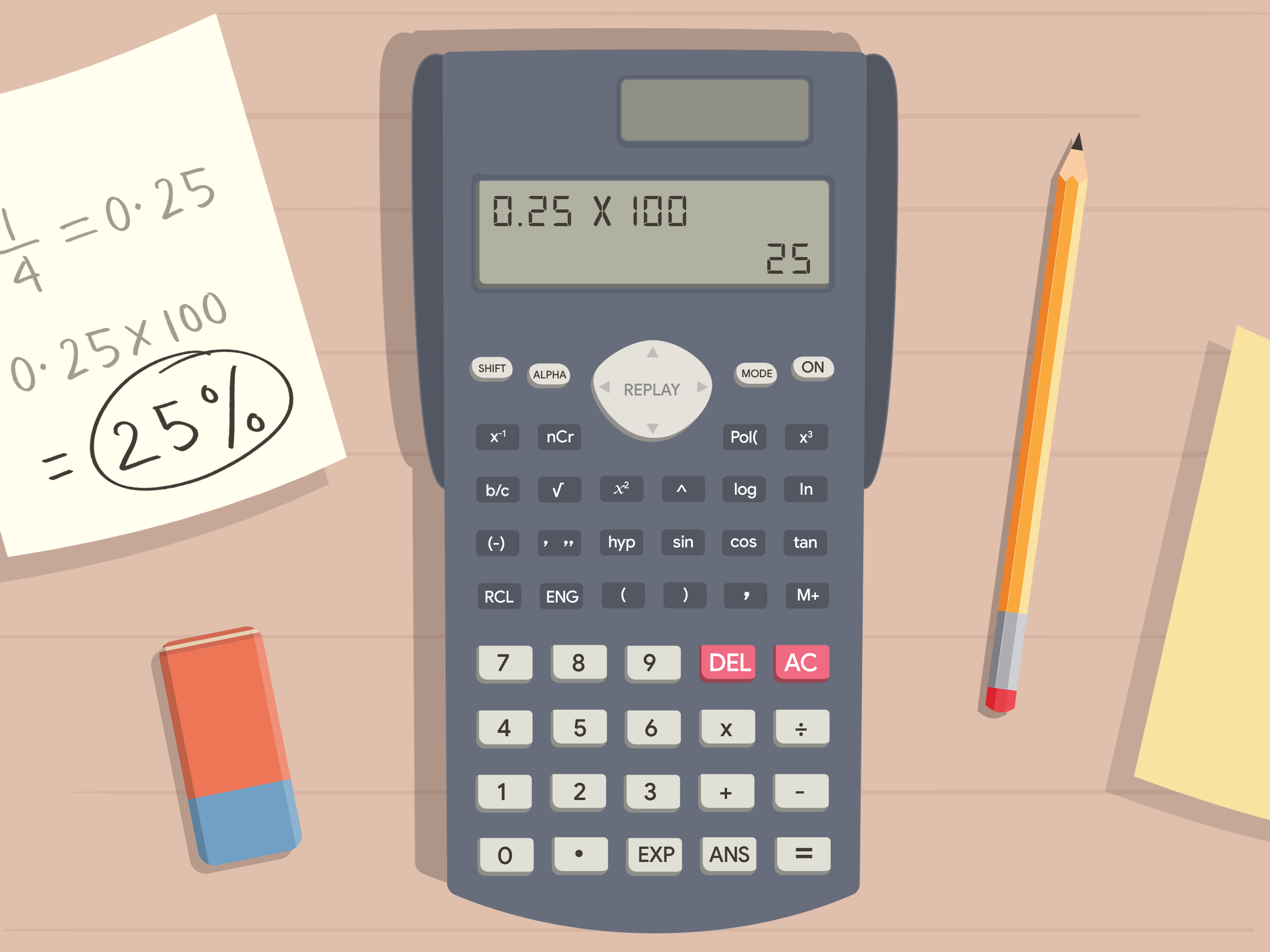
This comprehensive guide will demystify the process, equipping you with the knowledge to confidently tackle any fraction-related calculation using your calculator. We’ll delve into the nuances of different calculator types, provide step-by-step instructions for various operations, and highlight common pitfalls to avoid, ensuring you transform your calculator into an indispensable mathematical partner.
Understanding Your Calculator’s Capabilities
Before diving into specific operations, it’s crucial to understand that not all calculators are created equal. Their ability to handle fractions varies significantly, impacting how you approach the task. Identifying your calculator’s type will save you frustration and streamline your workflow.
Standard Scientific Calculators
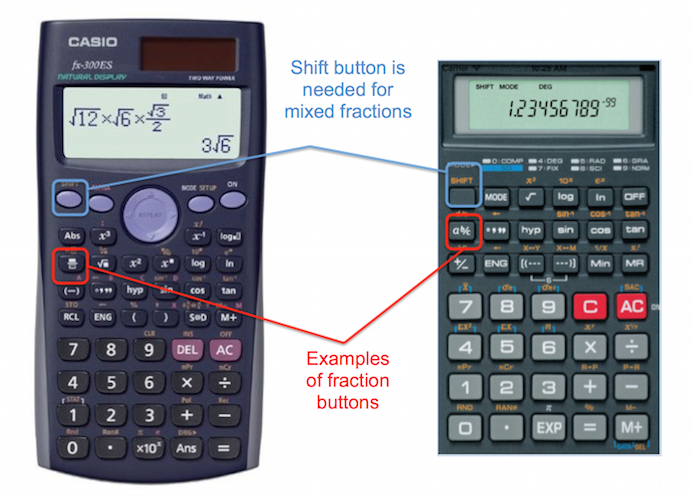
These are arguably the most common and versatile calculators for academic and professional use, striking a balance between functionality and affordability. Most scientific calculators feature a dedicated “fraction button,” often labeled a b/c, d/c, or a symbol resembling two stacked squares with a line in between (e.g., _/_). This button is your primary interface for inputting and manipulating fractions.
-
Inputting Proper/Improper Fractions: For a fraction like
3/4, you would typically press3, then thea b/cbutton, then4. The display might show3┘4or similar. -
Inputting Mixed Numbers: For a mixed number like
2 1/3, you would press2, then thea b/cbutton, then1, thena b/cagain, then3. The display might show2┘1┘3. Some calculators require a specific mixed number input sequence. -
Conversion: Scientific calculators usually have a function to convert between mixed numbers and improper fractions, or between fractions and decimals (often labeled
S<=>D,F<=>D, or similar).
Understanding the layout and specific functions of your scientific calculator is key. Referencing its manual, even briefly, can reveal powerful features you might otherwise miss.
Basic Four-Function Calculators
These simple calculators, often found in offices or homes, are designed for elementary operations (+, -, ×, ÷). They typically do not have a dedicated fraction button. This means you cannot input fractions in their fractional form.
-
Method: To perform a fraction calculation on a basic calculator, you must first convert the fraction into its decimal equivalent. For example,
3/4becomes3 ÷ 4 = 0.75. You then perform all subsequent operations using these decimal values. -
Limitation: The downside is that the final answer will always be in decimal form, and converting an exact decimal back to its simplest fractional form manually can be cumbersome, especially for repeating decimals. For instance,
1/3on a basic calculator will show0.33333333, which is an approximation.
Graphing Calculators and Advanced Models
Graphing calculators (e.g., TI-83, TI-84, Casio fx-CG series) and professional-grade financial or engineering calculators offer the most robust fraction capabilities. They not only have dedicated fraction input buttons but also sophisticated menus for:
-
Automatic Simplification: Many will automatically simplify fractions to their lowest terms.
-
Complex Expressions: They can handle fractions within larger algebraic expressions, often displaying them visually on the screen.
-
Fraction Mode: Some allow you to set a “fraction mode” where all answers are automatically presented as fractions unless explicitly converted to decimals.
-
Symbolic Manipulation: Advanced models can even perform symbolic fraction operations without needing to assign numerical values.
These calculators often require navigating menus and sub-menus, so familiarity with their operating system is beneficial.
Online Calculators and Apps
In the age of smartphones and the internet, a plethora of online fraction calculators and mobile apps exist. These digital tools often feature user-friendly interfaces, visual displays, and robust functionality.
-
Advantages:
-
Clarity: Often display fractions in a very clear, traditional stacked format.
-
Guidance: Some even show step-by-step solutions, which can be invaluable for learning.
-
Accessibility: Available anywhere with internet access or on your mobile device.
-
-
Examples: Websites like Desmos, WolframAlpha, or dedicated fraction calculator apps for iOS and Android.
While convenient, relying solely on these without understanding the underlying mechanics can hinder your mathematical intuition. They are best used as powerful supplementary tools.
Step-by-Step Guide: Inputting Fractions
Mastering fraction input is the first and most critical step. The method largely depends on whether your calculator has a dedicated fraction button.
Entering Simple Fractions (e.g., 1/2, 5/8)
This is the most straightforward operation.
-
Using the Fraction Button (
a b/c,d/c,_/_):-
Enter the numerator.
-
Press the fraction button.
-
Enter the denominator.
-
Example for
1/2: Press1, thena b/c, then2. The display might show1┘2. -
Example for
5/8: Press5, thena b/c, then8. The display might show5┘8. -
Press
ENTERor=if you’re done with the input or want to see the result of a single fraction.
-
-
Using the Division Operator (
÷) (for basic calculators or decimal conversion):-
Enter the numerator.
-
Press the division button (
÷). -
Enter the denominator.
-
Example for
1/2: Press1, then÷, then2. The display will show0.5. -
Example for
5/8: Press5, then÷, then8. The display will show0.625.
-
Entering Mixed Numbers (e.g., 2 3/4)
Mixed numbers combine a whole number and a proper fraction.
-
Using the Fraction Button with Mixed Number Input (if available):
-
Enter the whole number.
-
Press the fraction button (
a b/c). -
Enter the numerator of the fraction part.
-
Press the fraction button (
a b/c) again. -
Enter the denominator of the fraction part.
-
Example for
2 3/4: Press2, thena b/c, then3, thena b/c, then4. The display might show2┘3┘4. -
Note: Some calculators might have a specific button combination (e.g.,
SHIFT+a b/c) to initiate mixed number input.
-
-
Converting to an Improper Fraction First (universal method):
-
Recall that
2 3/4is equivalent to(2 * 4 + 3) / 4 = 11/4. -
Now, input this improper fraction using the method for simple fractions: Press
11, thena b/c, then4. The display might show11┘4. -
Many scientific calculators can convert an improper fraction back to a mixed number using the
SHIFT+a b/cbutton or a specificd/c <=> a b/cconversion function.
-
Entering Improper Fractions (e.g., 7/3, 15/4)
Improper fractions have a numerator larger than or equal to their denominator.
-
Use the same method as entering simple fractions:
-
Enter the numerator.
-
Press the fraction button (
a b/c). -
Enter the denominator.
-
Example for
7/3: Press7, thena b/c, then3. The display might show7┘3. -
Your calculator will often automatically convert this to a mixed number if it’s set to a specific display mode, or you can manually convert it using the appropriate function.
-
Performing Operations with Fractions
Once you’re comfortable with input, performing arithmetic operations with fractions becomes straightforward, much like working with whole numbers.
Addition and Subtraction
The key is to input each fraction correctly, then use the standard addition (+) or subtraction (-) operators.
-
Example:
1/2 + 1/3-
Input
1 a b/c 2. -
Press
+. -
Input
1 a b/c 3. -
Press
=. -
Result should be
5┘6(or0.8333...if in decimal mode).
-
-
Example:
2 3/4 - 1 1/2-
Input
2 a b/c 3 a b/c 4(for2 3/4). -
Press
-. -
Input
1 a b/c 1 a b/c 2(for1 1/2). -
Press
=. -
Result should be
1┘1┘4(or1.25).
-
Multiplication and Division
These operations also follow a similar pattern, leveraging the standard multiplication (×) and division (÷) buttons.
-
Example:
2/3 × 3/4-
Input
2 a b/c 3. -
Press
×. -
Input
3 a b/c 4. -
Press
=. -
Result should be
1┘2(or0.5). Your calculator will typically simplify the fraction automatically.
-
-
Example:
5/6 ÷ 1/3-
Input
5 a b/c 6. -
Press
÷. -
Input
1 a b/c 3. -
Press
=. -
Result should be
2┘1┘2(or2.5).
-
Fractions and Decimals: Conversion
One of the most useful features of scientific and graphing calculators is their ability to convert between fraction and decimal forms.
-
Converting Fraction to Decimal:
-
After inputting a fraction and pressing
=, if the answer is displayed as a fraction, simply press theS<=>D(Standard to Decimal) orF<=>Dbutton. This will toggle the display to its decimal equivalent. -
If your calculator is in “decimal mode” by default, the answer might automatically appear as a decimal.
-
-
Converting Decimal to Fraction:
-
Enter a decimal number (e.g.,
0.75). -
Press
=. -
Press the
S<=>DorF<=>Dbutton (sometimes requiringSHIFTor2ndkey) to convert it to a fraction. -
Not all decimals can be perfectly converted back to simple fractions (e.g., irrational numbers like pi, or non-terminating decimals like 0.333…). Calculators will typically attempt to find the simplest fractional representation for terminating decimals or common repeating decimals.
-
Common Pitfalls and Troubleshooting
Even with clear instructions, missteps can occur. Being aware of common issues can help you troubleshoot efficiently.
Incorrect Input Order and Parentheses
This is perhaps the most frequent source of errors, especially when dealing with multiple operations or complex fractions.
-
Order of Operations: Remember PEMDAS/BODMAS. Calculators respect this order. If you want an operation to occur first, enclose it in parentheses.
- Example: To calculate
1 / (2 + 3), you must input1 ÷ ( 2 + 3 ) =. If you just type1 ÷ 2 + 3, the calculator will perform1 ÷ 2first, then add3, leading to0.5 + 3 = 3.5, not1/5 = 0.2.
- Example: To calculate
-
Implied Multiplication: Some calculators require an explicit multiplication sign (
×) where you might normally imply it (e.g.,2(1/2)might need to be2 × (1 a b/c 2)).
Understanding Display Modes
Modern calculators often have different display modes that affect how answers are presented.
-
MathIO / Natural Display: This mode attempts to display input and output as they would appear in a textbook, often showing stacked fractions and radicals. This is ideal for fractions.
-
LineIO / Linear Display: This mode displays everything on a single line, using symbols like
^for exponents and_or┘for fractions. You might need to adjust your calculator’s settings to ensure it displays fractional answers rather than immediate decimals. Look forMODEorSETUPbuttons.
Simplification and Equivalent Fractions
Your calculator will almost always simplify fractions to their lowest terms automatically.
-
Example: If you input
4/8and press=, the calculator will likely display1/2. -
This is generally a helpful feature, but be aware that if you need the unsimplified form for a specific reason, you might need to manually adjust or use a calculator that allows you to disable automatic simplification (less common).
Handling Large Numbers and Overflow Errors
While calculators are powerful, they have limits.
-
Large Denominators/Numerators: Extremely large numbers in fractions can sometimes exceed the calculator’s display capacity or internal precision, leading to “overflow” errors or displaying results in scientific notation.
-
Repeating Decimals: Fractions that result in non-terminating, repeating decimals (e.g.,
1/3 = 0.333...) will be truncated by the calculator’s display, showing only a finite number of decimal places. Remember this is an approximation.
Beyond Basic Fractions: Advanced Uses
Once you’ve mastered the fundamentals, you’ll find fractions integrated into more complex mathematical contexts. Your calculator can assist in these advanced scenarios too.
Fractions in Algebra
Many algebraic expressions and equations involve fractions. Your calculator can simplify and solve them numerically.
-
Solving Equations: For equations like
x/2 + x/3 = 5, you can use the calculator’s equation solver or numerical evaluation features by converting each term. For instance, testing values ofxby inputting(X a b/c 2) + (X a b/c 3). -
Evaluating Expressions: When substituting fractional values into variables, ensure proper input using parentheses for clarity: e.g., if
y = x^2 + 1/xandx = 1/2, input(1 a b/c 2)^2 + 1 ÷ (1 a b/c 2).
Scientific Notation and Fractions
In scientific and engineering fields, very small or very large numbers are often expressed using scientific notation. Fractions can also appear in this context.
-
Fractional Exponents: Your calculator can handle expressions like
(1/2)^3or8^(1/3)(which is the cube root of 8). Input(1 a b/c 2)^3or8^(1 a b/c 3). -
Fractions in Scientific Notation: While less common to represent a fraction like
1/1000000as1 a b/c 10^6directly on the display, the calculator will convert it to1E-6(or0.000001) in decimal mode.
Unit Conversions with Fractions
Many unit conversions involve fractional relationships (e.g., converting inches to feet, or ounces to pounds).
-
Conversion Factors: If
1 foot = 12 inches, then1 inch = 1/12 foot. To convert30 inchesto feet, you’d input30 × (1 a b/c 12) =. -
Complex Units: For more intricate unit conversions involving multiple fractional factors, your calculator is invaluable for maintaining precision and avoiding manual calculation errors.

Conclusion
The ability to proficiently perform fraction calculations on a calculator is an essential skill in today’s technologically driven world. Whether you’re a student navigating complex mathematical problems, a professional analyzing data, or simply managing everyday tasks that involve parts of a whole, understanding your calculator’s fractional capabilities can significantly enhance your accuracy and efficiency.
By familiarizing yourself with your specific calculator’s interface, mastering the input methods for various fraction types, confidently executing arithmetic operations, and knowing how to troubleshoot common issues, you unlock a powerful tool. Remember, while the calculator automates the process, a foundational understanding of fractions themselves remains paramount. Practice these techniques regularly, and you’ll find that fractions, once a potential source of confusion, become straightforward and manageable with your trusty calculator by your side.
aViewFromTheCave is a participant in the Amazon Services LLC Associates Program, an affiliate advertising program designed to provide a means for sites to earn advertising fees by advertising and linking to Amazon.com. Amazon, the Amazon logo, AmazonSupply, and the AmazonSupply logo are trademarks of Amazon.com, Inc. or its affiliates. As an Amazon Associate we earn affiliate commissions from qualifying purchases.