
In an era defined by rapid technological advancement, open-source innovation, and the democratization of digital experiences, Linux has steadily evolved from a niche operating system into a robust platform for various applications, including high-performance gaming. While Windows has traditionally held the crown for PC gaming, the landscape is shifting dramatically. Thanks to initiatives like Valve’s Proton compatibility layer and the phenomenal success of the Steam Deck, gaming on Linux is no longer a compromise but a viable, often superior, alternative.
This comprehensive guide will walk you through the process of installing Steam on your Linux machine, transforming it into a formidable gaming rig. Beyond mere technical instructions, we’ll explore the strategic advantages of embracing Linux for gaming, touching upon its implications for tech enthusiasts, brand perception in the gaming industry, and even the financial prudence of leveraging open-source solutions. Whether you’re a seasoned Linux user curious about expanding your system’s capabilities, a Windows gamer looking for an efficient alternative, or simply someone eager to dive into the vibrant world of open-source technology, installing Steam on Linux is a pivotal step. It’s an investment not just in entertainment, but in a powerful, customizable, and increasingly relevant computing ecosystem that aligns perfectly with modern technology trends, offers unique branding opportunities, and can even contribute to smart financial decisions.

Why Choose Linux for Gaming? A Strategic Play
Embracing Linux for your gaming needs might seem like a bold move, but it’s a decision increasingly supported by technological advancements and strategic shifts within the gaming industry. Far from being a mere hobbyist pursuit, gaming on Linux presents a compelling narrative of innovation, community empowerment, and a forward-thinking approach to digital entertainment. It’s a choice that speaks volumes about one’s tech-savviness and willingness to explore beyond conventional boundaries.
The Evolving Linux Gaming Landscape
The most significant catalyst for Linux gaming’s resurgence is undoubtedly Valve Corporation. Their unwavering commitment, epitomized by the development of Proton (a compatibility layer built on Wine) and the highly successful Steam Deck handheld gaming PC, has fundamentally reshaped perceptions. Proton allows Windows-native games to run seamlessly on Linux, often with performance rivaling, and sometimes even surpassing, their Windows counterparts. This technological leap has expanded the Linux-compatible game library from a relatively small collection of native titles to thousands of AAA and indie games previously exclusive to Windows.
The Steam Deck, running on SteamOS (a Linux-based operating system), serves as a powerful case study. It demonstrates that a Linux-powered device can deliver an exceptional, user-friendly gaming experience directly out of the box. This not only validates Linux as a gaming platform but also showcases Valve’s shrewd brand strategy: positioning itself as a pioneer in open-source gaming, fostering innovation, and building a loyal community that appreciates flexibility and control. This commitment strengthens Valve’s corporate identity as a player-first company, differentiating it in a competitive market. For any tech-oriented brand, aligning with open-source principles and community empowerment can be a powerful differentiator.
Beyond the Game: Financial and Skill Benefits
Beyond the immediate gratification of playing your favorite titles, opting for Linux gaming offers a suite of benefits that resonate with topics of personal finance, skill development, and overall productivity.
Firstly, from a financial perspective, Linux is fundamentally free. This eliminates the often-considerable cost of a Windows operating system license, which can free up funds for other critical components like a better graphics card, more RAM, or expanding your game library. Furthermore, the open-source nature of Linux means a vast ecosystem of free software alternatives – from productivity suites to video editing tools – is readily available, further reducing software expenditures. This aligns perfectly with principles of prudent personal finance, allowing users to allocate their budget more effectively.
Secondly, engaging with a Linux system, even for gaming, is an investment in valuable technical skills. Navigating the command line, understanding package management, troubleshooting drivers, and configuring system settings are all highly transferable skills that are prized in various tech roles. For individuals looking to enhance their personal branding as tech-savvy professionals or for those considering a side hustle in IT support or development, a deep understanding of Linux is an invaluable asset. It demonstrates initiative, problem-solving capabilities, and a commitment to continuous learning – traits that resonate positively with employers and clients alike.
Lastly, Linux offers unparalleled privacy and security advantages. Its open-source nature means its code is constantly scrutinized by a global community, leading to quicker identification and patching of vulnerabilities compared to proprietary systems. This inherent transparency, combined with robust permission systems and a generally lower target profile for malware compared to Windows, provides a more secure computing environment. For users concerned about data privacy and digital security – critical aspects of modern tech literacy – Linux stands as a superior choice. This level of control and peace of mind is invaluable, ensuring your gaming and personal data remain protected.
Preparing Your System for Steam: A Prudent Setup
Before embarking on the Steam installation, a little preparation goes a long way. Think of it as laying a solid foundation for your gaming fortress. A well-prepared system ensures a smoother installation process, optimal performance, and fewer headaches down the line. This meticulous approach is a hallmark of good technical practice, preventing potential issues that could cost time and effort – a lesson relevant to productivity and even business efficiency.
Choosing Your Linux Distribution
The first step in preparing for Linux gaming is selecting the right distribution (distro). While Steam generally runs on most modern Linux distributions, some are more beginner-friendly and better supported for gaming purposes.
- Ubuntu/Debian-based distributions: Ubuntu, Linux Mint, Pop!OS. These are excellent choices for beginners due as they are widely used, have extensive documentation, and large, helpful communities. Pop!OS, in particular, is often lauded for its out-of-the-box NVIDIA driver support and gaming-focused optimizations.
- Fedora/Red Hat-based distributions: Fedora Workstation. Known for being bleeding-edge and stable, Fedora offers a great experience, though it might require a few extra steps for proprietary driver installation compared to Ubuntu derivatives.
- Arch Linux/Manjaro: Arch Linux is for experienced users who prefer a minimalist, highly customizable system. Manjaro is an Arch-based distribution that offers much of Arch’s power with greater user-friendliness, making it a strong contender for those wanting to explore the Arch ecosystem without the steep learning curve.
- SteamOS: While primarily designed for the Steam Deck, you can install SteamOS on other hardware, offering a dedicated gaming experience.
For most users, especially newcomers to Linux gaming, Ubuntu, Linux Mint, or Pop!_OS are highly recommended due to their ease of use and strong community support. Your choice of distro can subtly reflect your personal branding – opting for a cutting-edge distro like Arch might convey a highly technical and independent spirit, while a stable distro like Ubuntu suggests practicality and reliability.
Essential Pre-Installation Steps
Once you’ve settled on a distribution, a few critical steps will ensure your system is primed for Steam:
-
Update Your System: This is paramount for security and stability. Keeping your system up-to-date ensures you have the latest bug fixes, security patches, and software packages. Open your terminal and run the appropriate commands for your distribution:
- Debian/Ubuntu/Pop!_OS/Mint:
bash

sudo apt update

sudo apt upgrade
- Fedora:
bash

sudo dnf update
- Arch/Manjaro:
bash

sudo pacman -Syu
Regularly updating your system is a fundamental practice in digital security and overall system health, protecting your investment in your hardware and software.
- Debian/Ubuntu/Pop!_OS/Mint:
-
Install/Update Graphics Drivers: This is perhaps the single most crucial step for gaming performance. Outdated or incorrect graphics drivers can severely hinder your gaming experience.
- NVIDIA: If you have an NVIDIA GPU, you’ll need proprietary drivers. Many distributions offer graphical tools to install these (e.g., “Software & Updates” on Ubuntu, “Driver Manager” on Linux Mint, or built-in utilities in Pop!_OS). Alternatively, you can install them via the command line, often through third-party repositories like
ppa:graphics-drivers/ppafor Ubuntu or RPM Fusion for Fedora. Always ensure you install the latest stable version recommended for your card. - AMD/Intel: For AMD Radeon and Intel integrated graphics, the open-source drivers (Mesa) are generally excellent and come pre-installed and updated with your system. Ensure your kernel and Mesa drivers are up-to-date for optimal performance.
- NVIDIA: If you have an NVIDIA GPU, you’ll need proprietary drivers. Many distributions offer graphical tools to install these (e.g., “Software & Updates” on Ubuntu, “Driver Manager” on Linux Mint, or built-in utilities in Pop!_OS). Alternatively, you can install them via the command line, often through third-party repositories like
-
Check Hardware Requirements: While Linux is generally lightweight, gaming can be demanding. Ensure your system meets at least the minimum requirements for the games you intend to play. Pay attention to:
- RAM: 8GB is a good minimum, 16GB or more is ideal.
- CPU: A modern multi-core processor.
- GPU: A dedicated graphics card (NVIDIA GTX 10-series or AMD RX 500-series equivalent or newer is recommended for good performance with Proton).
- Storage: SSDs are highly recommended for faster load times. Ensure you have ample space for your game library.
Taking these preparatory steps ensures that your journey into Linux gaming is smooth and enjoyable, setting you up for success and reflecting a professional, organized approach to technology.
The Installation Process: A Step-by-Step Tutorial
With your system prepped and ready, it’s time for the main event: installing Steam. The process is straightforward, but the exact commands vary slightly depending on your Linux distribution. We’ll cover the most popular choices, providing clear instructions to get you gaming in no time. This section serves as a practical demonstration of leveraging open-source tools for specific goals, showcasing the adaptability and power of the Linux ecosystem.
Installing Steam on Debian/Ubuntu-based Systems
For distributions like Ubuntu, Linux Mint, Pop!_OS, or Debian, there are two primary methods to install Steam. Both are reliable, but the command-line approach is often preferred by those comfortable with the terminal for its efficiency and directness.
Method 1: Using the .deb Package (Graphical)
- Download the
.debpackage: Open your web browser and navigate to the official Steam website:store.steampowered.com/about/. - Click the “Install Steam” button (usually a green button at the top right).
- You will be prompted to download a file named
steam_latest.deb. Save this file to your Downloads folder. - Install the package: Once downloaded, navigate to your Downloads folder in your file manager.
- Double-click the
steam_latest.debfile. This should open a package installer application (like Ubuntu Software Center, GDebi, or Software Manager). - Click “Install” or “Install Package” and enter your password when prompted. The system will automatically handle dependencies.
Method 2: Using the Command Line (Recommended)
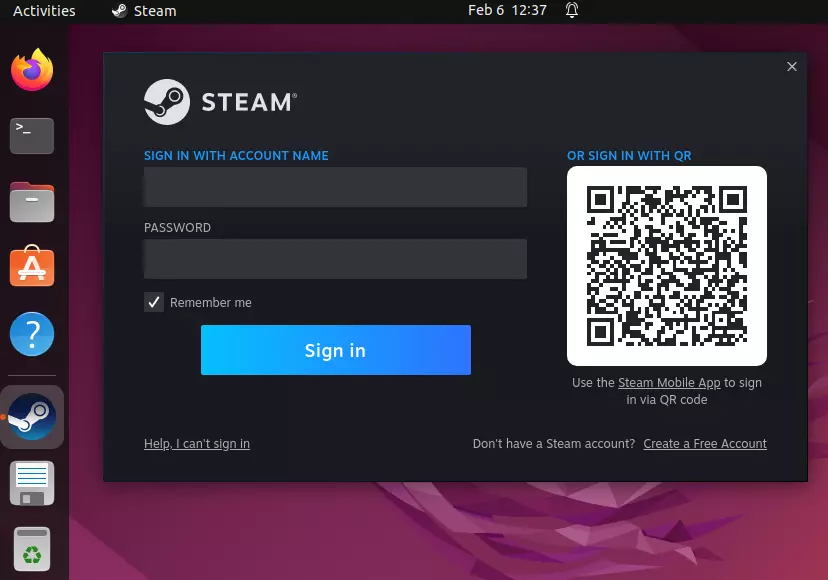
This method is generally more robust as it leverages your distribution’s package manager, which efficiently handles dependencies and future updates.
- Open a Terminal: You can usually find it in your applications menu or by pressing
Ctrl + Alt + T. - Enable the
multiverserepository (for Ubuntu/Mint): Steam requires 32-bit libraries, which are often found in themultiverserepository on Ubuntu-based systems. Ensure it’s enabled:
bash

sudo add-apt-repository multiverse

sudo apt update
(Pop!_OS often has this enabled by default or handles it seamlessly). - Install Steam:
bash

sudo apt install steam
You will be asked to confirm the installation and the space it will occupy. TypeYand press Enter. The package manager will download and install Steam along with any necessary dependencies.
Installing Steam on Fedora/Red Hat-based Systems
Fedora users will need to enable the RPM Fusion repositories, which provide additional software that Fedora’s official repositories don’t include (often due to licensing reasons, such as proprietary drivers and certain multimedia codecs, including Steam’s required libraries).
- Open a Terminal.
- Enable RPM Fusion Free and Nonfree repositories:
bash

sudo dnf install https://download1.rpmfusion.org/free/fedora/rpmfusion-free-release-$(rpm -E %fedora).noarch.rpm

sudo dnf install https://download1.rpmfusion.org/nonfree/fedora/rpmfusion-nonfree-release-$(rpm -E %fedora).noarch.rpm
This command downloads and installs the repository configuration files. - Update your package list:
bash

sudo dnf update
- Install Steam:
bash

sudo dnf install steam
Confirm the installation when prompted.
Installing Steam on Arch Linux/Manjaro
Arch Linux and its derivatives like Manjaro benefit from the powerful pacman package manager and a well-maintained community. Steam is available in the multilib repository.
- Open a Terminal.
- Enable the
multilibrepository: Edit your/etc/pacman.conffile using a text editor likenanoorvim.
bash

sudo nano /etc/pacman.conf
Scroll down and uncomment the[multilib]section and itsIncludeline. It should look like this (remove the#symbol):
[multilib]

Include = /etc/pacman.d/mirrorlist
Save the file (Ctrl+O, then Enter for nano; :wq for vim). - Update your system and sync repositories:
bash

sudo pacman -Syu
- Install Steam:
bash

sudo pacman -S steam
Confirm the installation when prompted.
First Launch and Configuration
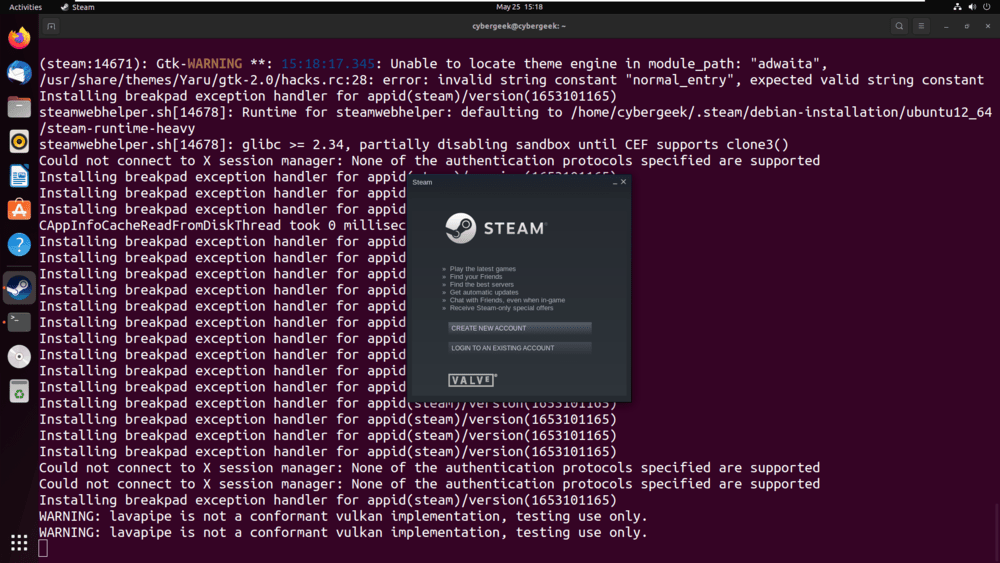
Once Steam is installed via any of the methods above, you can launch it from your applications menu.
- Initial Download: The first time you launch Steam, it will download additional necessary files and runtime components. This process might take a few minutes, depending on your internet connection. Let it complete without interruption.
- Login/Create Account: After the initial download, the Steam login window will appear. Enter your existing Steam credentials or create a new account if you don’t have one.
- Enable Steam Play (Proton): This is crucial for playing Windows-native games.
- Once logged in, go to
Steam > Settings(orPreferenceson some desktops). - In the settings window, select
Steam Playfrom the left sidebar. - Check the box next to
Enable Steam Play for supported titles. - Check the box next to
Enable Steam Play for all other titles. - From the dropdown menu below
Run other titles with:, select the latest stable version of Proton (e.g.,Proton Experimentalor a numbered version likeProton 8.0). Valve regularly updates Proton, so a newer version is usually better. - Click
OKand Steam may prompt you to restart.
- Once logged in, go to
Congratulations! Steam is now fully installed and configured on your Linux system. You can now browse your library, download games, and dive into the vast world of PC gaming on an open-source platform.
Optimizing Your Linux Gaming Experience: A Professional Edge
Installing Steam is just the beginning. To truly unlock your Linux gaming potential and ensure a professional-grade experience, optimization is key. This involves fine-tuning your system, understanding best practices for maintenance, and leveraging the collective knowledge of the Linux gaming community. These steps not only enhance your entertainment but also bolster your technical proficiency and digital security – aspects crucial for both personal branding and effective system management.
Graphics Drivers and Performance Tuning
As mentioned earlier, updated graphics drivers are the cornerstone of good gaming performance. Always ensure you are running the latest stable drivers for your GPU. For NVIDIA users, this often means installing proprietary drivers directly from NVIDIA or through your distro’s recommended methods. AMD and Intel users generally benefit from the latest kernel and Mesa packages.
Beyond drivers, consider these performance enhancements:
- Gamemode: This open-source daemon, developed by Feral Interactive, optimizes your Linux system settings on-the-fly when you launch a game. It can tweak CPU governor, I/O priority, and other parameters to prioritize gaming performance. It’s often available in your distro’s repositories (e.g.,
sudo apt install gamemodeon Ubuntu). - FSR (FidelityFX Super Resolution): AMD’s FSR is a powerful upscaling technology that can boost frame rates significantly, similar to NVIDIA’s DLSS. Many modern games support FSR natively, and even games that don’t can often benefit from a Proton feature that forces FSR globally. This can turn a barely playable game into a smooth experience on less powerful hardware.
- Shader Caches: Steam collects shader caches for games to prevent stuttering. Ensure you have enough disk space for these, as they can grow quite large. ProtonDB often recommends pre-compiling or downloading community-provided shader caches for specific games.
- Monitor Refresh Rate: Ensure your display’s refresh rate is correctly set in your desktop environment’s settings. Many Linux desktops support variable refresh rates (VRR) or FreeSync/G-Sync compatible monitors, which can dramatically improve visual fluidity.
These optimizations are akin to a business investing in efficient tools and processes – they maximize output (game performance) with existing resources, reflecting a smart, resource-conscious approach.
Storage, Backup, and Digital Security for Gamers
A robust gaming setup isn’t just about performance; it’s also about safeguarding your investment in games and data.
- Storage Management: Games require significant disk space. Consider dedicating a separate partition or even an entire SSD for your Steam library, especially if you have a large collection. This can make system backups and reinstallation easier. Using a fast SSD for your game library will drastically reduce load times.
- Regular Backups: While Steam provides cloud saves for many games, not all titles support it. Regularly back up your game save files, especially for single-player games with extensive progress. You can often find these in your game’s prefix (for Proton games, usually in
~/.steam/steam/steamapps/compatdata/[game_id]/pfx/) or within your home directory for native Linux games. Implementing a regular backup strategy is a cornerstone of digital security and data management, crucial for any digital asset. - Digital Security Practices: While Linux is generally more secure, vigilance is still necessary.
- Keep your system updated: This includes your kernel, graphics drivers, and Steam client itself.
- Use strong, unique passwords: For your Steam account and Linux login. Consider a password manager.
- Enable two-factor authentication (2FA): For your Steam account, this adds an extra layer of protection against unauthorized access.
- Be cautious of unofficial sources: Only download games or mods from trusted sources. While the open-source community is largely safe, exercising caution with third-party software is always wise.
- Understand Proton prefixes: Each Proton game creates a separate ‘WINE prefix,’ isolating its files. This is a security feature, but also means save files are unique to that prefix.
These practices align with best-in-class digital security guidelines, protecting not just your gaming experience but your overall digital presence. They demonstrate a professional attitude towards data management and risk mitigation.
Community and Resources: Leveraging Collective Knowledge
One of Linux’s greatest strengths is its vibrant and supportive community. For Linux gamers, this translates into an invaluable network of shared knowledge and troubleshooting assistance.
- ProtonDB: This community-driven website (
protondb.com) is an essential resource. It provides compatibility reports and tweak recommendations for thousands of Windows games running on Proton, submitted by other Linux gamers. Before buying a game, check its ProtonDB rating and user reports for potential issues or optimal settings. This collective intelligence saves time and prevents frustration. - Linux Gaming Subreddits and Forums: Communities like r/linux_gaming on Reddit are fantastic places to ask questions, share experiences, and discover new tips and tricks.
- Distro-Specific Forums: Your chosen Linux distribution will have its own forums or chat channels where you can find help specific to your setup.
Leveraging these resources not only helps you overcome challenges but also allows you to contribute back, enhancing your personal branding within the tech community as someone who is knowledgeable and collaborative. This active participation aligns with the open-source ethos and strengthens the entire Linux gaming ecosystem, demonstrating the power of collective effort and shared expertise.
Conclusion: Empowering Your Gaming Future with Linux
The journey of installing and optimizing Steam for Linux is more than just a technical exercise; it’s a strategic move that aligns with the future of technology, offers compelling advantages for personal and corporate branding, and demonstrates astute financial planning. By choosing Linux, you’re not merely picking an operating system; you’re embracing an ecosystem that champions freedom, customization, security, and community-driven innovation.
From a Tech perspective, you gain access to a powerful, flexible environment that is at the forefront of gaming compatibility through Proton, enabling you to play a vast library of games without being tied to a proprietary OS. You develop invaluable skills in system administration, troubleshooting, and optimization, which are highly sought after in today’s digital landscape.
In terms of Brand, your choice to game on Linux can be a subtle yet powerful statement about your personal brand—a reflection of your independence, technical acumen, and willingness to embrace cutting-edge solutions. For companies like Valve, their commitment to Linux through the Steam Deck and Proton has significantly bolstered their corporate identity, solidifying their reputation as innovators and player advocates in a highly competitive industry. This demonstrates how embracing open-source can be a strategic marketing and branding decision.
Financially, the appeal is clear. Leveraging a free, open-source operating system reduces initial costs, allowing you to allocate your budget towards better hardware or a larger game library. The skills acquired through navigating the Linux environment can be a long-term investment, potentially opening doors to new career opportunities or side hustles in the tech sector. This represents a prudent approach to Money management, maximizing value and fostering financial resilience.
Installing Steam for Linux is an act of empowerment. It’s about taking control of your digital environment, customizing it to your precise needs, and tapping into a vibrant community dedicated to pushing the boundaries of what’s possible. As the digital world continues to evolve, embracing platforms like Linux for gaming positions you at the nexus of innovation, efficiency, and community. So, go forth, install Steam, and unleash the full gaming potential that Linux so readily offers. The future of gaming is open, and it’s waiting for you.
aViewFromTheCave is a participant in the Amazon Services LLC Associates Program, an affiliate advertising program designed to provide a means for sites to earn advertising fees by advertising and linking to Amazon.com. Amazon, the Amazon logo, AmazonSupply, and the AmazonSupply logo are trademarks of Amazon.com, Inc. or its affiliates. As an Amazon Associate we earn affiliate commissions from qualifying purchases.