
The digital landscape of indie gaming has seen few success stories as meteoric as Friday Night Funkin’ (FNF). Originally developed for a game jam, this open-source rhythm game quickly evolved into a cultural phenomenon, largely due to its accessible mechanics and its enthusiastic modding community. Because the game’s source code is open to the public, it has become a playground for software developers, artists, and musicians. However, for many users, the transition from playing the base game to installing complex modifications can be technically daunting.
This guide provides a professional, deep-dive into the technical process of installing FNF mods. Whether you are looking to add new characters, complex songs, or entirely new game mechanics, understanding the underlying file structures and software requirements is essential for a seamless gaming experience.
Understanding the FNF Modding Ecosystem
Before diving into the installation steps, it is vital to understand the technical architecture of Friday Night Funkin’. FNF is built on the HaxeFlixel engine, which allows for cross-platform compatibility and relatively easy modification of game assets.
The Rise of Open-Source Rhythm Gaming
The decision by the developers (NinjaMuffin99 and team) to keep the game open-source changed the trajectory of rhythm gaming. By allowing users to access the source code on platforms like GitHub, they invited a global community to iterate on the software. This transparency has led to the creation of “Engines”—custom versions of the game designed specifically to handle more complex mods, such as the Psych Engine or Kade Engine. These engines optimize performance and provide technical features not found in the original “Vanilla” version.
Executables vs. Asset Swaps
In the world of FNF mods, there are generally two categories of software distribution:
- Standalone Executables: These are full versions of the game bundled with the mod. You do not need the original game files to run these; they operate as independent software packages.
- Asset Swaps / Mod Folders: These require a “base engine” (like Psych Engine). You place the mod data into a specific directory within the existing software to change the game’s behavior, visuals, or audio.
Preparing Your System for Mod Installation
Technical preparation is the most overlooked step in software modification. To ensure your system handles FNF mods efficiently without data loss, you must organize your digital environment.
Essential Software and File Management Tools
To work with FNF mods, you will need a few basic utility tools. Most mods are distributed in compressed formats to save bandwidth.
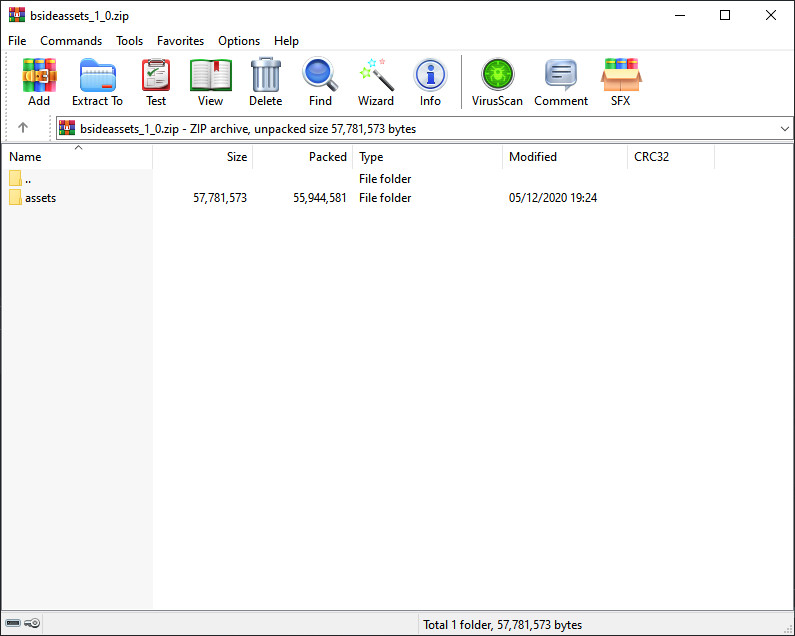
- Compression Software: Tools like WinRAR or 7-Zip are necessary to extract the .zip or .rar files that house mod data.
- Text Editors: If you plan on tweaking game settings or “charting” (the technical process of placing notes), a robust text editor like Notepad++ or Visual Studio Code is recommended for editing .json and .lua files.
- Dedicated Folders: Never install mods directly into your “Downloads” folder. Create a dedicated directory on your SSD (e.g.,
D:/Games/FNF_Mods) to keep your file paths clean and easily accessible.
Security and Source Verification
As with any third-party software, security is paramount. The FNF modding community primarily uses platforms like GameBanana, Game Jolt, and GitHub. Always ensure you are downloading from verified creators. Before running any .exe file, it is a professional best practice to scan the folder with updated antivirus software to mitigate the risk of malware disguised as game content.
Step-by-Step Installation Methods
The method of installation depends entirely on how the mod developer has packaged their work. We will cover the two most common technical workflows.
Installing Standalone Executable Mods
Standalone mods are the easiest to manage from a user perspective because they function as independent software.
- Download: Download the compressed folder from a reputable source.
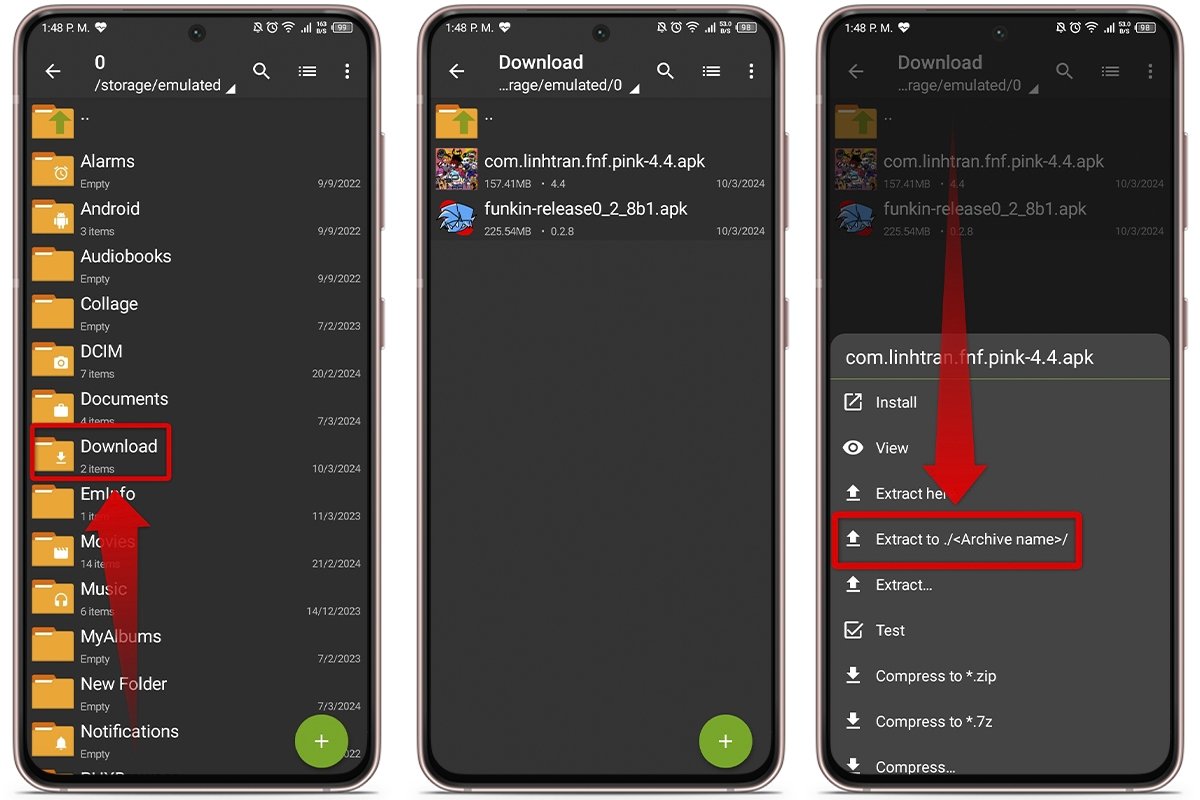
- Extraction: Right-click the file and select “Extract to [Folder Name].” Do not run the game from within the zipped folder, as the temporary file pathing will cause the game to crash when it tries to load assets.
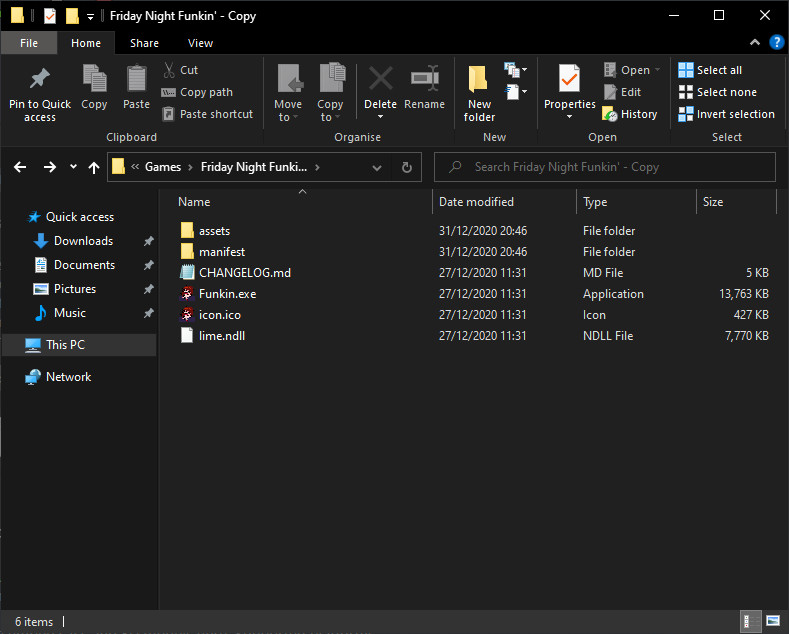
- Execution: Open the extracted folder and locate the executable file (usually named
Funkin.exeor the name of the mod). - Permissions: On Windows, you may encounter a “Windows Protected Your PC” prompt. Since these are indie projects, they are often unsigned by Microsoft. If you trust the source, click “More Info” and then “Run Anyway.”
Manual Asset Replacement and Engine-Based Loading
Modern FNF mods often utilize the “Psych Engine,” which has become the industry standard for the FNF community due to its stability and ease of use.
- The Base Engine: Download the latest version of Psych Engine and extract it to your dedicated games folder.
- Locating the ‘Mods’ Folder: Within the Psych Engine directory, you will see a folder titled
mods. - Transferring Assets: Open your downloaded mod files. Usually, you will see folders labeled
images,songs, anddata. Simply move the entire mod folder into the Psych Enginemodsdirectory. - In-Game Activation: Launch the Psych Engine executable. Navigate to the “Mods” menu in the game’s main interface. Here, you can toggle specific mods on or off, a feature that prevents the need to delete and reinstall files constantly.
Troubleshooting and Technical Best Practices
Even with the correct steps, software conflicts can occur. Technical troubleshooting in FNF often involves checking file paths and memory allocation.
Resolving Common Error Messages
- “Null Object Reference”: This is a common Haxe code error. It usually means the game is looking for a file (like a character sprite or a script) that is missing or incorrectly named. Double-check that your mod folder structure matches what the engine expects.
- Black Screen on Launch: This often indicates a GPU compatibility issue or a missing library. Ensure your graphics drivers are updated and that you have the latest version of the DirectX End-User Runtime installed.
- Audio Lag: Rhythm games are sensitive to latency. In the game’s “Options” or “Technical” menu, ensure that your offset is calibrated. If the audio is stuttering, try lowering the “Draw Distance” or disabling high-resolution background assets.
Optimizing Performance for Lower-End Hardware
Not all FNF mods are created equal; some feature high-definition cutscenes and complex shaders that can tax a system’s CPU and RAM. To optimize performance:
- Disable Anti-Aliasing: This reduces the load on your GPU.
- Toggle “Low Quality” Mode: Many engines include a “Low Quality” setting that removes background characters and non-essential particle effects, focusing system resources on the note processing and core gameplay loop.
- Memory Management: Close background applications like Chrome or heavy IDEs while playing. FNF mods, particularly those running on older engines, can sometimes suffer from “memory leaks,” where the software fails to release RAM, leading to eventual crashes.
Conclusion: The Technical Evolution of FNF
Installing FNF mods is more than just a way to play new levels; it is an entry point into understanding how modern indie games are structured. By mastering the use of engines, managing file directories, and troubleshooting software conflicts, users gain a deeper appreciation for the technical craft behind the gaming experience.
As the FNF community continues to push the boundaries of the HaxeFlixel engine, the methods for modding will likely become even more streamlined. For now, following a structured, technical approach ensures that you can enjoy the vast library of community-created content with minimal friction and maximum performance. The synergy between open-source software and a dedicated user base remains one of the most exciting trends in the tech and gaming world today.
aViewFromTheCave is a participant in the Amazon Services LLC Associates Program, an affiliate advertising program designed to provide a means for sites to earn advertising fees by advertising and linking to Amazon.com. Amazon, the Amazon logo, AmazonSupply, and the AmazonSupply logo are trademarks of Amazon.com, Inc. or its affiliates. As an Amazon Associate we earn affiliate commissions from qualifying purchases.