
In today’s data-driven world, the ability to analyze complex datasets and derive optimal solutions is a cornerstone of effective decision-making. For professionals navigating the macOS ecosystem, Microsoft Excel remains an indispensable tool, but its true power often lies in its add-ins. Among these, Solver stands out as a critical utility for advanced numerical analysis, optimization, and what-if scenarios. Far from being an obscure feature, Solver is an essential component for anyone involved in business analytics, engineering, finance, or operations research, enabling users to find optimal values for a target cell by adjusting other cells, subject to constraints.

While Windows users might be more familiar with its ubiquitous presence, Mac users sometimes find themselves wondering about its availability and activation process. The good news is that Solver is indeed available for Excel on Mac, offering the same robust functionality. This comprehensive guide will walk you through the installation process, delve into Solver’s capabilities, and provide insights into leveraging this powerful tool to its fullest potential on your Apple device.
Understanding Excel Solver: A Powerful Analytical Tool
Before diving into the mechanics of installation, it’s crucial to grasp what Solver is and why it holds such significance for professionals using Excel on a Mac. Its integration transforms Excel from a mere spreadsheet application into a sophisticated decision-support system.
What is Solver?
Solver is an Excel add-in program that is part of a suite of commands sometimes called what-if analysis tools. It helps you find an optimal (maximum or minimum) value for a formula in one cell—called the objective cell—subject to constraints or limits on the values of other formula cells on a worksheet. It uses various algorithms to search for the best solution, effectively performing optimization tasks that would be incredibly difficult or impossible to do manually. Think of it as a sophisticated calculator that can run thousands of scenarios to pinpoint the most efficient or profitable outcome based on your predefined rules.
Why is Solver Indispensable for Mac Users?
For Mac users, the presence and seamless operation of Solver underscore Excel’s commitment to platform parity in core functionality. In a professional environment where Macs are increasingly prevalent, especially in creative, design, and certain analytical fields, having access to advanced tools like Solver without resorting to virtual machines or dual-boot setups is a significant advantage. It ensures that Mac users can participate fully in data modeling, financial forecasting, resource allocation, and logistical planning activities alongside their Windows-using counterparts, maintaining workflow consistency and collaboration efficiency. Moreover, it reinforces the Mac’s capability as a serious business and analytical machine, dispelling any notion that it’s solely for creative pursuits.
Common Use Cases for Solver in Excel
Solver’s versatility means it has a wide array of applications across various industries:
-
Finance: Portfolio optimization (maximizing returns for a given risk), capital budgeting, loan repayment scheduling, and derivative pricing.
-
Operations: Production planning (minimizing costs while meeting demand), supply chain optimization, logistics and transportation route planning, and resource allocation.
-
Engineering: Design optimization, process control, and scheduling projects to minimize duration.
-
Management: Employee scheduling, marketing mix optimization (allocating budget across channels for maximum impact), and inventory management.
-
Research: Statistical modeling, regression analysis, and parameter estimation.
Its ability to handle linear and non-linear problems, as well as integer constraints, makes it an incredibly powerful and flexible tool for complex decision-making.
Navigating the Installation Process on macOS
Activating Solver in Excel on a Mac is a straightforward process, though it differs slightly from its Windows counterpart. It’s not a separate download but an integral add-in waiting to be enabled.
The Core Steps: A Quick Overview
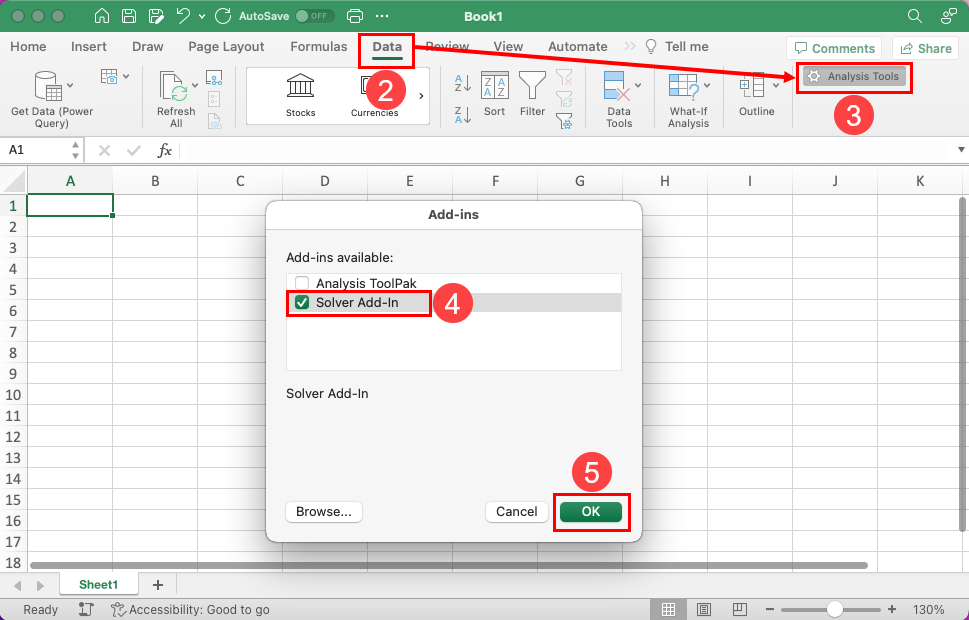
The installation of Solver on Excel for Mac essentially boils down to enabling an already-present add-in. The process involves accessing Excel’s preferences, navigating to the “Tools” menu, and then selecting the “Excel Add-ins” option. Once there, you simply check the box next to “Solver Add-in” and confirm your choice. This action integrates Solver directly into your Excel ribbon, typically under the “Data” tab. The key here is understanding that you’re not installing new software from an external source but rather activating a dormant, built-in feature.
Step-by-Step Guide to Activating Solver
-
Open Microsoft Excel: Launch the Excel application on your Mac.
-
Access Excel Preferences: Go to the top menu bar, click on “Excel,” and then select “Preferences…” (or use the keyboard shortcut
⌘ + ,). -
Navigate to Add-ins: In the Excel Preferences dialog box, locate and click on “Add-ins” under the “Authoring” section.
-
Manage Excel Add-ins: You will see a list of available add-ins. Ensure that “Excel Add-ins” is selected in the “Manage” dropdown at the bottom, and then click the “Go…” button.
-
Enable Solver: A new dialog box titled “Add-Ins” will appear. Look for “Solver Add-in” in the list. Check the box next to it.
-
Confirm and Close: Click “OK.” Excel may take a moment to load the add-in.
-
Verify Installation: Once confirmed, you should see the “Solver” button appear in the “Analyze” group on the “Data” tab of your Excel ribbon. If it’s not immediately visible, try restarting Excel.
This process ensures that Solver is fully integrated and ready for use in your Excel environment on macOS. No external downloads, no complex setups – just a few clicks within Excel itself.
Troubleshooting Common Installation Issues
While the installation process is generally smooth, users might occasionally encounter minor hiccups.
-
Solver Not Appearing: If Solver doesn’t appear on the Data tab after activation, try restarting Excel. Sometimes, the ribbon needs a refresh to display newly enabled add-ins.
-
Error Messages During Activation: Ensure your Excel installation is up-to-date. Outdated versions might have compatibility issues. Check for updates via “Help” > “Check for Updates” in Excel.
-
Add-ins Dialog Empty/Grayed Out: This is rare but can indicate a corrupted Excel installation or specific macOS permission issues. A full reinstallation of Microsoft Office might be necessary in extreme cases, or checking system preferences for Excel permissions.
-
Performance Issues After Activation: If Excel becomes sluggish, especially with large workbooks, after activating Solver, ensure your Mac meets the system requirements for your version of Office. Also, consider closing unnecessary applications to free up RAM.
Addressing these minor issues usually involves basic troubleshooting steps, ensuring a smooth Solver experience.
Harnessing Solver’s Capabilities: Beyond Basic Activation
Activating Solver is merely the first step. The real power lies in knowing how to effectively define a problem and interpret its solutions. This moves beyond a simple technical task into the realm of applied analytics and problem-solving.
Setting Up Your First Solver Problem
Using Solver involves defining three main components:
-
Objective Cell (Set Objective): This is the single cell containing the formula you want to maximize, minimize, or set to a specific value. For instance, a cell calculating total profit, which you want to maximize.
-
Changing Variable Cells (By Changing Variable Cells): These are the cells that Solver can adjust to reach the objective. These cells must contain numerical values that Solver can change. An example would be the quantity of different products to produce.
-
Constraints (Subject to the Constraints): These are the conditions or limitations that must be met. Constraints are crucial for ensuring realistic and feasible solutions. They can involve equalities (e.g., total budget must equal X), inequalities (e.g., production cannot exceed factory capacity), or even integer requirements (e.g., number of items must be a whole number).
To start, you first set up your Excel worksheet with the data, formulas, and cells representing your objective, variables, and constraints. Then, navigate to the Data tab, click on “Solver,” and input these parameters into the Solver Parameters dialog box. This structured approach helps in translating real-world problems into a format Solver can understand and process.

Understanding Solver’s Parameters and Methods
Solver offers several parameters and solving methods, which are crucial for addressing different types of optimization problems:
-
Solving Method:
-
GRG Nonlinear: Best for smooth nonlinear problems.
-
Simplex LP: Designed for linear programming problems, which are generally faster and guarantee a global optimum.
-
Evolutionary: Suitable for problems that are non-smooth, non-continuous, or highly nonlinear. It’s often used when other methods fail, though it doesn’t guarantee a global optimum and can be slower.
-
-
Non-Negative Constraints: A checkbox to automatically make all changing variable cells non-negative, a common requirement in many real-world problems (e.g., you can’t produce a negative quantity).
-
Precision and Convergence: Advanced options allow you to fine-tune the accuracy of the solution and how closely Solver approaches the optimal value. These are critical for complex models where computational resources and solution exactness need to be balanced.
Choosing the correct solving method and setting appropriate parameters significantly impacts the accuracy, speed, and reliability of Solver’s results. An insightful user understands that a linear problem should use Simplex LP for efficiency and guaranteed optimality, while a complex, non-linear system might require the GRG Nonlinear or even the Evolutionary method.
Interpreting Solver Results and Reports
Once Solver finds a solution, it presents a “Solver Results” dialog box. Here, you can choose to keep the Solver solution or restore original values. More importantly, Solver can generate several reports that offer deeper insights into the solution:
-
Answer Report: Summarizes the objective cell, variable cells, and constraints, showing their values before and after Solver. It indicates whether constraints were binding (active) or non-binding (slack).
-
Sensitivity Report: Available for linear and smooth nonlinear problems, this report is invaluable for understanding how sensitive the optimal solution is to small changes in the objective function coefficients or constraint limits. It provides shadow prices (dual values) for constraints, which indicate how much the objective function would improve if a constraint were relaxed by one unit.
-
Limits Report: Shows the range over which each variable cell can change while other variables remain constant, without violating constraints and assuming the current optimal solution structure.
These reports are not just numerical outputs; they are analytical tools that allow you to understand the implications of your optimal solution, assess risk, and conduct further what-if analysis. Mastering their interpretation transforms raw data into actionable intelligence.
Optimizing Your Solver Experience on Mac
Leveraging Solver effectively on a Mac goes beyond basic usage; it involves optimizing your models for performance and integrating Solver with other Excel functionalities to create robust analytical frameworks.
Performance Considerations for Large Models
For large-scale optimization problems, performance can become a critical factor. Mac hardware, while powerful, can still be taxed by computationally intensive Solver operations.
-
Simplify Your Model: Before running Solver, simplify unnecessary calculations in your spreadsheet. Remove redundant formulas or links that are not directly involved in the Solver problem.
-
Use Efficient Formulas: Opt for simpler Excel functions where possible. Complex array formulas or volatile functions (like
OFFSETorINDIRECT) can slow down recalculations significantly. -
Set Realistic Tolerances: In the Solver Options, reducing the “Precision” setting (making it a larger number, like 0.001 instead of 0.000001) or increasing the “Convergence” threshold can speed up the process, especially for non-linear problems, at the cost of a slightly less precise solution. For many practical applications, a high degree of precision is not always necessary.
-
Utilize Iterations and Time Limits: Set “Max Time” or “Max Iterations” limits in Solver Options to prevent Solver from running indefinitely on particularly difficult problems. This allows you to review an interim solution rather than waiting for a potentially non-converging search.
-
Check Solver Method: Ensure you are using the most appropriate solving method (Simplex LP for linear, GRG Nonlinear for smooth nonlinear). Using a less efficient method for your problem type will always result in slower performance.
By paying attention to these details, Mac users can significantly enhance Solver’s execution speed, making it feasible to tackle more complex and larger optimization problems within Excel.
Integrating Solver with Other Excel Features
Solver’s true analytical power is amplified when combined with other Excel features, enabling a holistic approach to data analysis and decision-making.
-
Scenario Manager: After finding an optimal solution with Solver, you can save that solution as a scenario using Excel’s Scenario Manager. This allows you to compare multiple Solver-generated optimal outcomes under different initial conditions or constraints.
-
Data Tables: Use data tables to explore how your objective cell changes when one or two input variables (that are not Solver’s changing cells, but rather parameters that feed into your Solver model) are varied. This is complementary to Solver’s sensitivity analysis.
-
Charts and Graphs: Visualize Solver’s results or the impact of its changes using Excel’s charting capabilities. A graphical representation can often make complex numerical solutions more intuitive and easier to present.
-
VBA (Visual Basic for Applications): For highly repetitive or dynamic optimization tasks, Solver can be automated using VBA macros. You can write code to programmatically set Solver parameters, run Solver, and extract results, creating custom analytical tools directly within Excel. While VBA on Mac has some differences from Windows, core Solver automation is largely consistent. This allows for truly customized and advanced integration, creating automated workflows that might involve fetching data, running Solver, and then formatting and exporting reports.
This integration transforms Solver from a standalone tool into a critical component of a larger, more sophisticated analytical framework within Excel.
Best Practices for Robust Optimization
To ensure the reliability and usefulness of Solver’s output, adhering to best practices is essential:
-
Clear Model Definition: Ensure your objective, variable cells, and constraints are clearly defined and logically consistent. Ambiguity in the model leads to ambiguous or incorrect solutions.
-
Start with Simple Models: For complex problems, begin with a simplified version. Get that working correctly, then gradually add complexity. This iterative approach helps in debugging and understanding the model’s behavior.
-
Check for Feasibility: Before running Solver, manually check if your constraints are logically possible. If no feasible solution exists, Solver will tell you, but understanding why can save time.
-
Review Reports Thoroughly: Don’t just accept the optimal solution. Dive into the Answer, Sensitivity, and Limits reports to fully understand the solution’s implications, robustness, and any lurking sensitivities.
-
Document Your Models: Keep clear documentation of your Solver models, including assumptions, constraint derivations, and the purpose of different cells. This is invaluable for auditing, sharing, and future modifications.
By adopting these practices, Mac users can ensure that their Solver models are not only technically correct but also insightful, robust, and truly valuable for decision-making.
Keeping Your Analytical Toolkit Current
The world of technology, and specifically data analysis tools, is constantly evolving. Staying current with your Excel Solver capabilities and exploring advanced options ensures you remain at the forefront of analytical proficiency on your Mac.
Checking for Solver Updates
Solver itself, as an add-in, receives updates primarily through Microsoft Excel updates. Ensuring your Microsoft Office suite is always up-to-date is the best way to guarantee you have the latest version of Solver with any bug fixes, performance enhancements, or new features.
-
Enable Automatic Updates: Configure Microsoft AutoUpdate (often installed with Office) to automatically check for and install updates. This is typically found under “Help” > “Check for Updates” in any Office application.
-
Regular Manual Checks: Even with automatic updates, it’s a good practice to periodically perform a manual check for updates, especially if you encounter any unexpected behavior or performance issues.
Keeping Excel updated not only ensures optimal Solver performance but also maintains compatibility with evolving macOS versions and other software.
Exploring Advanced Optimization Add-ins
While Excel’s built-in Solver is powerful, for extremely large, complex, or specialized optimization problems, Mac users might consider third-party add-ins or standalone optimization software.
-
Premium Solver: Frontline Systems, the developers of the Solver included in Excel, offer more powerful versions like “Premium Solver” or “Solver Platform SDK.” These versions often include more advanced algorithms, handle larger problem sizes, and offer more detailed reporting capabilities. They are typically licensed separately and integrate seamlessly with Excel on Mac.
-
Specialized Software: For niche applications, dedicated optimization software (e.g., for specific mathematical programming types) might offer unparalleled performance and features. These often require exporting data from Excel for analysis and then importing results back. However, for most business and academic uses, the built-in Solver (or its premium versions) provides ample functionality.
Understanding when to transition from standard Solver to more advanced tools is a mark of a truly insightful analyst, recognizing the limits of a given tool for the complexity of the problem at hand.
The Future of Data Analysis on macOS
The integration of sophisticated tools like Solver within Excel on macOS highlights a broader trend: the Mac is becoming an increasingly powerful and viable platform for serious data analysis and computational tasks. With Apple’s M-series chips, Macs now offer incredible performance for data-intensive applications, often surpassing traditional workstations in efficiency. This performance, combined with a user-friendly operating system and a growing ecosystem of development tools, positions macOS as a strong contender in the analytical computing space. As AI and machine learning become more interwoven with traditional analytics, expect to see even more advanced tools and capabilities emerge on the Mac, further cementing its role as a versatile machine for professionals across all domains. Mastering tools like Solver today is not just about solving current problems; it’s about building a foundational skill set for the analytical landscape of tomorrow.
aViewFromTheCave is a participant in the Amazon Services LLC Associates Program, an affiliate advertising program designed to provide a means for sites to earn advertising fees by advertising and linking to Amazon.com. Amazon, the Amazon logo, AmazonSupply, and the AmazonSupply logo are trademarks of Amazon.com, Inc. or its affiliates. As an Amazon Associate we earn affiliate commissions from qualifying purchases.