
In the vast and ever-expanding ecosystem of open-source software, Linux stands as a bastion of flexibility, security, and innovation. However, a lingering challenge for many users transitioning from Windows has always been the compatibility of proprietary Windows-only applications. While many software developers are increasingly porting their applications to Linux, a significant number of essential or niche programs remain firmly rooted in the Windows environment. This is where WineHQ steps in, offering a sophisticated bridge that allows users to run Windows applications directly on their Linux machines, often with remarkable success.
Wine, an acronym for “Wine Is Not an Emulator,” is a compatibility layer that translates Windows API calls into POSIX calls on-the-fly, eliminating the performance overhead typically associated with full virtualization or emulation. WineHQ is the official home and primary development hub for Wine, providing the latest stable releases, development versions, and extensive documentation crucial for a seamless experience. For anyone looking to unlock the full potential of their Linux system without abandoning their favorite Windows software, understanding how to install and configure WineHQ is an indispensable skill. This comprehensive guide will walk you through the process, from understanding what Wine is to executing your first Windows application, ensuring you can harness the power of both worlds.

Understanding WineHQ: Bridging the Windows-Linux Divide
The decision to install WineHQ is often driven by a specific need: to run a particular Windows application on Linux without resorting to a dual-boot setup or a virtual machine. This section delves into the core aspects of WineHQ, demystifying its purpose and highlighting its capabilities.
What is WineHQ?
At its heart, Wine is a free and open-source compatibility layer that enables Linux, macOS, and BSD users to run Windows applications. Unlike traditional emulators that simulate an entire hardware environment, Wine directly translates Windows API calls into their equivalent Linux counterparts. This direct translation mechanism allows Windows programs to run as native Linux processes, often resulting in performance comparable to, or sometimes even exceeding, their Windows counterparts. WineHQ serves as the central repository and development community for Wine, providing official builds, documentation, and the tools necessary for an optimal experience. The “HQ” signifies its role as the authoritative source for Wine releases and information.
Why Use WineHQ?
The primary motivation for using WineHQ is obvious: access to Windows-exclusive software. However, the benefits extend beyond mere compatibility:
-
No Dual Booting: Avoid the hassle of rebooting your system every time you need to switch operating systems. Wine allows you to run Windows applications alongside your native Linux programs.
-
No Virtual Machines: While virtual machines (like VirtualBox or VMware) offer full Windows environments, they come with significant resource overhead (RAM, CPU, disk space for a full Windows installation). Wine is much lighter, consuming fewer resources.
-
Performance: Because Wine is a translation layer rather than an emulator, applications often run with near-native performance. For many games and demanding applications, this makes Wine a superior choice to virtualization.
-
Integration: Windows applications running via Wine can integrate more smoothly into your Linux desktop environment, allowing for easier file sharing and clipboard operations.
-
Cost-Effective: Wine is free and open-source, providing a cost-effective solution compared to purchasing Windows licenses for virtual machines.
Key Features and Benefits
WineHQ offers several robust features that contribute to its utility:
-
Extensive Application Database: The Wine AppDB (Application Database) is a community-driven resource listing thousands of Windows applications, detailing their compatibility with Wine and providing user-contributed tips and configurations.
-
Multiple Wine Versions: WineHQ provides stable, development, and staging branches, allowing users to choose the version that best suits their needs – stable for reliability, development for the latest features, and staging for a balance.
-
Winetricks: A powerful helper script that simplifies the installation of various components (like .NET Frameworks, Visual C++ runtimes, and core fonts) often required by Windows applications, significantly improving compatibility.
-
DirectX and OpenGL Support: Wine includes robust support for graphics APIs like DirectX and OpenGL, crucial for running modern games and graphics-intensive applications.
-
Prefixes: Wine allows the creation of isolated “Wine prefixes” (virtual C: drives) for different applications, preventing conflicts and ensuring a clean environment for each program.
Prerequisites and Preparation for Installation
Before embarking on the installation of WineHQ, it’s crucial to ensure your Linux system is adequately prepared. Adhering to these preliminary steps will prevent common issues and streamline the entire process.
System Requirements and Compatibility
While WineHQ is designed to be lightweight, certain fundamental requirements must be met:
-
Linux Distribution: WineHQ supports a wide array of Linux distributions, but installation methods can vary. This guide will focus on popular distributions like Debian, Ubuntu, Fedora, openSUSE, and Arch Linux.
-
Processor: Any modern x86 or x86_64 processor.
-
RAM: While Wine itself doesn’t demand excessive RAM, the Windows applications you intend to run will dictate memory requirements. A minimum of 4GB is recommended for general use, with more for gaming or resource-intensive software.
-
Disk Space: WineHQ packages are relatively small, but each Windows application you install will consume disk space within its Wine prefix. Ensure you have ample free space.
-
Graphics Driver: Up-to-date graphics drivers are essential, especially if you plan to run games or graphical applications. Proprietary drivers (e.g., NVIDIA, AMDGPU-PRO) often provide better performance than open-source alternatives.
Essential System Updates
Before adding new repositories or installing packages, it’s a best practice to update your system to ensure all existing packages are the latest versions and to resolve any potential dependency conflicts.
For Debian/Ubuntu-based systems:
sudo apt update

sudo apt upgrade
For Fedora:
sudo dnf update
For openSUSE:
sudo zypper refresh

sudo zypper update
For Arch Linux/Manjaro:
sudo pacman -Syu
Adding the 32-bit Architecture
Most Windows applications, even on 64-bit systems, often rely on 32-bit libraries. To ensure maximum compatibility, it’s vital to enable 32-bit architecture support on your 64-bit Linux system before installing WineHQ.
For Debian/Ubuntu-based systems:
sudo dpkg --add-architecture i386

sudo apt update # Must run update after adding architecture
For Fedora (32-bit libraries are usually handled automatically by dnf, but ensuring multilib is enabled is good practice if you ever face issues):
# Usually not explicitly needed for dnf, but for specific cases:

# sudo dnf install wine.i686 # if installing wine directly, dnf handles dependencies
For openSUSE:
# openSUSE handles 32-bit libraries automatically with proper repository setup.
For Arch Linux/Manjaro (ensure multilib repository is enabled in /etc/pacman.conf):
Uncomment the following lines:
[multilib]

Include = /etc/pacman.d/mirrorlist
Then run:
sudo pacman -Syu # Sync and update after enabling multilib
Step-by-Step Installation Guides for Popular Linux Distributions
The process of installing WineHQ varies slightly depending on your Linux distribution, primarily due to different package managers and repository management systems. This section provides detailed instructions for the most popular distributions.
Debian/Ubuntu and Derivatives (e.g., Linux Mint)
This method ensures you get the official and most up-to-date WineHQ packages directly from the WineHQ project.
Adding the WineHQ Repository Key
First, download and add the WineHQ GPG key to your system to authenticate the packages.
sudo mkdir -pm755 /etc/apt/keyrings

sudo wget -O /etc/apt/keyrings/winehq-archive.key https://dl.winehq.org/wine-builds/winehq.key
Adding the WineHQ Repository
Next, add the appropriate WineHQ repository for your distribution. Replace DISTRO_NAME with your specific distribution’s codename (e.g., jammy for Ubuntu 22.04, bookworm for Debian 12, vera for Linux Mint 21.x). You can find your codename with lsb_release -cs.
sudo wget -NP /etc/apt/sources.list.d/ https://dl.winehq.org/wine-builds/ubuntu/dists/DISTRO_NAME/winehq-DISTRO_NAME.sources
After adding the repository, update your package lists:
sudo apt update
Installing WineHQ Packages
Finally, install the desired WineHQ package. You have a few options:
-
Stable Branch:
winehq-stable(recommended for most users) -
Staging Branch:
winehq-staging(includes more features and bug fixes, but might be less stable) -
Development Branch:
winehq-devel(latest features, but potentially unstable)
To install the stable branch:
sudo apt install --install-recommends winehq-stable
Fedora
Fedora users can leverage DNF to install Wine from its official repositories after enabling the appropriate ones.
Enabling the WineHQ Repository
Fedora requires enabling the winehq and winehq-staging repositories, which are often provided by the distribution.
For Fedora 39, for example:
sudo dnf config-manager --add-repo https://dl.winehq.org/wine-builds/fedora/39/winehq.repo
The exact URL might change with Fedora versions; always check the official WineHQ wiki for the latest.
Installing WineHQ Packages
Once the repository is enabled, install Wine:
sudo dnf install winehq-stable # or winehq-staging / winehq-devel
DNF will automatically resolve and install 32-bit dependencies.
openSUSE
openSUSE utilizes zypper for package management.

Adding the WineHQ Repository
First, add the WineHQ repository. Replace openSUSE_VERSION with your openSUSE version (e.g., Tumbleweed, Leap_15.5).
sudo zypper addrepo https://dl.winehq.org/wine-builds/opensuse/openSUSE_VERSION/winehq.repo

sudo zypper refresh
Installing WineHQ Packages
Install the desired WineHQ package:
sudo zypper install winehq-stable # or winehq-staging / winehq-devel
Arch Linux/Manjaro (Note: Wine is typically in official repos)
Arch Linux and its derivatives like Manjaro usually have recent Wine versions available directly in their official extra and multilib repositories, making installation straightforward.
Enabling Multilib Repository
Ensure the multilib repository is uncommented in /etc/pacman.conf (as mentioned in the prerequisites).
sudo nano /etc/pacman.conf
Uncomment:
[multilib]

Include = /etc/pacman.d/mirrorlist
Then update your system:
sudo pacman -Syu
Installing Wine
Install the Wine package, which will pull in all necessary 32-bit libraries from multilib:
sudo pacman -S wine wine-gecko wine-mono
-
wine-gecko: Required by some applications that embed web content. -
wine-mono: Required by some .NET applications.
Post-Installation: Configuring Wine and Running Windows Applications
Once WineHQ is installed, a few post-installation steps are necessary to optimize its performance and begin running your Windows applications.
Initial Wine Configuration (winecfg)
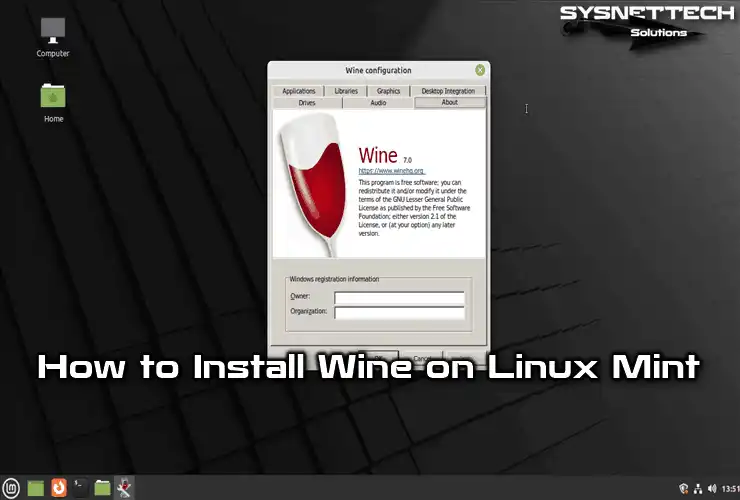
The first step after installing Wine is to run its configuration tool, winecfg. This creates the initial Wine prefix (the virtual C: drive) and allows you to set various parameters.
winecfg
Upon the first run, Wine will ask to install wine-mono and wine-gecko if they aren’t already present (or weren’t installed via pacman on Arch). Allow it to download and install them.
The winecfg window allows you to:
-
Applications Tab: Set default Windows versions for all applications or specific ones. Often, setting it to Windows 7 or 10 is a good starting point.
-
Drives Tab: Map local Linux directories to drive letters within Wine.
-
Graphics Tab: Configure screen resolution, mouse integration, and DirectX options.
-
Audio Tab: Select the audio driver.
Installing Winetricks for Enhanced Compatibility
Winetricks is an indispensable helper script for Wine. It simplifies the installation of various runtime libraries, DLLs, and components (like DirectX, .NET Frameworks, Visual C++ Redistributables) that Windows applications often require.
To install Winetricks:
For Debian/Ubuntu:
sudo apt install winetricks
For Fedora:
sudo dnf install winetricks
For openSUSE:
sudo zypper install winetricks
For Arch Linux:
sudo pacman -S winetricks
Once installed, you can launch it with:
winetricks
From here, you can select a Wine prefix, install specific DLLs, fonts, or runtimes to improve compatibility for your applications.
Running Your First Windows Application
Running a Windows application is straightforward once Wine is configured.
-
Navigate to the .exe: Open your file manager and navigate to the
.exefile of the Windows application you want to run. -
Right-Click and Open with Wine: Right-click the
.exefile, and select “Open with Wine Windows Program Loader” (or a similar option depending on your desktop environment). -
Command Line (Alternative): Alternatively, you can run applications from the terminal:
wine /path/to/your/application.exeFor example:
wine ~/Downloads/installer.exeThis method is particularly useful for observing any error messages directly in the terminal, which can aid in troubleshooting.
Troubleshooting Common Issues
-
Application Fails to Start/Crashes:
-
Check the Wine AppDB for compatibility notes and recommended configurations for your specific application.
-
Try running
winecfgand changing the Windows version for that application. -
Use
winetricksto install missing components (e.g., specific .NET versions, Visual C++ runtimes). -
Run Wine from the terminal (
wine app.exe) to see error messages.
-
-
Poor Performance/Graphics Glitches:
-
Ensure your graphics drivers are up-to-date.
-
In
winecfgunder the Graphics tab, try enabling or disabling options like “Allow the window manager to decorate the windows” or “Allow DirectX programs to prevent the mouse leaving their window.” -
Consider installing DXVK (a Vulkan-based translation layer for DirectX 9/10/11) via Winetricks for better gaming performance.
-
-
Sound Problems:
-
Check the Audio tab in
winecfgand ensure the correct sound driver is selected (usually PulseAudio or ALSA). -
Ensure your Linux system’s audio is working correctly.
-
-
Font Issues:
- Install Microsoft fonts via Winetricks (
winetricks corefonts).
- Install Microsoft fonts via Winetricks (
Best Practices and Advanced Tips
To truly master WineHQ and ensure a smooth, long-term experience, understanding some best practices and advanced techniques is crucial.
Keeping WineHQ Updated
Like any software, WineHQ is continuously developed, with bug fixes, performance improvements, and increased application compatibility in each new release. Regularly updating your Wine installation is vital.
For Debian/Ubuntu:
sudo apt update

sudo apt upgrade
For Fedora:
sudo dnf update
For openSUSE:
sudo zypper update
For Arch Linux:
sudo pacman -Syu
Using Different Wine Versions with PlayOnLinux/Lutris
While WineHQ offers stable, staging, and development branches, some applications might only work optimally with a specific older or highly experimental Wine version. Tools like PlayOnLinux and Lutris specialize in managing multiple Wine versions and prefixes for individual applications, providing a user-friendly interface for gaming and general software management.
-
PlayOnLinux: A graphical frontend that allows you to easily install and manage different Wine versions, create dedicated Wine prefixes for games and applications, and automate the installation of common Windows components.
-
Lutris: Primarily focused on gaming, Lutris provides a platform for installing and launching games from various sources (Steam, GOG, Wine, emulators). It offers community-driven “install scripts” that automatically configure Wine, Winetricks, and other dependencies for specific games, often leading to a seamless experience.
Understanding Wine Prefixes
A Wine prefix (often referred to as a WINEPREFIX) is a self-contained environment that mimics a Windows installation. By default, Wine creates a ~/.wine directory as the default prefix. However, it’s a best practice to create separate prefixes for different applications or sets of applications to prevent conflicts and maintain a clean environment.
To create a new Wine prefix and launch winecfg for it:
WINEPREFIX=~/my_app_prefix winecfg
This command creates a new directory ~/my_app_prefix and initializes a Wine environment there. You can then install applications into this specific prefix:
WINEPREFIX=~/my_app_prefix wine /path/to/my_application_installer.exe
This isolation ensures that installing a specific DLL or runtime for one application doesn’t inadvertently break another.
Community Resources and Support
The WineHQ community is vast and incredibly helpful. If you encounter persistent issues, these resources can be invaluable:
-
Wine AppDB: The first place to check for any application. It provides compatibility ratings, installation notes, and troubleshooting tips from other users.
-
WineHQ Forums: Official forums where you can ask questions, report bugs, and find solutions to common problems.
-
IRC Channels: Many Linux communities and Wine-specific channels on Freenode or Libera.Chat offer real-time support.
-
Distribution-Specific Forums: Your Linux distribution’s forums might have users familiar with Wine on that particular system.
Conclusion
Installing WineHQ on Linux opens up a world of possibilities, seamlessly bridging the gap between the open-source and proprietary software ecosystems. While the initial setup might seem daunting to newcomers, the step-by-step process outlined above, combined with an understanding of Wine’s core principles and troubleshooting techniques, empowers you to run a vast array of Windows applications directly on your Linux desktop. From productivity suites to beloved games, WineHQ consistently evolves, offering increasingly robust compatibility and performance.
By embracing WineHQ, you not only extend the utility of your Linux machine but also gain a deeper appreciation for the ingenuity of the open-source community. Remember to keep your Wine installation updated, leverage tools like Winetricks for enhanced compatibility, and explore the benefits of isolated Wine prefixes. With these practices, you’ll be well-equipped to navigate the intricacies of cross-platform software, ensuring your Linux experience is as productive, enjoyable, and unrestricted as possible. The journey from “how to install” to confidently running complex Windows software on Linux is a testament to the power and flexibility that WineHQ brings to the table.
aViewFromTheCave is a participant in the Amazon Services LLC Associates Program, an affiliate advertising program designed to provide a means for sites to earn advertising fees by advertising and linking to Amazon.com. Amazon, the Amazon logo, AmazonSupply, and the AmazonSupply logo are trademarks of Amazon.com, Inc. or its affiliates. As an Amazon Associate we earn affiliate commissions from qualifying purchases.