
The world of sports gaming is constantly evolving, and NBA 2K23 is no exception. While the official releases offer a fantastic experience, many players seek to deepen their immersion and customize their gameplay further through roster mods. These modifications can bring updated player rosters, historical teams, or even entirely new leagues into the game, offering fresh challenges and endless replayability. If you’re wondering how to install roster mods for NBA 2K23, you’ve come to the right place. This guide will walk you through the process, from understanding what roster mods are to troubleshooting common issues.
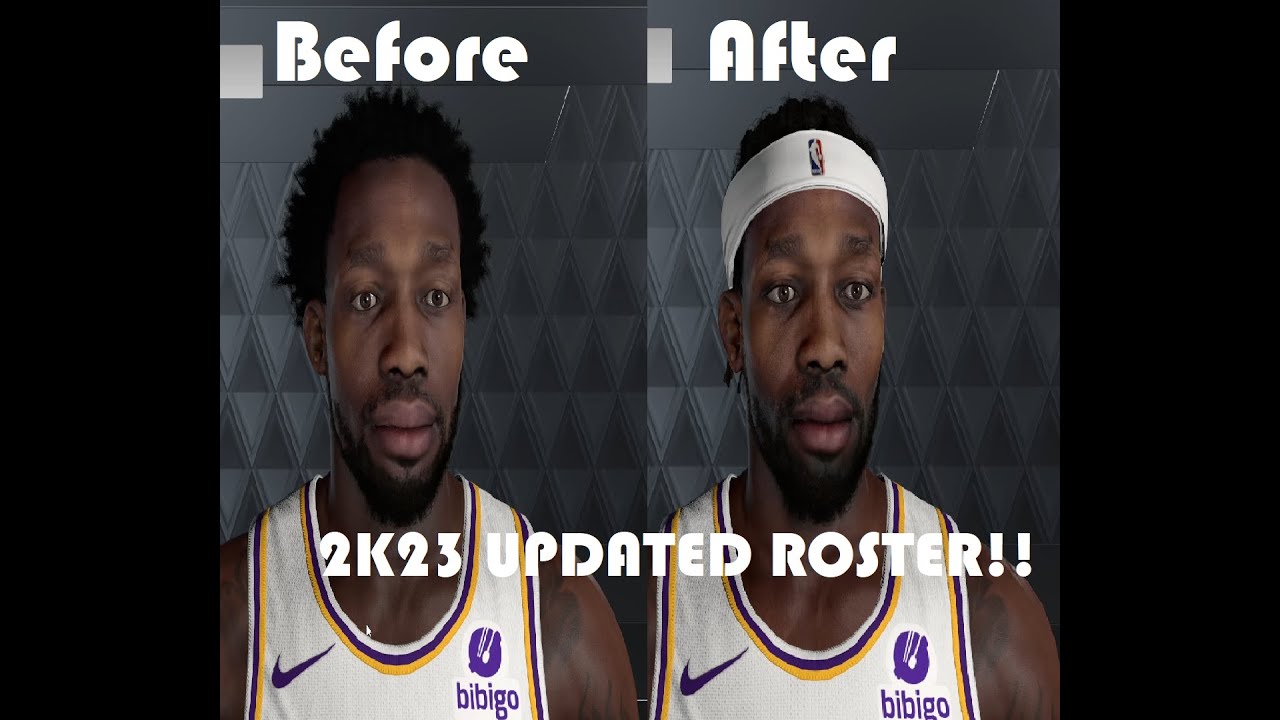
The appeal of roster mods lies in their ability to bridge the gap between the game’s official content and the ever-changing reality of the NBA. Player movements, trades, injuries, and emerging talent are a constant flux, and official game updates, while timely, can’t always capture every nuanced shift. Roster mods empower players to take control, ensuring their virtual NBA accurately reflects the real-world league or even allows for fantastical scenarios. Beyond just updated player data, mods can also introduce new cyberfaces, accessories, and even court designs, creating a truly personalized NBA 2K23 experience.
This guide is designed for players of all technical skill levels. Whether you’re a seasoned modder or new to the concept, we’ll break down each step clearly and concisely. We’ll cover the fundamental concepts, the tools you’ll need, and the step-by-step process for installing these exciting additions to your NBA 2K23 game.
Understanding NBA 2K23 Roster Mods
Before diving into the installation process, it’s crucial to understand what NBA 2K23 roster mods entail and the benefits they offer. Roster mods are essentially user-created modifications that alter the game’s data files to change various aspects of the game, primarily focusing on player rosters. However, their scope often extends beyond just player names and ratings.
What are Roster Mods?
At their core, roster mods are files that replace or supplement the default roster data within NBA 2K23. This data includes a vast array of information, such as:
- Player Attributes: This is the most common aspect modified. Mods can update player ratings to reflect their current performance in the real NBA, adjust their tendencies, or even create entirely new player archetypes.
- Player Appearance (Cyberfaces): While not always part of a “roster” mod specifically, many comprehensive mods will include updated cyberfaces (in-game player models) that more accurately represent current players or even iconic past players.
- Team Rosters: Mods can reflect real-life trades, free agent signings, and draft picks, ensuring your game mirrors the current NBA landscape.
- Player Tendencies and Playstyles: Beyond raw stats, mods can fine-tune how players behave on the court, making them feel more authentic to their real-world counterparts.
- Historical Rosters: Some mods go above and beyond by recreating rosters from past NBA eras, allowing you to play with legendary teams and players from different decades.
- Fantasy Draft Rosters: Mods can also create rosters for fantasy leagues, often featuring a mix of current and retired players.
The Benefits of Using Roster Mods
The allure of roster mods stems from the significant advantages they bring to the NBA 2K23 experience:
- Enhanced Realism: Stay up-to-date with the latest NBA happenings. Mods can reflect trades, injuries, and breakout performances, making your game feel more current and relevant.
- Increased Replayability: When the official game updates start to lag behind real-world events, mods breathe new life into the game. New challenges and scenarios emerge, keeping the gameplay fresh and engaging.
- Nostalgia and Historical Play: Relive iconic NBA moments or create dream matchups by playing with rosters from different eras. This is a major draw for long-time fans of the sport and the franchise.
- Deeper Customization: Tailor your NBA 2K23 experience to your exact preferences. Whether you want to simulate a specific season or create a unique alternate reality, mods give you that power.
- Discovery of New Content: The modding community is incredibly creative. You might discover entirely new leagues, fictional players, or innovative gameplay tweaks that you wouldn’t find in the base game.
It’s important to note that while roster mods offer incredible benefits, they are user-generated content and not officially supported by 2K Sports. This means players undertake the installation process at their own discretion.
Preparing for Roster Mod Installation
Before you begin downloading and installing roster mods for NBA 2K23, proper preparation is key. This involves ensuring your game is set up correctly and that you have the necessary tools and knowledge to proceed safely and efficiently.
Backing Up Your NBA 2K23 Files
This is arguably the most crucial step before making any modifications to your game files. Accidents can happen, and having a backup ensures that you can easily revert to the original game state if something goes wrong.
- Locate your NBA 2K23 Installation Folder: The exact location can vary depending on how you installed the game.
- Steam: Typically, this will be something like
C:Program Files (x86)SteamsteamappscommonNBA 2K23. - Epic Games Store: The location will be different, but you can usually find it by right-clicking the game in your Epic Games Library, selecting “Manage,” and then clicking “Browse Local Files.”
- Other Platforms: Consult your platform’s documentation if you’re unsure.
- Steam: Typically, this will be something like
- Identify Key Folders: Within your NBA 2K23 installation folder, pay close attention to subfolders like
NBA 2K23…. The specific files and folders that mods will alter can vary, but it’s wise to back up anything that looks like it might be related to game data, rosters, or save files. - Create a Backup Copy: The simplest method is to copy the entire NBA 2K23 installation folder to another location on your hard drive. An external hard drive or a different partition on your main drive is ideal. Label this backup clearly (e.g., “NBA 2K23 Original Backup”).
- Consider Specific File Backups: For more advanced users or if you’re concerned about space, you might identify specific files or folders that mods are known to modify (e.g.,
.cdf,.iff, or roster-specific files). However, for beginners, a full folder backup is the safest bet.
Essential Tools for Modding
While some mods might be as simple as replacing a single file, many require specific tools to manage, install, or extract their contents.
- A Reliable File Archiver: You’ll frequently encounter mods distributed in compressed formats like
.zip,.rar, or.7z. You’ll need software to extract these files.- 7-Zip: A free, open-source, and highly recommended option that handles most archive formats.
- WinRAR: Another popular choice, though it’s shareware.
- Built-in Windows Extractor: Newer versions of Windows can handle
.zipfiles natively, but it’s not as comprehensive as dedicated tools.
- NBA 2K Mod Tools (Specific to the Game): For NBA 2K games, specialized modding tools have been developed by the community to help manage and inject modded files into the game. These tools are crucial for many types of mods.
- NBA 2K Tools (e.g., Cheat Engine with specific NBA 2K tables, IGC Editor, NBA 2K14 PC Tools (which can sometimes be adapted for newer versions for specific functions)): The exact tools can evolve with each game release. It’s essential to research which tools are currently recommended for NBA 2K23. Websites dedicated to NBA 2K modding will usually point you to the correct utilities. These tools often allow you to load and edit game files, export and import specific data, and sometimes even create custom
.ifffiles.
- NBA 2K Tools (e.g., Cheat Engine with specific NBA 2K tables, IGC Editor, NBA 2K14 PC Tools (which can sometimes be adapted for newer versions for specific functions)): The exact tools can evolve with each game release. It’s essential to research which tools are currently recommended for NBA 2K23. Websites dedicated to NBA 2K modding will usually point you to the correct utilities. These tools often allow you to load and edit game files, export and import specific data, and sometimes even create custom
- A Text Editor: While not always directly used for game files, you might need a text editor (like Notepad++, which is free and more powerful than basic Notepad) to read
.txtor.inifiles that often accompany mods, providing installation instructions or configuration details.
Finding Reputable Mod Sources
The internet is a vast landscape, and not all sources for mods are equally trustworthy. Sticking to reputable websites and communities will significantly reduce your risk of downloading malware or corrupted files.
- Dedicated NBA 2K Modding Websites: There are well-established forums and websites that have been serving the NBA 2K modding community for years. These sites often have strict moderation policies and user reviews that can help you identify high-quality mods.
- Community Forums and Discord Servers: Many modders and users gather on platforms like Reddit (e.g., r/NBA2k, r/Modding) and Discord. These communities are excellent resources for finding mods, asking questions, and getting support.
- Creator’s Personal Sites/Patreons: Some prominent modders may host their work on their own websites or offer exclusive content through platforms like Patreon.
Red Flags to Watch Out For:
- Unsolicited Downloads: Be wary of any site that forces downloads or has excessive, intrusive advertisements.
- No Community Feedback: A lack of comments, reviews, or discussions about a mod can be a sign that it’s either new, unpopular, or potentially problematic.
- Suspicious File Types: While
.zip,.rar,.7z, and specific modding tool-generated files are common, be cautious of.exefiles from unknown sources. Always scan downloaded files with your antivirus software.

Step-by-Step Installation of NBA 2K23 Roster Mods
Now that you’re prepared, let’s get to the core of the process: installing your chosen roster mod. The exact steps can vary slightly depending on the complexity of the mod and the tools required, but this guide covers the general methodology.
Downloading and Extracting the Mod
- Choose and Download Your Mod: Navigate to a reputable source and select the roster mod you wish to install. Read the mod description carefully. It will often specify the version of NBA 2K23 it’s compatible with, any prerequisites, and detailed installation instructions.
- Download the Mod File: Click the download link and save the file to a convenient location on your computer (e.g., your Desktop or a dedicated “NBA 2K Mods” folder).
- Extract the Archive: Once the download is complete, use your file archiver (like 7-Zip or WinRAR) to extract the contents of the downloaded file. Right-click on the archive and select “Extract Here” or choose a specific folder to extract to. This will reveal the mod files and folders.
Using NBA 2K Mod Tools (Common Method)
Many NBA 2K roster mods require the use of specialized tools to be correctly implemented. These tools often work by “injecting” or replacing game files.
- Identify the Required Tools: The mod’s description or the website where you downloaded it will usually tell you which NBA 2K mod tools are necessary. Common tools might include:
- NBA 2K File Editor/Manager: These tools allow you to open and modify game files, often in
.iffformat, which contain game data. - Roster Editors: Specific tools designed to edit player attributes, assignments, and other roster-specific data.
- NBA 2K File Editor/Manager: These tools allow you to open and modify game files, often in
- Launch the Mod Tool: Open the relevant NBA 2K mod tool. Ensure you are running it with administrator privileges if prompted (right-click the executable and select “Run as administrator”).
- Load Game Files: Within the mod tool, you’ll typically need to load the NBA 2K23 game files that the mod will modify. This might involve pointing the tool to specific folders or files within your NBA 2K23 installation directory. The tool’s interface will guide you on how to do this.
- Import or Apply Mod Data: This is where the actual mod installation happens.
- Direct Import: Some tools have an “Import” function where you can select the files provided by the mod and have the tool automatically integrate them into the game files.
- Manual Replacement/Editing: Other tools might require you to manually identify specific data entries within the game files and replace them with the data from the mod. The mod’s instructions will be crucial here, often providing specific values or file structures to replicate.
- “Save” or “Apply” Changes: After importing or making changes, always remember to save your work within the mod tool. This action writes the modified data back into the game files.
Manual File Replacement (Less Common for Rosters, but Possible)
In some simpler cases, a roster mod might just involve replacing specific game files.
- Identify Target Files: The mod’s instructions will clearly state which files need to be replaced and where they are located within the NBA 2K23 installation folder.
- Backup Original Files: Crucially, before replacing anything, make backups of the original files you are about to overwrite. This is a fallback in case the mod causes issues.
- Replace Files: Copy the modded files into the specified locations within your NBA 2K23 installation folder, overwriting the original files. Ensure you are placing them in the exact same path.
Verifying the Installation
After the installation process, it’s time to check if everything worked as intended.
- Launch NBA 2K23: Start the game through your usual launcher (Steam, Epic Games, etc.).
- Navigate to Roster Options: Once the game has loaded, go to the main menu and find the section related to rosters. This is often found under “Options,” “Features,” or “MyNBA/MyCAREER” modes.
- Check Roster Loadout: Look for an option to load different roster files. You should see your newly installed mod listed, or the game might automatically load it if it was designed to do so. Select the modded roster.
- Inspect Player Data: Browse through some teams and players. Check if the player names, ratings, accessories, and appearances have changed as expected according to the mod’s description. If it’s a historical roster, ensure the correct legendary players and teams are present.
Troubleshooting Common Roster Mod Issues
Even with careful preparation and following instructions, you might encounter issues when installing roster mods. Here are some common problems and how to resolve them.
Game Crashing or Not Launching
This is a frequent symptom of incorrect mod installation, incompatible mods, or corrupted files.
- Revert to Backup: Your first and best course of action is to restore your game files from the backup you created earlier. This will confirm if the mod itself is the issue.
- Check Mod Compatibility: Ensure the mod is designed for the specific version of NBA 2K23 you are playing. Mods are often version-specific.
- Re-download and Re-install: The downloaded mod file might have been corrupted. Try downloading it again from the original source and reinstalling carefully.
- Verify Game Files (Steam): If you’re using Steam, you can verify the integrity of your game files. Right-click NBA 2K23 in your Steam Library, go to Properties > Local Files > Verify integrity of game files. This will replace any corrupted or missing official game files.
- Remove Conflicting Mods: If you have multiple mods installed, they might be conflicting with each other. Try installing mods one by one to identify the culprit.
Incorrect Player Data or Visual Glitches
If the game launches but players have incorrect attributes, missing faces, or display graphical errors, it indicates a problem with the mod’s integration.
- Follow Installation Instructions Precisely: Double-check every step of the mod’s installation guide. Even a minor deviation can cause issues.
- Ensure Correct Mod Tool Usage: If you used a mod tool, verify that you loaded the correct game files and applied the mod’s data accurately.
- Check for Required Files: Some mods require specific supporting files (e.g., custom
.ifffiles for appearances). Ensure all necessary components of the mod have been downloaded and installed. - Clear Cache Files: In some cases, clearing the game’s cache files might resolve visual glitches. The location of these files can vary, but they are often found in your user profile’s AppData folder. Research the specific location for NBA 2K23.
Mods Not Appearing in the Game
If you’ve followed the installation steps, but the modded roster doesn’t show up in the game’s roster selection menu.
- Confirm Proper Loading: If you used a mod tool, ensure you saved the changes. If you manually replaced files, confirm you overwrote the correct ones.
- Roster Save File Location: Some mods might require you to place specific roster save files in your NBA 2K23 save directory. Check the mod’s instructions for this.
- Game Updates: Occasionally, a game update can overwrite modded files or change file structures, rendering mods incompatible. You might need to wait for updated versions of the mods or the tools.
- Reinstall Game and Mods: As a last resort, consider uninstalling NBA 2K23, ensuring all related files are removed, and then reinstalling both the game and the mod(s).
Remember, the NBA 2K modding community is a great resource. If you encounter a persistent issue, don’t hesitate to seek help on dedicated forums or Discord servers. Many experienced modders are willing to assist those who are new to the scene.

Conclusion
Installing roster mods for NBA 2K23 can significantly enhance your gaming experience, offering unparalleled realism, historical depth, and customizability. By following this comprehensive guide, understanding the necessary tools, and approaching the process with care and patience, you can unlock a whole new dimension of NBA 2K23. Always prioritize backing up your files, downloading from reputable sources, and meticulously following installation instructions. The vibrant modding community is there to support you, so embrace the journey of customizing your ultimate NBA simulation. Happy modding!
aViewFromTheCave is a participant in the Amazon Services LLC Associates Program, an affiliate advertising program designed to provide a means for sites to earn advertising fees by advertising and linking to Amazon.com. Amazon, the Amazon logo, AmazonSupply, and the AmazonSupply logo are trademarks of Amazon.com, Inc. or its affiliates. As an Amazon Associate we earn affiliate commissions from qualifying purchases.