
The allure of a Chromebook is undeniable: affordable, fast, secure, and incredibly simple to use, especially for those rooted in the cloud. Yet, for many users, the siren song of Windows — with its vast software ecosystem, gaming prowess, and long-standing familiarity — remains a powerful draw. This often leads to a burning question that echoes through tech forums and user communities: “Can I install Windows on a Chromebook?”
The short answer is: yes, but it’s complicated. It’s not a straightforward process like installing a new application, and for the vast majority of users, it’s neither practical nor recommended. This deep dive will explore the technical feasibility, the challenges you’ll face, the potential implications for your device and digital experience, and ultimately, whether pursuing such an endeavor aligns with your technological needs and financial wisdom.

The Core Question: Is it Even Possible?
At its heart, a Chromebook is a computer, just like a Windows laptop or a MacBook. It has a processor, RAM, storage, and a screen. So, theoretically, any operating system should be able to run on it, right? The reality, however, is far more nuanced, deeply rooted in both hardware and strategic design.
Understanding Chromebook’s DNA: Why It’s Not Straightforward
Chromebooks are purpose-built machines, optimized specifically for Chrome OS. This optimization involves several key factors that make a Windows installation a significant hurdle:
- Hardware Architecture: Many older and entry-level Chromebooks feature ARM-based processors, which are different from the x86/x64 architecture that traditional Windows versions are designed for. While Windows on ARM exists, it’s a specific, limited version and generally requires drivers tailored for that exact hardware, which are rarely available for Chromebook components. Newer, more powerful Chromebooks do use x86 Intel or AMD processors, making them theoretically more compatible.
- Firmware (BIOS/UEFI): Chromebooks use a specialized UEFI firmware designed exclusively to boot Chrome OS. It lacks the standard Windows bootloaders and often employs security measures that prevent unauthorized operating systems from booting. Overwriting this firmware is often a prerequisite for a native Windows installation.
- Storage: Many Chromebooks come with limited, soldered eMMC storage, which is slower than SSDs found in most Windows laptops. This can impact Windows performance significantly.
- Drivers: This is perhaps the biggest technical obstacle. Every component in a computer – the Wi-Fi card, Bluetooth module, trackpad, keyboard, webcam, audio chip, graphics processor – requires specific drivers to function correctly with an operating system. Chromebook manufacturers don’t provide Windows drivers for their hardware, meaning even if you get Windows to boot, critical components might not work, rendering your device largely useless.
These architectural choices are deliberate. They contribute to Chrome OS’s security, speed, and efficiency, and allow manufacturers to produce devices at a lower cost – a core part of the Chromebook’s brand identity. Diverging from this path means fighting against its very design principles.
The Allure of Windows: Why Users Seek the Switch
Despite the inherent difficulties, the desire to install Windows on a Chromebook persists for valid reasons:
- Software Compatibility: This is the primary driver. Many professional, legacy, or niche applications (e.g., specific CAD software, Adobe Creative Suite, specialized engineering tools, or older enterprise software) are exclusive to Windows. Users might want a lightweight device for everyday tasks but occasionally need access to these specific programs.
- Gaming: While cloud gaming services are emerging, the vast library of PC games is predominantly Windows-based. A Chromebook, even a powerful one, isn’t typically designed for local high-fidelity gaming, but the idea of making it capable is tempting for some.
- Familiarity and Control: Windows offers a familiar desktop environment and a high degree of user control over the system, which some users prefer over Chrome OS’s more streamlined, cloud-centric approach.
- Full Desktop Experience: For some, Chrome OS still feels like an advanced browser. They desire a traditional “desktop” OS with a local file system that’s always available and doesn’t rely as heavily on internet connectivity.
Understanding these motivations is crucial, as they often dictate whether the significant effort and potential pitfalls of a Windows installation are perceived as a worthwhile trade-off.
Navigating the Technical Landscape: Methods and Challenges
If you’re determined to try and install Windows on your Chromebook, there are a few primary approaches, each with its own level of complexity, risk, and performance implications.
Native Installation: The “Bare Metal” Approach (and its Perils)
This is the most ambitious and riskiest method: completely replacing Chrome OS with Windows. It essentially transforms your Chromebook into a custom Windows laptop.
How it works (in theory):
- Remove Write Protection: Most Chromebooks have hardware write protection that prevents modification of the firmware. This usually involves removing a screw or flipping a switch on the motherboard, physically opening your device.
- Flash Custom Firmware: You’ll need to replace the stock Chrome OS firmware with a custom UEFI firmware (like those provided by the renowned MrChromebox.tech scripts) that can boot other operating systems. This step is critical and highly device-specific.
- Install Windows: Once custom firmware is in place, you can boot from a Windows installation USB drive and install Windows as you would on any other PC.
- Driver Hunt: After installation, the real challenge begins: finding compatible drivers for your Chromebook’s specific hardware components. This often involves extensive searching, trial-and-error, and often, accepting that some components (like sound, Wi-Fi, or trackpad gestures) simply won’t work or will require significant compromises.
Challenges and Risks:
- Extreme Technical Difficulty: This is not for the faint of heart or the inexperienced. Missteps can easily “brick” your device, rendering it permanently unusable.
- Hardware Compatibility: Only specific x86-based Chromebooks are good candidates. ARM-based models are generally out of the question for full Windows.
- Driver Availability: As mentioned, this is the biggest hurdle. You’ll likely end up with a device where some critical features are non-functional, leading to a frustrating user experience. Imagine a laptop without working Wi-Fi, sound, or a proper trackpad!
- Performance: Even if you succeed, Windows running on hardware designed for the lightweight Chrome OS might feel sluggish, especially on lower-spec models.
- Voiding Warranty: Opening your device and modifying its firmware will almost certainly void its manufacturer’s warranty.
- Security: Custom firmware might introduce new security vulnerabilities if not properly maintained or if derived from untrusted sources.
Virtualization: A Safer, Albeit Compromised, Path
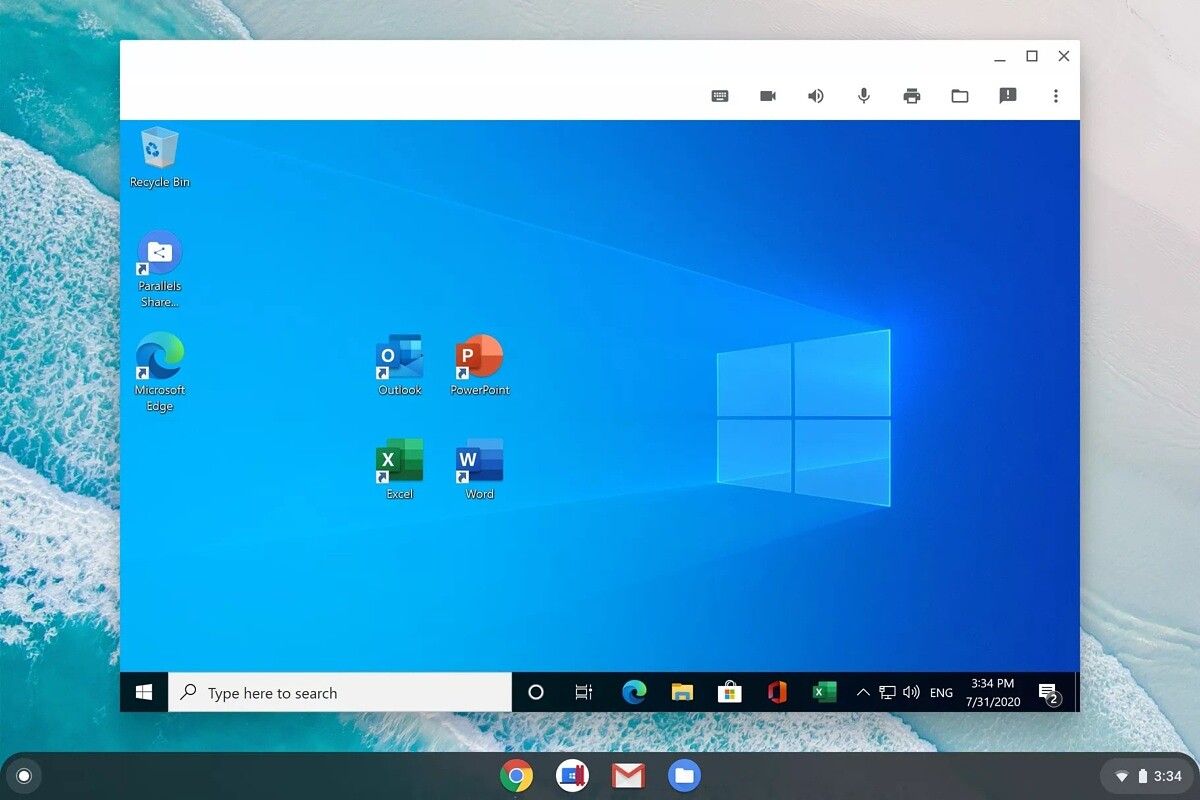
Virtualization allows you to run Windows as a “guest” operating system within Chrome OS itself, using a virtual machine (VM) application. This is significantly safer as it doesn’t modify the core Chromebook system.
How it works:
- Enable Linux (Beta): Most modern Chromebooks support running Linux applications in a container (Crostini). You’ll need to enable this feature.
- Install Virtualization Software: Within the Linux container, you can install VM software like VirtualBox or VMware Workstation Player.
- Install Windows in the VM: You then install a Windows image (e.g., a Windows 10/11 ISO) into a new virtual machine.
- Parallels Desktop for Chrome OS: For enterprise users, Parallels offers a specialized solution that runs a full Windows environment directly on compatible, more powerful Chromebooks. This is an officially supported, albeit paid, solution.
Challenges and Considerations:
- Performance: Running an entire operating system within another OS is resource-intensive. Performance will be limited by your Chromebook’s CPU, RAM, and storage. It’s best suited for higher-end Chromebooks.
- Resource Overhead: The VM will consume significant RAM and CPU, potentially slowing down your Chrome OS experience.
- Storage Requirements: A Windows VM requires substantial storage space (typically 20-60GB), which might be an issue for Chromebooks with limited internal storage.
- No Direct Hardware Access: The VM usually has limited or no direct access to your Chromebook’s specialized hardware, so certain functions (like advanced graphics or peripherals) might not work optimally or at all.
Remote Desktop and Cloud Solutions: Embracing the Future of Computing
This method doesn’t install Windows on your Chromebook but rather allows your Chromebook to access a Windows environment hosted elsewhere. This is often the most practical and least problematic solution.
How it works:
- Remote Desktop: If you have access to a Windows PC (at home or work), you can use remote desktop software (e.g., Chrome Remote Desktop, Microsoft Remote Desktop, TeamViewer) to control it from your Chromebook.
- Cloud PCs/DaaS (Desktop as a Service): Services like Microsoft Windows 365, Amazon WorkSpaces, or other virtual desktop infrastructure (VDI) providers allow you to rent a Windows desktop hosted in the cloud. You then access this powerful Windows environment from your Chromebook via a web browser or client application.
Advantages:
- No Installation Required: Completely bypasses the technical hurdles of native installation or virtualization.
- Full Windows Experience: You get a full, uncompromised Windows environment, often with powerful hardware specs that surpass your Chromebook.
- Hardware Agnostic: Works perfectly on any Chromebook, regardless of its internal specifications.
- Security and Maintenance: The cloud provider handles security updates and maintenance of the Windows environment.
Challenges:
- Internet Dependency: Requires a stable and relatively fast internet connection.
- Cost: Cloud PC services typically involve a monthly subscription fee, which adds to your overall computing costs (a financial consideration that contrasts with the typical low-cost appeal of Chromebooks).
- Latency: There might be slight input lag, depending on your internet connection and the distance to the server.
Weighing the Implications: Performance, Security, and Your Digital Experience
Attempting to force Windows onto a Chromebook isn’t just a technical challenge; it has profound implications for your device’s functionality, security posture, and overall user experience.
Performance Pitfalls and Driver Dilemmas
As highlighted earlier, the lack of optimized drivers for Chromebook hardware is a critical flaw. Even if you manage to install Windows, you’ll likely encounter:
- Non-functional or Suboptimal Peripherals: Your Wi-Fi might not work, or be incredibly slow. Your audio might be mute. The trackpad might lack multi-touch gestures, or the webcam might be unusable. These are fundamental components that contribute to a seamless user experience.
- Poor Performance: Even with working drivers, Windows is a heavier OS than Chrome OS. Running it on hardware designed for a lighter system, especially with potentially generic drivers, will likely result in slower boot times, app loading, and overall responsiveness. This defeats one of the primary advantages of a Chromebook – its snappy performance.
- Battery Drain: Without proper power management drivers, Windows might consume significantly more power, drastically reducing your Chromebook’s impressive battery life. This is a subtle but significant financial cost over time.
Security Considerations and Warranty Voiding
The core brand promise of a Chromebook is security, largely due to its locked-down nature, automatic updates, and sandboxed environment. Modifying its firmware fundamentally compromises this:
- Reduced Security: Flashing custom firmware removes Google’s built-in security layers, making your device more vulnerable to malware and security exploits. You lose the verified boot process and automatic, secure updates.
- Warranty Invalidation: Opening your Chromebook and altering its firmware will almost certainly void the manufacturer’s warranty. If something goes wrong during or after the process, you’re on your own, incurring potential repair or replacement costs. This is a significant financial risk.
- Stability Issues: Unofficial modifications often lead to instability, unexpected crashes, and data loss. This impacts your productivity and can lead to frustration.
The Impact on Your Device’s Lifespan and Usability
Beyond the immediate technical challenges, installing Windows can negatively impact the longevity and practical usability of your Chromebook:
- Reduced Lifespan: An operating system running inefficiently or with overheating components (due to lack of proper driver optimization) can stress hardware, potentially shortening the device’s lifespan.
- Compromised Usability: A Frankenstein’s monster of a device – a Chromebook running Windows with half its features non-functional – becomes a frustrating tool rather than a productive one. It no longer fulfills its original brand promise of simplicity and efficiency, nor does it fully deliver on the Windows promise of versatility.
Financial and Brand Perspectives: Is the Investment Worth It?
From the perspective of Money and Brand, the decision to install Windows on a Chromebook carries significant weight. Chromebooks are often chosen for their economic value and straightforward computing experience. Disrupting this can lead to unexpected costs and a diluted brand experience.
The True Cost of a Windows-on-Chromebook Experiment
When considering this project, don’t just look at the technical challenge; consider the financial implications:
- Time is Money: The hours spent researching, troubleshooting, and attempting installation are a significant investment of your time. For professionals, this is lost productivity.
- Potential for Bricking: The risk of rendering your device useless is real. Replacing a bricked Chromebook means an entirely new purchase – a direct financial loss.
- Software Licensing: If you successfully install Windows, you’ll need a legitimate Windows license, which is an additional cost (typically over $100-$200).
- Lost Resale Value: A Chromebook with custom firmware and a non-standard OS will have significantly reduced, if any, resale value. You’re effectively destroying a part of its original market value.
- Subscription Costs: If opting for cloud PC solutions, the ongoing monthly fees can add up over time, potentially negating the initial savings of buying a Chromebook.
When all these factors are added up, the “free” installation of Windows on a Chromebook can quickly become a much more expensive endeavor than simply buying a dedicated, purpose-built Windows laptop in the first place.
Brand Identity: Chromebook’s Simplicity vs. Windows’ Versatility
Every product carries a brand identity, a promise to the user.
- Chromebook’s Brand: Google markets Chromebooks as secure, simple, fast, and affordable devices designed for the cloud-centric user. Their brand is about frictionless productivity, low maintenance, and excellent battery life.
- Windows’ Brand: Microsoft’s Windows represents versatility, powerful local computing, and broad software compatibility, catering to a diverse range of professional and entertainment needs.
Attempting to install Windows on a Chromebook creates a conflict of these brand identities. You’re trying to force a device built for simplicity and cloud-first operations into a role of complex, local computing. This often results in a compromise that undermines the strengths of both platforms, leading to a frustrating user experience that fails to deliver on either brand’s core promise. For a business, deploying such hybrid devices could also create IT management nightmares and support challenges, impacting the company’s operational “brand.”
When to Consider a Dedicated Windows Machine
Given the hurdles, risks, and financial implications, the most straightforward and often most cost-effective solution for those needing a full Windows experience is to invest in a dedicated Windows laptop. Modern Windows machines come in a vast array of price points and configurations, offering devices that are just as sleek, portable, and efficient as many Chromebooks, while natively providing the software compatibility and performance you seek. This strategic purchase ensures optimal performance, full feature sets, manufacturer support, and long-term reliability.
Beyond the Hype: Practical Alternatives for Windows Software
For most users, the desire to run Windows on a Chromebook isn’t about the OS itself, but about accessing specific software. Before embarking on a risky installation, consider these practical and often superior alternatives that maintain the integrity and benefits of your Chromebook.
Linux Apps and WINE: Bridging the Software Gap
Modern Chromebooks support running Linux applications through Crostini (Linux Beta). This opens up a world of possibilities:
- Native Linux Apps: Many powerful applications (e.g., GIMP for image editing, LibreOffice for productivity, VS Code for development) have native Linux versions that run well on Chromebooks.
- WINE (Wine Is Not an Emulator): WINE is a compatibility layer that allows many Windows applications to run on Linux. While not every app will work flawlessly, it can be a viable solution for older or less demanding Windows programs without the overhead of a full VM. This is a technical solution that keeps your device within its intended, albeit extended, operational parameters.
Web-Based Productivity and Cloud Services
The core strength of a Chromebook lies in its integration with web-based applications. Many traditional Windows programs now have excellent cloud-based alternatives:
- Microsoft 365 / Google Workspace: Full-featured productivity suites accessible directly from your browser.
- Online Photo/Video Editors: Web-based tools like Canva, Pixlr, or even browser-based versions of professional software.
- Cloud Gaming: Services like NVIDIA GeForce NOW or Xbox Cloud Gaming allow you to stream high-end PC games to your Chromebook, eliminating the need for local powerful hardware or Windows installation.
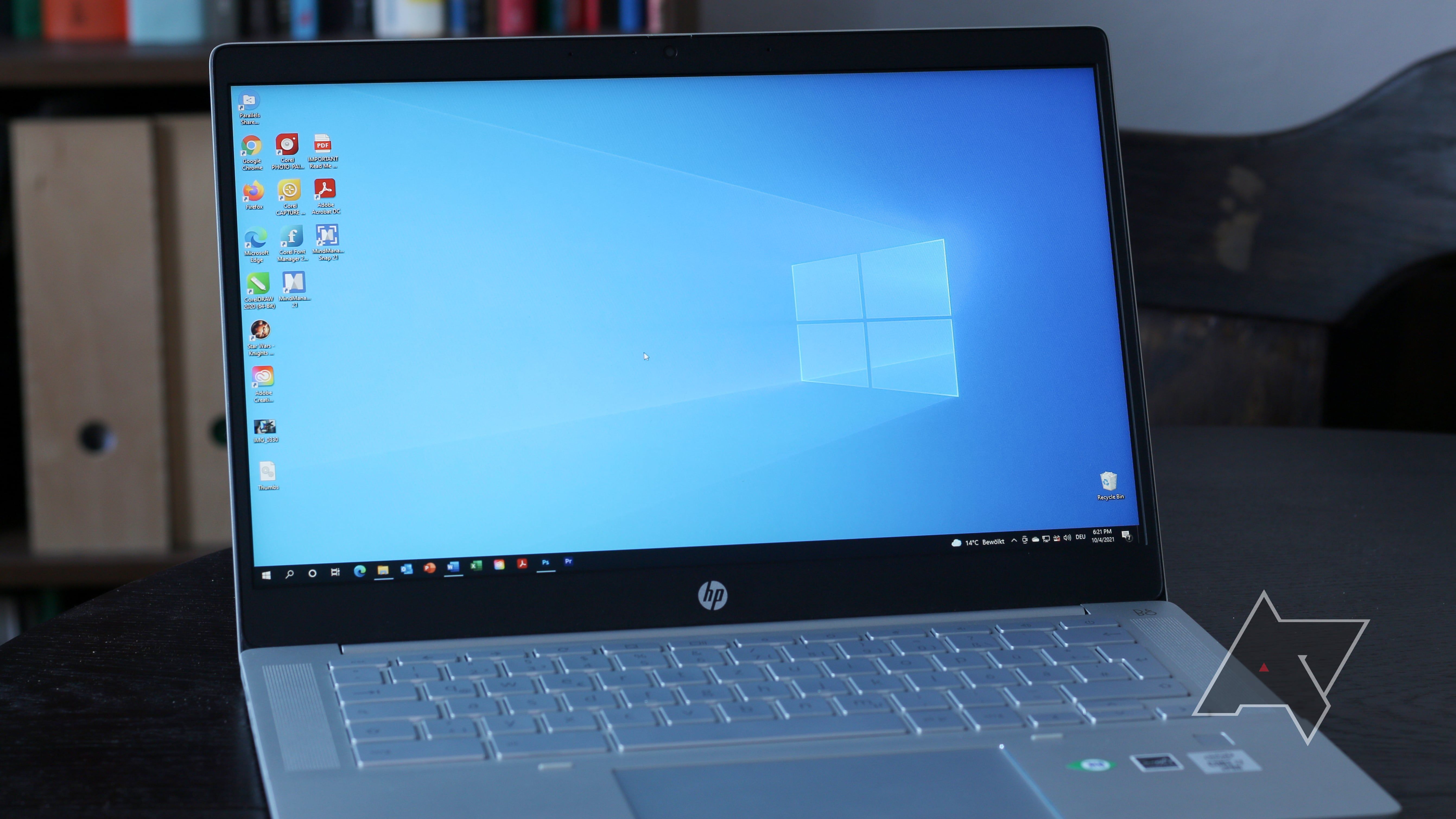
- Remote Desktop/Cloud PCs: As discussed, this is a robust solution for accessing a full Windows desktop remotely. It’s a pragmatic choice for intermittent Windows needs, providing a seamless experience without modifying your device.
The Strategic Choice: Embracing Chrome OS or Investing Wisely
Ultimately, the decision boils down to your primary computing needs and priorities.
- Embrace Chrome OS: If your workflow primarily involves web browsing, cloud applications, Android apps, and light productivity, embracing Chrome OS as it is will provide the most secure, efficient, and cost-effective experience. Its simplicity is its strength, enhancing your productivity by removing distractions and maintenance overhead.
- Invest Wisely: If persistent access to Windows-exclusive software, robust local computing, or high-performance gaming is a non-negotiable requirement, the most sensible financial and technical decision is to invest in a dedicated Windows laptop or a powerful desktop PC. This ensures you get an optimized experience, full functionality, and manufacturer support, aligning with the brand promise of a versatile and powerful computing platform.
Trying to install Windows on a Chromebook is an exercise in compromise, often leading to a subpar experience that fails to fully leverage the strengths of either operating system. For the vast majority of users, the effort, risk, and potential financial implications far outweigh the benefits.
aViewFromTheCave is a participant in the Amazon Services LLC Associates Program, an affiliate advertising program designed to provide a means for sites to earn advertising fees by advertising and linking to Amazon.com. Amazon, the Amazon logo, AmazonSupply, and the AmazonSupply logo are trademarks of Amazon.com, Inc. or its affiliates. As an Amazon Associate we earn affiliate commissions from qualifying purchases.