
The Miyoo Mini Plus, a compact and incredibly capable handheld gaming device, has taken the retro gaming community by storm. Its portability, affordability, and surprising power make it an ideal platform for reliving the glory days of classic gaming. Among the most sought-after emulations on any retro handheld are Nintendo 64 (N64) games. The iconic library of titles, from Super Mario 64 to The Legend of Zelda: Ocarina of Time, offers countless hours of nostalgic enjoyment. This guide will walk you through the process of installing and playing N64 games on your Miyoo Mini Plus, transforming it into a portable N64 powerhouse.

The Miyoo Mini Plus operates on a Linux-based operating system, and its strength lies in its ability to run various emulators through custom firmware. While the stock firmware might be limited, the vibrant community surrounding the Miyoo Mini Plus has developed robust custom firmware options that unlock its full potential, including exceptional N64 emulation. This tutorial assumes you have a Miyoo Mini Plus with a compatible custom firmware already installed. If you are new to custom firmware, we recommend researching and installing a popular option like MiyooCFW or OnionOS, as these provide the necessary tools and environments for optimal emulation.
Understanding N64 Emulation on the Miyoo Mini Plus
Before we dive into the installation process, it’s crucial to understand a few key concepts regarding N64 emulation on a device like the Miyoo Mini Plus.
The Challenges of N64 Emulation
The Nintendo 64 was a groundbreaking console in its time, utilizing advanced hardware for its era. Emulating this hardware on a significantly less powerful, albeit modern, device like the Miyoo Mini Plus presents inherent challenges. Unlike 8-bit or 16-bit consoles, the N64’s architecture requires more processing power and sophisticated emulation techniques. This means that not every N64 game will run flawlessly on the Miyoo Mini Plus. Some demanding titles might experience occasional slowdowns, audio glitches, or visual imperfections. However, with the advancements in emulator development and the capable hardware within the Miyoo Mini Plus, a vast majority of N64 games are playable and enjoyable.
Emulator Choices and Optimization
The Miyoo Mini Plus typically utilizes emulators powered by RetroArch, a frontend that supports a wide array of emulators for different systems. For N64, popular emulator cores within RetroArch include mupen64plus-next and sometimes specialized forks or standalone emulators. The performance of your N64 games will largely depend on the chosen emulator core and its configuration. Custom firmwares often pre-configure optimal emulator settings, but there might be instances where you’ll need to fine-tune specific options for individual games to achieve the best balance between performance and visual fidelity.
Legality and ROM Acquisition
It is imperative to address the legal aspects of acquiring game ROMs. Downloading ROMs for games you do not legally own is a copyright infringement. The most ethical and legal way to obtain N64 ROMs is by dumping them from your own original N64 game cartridges. There are various hardware devices available that can assist in this process. We strongly advise against downloading ROMs from unauthorized sources. This guide focuses solely on the technical process of installing the emulator and configuring your device; it does not endorse or facilitate illegal ROM acquisition.
Preparing Your Miyoo Mini Plus for N64 Emulation
With the foundational understanding in place, let’s prepare your Miyoo Mini Plus for the installation. This stage involves ensuring your custom firmware is up-to-date and organizing your game files.
Ensuring Custom Firmware is Ready
As mentioned, a functional custom firmware is the cornerstone of successful emulation on the Miyoo Mini Plus. Most popular custom firmwares, such as OnionOS or MiyooCFW, include pre-installed N64 emulator cores.
- Verify Firmware Installation: If you haven’t already, ensure you have a stable and well-regarded custom firmware installed on your Miyoo Mini Plus. Follow the official installation guides for your chosen firmware.
- Update Firmware (if applicable): Developers continuously release updates that improve performance, fix bugs, and add new features. Check the official repositories for your custom firmware and follow their instructions for updating. A recent firmware version is often crucial for optimal emulator performance.
- Access the File System: You’ll need to access the Miyoo Mini Plus’s SD card to transfer ROMs and potentially configuration files. This is typically done by:
- Removing the SD Card: Power off your Miyoo Mini Plus completely, remove the microSD card, and insert it into a card reader connected to your computer.
- Connecting via USB (less common for firmware-based installs): Some firmwares might allow direct USB connection for file transfers, but accessing the SD card directly is more standard for ROM management.
Organizing Your ROMs and BIOS Files
Proper organization is key to a smooth emulation experience.
- Create a ROMs Folder: On your Miyoo Mini Plus’s SD card, you should have a dedicated folder for ROMs. If not, create one. Within this folder, it’s good practice to create subfolders for each console. So, you would create a folder named
N64inside your mainROMsdirectory. - Locate Your N64 ROMs: Place your legally acquired N64 ROM files (typically in
.z64,.v64, or.n64formats) into theN64folder you created on the SD card. - BIOS Files (Important for some emulators): While many N64 emulators on the Miyoo Mini Plus are self-contained and do not require separate BIOS files, some advanced configurations or alternative emulators might benefit from or even require specific BIOS files. Consult the documentation for your specific custom firmware and emulator core to see if any BIOS files are needed, and if so, where they should be placed (often in a
BIOSfolder within the root of your SD card or a dedicated emulation system folder). For most stock RetroArch N64 cores, BIOS files are not a prerequisite.
Installing and Configuring the N64 Emulator
The actual installation and configuration process is usually straightforward with custom firmware.
Accessing the Emulation Frontend (RetroArch)

Most custom firmwares for the Miyoo Mini Plus use RetroArch as their primary emulation frontend.
- Launch RetroArch: Navigate to the Games or Emulators section on your Miyoo Mini Plus’s home screen and launch the RetroArch application.
- Scan for ROMs (Optional but Recommended): RetroArch can scan your directories for ROMs and create playlists, making it easier to find and launch your games.
- Navigate to
Settings>Directoryand ensure your ROMs folder path is correctly set. - Go back to the
Main Menuand selectLoad Content. - Browse to your
ROMs/N64folder and selectScan Directory. RetroArch will then add your N64 games to a playlist.
- Navigate to
- Manual Game Loading: Alternatively, you can manually load games by navigating to
Load Content>Select File and Directoryand browsing to yourROMs/N64folder.
Selecting the Appropriate N64 Emulator Core
Within RetroArch, you can choose different “cores” (emulators) for each system. For N64, you’ll likely encounter:
mupen64plus-next: This is generally the most recommended and well-supported core for N64 emulation on devices like the Miyoo Mini Plus due to its balance of compatibility and performance.- Other
mupen64plusvariants or experimental cores: Your custom firmware might offer other options. It’s usually best to start withmupen64plus-next.
To select or change the core:
- When you launch a game for the first time, RetroArch will ask you to choose an emulator. Select
mupen64plus-nextif it’s available. - If you want to set a default core for all N64 games:
- From the RetroArch Main Menu, go to
Settings>Core. - Under
Default Core, find and selectNintendo 64 (mupen64plus-next). - Now, when you launch an N64 game from your playlist, it will automatically use the chosen core.
- From the RetroArch Main Menu, go to
Configuring Emulator Settings for Optimal Performance
This is where you can fine-tune the experience for better frame rates and visual quality. Accessing these settings within RetroArch is crucial.
- Accessing Quick Menu: While a game is running, press the button combination to bring up the RetroArch Quick Menu (usually
Start + Selector a similar combination depending on your firmware’s input mapping). - Navigate to Core Options: From the Quick Menu, select
Options. This will display the specific settings for the N64 emulator core you are using. - Key Settings to Consider:
- Video Resolution/Internal Resolution: Lowering this setting can significantly improve performance in demanding games. Try settings like
Nativeor320x240first. If performance is still an issue, consider even lower settings. Higher resolutions will tax the processor more. - Graphics Plugin: Some N64 emulators offer different graphics plugins (e.g.,
ParaLLEl RDP,GLideN64).ParaLLEl RDPis often a good balance of performance and accuracy. Experimenting with these can yield different results. - Frame Buffer Emulation: For some games, disabling or enabling this can impact performance.
- Audio Plugin: Usually, the default is fine, but if you encounter audio issues, there might be alternative plugins.
- Hacks and Enhancements: Some options might be labeled as “hacks” or specific game fixes. Enable these if you are experiencing known issues with a particular title.
- Texture Filtering: Turning off texture filtering can slightly improve performance at the cost of image sharpness.
- Video Resolution/Internal Resolution: Lowering this setting can significantly improve performance in demanding games. Try settings like
Important Note on Performance: Remember that the Miyoo Mini Plus is a small, handheld device. Pushing for the highest resolutions or graphical enhancements might not be feasible for all N64 titles. The goal is to find a playable and enjoyable experience. Start with default settings and gradually adjust them for each game if needed.
Playing Your Favorite N64 Titles
Once everything is set up, you’re ready to dive into the world of N64 gaming on your Miyoo Mini Plus.
Launching Games and Navigating Menus
With RetroArch configured and your ROMs in place, launching games is straightforward:
- From Playlist: If you scanned your ROMs, go to the RetroArch Main Menu, select
Playlists, chooseNintendo 64, and select the game you want to play. - From File Browser: Navigate to
Load Content>Select File and Directory, find yourROMs/N64folder, and select the game file.
Understanding Game Controls and Mapping
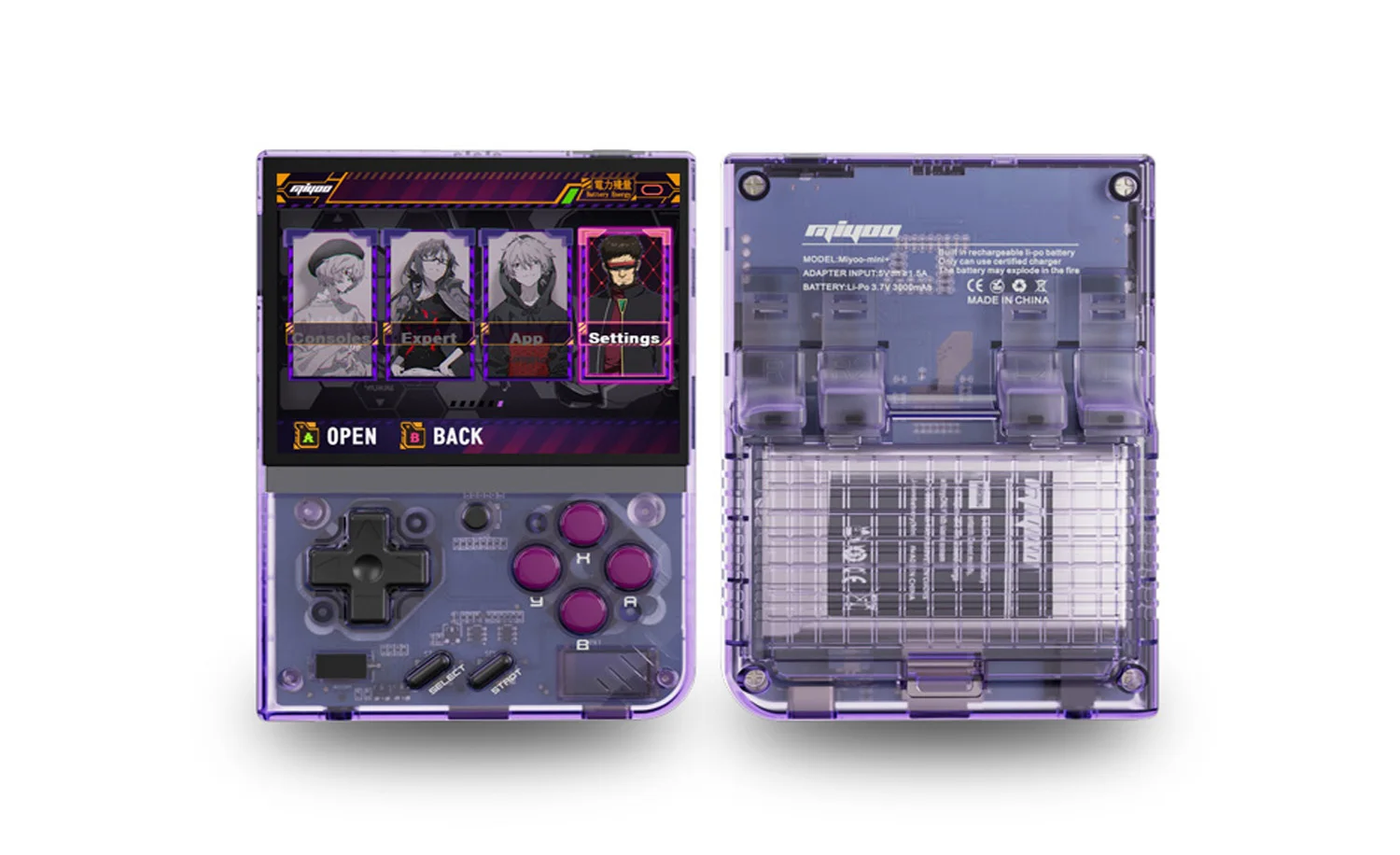
The Miyoo Mini Plus has a great button layout for retro gaming. However, the N64 controller layout is unique.
- Default Mapping: Custom firmwares usually have sensible default button mappings for N64 games. The D-pad often functions as the N64 analog stick, and the face buttons can be mapped to the N64’s A, B, Z, and C buttons.
- Customizing Controls: If the default mapping isn’t to your liking, you can remap the controls within RetroArch.
- While a game is running, bring up the Quick Menu.
- Select
Controls. - Choose
Port 1 Controls. - Here, you can map each button on your Miyoo Mini Plus to the corresponding N64 button. Crucially, pay attention to the analog stick mapping. You’ll want to map the D-pad or a combination of buttons to simulate the N64’s analog input.
- Once you’re satisfied with the mapping, scroll down and select
Save Controller Profileto save your custom layout for N64 games.
Tips for the Best N64 Experience
- Test Different Games: Start with well-known, less demanding titles to get a feel for performance. Then, move on to more complex games.
- Community Resources: The Miyoo Mini Plus community is incredibly active on forums like Reddit (e.g., r/MiyooMini) and dedicated Discord servers. If you encounter issues with a specific game or emulator setting, chances are someone else has already found a solution. Searching these communities can save you a lot of time.
- Save States: Utilize RetroArch’s save state feature. This allows you to save your progress at any point in the game, which can be incredibly useful for overcoming difficult sections or if you need to quit abruptly. Save states are accessed and managed via the Quick Menu.
- Fast Forward: For grinding sections or replays, the fast-forward feature (usually activated via a hotkey in the Quick Menu) can be a lifesaver.
- Patience is Key: As mentioned, N64 emulation is demanding. Some games might require specific settings or might not run perfectly. Enjoy the vast majority that do, and appreciate the engineering that makes it possible on such a small device.
By following these steps, you’ll be well on your way to enjoying a fantastic library of Nintendo 64 games on your Miyoo Mini Plus. The convenience of having these classics in your pocket, accessible anytime, anywhere, is a testament to the power of modern emulation and the ingenuity of the retro gaming community. Happy gaming!
aViewFromTheCave is a participant in the Amazon Services LLC Associates Program, an affiliate advertising program designed to provide a means for sites to earn advertising fees by advertising and linking to Amazon.com. Amazon, the Amazon logo, AmazonSupply, and the AmazonSupply logo are trademarks of Amazon.com, Inc. or its affiliates. As an Amazon Associate we earn affiliate commissions from qualifying purchases.