
In the ever-evolving world of mobile technology, Apple’s iOS ecosystem stands as a bastion of robust security and curated app distribution. While the App Store offers a vast and generally safe avenue for acquiring applications, there are instances where users might wish to venture beyond its confines. This is where the concept of installing .ipa files comes into play. An .ipa file, short for “iOS App Store Package,” is essentially the container for an iOS application. Normally, these are installed directly through the App Store. However, for advanced users, developers, testers, or those seeking to run specific, unsigned, or sideloaded applications, understanding how to install .ipa files on an iPhone is a valuable skill.

This guide will delve deep into the methods and considerations surrounding the installation of .ipa files on your iPhone. We’ll explore the different approaches, from official developer tools to community-driven solutions, while also touching upon the crucial aspects of digital security and the potential implications of this practice.
Understanding the Nuances of IPA Installation
Before we dive into the “how-to,” it’s essential to grasp the underlying principles and the “why” behind installing .ipa files. The standard method of app installation on iOS, through the Apple App Store, is designed for simplicity and security. Apple vets each application before it’s made available, ensuring a level of quality and safety for the end-user.
However, this controlled environment can sometimes limit flexibility. Developers may need to test pre-release versions of their apps, beta testers require access to unreleased features, or individuals might be interested in running applications not available on the App Store for various reasons. This is where sideloading .ipa files becomes relevant.
The Developer’s Perspective: TestFlight and Xcode
For legitimate app development and testing, Apple provides official avenues.
TestFlight: The Official Beta Testing Platform
TestFlight is Apple’s dedicated platform for distributing beta versions of iOS apps to internal or external testers. Developers upload their .ipa files to App Store Connect, and then invite testers via email. Testers receive a link to download the TestFlight app from the App Store, and through TestFlight, they can then download and install the beta versions of the app. This is the most secure and officially sanctioned method for distributing and testing unreleased apps. It ensures that the apps are still within Apple’s development framework and are not modified in a way that compromises the device’s security.
Xcode: The Integrated Development Environment
Xcode is Apple’s powerful IDE for developing applications for macOS, iOS, watchOS, and tvOS. For developers, Xcode offers a direct way to build and deploy applications to their own devices for testing purposes. By connecting an iPhone or iPad to a Mac and using Xcode, developers can “sign” the .ipa file with their personal Apple Developer account (even the free tier) and install it directly onto their connected device. This is a fundamental process for any developer working on the Apple platform.
Beyond Official Channels: Community-Driven Sideloading
When the official channels aren’t suitable or accessible, the tech community has developed several methods for sideloading .ipa files. These methods often involve using third-party tools and may require more technical expertise. It’s crucial to understand the risks associated with these methods, as they can potentially expose your device to security vulnerabilities if not executed carefully.
Method 1: Using AltStore and Sideloadly (The Most Common Approach)
AltStore and Sideloadly are popular, user-friendly applications that allow you to install .ipa files on your iPhone without needing a jailbreak. These tools work by leveraging the “personal team” signing capabilities available to anyone with an Apple ID.
How it Works:
- Download and Install: You’ll need to download the AltStore or Sideloadly application onto your computer (Windows or macOS).
- Connect Your iPhone: Connect your iPhone to your computer via a USB cable.
- Trust the Computer: On your iPhone, you’ll likely be prompted to “Trust This Computer.” Tap “Trust” and enter your passcode.
- Sign In with Apple ID: Both AltStore and Sideloadly require you to sign in with your Apple ID. This is what allows them to generate the necessary signing certificates to install the
.ipafile. - Install the App:
- AltStore: Once AltStore is running on your computer and your device is connected and recognized, you can drag and drop your
.ipafile into the AltStore window or use the “Install .ipa” option. AltStore will then “sign” the app with your Apple ID and install it on your iPhone. - Sideloadly: Similar to AltStore, Sideloadly provides an interface to select your
.ipafile, choose your device, and then click “Start” to initiate the installation process.
- AltStore: Once AltStore is running on your computer and your device is connected and recognized, you can drag and drop your
- Trust the Developer on Your iPhone: After the
.ipafile is installed on your iPhone, you’ll need to go toSettings > General > VPN & Device Management(orDevice Managementdepending on your iOS version). You’ll see your Apple ID listed under “Developer App.” Tap on it and then tap “Trust.” This allows the sideloaded app to run.
Important Considerations for AltStore/Sideloadly:
- App Expiration: Apps installed via AltStore or Sideloadly using a free Apple ID will expire after 7 days. This is because free Apple IDs can only sign apps for a limited duration. To avoid re-sideloading every week, you’ll need to refresh the apps using AltStore or Sideloadly on your computer periodically (usually by connecting your iPhone and refreshing within the app).
- Paid Developer Account: If you have a paid Apple Developer account, the apps you sign will last for a year, eliminating the need for frequent refreshing.
- Computer Dependency: For initial installation and subsequent refreshing, a computer is required.
Method 2: Using Cydia Impactor (A Legacy Method)
Cydia Impactor was a highly popular tool for sideloading .ipa files, particularly before the widespread adoption of AltStore and Sideloadly. While still functional, its development has slowed, and some users may find the other methods more straightforward.
How it Works:
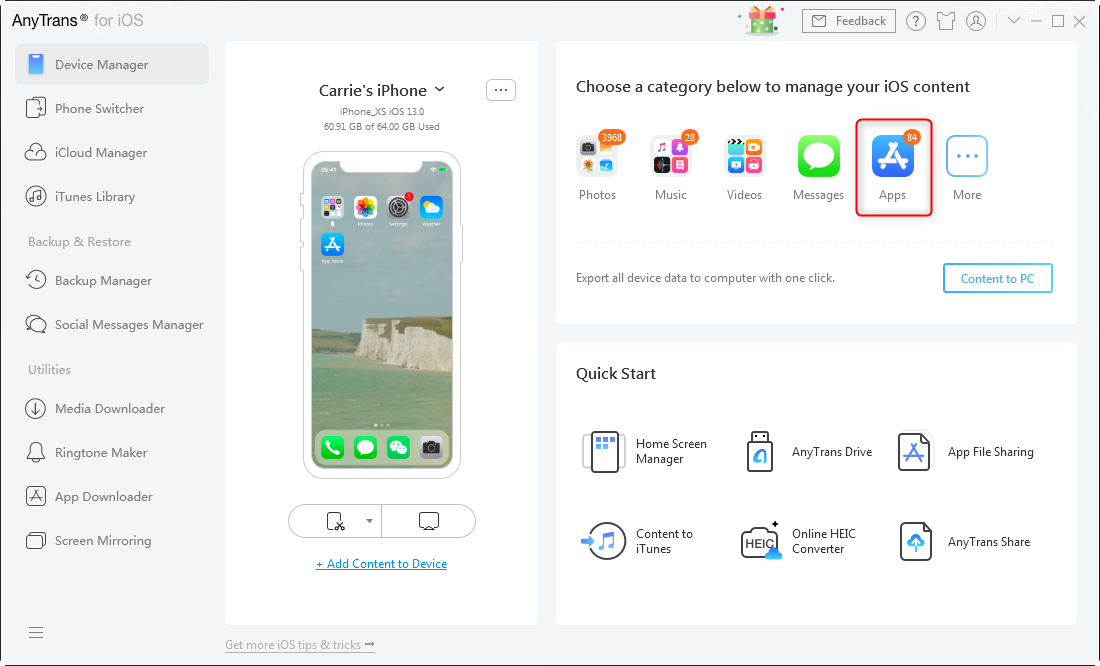
The process with Cydia Impactor is very similar to AltStore and Sideloadly:
- Download and install Cydia Impactor on your computer.
- Connect your iPhone to your computer and trust the computer.
- Drag and drop your
.ipafile into the Cydia Impactor window. - Enter your Apple ID and password when prompted (note: using your primary Apple ID with Cydia Impactor has been a subject of security concerns in the past due to potential data access. Many users opt for a separate, burner Apple ID for this purpose).
- Once the app is installed, you’ll still need to go to
Settings > General > VPN & Device Managementon your iPhone to trust the developer.
Cydia Impactor Considerations:
- Security Concerns: As mentioned, using your primary Apple ID with Cydia Impactor has raised privacy concerns. It’s generally recommended to use a separate Apple ID if you choose this method.
- App Expiration: Similar to AltStore and Sideloadly with free Apple IDs, apps installed with Cydia Impactor will expire after 7 days.
Method 3: Jailbreaking (The Most Flexible, But Riskiest)
Jailbreaking your iPhone removes the software restrictions imposed by Apple, allowing you to install applications and make system-level modifications that are not normally permitted. This includes installing .ipa files directly from various sources, often through package managers like Cydia.
How it Works:
- Jailbreak Your Device: This is the most complex and potentially risky step. Jailbreaking involves exploiting vulnerabilities in iOS to gain root access. The process and available jailbreak tools vary significantly depending on your iPhone model and the iOS version you are running. Reputable jailbreak communities and websites will provide instructions and tools.
- Install a Package Manager: Once jailbroken, you’ll typically install a package manager like Cydia, Sileo, or Zebra.
- Install IPA Files: These package managers often have built-in features or extensions that allow you to browse and install
.ipafiles from various repositories or directly from your device’s storage.
Jailbreaking Considerations:
- Voids Warranty: Jailbreaking your iPhone will void your Apple warranty.
- Security Risks: Jailbroken devices are significantly more vulnerable to malware and security threats. The removal of Apple’s security sandboxing can expose your device and data.
- Instability: Jailbreaking can lead to system instability, app crashes, and battery drain.
- Updates: You will generally not be able to update your iOS version to the latest without potentially losing your jailbreak or needing to wait for a new jailbreak tool to be released.
- Complexity: Jailbreaking is a technically demanding process.
Security and Ethical Considerations: A Crucial Dialogue
While the ability to install .ipa files offers a degree of freedom and flexibility, it’s imperative to discuss the significant security and ethical implications.
Digital Security in the Age of Sideloading
The primary reason Apple maintains a tightly controlled App Store is for user security. Every app submitted undergoes a review process to ensure it adheres to Apple’s guidelines and doesn’t contain malware or malicious code. When you sideload .ipa files from unofficial sources, you bypass this crucial security check.
Risks to Consider:
- Malware and Viruses: Unsigned
.ipafiles could be bundled with malware, spyware, or viruses designed to steal your personal information, track your activity, or even damage your device. - Data Theft: Malicious apps can gain access to your contacts, photos, messages, financial information, and other sensitive data if they are not properly sandboxed or if you grant them excessive permissions.
- Device Compromise: In rare cases, a compromised
.ipafile could exploit vulnerabilities in iOS, potentially leading to a full compromise of your device’s operating system. - Account Compromise: If you use your Apple ID to sign sideloaded apps, there’s a theoretical risk that the signing process could be exploited to gain unauthorized access to your Apple account. This is why using a separate, burner Apple ID for tools like Cydia Impactor is often recommended.
Ethical and Legal Dimensions
- Copyright Infringement: Downloading and installing
.ipafiles of paid applications from unofficial sources constitutes software piracy and is illegal in most jurisdictions. This not only harms developers but also undermines the software industry. - Terms of Service: Sideloading apps outside of Apple’s official channels may violate Apple’s Terms of Service, although enforcement of this for personal use is generally not a primary concern for most users.
Best Practices for Safe Sideloading
If you choose to proceed with installing .ipa files, adhere to these best practices:
- Source Verification: Only download
.ipafiles from trusted and reputable sources. Be extremely wary of random websites or forums. If you’re unsure about a source, do not download from it. - Use Reputable Sideloading Tools: Stick to well-known and actively maintained tools like AltStore and Sideloadly.
- Consider a Burner Apple ID: For tools that require an Apple ID for signing (like Cydia Impactor), consider using a separate Apple ID that doesn’t contain any of your personal or financial information.
- Review App Permissions: After installing a sideloaded app, be vigilant about the permissions it requests. If an app asks for access to things it shouldn’t need (e.g., a simple game asking for access to your contacts), revoke those permissions immediately.
- Regularly Update Your Device: While jailbreaking prevents easy updates, for non-jailbroken devices, keeping your iOS updated is crucial, as updates often patch security vulnerabilities that sideloading tools might otherwise exploit.
- Understand the Risks: Always remember that you are taking on the responsibility for the security of your device when you deviate from Apple’s official app distribution methods.
Conclusion: Empowerment with Responsibility
The ability to install .ipa files on your iPhone opens up a new realm of possibilities for customization, testing, and accessing niche applications. Whether you’re a developer, a tinkerer, or simply curious, understanding these methods can be empowering.
However, with this empowerment comes a significant responsibility. The digital landscape demands vigilance, and deviating from the secure confines of the App Store requires a thorough understanding of the potential risks involved. By choosing reputable tools, sourcing .ipa files cautiously, and remaining aware of the security implications, you can navigate this advanced aspect of iOS management with greater confidence and safety. Remember, the goal is to enhance your device’s capabilities, not to compromise its integrity.