
In today’s digitally driven world, our smartphones are more than just communication devices; they are gateways to a universe of information, entertainment, productivity tools, and social connections. At the heart of this experience lies the ability to seamlessly install and utilize applications. For iOS users, the process of adding new apps to their iPhones and iPads is generally straightforward, thanks to Apple’s intuitive App Store ecosystem. However, understanding the various methods, potential nuances, and best practices can significantly enhance your mobile experience. This guide will walk you through everything you need to know about how to install apps on iOS, from the most common methods to exploring alternative avenues and ensuring your digital security along the way.
The Gateway to Your Digital World: The App Store
The Apple App Store is the primary and most recommended platform for acquiring applications on iOS devices. It’s a curated marketplace where Apple meticulously reviews every app for quality, security, and adherence to its guidelines. This rigorous process ensures a relatively safe and reliable environment for users to discover and download software.
Downloading Apps from the App Store: The Standard Procedure
For the vast majority of users, installing an app is as simple as a few taps.
Finding the App You Want
- Locate the App Store Icon: On your iPhone or iPad’s Home Screen, find the blue icon with a white “A” and a circle. Tap it to open the App Store.
- Navigate the Store: Once inside, you have several options for finding your desired app:
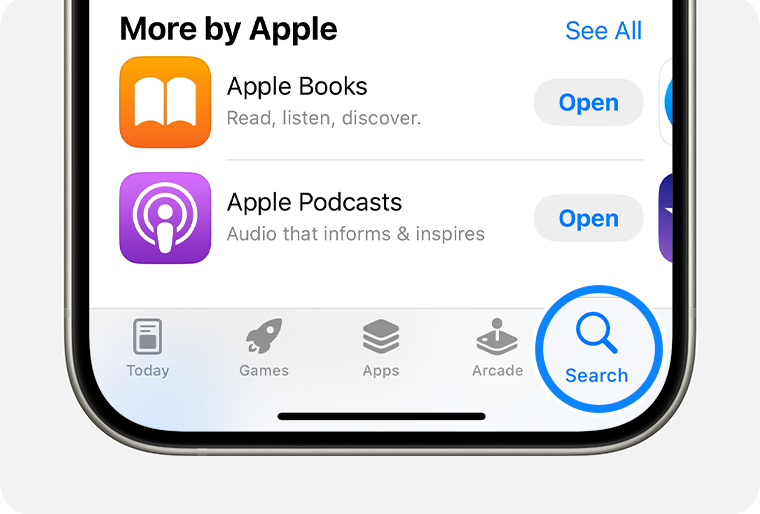
- Search Tab: This is the most direct method. Tap the “Search” tab at the bottom of the screen. In the search bar at the top, type the name of the app you’re looking for. As you type, suggestions may appear.
- Today Tab: This tab features curated content, including app recommendations, developer stories, and new releases. It’s a great place to discover new and trending applications.
- Games and Apps Tabs: These dedicated sections allow you to browse through categories, charts (top free, top paid, grossing), and genres. This is ideal if you’re looking for something specific within a particular category but don’t have a particular app in mind.
Installing the App
Once you’ve found the app, you’ll see its dedicated page with screenshots, a description, user reviews, and developer information.
- Tap the “Get” or Price Button:
- Free Apps: If the app is free, you’ll see a button that says “Get.” Tap this button.
- Paid Apps: If the app requires a purchase, you’ll see its price displayed on the button. Tap the price button.
- Authentication:
- For Free Apps: After tapping “Get,” the button will change to “Install.” Tap it again. You will then be prompted to authenticate your download using Face ID, Touch ID, or your Apple ID password. Follow the on-screen instructions.
- For Paid Apps: After tapping the price button, you will be prompted to confirm your purchase using Face ID, Touch ID, or your Apple ID password.
- Download and Installation: Once authenticated, the app will begin downloading. You’ll see a progress circle around the app icon on your Home Screen, indicating the download status. Once downloaded and installed, the icon will appear on your Home Screen, ready to be opened.
Managing Your App Purchases and Downloads
Apple keeps a record of all the apps you’ve ever downloaded, even those you’ve deleted. This is incredibly useful for re-downloading previously purchased or free apps without having to pay for them again.
Accessing Your Purchased Apps
- Open the App Store.
- Tap your profile icon (your photo or initials) in the top-right corner.
- Under the “Purchased” section, you’ll see two tabs: “All” and “Not on this iPhone/iPad.”
- All: This lists every app you’ve ever acquired with your Apple ID.
- Not on this iPhone/iPad: This shows apps from your purchased history that are not currently installed on your device, making it easy to find and re-download them.
- Tap the cloud icon next to any app you wish to re-download.
Beyond the App Store: Exploring Alternative Installation Methods
While the App Store is the primary and safest way to install apps, there are a few other methods available for specific use cases. These often involve more technical steps and may carry varying degrees of risk.
Installing Apps via Apple Configurator (for Businesses and Education)
Apple Configurator is a free Mac application designed for IT administrators to deploy and manage iOS devices in bulk. While not intended for individual users, it’s worth mentioning as a method for organizations to install apps.
- Purpose: This tool allows administrators to install apps, profiles, and device settings on multiple iPhones and iPads simultaneously.
- Process: It typically involves connecting devices to a Mac, selecting apps to install from the App Store or custom
.ipafiles, and then pushing them to the devices. - Caveats: This method is complex and requires technical expertise. It’s primarily used in enterprise or educational settings for controlled deployments.
Sideloading Apps (Advanced Users and Developers)
Sideloading refers to the process of installing an app on an iOS device that wasn’t downloaded directly from the App Store. This is often done by developers testing their own apps or by users who want to install applications not available on the App Store.
Methods of Sideloading
- Xcode: Developers can use Apple’s integrated development environment, Xcode, to build and install their apps directly onto a connected iPhone or iPad. This requires a Mac and a developer account (free or paid).
- Third-Party Tools: Various third-party tools and services claim to facilitate sideloading. These often involve uploading an
.ipafile (the app package) to a service, which then signs and makes it available for installation on your device. - Enterprise Distribution: Businesses can use Apple’s Enterprise Program to distribute their in-house apps to their employees without going through the App Store.
Risks Associated with Sideloading
- Security Risks: Apps installed from sources other than the App Store have not undergone Apple’s rigorous review process. They could contain malware, spyware, or other malicious code that could compromise your device and personal data.
- Stability Issues: Sideloaded apps may be unstable, crash frequently, or not function as intended.
- Limited Lifespan: Apps sideloaded using non-enterprise methods often have a limited lifespan. Apple’s developer certificates expire, and the apps will stop working until they are re-signed and re-installed.
- Violation of Terms of Service: Sideloading apps from unofficial sources can potentially violate Apple’s terms of service, although enforcement varies.
For the average user, it is strongly recommended to stick to the official App Store for app installations. The risks associated with sideloading are significant and can far outweigh any perceived benefits.
Enhancing Your App Experience: Tips and Best Practices
Once you’ve mastered the installation process, a few tips can help you make the most of your app library.
Organizing Your Apps
As your app collection grows, keeping your Home Screen organized becomes crucial.
- Folders: Grouping similar apps into folders is an effective way to declutter your Home Screen. To create a folder, long-press an app icon until it jiggles, then drag it onto another app icon. You can then name the folder.
- App Library: iOS 14 introduced the App Library, which automatically organizes all your apps into categories and presents them on a separate screen. You can access it by swiping left past your last Home Screen page. You can also hide Home Screen pages to further simplify your interface.
Keeping Your Apps Updated
App updates are vital for several reasons:
- New Features: Developers often release updates with new functionalities and improvements.
- Bug Fixes: Updates address any glitches or bugs found in previous versions, improving app stability.
- Security Patches: Crucially, updates often include security patches that protect your device and data from emerging threats.
Managing App Updates
You can choose to update apps manually or automatically.
- Go to Settings > App Store.
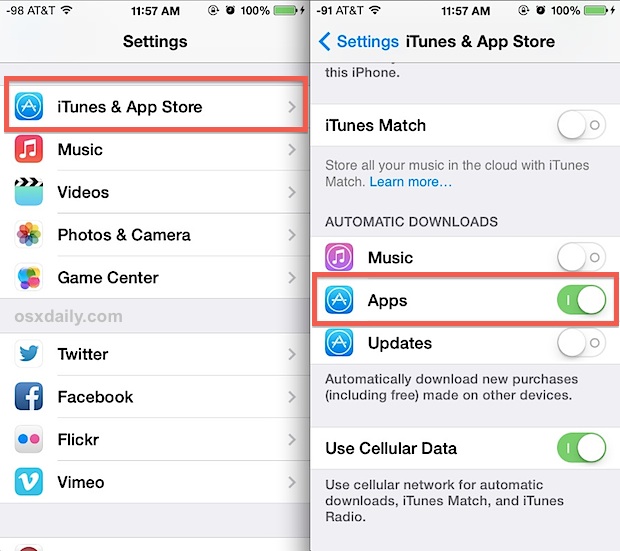
- Under the “Automatic Downloads” section, you’ll find an option for “App Updates.”
- Toggle On: If you want apps to update automatically in the background, turn this option on. This is generally the recommended setting for most users.
- Toggle Off: If you prefer to manually review and approve each update, turn this option off. You will then need to go to the App Store, tap your profile icon, and then tap “Update All” or individual update buttons.
Digital Security and App Permissions
Your apps often require access to various parts of your device, such as your location, camera, microphone, contacts, and more. Managing these permissions is a key aspect of digital security.
Reviewing and Managing App Permissions
- Go to Settings.
- Scroll down to find the list of your installed apps.
- Tap on an individual app.
- Within the app’s settings, you’ll see a list of permissions it has requested. You can toggle these permissions on or off based on your comfort level and the app’s necessity.
- Location Services: Choose “Never,” “Ask Next Time,” “While Using the App,” or “Always.”
- Camera/Microphone: Grant access only if the app truly needs it for its core functionality.
- Contacts: Be cautious about granting access to your contact list unless it’s a messaging or calling app.
The Golden Rule: Only grant permissions that are essential for the app to function as you intend. If an app asks for permissions that seem unnecessary for its purpose, it’s a red flag.

Conclusion
Installing apps on your iOS device is a fundamental aspect of personalizing your digital experience. The App Store provides a secure, efficient, and user-friendly platform for accessing a vast array of applications. By understanding the process of finding, downloading, and managing your apps, you can unlock the full potential of your iPhone or iPad. While alternative installation methods exist, they come with significant security risks and are generally not recommended for the average user. Prioritizing app security by managing permissions and keeping your apps updated will ensure a safe, productive, and enjoyable journey through the ever-evolving world of mobile technology.
aViewFromTheCave is a participant in the Amazon Services LLC Associates Program, an affiliate advertising program designed to provide a means for sites to earn advertising fees by advertising and linking to Amazon.com. Amazon, the Amazon logo, AmazonSupply, and the AmazonSupply logo are trademarks of Amazon.com, Inc. or its affiliates. As an Amazon Associate we earn affiliate commissions from qualifying purchases.