
The arrival of a new iOS version is always a monumental event in the tech world, and iOS 18 is no exception. Promising a fresh wave of innovation, enhanced customization options, and potentially groundbreaking AI features, Apple’s latest operating system is set to redefine the iPhone user experience. From new ways to personalize your home screen and control center to advanced privacy settings and performance improvements, iOS 18 is an upgrade many users are eagerly anticipating. This comprehensive guide will walk you through every step of installing iOS 18, ensuring a smooth and successful transition to Apple’s cutting-edge mobile platform. Whether you’re a seasoned developer, an enthusiastic public beta tester, or patiently awaiting the stable release, understanding the installation process is key to unlocking all that iOS 18 has to offer.

Understanding the iOS 18 Release Cycle
Before you dive into the installation process, it’s crucial to understand the different stages of iOS 18’s release. Apple typically rolls out its new operating systems in a carefully orchestrated sequence, each phase catering to different user groups and serving distinct purposes in the development lifecycle. Knowing which phase you’re in will determine your installation method, the stability of the software, and the potential risks involved.
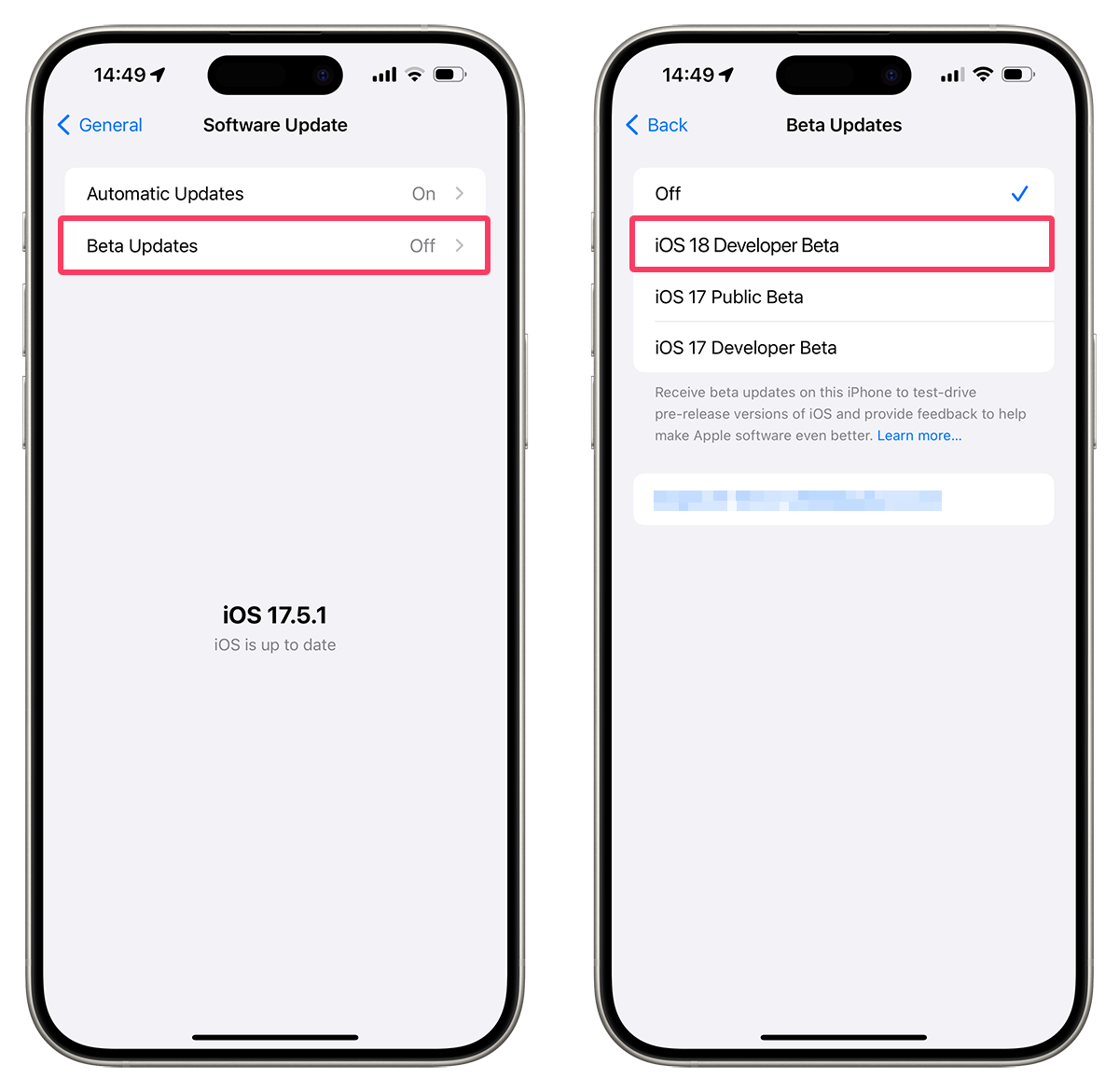
Developer Beta
The developer beta is the very first iteration of iOS 18 released to the public, albeit a select segment. This version is primarily intended for app developers who need early access to the new operating system to test their applications, integrate new APIs, and ensure compatibility. Accessing the developer beta typically requires a paid Apple Developer Program membership. It’s important to note that developer betas are notoriously unstable. They are prone to bugs, performance issues, significant battery drain, and app crashes. For this reason, installing a developer beta on your primary device is strongly discouraged. It’s best suited for secondary devices or testing environments where data loss or operational interruptions are not critical. Installing this version is an act of contributing to the development ecosystem, helping Apple and developers iron out kinks before broader release.
Public Beta
Following a few cycles of the developer beta, Apple releases the public beta. This phase is designed for a wider audience of non-developers who are willing to test pre-release software and provide feedback directly to Apple. The public beta program is free to join and allows enthusiastic users to get a sneak peek at iOS 18’s new features ahead of its official launch. While generally more stable than the initial developer betas, public betas still carry risks. Users might encounter bugs, app incompatibilities, or performance hiccups. However, by this stage, many critical issues identified by developers have often been addressed. Participating in the public beta is a great way for tech enthusiasts to experience new features early and contribute to the final product’s polish, provided they understand and accept the inherent risks of running pre-release software.
Stable Release
The stable release, often referred to as the “general availability” or “official release,” is the final, polished version of iOS 18. This is the version that Apple recommends for the vast majority of iPhone users. It has undergone extensive testing through the developer and public beta phases, with most significant bugs and performance issues resolved. The stable release is designed for maximum stability, security, and performance, offering the best possible user experience. It typically rolls out to all compatible devices simultaneously, usually in the fall, a few months after its initial announcement at WWDC. If you prioritize reliability and a seamless experience, waiting for the stable release is undoubtedly the safest and most recommended approach for updating your iPhone. This version is delivered directly through your device’s settings, making the installation process incredibly straightforward.
Essential Preparations Before Installation
Regardless of which version of iOS 18 you plan to install—developer beta, public beta, or the stable release—thorough preparation is paramount. Skipping these crucial steps can lead to data loss, bricked devices, or frustrating complications. A few minutes spent on preparation can save you hours of troubleshooting and potential heartache.
Check Device Compatibility
The first and most critical step is to verify if your iPhone is compatible with iOS 18. Each new iOS version eventually drops support for older devices as technology progresses and new features demand more powerful hardware. Apple will publish an official list of compatible devices when iOS 18 is announced. Generally, devices that are several generations old might not make the cut. To avoid disappointment or an unsuccessful update, always check Apple’s official compatibility list for iOS 18. You can typically find this information on Apple’s website, in their press releases, or through reputable tech news outlets. Attempting to install iOS 18 on an unsupported device is impossible and can lead to errors.
Back Up Your iPhone
This cannot be stressed enough: Always back up your iPhone before installing a new operating system, especially a beta version. While the stable release is usually reliable, unforeseen issues can occur. Betas are inherently unstable, and there’s a higher chance of data corruption or the need to restore your device. A recent backup ensures that all your precious photos, videos, contacts, messages, app data, and settings are safe and can be restored if anything goes wrong.
There are two primary methods for backing up your iPhone:
- iCloud Backup: Go to
Settings > [Your Name] > iCloud > iCloud Backupand tapBack Up Now. Ensure you have enough iCloud storage. This method is convenient as it can be done wirelessly. - Computer Backup (Finder/iTunes): Connect your iPhone to your Mac (running macOS Catalina or later) and open Finder, or connect it to a PC or older Mac with iTunes. Select your device, choose “Back up all of the data on your iPhone to this Mac” or “This Computer,” and consider encrypting your local backup for security, which also saves passwords and Health data.
Ensure Sufficient Storage & Battery
An iOS update file, especially a major one like iOS 18, can be quite large, often several gigabytes. Your device needs not only enough space to download the update but also additional free space for the installation process itself. Typically, it’s recommended to have at least 10-15 GB of free storage. You can check your available storage by going to Settings > General > iPhone Storage. If you’re low on space, consider offloading unused apps, deleting old photos/videos, or transferring large files to cloud storage.
Additionally, ensure your iPhone has at least 50% battery charge before starting the update. Better yet, connect it to a power source. If your device runs out of battery during the installation, it could lead to a corrupted OS installation, requiring a full restore, which is time-consuming and potentially data-losing if you haven’t backed up.
Stable Wi-Fi Connection

Downloading a large iOS update requires a reliable and strong Wi-Fi connection. Using cellular data for major updates is generally not recommended due to potential data caps and slower speeds, which can lead to incomplete downloads or errors. A stable Wi-Fi connection minimizes the risk of download interruptions, ensuring the update file is downloaded completely and without corruption, which is vital for a successful installation.
Step-by-Step Guide to Installing iOS 18
With your preparations complete, you’re ready to proceed with the installation. The method you use will depend on whether you’re opting for the public beta or the stable official release.
Installing the Public Beta (If Applicable)
If you’re eager to try out iOS 18 early and are comfortable with potential bugs, here’s how to install the public beta:
- Enroll in Apple Beta Software Program: On your iPhone, open Safari and navigate to
beta.apple.com/sp/betaprogram. Tap “Sign Up” or “Enroll Your iOS Device” and sign in with your Apple ID. - Download the Beta Profile: Once enrolled, select “Enroll Your Devices” and then “Install Profile.” Your iPhone will ask for permission to download a configuration profile. Tap “Allow.”
- Install the Profile & Restart: Go to
Settings > Profile Downloaded(it will appear near the top). Tap on it, then tap “Install” in the top right corner. Enter your passcode, agree to the terms, and tap “Install” again. Your iPhone will prompt you to restart; tap “Restart” to proceed. - Check for Software Updates: After your iPhone restarts, go to
Settings > General > Software Update. You should now see the iOS 18 Public Beta available for download. - Download and Install: Tap “Download and Install,” enter your passcode if prompted, and agree to the terms and conditions. The update will download and then prepare for installation. Once ready, tap “Install Now” or allow your device to install overnight. Your iPhone will restart several times during the process.
Installing the Stable Version (Over-the-Air – OTA)
This is the most common and straightforward method for installing the final, stable release of iOS 18 once it’s officially available.
- Open Settings: On your iPhone, tap the “Settings” app icon.
- Navigate to Software Update: Tap on
General, then tap onSoftware Update. - Check for Update: Your iPhone will automatically check for available updates. If iOS 18 is released and available for your device, you will see a notification for it.
- Download and Install: Tap “Download and Install.” If prompted, enter your passcode. You may be asked to agree to Apple’s Terms and Conditions.
- Wait for Installation: The update file will download. This can take some time depending on your internet speed and the size of the update. Once downloaded, your iPhone will prepare the update and then prompt you to “Install Now” or allow you to schedule it for later (e.g., overnight). Tap “Install Now” to begin.
- Restart and Complete: Your iPhone will restart and display an Apple logo with a progress bar. Do not interrupt this process. Once complete, your iPhone will boot up to the Lock Screen, and you’ll be running iOS 18.
Installing via Finder/iTunes (For Stable Version/Troubleshooting)
This method is useful if you’re having trouble updating over-the-air, or if you prefer a wired connection for potentially faster downloads and a more controlled installation process.
- Connect Your iPhone: Connect your iPhone to your Mac (running macOS Catalina or later) using a USB cable. For older Macs or Windows PCs, use iTunes.
- Open Finder/iTunes: On a Mac, open a Finder window. Your iPhone should appear in the sidebar under “Locations.” Click on it. If using iTunes, open iTunes and click on the iPhone icon near the top left.
- Select Device and Check for Update: In Finder, click on “General.” In iTunes, click “Summary.” You will see information about your iPhone.
- Update Your iPhone: Click on “Check for Update.” If iOS 18 is available, click “Download and Update.”
- Follow Prompts: Agree to any terms and conditions, and allow Finder/iTunes to download and install iOS 18. Your iPhone may restart during the process. Keep your device connected until the update is fully complete and your iPhone has restarted to the Lock Screen.
Post-Installation Tips & Troubleshooting
Congratulations on successfully installing iOS 18! The journey doesn’t end with the installation; there are a few things to consider afterward to optimize your experience.
Explore New Features
Once your iPhone is running iOS 18, take some time to explore all the new features and enhancements. Dive into the updated Settings app, experiment with the new customization options, test out any new AI functionalities, and see how your favorite apps behave. Apple typically provides a “Welcome to iOS 18” splash screen after the update, highlighting some of the key changes. Don’t be afraid to experiment and discover how these new tools can enhance your daily digital life. Read reviews and tutorials (like those often found on tech websites under “Technology Trends” and “Apps”) to get the most out of the new OS.
Address Common Issues
Especially if you’ve installed a beta version, you might encounter some common issues:
- Battery Drain: Beta versions are often not optimized for power efficiency. If you experience significant battery drain, it’s a common occurrence. Check for app updates, reduce background app refresh, and ensure low power mode is off (unless you need it).
- App Crashes/Incompatibility: Some apps might not yet be fully compatible with iOS 18, particularly during the beta phase. If an app frequently crashes, check the App Store for updates or contact the developer.
- Performance Lags: Your iPhone might feel slower initially as the system re-indexes files and optimizes. If performance issues persist, a restart often helps. For betas, remember to submit feedback to Apple through the Feedback Assistant app.
- Storage Space: After installation, ensure you still have adequate free space. The system might perform some post-update tasks that temporarily consume more space.
Downgrading (Beta Users Only)
If you installed an iOS 18 beta and find it too unstable or buggy for daily use, it is generally possible to downgrade to the previous stable iOS version (e.g., iOS 17) for a limited time. However, this process is more complex and typically requires connecting your iPhone to a computer and restoring from a backup. Crucially, you can only restore from a backup made on the previous iOS version. If your only backup was made while running iOS 18 beta, you won’t be able to restore all your data on iOS 17. This underscores the importance of backing up before installing any beta. Always consult Apple’s official documentation or reliable tech guides for the precise downgrade procedure, as it can be tricky.
In conclusion, installing iOS 18 is an exciting step towards leveraging Apple’s latest technological advancements. By understanding the release cycle, diligently preparing your device, and following the installation instructions carefully, you can ensure a seamless update process. Enjoy exploring the innovations and enhanced capabilities that iOS 18 brings to your iPhone, making your digital experience more intuitive, powerful, and personalized than ever before.
aViewFromTheCave is a participant in the Amazon Services LLC Associates Program, an affiliate advertising program designed to provide a means for sites to earn advertising fees by advertising and linking to Amazon.com. Amazon, the Amazon logo, AmazonSupply, and the AmazonSupply logo are trademarks of Amazon.com, Inc. or its affiliates. As an Amazon Associate we earn affiliate commissions from qualifying purchases.