
In an increasingly interconnected digital world, choosing the right web browser isn’t merely a matter of preference; it’s a strategic decision that impacts your productivity, digital security, and even your personal brand online. Among the myriad options available, Mozilla Firefox consistently stands out for its unwavering commitment to user privacy, robust performance, and extensive customization capabilities. This guide will walk you through the entire process of installing Firefox, from understanding its benefits to troubleshooting common issues, while also exploring how this open-source browser aligns with modern technology trends, brand strategies, and even your financial well-being.
Why Choose Firefox? A Deep Dive into its Tech and Brand Appeal
Before diving into the mechanics of installation, it’s essential to understand why Firefox merits your consideration. In a landscape dominated by tech giants, Firefox, developed by the non-profit Mozilla Foundation, carves out a unique niche through its core values and technological prowess.
Unpacking Firefox’s Technological Edge: Performance, Privacy, and Open Source Innovation
From a technological standpoint, Firefox is a powerhouse. It consistently evolves to meet the demands of modern web browsing, focusing on speed, efficiency, and cutting-edge security features.
- Performance and Efficiency: Firefox’s Quantum engine was a revolutionary step, significantly boosting its speed and reducing memory usage compared to previous versions. This means faster page loads, smoother multitasking, and a more responsive browsing experience, which directly contributes to productivity. For professionals relying on numerous tabs and web-based applications, this efficiency translates into valuable time saved and a smoother workflow.
- Unrivaled Privacy and Digital Security: In an era where data privacy is paramount, Firefox positions itself as a champion of user rights. Its Enhanced Tracking Protection (ETP) automatically blocks a vast network of third-party trackers, cryptominers, and fingerprinters, ensuring your online activity remains more private. Furthermore, features like DNS over HTTPS (DoH) encrypt your DNS queries, making it harder for ISPs and malicious actors to snoop on your browsing habits. This dedication to digital security aligns perfectly with contemporary tech trends that prioritize user control and data protection. Firefox also frequently incorporates new security updates and patches, reflecting a proactive approach to evolving cyber threats, a crucial aspect for any individual or business dealing with sensitive online information.
- Open-Source Philosophy and Community Strength: As an open-source project, Firefox benefits from the scrutiny and contributions of a global community of developers. This transparency means that its code is publicly auditable, fostering trust and security that proprietary browsers might struggle to match. The open-source model also promotes innovation, allowing for a diverse ecosystem of add-ons and extensions that enhance functionality, productivity, and customization options. This community-driven development is a testament to the power of collaborative technology.
- Cross-Platform Compatibility: Firefox seamlessly operates across various operating systems—Windows, macOS, Linux, Android, and iOS—ensuring a consistent browsing experience whether you’re at your desktop or on the go. This cross-platform availability is crucial for individuals and teams who utilize diverse hardware environments.
The Brand Promise: Trust, Security, and User Empowerment
Beyond its technical specifications, Firefox has cultivated a strong brand identity rooted in trust, ethics, and user empowerment.
- A Brand Built on Trust: Mozilla, the organization behind Firefox, operates as a non-profit dedicated to an open internet. This foundational principle differentiates Firefox from browsers developed by advertising-driven corporations. Choosing Firefox isn’t just selecting software; it’s aligning with a brand that champions an open, accessible, and user-controlled internet experience. This ethical stance resonates with a growing number of users who are disillusioned with intrusive data collection practices.
- Personal Branding and Digital Identity: For individuals conscious of their digital footprint, choosing Firefox can be an extension of their personal brand—one that values privacy, security, and open principles. Customization options, from themes to extensive add-ons, allow users to tailor their browsing environment to reflect their individual workflow and aesthetic preferences, further solidifying their unique digital identity.
- Championing Internet Health: Firefox’s brand narrative extends to broader internet health. Mozilla actively advocates for policies that promote privacy, net neutrality, and a decentralized web. By using Firefox, you indirectly support these initiatives, contributing to a healthier and more democratic internet ecosystem. This brand strategy appeals to users who see their software choices as a statement about their values.
Preparing for Installation: Essential Checks
Before you begin the installation process, a few preliminary checks can ensure a smooth and hassle-free experience. These steps are crucial for maintaining digital security and optimizing performance, both key considerations in the tech sphere.
Verifying System Compatibility: Meeting the Minimum Requirements
While Firefox is designed to be lightweight and efficient, your system still needs to meet certain minimum requirements for optimal performance. Checking these beforehand can prevent installation errors or a sluggish browsing experience.
- Operating System: Ensure your operating system is up to date. For Windows, Firefox typically supports Windows 7, 8, 10, and 11. For macOS, recent versions are usually supported, often N-2 (current and two previous major versions). For Linux, modern distributions with specific libraries are required. Refer to the official Mozilla support page for the most current compatibility list. Running an outdated OS can pose security risks and may prevent Firefox from installing or running correctly.
- Hardware Specifications: While Firefox isn’t resource-intensive, having adequate RAM (e.g., 2GB or more) and a reasonably modern processor will ensure smooth operation, especially with multiple tabs or demanding web applications.
- Disk Space: Firefox requires a modest amount of disk space, typically a few hundred megabytes for the core application, plus additional space for your profile data (bookmarks, history, cache). Ensure you have sufficient free space to accommodate the installation and future updates.
Downloading the Official Firefox Installer: A Digital Security Imperative
One of the most critical steps in any software installation is ensuring you download the legitimate version from an official source. This is paramount for digital security and avoiding malware or compromised software.
- Always Use the Official Mozilla Website: To prevent downloading counterfeit or malicious software, always navigate directly to the official Mozilla Firefox website (mozilla.org/firefox). Avoid third-party download sites, software aggregators, or unofficial links that might bundle unwanted software or contain viruses.
- Choose the Correct Version: The website will usually auto-detect your operating system and recommend the appropriate installer (e.g., 64-bit Windows, macOS). Double-check that you’re downloading the correct language and architecture for your system.
- Verify HTTPS Connection: Before downloading, ensure the website uses an HTTPS connection (indicated by a padlock icon in your browser’s address bar) to guarantee a secure download channel. This is a basic but vital security check for any online transaction or download.
Step-by-Step Installation Across Platforms
Once you’ve completed your preparatory checks and downloaded the official installer, the installation process is straightforward across different operating systems.
Installing Firefox on Windows
The installation process on Windows is designed to be user-friendly, typically involving a few clicks.
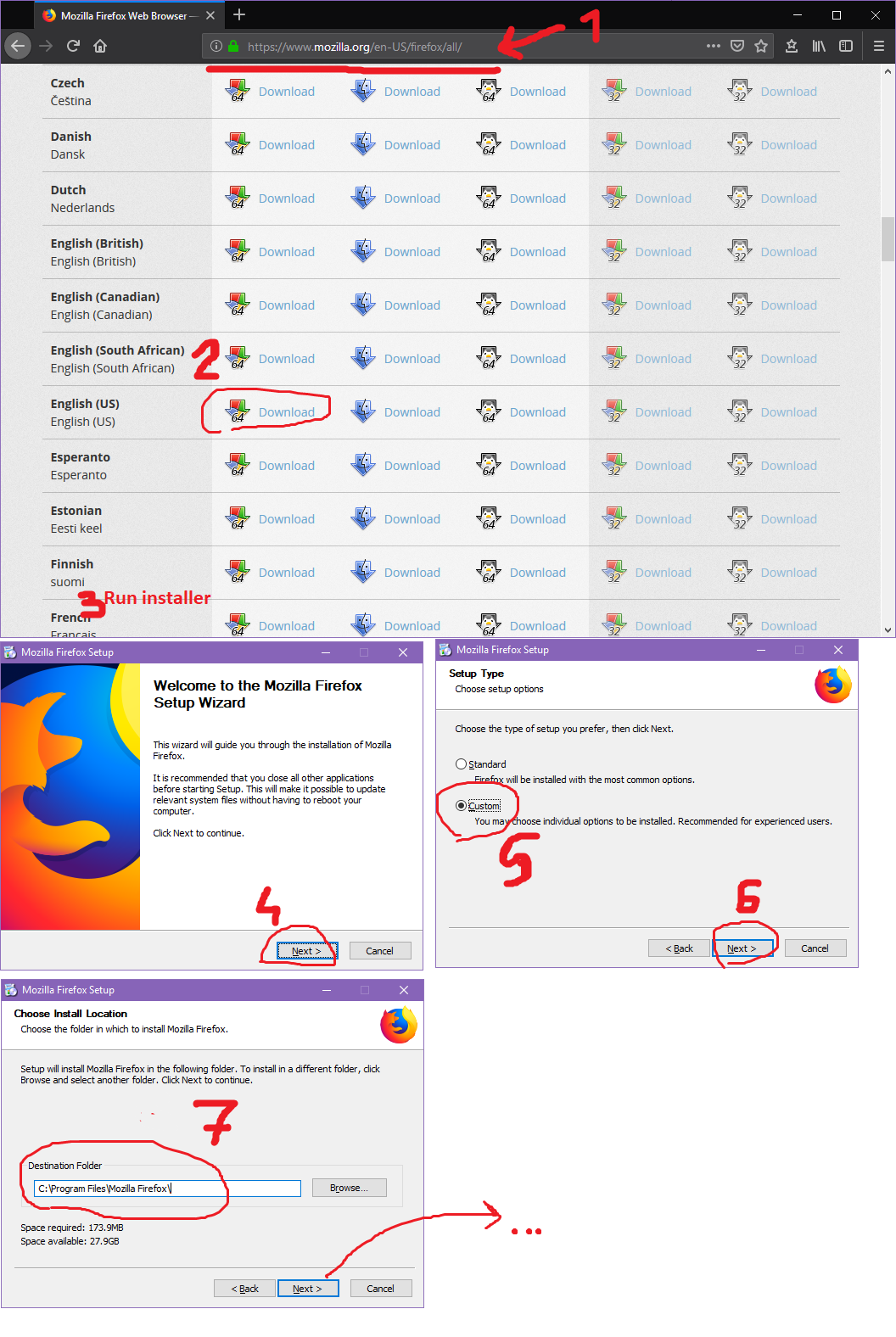
- Locate the Installer: Open the “Downloads” folder or the location where you saved the Firefox installer file (e.g.,
Firefox Installer.exe). - Run the Installer: Double-click the installer file. Windows User Account Control (UAC) might ask for permission to allow the app to make changes to your device; click “Yes” to proceed.
- Choose Installation Type (Optional):
- Standard Installation (Recommended): The installer will automatically select the default settings and install Firefox in the standard program files directory. This is usually the best option for most users.
- Custom Installation: If you prefer to change the installation directory, create desktop shortcuts, or configure other advanced options, select “Custom” and follow the on-screen prompts. For most users, the standard installation is sufficient and recommended.
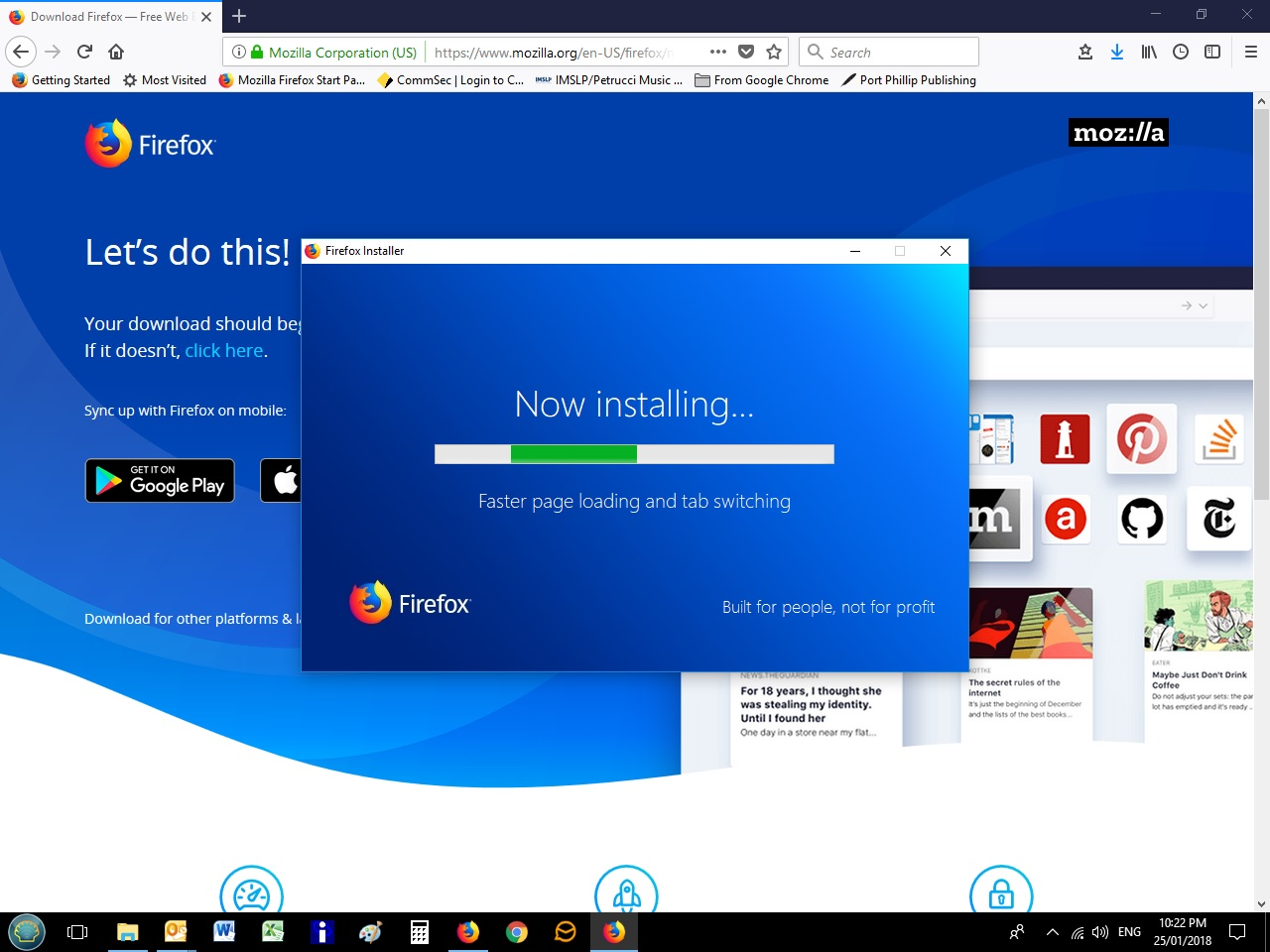
- Complete Installation: The installer will copy the necessary files to your computer. This process usually takes only a minute or two. Once finished, a confirmation message will appear.
- Launch Firefox: You can typically launch Firefox immediately by checking the “Launch Firefox now” box and clicking “Finish.” A desktop shortcut might also be created for easy access.
Installing Firefox on macOS
Installing Firefox on a Mac is often a simple drag-and-drop operation.
- Download the DMG File: After downloading the
.dmgfile from the official Firefox website, locate it in your “Downloads” folder. - Open the DMG File: Double-click the
Firefox.dmgfile. This will mount a virtual disk image and open a new Finder window showing the Firefox application icon and an “Applications” folder alias. - Drag to Applications: Drag the “Firefox” application icon directly into the “Applications” folder alias displayed in the window. This copies Firefox to your applications folder.
- Eject the Disk Image: Once the copy process is complete, drag the “Firefox” disk image icon from your desktop or the Finder sidebar to the Trash (which will change to an eject symbol). This unmounts the disk image.
- Launch Firefox: Open your “Applications” folder and double-click the Firefox icon. The first time you launch it, macOS might ask you to confirm that you want to open an application downloaded from the internet; click “Open.”
Installing Firefox on Linux (Via Package Manager or Tarball)
Linux users often have multiple ways to install software, either through their distribution’s package manager or directly from a tarball.
Method 1: Using Your Distribution’s Package Manager (Recommended)
This is the preferred method for most Linux users as it ensures Firefox is kept up-to-date with system updates and is fully integrated with your distribution.

- Debian/Ubuntu/Linux Mint (APT):
- Open a terminal.
- Update your package list:
sudo apt update - Install Firefox:
sudo apt install firefox
- Fedora/CentOS/RHEL (DNF):
- Open a terminal.
- Install Firefox:
sudo dnf install firefox
- Arch Linux (Pacman):
- Open a terminal.
- Install Firefox:
sudo pacman -S firefox
Method 2: Installing from a Tarball (for Advanced Users or Specific Versions)
This method provides the latest version directly from Mozilla, often before it hits distribution repositories.
- Download the Tarball: Go to the official Mozilla Firefox download page and download the Linux tarball (
.tar.bz2file). - Extract the Archive: Open a terminal and navigate to your Downloads folder.
cd ~/Downloadstar xjf firefox-*.tar.bz2(Replacefirefox-*.tar.bz2with the actual filename)
- Move to an Optimal Location: It’s good practice to move the extracted folder to
/optor~/.local/optfor system-wide or local installation, respectively.- For system-wide:
sudo mv firefox /opt - For local user:
mv firefox ~/.local/opt
- For system-wide:
- Create a Symbolic Link (Optional, for easy execution):
sudo ln -s /opt/firefox/firefox /usr/local/bin/firefox
- Create a Desktop Entry (Optional, for GUI integration): You’ll need to manually create a
.desktopfile for it to appear in your application menu.sudo nano /usr/share/applications/firefox.desktop- Paste the following (adjust
ExecandIconpaths if you installed locally):
[Desktop Entry]

Name=Firefox

Comment=Web Browser

Exec=/opt/firefox/firefox %u

Terminal=false

Icon=/opt/firefox/browser/chrome/icons/default/default128.png

Type=Application

Categories=Network;WebBrowser;
- Save and exit (
Ctrl+X,Y,Enterin nano).
Post-Installation & Optimization: Maximizing Your Firefox Experience
Installing Firefox is just the first step. To truly leverage its capabilities and align it with your digital strategy, some post-installation steps and optimizations are highly recommended.
Initial Setup and Customization: Personalizing Your Productivity Hub
Firefox offers extensive customization options, allowing you to tailor the browser to enhance your productivity and reflect your personal branding.
- Import Data: The first time you launch Firefox, it might offer to import bookmarks, passwords, and history from your previous browser. This makes the transition seamless.
- Sync Your Devices: Sign in with a Firefox Account to synchronize your bookmarks, history, passwords, and open tabs across all your devices (desktop, laptop, phone). This not only enhances productivity but also ensures consistency in your digital workflow.
- Customize Your Interface:
- Themes: Change the look and feel with built-in dark/light themes or explore thousands of user-created themes.
- Toolbar: Right-click the toolbar to customize its layout, adding or removing buttons for frequently used features.
- New Tab Page: Configure the new tab page to display top sites, Pocket recommendations, or a blank page.
- Add-ons and Extensions: Firefox’s add-on ecosystem is vast, offering tools for almost any need.
- Productivity: Install extensions for password management (e.g., LastPass, Bitwarden), ad blocking (uBlock Origin), note-taking (Evernote Web Clipper), or grammar checking (Grammarly).
- Security & Privacy: Consider extensions like Privacy Badger, Decentraleyes, or HTTPS Everywhere to further enhance your digital security posture.
- Development Tools: Web developers will appreciate a wide array of extensions for debugging and inspection. Choose add-ons wisely from the official Mozilla Add-ons store to ensure security and compatibility.
Enhancing Digital Security and Privacy Settings
While Firefox has strong default privacy settings, you can further harden your browser for maximum digital security.
- Enhanced Tracking Protection (ETP): Ensure ETP is set to “Strict” for the highest level of protection against trackers. Go to
Settings > Privacy & Securityto adjust this. - Enable DNS over HTTPS (DoH): This encrypts your DNS queries, preventing third parties from seeing which websites you’re trying to access. Enable it in
Settings > General > Network Settings. - Firefox Monitor: Sign up for Firefox Monitor, a free service that alerts you if your email address has been compromised in a data breach, helping you manage your digital security proactively.
- Firefox Relay: Utilize Firefox Relay to create email aliases, protecting your real email address from spam and potential data breaches, a clever tool for online privacy and brand protection.
- Password Management: Use Firefox’s built-in password manager (Firefox Lockwise) or integrate a third-party password manager to securely store and generate strong, unique passwords.
Keeping Firefox Updated for Peak Performance
Regular updates are crucial not only for accessing new features and performance improvements but, critically, for digital security.
- Automatic Updates: By default, Firefox is configured to update automatically. It’s essential to keep this enabled to ensure you always have the latest security patches and features. You can check your update status via
Help > About Firefox. - Why Updates Matter: Each update often includes fixes for newly discovered vulnerabilities, protecting you from emerging cyber threats. They also bring performance enhancements and compatibility improvements, keeping your browser fast and stable, aligning with the “Tech Trends” aspect of efficient software.
Beyond Installation: The Financial and Productivity Benefits of a Smart Browser Choice
The decision to install and optimize Firefox extends beyond mere browsing convenience; it taps into broader themes of personal finance, online income generation, and business efficiency.
Boosting Productivity and Workflow: A Direct Path to Value
An efficient and secure browser is an indispensable tool for productivity, directly impacting how you manage your time and, by extension, your financial potential.
- Streamlined Workflows: With a tailored Firefox setup—customized interface, essential extensions, and synced data—you create a highly efficient workflow. Less time spent navigating a cluttered interface or dealing with slow page loads means more time focused on income-generating activities or personal projects.
- Focus and Reduced Distractions: Ad blockers and anti-tracking features aren’t just for privacy; they significantly reduce visual clutter and digital noise. This creates a less distracting browsing environment, allowing for deeper concentration on tasks, research, or online learning—all of which contribute to skill development and potential earning capacity.
- Reliable for Online Income and Side Hustles: Whether you’re managing an e-commerce store, freelancing, engaging in online trading, or pursuing a side hustle, a stable, secure, and fast browser like Firefox is critical. It provides the reliable platform needed for secure transactions, uninterrupted research, and efficient communication, safeguarding your online income streams.
The “Money” Aspect: Cost-Benefit Analysis and Open-Source Value
While Firefox is free in monetary terms, its value proposition extends significantly into financial benefits, often overlooked.
- Reduced Risk of Financial Loss: Strong digital security and privacy features, like Enhanced Tracking Protection and built-in phishing protection, are crucial for online financial transactions. By minimizing the risk of malware, phishing scams, or identity theft, Firefox indirectly protects your personal finance and investments. A breach can lead to significant financial and emotional costs.
- Value of Open Source (No Licensing Costs): As an open-source project, Firefox comes with no licensing fees. For businesses or individuals on a budget, this represents direct savings compared to proprietary software that might offer similar, though often less privacy-focused, functionality. The community support also provides a “free” knowledge base for troubleshooting.
- Longevity and Future-Proofing: Mozilla’s commitment to an open internet and continuous development means Firefox is a long-term, sustainable choice. You invest your time in learning an ecosystem that is less likely to be bought out, shut down, or dramatically change its privacy policies overnight, providing stability for your digital infrastructure and avoiding future migration costs.
Troubleshooting Common Installation Issues & FAQs
Even with careful preparation, occasional issues can arise. Here’s how to address some common problems and frequently asked questions.
Addressing Installation Errors
- “Firefox is already running” error: If you see this, ensure all Firefox processes are closed. On Windows, open Task Manager (Ctrl+Shift+Esc), go to the “Processes” tab, look for “firefox.exe” and “firefox.exe *32”, select them, and click “End task.” On macOS, use Activity Monitor.
- “Corrupt Installer” error: The downloaded installer might be incomplete or corrupted. Delete the existing installer file and download a fresh copy from the official Mozilla website.
- Insufficient Permissions: Ensure you have administrator rights on your computer to install software. On Windows, right-click the installer and select “Run as administrator.” On macOS, you might need to enter your admin password.
- Antivirus/Firewall Interference: Temporarily disable your antivirus or firewall software during installation if you suspect it’s blocking the process. Remember to re-enable it immediately after installation is complete.
- Compatibility Issues: Double-check your system requirements against Firefox’s official support page. An outdated operating system can cause problems.
Frequently Asked Questions
- Can I have multiple browsers installed? Yes, you can install Firefox alongside Chrome, Edge, Safari, or other browsers without conflict.
- How do I make Firefox my default browser? After installation, Firefox usually prompts you to set it as the default. If not, you can do so in Firefox’s settings (
Settings > General > Startup) or through your operating system’s default app settings. - What if I want to uninstall Firefox?
- Windows: Go to
Settings > Apps > Apps & features, find “Mozilla Firefox,” click it, and select “Uninstall.” - macOS: Drag the Firefox application from your “Applications” folder to the Trash.
- Linux (Package Manager): Use your package manager (e.g.,
sudo apt remove firefox).
- Windows: Go to
- Is Firefox truly free? Yes, Firefox is 100% free to download and use. It’s developed by the non-profit Mozilla Foundation, which is supported by donations, search engine partnerships, and other ventures.
In conclusion, installing Firefox is a straightforward process that opens the door to a more private, secure, and customizable browsing experience. By understanding its technological advantages, aligning with its brand values, and leveraging its features for enhanced productivity and digital security, you’re not just installing a browser—you’re making a strategic choice for a better, more empowered digital life that resonates across technology, personal brand, and even financial well-being.
aViewFromTheCave is a participant in the Amazon Services LLC Associates Program, an affiliate advertising program designed to provide a means for sites to earn advertising fees by advertising and linking to Amazon.com. Amazon, the Amazon logo, AmazonSupply, and the AmazonSupply logo are trademarks of Amazon.com, Inc. or its affiliates. As an Amazon Associate we earn affiliate commissions from qualifying purchases.