
Fallout 4, even years after its initial release, remains a beloved title for its expansive open world, compelling narrative, and deep role-playing elements. While Bethesda’s creation offers a rich experience, its graphical fidelity, particularly in certain lighting conditions and environments, can feel dated compared to contemporary titles. This is where ENBSeries, a powerful post-processing mod, steps in. For many PC gamers, ENB isn’t just an option; it’s a transformative necessity, capable of dramatically elevating Fallout 4’s visuals from gritty to gorgeous, adding layers of realism, atmosphere, and stylistic flair that fundamentally change the game’s aesthetic.

However, the installation and configuration of ENB can appear daunting to the uninitiated. It involves more than just dragging and dropping files; it requires a nuanced understanding of its components, careful adherence to steps, and often, a degree of troubleshooting. This comprehensive guide aims to demystify the process, providing a professional, insightful, and engaging walkthrough for both seasoned modders and those new to the world of advanced game modification. By adhering strictly to the Tech niche, we will explore ENB’s technical underpinnings, guide you through a meticulous installation, and empower you to customize your Fallout 4 experience to unprecedented visual heights.
Demystifying ENBSeries and Its Impact on Fallout 4
Before diving into the practical steps, it’s crucial to understand what ENBSeries is and why it has become an indispensable tool for enhancing games like Fallout 4. This foundational knowledge will not only help in the installation but also in troubleshooting and optimizing your visual setup.
What is ENBSeries?
ENBSeries, often simply referred to as ENB, is a sophisticated graphical modification library developed by Boris Vorontsov. Unlike traditional game mods that alter assets or scripts, ENB functions as a post-processing injector. This means it intercepts the rendering pipeline of a game and injects its own shaders and rendering techniques after the game has rendered its frames but before they are displayed on your monitor. This allows ENB to apply a wide array of advanced graphical effects that are either not present in the base game or are implemented in a less sophisticated manner.
Key effects typically managed by ENB include:
-
Customizable Lighting: Reworking ambient lighting, direct sunlight, and interior illumination to create more realistic or dramatic scenes.
-
Advanced Bloom and Lens Flare: Enhancing light sources and reflections for greater visual impact.
-
Screen Space Ambient Occlusion (SSAO) and Screen Space Reflection (SSR): Adding depth through realistic shadowing and reflections that interact dynamically with the environment.
-
Depth of Field (DoF): Creating a cinematic blur effect that focuses on specific elements, mimicking camera lenses.
-
Color Correction and Grading: Altering the game’s overall color palette, contrast, and saturation to achieve a specific mood or artistic vision.
-
Subsurface Scattering (SSS): Simulating how light penetrates and scatters beneath the surface of translucent objects, like skin, for more lifelike character models.
-
Parallax Occlusion Mapping (POM): Enhancing texture detail and depth on flat surfaces.
The true power of ENB lies in its highly configurable nature, enabling mod authors to create “presets” – bundles of settings and custom shaders – that drastically alter a game’s look. For Fallout 4, these presets range from hyper-realistic renditions to vibrant, fantasy-like aesthetics or even gritty, post-apocalyptic visions.
Why Use ENB in Fallout 4?
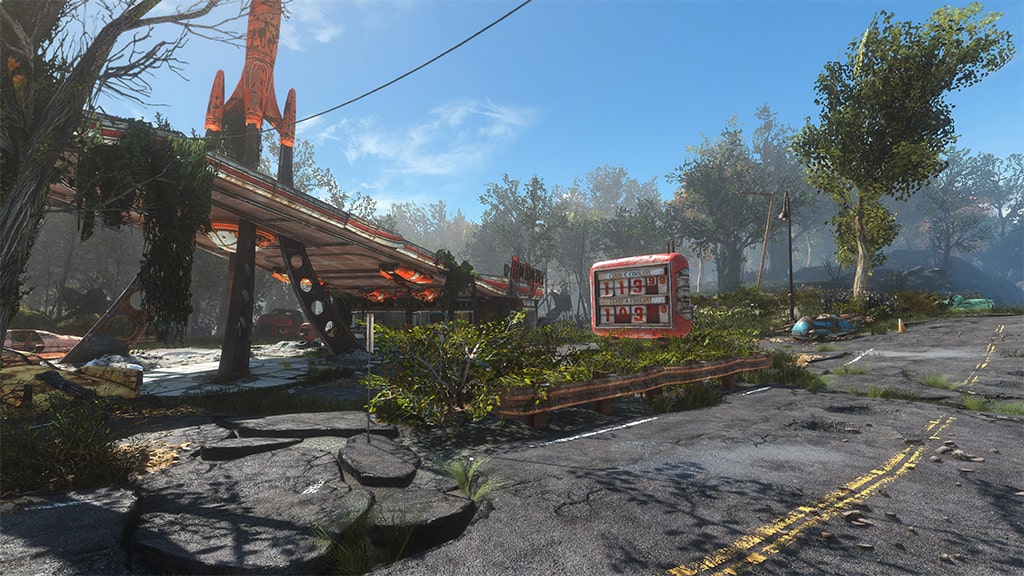
The primary motivation for installing ENB in Fallout 4 is to achieve a superior visual experience. While the base game looks decent, an ENB preset can transform it, making the Commonwealth feel more immersive, atmospheric, and visually stunning.
-
Enhanced Realism: Many presets aim for photographic realism, correcting Fallout 4’s often washed-out or oversaturated default lighting and colors.
-
Atmospheric Immersion: Specific presets can amplify the game’s post-apocalyptic atmosphere, making irradiated zones feel more desolate, nights darker and more terrifying, or sunny days more vibrant.
-
Artistic Vision: ENB allows players to align the game’s visuals with their personal artistic preferences, whether it’s a dark fantasy style, a vibrant comic book look, or a gritty cinematic feel.
-
Complementary to Other Mods: ENB integrates seamlessly with high-resolution texture packs, weather mods, and lighting overhauls, acting as the final polish that brings all these visual enhancements together.
Understanding Performance Implications
It’s crucial to address the elephant in the room: performance. ENBSeries is a demanding post-processing suite. Implementing complex shaders and real-time effects requires significant GPU horsepower. While the visual gains are undeniable, they come at a cost to your frame rate. The degree of performance impact depends heavily on:
-
Your Hardware: A powerful graphics card (e.g., NVIDIA RTX series, AMD Radeon RX series) is highly recommended.
-
The Chosen Preset: Some presets are “lighter” and focus on core improvements, while “heavy” presets incorporate every possible effect, leading to larger performance drops.
-
In-Game Settings: Reducing other demanding in-game settings (shadow quality, godrays, distant object detail) can help reclaim frames lost to ENB.
Before proceeding, ensure your system meets at least the recommended specifications for Fallout 4 and ideally exceeds them, especially your GPU. Be prepared for potential frame rate dips, and understand that some optimization might be necessary after installation.
Essential Preparations Before Installation
A smooth ENB installation begins long before you download any files. Proper preparation is key to avoiding common pitfalls and ensuring compatibility. This section outlines the critical steps you must take to set the stage for a successful visual overhaul.
System Requirements and Game Version
First, confirm your system meets Fallout 4’s recommended specifications, particularly for your graphics card. For ENB, aiming higher than the official recommendations is advisable. Ensure your Fallout 4 game is fully updated to the latest version. ENB binaries are developed for specific game executables, and an outdated game version can lead to crashes or non-functionality. Also, ensure your game is installed on an SSD for faster loading times, which becomes more noticeable with extensive modding.
Graphics Driver Readiness
Your graphics drivers are the interface between your operating system and your GPU. Outdated or corrupted drivers are a frequent cause of instability, especially when introducing advanced graphical modifications like ENB.
-
Update Drivers: Always download and install the latest stable graphics drivers directly from NVIDIA or AMD’s official websites. Do not rely solely on Windows Update.
-
Clean Installation (Recommended): When updating, consider performing a “clean installation” using the driver installer’s options. This removes old driver components and can prevent conflicts.
-
Disable GeForce Experience Overlay (NVIDIA): For NVIDIA users, the in-game overlay from GeForce Experience can sometimes conflict with ENB. It’s often recommended to disable it for stability. Similar overlays from other software should also be considered for disabling.
Mod Managers and Load Order (Briefly)
While ENB itself isn’t managed by traditional mod managers like Vortex or Mod Organizer 2, these tools are indispensable for managing other Fallout 4 mods. If you’re already using a heavily modded setup, ensure it’s stable before adding ENB. ENB typically interacts best with a clean, stable base game. If you plan to use lighting or weather mods, check their compatibility with your chosen ENB preset, as many presets are designed to complement specific weather/lighting overhauls.
Backup Your Game Files
This step cannot be overstressed. Before modifying your game’s core directory, create a backup of essential files. While ENB files are often easy to remove, having backups provides peace of mind.
-
Fallout4.exe: The game’s executable. -
Fallout4Launcher.exe: The game’s launcher. -
Fallout4_Default.iniandFallout4Prefs.ini: These configuration files are crucial and may need modifications or restoration. -
Your save files: Although ENB doesn’t typically corrupt saves, it’s always wise to back them up (usually located in
DocumentsMy GamesFallout4Saves).
A simple way to back up is to copy these files to a separate folder on your desktop.
The Step-by-Step ENB Installation Process
With preparations complete, you’re ready to embark on the core installation. This process involves two main components: the ENBSeries binaries (the engine itself) and an ENB preset (the specific configuration and shaders).
Downloading the ENBSeries Binaries
-
Visit the Official ENBDev Website: Navigate to
enbdev.com. This is the only official source for the ENBSeries core files. -
Locate Fallout 4: On the left-hand menu, find and click on “Fallout 4.”
-
Download the Latest Binary: Scroll to the bottom of the Fallout 4 page. You’ll see a link to “Download” the latest version (e.g.,
enbseries_fallout4_vXXX.zip). Click this link. -
Extract the Files: Open the downloaded ZIP file. Inside, you’ll find a folder named
WrapperVersionandInjectorVersion. For most users, theWrapperVersionis preferred as it’s simpler and more stable. -
Identify Core Files: From the
WrapperVersionfolder, extract the following files:-
d3d11.dll -
d3dcompiler_46e.dll(or similar, depending on ENB version)
These are the absolute minimum files required for ENB to function.
-
Selecting and Downloading an ENB Preset
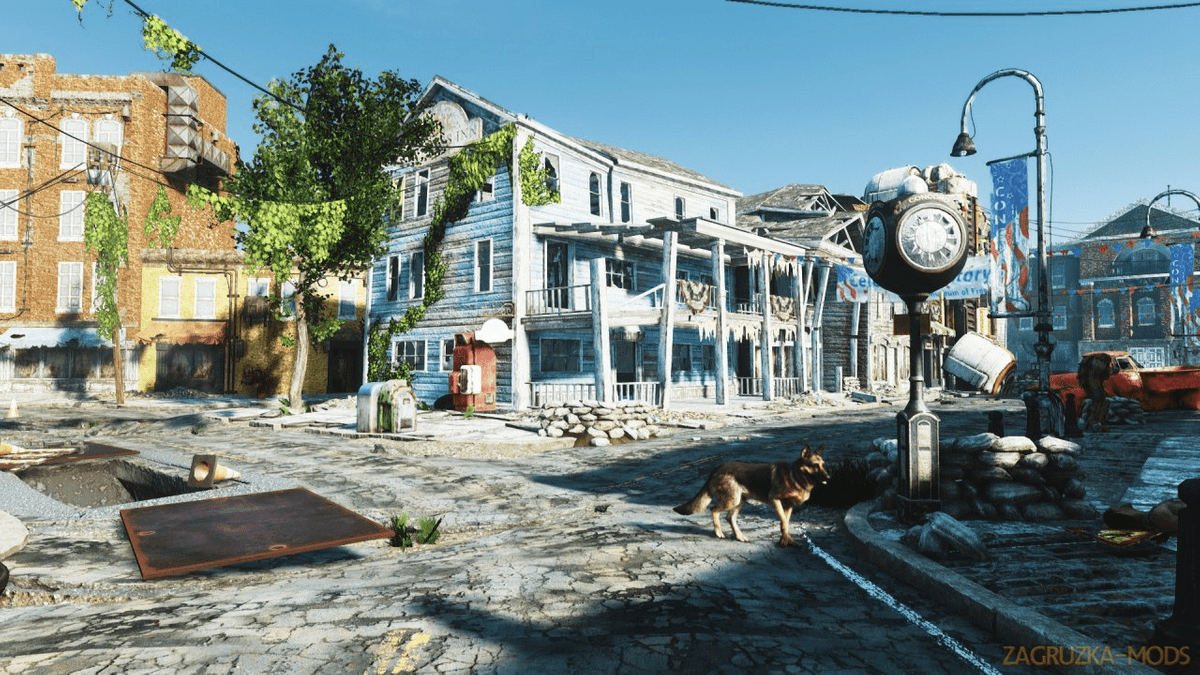
The ENB binaries provide the framework; the preset dictates the visual style. Nexus Mods is the leading repository for ENB presets.
-
Visit Nexus Mods for Fallout 4: Go to
nexusmods.com/fallout4and search for “ENB.” -
Browse and Choose: Explore various presets, paying attention to screenshots, descriptions, and user reviews. Look for presets that match your desired aesthetic and provide clear installation instructions. Popular choices often include “Vivid ENB,” “PRC X,” or “NAC X.”
-
Download the Preset: On the preset’s page, go to the “Files” tab and download the main file. These are typically ZIP or RAR archives.
Manual Installation: Core Files Placement
This is where you integrate the ENB binaries into your Fallout 4 game directory.
-
Locate Your Fallout 4 Root Directory: This is where
Fallout4.exeis located. For Steam users, it’s usuallyC:Program Files (x86)SteamsteamappscommonFallout 4. -
Copy ENB Binaries: Take the
d3d11.dllandd3dcompiler_46e.dll(and any other.dllfiles fromWrapperVersionthat came with the specific ENB binary you downloaded) and copy them directly into your Fallout 4 root directory.
Manual Installation: Preset Files Integration
Now, add the specific preset’s files to customize the ENB engine.
-
Extract Preset Files: Open the downloaded ENB preset archive.
-
Review Preset Instructions: Crucially, every ENB preset is unique. Read its installation instructions carefully on its Nexus Mods page or within its readme file. Some presets may require specific game settings, INI file tweaks, or even other mods (like a weather mod) to function correctly.
-
Copy Preset Files: Typically, you will copy all files and folders from the preset archive directly into your Fallout 4 root directory. These often include:
-
enbseriesfolder -
enblocal.ini -
enbseries.ini -
Various
.fx,.ini, and.tgafiles related to shaders and effects.
Allow overwrites if prompted, as preset files often replace or add to the default ENB files.
-
Initial Configuration: Modifying enblocal.ini
enblocal.ini is a crucial configuration file that dictates how ENB interacts with your system and addresses certain game quirks. It’s often found in your Fallout 4 root directory after installing a preset.
-
Open
enblocal.ini: Use a plain text editor (like Notepad). -
Key Settings to Adjust:
-
[MEMORY]section:VideoMemorySizeMb: This is critical. Set it to 80% of your GPU’s dedicated VRAM in MB. For example, if you have an 8GB GPU, set it to6144(8192 * 0.75). Setting it too high can cause crashes, too low can lead to stuttering. Some users use75%or even90%as a rule of thumb, but80%is a safe starting point.
-
[ENGINE]section:EnableVSync: Set tofalsehere if you intend to control VSync through your graphics driver or prefer adaptive sync technologies (G-Sync/FreeSync). If ENB’s VSync causes stuttering, disable it and manage VSync externally.
-
[LIMITER]section:EnableFPSLimit: If you want ENB to limit your frames, set totrueandFPSLimitto your desired cap (e.g.,60). It’s often recommended to disable this (false) and use external frame rate limiters (e.g., NVIDIA Control Panel, RTSS) for smoother results.
-
[FORCEDETECT]section:-
ForceStereo3D: Set tofalse. -
ForceAntialiasing: Set tofalse. -
ForceAnisotropicFiltering: Set tofalse.
These settings prevent conflicts with your graphics driver’s control panel and the game’s own settings.
-
-
-
Save Changes: Save
enblocal.iniand close the editor.
Optimizing and Troubleshooting Your ENB Experience
After installation, the journey isn’t over. Optimizing ENB for your system and being prepared to troubleshoot common issues are vital for a smooth and enjoyable experience.
In-Game ENB Menu and Customization
Once ENB is installed, launch Fallout 4. You should see a small message in the top-left corner indicating ENBSeries is active.
-
Access the ENB Menu: By default, press
SHIFT + ENTERto open the in-game ENB GUI (Graphical User Interface). -
Understanding the Menu: The left panel shows various effect categories (e.g.,
ENBEFFECT.FX,ENBPOSTPASS.FX,ENVIRONMENT). The right panel contains parameters for the selected category. -
Real-time Adjustments: You can toggle effects on/off, adjust values (like bloom intensity, SSAO strength, color balance), and see the changes in real-time. This is where you fine-tune the preset to your liking or mitigate performance impacts by disabling certain heavy effects.
-
Save Configuration: After making changes, remember to click “Save Configuration” at the top of the GUI to make your changes permanent. Otherwise, they will revert when you exit the game.
-
Toggle ENB: Press
SHIFT + F12(by default) to quickly enable or disable ENB. This is useful for comparing performance and visuals with and without ENB.
Common Issues and Solutions
Even with careful installation, issues can arise. Here are some common problems and their fixes:
-
Game Crashes on Startup:
-
Cause: Incorrect
d3d11.dllplacement, conflicting software (overlays, antivirus), incorrectenblocal.inisettings (VideoMemorySizeMb), or incompatible preset. -
Solution: Double-check
d3d11.dllis in the root folder. Temporarily disable antivirus/overlays. AdjustVideoMemorySizeMbinenblocal.ini. Try a different preset or reinstall ENB binaries.
-
-
Black Screen/Poor Performance:
-
Cause: Outdated graphics drivers, too many demanding effects, incorrect VSync settings, or conflicts with other mods.
-
Solution: Update drivers. Lower
VideoMemorySizeMb. Disable demanding effects in the ENB GUI (e.g., SSAO, Complex Firelight). Check VSync settings inenblocal.iniand your graphics driver.
-
-
ENB Menu Not Appearing (
SHIFT + ENTER):-
Cause: Hotkey conflict, or ENB is not properly loaded.
-
Solution: Check
enbseries.iniforKeyEditorvalue. Ensure ENB message appears at startup.
-
-
Weird Visual Artifacts/Glitches:
-
Cause: Conflicts with other visual mods (lighting, weather), incorrect game settings.
-
Solution: Consult the ENB preset’s description for recommended game settings (e.g., turning off in-game AO, Bokeh DoF, Godrays). Adjust load order for other visual mods.
-
Uninstalling ENB
Should you wish to remove ENB, the process is straightforward:
-
Delete ENB Files: Navigate to your Fallout 4 root directory.
-
Remove all ENB-related files: These typically include
d3d11.dll,d3dcompiler_46e.dll,enblocal.ini,enbseries.ini, and theenbseriesfolder. -
Restore Backups (if necessary): If you made any changes to
Fallout4Prefs.inior other game INI files for the ENB preset, revert them or restore your backups.
Elevating Your Fallout 4 Visuals Beyond ENB
While ENB is a game-changer, it’s often part of a broader strategy for achieving the ultimate Fallout 4 visual experience. Combining ENB with other meticulously chosen mods can truly push the boundaries of what the game can look like.
Compatible Visual Mods and Texture Packs
ENB shines brightest when paired with mods that provide higher quality assets or rebalance the game’s fundamental lighting.
-
High-Resolution Texture Packs: Mods like “Fallout 4 HD Reworked Project” or “Vivid Landscapes” replace low-resolution textures with sharper, more detailed versions, giving ENB more fidelity to work with.
-
Weather Overhauls: “Vivid Weathers” or “NAC X” (Natural Atmospheric Commonwealth) dramatically improve Fallout 4’s weather system, adding volumetric clouds, dynamic storms, and nuanced atmospheric effects that an ENB preset can then enhance with its post-processing.
-
Lighting Overhauls: Mods like “Enhanced Lights and FX” (ELFX) or “Radiant Clouds and Fogs” modify the game’s light sources and volumetric effects, providing a more robust base for ENB’s advanced lighting calculations.
-
Mesh and Model Improvements: Mods that replace character models, flora, or environmental objects with higher-poly versions further benefit from ENB’s shader effects, making them look even more realistic.
Always check compatibility information on Nexus Mods when combining ENB with other visual overhauls, as some presets are designed specifically for certain weather or lighting mods.
Future-Proofing Your Modded Game
Maintaining a stable and visually stunning modded Fallout 4 requires ongoing attention.
-
Regular Backups: Continue to back up your
Fallout4.ini,Fallout4Prefs.ini, and save files, especially before installing new mods or making significant changes. -
Mod Organizer 2 (MO2): For extensive modding, MO2 is often preferred over Vortex due to its virtual file system, which keeps your game directory clean and makes conflict resolution easier. While ENB doesn’t go through MO2, the rest of your mods should.
-
Stay Informed: Follow relevant communities on Reddit (e.g., r/fo4, r/falloutmods) and Nexus Mods to stay updated on new ENB presets, mod updates, and troubleshooting tips.
Community Resources and Support
The Fallout 4 modding community is vibrant and incredibly supportive.
-
Nexus Mods Forums: The individual mod pages on Nexus Mods often have comment sections where users discuss issues and solutions.
-
Reddit Communities: Subreddits dedicated to Fallout 4 modding are excellent places to ask questions, share screenshots, and find troubleshooting advice from experienced modders.
-
YouTube Tutorials: Many content creators produce video guides that can offer a visual walkthrough of installation steps, which can be invaluable for beginners.
Installing ENB for Fallout 4 is more than just a technical exercise; it’s an investment in transforming your gaming experience. By meticulously following these steps, understanding the underlying technology, and embracing the iterative process of optimization, you can unlock a truly breathtaking rendition of the Commonwealth, proving that even a classic can be made to shine anew.
aViewFromTheCave is a participant in the Amazon Services LLC Associates Program, an affiliate advertising program designed to provide a means for sites to earn advertising fees by advertising and linking to Amazon.com. Amazon, the Amazon logo, AmazonSupply, and the AmazonSupply logo are trademarks of Amazon.com, Inc. or its affiliates. As an Amazon Associate we earn affiliate commissions from qualifying purchases.