
The modern software landscape is incredibly diverse, demanding robust, versatile, and high-performance frameworks to power everything from web applications and cloud services to desktop utilities and mobile experiences. At the heart of much of this innovation lies .NET, an open-source, cross-platform developer platform maintained by Microsoft. Whether you’re a seasoned developer, a student just starting your coding journey, or an IT professional tasked with deploying .NET applications, understanding how to properly install and configure .NET is a fundamental skill.
This comprehensive guide will demystify the installation process, covering the essential components, various operating systems, and practical verification steps. By the end, you’ll be equipped to set up your .NET development environment or prepare a server for .NET application deployment with confidence.
Understanding the .NET Ecosystem: SDK vs. Runtime
Before diving into the installation specifics, it’s crucial to grasp the two primary components of .NET you might encounter: the Software Development Kit (SDK) and the Runtime. Choosing the correct one is paramount for your specific needs.
The .NET SDK (Software Development Kit): Your Development Powerhouse
The .NET SDK is the complete package for building, running, and debugging .NET applications. It’s the toolkit for creators. If your goal is to write code, compile projects, or publish applications, the SDK is what you need.
It includes:
-
The .NET Runtime: The execution environment necessary to run .NET applications.
-
The .NET CLI (Command-Line Interface): A powerful set of commands for various development tasks, such as creating new projects, restoring dependencies, building, testing, and publishing.
-
Compilers: Tools that translate your C#, F#, or Visual Basic code into executable binaries.
-
Libraries: A vast collection of pre-built code to perform common tasks, from handling data to managing network requests.
-
Templates: Boilerplate code for various project types, speeding up initial setup.
Who needs it? Developers, educators, students, or anyone who plans to create or modify .NET applications. Installing the SDK automatically includes the necessary Runtimes, making it the default choice for development workstations.
The .NET Runtime: For Running Applications
The .NET Runtime is a lightweight component designed solely for executing .NET applications. It provides the necessary environment for pre-compiled .NET code to run efficiently on a given operating system. If you only need to run an application built by someone else and don’t intend to develop it, the Runtime is sufficient.
There are several specialized Runtimes:
-
.NET Runtime: The base runtime for console applications and libraries.
-
ASP.NET Core Runtime: Includes the .NET Runtime plus additional components specifically for running web applications and cloud services built with ASP.NET Core.
-
Desktop Runtime: (Windows only) Includes the .NET Runtime and Windows Desktop UI framework components (like WPF and Windows Forms) for running desktop applications.
Who needs it? End-users who only want to run a .NET application, or server administrators deploying .NET applications to a production environment where development tools are not required or desired. Installing only the Runtime reduces the disk footprint and potential attack surface.
Choosing the Right .NET Version
Microsoft releases new versions of .NET regularly, offering different support lifecycles.
-
LTS (Long-Term Support): These versions (e.g., .NET 6, .NET 8) receive free support and patches for three years, making them ideal for production environments that prioritize stability and minimal updates.
-
STS (Standard Term Support): These versions (e.g., .NET 7) receive free support and patches for 18 months, often used for applications that can tolerate more frequent upgrades or for exploring newer features.
Always check the compatibility requirements of the application you intend to build or run, and align your installation with the recommended or required .NET version. For new development, it’s generally best to start with the latest LTS version.
Installing .NET on Windows
Windows is a primary platform for .NET development, offering multiple convenient installation methods.
Method 1: The Official .NET Installer
This is the most straightforward method for most users, providing a guided graphical interface.
-
Download the Installer:
-
Navigate to the official .NET download page:
dotnet.microsoft.com/download. -
Under “Build apps – Install the SDK,” select the latest recommended .NET SDK version for Windows (x64 for most modern PCs, x86 for older 32-bit systems). If you only need to run apps, choose the appropriate Runtime.
-
The download will be an
.exefile (e.g.,dotnet-sdk-8.0.x-win-x64.exe).
-
-
Run the Installer:
-
Locate the downloaded
.exefile and double-click it. -
The “Microsoft .NET SDK” setup wizard will appear.
-
Review the license terms and click “Install.”
-
The installer will proceed, displaying a progress bar. You might be prompted for administrator privileges.
-
Once complete, click “Close.”
-
Method 2: Integrated with Visual Studio
For developers using Visual Studio, the IDE’s installer provides a seamless way to acquire the .NET SDK as part of your development environment.
-
Launch Visual Studio Installer:
-
If Visual Studio is already installed, search for “Visual Studio Installer” in your Start Menu and open it.
-
If not, download Visual Studio from
visualstudio.microsoft.comand run its initial setup.
-
-
Modify or Install Visual Studio:
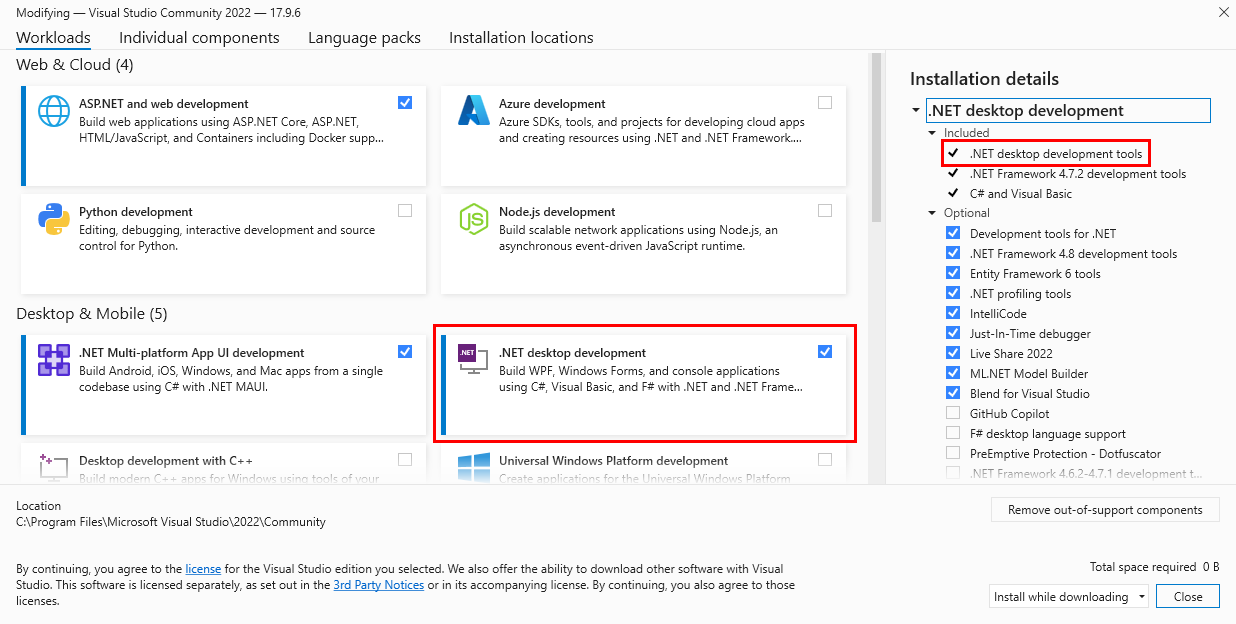
- In the Visual Studio Installer, find your installed Visual Studio edition (e.g., Visual Studio 2022) and click “Modify.” If installing for the first time, proceed with the installation.
-
Select Workloads:
-
In the “Workloads” tab, ensure that the relevant .NET development workloads are selected. Common choices include:
-
“ASP.NET and web development”
-
“.NET desktop development”
-
“.NET Multi-platform App UI development”
-
“Azure development”
-
-
Selecting any of these workloads will automatically include the necessary .NET SDK components.
-
-
Install/Modify: Click “Modify” (or “Install”) to apply the changes. Visual Studio will download and install the selected components, including the .NET SDK.
Method 3: Using Winget (Windows Package Manager)
Winget offers a command-line interface for managing applications on Windows, providing a quick way to install and update .NET. This method is particularly useful for automation or for developers who prefer the command line.
-
Open PowerShell or Command Prompt:
- Search for “PowerShell” or “CMD” in the Start Menu and run it as an administrator.
-
Install .NET SDK using Winget:
-
To install the latest LTS .NET SDK (e.g., .NET 8), use the command:
winget install Microsoft.DotNet.SDK.8 -
If you need a specific version, you can append
--version <version_number>. You can also search for available packages:winget search "Microsoft .NET SDK". -
Winget will automatically download and install the SDK. Follow any prompts.
-
Installing .NET on macOS
macOS is a fully supported platform for .NET, enabling developers to build cross-platform applications natively.
Method 1: The Official .NET Installer Package (.pkg)
Similar to Windows, a graphical installer is available for macOS.
-
Download the Installer:
-
Go to
dotnet.microsoft.com/download. -
Under “Build apps – Install the SDK,” select the latest .NET SDK version for macOS. Crucially, choose the correct architecture:
-
x64: For Intel-based Macs.
-
ARM64: For Apple Silicon (M1/M2/M3) Macs.
-
-
The download will be a
.pkgfile (e.g.,dotnet-sdk-8.0.x-osx-x64.pkg).
-
-
Run the Installer:
-
Open the downloaded
.pkgfile. -
The “Install .NET SDK” wizard will guide you through the process.
-
Click “Continue,” agree to the license, choose the installation location (usually the default), and click “Install.”
-
You may need to enter your macOS user password to authorize the installation.
-
Once complete, click “Close.”
-
Method 2: Using Homebrew (The macOS Package Manager)
Homebrew is an incredibly popular package manager for macOS, simplifying the installation and management of command-line tools and software.
-
Install Homebrew (if not already installed):
-
Open your Terminal application.
-
Run the command:
/bin/bash -c "$(curl -fsSL https://raw.githubusercontent.com/Homebrew/install/HEAD/install.sh)" -
Follow the on-screen instructions, which may include installing Xcode Command Line Tools and entering your password.
-
-
Install .NET SDK with Homebrew:
-
Once Homebrew is installed, simply run:
brew install dotnet-sdk -
Homebrew will automatically fetch the latest stable .NET SDK version and install it, including any dependencies.
-
Addressing Architecture (x64 vs. ARM64) on macOS
With the transition to Apple Silicon (M1/M2/M3) Macs, it’s vital to install the correct architecture for optimal performance. While an x64 (Intel) version of the .NET SDK can run on Apple Silicon via Rosetta 2 emulation, native ARM64 versions offer superior speed and efficiency. Always ensure you download the ARM64 installer or rely on Homebrew, which typically fetches the correct architecture for your system.
Installing .NET on Linux
Linux offers the most flexibility for .NET installation, ranging from official package manager feeds to manual installations. Using package managers is generally recommended for ease of updates and dependency management.
Method 1: Package Manager Installation (Recommended)
Microsoft provides official package repositories for various Linux distributions, integrating seamlessly with your system’s package manager.
For Ubuntu/Debian (using apt-get):
-
Register Microsoft Package Repository:
-
Open a terminal.
-
Download the Microsoft package signing key:
wget https://packages.microsoft.com/config/ubuntu/$(lsb_release -rs)/packages-microsoft-prod.deb -O packages-microsoft-prod.deb -
Install the package to add the Microsoft repository to your sources:
sudo dpkg -i packages-microsoft-prod.deb

rm packages-microsoft-prod.deb
-
-
Update and Install .NET SDK:
-
Update your package lists:
sudo apt update -
Install the desired .NET SDK (e.g., .NET 8 SDK):
sudo apt install dotnet-sdk-8.0 -
To install specific runtimes, you could use
sudo apt install aspnetcore-runtime-8.0orsudo apt install dotnet-runtime-8.0.
-
For CentOS/Fedora/RHEL (using dnf/yum):
-
Register Microsoft Package Repository:
-
Open a terminal.
-
Download the Microsoft repository configuration:
sudo dnf install -y https://packages.microsoft.com/config/centos/$(rpm -E %{rhel})/packages-microsoft-prod.rpm

# Or for Fedora:

# sudo dnf install -y https://packages.microsoft.com/config/fedora/$(rpm -E %{fedora})/packages-microsoft-prod.rpm
-
-
Install .NET SDK:
-
Install the desired .NET SDK (e.g., .NET 8 SDK):
sudo dnf install dotnet-sdk-8.0 -
Again, runtimes can be installed similarly:
sudo dnf install aspnetcore-runtime-8.0.
-
Method 2: Manual Installation (Tarball)
Manual installation is useful for specific scenarios, such as deploying to unsupported distributions, requiring a very specific version not in repositories, or installing to a non-standard location without root privileges.
-
Download the Tarball:
-
Go to
dotnet.microsoft.com/download. -
Under “Build apps – Install the SDK,” select your desired .NET SDK version for Linux and choose the appropriate architecture (x64, ARM64, etc.).
-
Download the
.tar.gzfile.
-
-
Extract and Configure:
-
Create a directory for .NET (e.g.,
mkdir -p $HOME/dotnet). -
Extract the downloaded tarball into this directory:
tar zxf dotnet-sdk-8.0.x-linux-x64.tar.gz -C $HOME/dotnet -
Set the
DOTNET_ROOTenvironment variable and add .NET to yourPATH. Add these lines to your~/.bashrcor~/.zshrcfile:export DOTNET_ROOT=$HOME/dotnet export PATH=$PATH:$HOME/dotnet -
Apply the changes (or restart your terminal):
source ~/.bashrc # or ~/.zshrc
-
Method 3: Snap Package (Ubuntu)
For Ubuntu users, Snap packages offer an isolated, self-contained way to install .NET, ensuring minimal conflicts with other system packages.
-
Install .NET SDK via Snap:
-
Open a terminal.
-
Run the command:
sudo snap install dotnet-sdk --classic -
The
--classicflag is required because the .NET SDK needs broad system access. -
This will install the latest available LTS SDK via Snap.
-
Verifying Your .NET Installation and Next Steps
Once you’ve completed the installation, it’s essential to verify that everything is correctly set up and ready for use.
Confirming Installation with the .NET CLI
Open a new terminal or command prompt and run the following commands:
-
Check .NET SDK Version:
dotnet --versionThis command should output the version number of the .NET SDK you installed (e.g.,
8.0.100). -
List Installed SDKs:
dotnet --list-sdksThis will show all .NET SDKs installed on your machine, including their versions and installation paths.
-
List Installed Runtimes:
dotnet --list-runtimesThis command will display all .NET Runtimes available, including generic .NET Runtimes, ASP.NET Core Runtimes, and Desktop Runtimes (on Windows).
If any of these commands return an error like “command not found” or an unexpected output, it indicates an issue with your installation, most likely related to your system’s PATH environment variable.
Creating Your First .NET Project
To further confirm your setup and begin your .NET journey, create a simple “Hello, World!” console application:
-
Create a New Directory for Your Project:
mkdir MyFirstApp cd MyFirstApp -
Create a New Console Application:
dotnet new consoleThis command uses the .NET CLI to generate a basic console application project within your
MyFirstAppdirectory. -
Run the Application:
dotnet runYou should see “Hello, World!” printed to your console. This confirms that the .NET SDK is fully operational, capable of building and executing applications.
Troubleshooting Common Installation Issues
-
‘dotnet’ command not found: This usually means the
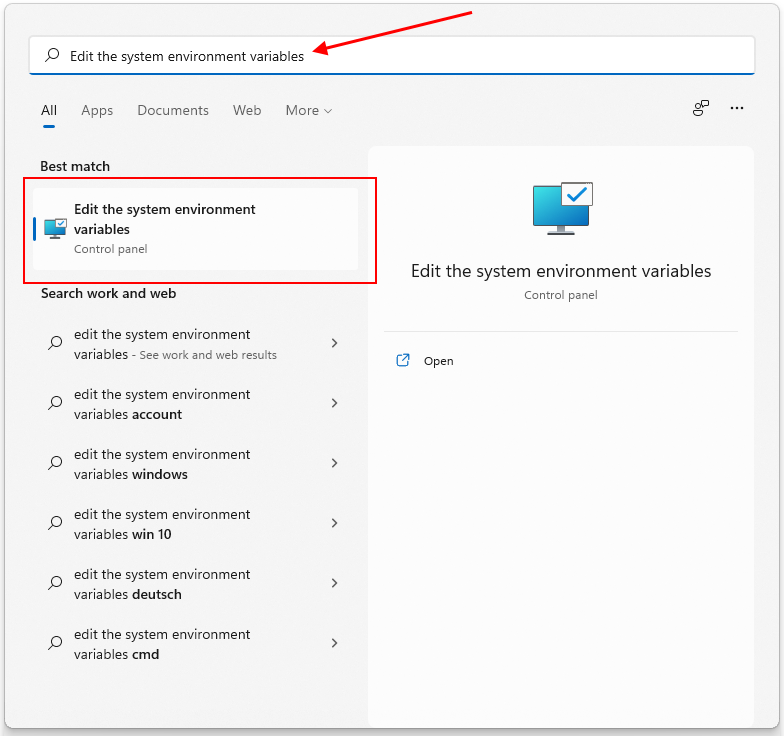
.NET_ROOTdirectory is not in your system’sPATHenvironment variable. For manual Linux installations, ensure you’ve sourced your shell configuration file (~/.bashrc,~/.zshrc). On Windows, check the System Environment Variables. -
Multiple .NET versions: If you have multiple SDKs installed, the
dotnetCLI might not pick the one you expect. The CLI typically uses the highest available version for a given project, but you can target specific versions within your project file (.csproj). -
Permissions issues: On Linux, ensure you have appropriate read/execute permissions for the .NET installation directory. If using a package manager,
sudois often required for installation. -
Firewall/Proxy: If you’re behind a corporate firewall or proxy, ensure it allows access to
dotnet.microsoft.comand other necessary Microsoft domains for downloads and package repository access.
Conclusion
Installing .NET is the first crucial step towards harnessing its power for modern application development. By understanding the distinction between the SDK and the Runtime, choosing the appropriate version, and following the clear, platform-specific instructions outlined in this guide, you can confidently set up your environment.
With .NET successfully installed and verified, the entire ecosystem of C#, F#, and Visual Basic development, encompassing web, mobile, desktop, gaming, and AI applications, is now at your fingertips. Dive in, experiment, and start building the next generation of innovative software. The journey begins now!
aViewFromTheCave is a participant in the Amazon Services LLC Associates Program, an affiliate advertising program designed to provide a means for sites to earn advertising fees by advertising and linking to Amazon.com. Amazon, the Amazon logo, AmazonSupply, and the AmazonSupply logo are trademarks of Amazon.com, Inc. or its affiliates. As an Amazon Associate we earn affiliate commissions from qualifying purchases.