
The Sims 4, a life simulation game developed by Maxis and published by Electronic Arts, offers an expansive world for players to create and control virtual lives. While the base game provides a rich experience, a vibrant community of modders and custom content (CC) creators has taken the game’s potential to unprecedented levels. Custom content allows players to personalize nearly every aspect of their Sims’ lives, from intricate hairstyles and fashion-forward clothing to bespoke furniture and entirely new gameplay mechanics. Integrating this community-driven content, however, requires a precise understanding of file management and game configurations. This guide delves into the technical intricacies of installing custom content on Sims 4, ensuring a seamless and enhanced gaming experience for enthusiasts eager to explore beyond the vanilla offerings.
Understanding the Landscape of Sims 4 Custom Content and Mods
Before embarking on the installation journey, it’s crucial to differentiate between the various types of user-generated content available for The Sims 4. This distinction is not merely semantic; it dictates installation methods, potential game impact, and necessary precautions.
What is Custom Content (CC)?
Custom Content primarily refers to cosmetic additions that modify the appearance of your Sims or their environment. These are generally “package files” (.package) that inject new assets into the game without altering its core mechanics.
-
Create-A-Sim (CAS) Items: This category includes everything a Sim wears or uses for their appearance—hair, clothing, makeup, skin details, accessories, and even custom eye colors. These assets seamlessly integrate into the CAS interface, appearing alongside official game items.
-
Build/Buy Mode Items: These are decorative and functional objects for constructing and furnishing homes. Think new furniture, wall coverings, floor patterns, windows, doors, and even landscaping elements. They populate the Build/Buy catalog, offering unparalleled creative freedom in design.
The installation of CC is generally straightforward, primarily involving placing .package files into the designated Mods folder. While generally safe, low-quality or outdated CC can sometimes cause minor graphical glitches or conflicts, making source selection important.
What are Mods (Script Mods)?
Mods, particularly “Script Mods,” are more sophisticated additions that alter the game’s core programming or introduce entirely new gameplay features. Unlike cosmetic CC, script mods often involve .ts4script or .dll files that interact directly with the game’s engine.
-
Gameplay Enhancements: These mods can range from minor quality-of-life improvements, like adjusted game speeds or improved Sim autonomy, to significant overhauls such as new aspiration systems, complex relationship dynamics, or entirely new careers.
-
Functional Additions: Script mods can introduce new functional objects or interactions not present in the base game, often requiring specific scripts to execute their intended behavior.
-
Core Game Alterations: Some mods might change how the game handles certain events, Sim behavior, or UI elements, offering a deeply customized gaming experience.
Script mods require more careful handling during installation due to their direct interaction with the game’s code. Incorrect placement or outdated versions can lead to game crashes, unexpected behavior, or even corrupted save files. They often need to be updated after game patches to maintain compatibility.
Key Differences and Why They Matter for Installation
The primary difference lies in their operational impact: CC adds assets; script mods alter code.
-
File Types: CC is predominantly
.package; script mods often include.ts4script,.dll, or other executable formats alongside.packagecomponents. -
Folder Depth: While
.packagefiles can often be nested several subfolders deep within the Mods folder, script mods generally have stricter requirements, often needing to be placed no more than one subfolder deep, or directly in the Mods folder itself, to function correctly. -
Game Stability: Script mods carry a higher risk of incompatibility or conflict, especially after game updates. CC, while not entirely immune, tends to be more resilient to minor patches.
Understanding these distinctions is the first critical step toward responsible and effective custom content management, allowing players to approach installation with the appropriate caution and technique for each type.
Essential Preparations: Setting the Stage for Seamless Integration
Before diving into downloading and placing files, a few preliminary steps are vital to ensure a smooth installation process and safeguard your game. These preparations are foundational for any modding endeavor.
Backing Up Your Game Saves
This is arguably the most critical preparatory step. Modding inherently carries a risk, albeit small, of unintended consequences. A corrupted save file due to a conflicting mod or an accidental file deletion can be devastating.
-
Locate Your Saves Folder: Navigate to
DocumentsElectronic ArtsThe Sims 4saves. -
Copy the Folder: Copy the entire
savesfolder to a safe location on your computer, such as your desktop or an external drive. You might also want to back up theTrayfolder (for Sims and lots in your library) and theModsfolder itself if you already have some content. -
Regular Backups: Make it a habit to back up your saves regularly, especially before installing new, significant mods or before major game updates.
Enabling Mods in Game Settings
The Sims 4 has a built-in security feature that disables custom content and mods by default. This must be activated before any installed content will appear or function in your game.
-
Launch The Sims 4: Start your game as usual.
-
Access Game Options: From the main menu, click on the three dots (…) in the top right corner to open “Game Options.”
-
Navigate to Other: Select the “Other” tab on the left-hand side.
-
Enable Custom Content and Script Mods: Check the boxes for “Enable Custom Content and Mods” and “Script Mods Allowed.”
-
Apply Changes and Restart: Click “Apply Changes” at the bottom right, then fully close and restart your game. This restart is crucial for the game to register the new settings and scan for installed content.
Locating Your Sims 4 Mods Folder
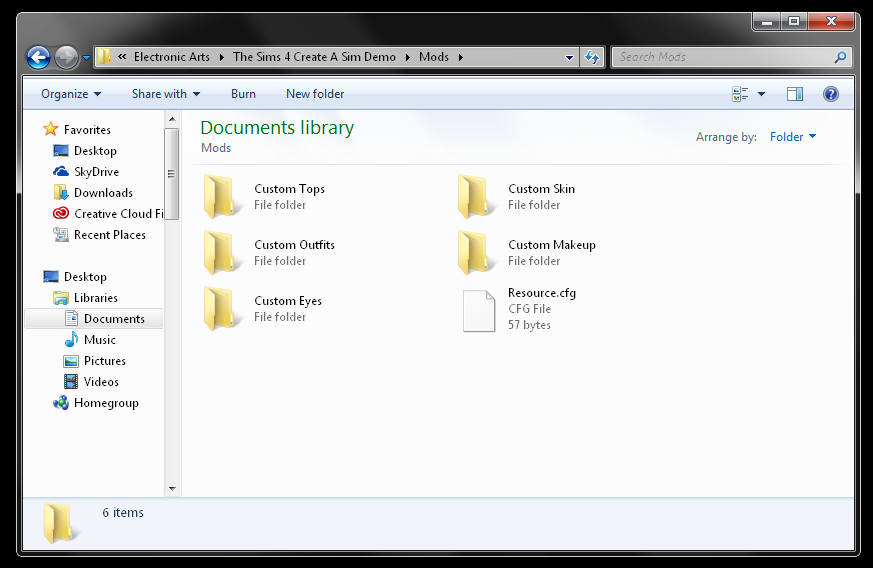
All custom content and mods are stored in a specific directory within your Sims 4 game files. Knowing its precise location is fundamental.
-
Standard Path: For most Windows users, the path is
DocumentsElectronic ArtsThe Sims 4Mods. -
Mac Path: On Mac, it’s typically
Documents/Electronic Arts/The Sims 4/Mods. -
The
Resource.cfgFile: Inside this folder, you should see a file namedResource.cfg. This file is essential; it tells the game how to read and load custom content from the Mods folder and its subdirectories. Do NOT delete or modify this file unless you know exactly what you’re doing.
Reliable Sources for Custom Content
The quality and safety of custom content vary greatly depending on its source. Sourcing from reputable creators and community hubs is paramount for a stable game.
-
Dedicated Creator Websites/Patreon: Many popular creators have their own websites or Patreon pages where they share their work. These are often the most up-to-date and reliable sources.
-
Community Hubs (e.g., Mod The Sims, The Sims Resource): These large repositories host content from thousands of creators. They often have rating systems, comment sections, and detailed descriptions that help gauge content quality and compatibility.
-
Tumblr/Reddit: Many creators also share their work on social media platforms. Always check for direct download links from the creator themselves or trusted re-uploaders.
-
Warning Against Shady Sites: Avoid obscure websites that offer bundled CC or require suspicious downloads, as these can contain malware or outdated/broken content.

Step-by-Step Installation Guide for Different CC Types
With preparations complete, you’re ready to download and install your desired custom content. The process is largely drag-and-drop, but specific nuances exist for different file types.
Installing Package Files (.package)
This is the most common and straightforward installation method for cosmetic CC.
-
Download Your CC: Download the
.packagefile(s) from your chosen source. They are often bundled in.zipor.rararchives, so you’ll need a file extraction tool like 7-Zip or WinRAR. -
Extract Files: If the download is an archive, extract its contents. You’re looking for the files ending with
.package. -
Place in Mods Folder: Copy or drag these
.packagefiles directly into yourDocumentsElectronic ArtsThe Sims 4Modsfolder. -
Organize (Optional but Recommended): For better management, create subfolders within your
Modsfolder (e.g.,ModsHair,ModsClothing,ModsBuildMode)..packagefiles can be nested several layers deep (up to 5 levels by default, configured byResource.cfg). This organization makes it easier to find, update, or remove specific items later. -
Restart Game: Launch The Sims 4. The game will scan your Mods folder, and the new CC should appear in Create-A-Sim or Build/Buy mode. You can usually confirm their presence by checking the “Custom Content” filter in the game’s UI.
Installing Script Mods (.ts4script, .dll)
Script mods require more attention to their placement due to their functional nature.
-
Download Script Mod: Download the script mod, typically found in a
.zipor.rararchive containing.ts4script,.dll, and sometimes accompanying.packagefiles. -
Extract Files: Extract all contents of the archive. Do not just take the
.ts4scriptfile; accompanying.packagefiles or other data might be crucial. -
Place in Mods Folder (Important): Place the extracted
.ts4scriptand any associated.dllor.packagefiles directly into yourDocumentsElectronic ArtsThe Sims 4Modsfolder.- Subfolder Rule: For script mods, it is generally recommended to place them no more than one subfolder deep within the
Modsfolder. For example,ModsMyAwesomeScriptModis usually fine, butModsMyAwesomeScriptModScriptsmight not work. Many users place script mods directly inModsfor maximum compatibility.
- Subfolder Rule: For script mods, it is generally recommended to place them no more than one subfolder deep within the
-
Verify Enabled: Double-check that “Script Mods Allowed” is checked in your game options (as performed in the preparation step).
-
Restart Game: Close and restart The Sims 4. The script mod should now be active, introducing its new functionalities. Look for confirmation messages or new interactions within the game as specified by the mod creator.
Special Cases: Installing Sims and Lots (Tray Files)
Sims and lots downloaded from the community are not .package files, but rather collections of files known as “Tray files.”
-
Download Sim/Lot: Download the
.zipor.rararchive containing the Sim or lot. -
Extract Files: Extract all files from the archive. You will typically find several files with extensions like
.bpi,.blueprint,.hhi,.sgi,.households, and.trayitem. -
Place in Tray Folder: Copy or drag all these files directly into your
DocumentsElectronic ArtsThe Sims 4Trayfolder. Do NOT put them in theModsfolder or any subfolders withinTray. -
Access in Game: Launch The Sims 4. The Sim or lot will appear in your “My Library” section within the game, accessible via the Gallery icon. Ensure “Include Custom Content” is checked in the Gallery filters if the Sim/Lot uses CC.
Using Mod Managers (Optional, but Useful)
For players with extensive CC collections, mod managers can streamline the installation and management process, offering features like conflict detection, easier updates, and bulk removal. Tools like the “Sims 4 Mod Manager” or “TS4 Mod Manager” are popular choices. These tools typically:
-
Automate Installation: They can often unpack and place files in the correct directories for you.
-
Conflict Detection: Some can help identify conflicting CC or outdated mods.
-
Organization: They provide a centralized interface for enabling/disabling mods and organizing them.
While not strictly necessary for basic installation, they become invaluable for advanced users managing hundreds or thousands of CC items.
Troubleshooting Common Issues and Best Practices
Even with careful installation, custom content can sometimes lead to issues. Knowing how to troubleshoot and maintain your modded game is a crucial technical skill.
Identifying and Removing Broken CC
Broken or outdated CC is a primary cause of game instability (crashes, glitches, freezes).
-
The 50/50 Method: This is the most effective manual troubleshooting technique.
-
Remove half of your
Modsfolder content. -
Launch the game. If the problem persists, the broken CC is in the remaining half. If the problem is gone, it was in the half you removed.
-
Repeat, narrowing down the problematic batch by continually halving the suspected content until you isolate the specific file.
-
-
Mod Conflict Detector Tools: Software like “TwistedMexi’s Mod Conflict Detector” can scan your Mods folder and identify potential conflicts or outdated files, significantly speeding up the troubleshooting process.
-
Deleting the
localthumbcache.package: This file, located inDocumentsElectronic ArtsThe Sims 4, stores cached data related to mods. Deleting it (the game will regenerate it) can sometimes resolve visual glitches or issues where mods aren’t showing up correctly. Always delete this file after adding or removing any custom content.
Game Updates and CC Compatibility
Major game patches are a frequent source of mod-related issues.
-
Disable Mods Before Updates: Before a major game update, it’s wise to move your entire
Modsfolder out of theThe Sims 4directory to a temporary location. This prevents the update from corrupting your mods and allows you to test the unmodded game first. -
Check for Updates: After a patch, visit the websites of your favorite mod creators. They typically release updated versions of their mods (especially script mods) to ensure compatibility with the new game version.
-
Re-enable Gradually: Once your mods are updated, place them back in the
Modsfolder incrementally, testing the game after each batch to identify any newly conflicting items.
Organizing Your Mods Folder
A well-organized Mods folder is essential for long-term maintenance.
-
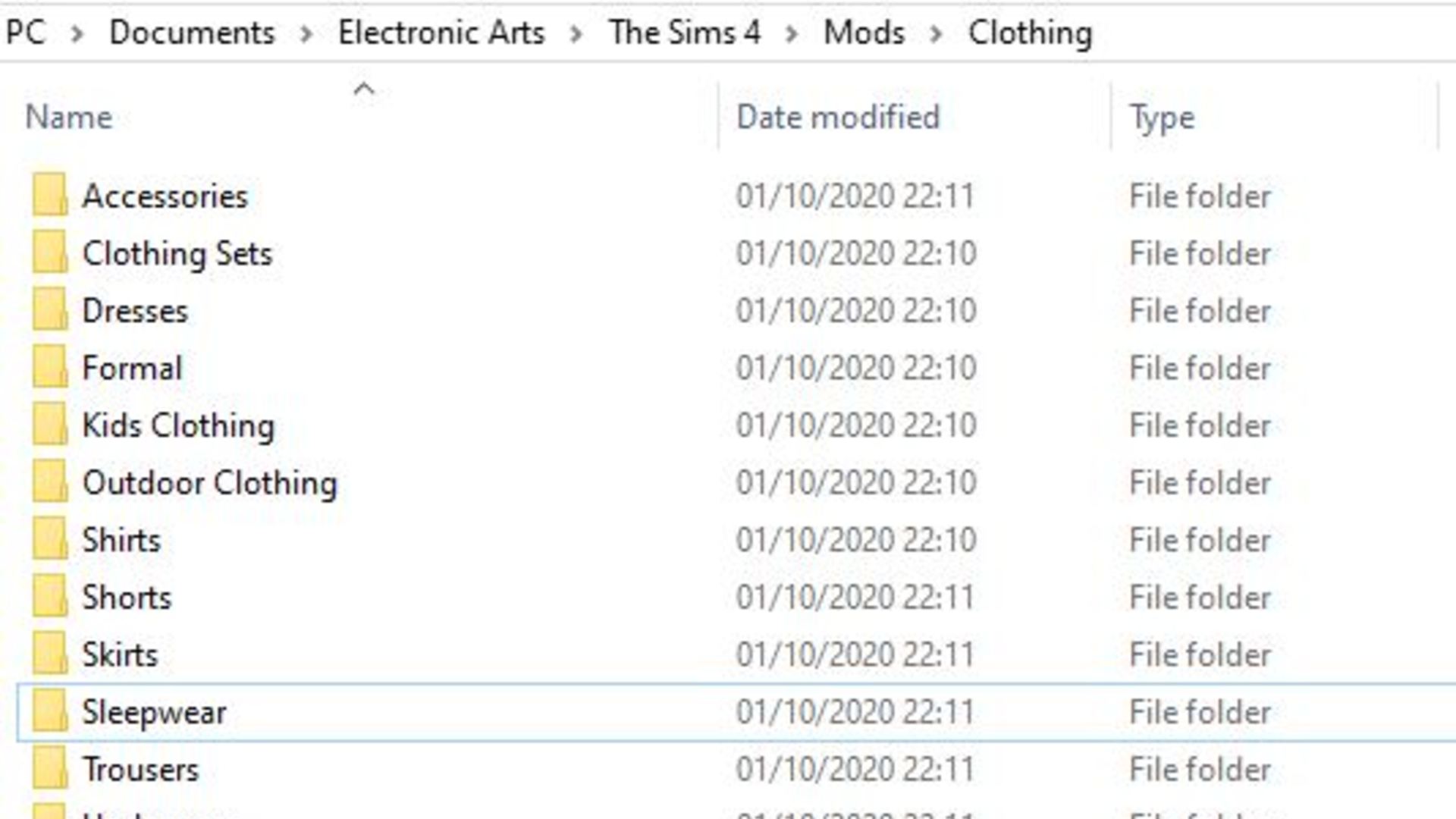
Logical Subfolders: Create subfolders like
Hair,Clothing,Furniture,Script Mods,Default Replacements, etc. -
Creator-Specific Folders: Within categories, you might create folders for specific creators (e.g.,
ModsHairAnto,ModsClothingPralinesims). -
Naming Conventions: Rename downloaded files if their original names are generic or uninformative, but be careful not to change the file extension. For example,
s4cc_hair_long_curls_v1.packageis more useful thandownload_123.package. -
Separate Script Mods: Always keep script mods in their own, easily identifiable subfolders, close to the main
Modsdirectory (not nested too deeply).
Performance Considerations
While custom content enhances aesthetics, too much of it can impact game performance.
-
Monitor Load Times: Excessive CC can significantly increase game loading times.
-
Watch for Lag/Stuttering: If your game starts to lag or stutter, especially in CAS or Build/Buy mode, you might have too much CC for your system to handle efficiently.
-
Purge Unused CC: Regularly review your
Modsfolder and remove any content you no longer use or find redundant. Tools like “Sims 4 Studio” can help identify duplicate or problematic content. -
Check File Sizes: Be mindful of particularly large
.packagefiles, as these can contribute disproportionately to load times.
The Evolving Technical Landscape of Sims 4 Modding
The Sims 4 modding community is a dynamic ecosystem, constantly adapting to game updates and developing new tools and techniques. Staying connected to this technical landscape is key to a robust modding experience.
-
Community Forums and Discords: Join official modding forums, Reddit communities (like r/thesims4mods), and creator Discord servers. These platforms are invaluable for real-time updates on mod compatibility, troubleshooting assistance, and discovering new content.
-
Learning Resources: Many creators and dedicated websites provide detailed guides on advanced modding topics, such as creating your own CC, using specific mod tools, or understanding game code hooks.
-
Responsible Modding: Always respect creators’ terms of use (e.g., do not re-upload their content without permission), and consider supporting them if their work significantly enhances your game.
In conclusion, installing custom content on The Sims 4 is a rewarding technical endeavor that unlocks an unparalleled level of customization and gameplay depth. By understanding the different types of content, meticulously preparing your game environment, following precise installation instructions, and proactively troubleshooting, players can transform their Sims 4 experience into a truly unique digital world. Embracing these technical practices ensures not only a richer game but also a more stable and enjoyable journey within the vast and creative realm of Sims 4 modding.
aViewFromTheCave is a participant in the Amazon Services LLC Associates Program, an affiliate advertising program designed to provide a means for sites to earn advertising fees by advertising and linking to Amazon.com. Amazon, the Amazon logo, AmazonSupply, and the AmazonSupply logo are trademarks of Amazon.com, Inc. or its affiliates. As an Amazon Associate we earn affiliate commissions from qualifying purchases.