
In the rapidly evolving landscape of web development, the ability to serve dynamic content efficiently and reliably is paramount. Whether you’re building a complex web application, a data-driven website, or a custom utility, having the right server stack is crucial. This comprehensive guide will walk you through the process of installing and configuring CGI Perl on an OpenLiteSpeed web server, all hosted on a Vultr virtual private server (VPS). This combination offers a potent blend of performance, flexibility, and cost-effectiveness, ideal for developers and businesses looking to optimize their online presence.
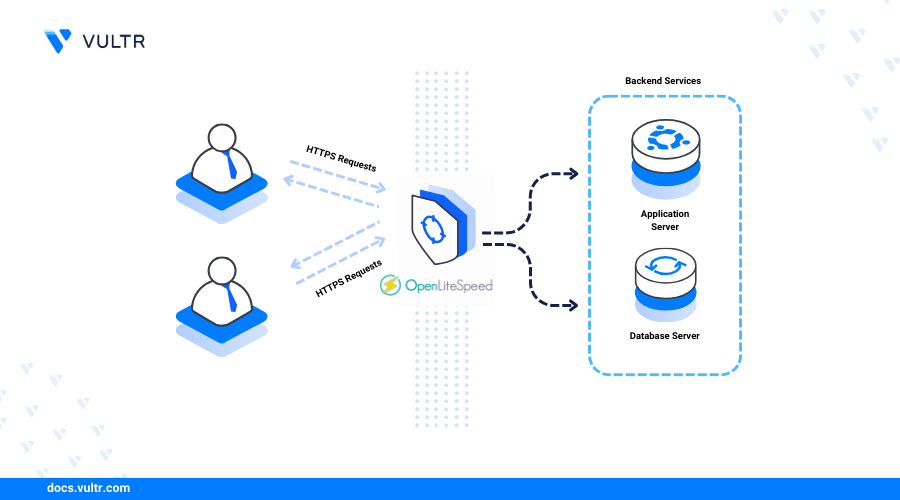
Unlocking Dynamic Web Content: The Power of CGI Perl with OpenLiteSpeed on Vultr
The internet, at its core, thrives on interaction. Static HTML pages, while foundational, quickly give way to the need for dynamic content – pages that change based on user input, database queries, or server-side logic. This is where technologies like CGI (Common Gateway Interface) come into play, enabling web servers to interact with external programs to generate dynamic web pages. Perl, a highly versatile scripting language, has long been a staple for CGI programming, known for its powerful text processing capabilities and extensive module ecosystem.
Understanding CGI Perl and Its Role
CGI is a standard protocol that defines how a web server communicates with executable programs, known as CGI scripts. When a browser requests a CGI resource, the web server executes the specified script, passing request details (like form data or URL parameters) to it. The script then processes this information, generates a response (typically HTML), and sends it back to the web server, which in turn delivers it to the user’s browser.
Perl (Practical Extraction and Report Language) is particularly well-suited for CGI programming due to its strengths in text manipulation, regular expressions, and its ability to interact easily with system commands and databases. It allows developers to create powerful, flexible, and robust web applications, from simple form processors to complex e-commerce platforms. While newer technologies have emerged, CGI Perl remains a relevant and powerful tool, especially for legacy systems, specific administrative tasks, or when leveraging existing Perl libraries.
Why OpenLiteSpeed? A High-Performance Alternative
Choosing the right web server is as critical as choosing the right scripting language. OpenLiteSpeed stands out as a high-performance, lightweight, and open-source web server known for its excellent speed, scalability, and efficiency. Unlike traditional web servers like Apache, which often rely on a process-per-request model that can consume significant resources, OpenLiteSpeed utilizes an event-driven architecture. This allows it to handle thousands of concurrent connections with minimal overhead, making it incredibly efficient, especially under heavy loads.
Key benefits of OpenLiteSpeed include:
- Superior Performance: Its event-driven architecture and optimized code result in faster page loading times and lower resource consumption compared to Apache.
- Easy Setup and Management: It comes with a user-friendly web administration panel, simplifying server configuration and management tasks, even for those new to server administration.
- Robust Security Features: Built-in security features help protect your web applications from common threats.
- HTTP/3 Support: OpenLiteSpeed was among the first web servers to natively support HTTP/3, the latest evolution of the HTTP protocol, offering even faster and more reliable connections.
- Cost-Effectiveness: Being open-source, it eliminates licensing costs, and its efficiency means you can achieve more with less powerful (and thus less expensive) server hardware.
The Vultr Advantage: Reliable and Scalable Infrastructure
Vultr is a leading cloud hosting provider offering high-performance, highly scalable cloud compute resources. For developers and businesses, Vultr provides:
- Global Datacenters: Deploy your servers in numerous locations worldwide, bringing your content closer to your users for reduced latency.
- Affordable Pricing: Competitive hourly and monthly billing options make it accessible for projects of all sizes.
- Blazing Fast SSDs: All Vultr instances run on NVMe or SSD storage, ensuring rapid data access and overall system responsiveness.
- Flexible Instance Types: Choose from a wide range of server configurations, from basic instances to high-frequency compute options, to perfectly match your application’s needs.
- Intuitive Control Panel and API: Easily manage your servers, scale resources, and integrate with your existing workflows using Vultr’s user-friendly control panel or powerful API.
Combining CGI Perl, OpenLiteSpeed, and Vultr creates a powerful, efficient, and scalable environment for deploying dynamic web applications.
Essential Preparations and System Setup
Before diving into the installation and configuration, it’s crucial to lay a solid foundation. This involves ensuring you have the necessary prerequisites in place and properly setting up your Vultr server.
Before You Begin: Prerequisites
To successfully follow this guide, you will need:
- A Vultr Account: If you don’t have one, sign up at vultr.com.
- A Vultr Instance with OpenLiteSpeed Installed: Deploy a new Vultr server instance. The easiest way to get OpenLiteSpeed is to use one of Vultr’s one-click applications or marketplace apps (e.g., “OpenLiteSpeed WordPress” or “OpenLiteSpeed”). If you deploy a basic OS (like Ubuntu or CentOS), you’ll need to install OpenLiteSpeed manually beforehand, which is beyond the scope of this specific guide. For simplicity, we assume you have an OpenLiteSpeed installation ready.
- SSH Client: A tool like PuTTY for Windows or the built-in Terminal for macOS/Linux to connect to your server.
- Basic Linux Command-Line Knowledge: Familiarity with commands like
ssh,sudo,apt(for Debian/Ubuntu) oryum(for CentOS/RHEL), and file editing tools likenanoorvi. - Admin Credentials for OpenLiteSpeed WebAdmin: Typically, after deploying an OpenLiteSpeed one-click app on Vultr, the initial root password and the OpenLiteSpeed WebAdmin password will be provided in the server details in your Vultr control panel. The WebAdmin console usually runs on port 7080 (e.g.,
http://your_vultr_ip:7080).
Connecting to Your Vultr Server
The first step is to establish a secure connection to your Vultr VPS using SSH. This allows you to execute commands directly on the server.
- Retrieve Server IP and Root Password: Log in to your Vultr account, navigate to your server instance details, and note down the server’s public IP address and the root password.
- Connect via SSH: Open your SSH client and use the following command (replace
your_vultr_ipwith your server’s actual IP address):
bash

ssh root@your_vultr_ip
If it’s your first time connecting, you might be asked to confirm the server’s authenticity; typeyesand press Enter. - Enter Password: When prompted, enter the root password for your server. You will not see the characters as you type, which is normal for security reasons. Press Enter after typing.
Once connected, you’ll see a command prompt, indicating you’re logged into your server as the root user.
System Update and Core Perl Installation
It’s always good practice to ensure your server’s operating system packages are up-to-date and to install Perl itself before proceeding with OpenLiteSpeed configuration.
- Update System Packages:
For Debian/Ubuntu-based systems:
bash

sudo apt update && sudo apt upgrade -y
For CentOS/RHEL-based systems:
bash

sudo yum update -y
This command refreshes the package lists and upgrades all installed packages to their latest versions, ensuring you have the most secure and stable software. - Install Perl:
Perl is often pre-installed on many Linux distributions, but it’s good to confirm or install it explicitly.
For Debian/Ubuntu:
bash

sudo apt install perl -y
For CentOS/RHEL:
bash

sudo yum install perl -y
The-yflag automatically confirms any prompts during the installation process. After installation, you can verify Perl’s presence and version:
bash

perl -v
This command should output information about the installed Perl version.
With Perl installed and your system updated, you’re ready to configure OpenLiteSpeed to handle CGI scripts.
Configuring OpenLiteSpeed for CGI Execution
OpenLiteSpeed’s robust WebAdmin Console makes it straightforward to configure CGI execution. We’ll define an external application for Perl, set up a script handler, and ensure proper context for your CGI scripts.
Navigating the OpenLiteSpeed WebAdmin Console
- Access the WebAdmin Console: Open your web browser and navigate to
http://your_vultr_ip:7080. - Log In: Use your OpenLiteSpeed WebAdmin username (usually
admin) and password. These credentials are typically found in your Vultr server details after deployment.
Enabling the CGI Script Handler
OpenLiteSpeed needs to know how to execute Perl scripts. This is done by configuring an “External App” that points to the Perl interpreter.

-
Add a CGI External App:
- In the WebAdmin Console, navigate to Server Configuration > External App.
- Click the “+” icon to add a new external application.
- Select “CGI App” from the dropdown menu and click “Next”.
- Configure the following settings:
- Name:
perl_cgi(or any descriptive name you prefer) - Address:
uds://tmp/lshttpd/perl.sock(This sets up a Unix Domain Socket for efficient communication. If you face issues or prefer TCP, you could usetcp://127.0.0.1:8088, but UDS is generally recommended for local communication.) - Max Connections:
10(Default is usually fine; adjust based on expected load if needed) - Auto Start:
Yes - Command:
perl(This tells OpenLiteSpeed to use the system’s Perl interpreter) - Path:
/usr/bin/perl(Full path to the Perl interpreter. You can find this usingwhich perlin your SSH terminal.) - Back Log:
100(Default is usually fine) - Instances:
1(One instance of the Perl interpreter running, handling multiple requests) - Run On StartUp:
Yes - Max Idle Time:
300(Seconds before an idle process is terminated) - Environment: Leave empty unless you have specific environment variables to set for Perl scripts.
- Name:
- Click “Save”.
-
Graceful Restart: After saving changes, a “Graceful Restart” button will appear at the top right of the WebAdmin page. Click it to apply the changes to the OpenLiteSpeed server.
Setting Up a Virtual Host Context for CGI
Next, you need to tell your virtual host (e.g., your domain) how to handle files with .pl or .cgi extensions and associate them with the perl_cgi external app you just created.
- Navigate to Virtual Hosts:
- Go to Virtual Hosts in the left-hand menu.
- Select the virtual host where you want to enable CGI Perl (e.g., “Example” if you’re using the default, or your specific domain’s virtual host).
- Click on the “Script Handler” tab.
- Add a Script Handler:
- Click the “+” icon to add a new script handler.
- Configure the settings:
- Suffixes:
pl,cgi(This tells OpenLiteSpeed to treat files ending with.plor.cgias scripts.) - Handler Type:
CGI - Handler Name:
perl_cgi(Select the external app you created earlier from the dropdown list.)
- Suffixes:
- Click “Save”.
- Configure a Context for CGI (Optional but Recommended):
For better organization and security, it’s common practice to designate a specific directory (e.g.,/cgi-bin/) for CGI scripts.- Under your Virtual Host, click on the “Context” tab.
- Click the “+” icon to add a new context.
- Select “CGI” from the Type dropdown and click “Next”.
- Configure the settings:
- URI:
/cgi-bin/(This is the URL path where your CGI scripts will be accessible.) - Location:
$VH_ROOT/html/cgi-bin/(This is the physical path on the server.$VH_ROOTtypically points to/usr/local/lsws/Exampleor/var/www/vhosts/yourdomain.com. Ensure thehtml/cgi-bindirectory exists within your virtual host’s document root.) - Accessible:
Yes - Enable Script:
Yes - Handler:
perl_cgi(Select your defined Perl CGI external app) - Extra Headers: Leave blank unless specific headers are required.
- URI:
- Click “Save”.
- Create the Directory: Back in your SSH terminal, create the
cgi-bindirectory within your virtual host’s document root. Assuming your document root is/usr/local/lsws/Example/html/:
bash

sudo mkdir -p /usr/local/lsws/Example/html/cgi-bin
- Graceful Restart: Once again, click the “Graceful Restart” button in the WebAdmin Console to apply all changes.
File Permissions and Security Best Practices
Correct file permissions are vital for both security and functionality. CGI scripts, being executable, require specific permissions.
- Script Permissions: Your Perl CGI scripts must be executable by the web server.
- You’ll typically need
755permissions: read, write, execute for the owner, and read and execute for the group and others. - When you create a script, you’ll use
chmod +xwhich sets the executable bit.
- You’ll typically need
- Directory Permissions: The directory where your CGI scripts reside (e.g.,
/usr/local/lsws/Example/html/cgi-bin/) should also have appropriate permissions.755is generally suitable. - Ownership: Ensure the files and directories are owned by the correct user. OpenLiteSpeed typically runs as the
nobodyuser or a dedicatedlswsuser. However, for files within your virtual host’s document root, they are often owned by a user likewww-data(Ubuntu) orapache(CentOS) or thelswsuser if set up by the OpenLiteSpeed installer.
Always be cautious with permissions; overly permissive settings can introduce security vulnerabilities.
Developing and Testing Your First CGI Perl Script
With OpenLiteSpeed configured, it’s time to create a simple Perl CGI script and test if everything is working as expected.
Crafting a Simple Perl CGI Script
Let’s create a basic “Hello World” Perl CGI script.
- Create the Script File:
Using your SSH terminal, navigate to thecgi-bindirectory you created (e.g.,/usr/local/lsws/Example/html/cgi-bin/).
bash

cd /usr/local/lsws/Example/html/cgi-bin/

sudo nano test.pl
- Add Perl Code:
Paste the following Perl code into thenanoeditor:
perl

#!/usr/bin/perl

print "Content-type: text/htmlnn";

print "<html>n";

print "<head><title>Perl CGI Test</title></head>n";

print "<body>n";

print "<h1>Hello from Perl CGI on OpenLiteSpeed!</h1>n";

print "<p>This is a test script running successfully.</p>n";

print "<p>Current server time: " . localtime() . "</p>n";

print "</body>n";

print "</html>n";
#!/usr/bin/perl: This is the shebang line, telling the system to execute the script using the Perl interpreter located at/usr/bin/perl.print "Content-type: text/htmlnn";: This is a crucial line for CGI scripts. It specifies the MIME type of the content being sent back to the browser and is followed by two newlines to signal the end of the HTTP headers and the start of the body.- The rest of the lines generate a simple HTML page.
- Save and Exit: Press
Ctrl+X, thenYto confirm saving, and thenEnterto write to the file. - Set Executable Permissions: Make the script executable:
bash

sudo chmod +x test.pl
Deploying and Accessing Your Script
Now that the script is created and has the correct permissions, you can access it through your web browser.
- Access the Script: Open your web browser and navigate to:
http://your_vultr_ip/cgi-bin/test.pl
(Replaceyour_vultr_ipwith your server’s actual IP address or your domain name if configured.)
If everything is set up correctly, you should see a webpage displaying:
Hello from Perl CGI on OpenLiteSpeed!
This is a test script running successfully.
Current server time: [Current date and time]
Congratulations! You have successfully installed and configured CGI Perl on OpenLiteSpeed on your Vultr server.
Troubleshooting and Optimization Tips
Even with careful configuration, issues can arise. Knowing how to diagnose and resolve common problems, along with optimizing your setup, is crucial for a smooth operation.
Common Issues and Solutions
-
“Internal Server Error” (500 Error):
- Check Perl Script Syntax: A common cause. If your Perl script has a syntax error, it will often result in a 500 error. Check your script carefully, or run it from the command line (
perl test.pl) to see if it produces any errors. - Check Shebang Line: Ensure
#!/usr/bin/perlis correct and the path to the Perl interpreter is accurate. Usewhich perlto verify. - Check File Permissions: Ensure your CGI script (
test.pl) has executable permissions (chmod +x test.pl). The directory containing it (cgi-bin) should also have correct permissions (e.g.,755). - Check OpenLiteSpeed Error Logs: The most definitive source of error information. Look for errors in
/usr/local/lsws/logs/error.log(or wherever your OpenLiteSpeed logs are configured). This log will often provide specific reasons for the 500 error. - Newline Characters: Ensure your
print "Content-type: text/htmlnn";line has two newlines at the end. One for the end of the header, and one to separate headers from the body. - CGI Context/Handler Configuration: Double-check that your Virtual Host’s Script Handler and Context settings in OpenLiteSpeed WebAdmin correctly point to the
perl_cgiexternal app and the correct URI/location.
- Check Perl Script Syntax: A common cause. If your Perl script has a syntax error, it will often result in a 500 error. Check your script carefully, or run it from the command line (
-
“Not Found” (404 Error):
- Incorrect URL: Verify that the URL you’re trying to access (
http://your_vultr_ip/cgi-bin/test.pl) matches the URI in your CGI context and the actual file path. - File Location: Ensure
test.plis actually located in the directory specified by your CGI context (e.g.,/usr/local/lsws/Example/html/cgi-bin/). - Virtual Host Configuration: Confirm that your domain or IP is correctly mapped to the virtual host in OpenLiteSpeed.
- Incorrect URL: Verify that the URL you’re trying to access (
-
Script Download Instead of Execution:
- This happens when OpenLiteSpeed doesn’t recognize the file as an executable script.
- Check Script Handler: Verify that you’ve added
pl,cgito the Suffixes in the Script Handler for your Virtual Host and that the Handler Type is set toCGIand Handler Name isperl_cgi. - Graceful Restart: Always perform a graceful restart of OpenLiteSpeed after making configuration changes in the WebAdmin Console.
-
Permissions Issues with
sudo:
When creating files asrootusingsudo nanoand then trying to run them as thelswsuser, permission issues might arise if ownership isn’t transferred. If you face persistent permission problems, try:
bash

sudo chown lsws:nogroup /usr/local/lsws/Example/html/cgi-bin/test.pl

sudo chmod 755 /usr/local/lsws/Example/html/cgi-bin/test.pl
(Replacelsws:nogroupwith the actual user/group OpenLiteSpeed runs as, typicallylswson OpenLiteSpeed installations.)
Performance Considerations for CGI
While OpenLiteSpeed is highly efficient, CGI itself can be resource-intensive compared to other dynamic content methods (like FastCGI for PHP, or built-in modules for Node.js/Python frameworks).
- Process Spawning: Each CGI request typically spawns a new process, which consumes CPU and memory. For high-traffic sites, this overhead can become significant.
- Perl Interpreter Overhead: Loading the Perl interpreter and necessary modules for each request adds to the execution time.
- Persistent Connections: Consider using FastCGI for Perl if your application has high concurrency. OpenLiteSpeed supports FastCGI, which keeps the interpreter running persistently, reducing the overhead of spawning a new process for every request. This would involve configuring a “FastCGI App” instead of a “CGI App” in OpenLiteSpeed and potentially using a Perl FastCGI wrapper.
- Code Optimization: Write efficient Perl code. Minimize unnecessary file I/O, database queries, and complex computations within your scripts.
- Caching: Implement caching mechanisms (e.g., HTTP caching, server-side caching) to reduce the number of times dynamic content needs to be generated.
- Resource Monitoring: Keep an eye on your Vultr instance’s CPU, memory, and I/O usage. If you notice high resource consumption, it might be an indication that your CGI setup needs further optimization or that a different application architecture would be more suitable.
For many applications, especially those with moderate traffic or specific needs for Perl, the CGI setup described here will be perfectly adequate and performant, thanks to OpenLiteSpeed’s efficient handling of external processes.
Conclusion: Empowering Your Web Applications
By following this detailed guide, you have successfully deployed and configured CGI Perl on an OpenLiteSpeed server hosted on Vultr. This powerful combination provides a robust and efficient platform for serving dynamic web content, leveraging Perl’s versatility and OpenLiteSpeed’s high-performance architecture on Vultr’s reliable cloud infrastructure.
This setup opens the door to a myriad of possibilities, from simple form processing to complex web applications. While CGI Perl might be considered a classic technology, its foundational role and continued relevance for specific tasks, especially within system administration and custom scripting, make this knowledge invaluable. Remember to regularly update your server, maintain proper security practices, and monitor your application’s performance to ensure a stable and scalable web presence. With these tools in hand, you’re well-equipped to build and manage dynamic web experiences that meet your technical and business needs.
aViewFromTheCave is a participant in the Amazon Services LLC Associates Program, an affiliate advertising program designed to provide a means for sites to earn advertising fees by advertising and linking to Amazon.com. Amazon, the Amazon logo, AmazonSupply, and the AmazonSupply logo are trademarks of Amazon.com, Inc. or its affiliates. As an Amazon Associate we earn affiliate commissions from qualifying purchases.