
Minecraft, the blocky sandbox sensation, offers an unparalleled degree of creative freedom. Yet, for many veteran players and newcomers alike, the vanilla experience, while brilliant, eventually sparks a desire for something more. This is where the vibrant world of Minecraft modding comes into play, and at its heart lies a crucial tool: Minecraft Forge. Forge acts as the fundamental bridge, allowing the thousands of community-created modifications (mods) to interact seamlessly with the game, transforming it into an entirely new adventure.
This definitive guide will walk you through every step of installing Minecraft Forge, from initial preparation and understanding its role to troubleshooting common issues and diving deeper into the expansive modding ecosystem. By the end, you’ll be equipped to unlock a universe of possibilities, enhancing your gameplay with everything from new biomes and creatures to intricate machinery and magical spells.

Unlocking New Worlds: Why Minecraft Forge is Essential for Modding Enthusiasts
Before we delve into the technicalities of installation, it’s crucial to understand what Minecraft Forge is and why it has become an indispensable component for anyone looking to customize their Minecraft experience beyond the standard game.
What Exactly is Minecraft Forge?
At its core, Minecraft Forge is an open-source modding API (Application Programming Interface). Think of it as a specialized framework or toolkit that mod developers use to create mods that can function without directly altering the core Minecraft game files. Without Forge, every mod would potentially need to overwrite parts of Minecraft, leading to countless incompatibilities, crashes, and a developer’s nightmare.
Forge steps in by providing a standardized set of methods and hooks that mods can utilize. This means:
- Compatibility: Multiple mods can run concurrently without conflicting with each other (in most cases).
- Ease of Development: Mod creators have a stable platform to build upon, making it easier to develop and maintain their creations.
- User Friendliness: For players, it simplifies the process of installing and managing mods significantly, turning a complex manual process into a few clicks.
Forge essentially patches the Minecraft game client (and server) to allow external code (mods) to be loaded and run. It creates a dedicated “mods” folder where you simply drop your downloaded mods, and Forge handles the rest, integrating them into your game world.
The Transformative Power of Mods
The ability to easily install mods through Forge has profoundly impacted the Minecraft community, extending the game’s longevity and creative potential almost infinitely. Mods can introduce:
- New Content: Fresh blocks, items, tools, weapons, armor, mobs, biomes, dimensions, and entire game mechanics.
- Quality of Life Improvements: Mini-maps, inventory management tools, improved crafting interfaces, aesthetic tweaks.
- Performance Enhancements: Mods designed to optimize gameplay, reduce lag, and improve frame rates, especially for heavily modded instances.
- Massive Overhauls: Complete transformations of the game, turning Minecraft into a technology simulator, a magic academy, or a hardcore survival challenge.
The sheer variety means that whether you’re looking for a small tweak or a complete overhaul, there’s likely a mod – or hundreds – waiting for you, all made possible and manageable by Forge.
Choosing the Right Forge Version
One of the most critical aspects of successful modding is ensuring you’re using the correct version of Minecraft Forge. Minecraft undergoes regular updates, and each major update (e.g., from 1.16 to 1.17) fundamentally changes the game’s code. This means:
- Forge Versions are Tied to Minecraft Versions: You must download and install the version of Forge specifically designed for the Minecraft version you intend to play. For example, if you want to play Minecraft 1.19 with mods, you need Forge for 1.19.
- Mod Compatibility: Similarly, mods themselves are developed for specific Minecraft versions and, consequently, specific Forge versions. A mod made for Minecraft 1.12.2 will not work on a Minecraft 1.19 Forge installation.
- Snapshot vs. Recommended: The Forge download page typically offers two main versions for each Minecraft release: “Recommended” and “Latest.” For stability and compatibility, it is always advisable to choose the “Recommended” version. The “Latest” version might include new features or bug fixes but can sometimes introduce new instabilities or incompatibilities with certain mods until it matures.
Always check the Minecraft version you wish to mod, then download the corresponding “Recommended” Forge installer.
Preparation is Key: Essential Steps Before You Install Forge
While installing Forge is relatively straightforward, a few preparatory steps can save you a lot of headaches down the line. Skipping these can lead to installation failures, game crashes, or even lost data.
Ensuring Java is Up-to-Date and Correct
Minecraft, and by extension, Minecraft Forge, relies heavily on Java to run. The correct Java Runtime Environment (JRE) version is paramount.
- Minecraft’s Evolving Java Requirements: Historically, Minecraft used Java 8. However, newer versions of Minecraft (typically 1.17 and above) require Java 16 or newer (often Java 17). Forge itself also has specific Java requirements that generally align with the Minecraft version it supports.
- How to Check Your Java Version:
- Windows: Open Command Prompt (CMD) and type
java -version. - macOS/Linux: Open Terminal and type
java -version. - If you don’t have Java installed or it’s an outdated version, you’ll need to install the correct one.
- Windows: Open Command Prompt (CMD) and type
- Downloading and Installing Java:
- For Minecraft versions prior to 1.17, ensure you have Java 8 (JRE 8) installed. You can download it from the official Oracle website or adoptium.net (formerly AdoptOpenJDK), which provides open-source, free-to-use distributions.
- For Minecraft versions 1.17 and newer, you’ll need Java 17 (JRE 17) or later. Again, adoptium.net is an excellent source.
- Important Note: The Minecraft Launcher bundled with new versions of Minecraft often comes with its own integrated Java runtime, so you might not need a system-wide Java installation for vanilla Minecraft. However, Forge and many older mods do still rely on a correctly installed system-wide Java. If you encounter issues, ensure you have the appropriate system-wide Java installed. Install the 64-bit version if your operating system supports it, as it allows for more RAM allocation, which is crucial for modded Minecraft.
The Critical Importance of Backing Up Your Minecraft Worlds
This step cannot be stressed enough. Modding, while rewarding, carries inherent risks. A conflicting mod, an incorrect installation, or even a power outage during a critical write operation could corrupt your game files or, more painfully, your beloved worlds.
- Why Backup?
- Data Loss Prevention: Safeguard your progress, builds, and rare items.
- Rollback Capability: If something goes wrong, you can revert to a working state without losing everything.
- Experimentation Freedom: Backups allow you to experiment with new mods or Forge versions without fear.
- How to Back Up Your Worlds:
- Locate Your
.minecraftFolder:- Windows: Press
Win + R, type%appdata%.minecraft, and press Enter. - macOS: Open Finder, press
Cmd + Shift + G, type~/Library/Application Support/minecraft, and press Enter. - Linux: Typically found in
~/.minecraft.
- Windows: Press
- Copy the
savesFolder: Inside the.minecraftfolder, you’ll find a folder namedsaves. This contains all your single-player worlds. - Paste to a Safe Location: Copy the entire
savesfolder to a different drive, a cloud storage service, or another easily accessible directory outside of your.minecraftinstallation. You might also consider backing up yourresourcepacksandscreenshotsfolders if they contain valuable data. - Date Your Backups: Name your backup folders descriptively, including the date (e.g.,
minecraft_saves_backup_2023-10-27).
- Locate Your
Confirming Minecraft Installation and Launch
Ensure you have a clean, vanilla installation of the target Minecraft version already present and successfully launched at least once.
- Why this is important: When you launch a specific Minecraft version for the first time, the launcher downloads all necessary game files. Forge needs these files to exist before it can modify them.
- How to do it:
- Open your Minecraft Launcher.
- Go to the “Installations” tab.
- Click “New Installation.”
- Name it (e.g., “Vanilla 1.19.4”).
- Select the exact Minecraft version you plan to install Forge for (e.g., “release 1.19.4”) from the “Version” dropdown.
- Click “Create.”
- Go back to the “Play” tab, select your new vanilla installation profile, and click “Play.” Let the game fully load to the main menu, then exit.
This guarantees that all essential game files for that version are correctly downloaded and configured.
System Requirements and Compatibility Check
While Minecraft runs on modest hardware, a heavily modded instance can be incredibly demanding. Before diving deep into modding, consider your system’s capabilities:
- RAM: Modded Minecraft often requires significantly more RAM than vanilla. While vanilla might run on 4GB, a modpack might demand 8GB, 16GB, or even more. Ensure your system has sufficient RAM and that you configure Minecraft to use it (we’ll touch on this later).
- CPU & GPU: A faster processor and a dedicated graphics card will greatly improve performance in graphically intensive or computationally heavy modded worlds.
- Storage: Mods consume disk space. Ensure you have ample free space on your drive.
Step-by-Step: The Definitive Guide to Installing Minecraft Forge
With your preparations complete, you’re ready to proceed with the core installation process. Follow these steps carefully to ensure a smooth setup.
Downloading the Official Forge Installer
The first and most critical step is to obtain the official Forge installer. Always download Forge from its official website to avoid malicious software or outdated versions.
- Go to the Official Forge Website: Open your web browser and navigate to
files.minecraftforge.net. - Select Your Minecraft Version: On the left-hand side, you’ll see a list of Minecraft versions. Click on the version number that corresponds to the Minecraft version you wish to mod (e.g.,
1.19.4). - Choose “Recommended” Version: For the selected Minecraft version, you’ll typically see two options: “Recommended” and “Latest.” Always click on the “Installer” button under the “Recommended” download. This version has been thoroughly tested and is generally the most stable.
- Navigate Through the Ad Page: After clicking “Installer,” you will be redirected to an AdFocus page. Do NOT click on any ads on this page. Wait for a few seconds for a “Skip” button to appear in the top-right corner of the browser window. Click “Skip.”
- Save the Installer: Your browser will now download the Forge installer, which will be a
.jarfile (e.g.,forge-1.19.4-45.1.0-installer.jar). Save it to a location you can easily find, such as your Downloads folder.
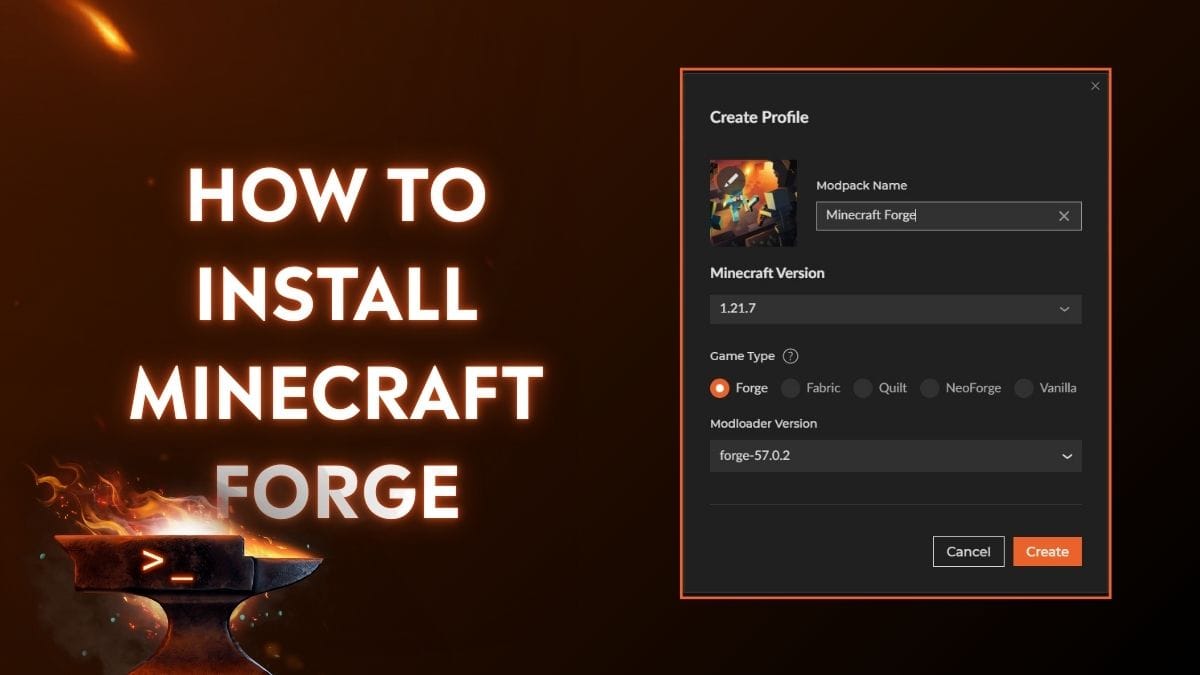
Executing the Forge Installer (Client-Side Installation)
This process installs Forge onto your local machine, allowing you to play modded Minecraft in single-player or connect to modded servers.
- Locate the Installer: Go to the folder where you saved the Forge installer
.jarfile. - Run the Installer:
- Windows: Double-click the
.jarfile. If it doesn’t open, right-click it, select “Open with,” and choose “Java(TM) Platform SE binary.” (If “Java(TM) Platform SE binary” isn’t an option, your Java installation might be incorrect, or you need to reinstall Java as described in the preparation section.) - macOS: Double-click the
.jarfile. If it doesn’t open, ensure your Gatekeeper settings allow applications from identified developers, or right-click and choose “Open.” You might need to adjust security preferences in “System Settings” > “Privacy & Security” if it blocks the app.
- Windows: Double-click the
- Forge Installer Window: A small “Mod System Installer” window will appear.
- Select “Install client”: Ensure that “Install client” is selected. This is the default option and is what you need for playing modded Minecraft on your computer.
- Confirm Installation Directory: The “Install directory” field should automatically point to your
.minecraftfolder (e.g.,C:UsersYourUsernameAppDataRoaming.minecraft). Do not change this unless you have a very specific, advanced setup. - Start Installation: Click “OK.”
- Completion Message: Forge will now download and install the necessary files. This process usually takes a few seconds to a minute. Once complete, you should see a message stating, “Successfully installed client profile forge for
into launcher and grabbed required libraries.” - Close Installer: Click “OK” to close the installer.
Verifying Your Forge Installation
Now that Forge is installed, you need to confirm it’s working correctly and that your Minecraft Launcher recognizes it.
- Open Minecraft Launcher: Launch your official Minecraft Launcher.
- Select the Forge Profile: On the “Play” tab, look to the bottom-left corner of the launcher window, next to the “Play” button. You should see a dropdown menu. Click it.
- Choose “Forge”: In the dropdown list, you should now see a new profile named “Forge” followed by the Minecraft version (e.g., “Forge 1.19.4”). Select this profile.
- Launch Minecraft: Click the large “Play” button. The launcher might download some additional files for Forge during the first launch.
- Verify Forge in Game:
- Once Minecraft loads, you should see “Minecraft Forge” or a similar text in the bottom-left corner of the main menu.
- There will also be a new “Mods” button on the main menu, typically between “Singleplayer” and “Multiplayer.”
- Clicking the “Mods” button will show you a list of installed mods. Initially, this will only contain Forge’s core components and a few utility mods.
Congratulations! Minecraft Forge is now successfully installed and running on your system.
A Brief Note on Server-Side Installation
While this guide focuses on client-side installation, it’s worth mentioning that the Forge installer also has an “Install server” option. If you plan to run a dedicated Minecraft server with mods, you would select this option. It generates the necessary server-side Forge files, allowing you to run a modded server that your client-side Forge installation can then connect to. The process is similar, but instead of modifying your .minecraft folder, it creates a new server folder with the Forge-enabled server JAR file.
Beyond Installation: Adding Mods and Troubleshooting Common Issues
With Forge successfully installed, the real fun begins: adding mods! However, this is also where most issues tend to arise. Understanding how to add mods and effectively troubleshoot problems is crucial for a smooth modding experience.
Your First Mod: How to Add and Activate it
Adding mods is incredibly simple once Forge is installed.
- Find a Compatible Mod: Head to a reputable modding website like CurseForge (
curseforge.com/minecraft/mc-mods). Use their filters to find mods compatible with your exact Minecraft and Forge version. For your first mod, choose something simple and well-known, like “Just Enough Items” (JEI) or “Journeymap.” - Download the Mod File: Download the mod file, which will also be a
.jarfile (e.g.,jei-1.19.4-forge.jar). - Locate Your
modsFolder:- Open your
.minecraftfolder (refer to the backup section for instructions if needed). - Inside
.minecraft, you will now find a new folder calledmods.
- Open your
- Place the Mod File: Drag and drop the downloaded mod
.jarfile directly into themodsfolder. Do not extract the.jarfile. - Launch Minecraft with Forge: Open the Minecraft Launcher, ensure your “Forge” profile is selected, and click “Play.”
- Verify the Mod:
- Once in the main menu, click the “Mods” button. Your newly added mod should now appear in the list.
- Launch a single-player world. If it’s a content mod, you might see new items in your inventory; if it’s a utility mod like JEI, you’ll immediately see its interface elements.
Deciphering Common Errors: “Exit Code 1” and More
Encountering errors is almost a rite of passage in modding. The most common and often frustrating error is “Exit Code 1.” This generic error indicates that Minecraft crashed, but it doesn’t specify why.
- Understanding Crash Reports: When Minecraft crashes, it usually generates a crash report (
.txtfile) in acrash-reportsfolder within your.minecraftdirectory. This file is your best friend for troubleshooting.- Look for Key Phrases: Search for terms like “Caused by,” “at,” “exception,” or specific mod names.
- Read the Top: The first few lines often summarize the error, pointing to a specific mod or a Java issue.
- Common Causes of “Exit Code 1” (and other crashes):
- Incorrect Java Version: As discussed, this is a frequent culprit. Ensure you have the correct 64-bit Java JRE installed for your Minecraft version.
- Incorrect Forge/Mod Version Mismatch: The mod you added is for a different Minecraft or Forge version. Always double-check compatibility.
- Mod Conflicts: Two or more mods are trying to modify the same game aspect in incompatible ways.
- Insufficient RAM: Heavily modded instances require more RAM.
- How to Allocate More RAM: In the Minecraft Launcher, go to “Installations,” hover over your Forge profile, click the three dots, then “Edit.” Click “More Options,” and find “JVM Arguments.” The relevant part is
-Xmx2G(where2Gmeans 2 Gigabytes). Change2Gto4G,6G, or8Gdepending on your system’s available RAM (e.g.,-Xmx4G). Never allocate more than 75% of your total system RAM.
- How to Allocate More RAM: In the Minecraft Launcher, go to “Installations,” hover over your Forge profile, click the three dots, then “Edit.” Click “More Options,” and find “JVM Arguments.” The relevant part is
- Corrupt Installation: Rarely, Forge or Minecraft files can become corrupted. A clean reinstall might be necessary.
- Outdated Graphics Drivers: Ensure your graphics card drivers are up-to-date.
Navigating Mod Conflicts and Resolution Strategies
Mod conflicts are inevitable when combining many mods.
- Symptoms: Crashes during startup, graphical glitches, unexpected gameplay behavior, or specific features of one mod not working when another is present.
- Resolution Strategies:
- The 50/50 Method (Binary Search): The most effective way to find a conflicting mod.
- Remove half of your mods from the
modsfolder. - Launch Minecraft. If it works, the conflict is in the mods you removed. If it still crashes, the conflict is in the mods you kept.
- Repeat the process, narrowing down the group of problematic mods by half each time until you isolate the culprit.
- Remove half of your mods from the
- Check Mod Descriptions: Mod authors often list known incompatibilities or required dependencies on their download pages.
- Read Crash Reports Carefully: The crash report might explicitly name the conflicting mods.
- Use Mod Management Tools: While not strictly Forge, tools like the CurseForge app allow you to manage multiple mod profiles and make it easier to add/remove mods and keep track of versions.
- Seek Community Help: Forums like r/feedthebeast or specific modding communities are great resources for troubleshooting unique issues. Share your crash report with them.
- The 50/50 Method (Binary Search): The most effective way to find a conflicting mod.
Optimizing Performance for a Modded Minecraft Experience
Running many mods can significantly impact your game’s performance. Here are some tips:
- Allocate More RAM: As mentioned above, increase the
-Xmxvalue in your JVM arguments. - Install Optimization Mods: Mods like OptiFine (though it can sometimes conflict with other mods, so check compatibility), Rubidium (Forge port of Sodium), Oculus (Forge port of Iris), and BetterFPS can dramatically improve performance.
- Adjust Video Settings: Reduce render distance, turn off fancy graphics, lower particle effects, and disable VSync if you have a high refresh rate monitor.
- Remove Unnecessary Mods: If you’re not actively using a mod, remove it. Every mod adds overhead.
- Upgrade Hardware: Ultimately, for extremely heavy modpacks, better hardware (CPU, GPU, RAM) will provide the most significant performance boost.
The Modding Ecosystem: Exploring Further with Forge
Successfully installing Forge and your first few mods is just the beginning. The Minecraft modding world is vast and constantly evolving.
Discovering and Safely Downloading Quality Mods
The quality and safety of mods vary widely. Always prioritize reputable sources.
- CurseForge: The largest and safest platform for Minecraft mods. Mods are curated, and the platform integrates with launchers for easy installation.
- Modpack Launchers (e.g., FTB App, Technic Launcher, ATLauncher): These launchers provide access to pre-built “modpacks” – collections of mods curated to work together, often with specific themes or gameplay goals. They handle Forge installation and mod management automatically.
- Official Mod Websites/Forums: Some mod authors host their mods on their own websites or dedicated forums. Always verify the authenticity of these sites.
- Avoid: Websites that claim to offer “free Minecraft mods” but require you to download an executable (.exe) file, or sites that are riddled with suspicious ads and pop-ups. Stick to trusted sources.
The Power of Modpacks: Curated Modded Experiences
For many, the ultimate modding experience comes from modpacks.
- What are Modpacks? A modpack is a collection of carefully selected and configured mods, often designed around a specific theme (e.g., technology, magic, hardcore survival) or progression path.
- Benefits:
- Guaranteed Compatibility: Mods in a modpack are tested to work together, minimizing conflicts.
- Curated Experience: Provides a structured and balanced gameplay experience.
- Easy Installation: Modpack launchers automate the entire setup process, including Forge and all the mods.
- How to Access Modpacks: Download and install a dedicated modpack launcher like the CurseForge App, FTB App, Technic Launcher, or ATLauncher. These launchers allow you to browse, download, and play various modpacks with just a few clicks.
Future-Proofing Your Modding Adventures
The modding community is dynamic. Staying informed will keep your experience smooth.
- Keep Forge Updated: Periodically check the Forge website for newer “Recommended” versions, especially after major Minecraft updates.
- Update Your Mods: Regularly check for updates to your favorite mods. Developers frequently release bug fixes, performance improvements, and new content. The CurseForge app can help manage mod updates.
- Follow Modding Communities: Engage with communities on Reddit (r/feedthebeast, r/Minecraft), Discord servers, or modding forums. This is where you’ll find news, troubleshooting help, and discover new mods.
- Understand New Minecraft Versions: Be aware that when Minecraft updates to a new major version, it takes time for Forge and then individual mods to update to support it. Patience is key!
Conclusion: Embrace the Infinite Possibilities of Modded Minecraft
Installing Minecraft Forge is the gateway to an almost limitless universe of new adventures within your beloved sandbox game. By meticulously following the preparation steps, executing the installation correctly, and understanding how to manage and troubleshoot your mods, you’re not just playing Minecraft; you’re actively shaping your own unique digital world.
From intricate technological advancements that redefine automation to grand magical sagas that challenge your understanding of the arcane, the potential is boundless. So, take that leap, download Forge, start experimenting with mods, and rediscover Minecraft anew. Happy modding!
aViewFromTheCave is a participant in the Amazon Services LLC Associates Program, an affiliate advertising program designed to provide a means for sites to earn advertising fees by advertising and linking to Amazon.com. Amazon, the Amazon logo, AmazonSupply, and the AmazonSupply logo are trademarks of Amazon.com, Inc. or its affiliates. As an Amazon Associate we earn affiliate commissions from qualifying purchases.