
In the complex ecosystem of Windows operating systems, compressed archive formats play a crucial role in delivering updates, drivers, and software components efficiently. Among these, the Microsoft Cabinet (.cab) file stands out as a fundamental packaging format. While often handled behind the scenes by Windows Update, there are numerous scenarios where understanding how to manually install a CAB file becomes an invaluable skill for IT professionals, system administrators, and advanced users alike. This guide delves into the intricacies of CAB files, outlining essential preparations, detailing various installation methods, and offering comprehensive troubleshooting tips to ensure a smooth and secure deployment process.
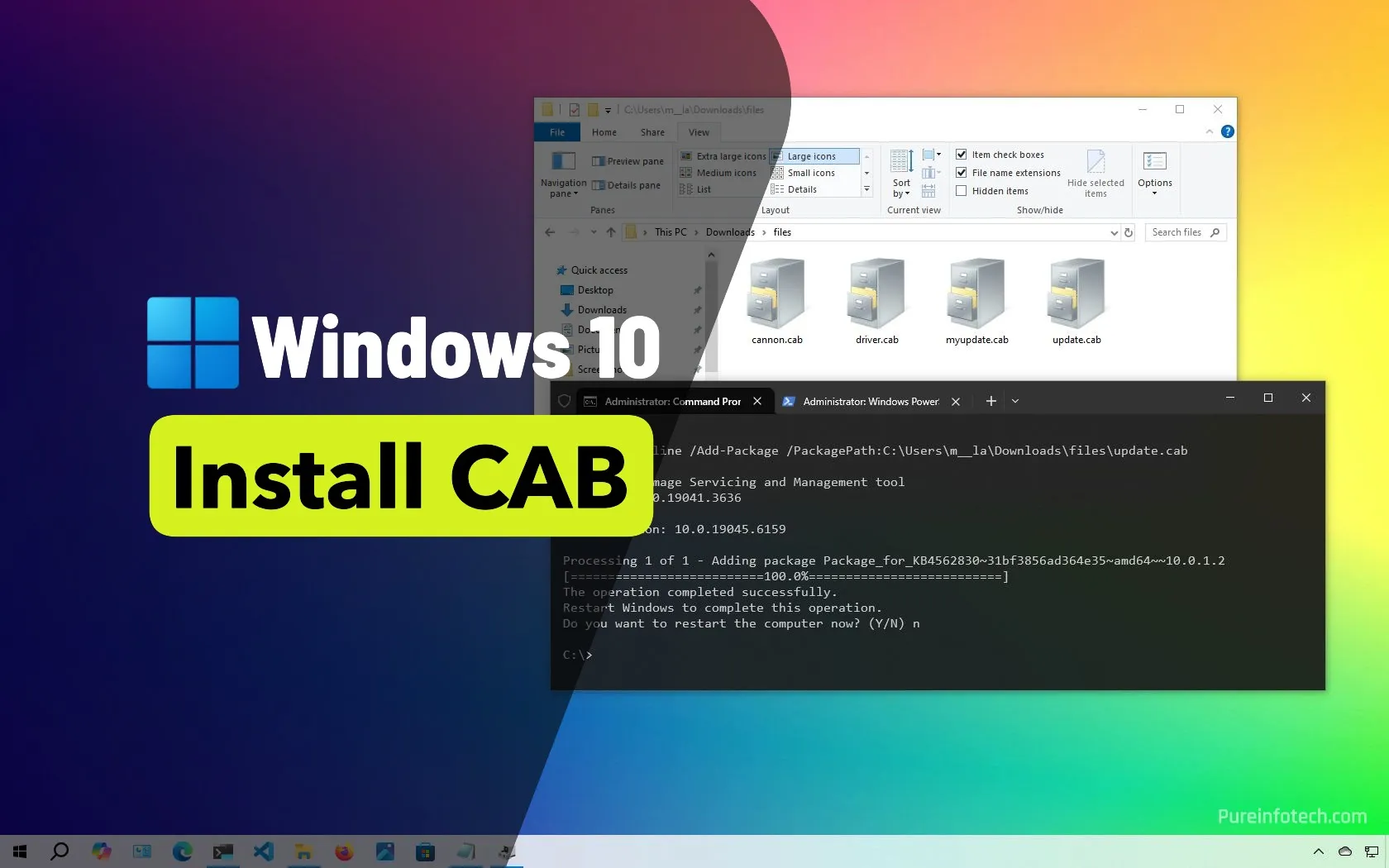
Understanding CAB Files and Their Role in Windows Systems
Before diving into the installation process, it’s vital to grasp what CAB files are and why they are integral to Windows operations. This foundational knowledge will empower you to approach installations with greater confidence and understanding.
What is a CAB File?
A Microsoft Cabinet (.cab) file is a compressed archive file format for Microsoft Windows that supports lossless data compression and embedded digital certificates. Essentially, it’s a digital container designed to hold multiple files and folders in a single, compact package. CAB files are characterized by their efficiency in storing various types of data, from system drivers and operating system updates to installer components for software applications. Their primary purpose is to streamline the distribution and installation of software and system components, ensuring that all necessary files are bundled together and can be deployed reliably.
Why are CAB Files Used?
The utility of CAB files extends across several critical areas within the Windows environment:
-
System Updates: Many Windows updates, especially cumulative updates and security patches, are often distributed as CAB files. These packages contain the specific files and instructions needed to update system components, fix vulnerabilities, and introduce new features.
-
Driver Installation: Device manufacturers frequently package drivers as CAB files. This ensures that all necessary driver files, INF files, and associated utilities are delivered together, simplifying the installation process for new hardware.
-
Software Deployment: While less common for full application installers (which often use MSI or EXE formats), CAB files are frequently used to package core components or dependencies for larger software applications. This allows developers to distribute specific parts of their software efficiently.
-
Offline Installation and Servicing: For environments with limited or no internet access, or for IT professionals managing multiple machines, CAB files enable offline installation of updates and components, offering greater control over the deployment process. They are a core component of tools like DISM (Deployment Image Servicing and Management) for servicing Windows images.
Common Scenarios for CAB Installation
You might find yourself needing to manually install a CAB file in several situations:
-
Failed Windows Update: If a Windows Update fails repeatedly, downloading the specific update as a CAB file from the Microsoft Update Catalog and installing it manually can often resolve the issue.
-
Installing Specific Drivers: When a device manufacturer provides a driver in CAB format, or if you need to roll back to a specific driver version not available through standard update channels.
-
System Repair or Recovery: In certain system repair scenarios, you might need to manually inject specific system files or updates from a CAB file to restore functionality.
-
Offline Servicing of OS Images: IT administrators often use CAB files to apply updates to Windows installation images (WIM files) offline, before deploying them to new machines.
Essential Preparations Before Installation
A successful CAB file installation begins with thorough preparation. Neglecting these crucial steps can lead to failed installations, system instability, or even security vulnerabilities.
Administrative Privileges: A Must-Have
Installing system-level components requires elevated permissions. You must be logged in as an administrator or have administrator privileges to execute the commands and tools necessary for CAB file installation. Attempting to install without these privileges will almost certainly result in “Access Denied” errors.
Verifying File Integrity and Source Credibility
Downloading CAB files from unverified sources is a significant security risk. Malicious actors can embed malware or corrupt files within seemingly legitimate CAB packages. Always ensure:
-
Official Sources: Download CAB files exclusively from trusted sources such as the Microsoft Update Catalog, your hardware manufacturer’s official support website, or your organization’s verified internal distribution channels.
-
File Integrity Check (Optional but Recommended): If the source provides a hash (MD5, SHA1, SHA256) for the CAB file, use a utility to compare the downloaded file’s hash with the provided one. This verifies that the file has not been corrupted during download or tampered with.
System Backup: A Safety Net
While CAB installations are generally safe, system-level changes always carry a small risk of unforeseen issues. Before initiating any manual system update or driver installation, it’s highly recommended to:
-
Create a System Restore Point: This allows you to revert your system to a previous state if the installation causes problems. Search for “Create a restore point” in Windows and follow the prompts.
-
Full System Backup: For critical systems, consider a full disk image backup using Windows Backup and Restore or a third-party backup solution.
Identifying Your System Architecture (32-bit vs. 64-bit)
Windows comes in two primary architectures: 32-bit (x86) and 64-bit (x64). It is crucial to download and install CAB files that match your system’s architecture. Installing an incorrect version can lead to errors or system instability. To check your system type:
- Go to Settings > System > About. Under “Device specifications,” look for “System type.”
Step-by-Step Installation Methods
There are several ways to install CAB files, with the Deployment Image Servicing and Management (DISM) tool being the most robust and recommended method for system updates.
Method 1: Installing via DISM (Deployment Image Servicing and Management)
DISM is a powerful command-line tool used to service and prepare Windows images, including the installation of CAB files. This is the preferred method for applying system updates or drivers.
When to Use DISM
Use DISM when you have a standalone CAB file that is intended to update system components, drivers, or the operating system itself. It’s particularly effective for applying updates from the Microsoft Update Catalog.
Executing the Command Prompt Method
-
Place the CAB File: For ease of access, place the downloaded
.cabfile in a simple location, such as the root of your C: drive (C:) or a newly created folder likeC:Updates. For this example, let’s assume the file isC:Updatesmyupdate.cab. -
Open Command Prompt as Administrator:
-
Search for “cmd” in the Start menu.
-
Right-click on “Command Prompt” and select “Run as administrator.”
-
-
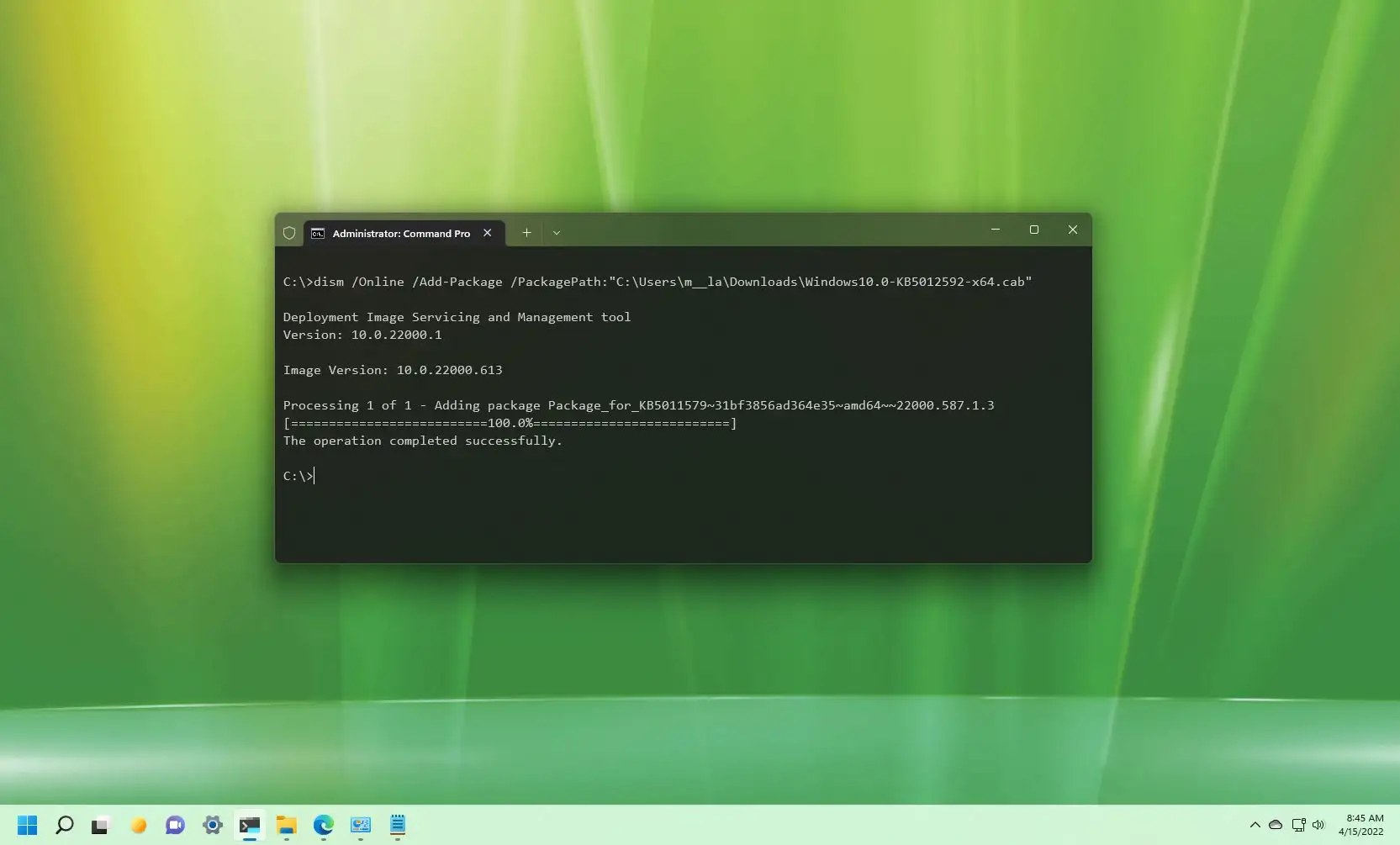
Execute the DISM Command:
-
Type the following command and press Enter:
dism /Online /Add-Package /PackagePath:"C:Updatesmyupdate.cab" -
Replace
"C:Updatesmyupdate.cab"with the actual path and name of your CAB file. -
Explanation of the command:
-
/Online: Specifies that the operation will be performed on the currently running operating system. -
/Add-Package: Instructs DISM to add a package (your CAB file). -
/PackagePath:: Specifies the location of the CAB file.
-
-
-
Wait for Completion: The installation process may take several minutes. You will see a progress indicator.
-
Restart if Prompted: If the installation requires a restart, DISM will notify you. It’s crucial to restart your system to finalize the changes.
Using PowerShell for DISM
PowerShell offers similar capabilities and can be a preferred environment for many users.
-
Open PowerShell as Administrator:
-
Search for “powershell” in the Start menu.
-
Right-click on “Windows PowerShell” and select “Run as administrator.”
-
-
Execute the DISM Command:
-
Type the following command and press Enter:
Add-WindowsPackage -Online -PackagePath "C:Updatesmyupdate.cab" -
Again, adjust the
PackagePathto your file’s location.
-
-
Monitor and Restart: Similar to the Command Prompt method, monitor the progress and restart your system if prompted.
Method 2: Manual Extraction and Component Placement
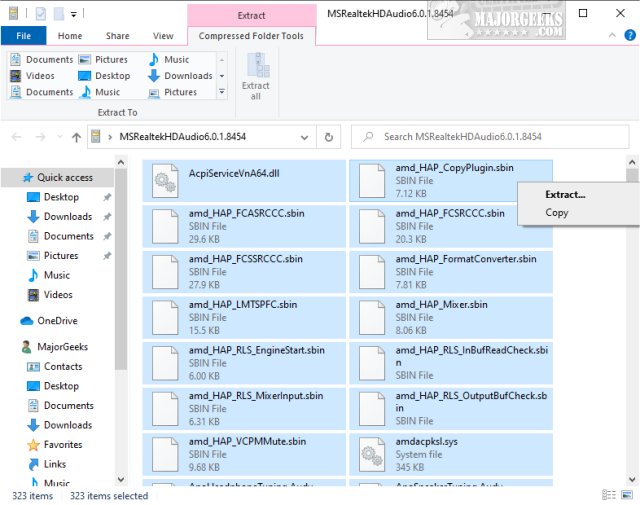
This method is less common for general system updates and more relevant for scenarios where you need to extract specific files or drivers from a CAB archive to manually place them or use them with a device manager.
Extracting CAB Contents
CAB files can be treated much like ZIP files by most archiving tools.
-
Using File Explorer (Windows 10/11):
-
Locate the CAB file.
-
Right-click on the CAB file.
-
You might see an “Extract All…” option or need to use “Open with…” and select an archiving program like 7-Zip or WinRAR if you have them installed. File Explorer’s built-in compression utility might not always offer a direct “Extract” option for CAB files.
-
-
Using Command Prompt (Expand.exe):
-
Open Command Prompt (not necessarily as administrator for just extraction).
-
Navigate to the directory where your CAB file is located using the
cdcommand (e.g.,cd C:Updates). -
Use the
expandcommand:expand mydriver.cab -F:* C:Extracted_Driver_Files-
mydriver.cab: Your CAB file name. -
-F:*: Extracts all files. You can specify a particular file if needed (e.g.,-F:driver.inf). -
C:Extracted_Driver_Files: The destination folder for the extracted files.
-
-
-
Using Archiving Software:
- Most third-party archiving tools (7-Zip, WinRAR, PeaZip) can open and extract CAB files directly. Simply right-click the CAB file and choose an extraction option.
Integrating Components into Your System
Once extracted, you can manually place specific files or use them:
-
Driver Installation: If you’ve extracted a driver, you might go to Device Manager, right-click the device, choose “Update driver,” then “Browse my computer for drivers,” and point it to the folder where you extracted the driver files.
-
Specific File Placement: For advanced users replacing a specific system file, ensure you understand the implications, have backups, and take ownership of the target file before replacement. This is a high-risk operation and generally not recommended unless you are an expert and know exactly what you’re doing.
Method 3: Using the Update Catalog (When Applicable)
The Microsoft Update Catalog is an online repository for all Microsoft updates, often providing them in CAB format. While the download itself is from the catalog, the installation then typically reverts to Method 1 (DISM).
Finding the Right Update
-
Access the Catalog: Go to
catalog.update.microsoft.comin your web browser. -
Search: Use the search bar to find the specific update you need (e.g., “KB1234567” or a description like “Windows 10 cumulative update”).
-
Identify and Download: Locate the correct update for your specific Windows version and architecture (x86, x64, ARM64) and click the “Download” button.
-
Save the CAB File: A pop-up window will appear with a direct link to the
.cabfile. Click the link to download and save it to a known location (e.g.,C:Updates).
Initiating the Installation Process
Once the CAB file is downloaded from the Update Catalog, proceed with Method 1 (Installing via DISM) as described above, using the downloaded CAB file. The catalog only provides the download; DISM handles the actual installation.
Troubleshooting Common CAB Installation Issues
Despite careful preparation, issues can sometimes arise during CAB file installation. Here’s how to address some common problems.
Error Code Analysis and Resolution
DISM commands can sometimes return error codes. Always note the error message or code, as it provides crucial clues. Common issues include:
-
Error 0x800f081f (Source files could not be found): This often means the CAB file is missing, corrupt, or the path specified in the command is incorrect. Double-check the file path and ensure the file is intact.
-
Error 0x80070002 (The system cannot find the file specified): Similar to the above, verify the file path and name.
-
Error 0x80070005 (Access is denied): You are likely not running Command Prompt or PowerShell as an administrator. Close and reopen the terminal with administrative privileges.
-
Error 0x800f082e (The specified package is not applicable to this image): The CAB file you are trying to install is not compatible with your current Windows version or architecture. Ensure you downloaded the correct version (e.g., 64-bit for a 64-bit system).
Permissions and Access Denied Errors
If you consistently face “Access Denied” errors even when running as administrator, ensure:
-
Antivirus/Security Software: Temporarily disable your antivirus or security suite, as it might be interfering with system-level changes. Remember to re-enable it immediately after installation.
-
File Permissions: Check the permissions of the folder where the CAB file is located. Ensure your administrator account has full control.
Corrupt or Incompatible CAB Files
-
Corrupt File: If a CAB file download was interrupted or corrupted, it won’t install correctly. Delete the file and re-download it from the official source. Verify its integrity if a hash is provided.
-
Incompatible File: As mentioned with error codes, always ensure the CAB file matches your specific Windows version, build, and architecture. Trying to install a Windows 10 update on Windows 11, or a 32-bit package on a 64-bit system, will fail.
Post-Installation Verification and System Restart
After the DISM command reports success:
-
Restart Your System: Many CAB file installations, especially system updates, require a restart to fully integrate the changes. Always restart your computer when prompted, or if you encounter any unexpected behavior.
-
Check Event Viewer: The Windows Event Viewer (specifically System or Setup logs) can provide details on the installation process and any encountered errors.
-
Verify Functionality: Check if the update or driver you installed has resolved the original issue or if the new functionality is working as expected.
Best Practices and Advanced Considerations
Beyond the basic installation steps, adhering to best practices can significantly enhance system stability and security.
Automating CAB Installations for IT Professionals
For IT environments, manually installing CAB files on multiple machines is inefficient. Scripting tools like PowerShell can automate this process:
-
Batch Processing: Create PowerShell scripts to iterate through a list of CAB files and apply them using
Add-WindowsPackage. -
Group Policy or SCCM: Integrate CAB file deployment into existing management tools like Group Policy or Microsoft System Center Configuration Manager (SCCM) for large-scale, automated rollouts.
Security Implications of Unverified CAB Files
The ease of CAB file installation comes with a significant security caveat: if a CAB file contains malicious code, installing it can severely compromise your system.
-
Strict Source Verification: Never download CAB files from torrent sites, suspicious forums, or unofficial download portals. Stick exclusively to trusted Microsoft sources or reputable hardware vendors.
-
Digital Signatures: While DISM doesn’t always strictly validate signatures for local CAB files, reputable CAB files from Microsoft are digitally signed. You can often inspect the signature on the
makecab.exetool or the individual files within the CAB, but the most reliable method is still obtaining from a trusted source.
Maintaining System Stability After Updates
Regular maintenance helps ensure your system remains stable after applying updates:
-
Regular Backups: Continue to create system restore points or full backups before major updates.
-
Driver Updates: Keep your device drivers up to date, but be cautious with brand-new releases.
-
Monitor System Health: Use tools like Task Manager, Event Viewer, and Performance Monitor to keep an eye on your system’s behavior, especially after applying manual updates.
In conclusion, knowing how to install CAB files is a powerful skill for anyone looking to maintain, troubleshoot, or customize their Windows system beyond the standard update mechanisms. By understanding their purpose, preparing diligently, and following the correct installation methods, you can effectively manage system updates, deploy drivers, and resolve issues with greater control and confidence. Always prioritize security by sourcing CAB files exclusively from trusted origins to safeguard your system against potential threats.
aViewFromTheCave is a participant in the Amazon Services LLC Associates Program, an affiliate advertising program designed to provide a means for sites to earn advertising fees by advertising and linking to Amazon.com. Amazon, the Amazon logo, AmazonSupply, and the AmazonSupply logo are trademarks of Amazon.com, Inc. or its affiliates. As an Amazon Associate we earn affiliate commissions from qualifying purchases.