
The iPhone has revolutionized personal technology, transforming from merely a communication device into an indispensable portable computer, a hub for entertainment, productivity, and connection. At the heart of this transformation are applications, or “apps,” which extend the iPhone’s capabilities far beyond its factory settings. From social media platforms and communication tools to intricate productivity suites, immersive games, and financial management utilities, apps cater to virtually every need and interest. Understanding how to effectively install and manage these applications is fundamental to unlocking your iPhone’s full potential. This guide will walk you through the primary methods of acquiring apps, explore alternative installation techniques, offer crucial tips for management and troubleshooting, and provide insights into smart app usage, drawing on best practices in tech and digital security.
The Official Gateway: Installing Apps via the Apple App Store
For the vast majority of iPhone users, the Apple App Store is the sole, secure, and most reliable portal for downloading applications. Launched in 2008, it has grown into the world’s largest and most curated digital marketplace for mobile software, boasting millions of apps designed specifically for the iOS ecosystem. Apple’s stringent review process ensures a high standard of quality, security, and functionality, making it the safest option for users.
Navigating the App Store: Discovery and Selection
Before you can install an app, you need to find it. The App Store is designed for intuitive discovery:
- Open the App Store: Tap the blue icon with the white ‘A’ on your iPhone’s Home Screen.
- Browse Categories: The “Today” tab offers curated stories, daily app recommendations, and editorial content highlighting new and noteworthy applications. The “Games” and “Apps” tabs allow you to explore by category (e.g., Productivity, Education, Finance, Health & Fitness), view top charts (free, paid, and grossing), and see apps recommended by Apple’s editors.
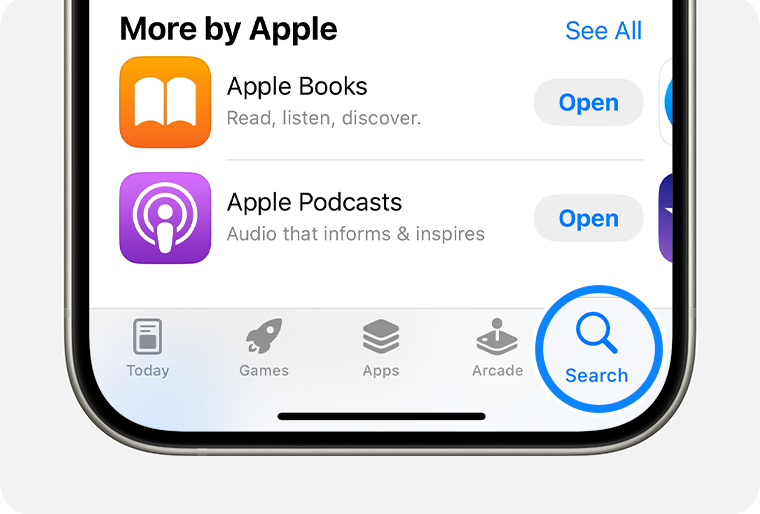
- Search Functionality: If you know the name of the app you’re looking for, or even just a keyword related to its function, tap the “Search” tab (magnifying glass icon) and type your query into the search bar. This is the quickest way to locate a specific application.
- App Product Pages: Once you find an app, tap on its icon to view its product page. This page provides critical information:
- Description: A detailed overview of the app’s features and purpose.
- Screenshots/Videos: Visuals demonstrating the app’s interface and functionality.
- Ratings & Reviews: User feedback, crucial for evaluating an app’s quality and reliability. Pay attention to overall star ratings and read recent reviews.
- Developer Information: Details about the app developer, which can be important for assessing the brand’s credibility and support.
- Privacy Practices: A summary of data collected by the app, a key consideration for digital security.
- In-App Purchases/Subscriptions: Information on any additional content or premium features that require extra payment, vital for budgeting and financial planning.
- Compatibility: Ensures the app works with your specific iPhone model and iOS version.
Step-by-Step: Downloading Free Applications
Downloading a free app from the App Store is a straightforward process:
- Locate the App: Find the app you wish to install using the methods described above.
- Tap “Get”: On the app’s product page, you’ll see a “Get” button (or a cloud icon with a down arrow if you’ve previously downloaded it). Tap it.
- Confirm Installation:
- Face ID/Touch ID: If your device supports it, you’ll be prompted to authenticate with Face ID (double-click the side button, then look at your iPhone) or Touch ID (place your finger on the Home button).
- Passcode: If biometric authentication is not enabled or fails, you may be asked to enter your Apple ID passcode.
- Wait for Download: The app icon will appear on your Home Screen (or in the App Library) with a progress circle. Once the circle completes, the app is ready to use.
- Open the App: Tap the app icon to launch it.
Acquiring Premium Apps: Purchases and Subscriptions
For paid applications or apps with subscription models, the process is similar but involves a financial transaction. This directly ties into the “Money” aspect of your digital life.
- Locate the App: Find the desired paid app in the App Store.
- View Price: Instead of “Get,” you’ll see the app’s price (e.g., “$4.99”).
- Tap the Price: Tap the price button.
- Confirm Purchase: You’ll be prompted to confirm the purchase using Face ID, Touch ID, or your Apple ID passcode. Ensure your Apple ID has a valid payment method associated with it (e.g., credit card, debit card, Apple Pay balance, carrier billing).
- Download and Install: The app will download and install automatically after the purchase is confirmed.
- In-App Purchases and Subscriptions: Many free apps offer additional features or content through in-app purchases or recurring subscriptions. These are separate transactions made within the app itself after installation. Be mindful of these, as they can add up quickly. Apple provides clear disclosures on app product pages regarding the presence of in-app purchases and subscription options, enabling users to make informed financial decisions.
Managing Your App Store Experience: Updates and Account Settings
Effective app management is crucial for optimal performance and security:
- App Updates: Developers frequently release updates to fix bugs, add new features, and enhance security. To check for updates, open the App Store, tap your profile picture in the top-right corner, and scroll down. You can tap “Update All” or update individual apps. It’s highly recommended to keep apps updated for the best experience and to protect against potential security vulnerabilities.
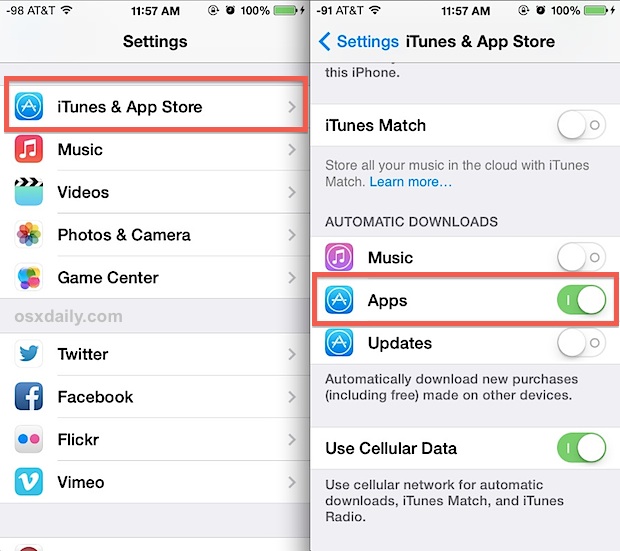
- Automatic Downloads: You can enable automatic app updates and downloads for apps purchased on other devices in your iPhone’s Settings (Settings > App Store). This ensures your apps are always current without manual intervention.
- Payment Methods: Manage your Apple ID payment methods and subscriptions via Settings > [Your Name] > Media & Purchases > View Account > Manage Payments. This is crucial for seamless app purchases and managing recurring charges.
Beyond the App Store: Exploring Alternative Installation Methods
While the App Store is the primary and recommended method, there are specific scenarios where alternative installation methods are used. These methods often cater to developers, businesses, or specialized users and come with varying levels of complexity and security considerations.
Beta Testing with TestFlight: Early Access to Innovation
Apple’s TestFlight platform allows developers to invite users to beta test their apps before public release on the App Store. This is an excellent way to get an early look at new features and provide feedback, directly influencing the final product.
- Invitation Required: You need an invitation from the developer, usually via email with a unique redemption code or a public link.
- Install TestFlight App: Download the TestFlight app from the App Store.
- Redeem Code/Link: Open the TestFlight app and redeem your code, or simply tap the invitation link provided by the developer.
- Install Beta App: The beta version of the app will then appear in TestFlight, allowing you to install and test it.
This method is safe as it’s officially sanctioned by Apple, but remember that beta apps may be less stable and contain bugs.
Enterprise and Developer Deployment: Side-loading for Specific Use Cases
“Side-loading” refers to installing apps on an iPhone without using the App Store. While generally restricted for consumer devices, Apple provides official mechanisms for developers and corporate entities:
- Developer Certificates: Registered Apple developers can install their own apps directly onto their registered devices for testing purposes. This requires a developer account and Xcode software.
- Enterprise Distribution (MDM): Organizations can distribute custom in-house applications to their employees’ iPhones without going through the App Store. This is managed through Mobile Device Management (MDM) solutions. Employees’ devices are provisioned with an enterprise certificate, allowing the installation of internal apps. These apps are specifically designed for internal business processes and are not available to the public. The “Brand” theme is particularly relevant here, as these apps often reinforce a company’s internal brand identity and operational efficiency.
For the average user, these methods are generally not accessible or applicable.
Understanding Progressive Web Apps (PWAs): Web Experiences on Your Home Screen
Progressive Web Apps (PWAs) are websites that offer an app-like experience directly from your browser. They can be “installed” to your Home Screen, appearing like a native app icon. They don’t require an App Store download and function primarily using web technologies.
- Browse to a PWA-enabled Website: Open Safari and navigate to a website that supports PWA features (e.g., many news sites, some social media platforms).
- Share Button: Tap the Share button (square with an upward arrow) at the bottom of the screen.
- “Add to Home Screen”: Scroll down and tap “Add to Home Screen.”
- Confirm: You can rename the shortcut if you wish, then tap “Add.”
The PWA icon will appear on your Home Screen, launching the web app directly when tapped. This is a secure method as it leverages your browser’s security features and doesn’t involve installing executable software.

A Word of Caution: Risks of Unofficial Sources and Jailbreaking
It’s crucial to address methods that bypass Apple’s security measures, as they pose significant risks. This directly relates to “Digital Security” and “Digital Security.”
- Third-Party App Stores (Unofficial): These are alternative marketplaces that claim to offer free versions of paid apps or apps not available on the App Store. They often operate outside of Apple’s security protocols.
- Jailbreaking: This process removes software restrictions imposed by Apple, allowing users to install unauthorized apps and customize their iOS beyond Apple’s design.
Risks Associated with Unofficial Sources and Jailbreaking:
- Malware and Viruses: Apps from unofficial sources are not vetted by Apple, making them prime vectors for malware, spyware, and viruses that can compromise your data, privacy, and device security.
- Data Theft: Malicious apps can steal your personal information, financial data, and credentials.
- Device Instability: Jailbreaking can lead to system crashes, poor performance, and reduced battery life.
- Voided Warranty: Apple does not support jailbroken devices, and doing so can void your warranty.
- Security Vulnerabilities: Bypassing Apple’s security updates leaves your device vulnerable to known exploits.
For these reasons, it is strongly advised against using unofficial app stores or jailbreaking your iPhone. Stick to the App Store for maximum security and reliability.
Optimizing Your App Library: Management and Troubleshooting
Once apps are installed, effective management ensures your iPhone remains organized, performs optimally, and maintains your desired level of privacy.
Organizing Your Digital Workspace: Folders, Pages, and Libraries
A cluttered Home Screen can be overwhelming. iOS offers several ways to organize your apps:
- Folders: Tap and hold an app icon until it jiggles, then drag it on top of another app. This will create a folder. You can drag more apps into the folder and rename it.
- Reordering Pages: While apps are jiggling, you can drag them between different Home Screen pages or rearrange the pages themselves.
- App Library: Introduced in iOS 14, the App Library automatically organizes all your apps into categories (e.g., Productivity & Finance, Social, Games). Swipe left past your last Home Screen page to access it. You can hide less-used Home Screen pages to rely more on the App Library.
Freeing Up Space: Deleting, Offloading, and Managing Storage
Apps take up storage space, and over time, this can impact performance. Managing your storage is essential:
- Deleting Apps: To permanently remove an app and all its data, tap and hold the app icon until it jiggles, then tap the ‘X’ (or minus sign in newer iOS versions) and confirm “Delete App.”
- Offloading Apps: iOS allows you to “offload” an app, which removes the app itself but keeps its documents and data. The app icon remains on your Home Screen with a small cloud symbol. If you reinstall it later, your data will still be there. This is a great way to free up space without losing important information. Go to Settings > General > iPhone Storage > [App Name] > Offload App. You can also enable “Offload Unused Apps” automatically in Settings > App Store.
- Checking Storage Usage: To see which apps are consuming the most space, navigate to Settings > General > iPhone Storage. This overview helps you identify apps to delete or offload.
Common Installation and Usage Issues: Troubleshooting Tips
Even with official methods, you might encounter issues. Here are quick fixes for common problems:
- App Not Downloading/Stuck:
- Check your Wi-Fi or cellular data connection.
- Ensure you have enough free storage space (Settings > General > iPhone Storage).
- Pause and resume the download by tapping the app icon on the Home Screen.
- Restart your iPhone.
- Sign out and back into your Apple ID in the App Store.
- Payment Issues for Paid Apps:
- Verify your payment method information (Settings > [Your Name] > Media & Purchases > View Account > Manage Payments).
- Ensure funds are available on your card or account.
- Contact your bank or payment provider if the issue persists.
- App Crashing/Not Working:
- Close and reopen the app (swipe up from the bottom, then swipe the app card away).
- Restart your iPhone.
- Check for app updates in the App Store.
- Delete and reinstall the app (this will delete app data unless it’s stored in iCloud or you offloaded it).
- Contact the app developer for support.
Privacy and Permissions: Safeguarding Your Data
When installing apps, pay close attention to the permissions they request. This is a critical aspect of “Digital Security.”
- Location Services: Does a calculator app really need your location? Review permissions carefully.
- Photos, Microphone, Camera Access: Grant these only to apps that genuinely require them for their core functionality.
- Tracking: iOS provides options to limit app tracking across websites and other apps. Go to Settings > Privacy & Security > Tracking.
- App Privacy Report: In Settings > Privacy & Security > App Privacy Report, you can see how apps access your data and various sensors over time, providing transparency.
Regularly review and adjust app permissions in Settings > Privacy & Security.
Smart App Usage: Tips for Discovery, Security, and Financial Prudence
Navigating the vast world of apps requires a strategic approach, especially concerning “Tech” innovations, “Brand” credibility, and “Money” management.
Evaluating Apps: Reviews, Reputation, and Trust
Before downloading any app, especially new or unfamiliar ones:
- Read Reviews and Ratings: Prioritize apps with consistently high ratings and positive, recent reviews. Be wary of apps with very few reviews or a sudden surge of generic 5-star ratings, which can sometimes indicate manipulation.
- Check Developer Reputation: Reputable developers and well-known brands tend to offer more reliable and secure apps. Look for established companies or individuals with a history of quality apps. This ties into the “Brand Strategy” aspect – a good app reflects positively on a developer’s brand.
- Understand Permissions: As discussed, review the permissions an app requests. If they seem excessive for the app’s function, consider alternatives.
- Review App Privacy Details: Apple’s App Store product pages provide “App Privacy” labels, summarizing the data an app collects and how it’s used. This transparency is invaluable for making informed decisions about your digital security.
Navigating In-App Purchases and Subscriptions: A Financial Overview
Apps can be a significant part of your “Personal Finance” landscape.
- Budgeting for Apps: Treat paid apps and subscriptions like any other expense. Factor them into your personal budget.
- Subscription Management: Be vigilant about free trials that automatically convert to paid subscriptions. Always know how and when to cancel a subscription if you don’t intend to continue paying. You can manage all your subscriptions via Settings > [Your Name] > Subscriptions.
- Understanding Value: Evaluate if the benefits provided by an app’s premium features or subscription truly justify the recurring cost. Many free alternatives exist, and sometimes a one-time purchase is more cost-effective than a long-term subscription.
- Parental Controls: If children use your iPhone, enable Screen Time restrictions to prevent unauthorized in-app purchases or app downloads (Settings > Screen Time > Content & Privacy Restrictions > iTunes & App Store Purchases).
Conclusion
Installing apps on your iPhone is a straightforward process, primarily facilitated by the secure and user-friendly Apple App Store. By understanding how to navigate this official gateway, recognizing the limited scope of legitimate alternative methods like TestFlight and PWAs, and rigorously avoiding risky unofficial sources, you ensure both the functionality and security of your device. Beyond installation, effective app management—including organization, storage optimization, and diligent attention to privacy settings—is key to a smooth and secure user experience. Ultimately, a smart approach to app discovery, coupled with financial prudence regarding purchases and subscriptions, empowers you to leverage the full power of your iPhone’s ecosystem while maintaining control over your digital life and personal finances.
aViewFromTheCave is a participant in the Amazon Services LLC Associates Program, an affiliate advertising program designed to provide a means for sites to earn advertising fees by advertising and linking to Amazon.com. Amazon, the Amazon logo, AmazonSupply, and the AmazonSupply logo are trademarks of Amazon.com, Inc. or its affiliates. As an Amazon Associate we earn affiliate commissions from qualifying purchases.