
In an increasingly digital world, our browsers have become more than mere tools for accessing information; they are gateways to our professional lives, our entertainment, and our personal connections. As such, the desire to personalize this central hub is only natural. Google Chrome, with its massive user base and robust ecosystem, offers extensive customization options, chief among them the ability to install custom themes. These themes transform the visual appearance of your browser, from the background of your New Tab page to the color scheme of your tabs and address bar, creating an interface that truly reflects your style or enhances your productivity.
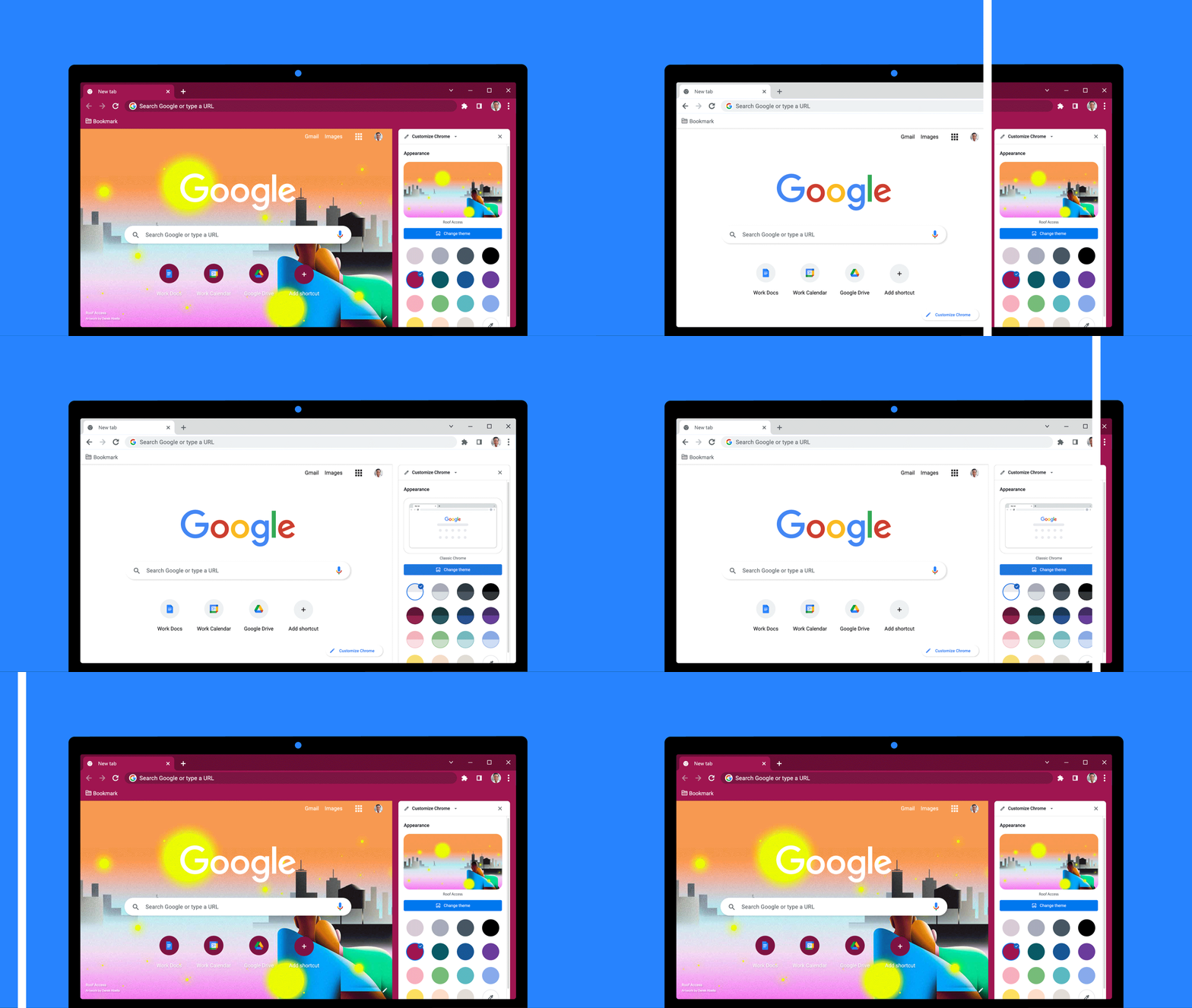
This comprehensive guide will walk you through everything you need to know about customizing your Chrome browser with themes. We’ll explore the official, safe methods via the Chrome Web Store, delve into the more advanced, unofficial avenues for unique designs, and provide essential tips for managing and troubleshooting your custom setup. By the end, you’ll be equipped to transform your Chrome browser into a personalized digital workspace that’s both aesthetically pleasing and functionally optimized.
The Official Route: Installing Themes from the Chrome Web Store
The safest, easiest, and most recommended method for installing themes on Google Chrome is through the official Chrome Web Store. This marketplace is curated by Google, ensuring that all themes (and extensions) meet certain security and performance standards. It offers a vast collection of themes, ranging from minimalist designs to vibrant artistic expressions, all available with just a few clicks.
Navigating the Chrome Web Store for Themes
Accessing the Chrome Web Store is straightforward. You can either open a new tab and click on the “Apps” icon (if visible) and then the “Web Store” icon, or simply type chrome.google.com/webstore into your address bar and press Enter.
Once you’re on the Chrome Web Store homepage, you’ll notice a sidebar on the left. Look for the “Themes” category, usually listed under “Categories.” Clicking on it will filter the results to display only themes.
The themes section is organized to help you discover new styles:
- Featured: Highlights popular, highly-rated, or trending themes.
- Categories: Themes are often grouped by style, color, mood (e.g., “Dark Themes,” “Nature,” “Abstract,” “Minimalist”). This is incredibly useful if you have a specific aesthetic in mind.
- Search Bar: If you’re looking for something very specific, like themes related to a certain movie, game, or artist, use the search bar at the top left of the Web Store. Type in your keywords, and the store will present relevant options.
As you browse, you’ll see thumbnails of each theme. Hovering over a thumbnail often gives you a quick preview, and clicking on it will take you to the theme’s dedicated page. This page provides a larger preview, user reviews, ratings, and sometimes a description from the creator. Pay attention to the ratings and reviews, as they can offer valuable insights into the theme’s quality, how it looks in practice, and any potential issues users might have encountered. Themes with high ratings and positive reviews from many users are generally a safe bet.
One-Click Installation and Instant Transformation
Once you’ve found a theme that catches your eye, installing it is remarkably simple:
- Click the Theme: Navigate to the theme’s individual page in the Chrome Web Store.
- Click “Add to Chrome”: On the top right corner of the theme’s page, you’ll see a prominent blue button labeled “Add to Chrome.” Click this button.
- Confirm Installation: Chrome will usually display a small pop-up asking for confirmation. This is a standard security measure, though for themes, it’s less about permissions and more about acknowledging the change. Click “Add theme.”
Almost instantly, your browser’s appearance will change. The New Tab page background will update, and the colors of your tabs, address bar, and bookmarks bar will shift to match the chosen theme. There’s no need to restart Chrome or perform any additional steps. The transformation is immediate, allowing you to instantly experience your new personalized look. This seamless process makes official theme installation incredibly user-friendly, even for those new to browser customization. The sheer convenience and the vetted nature of Web Store themes make it the preferred option for most users looking to enhance their Chrome experience.
Managing Your Installed Themes: Switching, Reverting, and Removing
While having a custom theme is great, you might eventually want to change it, revert to Chrome’s default look, or remove a theme altogether. Chrome provides easy ways to manage your themes directly from its settings.
-
Access Chrome Settings:
- Click the three vertical dots (More options) icon in the top right corner of your Chrome browser window.
- From the drop-down menu, select “Settings.”
-
Navigate to Appearance:
- In the Settings menu, you’ll see a sidebar on the left. Click on “Appearance.” This section is dedicated to customizing how your browser looks.
-
Managing Themes:
- Applying a New Theme: If you want to switch to a different theme, simply go back to the Chrome Web Store and install a new one. Installing a new theme will automatically replace your current one.
- Reverting to Default: Under the “Appearance” section, you’ll see an option labeled “Theme.” To the right of your current theme’s name, there will be a button that says “Reset to default.” Clicking this button will instantly remove your custom theme and restore Chrome’s original, minimalist white or dark grey interface. This is perfect if you want a clean slate or are experiencing issues with a custom theme.
- Removing a Theme (without reverting to default immediately): Unlike extensions, themes don’t have an “uninstall” button in the same way. When you install a new theme from the Web Store, it overwrites the previous one. If you want to remove a specific custom theme without immediately applying another, you must first reset to default. Once back to default, the previous custom theme is effectively removed from active use. If you were to reinstall it, you’d go through the “Add to Chrome” process again.
Managing themes through the settings is a straightforward process, ensuring you always have control over your browser’s aesthetic. It allows for experimentation with different looks, knowing that you can always return to a familiar default or switch to a new style whenever inspiration strikes.
Venturing Beyond: Installing Unofficial Themes (CRX & Unpacked)
While the Chrome Web Store offers a vast array of themes, some users might seek out highly niche designs, themes from independent artists not listed on the official store, or even wish to create and use their own custom themes. This often involves installing “unofficial” themes, which typically come as .crx files (Chrome extension files) or as folders containing theme assets. This method requires a bit more technical know-how and comes with a caveat: increased security considerations.
Understanding Unofficial Themes and Their Risks
Unofficial themes can offer unparalleled customization, unique artistic expressions, and a way to truly stand out. However, they bypass Google’s vetting process, meaning they haven’t been checked for malicious code or performance issues.
Potential Risks:
- Security Vulnerabilities: A theme disguised as a benign
.crxfile could contain malicious code designed to track your browsing, inject ads, or even steal sensitive information. This is less common for simple themes (which are mostly CSS and images) compared to extensions, but still a possibility if the source is untrustworthy. - Performance Issues: Poorly coded themes might consume excessive system resources, slowing down your browser and overall computer performance.
- Compatibility Problems: Unofficial themes might not be fully compatible with the latest Chrome updates, leading to broken visuals or unexpected behavior.
- Lack of Support: If you encounter issues, there’s no official support channel to turn to, unlike themes from the Chrome Web Store.
Where to Find Them (with caution):
Unofficial themes might be shared on design forums, personal blogs, GitHub repositories, or specialized theme websites. Always exercise extreme caution:
- Verify the Source: Only download from reputable websites or creators you trust.
- Read Comments/Reviews: If available, check what other users say about the theme.
- Scan Files: Before opening or installing, scan downloaded files with reliable antivirus software.
Given these risks, most users should stick to the Chrome Web Store. However, if you understand and accept the risks, and you’re confident in your source, the following methods explain how to proceed.
Enabling Developer Mode for Advanced Customization
To install themes that are not from the Chrome Web Store, you’ll need to enable “Developer mode” in Chrome’s extensions settings. This mode allows you to load unpacked extensions or themes, giving you more control over your browser’s functionalities.
-
Open Chrome Extensions Page:
- Type
chrome://extensionsinto your Chrome address bar and press Enter. This will take you to the Extensions management page. - Alternatively, click the three vertical dots (More options) > “More tools” > “Extensions.”
- Type
-
Toggle Developer Mode:
- On the top right corner of the Extensions page, you’ll see a toggle switch labeled “Developer mode.” Click this switch to turn it on.
- When Developer mode is enabled, you’ll notice three new buttons appear at the top left: “Load unpacked,” “Pack extension,” and “Update.” These are the tools that allow for advanced management of browser components, including themes.
Important Note: Chrome will often display a persistent warning message at the top of your browser (e.g., “Disable developer mode extensions”) when Developer mode is active and you have unpacked extensions/themes loaded. This is a security feature to remind you that you are running software not vetted by the Chrome Web Store. You can ignore this warning if you trust the themes you’ve installed, but it serves as a constant reminder of the elevated risk. If you disable Developer mode, any manually loaded unpacked themes will disappear until Developer mode is re-enabled.
The “Load Unpacked” Method for Custom Theme Folders
This is the most common and practical method for installing unofficial themes that come as a collection of files within a folder. Many theme creators distribute their designs this way, especially if they are works in progress or highly customized personal projects.
Prerequisites:

- A Theme Folder: You’ll need to have downloaded a theme that’s provided as a folder (not a
.crxfile). This folder usually contains files likemanifest.json(which defines the theme’s properties), image files for backgrounds, and CSS files for styling. - Extracted Files: If the theme was downloaded as a
.zipor.rararchive, make sure to extract all its contents to a dedicated folder on your computer. Remember the location of this folder.
Step-by-Step Installation:
-
Enable Developer Mode: As described in the previous section, go to
chrome://extensionsand ensure “Developer mode” is toggled on. -
Click “Load unpacked”: With Developer mode enabled, you’ll see a button labeled “Load unpacked” at the top left of the Extensions page. Click this button.
-
Select Theme Folder: A file browser window will appear. Navigate to the folder where you extracted your custom theme files. Crucially, select the root folder of the theme, not any subfolders within it. For example, if your theme files are inside
MyCustomTheme/images/andMyCustomTheme/manifest.json, you would select theMyCustomThemefolder itself. -
Confirm Selection: Click “Select Folder” (or “Open” depending on your operating system).
Upon successful selection, your custom theme should immediately apply to your Chrome browser. You’ll also see it listed on the chrome://extensions page, appearing like an extension, with its name, version, and a unique ID. Unlike themes from the Web Store, these “unpacked” themes are essentially treated as developer extensions.
Important Considerations for “Load Unpacked” Themes:
- Folder Persistence: For the theme to remain active, the theme folder you selected must remain in its original location on your computer. If you move, rename, or delete the folder, the theme will stop working, and Chrome might display an error.
- Automatic Updates: Unpacked themes do not automatically update. If the creator releases an updated version, you’ll need to download it, replace the old folder, and potentially re-load it.
- Developer Mode Warning: The persistent “Disable developer mode extensions” warning will remain as long as an unpacked theme is active.
This method offers the most flexibility for those who want truly unique themes or are developing their own. Just remember to always prioritize security and source reliability when using unofficial content.
Personalizing Your Chrome Experience Further
Installing a custom theme is a fantastic start to personalizing your Chrome browser, but the customization journey doesn’t have to end there. Chrome’s robust ecosystem allows for even deeper levels of personalization, affecting everything from your New Tab page to how your entire digital environment feels.
Beyond Just Themes: New Tab Pages and Backgrounds
While themes primarily dictate the colors and the background of your New Tab page, dedicated extensions can completely overhaul the New Tab experience, offering dynamic content, enhanced functionality, or even more advanced aesthetic controls.
- New Tab Page Extensions: The Chrome Web Store is teeming with extensions designed specifically to replace Chrome’s default New Tab page.
- Productivity Dashboards: Extensions like Momentum, Infinity New Tab, or Dashlane offer customizable widgets for to-do lists, weather, quick links, inspiring quotes, and more, turning your New Tab into a productivity hub.
- Visual Enhancements: Others, like Live Start Page or custom wallpaper extensions, provide dynamic backgrounds, stunning imagery, or even video backgrounds that refresh daily or periodically, adding a fresh, engaging element to your browsing.
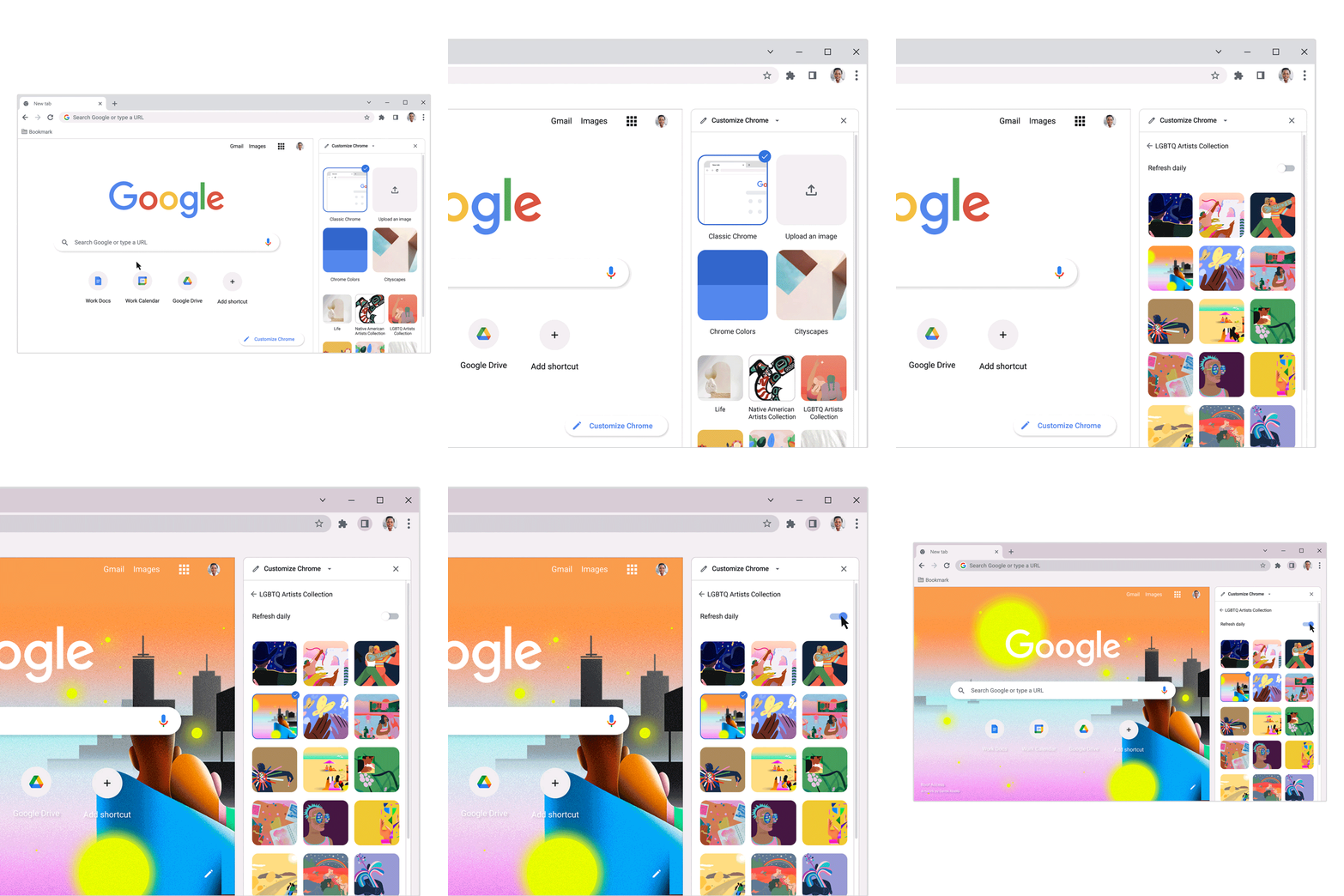
- Custom Backgrounds: If you love your current theme but want to change just the background image on your New Tab page, you can often do so directly. On the New Tab page, look for a small “Customize Chrome” button (often a pencil icon) in the bottom right corner. Clicking this allows you to upload your own image, choose from Chrome’s curated gallery, or even opt for daily refreshing images from specific categories. This provides a quick and easy way to inject personal photos or specific aesthetics without changing your entire theme.
By combining a core theme with a powerful New Tab page extension or a custom background, you can craft a highly individualized and functional browser environment that caters to both your aesthetic preferences and your daily workflow needs.
Syncing Your Style Across Devices
One of the great advantages of using Google Chrome is its robust synchronization feature, especially relevant in today’s multi-device world. If you’re signed into Chrome with your Google Account, many of your browser settings, including your chosen theme, can be synced across all your devices (desktop, laptop, tablet, etc.) where you’re also signed in.
How Syncing Works for Themes:
- Automatic Sync: When you install a new theme from the Chrome Web Store on one device and you have Chrome Sync enabled, that theme will automatically be applied to other Chrome browsers where you’re logged in with the same Google Account. This ensures a consistent visual experience across your digital ecosystem.
- Consistency and Convenience: Imagine moving from your work desktop to your personal laptop; your personalized theme ensures that your browser environment feels familiar and “yours,” reducing visual friction and enhancing the sense of a cohesive workspace.
- Managing Sync Settings: You can control what gets synced. To check or adjust your sync settings:
- Go to Chrome “Settings.”
- In the “You and Google” section, click on “Sync and Google services.”
- Click on “Manage what you sync.”
- Here, you can choose to “Sync everything” or “Customize sync.” If you customize, ensure that “Themes” is toggled on to sync your chosen browser aesthetic.
Syncing your themes, along with bookmarks, passwords, and extensions, plays a crucial role in creating a truly personal and seamless browsing experience across all your devices. It’s a testament to Chrome’s design for convenience and continuity in a connected world.
Maintaining and Troubleshooting Your Chrome Themes
While installing custom themes is generally straightforward, like any software customization, issues can occasionally arise. Knowing how to maintain your themes, revert changes, and troubleshoot common problems will ensure a smooth and enjoyable personalized browsing experience.
Reverting to Default and Uninstalling Themes
The ability to easily revert or uninstall themes is crucial for managing your browser’s appearance and addressing any unexpected issues.
-
Reverting to the Default Theme: This is the most common action you’ll take if you want to remove a custom theme.
- Go to Chrome “Settings” (three vertical dots > “Settings”).
- In the left sidebar, click “Appearance.”
- Next to the “Theme” option, you’ll see a button labeled “Reset to default.” Click this button.
Chrome will immediately switch back to its standard, un-themed interface. This effectively “uninstalls” the active custom theme, making it inactive.
-
Removing Unpacked Themes: If you installed a theme using the “Load unpacked” method via Developer mode:
- Go to
chrome://extensions. - Locate the custom theme listed as an “extension.”
- Click the “Remove” button (an “X” icon or text button) associated with that theme.
- You may also need to delete the theme’s folder from your computer if you no longer want the files. Remember, disabling Developer mode will also temporarily hide these themes until re-enabled.
- Go to
Regularly managing your themes ensures that your browser remains clean, responsive, and tailored to your current preferences. Don’t hesitate to reset to default if you’re experimenting or if a theme isn’t working out.
Common Issues and Solutions
Even with official themes, and especially with unofficial ones, you might encounter some hiccups. Here’s a look at common problems and how to address them:
-
Theme Not Applying or Not Displaying Correctly:
- Solution 1: Refresh/Restart Chrome: Sometimes, a simple browser refresh (closing and reopening Chrome) can resolve minor display glitches or ensure a theme fully loads.
- Solution 2: Check for Conflicts: Other extensions, especially those that modify the New Tab page or visual elements, might conflict with a theme. Try disabling other extensions one by one to see if the theme then applies correctly.
- Solution 3: Reinstall the Theme: Remove the problematic theme (by resetting to default for Web Store themes, or using the “Remove” button for unpacked themes), and then try installing it again.
- Solution 4: Clear Cache and Cookies: In rare cases, corrupted browser data can interfere with theme application. Go to Chrome Settings > “Privacy and security” > “Clear browsing data” and clear cached images and files.
-
Browser Slowing Down After Theme Installation:
- Solution 1: Consider the Theme’s Complexity: Highly animated or graphically intensive themes, particularly unofficial ones, can consume more system resources. If performance is a concern, opt for simpler, more minimalist themes.
- Solution 2: Check for Malicious Activity (Unofficial Themes): If you installed an unofficial theme and notice a significant slowdown or unusual behavior, immediately uninstall it and run a full system scan with antivirus software. Malicious code disguised as a theme can seriously impact performance.
- Solution 3: Update Chrome: Ensure your Chrome browser is always up to date. Updates often include performance improvements and bug fixes that can help with overall browser responsiveness.
-
Security Warnings (for Unofficial Themes):
- Solution: Exercise Caution and Vet Sources: As mentioned earlier, persistent warnings like “Disable developer mode extensions” are Chrome’s way of notifying you about potential risks. If you see these, it’s a constant reminder to only use unofficial themes from sources you absolutely trust. If you’re unsure, it’s always safer to stick to the Chrome Web Store.
By being proactive in managing your themes and knowing these troubleshooting steps, you can ensure that your customized Chrome browser remains both beautiful and highly functional, providing a pleasant and secure browsing experience.
Conclusion
Personalizing your Chrome browser with custom themes is a simple yet impactful way to make your digital workspace truly your own. Whether you’re seeking a specific aesthetic to match your personal brand, a calming visual to boost productivity, or just a fun design to brighten your day, Chrome offers a wealth of options.
The Chrome Web Store provides a safe, easy, and diverse gateway to thousands of professionally designed themes, installable with a single click. For those who crave more unique or experimental designs, venturing into unofficial themes via Developer mode offers unparalleled freedom, though it comes with an increased responsibility to vet sources and understand the associated security risks.
Beyond just themes, remember that Chrome’s customization capabilities extend to dynamic New Tab pages and personalized backgrounds, allowing for a truly cohesive and tailored browsing experience that can even sync across all your devices.
Ultimately, a custom theme is more than just a superficial change; it’s about crafting an environment that enhances your daily digital interactions. By understanding how to install, manage, and troubleshoot your themes, you empower yourself to create a Chrome browser that not only looks great but also feels perfectly aligned with your preferences and needs. Dive in, explore the possibilities, and transform your browser into a reflection of your unique digital identity.
aViewFromTheCave is a participant in the Amazon Services LLC Associates Program, an affiliate advertising program designed to provide a means for sites to earn advertising fees by advertising and linking to Amazon.com. Amazon, the Amazon logo, AmazonSupply, and the AmazonSupply logo are trademarks of Amazon.com, Inc. or its affiliates. As an Amazon Associate we earn affiliate commissions from qualifying purchases.