
Chromebooks have carved out a significant niche in the computing world, lauded for their simplicity, robust security, and affordability. Running on Google’s Chrome OS, they offer a streamlined experience primarily centered around web applications and, increasingly, Android apps via the integrated Google Play Store. However, the walled garden of the Play Store doesn’t always cater to every user’s needs. There are countless Android applications available as APK files that aren’t listed on the Play Store, or perhaps certain versions are only available through direct download. For users who wish to explore this broader ecosystem of Android apps without compromising their device’s security or stability by entering Developer Mode, a smart workaround exists.
This comprehensive guide will walk you through the process of installing APKs on your Chromebook without ever touching Developer Mode. We’ll delve into understanding why this method is preferred, the exact steps to take, and critical considerations to ensure a smooth and secure experience. Whether you’re a tech enthusiast eager to experiment, or simply need a specific app for productivity or entertainment that isn’t on the Play Store, mastering this technique will unlock new capabilities for your Chromebook.
Understanding Chromebooks, APKs, and the “Developer Mode” Conundrum
Before diving into the “how-to,” it’s crucial to grasp the foundational concepts behind Chromebooks, the nature of APK files, and why avoiding Developer Mode is a common preference. This context will not only clarify the purpose of each step but also highlight the advantages of our chosen approach.
The Chrome OS Ecosystem and Its Limitations
Chrome OS, at its core, is a lightweight, cloud-centric operating system built around the Chrome web browser. Its strengths lie in its speed, minimal maintenance, and inherent security features, which largely stem from its Linux foundation and sandboxed environment. Over the years, Google has significantly expanded its capabilities, most notably by integrating the Google Play Store, allowing Chromebooks to run a vast array of Android applications natively. This integration has bridged the gap between traditional laptops and tablets, offering the best of both worlds.
However, the Play Store, while extensive, is not exhaustive. Some developers choose not to publish their apps there, or they might offer beta versions or region-specific apps that aren’t publicly available. This is where the desire to “sideload” APKs comes into play, enabling users to install applications directly from their source files, much like installing .exe files on Windows or .dmg files on macOS.
What is an APK and Why Sideload It?
An APK (Android Package Kit) is the package file format used by the Android operating system for distribution and installation of mobile apps. Think of it as the .exe file for Android. When you download an app from the Google Play Store, you’re essentially downloading an APK file that the store then installs for you. Sideloading refers to the process of manually installing an APK file onto an Android-compatible device (like your Chromebook) without using an official app store.
There are several compelling reasons why you might want to sideload an APK:
- Access to Unavailable Apps: Some apps might not be available in your region, might be removed from the Play Store, or are still in a beta phase not publicly released.
- Older Versions: You might prefer an older version of an app due to features removed in newer updates or compatibility issues.
- Customization and Niche Apps: Many niche tools, custom launchers, or specialized utilities are only distributed as direct APK downloads.
- Privacy-Focused Alternatives: Apps from privacy-oriented stores like F-Droid often offer open-source alternatives not found on the Play Store.
The Pitfalls of Developer Mode (and Why We’re Avoiding It)
Chromebooks offer a “Developer Mode” (often incorrectly referred to as “developer mode” in a broader sense, but specifically a Chrome OS feature) which allows users to gain deeper control over the operating system, enabling them to install custom firmware, run different OSes, or bypass certain security restrictions. While this mode does facilitate sideloading by default, it comes with significant drawbacks that make it undesirable for most users:
- Compromised Security: Developer Mode disables many of Chrome OS’s built-in security features, making your device more vulnerable to malware and unauthorized access. The verified boot process, a cornerstone of Chrome OS security, is bypassed.
- Data Wiping: Enabling Developer Mode typically performs a powerwash (factory reset) on your Chromebook, erasing all local data. Disabling it also triggers another powerwash. This makes it impractical for regular use.
- Nag Screens and Startup Delays: Each time you boot up in Developer Mode, you’ll be presented with a warning screen about the compromised security, which requires a manual bypass or introduces a significant delay.
- Stability Concerns: Running in Developer Mode can sometimes lead to system instability or unexpected behavior due to the altered security posture and potential for user-induced modifications.
Given these downsides, finding a method to sideload APKs without Developer Mode is paramount for maintaining the security, stability, and convenience that Chromebooks are known for. This is where the integration of Linux (Beta) comes into play as a powerful and secure alternative.
The Safest & Most Recommended Method: Leveraging Linux (Beta)
Google’s decision to integrate a full Linux environment into Chrome OS has been a game-changer for Chromebook versatility. This feature, officially known as “Linux (Beta)” or “Crostini,” allows users to run Linux applications alongside Chrome and Android apps, all within a secure, containerized environment. This Linux environment provides the perfect sandbox for installing tools like ADB (Android Debug Bridge), which is essential for sideloading APKs.
Enabling Linux (Beta) on Your Chromebook
Before you can use Linux to install APKs, you need to enable it on your Chromebook. This process is straightforward and does not require Developer Mode.
- Check Compatibility: Ensure your Chromebook supports Linux (Beta). Most models released since 2019 and many older ones do. You can check Google’s official documentation or your device’s settings.
- Open Settings: Click on the time/notification area in the bottom-right corner of your screen, then select the gear icon to open “Settings.”
- Find Linux (Beta): In the left-hand navigation pane, scroll down and click on “Linux (Beta).”
- Turn On: Click the “Turn on” button. This will initiate the setup process.
- Follow On-Screen Prompts: A setup wizard will appear. Click “Next.” You’ll be prompted to create a username and set a disk size for your Linux environment. The default settings are usually sufficient, but you can allocate more disk space if you plan to install many Linux applications. Click “Install.”
- Wait for Installation: The installation process will download and set up the Linux container, which might take a few minutes. Once complete, a Linux terminal window will open automatically.
Congratulations! You now have a functional Linux environment on your Chromebook.
Preparing Your Linux Environment for APKs
With Linux (Beta) enabled, the next step is to prepare it for handling Android Package Kits. This involves updating the package list and installing ADB (Android Debug Bridge), a versatile command-line tool that lets you communicate with an Android device – in this case, your Chromebook’s Android subsystem.
-
Update Linux Packages: Open your Linux terminal (you can find it in your app launcher by searching for “Terminal”). It’s good practice to update your package lists and upgrade any existing packages to ensure you have the latest versions and security patches. Type the following commands, pressing Enter after each:
sudo apt update
sudo apt upgrade -y
sudo apt updaterefreshes the list of available packages, andsudo apt upgrade -yinstalls all pending updates without asking for confirmation. This might take a few minutes depending on the number of updates. -
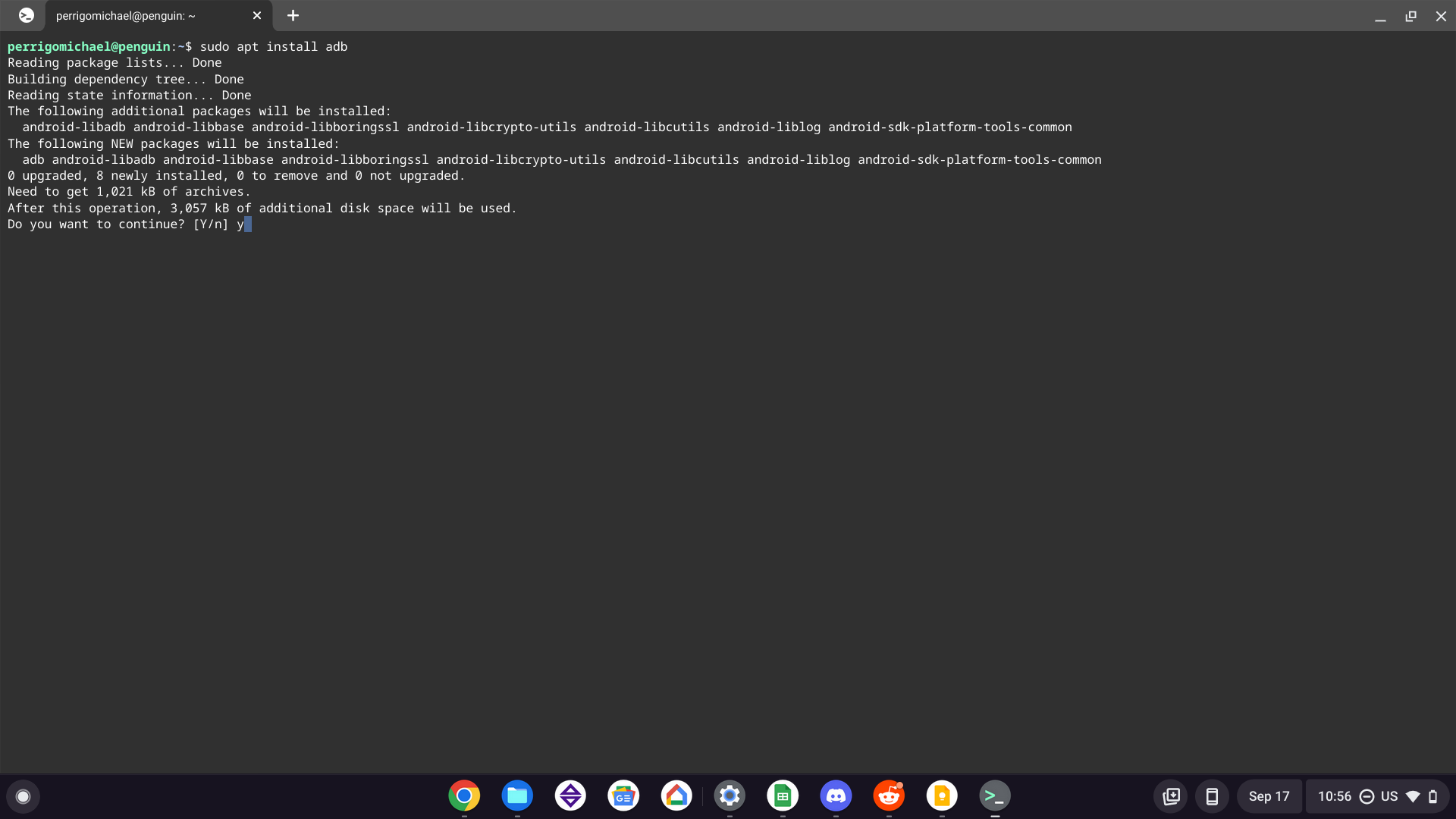
Install ADB and Fastboot: ADB is not installed by default in the Linux container. You need to install it. In the terminal, type:
sudo apt install android-tools-adb android-tools-fastboot -yPress Enter. This command installs both ADB and Fastboot tools. Fastboot is less relevant for this specific task but is often bundled with ADB and useful for other Android development tasks. The
-yflag again automates the confirmation. -
Verify ADB Installation: To confirm ADB is installed correctly, type:
bash

adb version
You should see a version number for ADB printed in the terminal, indicating a successful installation.
Your Linux environment is now ready to interact with your Chromebook’s Android subsystem and sideload APKs.
Sideloading APKs via Linux: A Step-by-Step Guide
This is the core process where you’ll use ADB within your Linux environment to install APK files onto your Chromebook.
1. Downloading the APK
First, you need to obtain the APK file you wish to install.
- Download from a Trusted Source: Always download APKs from reputable sources. Websites like APKMirror, F-Droid, or the official developer’s website are generally considered safe. Exercise caution when downloading from unknown sites, as APKs can contain malware.
- Transfer to Linux Files: Once downloaded, move the APK file into your Linux files.
- Open the “Files” app on your Chromebook.
- Locate the downloaded APK (usually in “My files” -> “Downloads”).
- Drag and drop the APK file into the “Linux files” folder in the left sidebar of the Files app. This makes the file accessible from within your Linux terminal.
- For simplicity, you might want to rename the APK file to something short and easy to type (e.g.,
myapp.apk).
2. Installing a File Manager (Optional but Recommended)
While not strictly necessary for sideloading via ADB, having a file manager within your Linux environment can be helpful for organizing files and confirming their location. You can install a graphical file manager like Nautilus (Gnome Files) if you prefer.
sudo apt install nautilus -y
After installation, you can launch it from the terminal by typing nautilus & or from the Chrome OS app launcher under the “Linux apps” folder.
3. Using ADB to Install
Now for the final step: using ADB to push the APK to your Chromebook’s Android subsystem.
-
Open Linux Terminal: Launch your Linux terminal.
-
Navigate to APK Location: If you moved the APK to your root Linux files directory, you don’t need to change directories. If you placed it in a subfolder (e.g.,
apk_downloads), navigate there using thecdcommand:
bash

cd apk_downloads
-
Install the APK: Use the
adb installcommand, followed by the name of your APK file.adb install myapp.apk(Replace
myapp.apkwith the actual name of your APK file). -
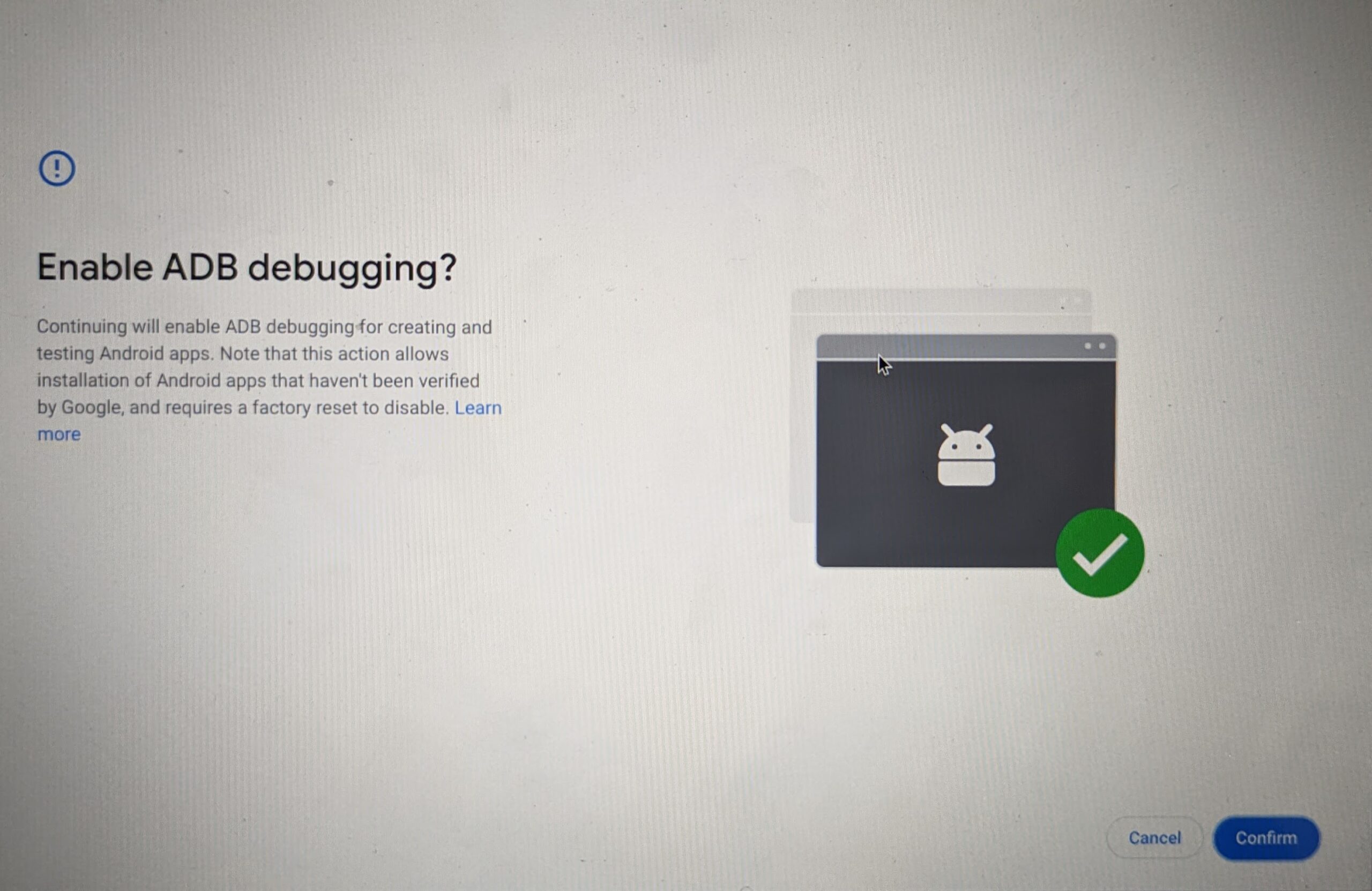
Grant Android Debugging Permission: The first time you run this command after enabling Linux, you might see a prompt on your Chromebook’s screen asking if you want to “Allow USB debugging.” This is a critical security prompt. You MUST click “Allow” or “Always allow from this computer” for ADB to work. If you miss this prompt, the ADB command will hang or fail. You might need to rerun the
adb installcommand after allowing. -
Success Confirmation: If the installation is successful, the terminal will output “Success.” The newly installed Android app should now appear in your Chromebook’s app launcher, likely under “Android apps.”
You can now launch and use your sideloaded Android application! Keep in mind that not all sideloaded apps will be perfectly optimized for Chromebooks, and some might require touch input or specific hardware features that your Chromebook may lack.
Alternative Avenues: Exploring Third-Party App Stores
While sideloading individual APKs using the Linux method is robust and secure, some users might prefer the convenience of an app store experience for discovering and installing non-Play Store apps. Several third-party app stores cater to this need, and they can also be installed on your Chromebook without Developer Mode.
The Google Play Store: Your First Port of Call (and its limitations)
It’s always worth reiterating that the official Google Play Store should be your first destination for Android apps. It offers the best compatibility, security vetting, and updates for apps on your Chromebook. Google works closely with developers to ensure apps from the Play Store run smoothly on Chrome OS.
However, as discussed, its limitations arise when an app isn’t available due to regional restrictions, developer choices, or specific niche use cases. This is precisely why we explore alternatives.
Aptoide and F-Droid: Unofficial Play Store Alternatives
Two prominent unofficial app stores that are popular among Android users for their unique offerings are Aptoide and F-Droid.
- Aptoide: This is one of the oldest and most popular alternative Android app stores. It hosts millions of apps, including many that are not available on the Play Store, or offers older versions of apps. Aptoide operates as a community-driven platform, allowing users to host their own “stores” within Aptoide.
- F-Droid: F-Droid is a repository of free and open-source software (FOSS) Android applications. It’s highly valued by privacy-conscious users because all apps listed are open-source, ensuring transparency and no hidden features. It’s an excellent resource for secure and ethical alternatives to mainstream apps.
How to Install Aptoide/F-Droid on Chromebook
Installing these third-party app stores follows the exact same sideloading process we outlined above using the Linux (Beta) method.
- Download the APK: Go to the official website of Aptoide (
aptoide.com) or F-Droid (f-droid.org) from your Chromebook’s Chrome browser. - Download the App Store’s APK file. Ensure you’re downloading from the official site to avoid malicious versions.
- Transfer to Linux Files: Drag and drop the downloaded APK file into your “Linux files” folder in the Files app.
- Install via ADB: Open your Linux terminal and use the
adb installcommand:
bash

adb install Aptoide.apk

# or

adb install F-Droid.apk
(Replace with the actual APK filename.) - Allow Permissions: Remember to grant “Allow USB debugging” permission if prompted.
Once installed, Aptoide or F-Droid will appear in your Chromebook’s app launcher. You can then open them and browse/install apps directly from these stores, much like you would with the Google Play Store.
Navigating These Stores and Security Considerations
When using Aptoide or F-Droid:
- Security: While F-Droid’s open-source nature provides a higher degree of trust, Aptoide’s community-driven model means the quality and security of apps can vary. Always exercise caution. Check app reviews, developer reputation, and permissions requested before installing.
- Updates: Updates for apps installed via these stores will come through their respective app stores, not the Google Play Store. You’ll need to periodically open Aptoide or F-Droid to check for and install updates.
- App Selection: Enjoy exploring a broader range of apps. F-Droid is excellent for privacy-focused tools, while Aptoide offers a vast selection, including some that might be geoblocked or older versions of popular apps.
Important Considerations and Best Practices
While sideloading APKs can significantly expand your Chromebook’s capabilities, it’s not without its nuances and potential risks. Being aware of these will help you maintain a secure, stable, and enjoyable user experience.
Security Risks of Sideloading
The primary reason Google locks down sideloading by default is security. When you install an app from a source other than the Google Play Store, you bypass Google’s extensive security checks.
- Malware and Viruses: Unofficial APKs can be tampered with to include malware, spyware, or other malicious code. Always download APKs from reputable sources like APKMirror, F-Droid, or the official developer’s website. If a deal seems too good to be true (e.g., a paid app offered for free on a sketchy site), it likely is.
- Data Privacy: Malicious apps can request excessive permissions to access your personal data, contacts, location, or even camera and microphone. Always review the permissions an app requests during installation or in its settings. If an app’s requested permissions seem unrelated to its function, reconsider installing it.
- Outdated Apps: Apps from unofficial sources might not receive timely security updates, leaving vulnerabilities open.
Best Practice: Stick to well-known and trusted APK repositories. Consider running the APK through an online virus scanner (like VirusTotal) if you have any doubts before installing it. Regularly review the apps you’ve sideloaded and uninstall any you no longer need or trust.
Compatibility Issues and Performance
Not every Android app is designed with Chromebooks in mind, especially those that aren’t available on the Play Store.
- UI/UX Challenges: Apps might be optimized for smaller smartphone screens, leading to awkward layouts, scaling issues, or touch-centric interfaces that don’t translate well to a keyboard and trackpad.
- Hardware Dependencies: Some apps might require hardware features absent from your Chromebook, such as GPS, specific sensors, or cellular connectivity. While many Chromebooks have touchscreens, accelerometers, or even GPS, some lack them.
- Performance: While Chromebooks are generally efficient, running certain resource-intensive Android apps might strain your device, especially if it has lower-end specifications. You might experience sluggishness, crashes, or excessive battery drain.
- Background Activity: Sideloaded apps might not always adhere to Chrome OS’s power management best practices, potentially running more actively in the background than desired.
Best Practice: Test the app thoroughly after installation. If performance is poor or the user experience is frustrating, it might be best to uninstall it and seek an alternative. Check app reviews or forums for information on Chromebook compatibility before downloading.
Staying Updated and Managing Permissions
Managing sideloaded apps requires a bit more hands-on attention compared to Play Store apps.
- Manual Updates: As mentioned, apps installed via ADB or third-party stores won’t update through the Google Play Store. You’ll need to manually check for updates (either by downloading newer APKs and reinstalling via ADB, or through the respective third-party app store’s update mechanism). Timely updates are crucial for security and new features.
- Permission Management: Chrome OS allows you to manage permissions for Android apps. Go to “Settings” > “Apps” > “Google Play Store” > “Manage Android preferences.” From there, you can navigate to “Apps & notifications” > “See all X apps” and select the sideloaded app to review and adjust its permissions.
- Uninstalling: To uninstall a sideloaded app, simply right-click its icon in the app launcher and select “Uninstall,” or go through the Android app settings menu as you would with any other Android app.
Best Practice: Be diligent about managing your sideloaded apps. Only keep what you truly need, ensure they are updated when possible, and always be mindful of the permissions you grant.
Conclusion
The ability to install APKs on your Chromebook without entering Developer Mode is a powerful feature that significantly expands the utility and flexibility of your device. By leveraging the secure and containerized Linux (Beta) environment, you can safely sideload Android applications, giving you access to a world of apps beyond the Google Play Store. This method bypasses the inherent security risks and data-wiping consequences associated with Developer Mode, allowing you to maintain the robust security and stability that Chromebooks are renowned for.
Whether you’re looking for niche productivity tools, specific versions of an app, or an entirely new app store experience, the steps outlined in this guide provide a clear pathway. However, always remember that with great power comes great responsibility. Prioritize security by downloading APKs only from trusted sources, remain vigilant about app permissions, and be mindful of compatibility and performance. By following these best practices, your Chromebook can truly become a versatile hub for both web-based tasks and a broader Android app ecosystem, all while preserving its core strengths. Embrace the expanded possibilities, and tailor your Chromebook experience precisely to your needs.
aViewFromTheCave is a participant in the Amazon Services LLC Associates Program, an affiliate advertising program designed to provide a means for sites to earn advertising fees by advertising and linking to Amazon.com. Amazon, the Amazon logo, AmazonSupply, and the AmazonSupply logo are trademarks of Amazon.com, Inc. or its affiliates. As an Amazon Associate we earn affiliate commissions from qualifying purchases.