
In the ever-evolving landscape of digital entertainment, mobile gaming has carved out a significant niche, offering thrilling experiences on the go. Among the myriad of titles captivating players worldwide, “Forward Assault” stands out as a high-octane, tactical first-person shooter that delivers intense action and strategic gameplay reminiscent of classic PC FPS giants. However, while designed for mobile devices, many gamers crave the precision, immersion, and comfort that only a desktop setup can provide. The larger screen real estate, the tactile feedback of a keyboard and mouse, and the raw processing power of a PC can transform the mobile gaming experience into something truly exceptional.
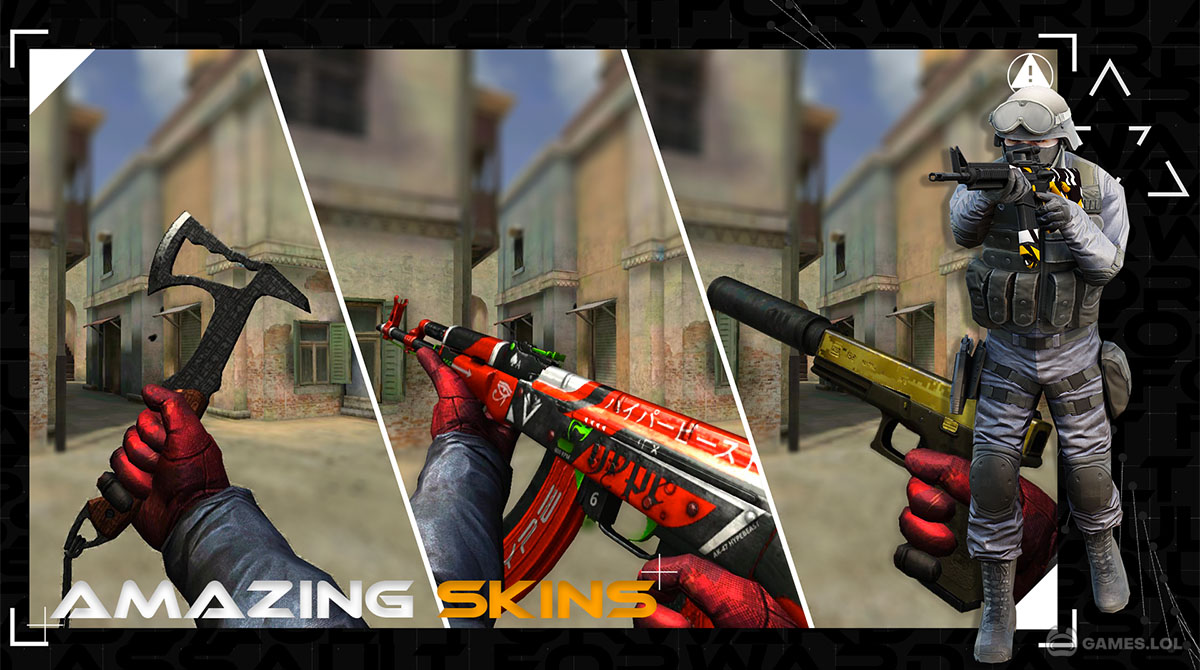
This guide is meticulously crafted for both seasoned PC gamers and those new to the world of emulators, aiming to provide a clear, step-by-step walkthrough on how to install and optimize Forward Assault on your personal computer. We’ll delve into the necessary prerequisites, help you choose the ideal emulator, and guide you through the installation and configuration processes, ensuring you’re ready to dominate the virtual battlegrounds with unparalleled control and visual fidelity. By leveraging the power of modern technology, specifically Android emulators, you can bridge the gap between mobile convenience and PC performance, unlocking a new dimension of gameplay for Forward Assault. Beyond just an installation tutorial, this article also touches upon broader aspects of software utilization, digital security best practices when handling third-party applications, and how to maximize your system’s productivity for a seamless gaming experience.
Understanding the Landscape: Why Play Mobile Games on PC?
The allure of playing mobile-first games like Forward Assault on a PC goes beyond mere convenience; it represents a convergence of technology that enhances user experience significantly. While mobile devices offer portability and instant access, they often come with inherent limitations that can hinder competitive gaming. Embracing an emulator to run mobile applications on a desktop system isn’t just a workaround; it’s a strategic choice for many tech-savvy users and serious gamers alike. This section explores the fundamental reasons behind this trend and introduces the key software tools that make it possible.
The Allure of Emulators: Bridging the Mobile-PC Divide
At the heart of playing Android games on a PC lies the concept of an Android emulator. These sophisticated software applications create a virtual Android environment on your Windows or macOS computer, tricking the mobile game into believing it’s running on a native Android device. Emulators essentially translate Android’s operating system and application layer to be compatible with your desktop’s hardware and software architecture. They are pivotal in allowing users to access the vast library of Android apps and games without needing a physical mobile device.
Major players in the emulator market include BlueStacks, NoxPlayer, LDPlayer, and Gameloop, each offering a slightly different blend of features, performance optimizations, and user interfaces. The choice of emulator can significantly impact your gaming experience, influencing factors like frame rates, stability, and ease of control mapping. These tools are prime examples of how software innovation continuously pushes the boundaries of cross-platform compatibility, reflecting broader “Technology Trends” in seamless digital interaction.
Benefits for Gamers and Productivity Enthusiasts
The advantages of playing Forward Assault on PC via an emulator are manifold, extending beyond just improved gameplay to touch upon aspects of “Productivity” and overall system utility:
- Enhanced Control and Precision: The most significant advantage is the ability to use a keyboard and mouse. Forward Assault, being an FPS game, thrives on precision aiming and rapid movement. A mouse offers unmatched accuracy compared to touch controls, while a keyboard provides a familiar and robust set of controls for movement, actions, and weapon switching. Many emulators also offer highly customizable keymapping features, allowing users to tailor controls to their exact preferences, much like setting up efficient shortcuts in professional “Software.”
- Superior Graphics and Performance: Modern PCs boast significantly more processing power, RAM, and dedicated graphics cards than even high-end smartphones. Emulators leverage this hardware to render games at higher resolutions, frame rates, and often with enhanced graphical settings that might not be available or practical on a mobile device. This translates to a more immersive and visually stunning experience, bringing out the full potential of game assets.
- Larger Screen Real Estate: Playing on a 24-inch monitor or larger is fundamentally more immersive than squinting at a 6-inch phone screen. The expansive view allows for better situational awareness in tactical games like Forward Assault, enhancing your ability to spot enemies and react quickly.
- Elimination of Mobile Device Limitations: Say goodbye to battery drain, overheating phones, incessant notifications, and incoming calls interrupting your clutch moments. Playing on PC frees your mobile device for its primary functions, while your gaming sessions can run uninterrupted for hours. This contributes to better “Productivity” by compartmentalizing activities and preventing distractions.
- Multi-tasking Capabilities: Running Forward Assault in an emulator means it operates like any other Windows application. You can easily switch between your game, a web browser, communication apps, or productivity tools without missing a beat, enhancing your overall digital workflow.
- Digital Security and Longevity: While mobile devices are generally secure, using a reputable emulator on a well-maintained PC can offer a sandboxed environment for mobile apps. Furthermore, offloading demanding games from your phone can extend its battery life and overall longevity, effectively saving “Money” by delaying the need for a new device. Choosing official sources for emulator downloads also contributes to good “Digital Security” practices.
By embracing emulators, gamers don’t just play a mobile game on a bigger screen; they elevate the entire experience, integrating it seamlessly into their existing desktop ecosystem and harnessing the full power of their “Gadgets.”
Pre-Installation Checklist: Paving the Way for Forward Assault
Before diving headfirst into the installation process, a little preparation can go a long way in ensuring a smooth and optimized experience. Just as a strong “Brand Strategy” requires foundational research, a successful software installation depends on having the right environment. This includes checking your system’s capabilities, selecting the appropriate tools, and ensuring all necessary drivers and updates are in place. This foundational work prevents common pitfalls and maximizes your chances of enjoying Forward Assault without technical hitches.
System Requirements for Emulators: Powering Your Virtual Android
While emulators make Android games accessible on PC, they still demand a certain level of hardware to perform optimally. Running an entire virtual operating system alongside a graphically intensive game requires significant resources. Here’s what to look for:
- Operating System: Windows 7/8/10/11 (64-bit recommended) or macOS. Most emulators are designed for modern Windows versions.
- Processor (CPU): Intel Core i3 (or AMD equivalent) or higher. For best performance, a multi-core processor with a high clock speed is ideal.
- Random Access Memory (RAM): A minimum of 4GB RAM is typically required for the emulator itself. For smooth gameplay, especially in an FPS like Forward Assault, 8GB or more is highly recommended. If you plan to run other applications concurrently, more RAM is always beneficial for “Productivity.”
- Storage: At least 5GB of free disk space for the emulator installation, plus additional space for games (Forward Assault typically requires a few hundred megabytes, but updates can increase this). An SSD (Solid State Drive) will drastically improve loading times and overall responsiveness compared to an HDD.
- Graphics Card (GPU): While many emulators can run on integrated graphics (e.g., Intel HD Graphics), a dedicated graphics card (NVIDIA GeForce GTX 660 / AMD Radeon R9 280 or better) will provide significantly smoother frame rates and allow for higher graphical settings in-game. Ensure your GPU drivers are up-to-date.
- Virtualization Technology (VT-x/AMD-V): This is perhaps the most crucial setting for emulator performance. Virtualization Technology, often disabled by default in BIOS/UEFI settings, allows your CPU to run virtual machines (like emulators) far more efficiently. Enabling VT can lead to a performance boost of 100% or more. Consult your motherboard manual or manufacturer’s website for instructions on how to enable it in your BIOS.
Choosing the Right Emulator: Your Gateway to Gaming
The emulator you select will be your primary interface for playing Forward Assault. While many options exist, focusing on reputable, well-supported emulators is key for both performance and “Digital Security.”
- BlueStacks: One of the most popular and well-established emulators. Known for its strong compatibility, performance, and user-friendly interface. It’s often updated and offers extensive features for gamers, including custom keymapping and multi-instance manager.
- NoxPlayer: A strong contender, particularly praised for its speed and customizable options. NoxPlayer is often a favorite among users seeking a lightweight yet powerful emulator with robust keymapping capabilities.
- LDPlayer: Specifically designed with gaming in mind, LDPlayer emphasizes high frame rates and performance. It’s generally lightweight and provides excellent compatibility with a wide range of Android games.
- Gameloop (Tencent Gaming Buddy): While excellent for specific games published by Tencent (like PUBG Mobile or Call of Duty Mobile), its broader compatibility with other Android games can sometimes be less robust than BlueStacks or NoxPlayer.
Consider reading recent “Reviews” and comparisons to see which emulator aligns best with your system specifications and preferences. For critical software, always download from the official developer website to mitigate “Digital Security” risks associated with unofficial sources.
Essential Software Updates: Keeping Your System in Top Shape
Just like any high-performance “Software,” emulators and games benefit immensely from an up-to-date system. Neglecting updates can lead to performance issues, stability problems, and even security vulnerabilities.
- Graphics Drivers: This is paramount for gaming performance. Ensure your NVIDIA, AMD, or Intel graphics drivers are updated to the latest version. New drivers often include game-specific optimizations and bug fixes.
- Windows Updates: Keep your operating system up-to-date. Windows updates often include critical security patches, performance enhancements, and compatibility improvements that can benefit emulators and games.
- DirectX: Ensure you have the latest version of DirectX installed, as many games and emulators rely on it for rendering graphics.
- Emulator Updates: Once installed, periodically check for updates for your chosen emulator. Developers frequently release patches to improve performance, fix bugs, and add new features.
By completing this pre-installation checklist, you’re not just preparing your system for Forward Assault; you’re also adhering to best practices in “Technology Trends” by maintaining an optimized, secure, and high-performing computing environment for all your “Apps” and “Gadgets.”
Step-by-Step Installation Guide: Bringing Forward Assault to Your Desktop
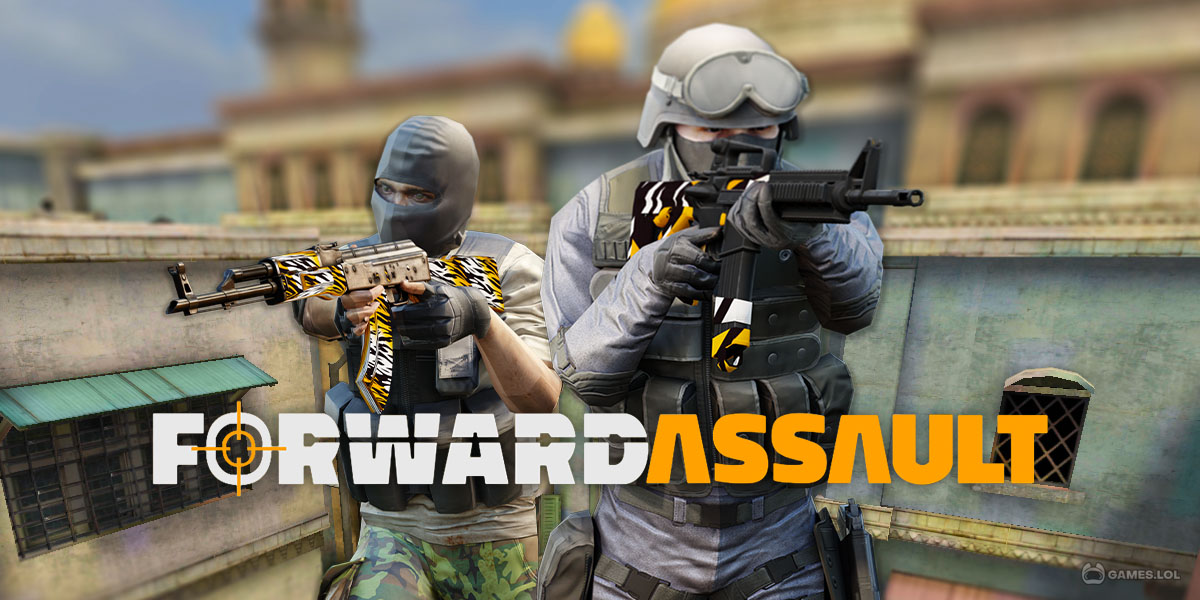
With your system primed and ready, it’s time to embark on the core process: installing your chosen Android emulator and subsequently, Forward Assault. This section will walk you through each stage, from downloading the emulator to configuring it for optimal gaming performance. Following these “Tutorials” meticulously will ensure a smooth journey to your first PC match.
Downloading and Installing Your Chosen Emulator
The first crucial step is to get the emulator software onto your computer.
- Visit the Official Website: Navigate to the official website of your chosen emulator (e.g., bluestacks.com, noxplayer.com, ldplayer.net). Emphasize “Digital Security” by always downloading from official sources to avoid malicious software or outdated versions.
- Download the Installer: Locate the download button, usually prominently displayed on the homepage. Click it to download the setup file (typically an .exe file for Windows).
- Run the Installer: Once the download is complete, locate the
.exefile in your Downloads folder and double-click it to begin the installation process. - Follow On-Screen Prompts:
- User Account Control: You may be prompted by Windows User Account Control; click “Yes” to allow the installer to make changes to your device.
- License Agreement: Read and accept the End User License Agreement (EULA).
- Installation Path: Most installers will offer a default installation path (e.g., C:Program Files). While this is usually fine, if you have multiple drives, consider installing it on an SSD for better performance. Some emulators also offer a “Custom Install” option where you can specify the location.
- Additional Software: Be vigilant during installation. Some free software installers might bundle optional third-party programs or browser toolbars. Always uncheck any boxes for “additional software” or “recommended programs” that you don’t recognize or explicitly want, adhering to smart “Software” management.
- Installation Progress: The installer will then download and install the necessary files. This process can take several minutes depending on your internet speed and system specifications.
- Launch the Emulator: Once the installation is complete, a shortcut to the emulator will typically appear on your desktop. Double-click it to launch the emulator for the first time.
- Initial Setup and Google Account Login: The first launch might involve some initial setup, including language selection. Crucially, you will be prompted to sign in with a Google account, just like setting up a new Android phone. This is essential to access the Google Play Store and download apps. Use your primary Google account or create a new one dedicated to gaming on the emulator. Remember to use strong, unique passwords and enable two-factor authentication for enhanced “Digital Security” across all your online accounts.
Finding and Installing Forward Assault within the Emulator
With the emulator successfully installed and configured, the next step is to get Forward Assault itself.
- Open the Google Play Store: Within the emulator’s interface, locate and click on the “Google Play Store” icon. It looks identical to the Play Store icon on an Android device.
- Search for Forward Assault: In the Google Play Store’s search bar at the top, type “Forward Assault” and press Enter or click the search icon.
- Select and Install: From the search results, click on the official “Forward Assault” game by “Bluemode” or the correct developer. You will see an “Install” button; click it.
- Accept Permissions: The Play Store might ask for certain permissions that the game requires (e.g., storage access). Review them and click “Accept” or “Install” to proceed.
- Download and Installation: The game will now download and install within the emulator. The time taken depends on your internet speed.
- Launch the Game: Once installed, an icon for Forward Assault will appear on the emulator’s home screen. Click it to launch the game for the first time.
Optimizing Emulator Settings for Peak Performance
To truly enjoy Forward Assault, you need to fine-tune your emulator settings. Proper optimization can significantly improve frame rates, responsiveness, and overall visual quality, turning a good experience into a great one. These “Tutorials” on settings are crucial for leveraging your “Gadgets” to their full potential.
- Access Emulator Settings: Most emulators have a gear icon or a menu button (often three horizontal lines) that leads to their settings panel.
- Performance Settings (CPU & RAM):
- CPU Cores: Allocate 2-4 CPU cores if your PC has 4 or more. Avoid allocating all cores, as your operating system needs some for its own functions.
- RAM Allocation: Allocate at least 4096MB (4GB) of RAM to the emulator, especially if you have 8GB or more in your PC. If you have 16GB or more, you can go higher (e.g., 6144MB or 8192MB) for maximum smoothness.
- Graphics Settings:
- Graphics Mode: Experiment with “DirectX” or “OpenGL” modes. DirectX is often recommended for better performance with dedicated GPUs in Windows, while OpenGL might be better for older cards or integrated graphics. Some emulators also offer an “Advanced” or “Compatibility” mode.
- Resolution: Set a resolution that matches your monitor’s native resolution or slightly lower if you need more frames per second. High resolutions demand more GPU power.
- DPI (Dots Per Inch): This affects the size of interface elements. A common setting is 240 DPI, but you can adjust it to your preference.
- Frame Rate (FPS): Set this to 60 FPS or higher (90/120 FPS if your monitor supports it and your PC can handle it). A higher FPS results in smoother gameplay.
- Keymapping (Controls):
- This is where you customize your keyboard and mouse controls for Forward Assault. Emulators typically have an intuitive keymapping tool.
- Drag and drop virtual buttons onto the game’s touch controls and assign corresponding keyboard keys or mouse clicks.
- Crucially, set up a “Fire” button, movement keys (W, A, S, D), reload, jump, crouch, and weapon switch keys.
- Configure mouse sensitivity carefully.
- Save your keymap profile. This meticulous setup directly contributes to your “Productivity” in terms of efficient gaming input.
- Device Settings (Optional): You might find settings to simulate different Android devices. For Forward Assault, choosing a high-end device profile can sometimes improve compatibility or performance.
- Restart Emulator: After making significant changes to CPU, RAM, or graphics settings, it’s often necessary to restart the emulator for the changes to take effect.
By diligently working through these settings, you’re not just installing a game; you’re crafting a finely tuned environment that maximizes your PC’s potential to deliver a premium mobile gaming experience, showcasing the power of customized “Software.”
Post-Installation & Troubleshooting: Ensuring a Smooth Gaming Experience
Once Forward Assault is installed and the emulator is configured, a few final steps and tips can help ensure a consistently smooth and enjoyable gaming experience. Even with the best preparation, occasional issues can arise, but understanding common problems and their solutions can save you time and frustration. This section focuses on maintaining your setup and resolving typical challenges, reinforcing the “Tutorials” aspect of the guide.
Initial Game Launch and In-Game Settings
Upon launching Forward Assault for the first time within the emulator, take a moment to adjust its internal settings.
- Graphics Quality: Access the in-game settings (usually through a gear icon). Here, you can further fine-tune graphics quality (e.g., low, medium, high, ultra). While your emulator settings provide the foundation, the in-game options allow for granular control. Start with a medium setting and gradually increase it if your frame rate is stable, aiming for the best visual experience without compromising performance.
- Sound and Volume: Adjust sound effects, music, and voice chat volumes to your preference.
- Control Sensitivity: Even with a mouse, in-game sensitivity settings are crucial. Experiment with different values until aiming and turning feel natural and responsive. Remember, precision is key in an FPS.
- Other Preferences: Explore other options like crosshair style, HUD elements, and language to personalize your experience.
Common Issues and Quick Fixes
Even with careful installation, you might encounter bumps along the road. Here are some common problems and their potential solutions:
- Lag or Stuttering:
- Verify VT-x/AMD-V: Double-check that Virtualization Technology is enabled in your BIOS. This is the most frequent cause of poor emulator performance.
- Allocate More Resources: Increase the CPU cores and RAM allocated to the emulator in its settings.
- Update Graphics Drivers: Ensure your GPU drivers are the latest version.
- Close Background Apps: Close any unnecessary applications running on your PC that might be consuming CPU or RAM.
- Switch Graphics Mode: Try switching between DirectX and OpenGL in your emulator’s graphics settings.
- Game Crashes or Freezes:
- Update Emulator/Game: Ensure both the emulator and Forward Assault are updated to their latest versions.
- Clear Emulator Cache: In the emulator’s Android settings (like on a phone), go to Apps, find Forward Assault, and clear its cache and data.
- Reinstall Game/Emulator: If persistent, try uninstalling and reinstalling Forward Assault. If issues persist, reinstall the emulator itself.
- Driver Issues: Again, ensure all drivers (especially graphics) are current.
- Black Screen on Launch:
- Often related to graphics driver issues or conflicting graphics modes. Update drivers, restart your PC, and try different graphics modes in emulator settings.
- Try lowering the emulator’s resolution or DPI.
- Keyboard/Mouse Controls Not Working:
- Check Keymapping: Revisit your emulator’s keymapping tool and ensure all keys are correctly assigned and saved.
- Activate Gamepad Mode: Some emulators have a separate “gamepad” or “keyboard mapping” toggle that needs to be active for custom controls to work.
- Restart Game/Emulator: Sometimes a simple restart can resolve minor control glitches.
Maintaining Your Setup for Optimal Performance
Like any “Tech” setup, regular maintenance is key to longevity and consistent performance.
- Regular Updates: Make it a habit to periodically check for updates for your emulator, your PC’s operating system, and especially your graphics drivers. These updates often bring performance improvements, bug fixes, and security enhancements, aligning with ongoing “Technology Trends.”
- Disk Space Management: Ensure your PC’s drive, especially the one where the emulator and game are installed, has sufficient free space. A full drive can lead to performance degradation.
- Resource Monitoring: Use Task Manager (Windows) or Activity Monitor (macOS) to keep an eye on CPU, RAM, and GPU usage while playing. This can help diagnose resource bottlenecks.
- Backup Your Emulator Data: Some emulators offer a backup feature. Consider backing up your emulator instances, especially after customizing settings and installing games, to quickly restore your setup if needed.
By addressing potential issues proactively and maintaining your system diligently, you ensure that your Forward Assault PC experience remains smooth, competitive, and enjoyable, demonstrating effective “Digital Security” and “Productivity” in managing your gaming “Software.”

Conclusion: Dominate the Battlefield with PC Precision
Installing Forward Assault on your PC through an Android emulator unlocks a superior gaming experience, merging the accessibility of mobile titles with the unparalleled precision and immersion of desktop platforms. Throughout this comprehensive guide, we’ve navigated the intricacies of understanding emulator technology, meticulously preparing your system, executing a precise step-by-step installation, and optimizing your setup for peak performance. From selecting the right emulator and enabling vital virtualization technology to fine-tuning graphical settings and custom key mappings, every detail contributes to transforming your mobile FPS journey into a formidable PC-level engagement.
By embracing these “Technology Trends” and leveraging robust “Software” solutions, you gain the tactical advantage of keyboard and mouse controls, the visual splendor of a larger screen, and the uninterrupted power of your PC. No longer will you be constrained by battery life, small screens, or the inherent limitations of touch controls. You’re now equipped to dive into the heart of Forward Assault’s tactical combat with enhanced precision, responsiveness, and a truly immersive perspective.
Whether you’re a seasoned player looking to elevate your gameplay or a newcomer eager to experience mobile FPS in its best form, this guide provides all the “Tutorials” and insights needed to get you started. Go forth, configure your setup, and prepare to dominate the Forward Assault battlegrounds with the confidence and prowess that only a fully optimized PC experience can deliver. Your journey to becoming a PC FPS master in Forward Assault begins now, a testament to how innovative tech solutions can enrich our digital lives and elevate our favorite “Apps” to new heights.
aViewFromTheCave is a participant in the Amazon Services LLC Associates Program, an affiliate advertising program designed to provide a means for sites to earn advertising fees by advertising and linking to Amazon.com. Amazon, the Amazon logo, AmazonSupply, and the AmazonSupply logo are trademarks of Amazon.com, Inc. or its affiliates. As an Amazon Associate we earn affiliate commissions from qualifying purchases.