
The iPad, a marvel of modern technology, has transcended its initial role as a simple tablet to become an indispensable tool for productivity, creativity, entertainment, and learning. At the heart of its versatility lies its vast ecosystem of applications, or “apps,” each designed to enhance your digital experience in unique ways. From sophisticated AI-powered productivity suites to immersive games and powerful financial management tools, apps unlock the full potential of your device. This guide delves deep into the process of installing apps on your iPad, ensuring you can effortlessly tap into this rich digital landscape, optimize your device’s capabilities, and enhance your digital security.
The Apple App Store: Your Primary Gateway to Digital Innovation
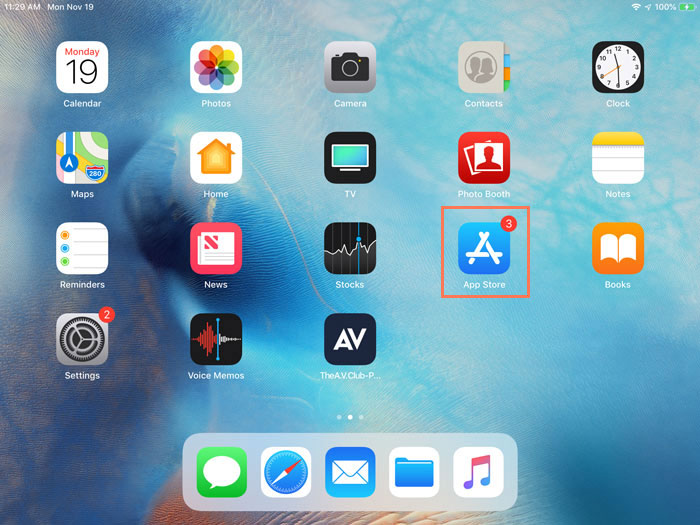
The Apple App Store stands as the official, and by far the most secure and convenient, portal for discovering and installing applications on your iPad. Curated and rigorously vetted by Apple, it offers millions of apps, ensuring a high standard of quality, performance, and security. Understanding how to navigate and utilize this platform is fundamental to your iPad experience.
Navigating the App Store Interface
Before you download, knowing your way around the App Store is key to finding exactly what you need.
Searching for Apps
The most straightforward method to locate an app is through the search function. Tap the “Search” tab (magnifying glass icon) at the bottom right of the App Store screen. Here, you can type in the name of a specific app, a developer, or keywords related to the app’s function (e.g., “photo editor,” “meditation guide,” “budget tracker”). As you type, the App Store often provides suggestions, which can be helpful if you’re unsure of the exact spelling or looking for popular related options. The search results will display a list of apps, often with their icon, name, developer, rating, and a brief description, allowing for quick assessment.
Browsing Categories and Editor’s Picks
For those looking for inspiration or exploring new functionalities, the App Store offers several browsing options. The “Today” tab presents a daily updated feed of articles, interviews, and curated lists featuring new and noteworthy apps, often highlighting trends in technology, such as new AI tools or innovative productivity apps. The “Games” and “Apps” tabs (located at the bottom of the screen) categorize applications into various genres like “Education,” “Business,” “Finance,” “Health & Fitness,” and “Entertainment.” This categorical browsing allows you to discover apps relevant to your interests, whether you’re looking for a new gadget controller, an app to manage your side hustle, or simply something fun to pass the time. Apple’s editorial team frequently curates “Editor’s Picks” and “App of the Day” features, showcasing high-quality applications that exemplify innovation and user experience.
Understanding App Pages
Once you’ve tapped on an app from a search result or category, you’ll land on its dedicated App Page. This page is a wealth of information designed to help you make an informed decision. Key elements include:
- App Icon and Name: The visual identifier and title.
- Developer Name: Crucial for brand recognition and trust. Reputable developers often have a track record of quality and support.
- Ratings and Reviews: User-generated feedback providing insights into the app’s performance, features, and user satisfaction. Pay attention to recent reviews for the most up-to-date information.
- Screenshots and Videos: Visual previews of the app’s interface and functionality, giving you a tangible idea of what to expect.
- Description: A detailed overview of the app’s features, purpose, and benefits. Look for keywords relevant to your needs.
- Information Section: Includes details such as app size, compatibility with your iPad model and iOS version, language support, age rating, and in-app purchases. This is particularly important for managing your device’s storage and ensuring the app will run correctly.
Downloading and Installing Free Apps
Many excellent apps are available for free, often supported by advertising or offering in-app purchases for additional features.
The “Get” Button and Apple ID Verification
When you find a free app you wish to install, simply tap the “Get” button located next to the app’s name. The button will then change to “Install.” Tapping “Install” will prompt you to verify your identity. This is a crucial security step to ensure that only you can authorize downloads and changes to your device. You might be asked to:
- Enter your Apple ID password: This is the most common method.
- Use Touch ID or Face ID: If your iPad supports these biometric authentication methods, you can simply place your finger on the Home button or let your iPad scan your face.
- Double-click the side button (on newer iPads): Followed by Face ID authentication.
Once authenticated, the app will begin to download and install automatically. A circular progress indicator will appear on the App Store page, and the app icon will appear on your Home Screen with a download progress bar.
Monitoring Download Progress
You can monitor the download progress directly on the App Store page or by looking at the app icon on your iPad’s Home Screen. Once the download is complete, the progress indicator will disappear, and the app’s icon will be fully colored and ready to launch. You can tap on the icon to open the app for the first time.
Purchasing and Installing Paid Apps
While free apps abound, some of the most powerful and feature-rich applications come with a price tag. These paid apps often offer an ad-free experience, premium features, and dedicated support, representing a valuable investment in your digital toolkit, especially for professional or specialized tasks.
Payment Methods
Before you can purchase a paid app, you need to have a valid payment method associated with your Apple ID. Apple offers several options:
- Credit/Debit Card: The most common method. You can add or manage your cards through your iPad’s Settings app under your Apple ID > “Payment & Shipping.”
- Apple ID Balance: Funds can be added to your Apple ID balance using Apple Gift Cards or by adding money directly from your bank account or a linked payment method. This can be a useful budgeting tool for managing app expenditures (Money).
- PayPal: In some regions, PayPal can be linked as a payment method.
- Carrier Billing: Available with certain mobile carriers, allowing app purchases to be added to your phone bill.
Confirming Purchases
When you find a paid app, the “Get” button will display the app’s price (e.g., “$4.99”). Tapping this button will initiate the purchase process. Similar to free apps, you will be prompted to verify your identity using your Apple ID password, Touch ID, Face ID, or by double-clicking the side button. Once authenticated, the purchase will be confirmed, and the app will begin to download and install onto your iPad. Always review the app’s features and reviews carefully before making a purchase, ensuring it aligns with your needs and offers good value for money.
Importance of Secure Transactions
Apple employs robust security measures to protect your financial information and transactions within the App Store. All payment information is encrypted, and your biometric data (Touch ID/Face ID) is securely stored on your device and never shared. This commitment to digital security, a core tenet of the website’s “Tech” focus, is paramount for building user trust (Brand). Always ensure your device’s software is up-to-date to benefit from the latest security enhancements.
Reinstalling Previously Purchased or Downloaded Apps
One of the great advantages of the Apple ecosystem is that once you’ve purchased or downloaded an app, it’s tied to your Apple ID. This means you can reinstall it on the same device, on a new iPad, or on multiple compatible devices without having to buy it again.
Using Your Purchase History
Your purchase history is a comprehensive record of every app you’ve ever acquired, whether free or paid.
Accessing the “Purchased” Tab
To access your purchased apps:
- Open the App Store app.
- Tap on your profile picture in the top right corner.
- Tap on “Purchased.”
- Here, you’ll see two tabs: “All” (showing every app you’ve ever downloaded) and “Not on this iPad” (showing apps you own but are not currently installed on your device). The “Not on this iPad” tab is particularly useful when setting up a new device or freeing up storage.
Redownloading Apps
To reinstall an app from this list, simply locate it and tap the cloud icon with a downward arrow. The app will begin to download and install immediately, without requiring further payment or authentication. This is incredibly convenient for managing storage – you can delete apps to free up space, knowing you can easily redownload them later.
Family Sharing Implications
Apple’s Family Sharing feature allows up to six family members to share App Store purchases, Apple Music subscriptions, iCloud storage, and more. If you are part of a Family Sharing group, you can access apps purchased by other family members. To do this, go to the “Purchased” section (as described above) and you’ll see a list of family members. Tapping on a family member’s name will show their purchases, which you can then download to your iPad. This feature offers significant financial savings (Money) and enhances the utility of your devices for the entire family. However, ensure everyone understands app ratings and appropriate content, aligning with responsible digital citizenship.
Restoring from a Backup
Restoring your iPad from a backup is typically done when setting up a new device, after a factory reset, or when migrating data. This method installs all your apps and their associated data (where applicable) from a previous state.
iCloud vs. iTunes/Finder Backups
- iCloud Backup: This is the most common and convenient method. When you set up a new iPad or reset an existing one, during the initial setup process, you’ll be given the option to “Restore from iCloud Backup.” Selecting this will download all your apps, settings, and data from your most recent iCloud backup. The app icons will appear on your Home Screen and download in the background.
- iTunes/Finder Backup: If you back up your iPad to a computer using iTunes (for older macOS/Windows) or Finder (for newer macOS), you can restore from this local backup. Connect your iPad to the computer, open iTunes/Finder, select your iPad, and choose “Restore Backup.” This method generally restores data faster as it’s local, but still requires the apps themselves to be downloaded from the App Store if they weren’t part of the backup (though often the backup tells the iPad which apps to download).
When This Method is Appropriate
Restoring from a backup is ideal when you want to replicate the exact setup of a previous iPad on a new one, or when recovering from a significant software issue that required a factory reset. It saves you the time and effort of individually reinstalling dozens or hundreds of apps and reconfiguring settings.
Exploring Alternative Installation Methods (and Cautions)
While the App Store is the primary and recommended source for apps, there are specific scenarios where alternative installation methods might be encountered. These methods often come with increased complexity and potential security risks for the average user, making careful consideration essential.
Enterprise and Developer Apps
Businesses and developers often need to install custom applications that are not available on the public App Store.
Configuring Profiles and Trust Settings
- Enterprise Apps: Companies can distribute their internal apps directly to employees without going through the App Store. These apps are signed with an Enterprise Developer Certificate. When you first try to open such an app, your iPad will display an “Untrusted Enterprise Developer” message. To resolve this, you must go to Settings > General > VPN & Device Management, find the developer’s profile, and tap “Trust.” This action signals to your iPad that you permit apps from this specific developer to run. This method is common for corporate identity and internal productivity tools.
- Developer Apps: Developers use Xcode, Apple’s integrated development environment, to install apps they are currently building onto their own devices for testing. This process is complex and requires an Apple Developer Program membership.
Side-loading (Brief Mention)
“Side-loading” generally refers to installing apps from sources other than the official App Store, often using methods like the ones described above or even more unofficial, risky channels. While technically possible in specific, controlled developer scenarios, it is strongly discouraged for general users. Unofficial sources can host malicious software, compromise your digital security, steal your data, or destabilize your device. Sticking to the App Store minimizes these risks.
Web-Based Applications (Progressive Web Apps – PWAs)
Progressive Web Apps (PWAs) are websites that look and feel like native apps. They run in a web browser but can offer features like offline access, push notifications, and, crucially, can be added to your Home Screen for app-like convenience. Many leading brands are investing in PWAs to improve user experience and engagement.
Adding to Home Screen for App-Like Experience
To “install” a PWA:
- Open Safari and navigate to the website you want to add.
- Tap the Share icon (square with an arrow pointing upwards) in the Safari toolbar.
- Scroll down and tap “Add to Home Screen.”
- You can then name the shortcut if you wish, and tap “Add.”
The website icon will now appear on your Home Screen, acting like a direct app launch button.
Benefits and Limitations
- Benefits: No App Store download, saves storage space, cross-platform compatibility, always up-to-date (as it’s just a website). Great for quick access to frequently visited web tools or online services.
- Limitations: May not have full access to device hardware features (e.g., advanced camera functions, deep system integration) compared to native apps. Performance can sometimes depend more on network connectivity.
Post-Installation: Managing Your Apps for Optimal Performance
Installing apps is just the beginning. Effective app management ensures your iPad remains organized, performs optimally, and keeps your data secure.
Organizing Your Home Screen
A cluttered Home Screen can hinder productivity. Organizing your apps helps you find what you need quickly and efficiently.
Folders, App Library, Widgets
- Folders: Tap and hold an app icon until all icons jiggle. Drag one app icon over another to create a folder. You can then rename the folder and drag more apps into it. Grouping related apps (e.g., “Finance,” “Social Media,” “Creative Tools”) makes your Home Screen cleaner and easier to navigate. This is key for boosting productivity (Tech).
- App Library: Swiping left past your last Home Screen page reveals the App Library, which automatically organizes all your apps into categorized folders. You can use the search bar at the top of the App Library to quickly find any app.
- Widgets: Widgets provide glanceable information from your apps directly on your Home Screen or in the Today View. To add a widget, tap and hold an empty area on your Home Screen until apps jiggle, then tap the “+” icon in the top left corner. Widgets can transform your Home Screen into a personalized dashboard for news, weather, calendar events, or even AI-powered summaries, greatly enhancing your user experience.
Updating and Deleting Apps
Keeping apps updated and managing storage space are critical for security and performance.
Automatic Updates vs. Manual
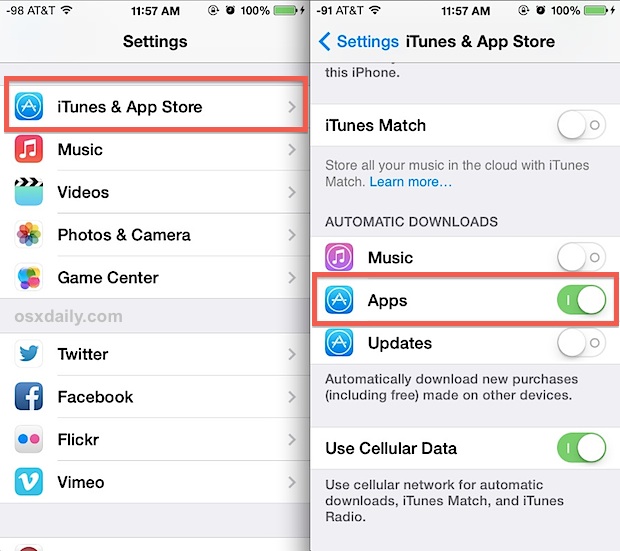
- Automatic Updates: By default, your iPad is set to automatically update apps when connected to Wi-Fi. This is recommended as it ensures you always have the latest features, bug fixes, and crucial security patches. You can manage this setting in Settings > App Store > App Updates.
- Manual Updates: If you prefer to manually update, you can do so from the App Store. Tap your profile picture, then scroll down to see “Available Updates.” You can update all or select specific apps. Keeping apps updated is a vital part of digital security, protecting your data from vulnerabilities.
Freeing Up Storage
Apps and their data can consume significant storage space. If your iPad is running slow or you can’t download new content, you might need to free up space.
- Deleting Apps: Tap and hold an app icon until all icons jiggle, then tap the “–” (minus) sign and “Delete App.” This removes the app and all its data from your device.
- Offload App: A smart alternative is “Offload App.” This removes the app itself but keeps its documents and data, meaning if you reinstall it later, your data will still be there. You can enable “Offload Unused Apps” in Settings > App Store for automatic management, or manually offload individual apps in Settings > General > iPad Storage.
App Permissions and Privacy Considerations
The apps you install can request access to various parts of your iPad, such as your camera, microphone, photos, location, and contacts.
Understanding What Apps Can Access
When an app requests access, a pop-up will appear. Always read these requests carefully. For instance, a mapping app legitimately needs location access, but a simple calculator app does not. Granting unnecessary permissions can compromise your privacy and digital security (Tech).
Digital Security and Data Privacy
Apple has made significant strides in providing users with control over their privacy.
- App Tracking Transparency (ATT): Introduced in iOS 14.5, ATT requires apps to ask for your permission before tracking your activity across other companies’ apps and websites. This significantly impacts marketing and brand strategies, empowering users to decide how their data is used.
- Privacy Report: In Safari, a Privacy Report shows you which trackers have been blocked.
- Settings App: You can review and adjust app permissions at any time in Settings > Privacy & Security. This section allows you to see which apps have access to your Camera, Photos, Contacts, Location Services, Microphone, and more. Regularly reviewing these settings is a proactive step in managing your digital footprint and ensuring your data privacy. The brand reputation of an app developer is often tied to their transparency and respect for user privacy.
Troubleshooting Common Installation Issues
Even with the streamlined process of the App Store, you might occasionally encounter an issue during app installation. Here’s how to address some common problems.
Network Connectivity Problems
The most frequent culprit for failed downloads is a poor or unstable internet connection.
- Check Wi-Fi: Ensure your iPad is connected to a strong Wi-Fi network. Try opening a web page in Safari to confirm internet access.
- Reset Network Settings: Go to Settings > General > Transfer or Reset iPad > Reset > Reset Network Settings. This will clear all Wi-Fi passwords and network configurations, often resolving connectivity glitches.
- Try Cellular Data (if available): If you have a cellular-enabled iPad and sufficient data, try switching to cellular data to see if the download proceeds. Be mindful of data limits.
Insufficient Storage Space
As mentioned, apps can be large. If your iPad is full, new apps won’t download.
- Check Storage: Go to Settings > General > iPad Storage. This section gives you a breakdown of what’s consuming space.
- Free Up Space: Delete unnecessary apps, offload large apps, remove old photos/videos, or clear Safari website data. The iPad Storage recommendations can also suggest files or apps to remove.
Apple ID or Payment Issues
Problems with your Apple ID or payment method can halt downloads and purchases.
- Verify Apple ID: Ensure you’re signed in with the correct Apple ID and that your password is accurate. You might need to sign out and back in within the App Store or Settings app.
- Update Payment Method: If you’re purchasing a paid app, check your payment information in Settings > [Your Name] > Payment & Shipping. Ensure the card details are correct, the card hasn’t expired, and there are sufficient funds. Sometimes, simply re-entering the security code (CVV) can resolve issues.
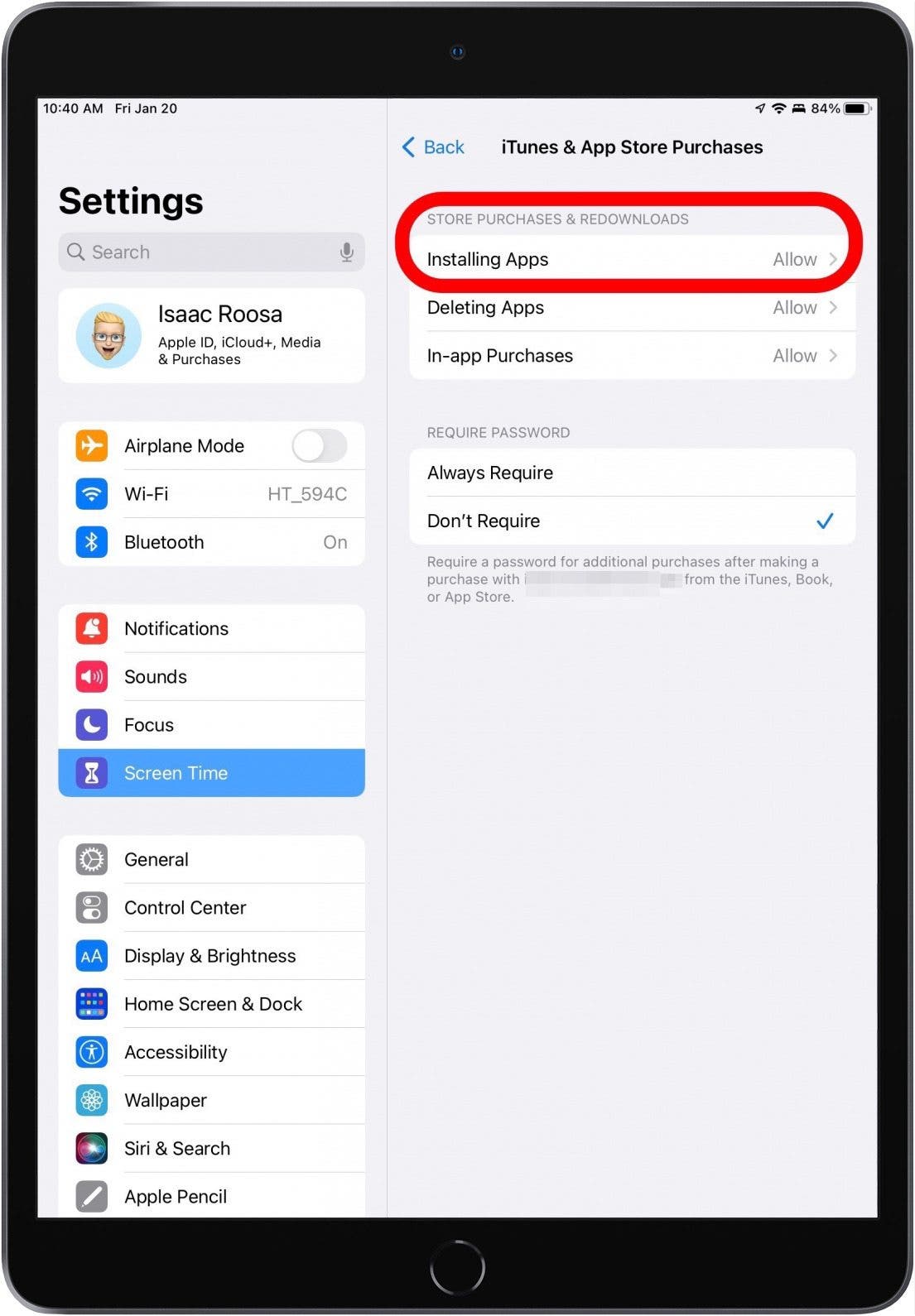
- Purchase Restrictions: Check if Screen Time content restrictions are preventing purchases (Settings > Screen Time > Content & Privacy Restrictions > iTunes & App Store Purchases).
App Compatibility or Region Restrictions
Occasionally, an app might not be available for your specific iPad model, iOS version, or geographic region.
- Check Compatibility: On an app’s App Store page, scroll down to the “Information” section and check “Compatibility.” It will tell you if the app requires a newer iPad model or iOS version.
- Region Availability: Some apps are only available in certain countries due to licensing agreements or regional regulations. If you travel, your App Store region might temporarily change, or you might need to change your Apple ID region (which can impact subscriptions and purchases) if you permanently move.
Conclusion
Installing an app on your iPad is a straightforward process, primarily facilitated by the secure and user-friendly Apple App Store. By understanding how to navigate the store, manage your downloads, and effectively organize your device, you unlock a world of possibilities, transforming your iPad into a powerful personal and professional tool. Whether you’re seeking to enhance your productivity with cutting-edge AI tools, manage your personal finances with robust budgeting apps, or simply unwind with engaging entertainment, the right app is just a tap away.
Remember to prioritize digital security by always downloading from official sources, keeping your apps updated, and judiciously managing app permissions. With these practices, your iPad will not only serve as a window into the latest technological innovations but also as a secure and efficient companion in your digital journey, reflecting the core principles of informed tech usage, responsible brand interaction, and smart financial choices that our website champions. The app ecosystem is ever-evolving, offering continuous opportunities to learn, grow, and connect, making your iPad experience truly limitless.
aViewFromTheCave is a participant in the Amazon Services LLC Associates Program, an affiliate advertising program designed to provide a means for sites to earn advertising fees by advertising and linking to Amazon.com. Amazon, the Amazon logo, AmazonSupply, and the AmazonSupply logo are trademarks of Amazon.com, Inc. or its affiliates. As an Amazon Associate we earn affiliate commissions from qualifying purchases.