
In the modern digital landscape, YouTube stands as more than just a video-sharing platform; it is the world’s second-largest search engine and a cornerstone of the global Google ecosystem. For users, developers, and tech enthusiasts, establishing a YouTube account is the foundational step toward accessing a vast repository of information, contributing original content, and engaging with complex algorithms designed to personalize the digital experience. From a technical perspective, “getting an account” involves navigating the intricacies of Google’s unified identity management system. This guide provides an in-depth exploration of the account creation process, the architectural differences between account types, and the essential security protocols required to protect your digital presence.
The Google Ecosystem: Understanding Account Architecture
Before initiating the registration process, it is vital to understand that a YouTube account is not a standalone entity. Following Google’s acquisition of YouTube in 2006, the two platforms’ back-ends were progressively integrated into a single identity provider (IdP) system. Consequently, when you create a YouTube account, you are essentially creating a Google Account that grants you access to a suite of interconnected services, including Gmail, Drive, and Photos.
Personal Accounts vs. Brand Accounts
One of the most critical technical distinctions to make during setup is whether you require a Personal Account or a Brand Account. A Personal Account is tied directly to an individual’s identity—specifically their first and last name as listed in their Google profile. This account type is ideal for general users who primarily wish to subscribe to channels, save playlists, and leave comments.
In contrast, a Brand Account is designed for businesses, creators, or organizations. The primary technical advantage of a Brand Account is its “multi-user” capability. It allows for multiple Google Accounts to manage a single YouTube channel without sharing login credentials (usernames and passwords). Furthermore, a Brand Account can have a custom name—such as a company or project name—that differs from the owner’s personal Google profile. For those looking to scale their presence or maintain a level of pseudonymity, starting with or migrating to a Brand Account is the standard professional approach.
Workspace Integration for Professionals
For users operating within a corporate or educational environment, a YouTube account is often managed through Google Workspace (formerly G Suite). These accounts are governed by organizational administrators who can toggle YouTube access on or off at the domain level. If you are using a professional email (e.g., name@company.com), the account creation process is streamlined because the core Google identity already exists. However, users must be aware that Workspace accounts may have specific restrictions regarding age verification, content filtering, and monetization eligibility depending on the organization’s internal policies.
The Setup Protocol: Step-by-Step Configuration
The process of securing an account can be performed across various hardware interfaces, primarily desktop browsers and mobile applications. While the UI/UX differs slightly between platforms, the underlying authentication protocols remain consistent.
Desktop Onboarding
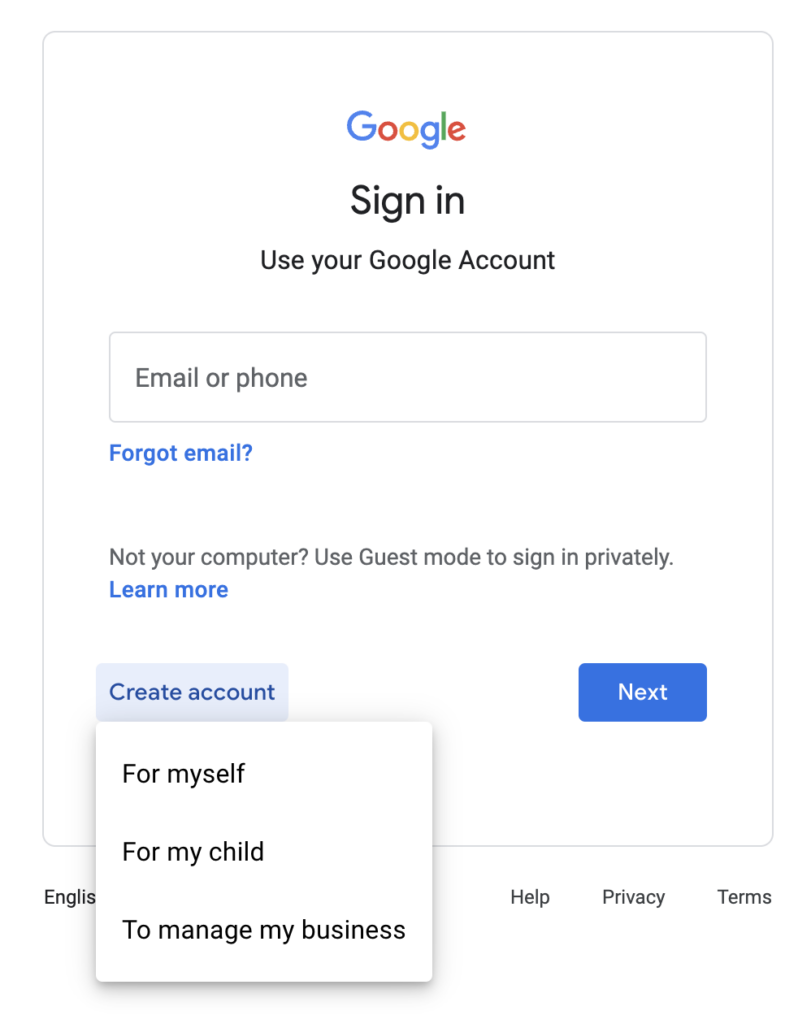
To begin on a desktop or laptop, navigate to the YouTube homepage. The “Sign In” button, typically located in the top right corner, serves as the gateway. If you do not have an existing Google identity, the “Create account” prompt offers two primary paths: “For myself” or “To manage my business.”
The system will then request standard metadata: name, a chosen email address (or the option to create a new @gmail.com address), and a password. From a technical security standpoint, the password should be a high-entropy string, ideally generated by a cryptographic password manager to mitigate the risk of brute-force attacks. Once the initial forms are submitted, Google will employ a verification handshake, often requiring a code sent via SMS or a secondary email to ensure the user is not a bot or a malicious script.
Mobile Application Initialization
On iOS and Android devices, the YouTube application leverages the operating system’s built-in account manager. On Android, the YouTube app is often pre-integrated with the primary Google Account used to set up the device. If adding a new account, the app utilizes OAuth 2.0 flows to redirect the user to a secure login interface. This ensure that the application itself never sees the user’s master password, instead receiving a secure token that permits access to YouTube’s API.
During the mobile setup, the app may request permissions for camera access, microphone access, and photo library integration. For the tech-conscious user, it is advisable to review these permissions within the device’s “Settings” menu to ensure that only the necessary data points are being shared with the application.
Securing Your Digital Asset: Advanced Privacy and Security
Once the account is active, the focus shifts from creation to fortification. Given the prevalence of account hijacking and phishing, implementing robust security measures is non-negotiable for anyone serious about their digital footprint.

Implementing Multi-Factor Authentication (MFA)
The single most effective way to secure a YouTube account is through Two-Step Verification (2SV). By moving beyond a simple password, users add a layer of hardware-based or software-based security.
-
Google Prompts: This is the default and most user-friendly method, where a notification appears on a trusted mobile device asking the user to verify a login attempt.
-
Authenticator Apps: Utilizing Time-based One-Time Passwords (TOTP) via apps like Google Authenticator or Authy provides a local, offline method of verification that is resistant to SIM-swapping attacks.
-
Physical Security Keys: For high-profile creators or those in sensitive industries, using a FIDO2-compliant hardware key (like a YubiKey) represents the gold standard in security. These keys require physical contact with the device to authorize a login, virtually eliminating the possibility of remote account takeovers.
Privacy Settings and Data Telemetry
YouTube collects a significant amount of data to power its recommendation engine. Users can manage this through the “Data in YouTube” dashboard. From a technical perspective, this involves configuring your “Watch History” and “Search History” settings. You can set these to auto-delete after a specific duration (e.g., 3 months or 18 months) or disable them entirely.
Furthermore, it is essential to audit the “Connected Apps” section of your Google Account settings. Often, third-party tools or websites request access to your YouTube data via API permissions. Periodically revoking access for apps you no longer use minimizes your attack surface and ensures that your data telemetry remains within your control.
Exploring the YouTube Studio: Technical Tools for Creators
Once an account is established and secured, users gain access to the YouTube Studio—the platform’s backend command center. This is where the transition from “consumer” to “power user” or “creator” occurs.
Dashboard Analytics and Interface Navigation
YouTube Studio provides a granular view of channel performance through a sophisticated analytics engine. It utilizes BigQuery-style processing to present data on impressions, click-through rates (CTR), and audience retention. For the tech-savvy user, understanding these metrics is crucial. The “Reach” tab, for instance, provides a technical breakdown of how the YouTube algorithm is surfacing your content across different traffic sources, such as external search, suggested videos, or the browse feature.
Uploading and Technical Specifications
When you begin uploading content through your new account, you must adhere to specific technical standards to ensure optimal playback quality. YouTube’s transcoders process videos into multiple resolutions (from 144p to 8K) and formats (such as VP9 and AV1).
To ensure the best result, users should upload videos in high-bitrate H.264 or HEVC (H.265) containers. Understanding aspect ratios (predominantly 16:9 for desktop and 9:16 for Shorts) and frame rates (standard 24, 30, or 60 fps) is essential for maintaining professional-grade quality. The account also allows for the management of “Metadata,” including tags, descriptions, and closed captions (SRT files), which are indexed by search crawlers to categorize your content accurately.
Troubleshooting and Optimization Strategies
Even with a streamlined process, technical hurdles can arise during account creation or daily operation.
Resolving Common Authentication Errors
Users may occasionally encounter “Account Action Required” notifications or 401 Unauthorized errors. These are often caused by expired session tokens or conflicts between multiple logged-in Google Accounts. A common technical fix is to clear the browser’s cache and cookies or to use an Incognito/Private window to force a fresh authentication handshake. If the issue persists, checking the Google Workspace Status Dashboard can reveal if there is a systemic outage affecting the YouTube API.
Browser Optimization and App Cache Management
For a smoother experience, ensure your browser (Chrome, Firefox, Edge, or Safari) is updated to the latest version to support modern web standards like WebAssembly and HTML5 video. On mobile devices, if the app becomes sluggish, clearing the application cache within the OS settings can resolve performance bottlenecks without requiring a full account logout.
By following these technical steps and understanding the underlying infrastructure of the Google ecosystem, users can effectively establish, secure, and optimize their YouTube accounts. This foundational setup is the first step in leveraging one of the most powerful digital platforms in existence, whether for personal enrichment, technical education, or professional content distribution.
aViewFromTheCave is a participant in the Amazon Services LLC Associates Program, an affiliate advertising program designed to provide a means for sites to earn advertising fees by advertising and linking to Amazon.com. Amazon, the Amazon logo, AmazonSupply, and the AmazonSupply logo are trademarks of Amazon.com, Inc. or its affiliates. As an Amazon Associate we earn affiliate commissions from qualifying purchases.