
There are few moments more frustrating for a computer user than needing to reinstall a crucial piece of software like Microsoft Office, only to realize you can’t locate its product key. Whether you’re upgrading your PC, performing a clean installation of Windows, or simply troubleshooting a persistent Office issue, having your product key readily available is essential for reactivating your software and ensuring continued productivity. Without it, you might find yourself unable to use the applications you’ve already purchased, leading to a scramble for solutions or, worse, an unplanned repurchase.
This guide is designed to walk you through various methods to retrieve your Microsoft Office product key from an already installed system. We’ll cover everything from simple checks of your Microsoft account and physical documentation to more advanced techniques involving third-party tools and system utilities. Understanding where your key might be stored and how different Office versions manage licensing is crucial to a successful recovery. By the end of this article, you’ll be equipped with the knowledge and steps needed to locate that elusive key and restore your access to the indispensable suite of Office applications.
Understanding Microsoft Office Product Keys and Licensing
Before diving into the retrieval methods, it’s vital to understand what a product key is and the different ways Microsoft licenses its Office suite. This foundational knowledge will help you pinpoint where your specific key might be located and what to expect during the recovery process.
What is a Product Key and Why is it Important?
A Microsoft Office product key is a 25-character alphanumeric code that serves as proof of purchase and a unique identifier for your specific software license. It’s typically formatted in five groups of five characters (e.g., XXXXX-XXXXX-XXXXX-XXXXX-XXXXX). This key is essential for activating your copy of Office, verifying its legitimacy, and tying it to your account or device.
The importance of your product key cannot be overstated:
- Activation: It’s the primary method to activate your Office suite after installation, unlocking all its features.
- Reinstallation: If you need to reinstall Office on the same or a new device, the product key is required for reactivation. This is common after a hardware upgrade, a system crash, or moving to a new computer.
- Proof of Ownership: The key serves as proof that you legally own the software license, which can be important for support queries or audits.
- Software Portability: For perpetual licenses, the product key allows you to transfer the software to a new machine after uninstalling it from the old one, assuming your license terms permit it.
Without a valid and accessible product key, reacquiring full functionality of your Office suite can range from inconvenient to impossible, potentially forcing you to purchase a new license.
Different Types of Office Licenses
Microsoft offers several types of Office licenses, each with its own method of key management and activation. Understanding your license type is the first step in knowing where to look for your product key.
- Retail Licenses (Perpetual): These are one-time purchases, often for specific versions like Office Home & Business 2019, Office Professional 2021, etc. You receive a traditional product key, either physically in a box, via email for digital purchases, or linked to your Microsoft account. This key is typically stored in the system’s registry after activation.
- OEM (Original Equipment Manufacturer) Licenses: Office is sometimes pre-installed on new computers purchased from manufacturers like Dell, HP, or Lenovo. In many cases, these versions are “pre-activated” at the factory, and a separate physical product key might not be provided to the end-user. The key might be embedded in the UEFI firmware or tied directly to the hardware. For older OEM versions, a sticker might be found on the PC chassis.
- Volume Licenses: Primarily used by large organizations, these licenses allow a single key (a Multiple Activation Key or MAK) or a Key Management Service (KMS) to activate multiple installations. End-users in such environments typically don’t manage individual product keys; activation is handled by their IT department.
- Microsoft 365 Subscriptions: This is a subscription-based service (formerly Office 365) that includes the latest versions of Office apps, cloud storage, and other benefits. Microsoft 365 does not use a traditional 25-character product key for activation in the same way perpetual licenses do. Instead, activation is tied to your Microsoft account. You simply sign in with the Microsoft account associated with your active subscription to activate Office on your devices. If you purchased a Microsoft 365 subscription card, it usually contains a one-time activation code that you redeem at setup.office.com to link the subscription to your Microsoft account, after which the code itself is no longer directly used for activation.
Knowing which type of license you have will significantly narrow down your search for the product key. If you have Microsoft 365, your “key” is simply your Microsoft account credentials.
Initial Steps: Where to Look First
Before resorting to complex technical solutions, it’s always best to start with the most straightforward and common places where your Office product key might be stored or recorded. These methods are generally safe, easy, and often successful.
Check Your Microsoft Account Online
For many modern versions of Microsoft Office, especially those purchased digitally or linked during initial setup, your product key or digital license is associated with your Microsoft account. This is often the quickest and most reliable method to retrieve your license information.
Steps:
- Go to the Microsoft Services & Subscriptions page: Open your web browser and navigate to
account.microsoft.com/services. - Sign In: Use the Microsoft account (email and password) that you used when you originally purchased or activated Microsoft Office. Make sure it’s the correct account, as many users have multiple Microsoft accounts.
- Locate Office: Once signed in, look for your Microsoft Office product listed under “Products you’ve purchased” or “Subscriptions.”
- View Product Key/Install Information: For perpetual licenses (e.g., Office Home & Business 2019/2021), you might see an option to “View product key” or “Install” which often reveals the key before installation. For Microsoft 365, you won’t see a traditional product key; instead, you’ll manage your subscription and installations directly from this page. You just need to sign in to the Office apps with this account.
- Copy the Key: If the key is displayed, copy it down accurately and store it securely.
This method is particularly effective for digital purchases made directly from Microsoft or if you linked your retail key to your Microsoft account during the initial activation.
Physical Packaging and Purchase Confirmation Emails
If your Office software was purchased as a physical retail box or from a third-party retailer, the product key is likely found on the packaging or in your purchase records.
- Physical Retail Box: If you purchased Office in a box, the product key is typically located on a sticker inside the box, on a card, or printed directly on the installation disc sleeve. Take the time to meticulously check all components of the original packaging.
- Purchase Confirmation Emails: For digital purchases from retailers (e.g., Amazon, Best Buy, Newegg, or even Microsoft itself if not directly linked to your account yet), the product key is almost always included in the confirmation email you received after your purchase. Search your email inbox (and spam folder) for terms like “Microsoft Office,” “product key,” “license,” or the specific version you bought. Check emails from the retailer or from Microsoft.
- Retailer Account History: Some online retailers keep a record of your digital product keys within your account purchase history. Log in to the retailer’s website and navigate to your order history or digital library section.
It’s a good practice to always keep physical packaging and digital receipts for software purchases in a safe place, as they are your primary proof of ownership.
OEM Pre-installed Office (Sticker or Pre-activated)
If your Microsoft Office came pre-installed on a new computer, especially older versions, the product key might be handled differently.
- Product Key Sticker: For some older OEM versions (e.g., Office 2010, 2013), the product key might be printed on a sticker affixed to your computer chassis (desktop tower or laptop underside). These stickers often include both the Windows and Office product keys.
- Pre-activated Licenses: Many newer PCs with pre-installed Office (often a trial or a full perpetual license like Office Home & Student) are activated digitally. This means the license is tied to the hardware and/or a Microsoft account that was used to set up the PC. In such cases, you might not receive a traditional product key, or it might be embedded in the system’s firmware. If prompted for a key after a reinstallation, signing in with the Microsoft account originally used to set up the PC or claim the Office license is usually sufficient. If you upgraded from an OEM Windows 10/11 Home to Pro, the Office key might still be intact or tied to the OEM license.
If your Office was pre-installed, it’s less likely you’ll find a physical key unless it’s an older system. Focus on your Microsoft account or the possibility that it’s digitally entitled.
Advanced Methods: Using Software and System Tools
When the initial checks don’t yield the product key, it’s time to delve into more technical methods. These approaches often involve using specialized software or system commands to extract the key from where it’s stored on your computer.
Utilizing Third-Party Product Key Finder Software
Product key finder utilities are designed to scan your Windows registry and installed software to locate and display product keys for various applications, including Microsoft Office. These tools can be incredibly helpful but require careful selection to ensure security and effectiveness.
How they work: When Office is installed and activated, its product key (or a hashed/encrypted version of it) is stored in the Windows Registry. These tools are programmed to locate and decrypt this information.
Popular and Reputable Tools:
- ProduKey (NirSoft): A lightweight and widely respected utility that can display product keys for Windows, Microsoft Office, and other Microsoft products. It’s known for its simplicity and effectiveness.
- Belarc Advisor: This tool not only finds product keys but also provides a comprehensive profile of your installed software, hardware, and network inventory. It’s more extensive than just a key finder.
- Recuva (from Piriform, the makers of CCleaner): While primarily a data recovery tool, Recuva and other system utilities often have features that can extract product keys.
- Magical Jelly Bean Keyfinder: Another popular free utility that supports a wide range of software, including many versions of Office.
Steps (General):
- Download from a Trusted Source: Always download these utilities from the official developer’s website or reputable software download sites to avoid malware or unwanted bundled software.
- Run the Software: Most key finders are portable (no installation needed) or have a straightforward installation process. Run the executable file.
- Scan and Display: The software will automatically scan your system. Within moments, it should display a list of detected product keys for various installed applications, including your Microsoft Office suite.
- Identify and Record: Locate your Office product key. It will typically specify the version (e.g., “Microsoft Office Professional Plus 2016”). Copy the key accurately and store it securely.
Important Considerations:
- Antivirus Warnings: Some antivirus programs might flag legitimate key finder tools as “potentially unwanted programs” (PUPs) because they access system information. If you downloaded from a trusted source, you can often temporarily allow the program to run. Exercise caution.
- Compatibility: Ensure the tool you choose supports your specific version of Microsoft Office. Older tools might not work with the latest Office versions (e.g., Office 2019/2021) or with Microsoft 365, which uses account-based activation.
- Security Risk: Using untrusted key finders can expose your system to malware. Stick to well-known and reviewed utilities.
Using Command Prompt or PowerShell (For Older Office Versions or Specific Scenarios)
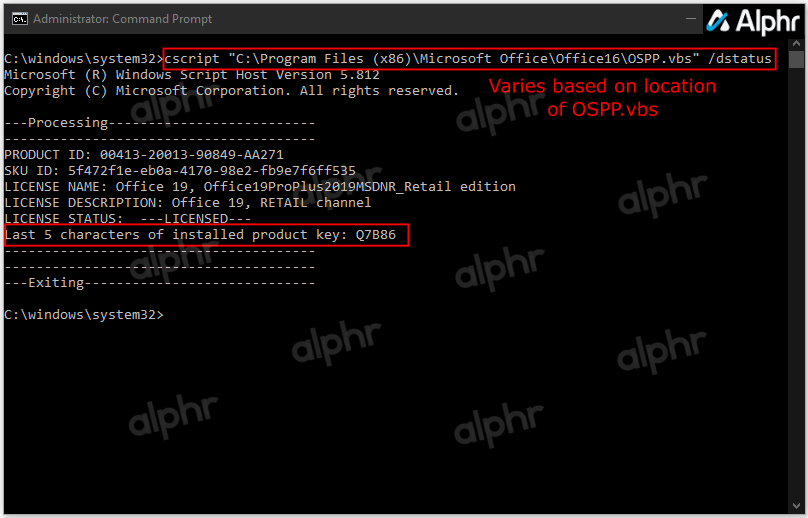
For certain versions of Microsoft Office (primarily Office 2010, 2013, and some 2016 installations, especially volume licensed ones), you might be able to retrieve at least the last five characters of your product key using the Command Prompt or PowerShell. While this doesn’t provide the full key, it can be useful for verification or for support personnel to identify your license type. For newer retail versions of Office, the full key is often not directly readable this way due to encryption and how product activation is handled.
Method 1: Using the Office Software Protection Platform Script (OSPPS.vbs)
This script is part of the Office installation and can report licensing information.
Steps (for Office 2010, 2013, 2016 – 32-bit or 64-bit Office on 64-bit Windows):
- Open Command Prompt as Administrator: Search for “cmd” in the Start Menu, right-click “Command Prompt,” and select “Run as administrator.”
- Navigate to the Office Installation Directory:
- For 32-bit Office on 64-bit Windows:
cd "C:Program Files (x86)Microsoft OfficeOfficeXX"(ReplaceOfficeXXwith your version, e.g.,Office14for 2010,Office15for 2013,Office16for 2016). - For 64-bit Office on 64-bit Windows:
cd "C:Program FilesMicrosoft OfficeOfficeXX" - For 32-bit Office on 32-bit Windows:
cd "C:Program FilesMicrosoft OfficeOfficeXX" - Note: For Click-to-Run installations (common for Office 2013/2016/2019), the path might be slightly different, often under
C:Program FilesMicrosoft OfficerootOfficeXXor similar.
- For 32-bit Office on 64-bit Windows:
- Execute the Command: Type the following command and press Enter:
cscript OSPPS.vbs /dstatus - Review Output: The output will display detailed license information, including the “Last 5 characters of installed product key.”
Method 2: PowerShell for newer versions (may only show subscription status)
For modern Office versions, especially Microsoft 365, PowerShell might indicate subscription status rather than a traditional key.
Steps:
- Open PowerShell as Administrator: Search for “PowerShell” in the Start Menu, right-click, and select “Run as administrator.”
- Execute Command:
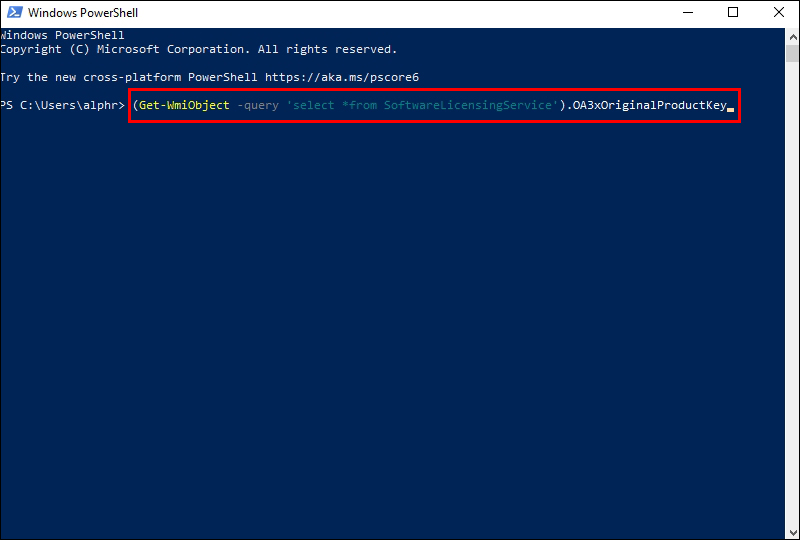
Get-CimInstance -ClassName SoftwareLicensingProduct | Where-Object {$_.ApplicationID -eq "59a52881-a989-4791-88cd-112e44d4126e" -and $_.LicenseStatus -eq 1} | Select-Object -ExpandProperty PartialProductKey
This command specifically targets active Office installations and attempts to retrieve the partial product key. Its effectiveness can vary based on the Office version and licensing type.
These command-line methods are less likely to retrieve the full 25-character product key for modern retail Office perpetual licenses due to enhanced encryption, but they remain a useful diagnostic tool, especially for older installations.
Checking the Windows Registry (Manual Search – Not Recommended for Beginners)
The Windows Registry is a hierarchical database that stores low-level settings for the operating system and applications. While Office product keys are indeed stored here, directly browsing the registry to find them is highly discouraged for beginners due to the risk of accidentally modifying critical system settings, which can lead to system instability or failure.
Why it’s not recommended for most users:
- Complexity: Keys are often encrypted or stored in non-obvious locations.
- Risk of Damage: Incorrect modifications to the registry can render your Windows installation or other software unusable.
- Inefficiency: It’s often much faster and safer to use a dedicated product key finder tool which automates the process and safely extracts the information.
If you are an advanced user and understand the risks, the keys for older Office versions (e.g., Office 2007) might be found under paths like HKEY_LOCAL_MACHINESOFTWAREMicrosoftOffice12.0Registration (for Office 2007). Newer versions store keys in different, often encrypted, formats or under specific software protection platform keys that are harder to decipher manually. Third-party tools are essentially doing this registry deep-dive for you in a controlled and safe manner.
What to Do If You Can’t Find Your Key
Despite trying all the above methods, there might be instances where your Microsoft Office product key remains elusive. Don’t despair; there are still avenues to explore before considering a new purchase.
Contacting Microsoft Support
If you’ve exhausted all self-help options, reaching out to Microsoft Support is your next best step. They have access to licensing databases and can sometimes help you recover your key or verify your entitlement, especially if the product was purchased directly from Microsoft or registered to your Microsoft account.
Before contacting support, prepare the following information:
- Microsoft Account Details: The email address(es) you used to purchase or activate Office.
- Proof of Purchase: Any order numbers, transaction IDs, digital receipts, or physical product keys you might have found (even if partial).
- Computer Information: Details about the PC where Office is installed, including its make, model, and Windows version.
- Office Version: The exact version of Office you have installed (e.g., Office Home & Business 2019, Microsoft 365 Personal).
- Activation Status: Information on whether Office is currently activated and functional, or if it’s asking for a key.
How to contact Microsoft Support:
- Visit the Microsoft Support Website: Go to
support.microsoft.com. - Use the Virtual Agent or Chat: Often, the quickest way to get started is by using their virtual agent or online chat support.
- Request a Callback or Phone Support: If chat isn’t resolving your issue, you can typically request a callback or find phone numbers for your region.
Be patient and clear when explaining your situation. Microsoft support staff are often able to assist with lost product keys if you can provide sufficient proof of ownership.
Considering a Microsoft 365 Subscription
If, after all attempts, you are unable to recover your perpetual Office product key, and you genuinely need the software, considering a Microsoft 365 subscription is a viable and often advantageous alternative.
Benefits of Microsoft 365:
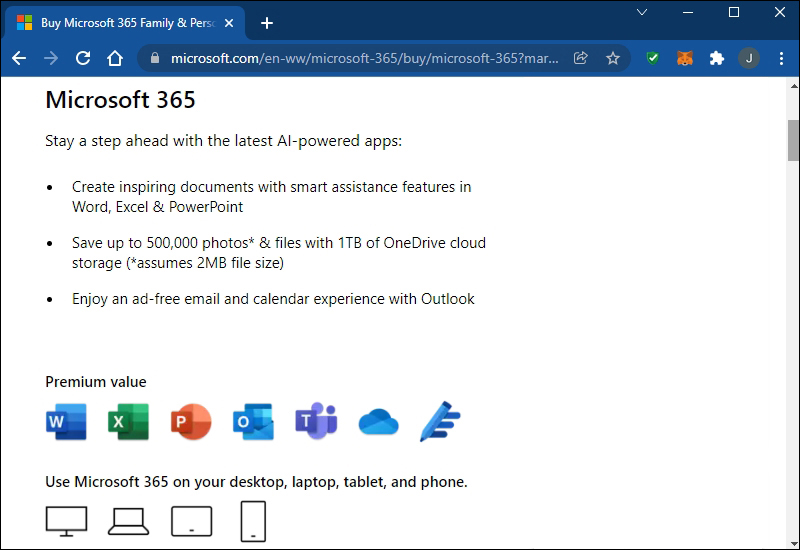
- Always Up-to-Date Software: You always have access to the latest versions of Word, Excel, PowerPoint, Outlook, and other apps.
- Cloud Integration: Comes with 1 TB of OneDrive cloud storage per user, allowing seamless document access and collaboration across devices.
- Multi-Device Installation: Microsoft 365 Personal typically allows installation on up to 5 devices (PCs, Macs, tablets, phones) simultaneously. Microsoft 365 Family extends this to up to 6 users, each with 1 TB of storage and 5 installs.
- Premium Features: Includes additional features and templates not always available in perpetual licenses.
- No Product Key Hassle: As discussed, activation is account-based. You simply sign in with your Microsoft account to use Office, eliminating the need to track a 25-character key.
- Technical Support: Includes ongoing technical support from Microsoft.
While it’s a subscription model, the comprehensive features, cloud benefits, and ease of management often make it a more attractive option than purchasing a new perpetual license, especially if your old key is truly lost and your previous Office version is outdated. It ensures you remain productive with the most current tools without the worry of losing another product key.
Best Practices for Product Key Management
Preventing the problem of a lost product key is always better than solving it. Adopting good practices for managing your software licenses can save you significant time and frustration in the future.
Storing Your Product Key Securely
Once you have your product key, whether new or recovered, it’s crucial to store it in a way that is both accessible and secure.
- Password Manager: Using a reputable password manager (e.g., LastPass, 1Password, Bitwarden) is an excellent method. These tools encrypt your sensitive information and synchronize it across your devices, accessible with a single master password.
- Digital Document in Cloud Storage (Encrypted): Store a digital copy of your key in a document (e.g., a text file or spreadsheet) and save it in a secure cloud storage service (e.g., OneDrive, Google Drive, Dropbox) that offers encryption or within an encrypted container. Do not store it as plain text directly accessible on your desktop.
- Physical Record: Write down the product key on a piece of paper and store it in a safe place, such as a fireproof safe, a secure filing cabinet, or taped inside the original software box if you still have it. Make multiple copies if you wish, but ensure they are all secured.
- Email to Yourself (Encrypted): You could email the key to yourself, but this is generally less secure than a password manager unless your email provider offers robust encryption and you use strong, unique passwords.
Avoid leaving your product key written on a sticky note attached to your monitor or saved in an unsecured file on your computer.
Regular Backups and Documentation
Beyond just the key itself, maintaining proper documentation and backups related to your Office purchase can be invaluable.
- Keep Purchase Records: Retain original receipts, invoices, and confirmation emails for your Office purchase. These documents serve as definitive proof of ownership and are essential if you ever need to contact Microsoft support.
- Screenshot Activation Screens: When you initially activate Office, taking a screenshot of the “Activation Successful” screen or any screen that displays your product ID can be helpful.
- System Backups: Regularly back up your entire system, including your registry. While a full system backup won’t directly give you an unencrypted product key, it can restore your system to a state where Office is still activated and functional, or where a key finder tool can still retrieve the key.
- Centralized Digital Locker: Consider using a personal “digital locker” system for all your software licenses, product keys, and important digital assets. This could be a dedicated folder on an encrypted drive or a feature within a comprehensive file management system.
By being proactive in managing your software licenses, you can avoid the headache of searching for lost product keys and ensure uninterrupted access to your essential productivity tools.
Conclusion
Finding a lost Microsoft Office product key can be a daunting task, but it is often achievable with the right approach. From checking your Microsoft account and sifting through old emails and physical packaging to leveraging sophisticated third-party key finder tools, there are multiple pathways to recovery. We’ve explored methods ranging from simple verification to using command-line tools and even delving into the registry (with appropriate warnings for beginners).
Ultimately, the best strategy depends on your specific Office version, how it was purchased, and how it was initially activated. For modern Office 365 subscriptions, remember that your Microsoft account is your “key.” For perpetual licenses, understanding where your key is stored – be it in your Microsoft account, physical documentation, or the system’s registry – is crucial.
Should all your attempts to retrieve the key prove unsuccessful, Microsoft Support remains a valuable resource, and considering an upgrade to a Microsoft 365 subscription offers a reliable and feature-rich alternative that sidesteps traditional product key management altogether. Going forward, adopting best practices for securely storing your product keys and maintaining comprehensive purchase records will save you from future frustrations, ensuring your access to Microsoft Office remains seamless and uninterrupted, empowering your productivity for years to come.
aViewFromTheCave is a participant in the Amazon Services LLC Associates Program, an affiliate advertising program designed to provide a means for sites to earn advertising fees by advertising and linking to Amazon.com. Amazon, the Amazon logo, AmazonSupply, and the AmazonSupply logo are trademarks of Amazon.com, Inc. or its affiliates. As an Amazon Associate we earn affiliate commissions from qualifying purchases.