
In an increasingly mobile and interconnected world, the ability to access your favorite entertainment on demand, regardless of internet connectivity, has become paramount. Amazon Prime Video, a titan in the streaming industry, offers a vast library of movies, TV shows, and original content. While streaming provides instant gratification, the option to download these videos empowers users with flexibility, allowing for uninterrupted viewing during travel, commutes, or in areas with limited or no internet access. This comprehensive guide will navigate the technical landscape of downloading Amazon videos, focusing on official methods, technical considerations, and best practices to ensure a seamless and enjoyable offline viewing experience.
Understanding Amazon’s Official Download Options
Amazon provides legitimate and user-friendly methods for downloading content from its Prime Video service. These official channels are designed to ensure content security through Digital Rights Management (DRM) while offering convenience to subscribers. Utilizing these methods is crucial for maintaining a hassle-free and legally compliant experience.
Amazon Prime Video App for Mobile Devices and Tablets
The most common and robust way to download Amazon videos is through the official Prime Video app available for iOS and Android devices. This mobile application is optimized for portable viewing and offers extensive download capabilities.
-
Process Overview:
-
Install the App: Download and install the “Amazon Prime Video” app from your device’s respective app store (App Store for iOS, Google Play Store for Android).
-
Sign In: Log in with your Amazon account credentials that have an active Prime subscription or access to purchased/rented content.
-
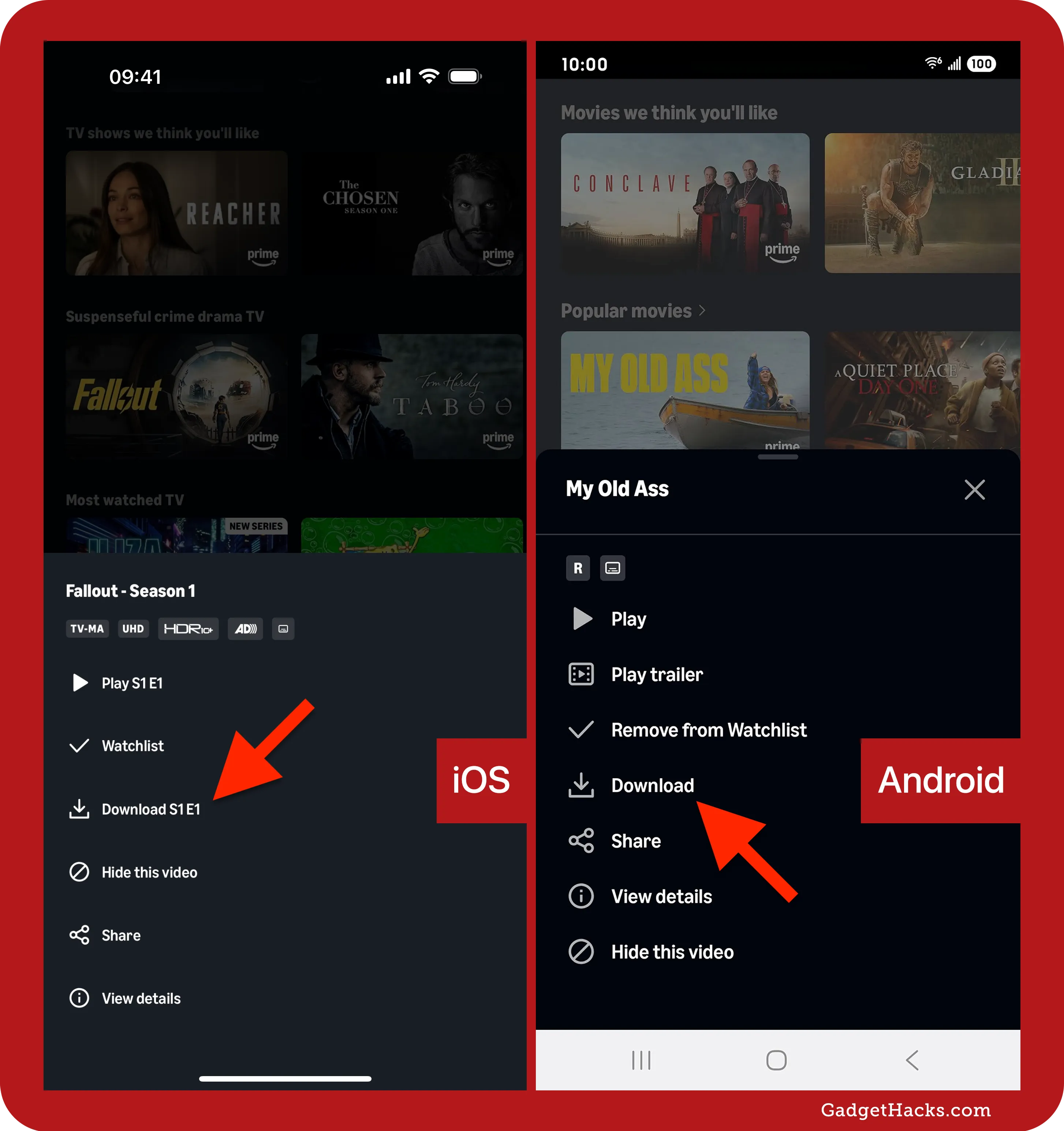
Browse and Select: Navigate through the extensive library and select the movie or TV show you wish to download. For TV shows, you can typically download individual episodes or an entire season (if available).
-
Initiate Download: On the content’s detail page, you will find a “Download” button. For TV shows, this button might be next to each episode. Tapping it will prompt you to select the download quality.
-
Quality Selection: The app usually offers various quality options such as “Good,” “Better,” “Best,” or specific resolutions like SD, HD, or even UHD, depending on the content and your device’s capabilities. Higher quality means a larger file size.
-
Monitor Downloads: Downloads can be monitored in the “Downloads” section of the app, accessible via the navigation menu.
-
Offline Playback: Once downloaded, the content will remain available in the “Downloads” section for offline viewing, without requiring an internet connection.
-
-
Storage Management: The app often allows you to specify a download location, such as internal storage or an external SD card (on Android devices), providing flexibility for users with limited internal memory. You can also easily delete downloaded content from within the app to free up space.
Amazon Prime Video App for Windows and macOS
Recognizing the need for offline viewing on larger screens, Amazon also offers a dedicated Prime Video application for Windows and macOS computers. While the functionality is similar to the mobile versions, there might be subtle differences in user interface and feature availability.
-
Accessing the Desktop App:
-
Windows: Download the “Amazon Prime Video” app from the Microsoft Store.
-
macOS: Download the “Amazon Prime Video” app from the Mac App Store.
-
-
Download Procedure: The steps for finding, selecting, and downloading content largely mirror the mobile app experience. Users sign in, browse the library, select their desired content, choose a download quality, and initiate the download.
-
Limitations and Considerations: While offering the convenience of desktop viewing, these applications often have stricter DRM controls regarding playback on external monitors or in virtual environments. They also require sufficient hard drive space, similar to their mobile counterparts.
Limitations of Official Downloads
Despite the convenience, it’s crucial to understand the inherent limitations imposed by Amazon’s DRM policies and content licensing agreements. These restrictions are in place to protect intellectual property and ensure fair usage.
-
Expiration Dates: Downloaded rentals typically expire after a certain period (e.g., 30 days from rental, and 48 hours once you start watching). Purchased content generally remains downloadable as long as your Amazon account is active and the content rights are maintained by Amazon, though offline access might still have viewing period restrictions once you start watching.
-
Device Restrictions: There are often limits on the number of devices you can download content to simultaneously, or the total number of unique titles you can download across all devices within a specific timeframe.
-
Geographical Limitations (Geo-blocking): Content availability for streaming and download can vary significantly based on your geographical location due to licensing agreements. A title available in one country might not be downloadable or even streamable in another. Downloads usually expire if you travel outside the region where the content was originally licensed.
-
Content Availability: Not all content available for streaming on Amazon Prime Video is necessarily available for download. This is often dictated by the content owners and their distribution agreements.
-
No Permanent Files: Downloads through the official app are encrypted and linked to your Amazon account. They are not standard video files that can be transferred, copied, or played outside the Prime Video app.
The “Why” Behind Downloading Amazon Videos
The decision to download videos rather than solely relying on streaming is driven by several practical and compelling reasons, all contributing to a more flexible and reliable viewing experience.
Uninterrupted Offline Viewing
The primary advantage of downloading is the ability to watch content without an active internet connection. This is invaluable in numerous scenarios:
-
Travel: Long flights, train journeys, or road trips often involve periods with no Wi-Fi or unreliable cellular data. Downloaded videos provide guaranteed entertainment.
-
Commutes: Daily commutes on subways or buses, which frequently pass through areas with poor signal, become an opportunity to catch up on shows.
-
Remote Locations: For vacations in cabins, camping trips, or even homes in rural areas with spotty internet, downloads ensure access to your library.
Data Saving and Bandwidth Management
Streaming high-definition video consumes a significant amount of data. For users with limited data plans or those trying to manage their home internet bandwidth, downloading offers a smart solution.
-
Mobile Data Plans: Downloading over Wi-Fi before leaving home eliminates the need to use precious mobile data while on the go. This can lead to substantial savings on monthly bills.
-
Limited Home Bandwidth: In households with multiple users, downloading during off-peak hours can prevent buffering issues and bandwidth congestion during prime streaming times. It also reduces the overall data footprint on capped home internet plans.
Preserving Content for Later Enjoyment
While streaming services offer vast libraries, content can rotate in and out of availability due to licensing changes. Downloading purchased content, in particular, offers a degree of preservation, albeit within the confines of Amazon’s DRM.
-
Guaranteed Access: For purchased movies or seasons of shows, downloading ensures you have access to that specific content even if it were to leave the Prime streaming library or if you temporarily lose your Prime subscription.
-
Peace of Mind: Knowing your favorite content is saved on your device offers peace of mind, eliminating worries about internet outages or service interruptions disrupting your viewing plans.
Technical Considerations for Downloading
Before embarking on a downloading spree, it’s essential to understand the technical requirements and implications to optimize your experience and avoid common pitfalls.
Device Compatibility and Storage Requirements
Not all devices are created equal, and understanding your device’s capabilities is crucial.
-
Supported Devices: Ensure your device (smartphone, tablet, Windows PC, macOS computer) is running a supported operating system version for the Prime Video app. Older OS versions might not support the latest app features or even the app itself.
-
Available Storage: Video files, especially in HD or UHD quality, can be very large. A feature-length movie in HD could easily be 2-5 GB, and an entire season of a TV show could be tens of gigabytes.
-
Internal Storage: Check your device’s available internal storage. If it’s low, you might need to delete other apps, photos, or files.
-
External Storage (SD Cards): Many Android devices support expandable storage via SD cards. The Prime Video app typically allows you to designate an SD card as the download location, which is an excellent way to offload large video files without filling up your device’s primary storage. Ensure the SD card is of sufficient speed and capacity.
-
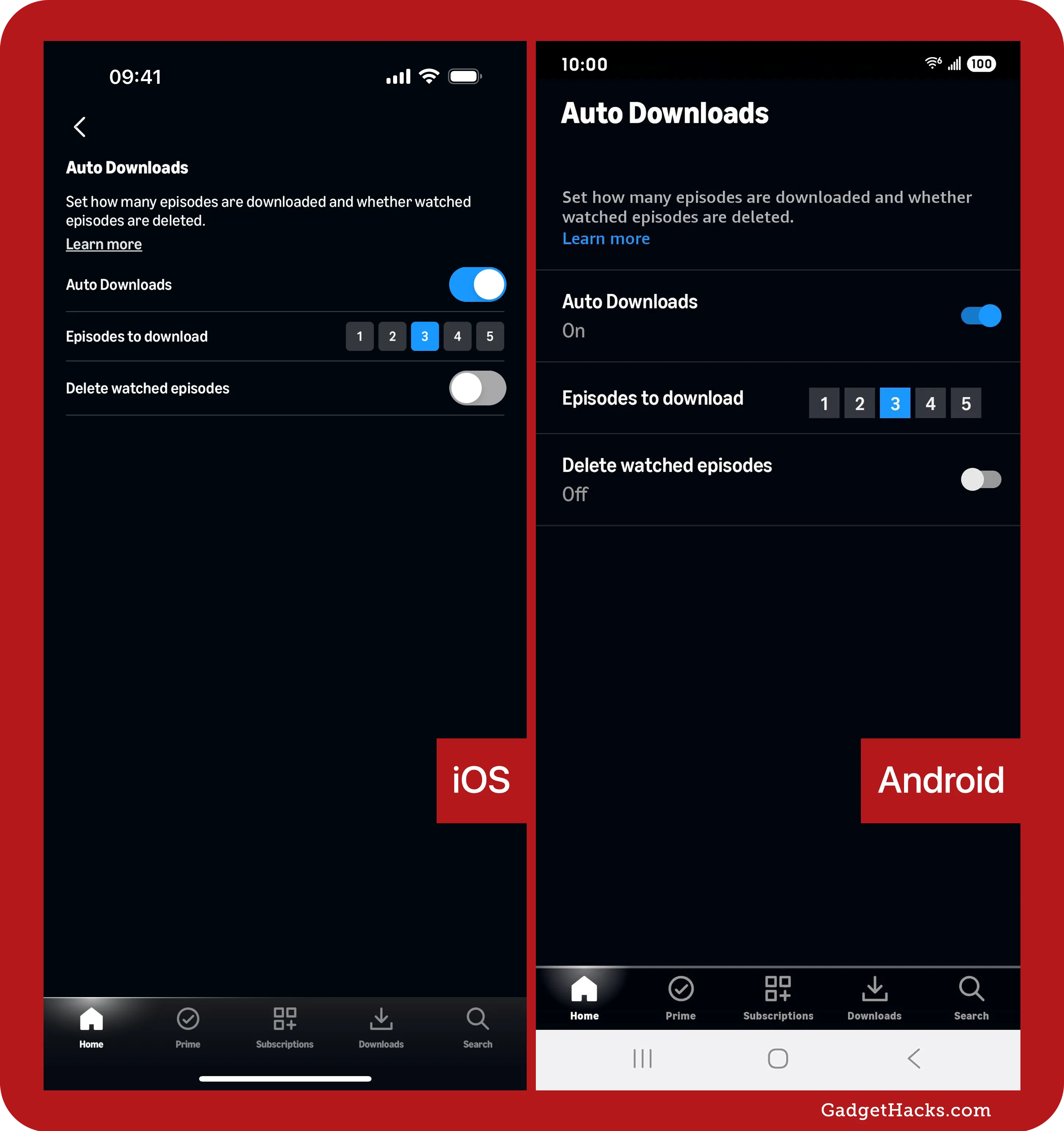
Video Quality Settings and Their Impact
The Prime Video app usually offers different download quality settings. Understanding these options is key to balancing visual fidelity with storage consumption.
-
Standard Definition (SD): Lowest quality, smallest file size. Suitable for smaller screens or when storage is extremely limited.
-
High Definition (HD): Better quality, larger file size. The most common choice for a good balance on most devices.
-
Ultra High Definition (UHD/4K): Highest quality, largest file size. Only available on select devices that support 4K playback and for specific content. Requires significant storage.
-
Impact: Opting for “Best” or UHD quality will consume storage much faster than “Good” or SD. Consider your viewing device (a small phone screen might not fully benefit from UHD) and your available storage when making this choice. You can adjust the default download quality in the app’s settings.
Digital Rights Management (DRM) and Playback Restrictions
DRM is the underlying technology that protects copyrighted content and dictates how downloaded videos can be used.
-
Encryption: All official Amazon downloads are encrypted. This means the files are not playable by generic video players and cannot be simply copied and transferred. They are tied directly to the Prime Video app and your account.
-
Authentication: When you play a downloaded video, the app performs a quick authentication check with Amazon’s servers (if online) or uses cached credentials (if offline) to verify your rights to watch the content.
-
Viewing Window: As mentioned, purchased content often has a long or indefinite viewing window, but rentals are strictly time-limited. These time limits are enforced by DRM.
-
Device Limit: DRM also enforces the limit on how many devices can simultaneously hold a download of a particular title.
Troubleshooting Common Download Issues
Even with the most robust systems, occasional technical hiccups can occur. Knowing how to troubleshoot common download problems can save time and frustration.
Network Connectivity Problems
The most frequent culprit for failed downloads is a poor or unstable internet connection.
-
Check Wi-Fi/Cellular: Ensure your device is connected to a stable Wi-Fi network (recommended for downloads) or has a strong cellular data signal.
-
Router Reboot: If on Wi-Fi, try restarting your home router and modem.
-
Test Connection: Open a web browser or another app to confirm your internet connection is working correctly.
-
Firewall/Antivirus: Ensure your computer’s firewall or antivirus software isn’t inadvertently blocking the Prime Video app’s connection to Amazon’s servers.
Insufficient Storage Space
This is another very common issue, especially with larger downloads or devices with limited memory.
-
Check Device Storage: Go into your device’s settings (e.g., “Storage” on Android, “iPhone Storage” on iOS, “System Information” on Windows/macOS) to see how much free space is available.
-
Delete Unnecessary Files: Remove old photos, videos, unused apps, or other large files.
-
Manage Existing Downloads: Within the Prime Video app’s “Downloads” section, you can easily delete previously watched content to free up space.
-
Utilize SD Card: If on an Android device, ensure the app is configured to download to your SD card if one is present and has sufficient space.
App-Specific Glitches and Updates
Software can sometimes misbehave.
-
Restart the App: Force close the Prime Video app and reopen it.
-
Restart Device: A simple device restart can resolve many temporary software glitches.
-
Clear Cache (Android): On Android, you can go to App Info for Prime Video and clear its cache. This can resolve corrupted data issues without deleting your downloads.
-
Update the App: Ensure your Prime Video app is always updated to the latest version. Developers frequently release updates that fix bugs and improve performance.
-
Reinstall the App: As a last resort, uninstalling and then reinstalling the Prime Video app can resolve deep-seated issues, though you will lose any existing downloads and need to sign back in.
Geographic Restrictions and VPN Usage (with caveats)
Geo-blocking can prevent downloads even if you can stream content.
-
Location Services: Ensure your device’s location services are enabled for the Prime Video app if prompted, as this helps Amazon verify your region.
-
VPNs: While VPNs can mask your location, using them to circumvent geographical restrictions on content is often against Amazon’s terms of service. While a VPN might allow you to download content from a different region, there’s a risk of account suspension, and playback might still be restricted if the app detects VPN usage. It’s generally best to stick to content available in your actual region.
Best Practices for Managing Your Downloaded Library
An organized approach to your downloaded videos can enhance your overall Prime Video experience.
Organizing Content and Storage
-
Categorize: While the Prime Video app doesn’t offer extensive custom categorization, you can make it a practice to download similar types of content (e.g., kids’ shows for a trip, adult dramas for personal viewing) in batches.
-
Regular Purging: Make it a habit to delete content once you’ve watched it or if its viewing window has expired. This prevents unnecessary clutter and frees up valuable storage space.
-
Monitor SD Card Usage: If using an SD card, periodically check its remaining capacity to avoid download failures.
Optimizing Download Settings
-
Default Quality: Set your default download quality in the app’s settings to match your typical viewing habits and device storage capacity. If you primarily watch on a phone, “Better” or HD might be sufficient, saving space compared to “Best.”
-
Download Over Wi-Fi Only: Ensure the setting to download only over Wi-Fi is enabled to prevent accidental consumption of mobile data.
Regular Maintenance and Updates
-
Keep App Updated: Always install Prime Video app updates promptly. These often contain performance improvements, bug fixes, and security enhancements crucial for a smooth experience.
-
Device Updates: Keep your device’s operating system updated. OS updates often include security patches and performance improvements that can impact app functionality.
-
Charge Before Downloading: For large downloads, ensure your device has sufficient battery life or is connected to a charger, as the download process can be resource-intensive.

Conclusion
The ability to download Amazon videos transforms the Prime Video experience from a purely streaming service into a versatile entertainment platform, perfectly suited for modern lifestyles. By understanding and utilizing the official Prime Video apps for mobile and desktop, users gain the power to watch their favorite content anytime, anywhere, without the constraints of an internet connection. While adhering to the technical considerations of device storage, video quality, and DRM limitations is key, the benefits of uninterrupted offline viewing, data saving, and content preservation far outweigh these minor complexities. By following these guidelines and best practices, you can effectively manage your downloaded library, troubleshoot common issues, and ultimately unlock the full potential of your Amazon Prime Video subscription. Happy viewing!
aViewFromTheCave is a participant in the Amazon Services LLC Associates Program, an affiliate advertising program designed to provide a means for sites to earn advertising fees by advertising and linking to Amazon.com. Amazon, the Amazon logo, AmazonSupply, and the AmazonSupply logo are trademarks of Amazon.com, Inc. or its affiliates. As an Amazon Associate we earn affiliate commissions from qualifying purchases.