
The TI-84 series of graphing calculators has been an indispensable tool for students, educators, and professionals across various STEM fields for decades. From pre-algebra to calculus, statistical analysis to financial modeling, its capabilities are vast and varied. Among its fundamental functions, the ability to accurately input, manipulate, and understand fractions is paramount. While seemingly straightforward, mastering fraction operations on a TI-84 can significantly streamline mathematical processes, reduce errors, and deepen one’s understanding of numerical relationships. This comprehensive guide will demystify fractions on your TI-84, transforming it from a mere calculator into a powerful ally in your mathematical journey.
For many, the transition from manual fraction calculations to using a calculator can sometimes be a stumbling block. The traditional ‘division’ symbol doesn’t always yield the desired fractional output, often resulting in decimals. However, the TI-84 is meticulously designed to handle fractions with grace, offering intuitive methods for input, conversion, and complex operations. Understanding these features is not just about convenience; it’s about unlocking the full potential of your device, ensuring precision in your calculations, and fostering a robust grasp of mathematical concepts that are often best expressed in fractional form. We will explore the different models within the TI-84 family, from the classic TI-84 Plus to the more modern TI-84 Plus CE, highlighting any subtle differences in their user interfaces where relevant. By the end of this article, you’ll be adept at navigating the TI-84’s fraction functionalities, ready to tackle any problem that comes your way.
Understanding the TI-84 and its Fraction Capabilities
The Texas Instruments TI-84 family of graphing calculators has long been a staple in high school and college mathematics classrooms. Renowned for its user-friendly interface and robust feature set, it simplifies complex calculations and visualizes mathematical concepts. For fractions, the TI-84 isn’t just about crunching numbers; it’s about providing a clear, accurate representation that mirrors traditional handwritten math, making it an invaluable educational tool.
Why Fractions Matter on a Graphing Calculator
Fractions are fundamental building blocks of mathematics, representing parts of a whole, ratios, and divisions. In many contexts, such as geometry, probability, or advanced algebra, expressing an answer as a fraction is not merely an alternative; it’s often the required or most precise form. A decimal representation, while sometimes adequate, can introduce rounding errors and obscure the exact relationship between quantities. For instance, knowing that something is 1/3 rather than 0.3333… conveys exactness and avoids loss of precision. The TI-84’s ability to handle fractions natively ensures that mathematical integrity is maintained throughout complex problem-solving, which is crucial for both learning and professional applications where exactness is paramount. This precision is especially critical in fields like engineering, physics, and financial analysis where minute inaccuracies can lead to significant discrepancies.
A Brief Introduction to the TI-84 Interface
Before diving into fractions, a quick orientation to the TI-84’s key components is helpful. The calculator features a prominent screen (monochrome on older models, color on CE versions), a keypad divided into several sections: graphing keys (top row), editing and navigation keys (below graphing keys), number and operation keys (central area), and advanced function keys (bottom rows). The “MATH” button, “ALPHA” key, and “Y=” button are particularly important for fraction input. The “ALPHA” key, typically green or blue, activates the green/blue labels above other keys, allowing access to a secondary set of functions and characters. The “MATH” button opens a menu of mathematical operations, including fraction conversions and functions. Familiarity with these core elements is the first step towards mastering any operation on the calculator, fractions included.
Evolution of Fraction Input on TI-84 Models
The functionality for handling fractions has largely remained consistent across the TI-84 Plus, TI-84 Plus Silver Edition, and the modern TI-84 Plus CE. However, the CE model, with its higher-resolution color screen and MathPrint™ feature, offers a significantly enhanced user experience. MathPrint™ displays fractions (and other mathematical expressions like radicals and exponents) in a way that closely resembles how they would appear in a textbook, using a horizontal fraction bar rather than the linear ‘numerator/denominator’ format. This visual fidelity greatly reduces cognitive load and aids in comprehension. While the core keystrokes for accessing fraction templates are similar, the visual output on the CE is superior. Users of older models will still find robust fraction support, but the display will be a linear format like 1/2. Regardless of the model, the underlying mathematical engine handles fraction arithmetic with consistent accuracy, providing reliable results for all users.
Basic Fraction Input and Display
Effectively using fractions on the TI-84 begins with knowing how to input them correctly and how to interpret their display. The calculator offers several methods, catering to different scenarios and user preferences. Mastering these foundational techniques is essential before tackling more complex operations.
Entering Simple Fractions (Numerator/Denominator)
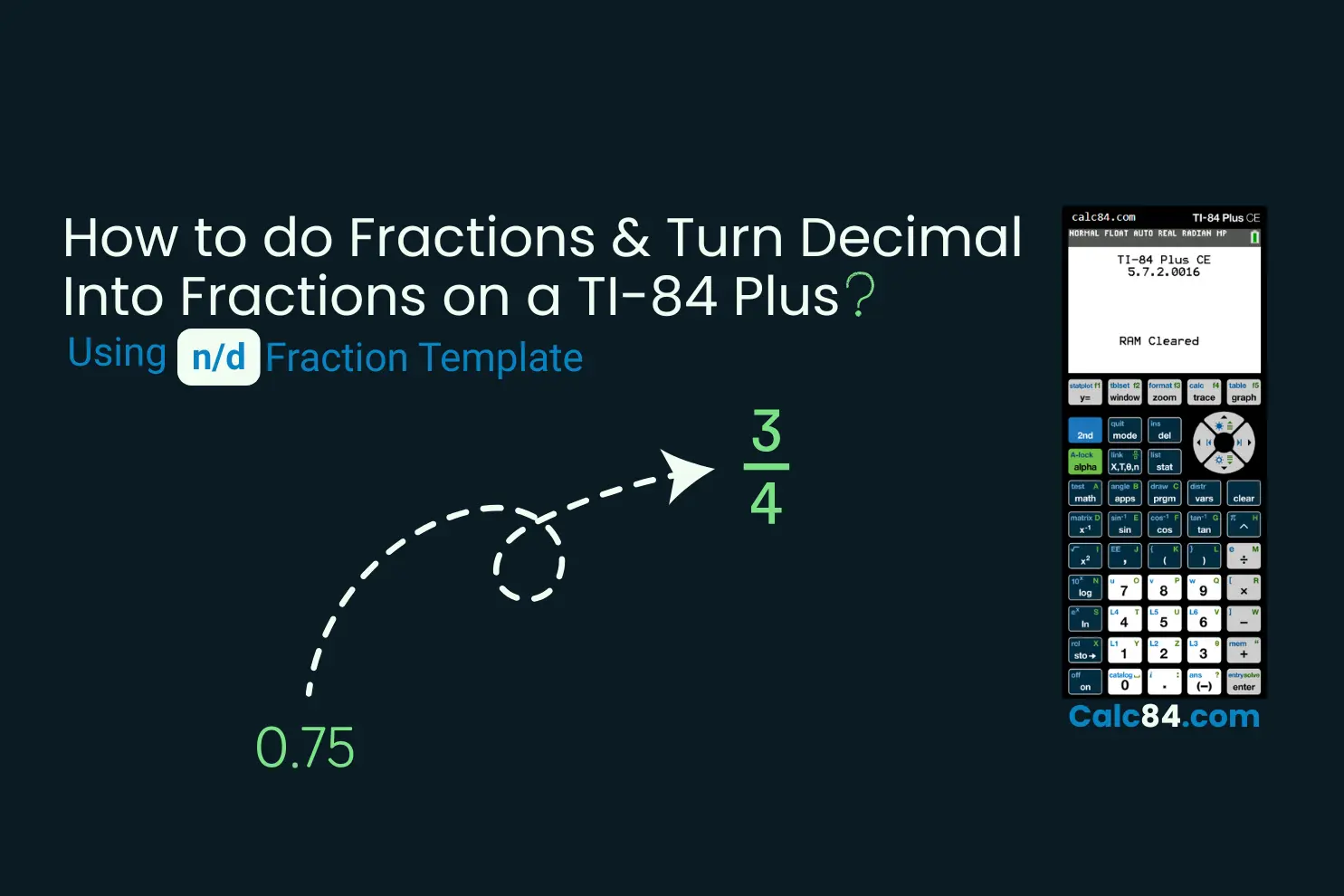
The most basic way to input a fraction on any TI-84 model is by using the division symbol (/). For example, to enter one-half, you would type 1 / 2. When you press ENTER, the calculator will typically display the decimal equivalent (0.5). To convert this decimal back into a fraction, you can use the MATH menu. After getting the decimal result, press MATH, then select 1: >Frac and press ENTER. The calculator will convert the decimal to its simplest fractional form. This method is universal across all TI-84 models and is a good starting point for simple conversions. However, for continuous fractional work, the template method is often preferred.
Using the Fraction Template (Alpha Y= F1)
For a more intuitive and visually appealing input, especially on TI-84 Plus CE models with MathPrint™, the fraction template is invaluable. This feature allows you to input fractions with a horizontal bar, just like in a textbook.
To access the fraction template:
-
Press
ALPHA(the green or blue key). -
Press
Y=(which hasF1orFRAClabeled above it in green/blue). -
From the menu that appears, select
1: n/d(numerator/denominator) for a proper or improper fraction, or2: Un/dfor a mixed number.
Once you select n/d, a template with two empty boxes (one for the numerator, one for the denominator) will appear on the screen. Use the arrow keys to navigate between the boxes and enter your desired numbers. This method is highly recommended as it visually clarifies the structure of the fraction, reducing potential input errors and improving readability, especially in complex expressions.
Converting Decimals to Fractions and Vice Versa
The TI-84 makes it easy to switch between decimal and fractional representations.
Decimal to Fraction:
-
Enter the decimal number (e.g.,
0.75). -
Press
MATH. -
Select
1: >Frac(or>FRACon some models) and pressENTER. -
Press
ENTERagain to execute. The calculator will display the simplest fractional form (e.g.,3/4).
Fraction to Decimal:
-
Input your fraction using either the
n/dtemplate or the/symbol (e.g.,1/4). -
Press
ENTER. The calculator will automatically display the decimal equivalent (e.g.,0.25).
This seamless conversion is incredibly useful for checking answers, understanding relationships between different number forms, and adapting calculations to specific problem requirements.
Mixed Numbers and Improper Fractions
The TI-84 also handles mixed numbers and improper fractions with ease.
Entering Mixed Numbers:
To enter a mixed number like 2 1/3, use the mixed number template:
-
Press
ALPHAthenY=. -
Select
2: Un/d(whole number, numerator/denominator). -
Fill in the whole number, numerator, and denominator using the arrow keys.
For example, for 2 1/3, you’d enter 2 in the whole number box, 1 in the numerator, and 3 in the denominator.
Converting Between Mixed and Improper Fractions:
The calculator can convert improper fractions to mixed numbers and vice-versa, though sometimes it requires a two-step process depending on the model and the desired output.
To convert an improper fraction (e.g., 7/3) to a mixed number for display:
-
Input the improper fraction (e.g., using
ALPHA Y= 1: n/dto enter7/3). -
Press
ENTER. The calculator will usually display the decimal (2.333…) or the improper fraction itself. -
To explicitly get the mixed number form, you can sometimes use
MATH>Frac, but the default>Fracoften gives the simplest improper fraction. For a specific mixed number conversion, you might need to find the whole number part (e.g.,int(7/3) = 2) and the remainder part ((7 mod 3)/3 = 1/3) manually if your specific calculator OS doesn’t have a direct “to mixed number” function. However, the TI-84 primarily operates with improper fractions for calculations, and theUn/dinput is mainly for initial entry. For most calculations, leaving fractions as improper is mathematically sound and often preferred.
Performing Operations with Fractions
Once you’re comfortable with basic fraction input, the next step is to perform arithmetic operations. The TI-84 handles addition, subtraction, multiplication, and division of fractions just as it would with integers or decimals, but with the added benefit of maintaining fractional precision.
Addition and Subtraction of Fractions
Adding and subtracting fractions on the TI-84 is straightforward using the fraction template.
-
Enter the first fraction using
ALPHA Y= 1: n/d. -
Press the
+or-operator. -
Enter the second fraction using
ALPHA Y= 1: n/d. -
Press
ENTER.
The calculator will automatically find a common denominator, perform the operation, and display the result in its simplest fractional form. For example, to calculate 1/3 + 1/2:
ALPHA Y= 1: n/d (enter 1/3) + ALPHA Y= 1: n/d (enter 1/2) ENTER
The result will be 5/6. This automates the often tedious process of finding the least common multiple, allowing you to focus on the problem’s conceptual aspects rather than the arithmetic mechanics. This is a significant time-saver, especially with fractions involving larger or less obvious denominators.
Multiplication and Division of Fractions
Multiplication and division of fractions follow the same intuitive pattern:
Multiplication:
-
Enter the first fraction.
-
Press the
*(multiplication) operator. -
Enter the second fraction.
-
Press
ENTER.
For example, to calculate 1/2 * 3/4:
ALPHA Y= 1: n/d (enter 1/2) * ALPHA Y= 1: n/d (enter 3/4) ENTER
The result will be 3/8.
Division:
-
Enter the first fraction.
-
Press the
/(division) operator. -
Enter the second fraction.
-
Press
ENTER.
For example, to calculate 1/2 / 3/4:
ALPHA Y= 1: n/d (enter 1/2) / ALPHA Y= 1: n/d (enter 3/4) ENTER
The result will be 2/3. The calculator handles the inversion and multiplication automatically, simplifying complex fraction division into a few keystrokes.
Fractions in Complex Equations
Fractions can be integrated seamlessly into more complex equations involving multiple operations, variables, and functions. The TI-84’s robust order of operations (PEMDAS/BODMAS) ensures that fractions are treated correctly within the hierarchy of operations.
When dealing with expressions like (1/2 + 1/3) * (2/5 - 1/10), simply input each fraction using the template and enclose operations within parentheses as needed. The calculator will manage the entire expression, respecting the order of operations and providing a precise fractional answer. This capability is particularly useful in algebra, trigonometry, and calculus where fractional coefficients and terms are common. The clarity of the MathPrint™ display on CE models further aids in ensuring the correct input of complex expressions.
Handling Parentheses and Order of Operations
When working with fractions in multi-step problems, remember the importance of parentheses. The TI-84 strictly adheres to the order of operations. If you need to perform an operation on fractions before another, enclose that operation in parentheses. For instance, 1/2 + 1/3 * 1/4 will calculate 1/3 * 1/4 first, then add 1/2. If you intend (1/2 + 1/3) * 1/4, you must explicitly use parentheses. The clear visual display of fractions, especially on the CE models, makes it easier to verify that your input matches your intended mathematical expression. Always double-check complex inputs to prevent errors due to misapplied order of operations.
Advanced Fraction Functions and Troubleshooting
Beyond basic arithmetic, the TI-84 offers several advanced functions and considerations for working with fractions, alongside strategies for troubleshooting common issues. Maximizing your use of the calculator means understanding these deeper functionalities.
Simplifying Fractions and Finding Common Denominators
While the TI-84 automatically simplifies fractions after most operations, you might occasionally need to simplify a fraction explicitly or explore its components. The calculator’s MATH menu is your friend here. The >Frac function, as discussed, converts decimals to fractions, always in simplest form. For prime factorization or finding common denominators, while not a direct “common denominator” button, the calculator’s numeric capabilities can assist. For instance, to find the least common multiple (LCM) of two denominators (e.g., 3 and 5), you can use the MATH NUM menu for lcm( function: lcm(3, 5) would yield 15. This can aid in manual verification or deeper understanding when required. For explicitly simplifying a fraction already entered, simply entering it and pressing ENTER, then using MATH >Frac on the result ensures it’s in simplest form.
Using Fractions in Graphing and Table Functions
Fractions aren’t just for computations; they can be integrated into the TI-84’s graphing and table features. When defining a function in Y=, you can use fractions as coefficients or constants. For example, Y1 = (1/2)X + 3/4. The calculator will graph the line or curve based on these fractional values. When you access the table (2nd GRAPH), the output will typically be decimal approximations, but the underlying function is precisely defined by the fractions. This is incredibly useful for visualizing functions defined by precise fractional parameters, allowing students to see the impact of exact fractional slopes or intercepts without manual conversion. You can also set table increments (TBLSET, 2nd WINDOW) as fractions, e.g., X = 1/4, which can be invaluable for analyzing functions at specific fractional points.
Common Errors and How to Resolve Them
Even with an intuitive interface, errors can occur. Here are some common fraction-related issues:
-
Decimal output instead of fraction: If you’re getting decimals, remember to use the
MATH >Fracfunction after the calculation. Ensure you’re not using a calculator mode that defaults to decimal only (checkMODEsettings). -
Syntax Error: This often happens when fractions are entered incorrectly. For template-based input, ensure all boxes are filled. For linear input (
/), ensure correct parentheses around complex numerators or denominators, e.g.,(1+1)/2vs1+1/2. -
Domain Error: This usually occurs when trying to perform an undefined operation, like dividing by zero. Double-check your denominators.
-
Incorrect Simplification: While rare, if you suspect an incorrect simplification, ensure your calculator’s operating system is up to date, as bugs are occasionally patched.
Always review your input carefully, especially when dealing with nested fractions or complex expressions. The error messages on the TI-84 are often descriptive and can point you towards the specific issue.
Utilizing the Math Menu for Fraction-Related Operations
The MATH menu is a treasure trove for fraction manipulation. Beyond >Frac, you can find other useful functions:
-
NUMsub-menu: Offerslcm((least common multiple) andgcd((greatest common divisor), which are useful for understanding the relationships between denominators and numerators. -
FRACsub-menu (on some models): Directly available options liken/dandUn/dtemplates for input.
Exploring the MATH menu is crucial for unlocking the full capabilities of your TI-84. Many less common, but highly useful, functions are tucked away here, waiting to be discovered by the inquisitive user. Regularly reviewing these options can reveal new efficiencies and deeper insights into mathematical operations.
Enhancing Your Mathematical Workflow with the TI-84
Mastering fractions on the TI-84 isn’t just about knowing the buttons; it’s about integrating this knowledge into a seamless and efficient mathematical workflow. By leveraging customization options and understanding the calculator’s broader capabilities, you can significantly enhance your productivity and accuracy.
Customizing Settings for Fraction Display
The MODE menu is where you can customize how your TI-84 displays results. While the default settings are often suitable, certain preferences can improve your workflow. For example, ensuring that “MathPrint” is enabled (on CE models) under the MODE menu will guarantee that fractions are displayed in their natural, textbook-like format. You can also control decimal precision (Float vs. specific decimal places), which, while not directly impacting fraction input, affects how fractional results are displayed if they are converted to decimals. Experimenting with these settings can personalize your calculator experience, making it more aligned with your visual preferences and the demands of specific problems. For instance, setting DECIMAL to a fixed number of places might be useful for a physics lab, while AUTO (or Float) is better for general math where exact fractions are desired.
Integration with Other Calculator Features
Fractions are not isolated; they interact with almost every other feature on the TI-84.
-
Storing fractions as variables: You can store fractional results or constants into variables (e.g.,
1/3 -> A) to recall them quickly in later calculations without re-entering. This is particularly useful for constants like pi or for interim results in multi-step problems. -
Using fractions in lists and matrices: Fractions can be elements within lists or matrices, allowing for complex statistical or linear algebra computations with precise fractional values.
-
Programming with fractions: For advanced users, fractions can be incorporated into custom programs written on the calculator, automating repetitive tasks or implementing specialized algorithms.
This interconnectedness means that your mastery of fractions extends and enhances the utility of virtually every other feature your TI-84 offers, transforming it into a truly versatile computational device.

Best Practices for Efficiency and Accuracy
To maximize your efficiency and accuracy when working with fractions on the TI-84:
-
Always use the fraction template (
ALPHA Y=) on CE models for complex fractions; it dramatically reduces input errors and improves readability. For older models, master parentheses for linear input. -
Verify input: Before pressing ENTER, quickly review the expression on the screen to ensure it matches your intended calculation.
-
Utilize the
ANSfeature: TheANSbutton (2nd (-)) recalls the last answer, which is incredibly useful for chained calculations involving fractions, maintaining precision from one step to the next. -
Understand decimal vs. fraction context: Know when a decimal approximation is acceptable and when an exact fractional answer is required by the problem’s context.
-
Practice: Like any skill, proficiency with fractions on the TI-84 comes with practice. Work through various examples, from simple additions to complex equations involving fractions.
In conclusion, the TI-84 graphing calculator is a powerful ally for anyone dealing with fractions, offering precise and intuitive methods for input, calculation, and conversion. By leveraging its MathPrint™ display, understanding the MATH menu, and employing best practices, you can confidently navigate the world of fractions, making your mathematical journey smoother and more accurate. This mastery not only enhances your calculator skills but also deepens your fundamental understanding of numerical concepts, preparing you for academic and professional challenges alike.